
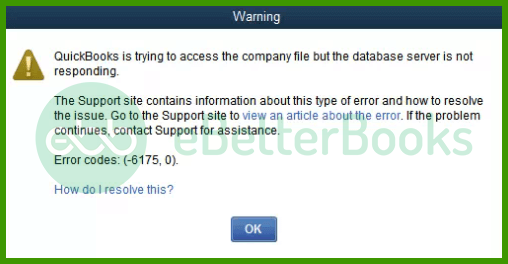
QuickBooks Error -6175, 0 is a Database Server Manager service failure error. It occurs when QuickBooks Desktop attempts to access a company file in multi-user mode and the QuickBooks Database Server Manager — the Windows service that manages shared file access across the network — cannot start, respond, or complete its required tasks on the server computer.
The full error message reads in one of these forms:
An error occurred when QuickBooks tried to access the company file. Please try again. If the problem persists, contact Intuit and provide them with the following error code: (-6175, 0).
QuickBooks is trying to access the company file, but the database server is not responding. Error: -6175, 0 — We’re sorry, but QuickBooks can’t open your company file.
What does the -6175, 0 Code Specifically Mean?
According to Intuit’s official support documentation:
“QuickBooks company file error 6175 occurs when QB Desktop is unable to start or stop the Database Server Manager. The Database Server Manager is used in multi-user mode to host company files. If this service faces a program time-out, it cannot start, resulting in error 6175 in QuickBooks.”
This means -6175, 0 is exclusively a multi-user mode error. It does not occur in single-user mode because the Database Server Manager is not involved when only one user accesses the company file directly.
The Three-Layer Service Chain That -6175 Targets
When a workstation opens a company file in multi-user mode, it goes through this chain — and -6175 fires when any link breaks:
- Layer 1 — QuickBooksDBXX Windows Service
A Windows background service (named QuickBooksDB followed by a two-digit year number, e.g., QuickBooksDB32 for QB 2022) running on the server machine. This service must be running at all times during multi-user sessions. If it stops, no workstation can connect.
- Layer 2 — QBDataServiceUser Account (Most Common Failure Point)
A special Windows user account QuickBooks automatically creates during installation. This account runs the QuickBooksDBXX service on behalf of the server and MUST have Administrator rights. Without Administrator rights, the service fails to start and -6175 fires. Windows Updates can silently demote this account from Administrator to Standard User.
- Layer 3 — QuickBooks Database Server Manager (QBDBMgrN.exe)
The program-level component that manages network file connections, maintains the .ND file, and coordinates access between workstations and the company file. It communicates through the QuickBooksDBXX service.
The Isolated vs. Recurring Distinction
- Isolated occurrence (appears once, then clears): The server was temporarily overloaded. The Database Server Manager hit a startup timeout. A simple server restart restores normal operation. No further action is required if the restart resolves it.
- Recurring occurrence (appears every time): A structural problem exists — misconfigured hosting settings, QBDataServiceUser without Administrator rights, incorrect service configuration, firewall blocking, or corrupted QuickBooks program files. Requires working through Fixes 2-12 below.
Understanding Error -6175, 0 on Windows 11
While the core mechanics of the error remain the same, Windows 11 introduces specific behaviors that trigger Error -6175, 0 more frequently. Windows 11 features enhanced security protocols such as strict User Account Control (UAC) and Core Isolation which are highly sensitive to background database operations.
When a major Windows 11 update installs overnight, the OS is highly prone to silently stripping away the administrative privileges of the QBDataServiceUser account or flagging the QuickBooksDBXX service as an unverified background risk.
Furthermore, Windows 11’s advanced firewall rules often block the older communication protocols used by the QuickBooks Database Server Manager (QBDBMgrN.exe), causing immediate multi-user timeouts even if your network sharing settings worked perfectly the day before.
The H-Series Error Relationship
When -6175, 0 occurs on the server, workstations simultaneously receive H-series errors. Fixing -6175, 0 resolves these automatically:
| Error Code | Meaning | Relationship to -6175, 0 |
| H101 | This workstation thinks it is the only host | Workstation symptom when server QBDSM fails |
| H202 | Cannot locate the server in multi-user mode | Workstation cannot connect to failed service |
| H303 | Hosting computer cannot be found | Workstation symptom when server QBDSM fails |
| H505 | Hosting is off on this workstation | Resolves automatically when -6175 is fixed |
How -6175, 0 Differs from Other Company File Errors?
| Error Code | Root Failure | Data Risk | Single-User | Fix Direction |
| –6000, -77 | Permissions/path denial | No | Yes | Folder permissions, UNC path |
| -6000, -83 | File data damage | Yes | Yes | Verify/Rebuild, ADR |
| -6000, -301 | Support file damage, encryption | Sometimes | Yes | Rename .TLG+.ND+.DSN |
| -6147, 0 | File/backup inaccessible at path | No | Yes | Shorten path, remap drive |
| -6175, 0 | Database Server Manager cannot start/stop | No | No – multi-user only | Fix QBDSM service, hosting, QBDataServiceUser |
Root Causes of Error -6175, 0
- Cause 1: QuickBooksDBXX Service Stopped or Failed to Start — The Windows service powering multi-user access has stopped due to a server restart, Windows Update interruption, service timeout from temporary overload, or manual stop.
- Cause 2: QBDataServiceUser Account Lacks Administrator Rights (Most Common Persistent Cause) — Windows Updates, Windows version upgrades, and Group Policy changes can silently demote the QBDataServiceUser account from Administrator to Standard User. Without Admin rights, the service fails to start every time multi-user mode is engaged.
- Cause 3: Incorrect Hosting Configuration — Workstations Competing as Hosts — Only the server should have ‘Host Multi-User Access’ enabled. If workstations also have hosting enabled, they compete with the server to claim the file, producing -6175, 0. This is the most common cause in office environments.
- Cause 4: QuickBooks Not Installed on the Server (Only Database Server Manager) — In some deployments, only the standalone Database Server Manager is on the server. The configuration path differs: the QBDSM application must be used directly, not the File menu.
- Cause 5: Firewall or Security Software Blocking QuickBooks Communication — A firewall blocking required TCP ports or QuickBooks executables (QBW32.exe, QBUpdate.exe, QBDBMgr.exe, QBDBMgrN.exe) prevents multi-user connection.
- Cause 6: QuickBooksDBXX Service Set to Wrong Log-On Account — If the service is incorrectly configured to run under a different account than QBDataServiceUser, or if the Log On tab has been changed incorrectly, the service fails to start.
- Cause 7: Server Temporarily Overloaded — When the server is busy processing other tasks simultaneously, the Database Server Manager may hit its startup timeout. This is the most common cause of isolated (one-time) -6175, 0 occurrences.
- Cause 8: Corrupted QuickBooks Installation on the Server — Damaged program files from an incomplete update, aggressive antivirus scanning, or failed upgrade prevent the Database Server Manager from starting correctly.
- Cause 9: Outdated QuickBooks Version — Running outdated QuickBooks predating patches for known -6175 triggers, or different versions on server and workstations.
- Cause 10: Network Connectivity Issues — Intermittent or poor network connectivity causes the Database Server Manager to fail the connection handshake within its timeout window.
Symptoms of Error -6175, 0
- Error appears specifically when switching to multi-user mode — the file opens without error in single-user mode
- All workstations receive H101, H202, H303, or H505 errors simultaneously
- The server machine can open the company file in single-user mode but workstations cannot connect
- The error appeared after the server was restarted or a Windows Update ran overnight
- QuickBooks Database Server Manager shows as not running when checked
- Error is inconsistent — appears occasionally and clears on its own (server overload pattern)
- Error appears every time multi-user mode is engaged without exception (configuration/permission pattern)
- After attempting to fix, H101, H303, or H505 errors appear on workstations
Pre- requisites of Quickbook Error 6175, 0:
Before starting any fix, answer these two questions:
Question 1 — Does the company file open in single-user mode? Yes -> The error is -6175, 0 as described. Proceed below. No -> The issue is likely a file-damage or path error (not -6175, 0). File Doctor is the starting point.
Question 2 — Is this error isolated or recurring? Isolated (appeared once after a specific event) -> Start with Fix 1 (restart the server). If that resolves it, no further action is needed. Recurring (appears every time) -> Work through Fixes 2-12 in order.
Scenario-Based Troubleshooting: Beginner to Advanced
Scenario 1: Isolated -6175, 0 — Server Overload or One-Time Service Timeout
Applies to: Users who received -6175, 0 once after a specific event (server restart, Windows update, backup ran simultaneously, antivirus scan). Most likely cause: server temporarily overloaded; Database Server Manager hit startup timeout.
Fix 1: Restart the Server Computer and Reopen QuickBooks
Beginner | Time: 5-10 minutes
A full server restart clears all service states, releases all file handles, and forces a clean restart of the QuickBooksDBXX service and QBDBMgrN process.
- Inform all users to save their work and close QuickBooks on all workstations.
- On the server machine, close QuickBooks (if open).
- Restart the server machine (not just sign out — a full restart).
- After the server restarts completely, open QuickBooks Database Server Manager on the server: Start -> search ‘QuickBooks Database Server Manager’ -> open it.
- Confirm the service shows as running. If not, click Scan Folders -> Start Scan.
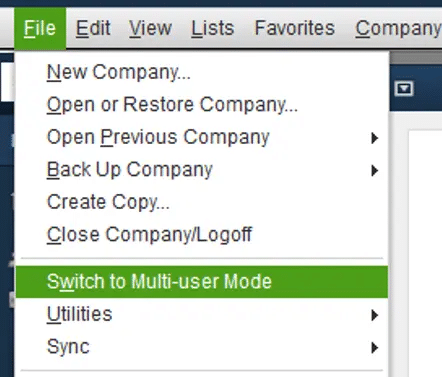
- On the server, open QuickBooks -> File -> Switch to Multi-User Mode.
- Allow workstations to connect and test.
Scenario 2: Recurring -6175, 0 — Hosting Configuration Problem
Applies to: Users where the error appears every time multi-user mode is engaged. Workstations may also show H101, H303, or H505. Most likely cause: one or more workstations have hosting enabled, competing with the server.
Fix 2: Verify and Correct Hosting Settings on All Workstations
Beginner | Time: 10-20 minutes
Every workstation must have hosting disabled; only the server should host. This is the most common cause of recurring -6175, 0 in office environments.
On each workstation (repeat on every workstation showing the error):
- Open QuickBooks on the workstation — without opening any company file (hold Ctrl while clicking the QuickBooks icon).
- Go to File -> Utilities.
- If the menu shows ‘Stop Hosting Multi-User Access’ -> click it. Click Yes to confirm. Click Yes again when prompted to close the company file. Hosting is now off.
- If the menu shows ‘Host Multi-User Access’ -> hosting is already off. No action needed.
- Repeat on every workstation in the network, including any not currently showing the error.
On the server machine (after checking all workstations):
- Open QuickBooks on the server -> File -> Utilities.
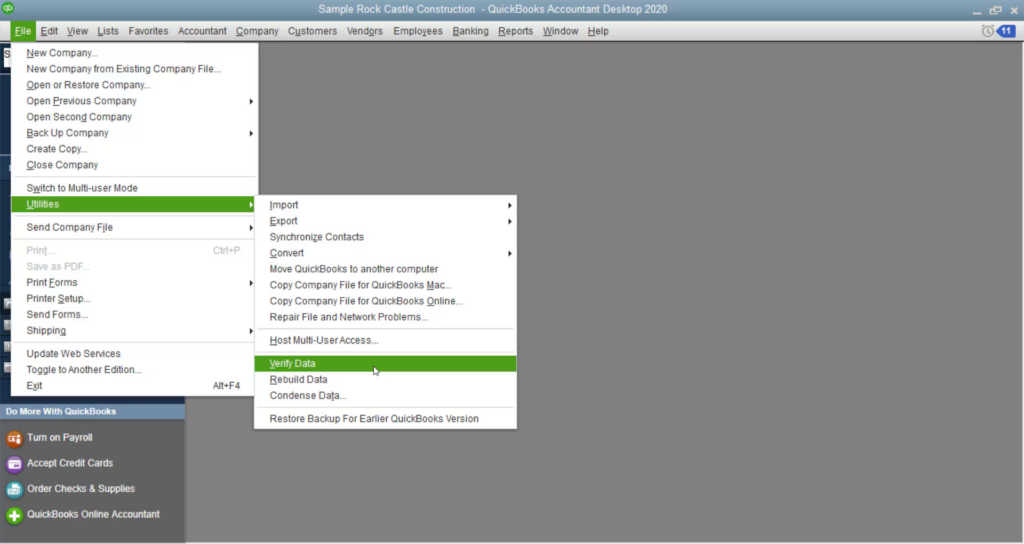
- If the menu shows ‘Host Multi-User Access’ -> click it to enable hosting.
- Then click ‘Stop Hosting Multi-User Access’ -> then ‘Host Multi-User Access’ again. This resets multi-user mode.
- From the File menu, select ‘Switch to Multi-User Mode’.
- Test from a workstation.
Fix 3: Run QuickBooks File Doctor
Beginner | Time: 15-30 minutes
File Doctor performs automated diagnosis of both company file issues and network configuration problems, including hosting conflicts and Database Server Manager state.
- Close QuickBooks on all machines.
- Open QuickBooks Tool Hub -> Company File Issues -> Run QuickBooks File Doctor.
- From the dropdown, select your company file. If not listed, click Browse.
- Select Check your file and network (full scan). Enter your QuickBooks admin password -> Next.
- Allow the scan to run (5-30 minutes). After completion, attempt to switch to multi-user mode from a workstation.
Scenario 3: Recurring -6175, 0 — QBDataServiceUser Permission Problem
Applies to: Users where the hosting fix (Fix 2) did not resolve the error, or where the error appeared after a Windows Update, Windows version upgrade, or security policy change. Most likely cause: QBDataServiceUser account has lost Administrator rights.
Fix 4: Grant QBDataServiceUser Administrator Rights
Intermediate | Time: 5-10 minutes
This is the most common cause of -6175, 0 that persists after hosting configuration is corrected. Windows Updates and Group Policy changes can silently demote QBDataServiceUser from Administrator to Standard User.
- On the server machine, close QuickBooks.
- Click Start -> Control Panel -> User Accounts -> Manage another account.
- In the list of user accounts, find QBDataServiceUser followed by two digits matching your QB year (e.g., QBDataServiceUser28 for QB 2022, QBDataServiceUser29 for QB 2023).
- Click the account name -> click ‘Change the account type’ -> select Administrator -> click ‘Change Account Type’.
- Close Control Panel. Restart QuickBooks on the server -> File -> Switch to Multi-User Mode. Test from a workstation.
Fix 5: Start or Restart the QuickBooksDBXX Windows Service Manually
Intermediate | Time: 5-10 minutes
If the QuickBooksDBXX service is stopped or in a failed state, it must be restarted. Apply Fix 4 first — restarting the service without fixing the permissions only delays the next failure.
- On the server machine: press Windows + R -> type services.msc -> Enter.
- Scroll to find QuickBooksDB followed by a two-digit year number (e.g., QuickBooksDB32 for QB 2022, QuickBooksDB33 for QB 2023, QuickBooksDB34 for QB 2024).
- Check the Status column. If Stopped or blank: right-click the service -> Start. If Running: right-click -> Restart.
- Also restart QBCFMonitorService if present (right-click -> Restart).
- Open QuickBooks Database Server Manager -> Scan Folders -> Start Scan to refresh the .ND file.
- On the server: File -> Switch to Multi-User Mode. Test from a workstation.
Fix 6: Change the QuickBooksDBXX Service Log On Account to Local System
Intermediate | Time: 10-15 minutes
When the QBDataServiceUser account has been granted Admin rights and the service restarted but -6175 persists, changing the service to run under the Local System account bypasses account-level restrictions entirely. Most effective in domain environments with restrictive Group Policy.
- On the server: press Windows + R -> type services.msc -> Enter.
- Right-click the QuickBooksDB service (two-digit year suffix) -> Properties.
- Click the Log On tab. Select ‘Local System account’ (the radio button at the top).
- Check ‘Allow service to interact with desktop’ if available. Click Apply -> OK.
- Close Properties. Right-click the service -> Restart.
- Switch to multi-user mode on the server (File -> Switch to Multi-User Mode). Test from a workstation.
Scenario 4: Recurring -6175, 0 — Firewall or Network Blocking Communication
Applies to: Users where Fixes 1-6 have not resolved the error. The service is running and QBDataServiceUser has Admin rights, but workstations cannot connect. Most likely cause: Windows Firewall or third-party security blocking QB executables or required TCP ports.
Fix 7: Add QuickBooks Executables to Windows Firewall Exceptions
Intermediate | Time: 15-25 minutes
Four QuickBooks executables must be allowed through the firewall on both the server and every workstation.
Steps (repeat on the server machine and every workstation):
- Click Start -> Windows Defender Firewall -> Allow an app or feature through Windows Defender Firewall.
- Click Change Settings -> Allow another app -> Browse.
- Navigate to C:\Program Files\Intuit\QuickBooks [Year]\ and add each of: QBW32.exe, QBUpdate.exe, QBDBMgr.exe, QBDBMgrN.exe
- For each executable, ensure both Private and Public network checkboxes are checked.
- Click OK. Repeat on every workstation and the server.
Fix 8: Open the Required QuickBooks TCP Ports in Windows Firewall
Intermediate-Advanced | Time: 20-30 minutes
Steps (repeat on the server and every workstation):
- Start -> Windows Defender Firewall -> Advanced Settings -> Inbound Rules -> New Rule -> Port -> Next.
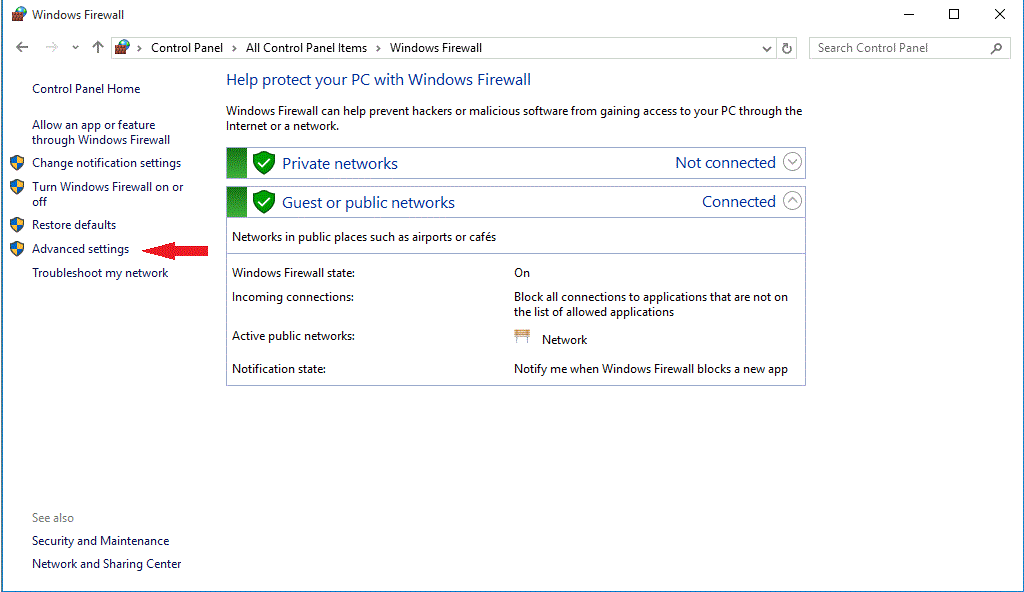
- Select TCP -> enter ports for your QB version -> Next -> Allow the Connection -> Next.
- Check Domain, Private, and Public -> Next. Name rule ‘QuickBooks Inbound’ -> Finish.
- Repeat for Outbound Rules with the same ports, naming it ‘QuickBooks Outbound’.
Fix 9: Temporarily Disable Third-Party Antivirus and Test
Intermediate | Time: 10-20 minutes
Some antivirus products actively block QuickBooks inter-process communication or intercept the QuickBooksDBXX service startup sequence, producing -6175, 0 even when Windows Firewall is correctly configured.
- On the server machine, temporarily disable your antivirus software’s real-time protection (do not uninstall — just disable temporarily).
- Restart QuickBooks on the server -> File -> Switch to Multi-User Mode. Test from a workstation.
- If the error clears with antivirus disabled: re-enable the antivirus and add permanent exceptions for C:\Program Files\Intuit\QuickBooks [Year]\ and the company file folder.
- If the error persists with antivirus disabled: the antivirus is not the cause. Re-enable it and proceed to Fix 10.
Scenario 5: QuickBooks Not Installed on the Server — Database Server Manager Only
Applies to: Environments where the server has only QuickBooks Database Server Manager installed, not the full QuickBooks Desktop application. Common in larger offices with dedicated file servers.
Fix 10: Install and Configure QuickBooks Database Server Manager on the Server
Intermediate | Time: 20-40 minutes
- On the server, click Start and search for ‘QuickBooks Database Server Manager’. If it does not appear, it may not be installed. Download the QuickBooks Desktop installer from downloads.quickbooks.com/app/qbdt/products -> run the installer -> select ‘Database Server Manager Only’ and install.
- After installation (or if already installed), open QuickBooks Database Server Manager.
- Click Scan Folders. If the company file folder is not listed: click Add Folder -> browse to the folder containing the .QBW file -> OK.
- Click Start Scan. Allow the scan to complete.
- After scanning, verify that a new .ND file has been generated (check file timestamp in the company file folder).
- Test from a workstation — attempt to open the company file in multi-user mode.
Scenario 6: All Standard Fixes Exhausted — QuickBooks Installation Repair
Applies to: Users who have completed all fixes in Scenarios 1-5 without resolution. The problem is likely corrupted QuickBooks program files preventing the Database Server Manager from starting correctly.
Fix 11: Run Quick Fix My Program in QuickBooks Tool Hub
Beginner | Time: 10-15 minutes
Quick Fix My Program refreshes the QuickBooks installation, re-registers installation files, and restarts all QuickBooks background processes cleanly.
- Close QuickBooks on all machines. End all QB processes in Task Manager on the server (QBW32.exe, QBDBMgrN.exe, QBCFMonitorService.exe, QBDBMgr.exe).
- Open QuickBooks Tool Hub -> Program Problems -> Quick Fix my Program -> allow it to run (2-5 minutes).
- Open QuickBooks on the server -> File -> Switch to Multi-User Mode. Test from a workstation.
Fix 12: Repair or Reinstall QuickBooks Desktop
Intermediate | Time: 20-45 minutes
Repair first:
- Close QuickBooks on all machines.
- On the server: Control Panel -> Programs and Features -> QuickBooks Desktop -> Uninstall/Change -> Repair. Follow instructions. Restart the server after repair.
- Open QuickBooks -> File -> Utilities -> Host Multi-User Access -> File -> Switch to Multi-User Mode. Test from workstations.
Full reinstall (if repair does not resolve):
- Control Panel -> Programs and Features -> QuickBooks Desktop -> Remove. Follow all prompts.
- Delete remaining folders: C:\Program Files\Intuit\QuickBooks [Year] and C:\ProgramData\Intuit\QuickBooks [Year]. Delete C:\ProgramData\Intuit\Entitlement Client\v8
- Restart the server. Download a fresh installer from downloads.quickbooks.com/app/qbdt/products. Install with your license details.
- Open QuickBooks -> File -> Utilities -> Host Multi-User Access -> File -> Switch to Multi-User Mode. Test from workstations.
Prevention: Keeping Error -6175, 0 From Recurring
Following are preventive measures that need to be considered:
- Check QBDataServiceUser Administrator rights quarterly. Open Control Panel -> User Accounts -> Manage another account and verify that QBDataServiceUser shows ‘Administrator’ status. Windows Updates have been documented to demote this account silently. Quarterly checks catch the problem before the next -6175, 0 outbreak.
- Keep the QuickBooksDBXX service set to start automatically. In services.msc, find the QuickBooksDB service -> Properties -> General tab -> Startup type: Automatic. This ensures the service starts after the server restarts without manual intervention.
- Never restart the server while QuickBooks is in active use by workstations. Server restarts during active multi-user sessions interrupt the QuickBooksDBXX service mid-operation. Schedule server maintenance outside business hours and shut down QuickBooks on all workstations before restarting the server.
- Keep QuickBooks Desktop version consistent across server and workstations. Different QuickBooks versions create compatibility conflicts that produce -6175, 0. Update all machines to the same release at the same time.
- Maintain Windows Firewall exceptions after QuickBooks updates. When QuickBooks updates, re-verify that QB executables are still in the firewall allowlist for the new version year.
- Run Scan Folders in QuickBooks Database Server Manager after any server change. Any server rename, company file move, or network configuration change requires a QBDSM rescan to regenerate the .ND file.
Migration: Resolving QuickBooks Error -6175, 0
During a server migration, QuickBooks Error -6175, 0 behaves like a strict security block the migrated company file opens smoothly when accessed locally on the server, but completely locks out workstations the moment you switch to multi-user mode. This post-migration breakdown occurs because the background hosting engines (QuickBooksDBXX and QBCFMonitorService) lack the proper Windows administrator permissions on the new server, or the firewall blocks the newly created QBDataServiceUser from communicating across the network. To resolve this, you must run the QuickBooks Database Server Manager on the new server to re-scan the migrated folder and configure the background services to run with elevated local system privileges.
Conclusion:
QuickBooks Error -6175, 0 is a multi‑user mode service failure that occurs when the QuickBooks Database Server Manager cannot start, respond, or complete its tasks. Unlike other company file errors, -6175 does not indicate file damage — it exclusively targets the service chain (QuickBooksDBXX service, QBDataServiceUser account, and QBDBMgrN.exe).
The key insight is that recurring -6175 errors almost always trace back to QBDataServiceUser losing Administrator rights or misconfigured hosting settings. Prevent recurrence by verifying service account privileges quarterly, maintaining consistent QuickBooks versions across server and workstations, and ensuring firewall exceptions remain intact after updates.
Frequently Asked Questions (FAQs)
Q1. What exactly does Error -6175, 0 mean in QuickBooks?
Error -6175, 0 means QuickBooks Desktop was unable to start or stop the Database Server Manager (QuickBooksDBXX service). Per Intuit’s official documentation, this specific error fires when the Database Server Manager — the service that manages shared company file access in multi-user mode — cannot start, respond, or complete its required tasks on the server computer. It is exclusively a multi-user mode error and does not indicate damage to the company file data.
Q2. Is my company file data at risk when Error -6175, 0 appears?
No. Error -6175, 0 targets the server service and hosting configuration, not the file content. The financial data inside your .QBW company file is safe throughout every fix in this guide. The error occurs before QuickBooks even reaches the file — the failure is in the service layer that would manage the connection, not in the file reading layer.
Q3. Why does the file open in single-user mode but fail in multi-user mode?
In single-user mode, QuickBooks opens the company file directly on the local machine without involving the Database Server Manager. In multi-user mode, workstations connect through the QuickBooksDBXX Windows service and the QBDBMgrN.exe program on the server. If this service is stopped, misconfigured, or blocked, single-user mode works but multi-user mode fails — which is precisely the pattern of -6175, 0.
Q4. What is the QBDataServiceUser account and why does it matter?
QBDataServiceUser (also listed as QBDataServiceUserXX where XX is the QuickBooks year) is a special Windows user account QuickBooks automatically creates during installation. This account runs the QuickBooksDBXX service as a background Windows service on behalf of the server. The account must have Administrator rights for the service to start. When Windows Updates or Group Policy demote this account from Administrator to Standard User, the service fails every time multi-user mode is engaged, producing -6175, 0 consistently.
Q5. What are H101, H202, H303, and H505 errors, and how do they relate to -6175, 0?
H-series errors are companion errors that appear on workstations when the server-side failure (-6175, 0) prevents them from connecting in multi-user mode. H101 means the workstation thinks it is the only host. H202 means it cannot locate the server. H303 means the hosting computer cannot be found. H505 means hosting is off on the workstation. These errors resolve automatically when -6175, 0 on the server is fixed — they are symptoms of the same root cause, not independent problems.
Q6. When should I change the QuickBooksDBXX service to Local System account (Fix 6)?
Change the service Log On to Local System when: QBDataServiceUser has been granted Administrator rights (Fix 4), the service has been restarted (Fix 5), and the error still persists. This situation most commonly occurs in Active Directory domain environments where Group Policy actively restricts service account permissions. Local System has broad system privileges and bypasses QBDataServiceUser account restrictions entirely. Consult your IT administrator before applying in high-security environments.
Q7. What is the QuickBooksDBXX service and what is the correct year number?
The QuickBooksDBXX service is the Windows background service that powers multi-user access. The XX represents a two-digit number corresponding to the QuickBooks installation year: QuickBooksDB32 for QB 2022, QuickBooksDB33 for QB 2023, QuickBooksDB34 for QB 2024. If multiple QuickBooks versions are installed, there will be multiple QuickBooksDB services — restart the one matching your currently active QuickBooks version.