
QuickBooks Error -6000 -83 Damaged Company File
Quickbook error -6000, -83 is a company file data damage error. Unlike the access- conflict error -82 or the permissions denial error -77, the secondary code -83 specifically indicates that Quickbooks detected structural or data- level damage inside the company file itself- or in the network and system environment surrounding it, that prevents the file from being safely opened, backed up, or restored.
When this error occurs, QuickBooks usually displays one of these pop‑ups:ac
- “An error occurred when QuickBooks tried to access the company file (-6000, -83).”
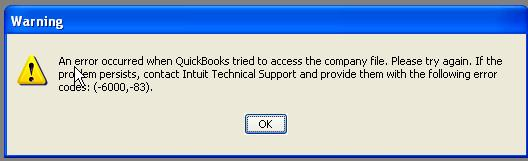
This error appears across three distinct operations: opening a company file directly, creating a backup of the company file, and restoring a company file from a backup. The scenario in which the error occurs determines the most likely causes and the most effective fix.
Understanding Error -83: Is Your QuickBooks Data Actually Damaged?
In the QuickBooks error hierarchy, a -6000 code means the core executable (QBW32.exe) has lost its grip on a company file operation. For most secondary codes, your data integrity is perfectly safe. For -83, however, the safety of your data is the central question.
- The Safe Zones (-77, -82, -106): These are purely environmental roadblocks. Whether it’s a network dropout (-106), a lingering file lock (-82), or a permission barrier (-77), your actual company data remains completely intact.
- The Danger Zone (-83): This is the only code in the lineup that can signal genuine, internal file data corruption.
Critical Warning: Because an -83 error can mean structural damage requiring tools like QuickBooks File Doctor or ADR recovery, it must be treated with care. However, because network misconfigurations, incorrect hosting settings, and wrong file extensions trigger the exact same code, you should always audit your network environment before concluding that your file is corrupted.
Root Cause Analysis of QuickBooks Error -6000 -83
Following are the root causes analysis for Quickbook Error -6000, -83:
1. File Naming Issues
- A company file or backup folder contains special characters, symbols, or spaces.
- QuickBooks fails to parse the file path correctly, triggering the error.
2. Hosting Conflicts
- Multiple computers are set to host the company file simultaneously.
- This causes network path conflicts and prevents QuickBooks from accessing the file.
3. Corrupted Backup File
- Backup file (.QBB) is incomplete or damaged.
- Attempting to restore such a file leads to error -6000, -83.
4. Server Permissions
- On Windows/Linux servers, incorrect user permissions block QuickBooks from accessing or modifying the file.
- Misconfigured folder rights or restricted access can trigger the error.
5. Firewall/Antivirus Interference
- Security software blocks QuickBooks processes from registering or accessing files.
- Leads to communication breakdown between QuickBooks and the server.
6. File Extension Errors
- Company file saved with incorrect extension (not .qbw or .qbb).
- QuickBooks cannot recognize or open the file.
Key Symptoms of Error -6000, -83
- Error pop‑up message: “An error occurred when QuickBooks tried to access the company file (-6000, -83).”
- Unable to open company file: QuickBooks refuses to load the file, leaving users locked out.
- QuickBooks freezes or crashes: The application hangs during file access or backup operations.
- Multi‑user mode fails: Users cannot access the file simultaneously due to hosting conflicts.
- Backup/restore interruptions: Error appears mid‑process, often linked to corrupted or misnamed backup files.
- Firewall/network diagnostic errors: Messages like “Windows Firewall is blocking QuickBooks” or “Network Diagnostics: Failed. Resolve and Retry!!” may accompany the error.
Pre-Troubleshooting Checklist & Environment Prerequisites
Before diving into any troubleshooting or repair steps for a -6000, -83 error, you need to establish a stable, secure baseline. Missing these prerequisites can result in accidental data loss or failed repair attempts.
Here is the checklist you must complete before touching the file:
1. Administrative & Access Controls
- Windows Admin Rights: Ensure you are logged into the Windows user account on both the server and the local workstation with full Administrator privileges. Without this, you cannot modify permissions or firewall rules.
- QuickBooks Admin Credentials: Locate the primary Admin username and password for the QuickBooks company file. You will need this to run internal utilities like Verify/Rebuild.
- Enforce Single-User Mode: Ensure all other users are completely logged out of QuickBooks. If possible, disconnect their network access to the server entirely during this process to prevent background access attempts.
2. Infrastructure & Environment Status
- Verify QuickBooks Version Alignment: Ensure that the version of QuickBooks installed on the workstation matches the exact year and release version installed on the server hosting the file.
- Identify the Host Machine: Pinpoint exactly which computer or server physically holds the company file. You must have direct physical or remote desktop (RDP) access to this machine.
- Ping Test Connectivity: Verify that the workstation can consistently communicate with the server without packet loss by running a command prompt ping test (ping [Server_Name]).
3. Storage & Safety Prep
- Available Local Storage: Ensure the local C: drive of the machine you are troubleshooting on has at least twice the free space of the company file’s size (to accommodate temporary cache files created during repairs).
- External/Safe Storage Ready: Have an external drive, a separate network share, or a local desktop folder ready to house your “Safe Copy” backup.
- Note the File Path: Write down or copy the exact folder path where the company file currently lives (e.g., \\Server\QBData\CompanyFile.qbw).
Scenario-Based Troubleshooting: Beginner to Advanced
Scenario 1: Error -6000, -83 When Opening the Company File (Single-User)
Applies to: Users on a single machine with the company file stored locally. Most likely causes: internal file damage, incorrect file extension, or incorrect file name.
Fix 1: Copy the Company File to the Desktop and Attempt to Open
Beginner | Time: 5-10 minutes
Copying the file to the desktop eliminates the folder location as a variable. If the file opens from the desktop, the original folder is damaged. If it does not, the file itself has issues.
1. Close QuickBooks. Open File Explorer and navigate to the company file folder. Default: C:\Users\Public\Public Documents\Intuit\QuickBooks\Company Files
2. Right-click the .QBW company file -> Copy.
3. Navigate to your Desktop -> right-click empty space -> Paste.
4. Open QuickBooks -> File -> Open or Restore Company -> Open a Company File.
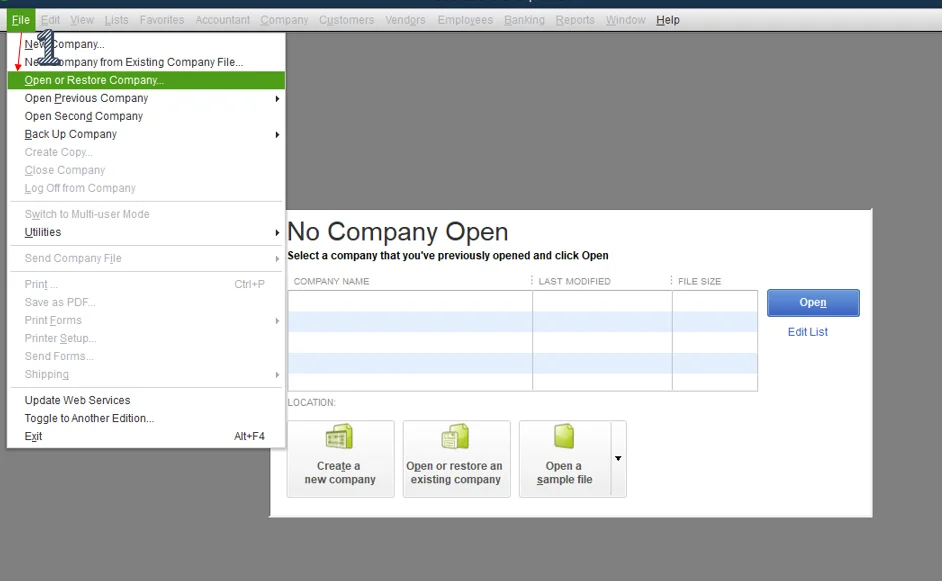
5. Browse to the Desktop and select the copied .QBW file -> Open.
Interpret the result:
File opens from the Desktop -> the original folder has damage. Proceed to Fix 9 (move company file to new folder).
File does not open from the Desktop -> the file itself has internal damage. Proceed to Fix 3 (Verify and Rebuild Data) or Fix 4 (File Doctor).
QuickBooks prompts to rebuild -> click Yes and follow prompts. QuickBooks is confirming internal data damage and offering first-line repair.
Fix 2: Verify and Correct the File Extension and File Name
Beginner | Time: 3-5 minutes
A company file must have the .QBW extension. Spaces and special characters in the name produce -6000, -83.
1. Navigate to the company file folder in File Explorer.
2. Right-click the company file -> Rename.
3. Verify the file ends in .QBW — not .QBM, .QBB, .QBW.adr, or any other extension.
4. Remove any characters that are not letters, numbers, hyphens, or underscores. Remove any leading or trailing spaces.
5. Press Enter to save. Also rename the .ND and .TLG files to match the corrected company file name.
6. Open QuickBooks and attempt to open the file.
Fix 3: Run Verify Data and Rebuild Data
Intermediate | Time: 20-60 minutes
The Verify and Rebuild Data utility is QuickBooks’ built-in tool for diagnosing and repairing internal data structure errors — the primary technical cause of -6000, -83.
Verify Data:
1. Open QuickBooks and open the company file (if it opens at all).
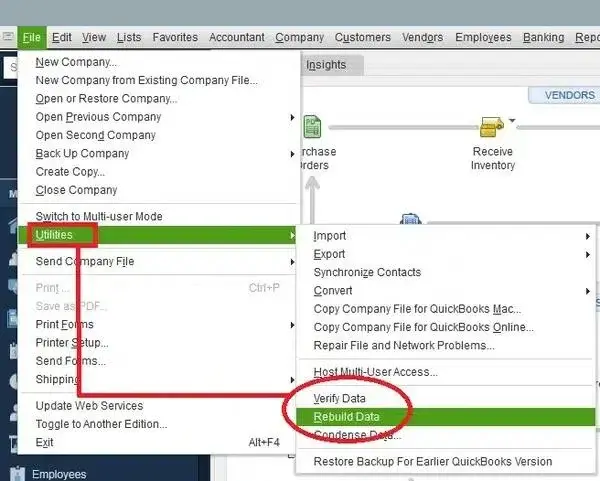
2. Go to File -> Utilities -> Verify Data.
3. QuickBooks will scan the file. This may take 5-20 minutes for large files.
Interpret the result:
‘QuickBooks detected no problems with your data’ -> no internal damage. The -83 error has a different cause. Return to Fix 1 or proceed to Fix 5.
QuickBooks prompts to Rebuild -> proceed immediately.
Verify completes but shows a QBWin.log report with LVL_ERROR entries -> internal damage confirmed. Proceed to Rebuild.
Reading the QBWin.log (optional technical diagnosis):
1. Press F2 in QuickBooks to open the Product Information window.
2. Press Ctrl + 2 to open the Tech Help window.
3. Click Open File next to QBWin.log. Look for lines containing LVL_ERROR or Verify near the bottom — these identify which data tables are damaged.
Rebuild Data:
1. Go to File -> Utilities -> Rebuild Data.
2. QuickBooks will prompt you to create a backup before rebuilding. Create the backup to a location different from the company file folder.
3. After the backup, allow the Rebuild to run to completion. Do not close QuickBooks during this process.
4. After Rebuild completes, run Verify Data again. If Verify now reports ‘no problems,’ the damage has been repaired.
5. If Verify continues to report errors after a second Rebuild pass, the damage is beyond what the built-in tool can resolve. Proceed to Fix 4 or Fix 14.
Fix 4: Run QuickBooks File Doctor
Beginner-Intermediate | Time: 15-30 minutes
File Doctor performs automated diagnosis and repair of both company file issues and network configuration problems. For -6000, -83 it can fix minor data damage that Verify/Rebuild cannot address and can resolve network-related causes of the error in a single scan.
1. Close QuickBooks.
2. If QuickBooks Tool Hub is not installed, download and install it from Intuit’s official website.
3. Open QuickBooks Tool Hub -> Company File Issues.
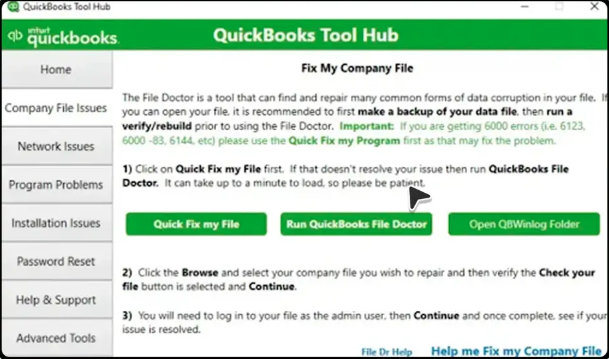
4. Click Run QuickBooks File Doctor. Wait for the File Doctor window to open (may take up to 30 seconds).
5. From the dropdown, select your company file. If it does not appear, click Browse and navigate to the .QBW file manually.
6. Select Check your file and network (not just ‘Check your file’ — the full scan addresses both damage and network causes of -83).
7. Enter your QuickBooks admin password when prompted and click Next.
8. Allow the scan to run to completion (5-30 minutes). Open QuickBooks and attempt to open the company file after.
Scenario 2: Error -6000, -83 When Creating a Company File Backup
Applies to: Users who can open the company file normally but receive -6000, -83 when attempting File -> Back Up Company -> Create Local Backup. Most likely causes: company file stored on server during backup attempt, or internal damage surfacing during the intensive backup read process.
Fix 5: Move the Company File to the Local Drive Before Backing Up
Beginner | Time: 10-20 minutes
The -6000, -83 backup error most commonly occurs when the company file is stored on a server and backup is attempted from a workstation. QuickBooks requires the file to be on the local machine during the backup creation process.
1. On the server machine, close QuickBooks Desktop (File -> Quit QuickBooks Desktop).
2. Open File Explorer -> navigate to the company file folder on the server. Copy the .QBW file to a local folder: C:\QB Test Folder\
3. Open QuickBooks on the server machine -> open the company file from the local folder.
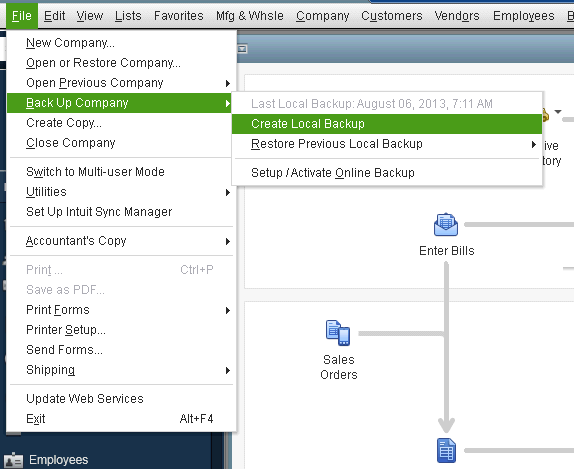
4. Go to File -> Back Up Company -> Create Local Backup. When asked where to save, select the local QB Test Folder on the C: drive.
Interpret the result:
* Backup succeeds -> the issue was network-related. Use local backup going forward and restore to verify: File -> Open or Restore Company -> Restore a Backup Copy.
* Backup fails -> internal file damage is present. Allow QuickBooks to rebuild if prompted, or proceed to Fix 3 (Verify/Rebuild).
Fix 6: Create a Portable Company File as an Alternative Backup
Beginner | Time: 5-10 minutes
When the standard backup process fails with -6000, -83, creating a portable company file involves a different file operation and may succeed where the standard backup fails.
1. Open QuickBooks and open the company file.
2. Go to File -> Create Copy.
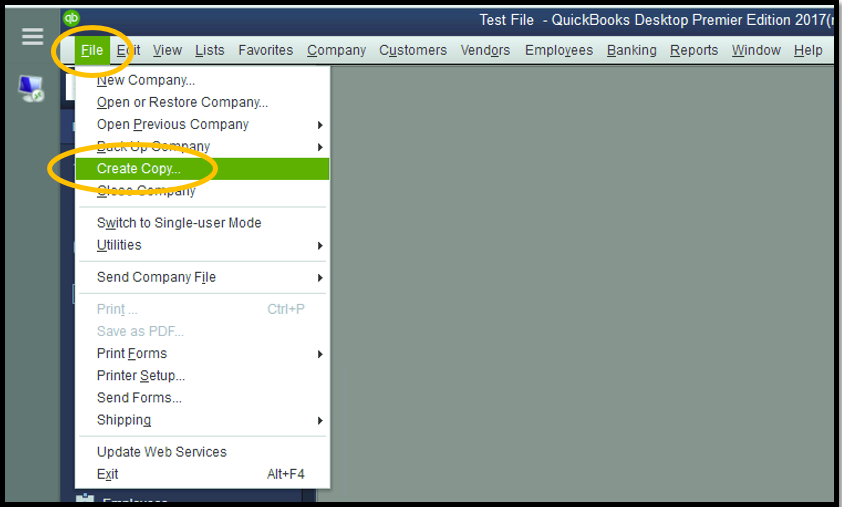
3. Select Portable company file -> Next.
4. Choose a destination folder on the local C: drive (not a network location).
5. Name the file and click Save.
Scenario 3: Error -6000, -83 When Restoring a Backup (.QBB File)
Applies to: Users who receive -6000, -83 specifically during File -> Open or Restore Company -> Restore a Backup Copy. Most likely causes: backup filename contains special characters or spaces, backup stored on a network location, or the backup file itself is corrupted.
Fix 7: Clean the Backup File Name and Move to Local Drive Before Restoring
Beginner | Time: 5-10 minutes
1. Open File Explorer and navigate to the backup file (.QBB).
2. Right-click the .QBB file -> Rename.
3. Remove all spaces, special characters (&, #, @, %, -, brackets, parentheses). Ensure the name contains only letters, numbers, and underscores.
4. If the backup file is on a network drive or external storage, copy it to a local folder on the C: drive (e.g., C:\QB_Restore\) before restoring.
5. In QuickBooks: File -> Open or Restore Company -> Restore a Backup Copy -> Local Backup.
6. Browse to the local folder and select the renamed .QBB file -> Open.
7. Choose a restore destination on the local C: drive. Complete the restore and confirm the file opens without error.
Scenario 4: Error -6000, -83 in Multi-User Mode (Network Access)
Applies to: Users where the company file is hosted on a Windows server and workstations receive -6000, -83. The file may open correctly on the server machine directly. Most likely causes: hosting misconfiguration, insufficient folder permissions for QBDataServiceUser, damaged .ND file, or firewall blocking QuickBooks ports.
Fix 8: Verify and Correct Hosting Settings Across All Machines
Beginner | Time: 10-15 minutes
Incorrect hosting settings are the most common non-damage cause of -6000, -83 in multi-user environments. Only the server should have hosting enabled.
On each workstation (repeat on every workstation):
1. Open QuickBooks on the workstation without opening any company file (hold Ctrl while clicking the QuickBooks icon).
2. Go to File -> Utilities.
3. If the menu shows ‘Stop Hosting Multi-User Access’ -> click it to disable hosting.
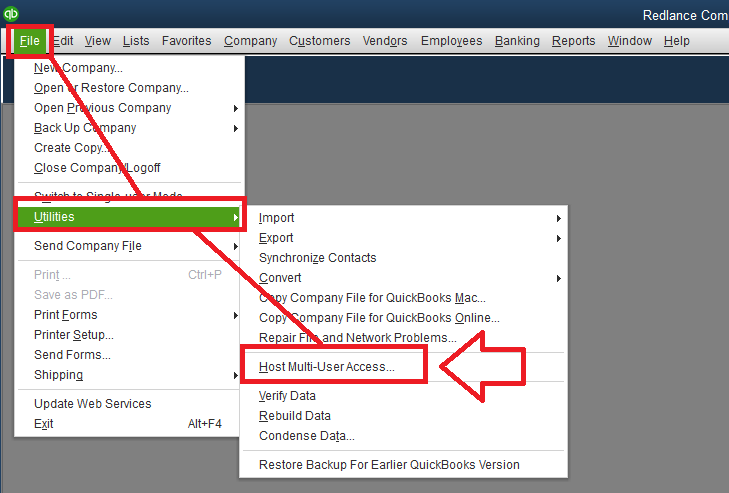
Click Yes to confirm.
4. If the menu shows ‘Host Multi-User Access’ -> hosting is already off. No action needed.
On the server machine:
1. Open QuickBooks -> File -> Utilities.
2. The menu must show ‘Stop Hosting Multi-User Access’ (hosting is ON). Correct.
3. If it shows ‘Host Multi-User Access’ -> click it to enable hosting on the server.
4. Close and reopen QuickBooks on the server -> File -> Switch to Multi-User Mode.
Fix 9: Set Correct Folder Permissions for QBDataServiceUser
Intermediate | Time: 10-15 minutes
The QuickBooks Database Server Manager service account must have Full Control on the folder containing the company file.
1. On the server machine, navigate to the company file folder in File Explorer.
2. Right-click the folder -> Properties -> Security tab -> Edit.
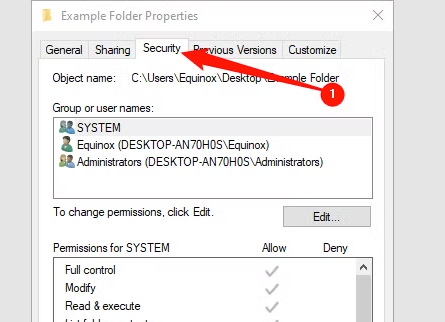
Verify the following accounts have Full Control:
* The Windows user account running QuickBooks
* NETWORK SERVICE
* LOCAL SERVICE
* QBDataServiceUser28 (or the number matching your QB year: 27 for QB 2021, 28 for QB 2022, 29 for QB 2023)
3. If QBDataServiceUser is missing: click Add -> type the account name -> Check Names -> grant Full Control. Click Apply -> OK.
4. Re-scan the folder: Start -> search ‘QuickBooks Database Server Manager’ -> open it -> Scan Folders -> select company file folder -> Start Scan.
5. After the scan completes, test from a workstation.
Fix 10: Rename the .ND File to Force Regeneration
Beginner | Time: 5-10 minutes
A corrupted or outdated .ND file misdirects workstations to the wrong server address. Renaming it forces QuickBooks to regenerate it with the current server address after a Database Server Manager scan.
1. Close QuickBooks on all machines. End all QBW32.exe processes via Task Manager.
2. Navigate to the company file folder.
3. Locate [CompanyFileName].QBW.ND -> right-click -> Rename -> add .OLD to the end: [CompanyFileName].QBW.ND.OLD
4. Open QuickBooks Database Server Manager on the server -> Scan Folders -> select the company file folder -> Start Scan.
5. After the scan, a new .ND file is created. Open QuickBooks on a workstation and test.
Fix 11: Configure Windows Firewall to Allow QuickBooks Ports
Intermediate-Advanced | Time: 20-35 minutes
Firewall rules blocking QuickBooks ports produce -6000, -83 in multi-user environments. Apply on both the server and every workstation.
Add QuickBooks executables as firewall exceptions:
1. Start -> Windows Defender Firewall -> Allow an app or feature through Windows Defender Firewall.
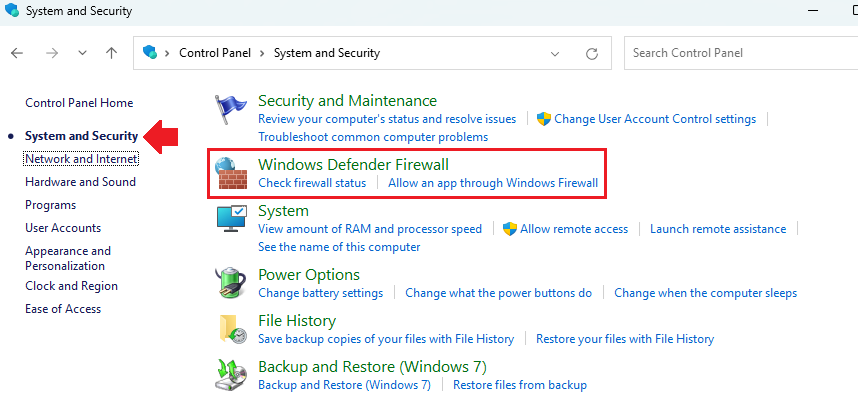
2. Click Change Settings -> Allow another app. Add: QBW32.exe, QBDBMgrN.exe, QBCFMonitorService.exefrom C:\Program Files\Intuit\QuickBooks [Year]\. Check both Private and Public for each.
Open the required TCP ports:
1. Start -> Windows Defender Firewall -> Advanced Settings -> Inbound Rules -> New Rule.
2. Select Port -> Next. Select TCP. Enter ports for your QuickBooks version (see table above).
3. Allow the Connection -> Next. Check Domain, Private, and Public -> Next. Name the rule ‘QuickBooks Inbound’ -> Finish.
4. Repeat for Outbound Rules with the same ports.
5. Repeat the full procedure on each workstation.
Fix 12: Edit the Windows Hosts File to Resolve Server Name
Advanced | Time: 15-25 minutes
When QuickBooks workstations cannot resolve the server’s hostname via DNS — causing ‘ping servername’ to fail — adding the server’s IP address and hostname directly to the Windows hosts file provides a static resolution path.
i Prerequisites: know the server’s hostname (computer name) and its IPv4 address (run ipconfig on the server machine).
1. Confirm the server is reachable: on a workstation, open Command Prompt -> type ‘ping [ServerName]’ -> press Enter. If ping fails, proceed with this fix.
2. On each workstation showing the error, close QuickBooks.
3. Click Start -> type notepad -> right-click -> Run as Administrator. File -> Open -> navigate to C:\Windows\System32\drivers\etc\. In the file type dropdown select All Files. Open the file named hosts (no extension).
At the bottom of the file, add a new line:
[ServerIPAddress] [ServerHostname]
Example:
192.168.1.50 ACCOUNTING-SERVER
4. File -> Save. Close Notepad. Open QuickBooks on the workstation and test.
Scenario 5: File Cannot Be Opened at All — Advanced Data Recovery
Applies to: Users where the company file cannot be opened under any circumstances, Verify/Rebuild cannot run because the file never reaches the open state, and File Doctor has not resolved the issue. This scenario indicates severe internal data damage.
Fix 13: Restore from the Most Recent Clean Backup
Beginner | Time: 10-30 minutes
If a clean backup exists from before the damage occurred, restoring it is the fastest and most complete resolution. All transactions entered after the backup was created will need to be re-entered.
1. Identify the most recent backup file (.QBB) that pre-dates the error.
2. In QuickBooks: File -> Open or Restore Company -> Restore a Backup Copy -> Local Backup.
3. Browse to the .QBB file -> Open.
4. Choose a restore destination on the local C: drive — not the same folder as the damaged file.
5. Name the restored file something distinct from the damaged file to avoid confusion.
6. Open the restored file and verify it is intact. Re-enter any transactions that occurred between the backup date and the damage event.
Fix 14: Use Auto Data Recovery (ADR)
Advanced | Time: 30-60 minutes
QuickBooks automatically creates recovery copies of the company file and transaction log in a hidden subfolder called QuickBooksAutoDataRecovery. If no clean backup is available or the most recent backup is also damaged, ADR provides a path to recovering up to 12 hours of recent transactions beyond what the backup contains.
1. Create a folder named QBTest on your desktop.
2. Navigate to the company file folder. Copy the .TLG file (same name as company file, .TLG extension) into QBTest.
3. In the same folder, locate the hidden subfolder QuickBooksAutoDataRecovery. (File Explorer -> View -> check Hidden items.)
4. Inside the folder, find the file with the .QBW.adr extension. Copy it into QBTest.
5. In QBTest, rename the .QBW.adr file by removing the .adr extension. The result is a .QBW file.
6. Open QuickBooks -> File -> Open or Restore Company -> Open a Company File -> select the .QBW file in QBTest.
7. Go to File -> Utilities -> Verify Data. If no errors are reported, this recovered file is valid.
8. Verify recent transactions in the account registers. If the file is valid, copy it to the main company file folder (after renaming the original damaged file).
Proactive Data Protection: Preventing Error -6000, -83
1. Data & File Architecture Integrity
- Sanitize File Nomenclature: Eliminate all spaces, special characters, and symbols from both company file names and their containing folder paths. Use strict alphanumeric strings (e.g., MyBusiness2026.qbw).
- Enforce Extension Rules: Always validate that active databases use the .qbw extension and standard backups use .qbb. Never manually append double extensions (like .qbw.nd), which blindfold the QuickBooks database manager.
- Isolate Backup Operations: Always direct your local QuickBooks backup process to save onto the local C: drive first. Move the finished file to the server or cloud storage after the backup successfully completes to prevent network-induced corruption.
2. Network & Server Environment Security
- Establish a Single Source of Truth (Hosting): Enforce the “One Host” rule. QuickBooks hosting must be enabled exclusively on the dedicated server or primary host computer. Audit all user workstations to ensure hosting is explicitly disabled.
- Audit Folder Access Permissions: Grant full read/write/modify Windows permissions to the QuickBooks user group for the data folder. For Linux-based environments, perform quarterly audits to verify that file path ownership and Samba permissions haven’t drifted.
- Immunize Security Software: Whitelist core QuickBooks executables (like QBW32.exe and QBDBMgrN.exe) within your enterprise firewall and antivirus suites. Configure explicit inbound and outbound rule exceptions for QuickBooks-specific port ranges to eliminate false-positive network blocks.
Why This Matters
Implementing these six guardrails eliminates the environmental vulnerabilities that cause over 80% of QuickBooks -6000 series errors, ensuring your system never confuses a network hiccup with data damage.
Quickbooks Error -6000, -83: Quickbooks Desktop Vs Online
QuickBooks Error -6000, -83 is a Desktop‑specific company file access error that occurs when opening, restoring, or backing up a file due to damaged support files (.ND/.TLG), corrupted backups, incorrect hosting settings, or firewall restrictions, and it typically shows pop‑ups like “QuickBooks is unable to open the company file (-6000, -83).”
In contrast, QuickBooks Online never generates -6000 series errors because files are cloud‑hosted; similar issues appear instead as browser cache problems, session timeouts, permission restrictions, or internet instability, which are fixed by clearing cache, using supported browsers, checking user roles, and ensuring stable connectivity.
The Operational Impact of Quickbook Error -6000 -83 on the Migration Process
When this error appears post-migration, it completely halts your deployment timeline and impacts the process in three distinct ways:
- It Creates a False Alarm of Data Loss: Because QuickBooks officially defines -83 as “internal file data damage,” it immediately triggers panic. It forces the migration team to halt the launch and waste hours verifying data integrity, even though the file itself is usually perfectly healthy and just suffering from a network translation issue.
- It Paralyzes Multi-User Functionality: The error usually permits the file to be opened on the host server but blocks all inbound connections from workstations. This effectively breaks the multi-user environment, delaying the go-live schedule for your staff.
- It Indicates an Incomplete Environment Setup: The appearance of this error is a diagnostic signal that the new server’s infrastructure isn’t fully ready. It means the migration process skipped a critical final step, such as opening firewall ports, assigning correct Windows folder permissions, or clearing out the stale network configuration (.ND) files left over from the old server.
Timeline of the Impact: When and How the Error Strikes
Error -6000, -83 does not interrupt or corrupt the physical file transfer itself. You will be able to copy, move, or upload the file to your new server or cloud environment without any errors popping up during the actual move.
Instead, this error strikes exclusively after the migration is complete, the moment a user attempts to open the file in its new home for the very first time.
Conclusion:
QuickBooks Error -6000, -83 is a Desktop‑specific company file access issue triggered by misconfigured hosting, damaged support files, corrupted backups, or firewall restrictions. Technicians should prioritize file naming checks, single‑host verification, and backup integrity testing before escalation. Preventive measures such as standardized file naming, routine permission audits, and tested backups significantly reduce recurrence. In QuickBooks Online, this error does not occur; similar problems manifest as browser cache, session timeout, or permission errors.
FAQs:
What does Error -6000, -83 mean in QuickBooks Desktop?
It indicates QuickBooks cannot access the company file due to file path issues, hosting conflicts, or corrupted backups.
Will my company data be lost if I get Error -6000, -83?
No, the error itself does not delete or erase company data. It only blocks QuickBooks from accessing the file due to issues like hosting conflicts, corrupted backups, or damaged support files. However, if the backup file is already corrupted, restoring from it may result in partial or unusable data. That’s why technicians recommend keeping multiple tested backups in different locations to ensure data safety.
What is the QBWin.log file and why does it matter for this error?
The QBWin.log file is QuickBooks’ internal diagnostic log that records company file operations and errors. For Error -6000, -83, this log helps technicians pinpoint the exact cause—such as file corruption, permission denial, or hosting misconfiguration. Reviewing QBWin.log entries provides actionable clues for troubleshooting and is often the first step in escalation when File Doctor or standard fixes fail.
Can QuickBooks Online show Error -6000, -83?
No. This error is exclusive to Desktop. Online issues appear as browser cache, session timeout, or permission errors.
How do I fix Error -6000, -83 when restoring a backup?
Rename the backup file/folder to remove special characters, save it locally, then restore.
How can I prevent recurrence of Error -6000, -83?
Standardize file naming, verify single‑host setup, test backups weekly, and configure firewall exceptions.