
Quickbooks error -6000, -77 is a company file access error. It occurs when Quickbooks desktop attempts to open, restore, or backup a company file and fails not because the file is necessarily damaged but because Quickbooks cannot reach the file through the path, permission level, or network configuration currently in place.
The error message reads:
“We are sorry. QuickBooks encountered a problem. Error codes: (-6000, -77).”
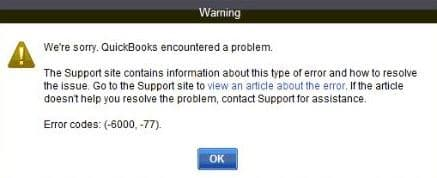
Or in some configurations:
“An error occurred when QuickBooks tried to access the company file. Please try again. If this problem continues, you may need to reboot your computer.”
This error belongs to the -6000 series of QuickBooks company file errors, which collectively indicate that the QuickBooks executable (QBW32.exe) was unable to complete a file operation. The secondary code -77 narrows the failure type to a permissions or access denial failure — QuickBooks located the file but was blocked from reading or writing it.
Error -6000, -77 is distinct from other -6000 variants. It is not a data corruption error (-6000, -83) or a network hosting configuration error (-6000, -80). It is specifically an access-layer failure.
Symptoms of Error -6000, -77
- Error dialog appears immediately when attempting to open the company file
- QuickBooks opens normally but company file cannot be loaded – No Company Open screen persists
- Company file opens in single-user mode but fails in multi-user mode
- Error appears on all workstations simultaneously but not on the server
- QuickBooks freezes for 30–60 seconds before displaying the error
- Backup and restore operations fail with the same error code
- Error appears only from a specific workstation, not others
- Error appeared after a server restart, Windows Update, or network reconfiguration
Root Cause Analysis for Error -6000, -77
Primary Root Causes
- Corrupted .ND/.TLG files – These configuration files help QuickBooks connect to the company file. If damaged, QuickBooks fails to establish the link.
- Incorrect file path usage – Accessing the company file via a mapped drive instead of a UNC path often triggers this error.
- File stored on external/removable drive – Company files located on USB or external drives cause instability and restricted access.
- Insufficient folder permissions – Windows security restrictions prevent QuickBooks from reading or writing to the company file folder.
- Firewall or antivirus interference – Security software may block QuickBooks processes, preventing proper file access.
- Damaged company file or folder – Corruption in the .QBW file or its containing folder can directly cause the error.
Secondary Contributing Factors
- QuickBooks Database Server Manager not running in multi-user setups.
- Network instability leading to broken connections.
- Non-admin account usage restricting access rights.
Scenario-Based Troubleshooting: Beginner to Advanced
Scenario 1: Error on a Single-User Setup or Local File Access Failure
Applies to: Users running QuickBooks on a single machine with the company file stored locally — no network or multi-user configuration involved.
Fix 1: Run QuickBooks as Administrator
Beginner | 2–5 minutes
The quickest check for a permissions-based -6000, -77. Elevated privileges grant QuickBooks full read/write access regardless of the current user account’s permission level.
1. Close QuickBooks completely.
2. Right-click the QuickBooks Desktop icon on your desktop.
3. Select Run as Administrator → click Yes when Windows prompts.
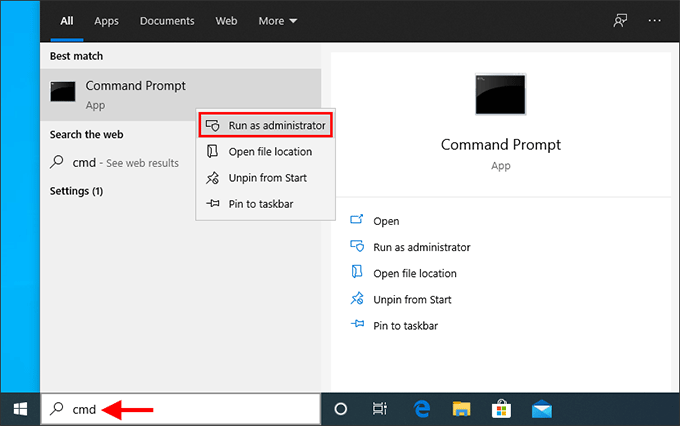
4. Attempt to open your company file normally.
Note-If the error does not appear when running as administrator, the root cause is insufficient Windows user account permissions. Proceed to Fix 5 to resolve it permanently instead of running as administrator every session.
Fix 2: Rename the .ND and .TLG Files
Beginner | 5–10 minutes
Renaming the .ND and .TLG files forces QuickBooks to create fresh, uncorrupted versions. This does not affect your .QBW company data.
1. Close QuickBooks. Open Task Manager (Ctrl + Shift + Esc) and end any QBW32.exe processes.
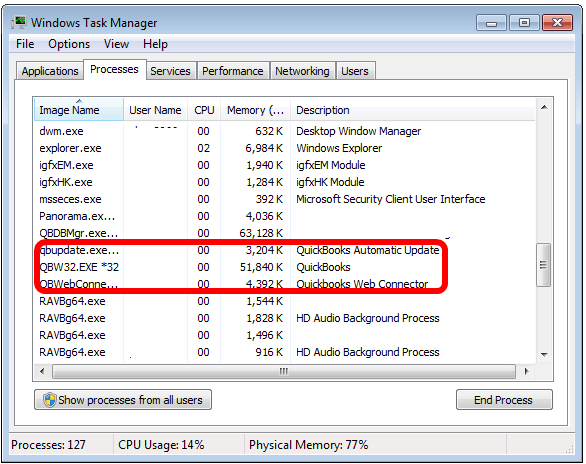
2. Navigate to the company file folder. Default: C:\Users\Public\Public Documents\Intuit\QuickBooks\Company Files
3. Locate files with .ND and .TLG extensions matching your company file name. Example: MyCompany.QBW.ND and MyCompany.QBW.TLG
4. Right-click the .ND file → Rename → add .OLD to the end. Result: MyCompany.QBW.ND.OLD
5. Right-click the .TLG file → Rename → add .OLD. Result: MyCompany.QBW.TLG.OLD
6. Open QuickBooks and attempt to open your company file. New .ND and .TLG files will be created automatically.
Note: The .TLG file logs uncommitted transactions. If QuickBooks was closed improperly, compare transaction records against the last clean backup after opening to verify data integrity.
Fix 3: Move the Company File to a Local Drive Beginner | 5–15 minutes
If the company file is stored on a USB drive, external hard drive, or removable media, copy it to a local drive path before opening.
1. Open File Explorer and navigate to the current company file location.
2. Copy the .QBW file to: C:\Users\Public\Public Documents\Intuit\QuickBooks\Company Files\
3. Open QuickBooks → File → Open or Restore Company → Open a Company File.
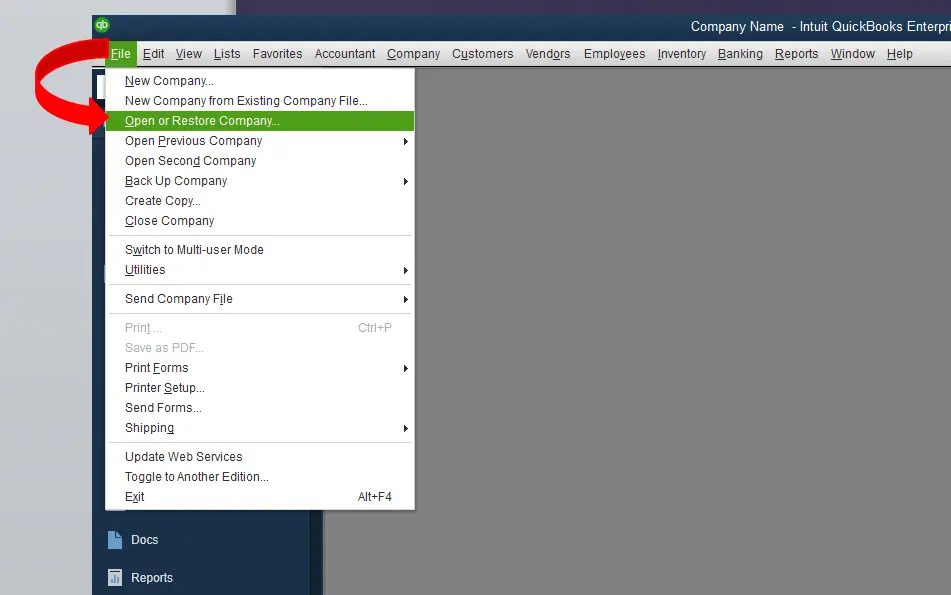
4. Browse to the new local path and open the file.
Fix 4: Remove Special Characters and Spaces from the File Name
Beginner | 3–5 minutes
1. Close QuickBooks.
2. Navigate to the company file folder.
3. Right-click the .QBW file → Rename. Remove any characters that are not letters, numbers, hyphens, or underscores. Remove all leading or trailing blank spaces.
4. Rename the .ND and .TLG files to match the new .QBW name, or delete them — they will be recreated.
5. Open QuickBooks → browse to the renamed file → attempt to open.
Scenario 2: Error After Moving or Restoring the Company File
Applies to: Users who recently restored from backup, moved the company file to a new folder or server, or upgraded to a new machine.
Fix 5: Set Correct Folder Permissions for the Company File Directory Intermediate | 10–15 minutes
After a file move or restore, the destination folder may not have the permissions required by QuickBooks. The folder needs full read/write access for the Windows user account, the Database Server Manager service account, and the QBDataServiceUser account.
1. Navigate to the folder containing the company file in File Explorer.
2. Right-click the folder → Properties → Security tab → click Edit.
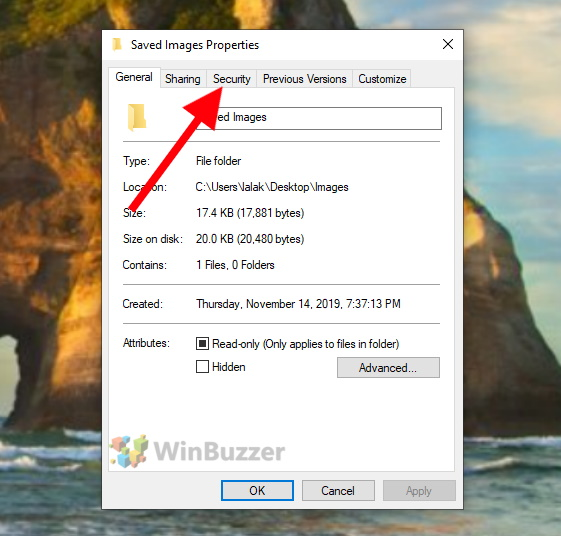
Verify the following accounts have Full Control:
• The Windows user account that runs QuickBooks
• NETWORK SERVICE
• LOCAL SERVICE
• QBDataServiceUser28 (or QBDataServiceUser27, etc. — number corresponds to your QuickBooks year version)
3. If any account is missing, click Add → type the account name → Check Names → grant Full Control.
4. Click Apply → OK. Reopen QuickBooks and test.
Fix 6: Run QuickBooks File Doctor
Beginner–Intermediate | 15–30 minutes
QuickBooks File Doctor diagnoses and repairs both company file issues and network connectivity problems. For -6000, -77 it checks file permissions, hosting configuration, and file integrity.
1. Close QuickBooks.
2. Download and install QuickBooks Tool Hub from Intuit’s official website if not already installed.
3. Open QuickBooks Tool Hub → Company File Issues → Run QuickBooks File Doctor.
4. Select your company file from the dropdown. If it does not appear, click Browse and navigate to it.
5. Choose Check your file and network. Enter your QuickBooks admin password when prompted.
6. Allow the tool to run to completion (5–30 minutes depending on file size). Test QuickBooks after.
Note – File Doctor may report ‘could not fix all issues’ even if the error is resolved. Always test QuickBooks after the tool runs regardless of the reported result.
Scenario 3: Error -6000, -77 in Multi-User Mode (Network Setup)
Applies to: Offices using QuickBooks in multi-user mode with a dedicated server. Error appears on workstations but not on the server when the file is opened locally.
Fix 7: Verify That Hosting Is Enabled Only on the Server
Beginner | 5–10 minutes
If any workstation has hosting enabled, it competes with the server and creates access conflicts that produce -6000, -77.
On each workstation (not the server):
1. Open QuickBooks on the workstation → File → Utilities.
2. If the menu shows ‘Host Multi-User Access,’ hosting is OFF. This is correct — leave it.
3. If the menu shows ‘Stop Hosting Multi-User Access,’ click it to disable hosting on this workstation.
4. Repeat on every workstation.
On the server machine:
1. Open QuickBooks → File → Utilities.
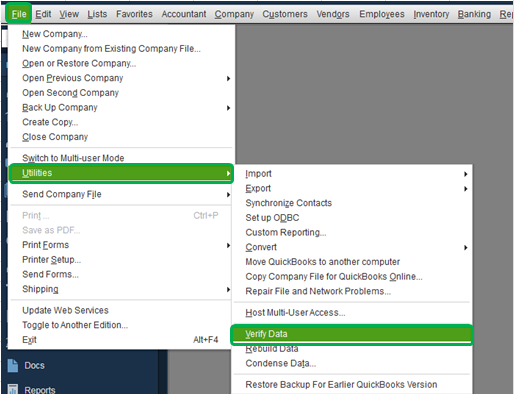
2. Confirm the menu shows ‘Stop Hosting Multi-User Access’ — this means hosting IS active on the server. Correct.
Fix 8: Restart the QuickBooks Database Server Manager
Intermediate | 5–10 minutes
The QBDBMgrN.exe service must run continuously on the server. If stopped, all workstations receive -6000, -77.
Via Windows Services:
1. On the server: Windows + R → type services.msc → Enter.
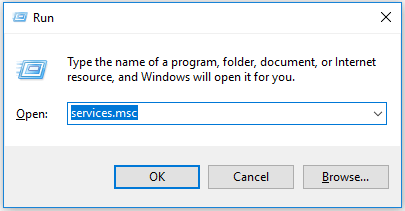
2. Find QuickBooksDB followed by a two-digit year number (e.g., QuickBooksDB32 for QB 2022).
3. Right-click → Restart. If stopped, right-click → Start.
4. Also restart QBCFMonitorService if it appears in the list.
5. Return to a workstation and attempt to open the company file.
Alternative — via Database Server Manager:
1. On the server: Start → search QuickBooks Database Server Manager → open it.
2. Click Scan Folders. Ensure the company file folder is listed. If not, click Add Folder, browse to it, and click Scan.
3. After the scan completes, test from a workstation.
Fix 9: Switch from Mapped Drive to UNC Path
Intermediate | 10–15 minutes
Mapped drive paths are session-dependent and can become unavailable or inconsistent between restarts. UNC paths directly address the server by name and are always consistent.
1. Close QuickBooks on the workstation.
2. Open QuickBooks while holding the Ctrl key to arrive at the No Company Open screen without auto-loading the last file.
3. Go to File → Open or Restore Company → Open a Company File.
4. In the file browser, click Network in the left panel.
5. Navigate to the server by name: \\SERVER01\QuickBooksFiles\ (replace with your actual server name and share name).
6. Select the .QBW company file and click Open. QuickBooks will save this UNC path for future sessions.
Scenario 4: Error Persists After All Standard Fixes — File or Folder Damage
Applies to: Users who have completed Fixes 1–10 without resolution. The problem is likely a damaged company file folder or file-level corruption that standard tools have not caught.
Fix 11: Move the Company File to a New Folder
Intermediate | 10–20 minutes
If the folder containing the company file has file system corruption, creating a new folder removes the corrupt folder from the equation.
1. End all processes: open Task Manager and end QBW32.exe, QBDBMgrN.exe, and QBCFMonitorService.exe.
2. Create a new folder, for example: C:\QB_CompanyFiles\
3. Copy (do not cut) the .QBW file and its .ND and .TLG files to the new folder.
4. Right-click the new folder → Properties → Security → set the same permissions as Fix 5.
5. Open QuickBooks → File → Open or Restore Company → browse to the new folder and open the file.
6. On the server, open QuickBooks Database Server Manager → Scan Folders → Add Folder → add the new path → Scan.
Fix 12: Use Auto Data Recovery (ADR) to Recover the Company File
Advanced | 30–60 minutes
QuickBooks automatically creates backup copies in a hidden subfolder called QuickBooksAutoDataRecovery. If the original .QBW file has damage beyond what File Doctor can repair, ADR provides a recovery path.
ADR is updated every 12 hours and QuickBooks closes normally. Transactions entered after the last ADR update will not be in the recovered file and must be re-entered.
1. Create a new folder on your desktop named QBTest.
2. Navigate to the company file folder. Copy the .TLG file (not the .QBW) into QBTest.
3. In the same folder, find the hidden subfolder QuickBooksAutoDataRecovery. (Enable hidden items if needed: File Explorer → View → Hidden items.)
4. Inside AutoDataRecovery, find the file with the .QBW.adrextension. Copy it into QBTest.
5. In QBTest, rename the .QBW.adr file by removing the .adr extension. The result is a .QBW file.
6. Open QuickBooks → open the .QBW file from the QBTest folder.
7. Go to File → Utilities → Verify Data. If no errors are reported, this recovered file is valid.
8. If data is intact, copy this file to the main company file folder (back up the original first).
Fix 13: Run CHKDSK on the Drive Hosting the Company File
Advanced | 30–90 minutes
If the drive containing the company file folder has file system-level damage, no QuickBooks tool can repair it. Windows must repair the underlying storage first.
1. Click Start → type cmd → right-click Command Prompt → Run as Administrator.
Type the following, replacing C: with the drive letter hosting the company file:
chkdsk C: /f /r /x
2. If the drive is in use, type Y to schedule the check for the next restart.
3. Restart the machine. CHKDSK runs before Windows loads. After completion, attempt to open the company file.
Scenario 5: Error After QuickBooks or Windows Update
Applies to: Users who received this error shortly after a QuickBooks Desktop update or Windows Update was applied.
Fix 14: Update QuickBooks Desktop to the Latest Release
Beginner | 10–20 minutes
Intuit releases patches for known file-access bugs including the -6000 series. Running an outdated QuickBooks version leaves known permission and path-handling bugs unfixed.
1. Open QuickBooks → Help → Update QuickBooks Desktop.
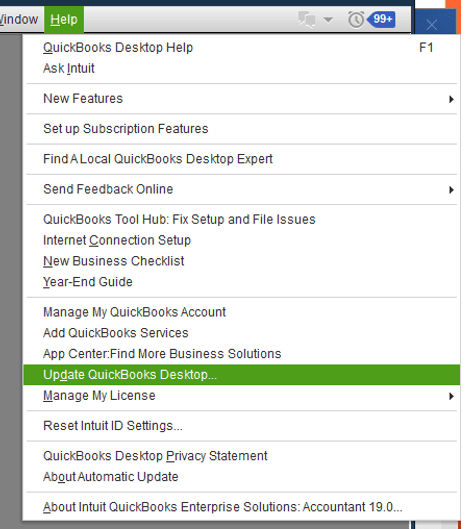
2. Click Update Now. Check Reset Update to clear partially downloaded packages.
3. Click Get Updates. After the download completes, restart QuickBooks and accept the install prompt.
4. Restart your computer after installation. Attempt to open the company file.
Fix 15: Repair the QuickBooks Installation
Intermediate | 20–35 minutes
A QuickBooks update that did not complete cleanly can leave the installation in a damaged state that produces -6000, -77 on file open attempts. Repair restores all program files without removing your data.
1. Close QuickBooks.
2. Go to Control Panel → Programs and Features → select QuickBooks Desktop.
3. Click Uninstall/Change → select Repair in the installer that appears.
4. Follow the on-screen instructions. Restart your computer. Attempt to open the company file.
Impact of Error -6000, -77 on the Migration Process
While QuickBooks Error -6000, -77 is a frustrating roadblock, it is critical to understand its precise effect on your transition. It is a system access barrier, not a data integrity issue.
1. Zero Impact on Data Integrity
This error does not corrupt, damage, or lose any of your financial data. The physical transfer of your files (copying and pasting to a new server or drive) remains 100% complete and secure. Your database is safe; QuickBooks is simply blocked from reading it at the new location.
2. Immediate Halt to the “Go-Live” Phase
The primary impact is operational downtime. Although the files have successfully migrated to the new environment, this error acts as a digital padlock. It completely interrupts the final validation and testing phase, preventing users from opening the company file, verifying balances, or resuming daily bookkeeping.
3. Disruption to Multi-User Configurations
In server-client migrations, this error stops the host database engine from communicating with workstations. If the network path configuration files (.ND and .TLG) are not refreshed during the move, the entire multi-user setup will remain offline until the stale files are recreated on the new server.
Prevention: Stopping Error -6000, -77 Before It Occurs
Following are the preventive measure that need to be taken into consideration:
- Store the company file in the default QuickBooks directory. The path C:\Users\Public\Public Documents\Intuit\QuickBooks\Company Files is pre-configured with all correct permissions during QuickBooks installation. Storing the file elsewhere requires manual permission configuration every time.
- Never store the company file on a USB drive, external hard drive, or optical disk. QuickBooks requires sustained read/write access with locking mechanisms that removable storage devices do not reliably support.
- In multi-user setups, always re-scan the company file folder after any server change. Any time the server is renamed, its IP address changes, or the company file is moved, open QuickBooks Database Server Manager and run a new scan so the .ND file is regenerated with the correct network address.
- Configure Windows Firewall exceptions for QuickBooks before problems occur. Proactively opening port 8019 and the dynamic port for your QuickBooks version eliminates the most common multi-user access failure before it happens.
- Keep QuickBooks and Windows fully updated. Intuit issues patches for -6000 series errors in cumulative updates. Running the latest QuickBooks release and ensuring Windows Updates are current prevents known file-access bugs.
- Enable hosting only on the server — verify this after every QuickBooks upgrade. QuickBooks upgrades occasionally reset hosting settings. After any version upgrade, confirm that hosting is off on all workstations and on at the server.
- Back up the company file regularly to a local path. Use File → Back Up Company → Create Local Backup on a daily or weekly schedule. Store backups on a separate path from the live company file.
Concluison:
QuickBooks Error ‑6000, ‑77 is not a data corruption issue but an access‑layer failure — the application locates the company file but is blocked from reading or writing it due to path, permission, or network configuration problems.
By following a structured escalation flow — from basic fixes like running QuickBooks as Administrator and renaming .ND/.TLG files, to intermediate steps such as correcting folder permissions, switching to UNC paths, and restarting the Database Server Manager, and finally to advanced recovery methods like Auto Data Recovery or CHKDSK — technicians can systematically isolate and resolve the root cause.
With these practices, recurrence of Error ‑6000, ‑77 can be minimized, ensuring smoother operations and reduced downtime for both single‑user and multi‑user environments.
Frequently Asked Questions (FAQs)
Q1. What does error code -77 mean specifically in QuickBooks error -6000, -77?
The -6000 code indicates a company file access failure. The secondary code -77 narrows it to a permissions or access denial failure — QuickBooks located the file but was blocked from reading or writing it by a permissions restriction, a firewall rule, or a network access layer failure. It is distinct from -83 (file damage) or -80 (hosting configuration problem).
Q2. Is my company data at risk when error -6000, -77 appears?
The error itself does not damage your company data. Error -6000, -77 is an access failure — QuickBooks is blocked from reaching the file, but the .QBW file is not modified. The only data risk is if the error was preceded by an improper shutdown that left the .TLG transaction log inconsistent, in which case a small number of recent uncommitted transactions may not have been written to the main file.
Q3. What are .ND and .TLG files, and is it safe to rename them?
The .ND (Network Data) file stores the server address and port for multi-user access. The .TLG (Transaction Log) file logs uncommitted transactions. Both are automatically recreated by QuickBooks when the company file is opened or the Database Server Manager scans the folder. Renaming them is a standard troubleshooting step and does not affect the .QBW company file.
Q4. Why does error -6000, -77 appear in multi-user mode but not when I open the file on the server directly?
When you open the file on the server, QuickBooks accesses it as a local file without involving the Database Server Manager. In multi-user mode, workstations go through the QBDBMgrN.exe service. If that service is stopped, misconfigured, or blocked by a firewall, workstations fail while the server itself has no problem. Check Fix 8 (restart the Database Server Manager) and Fix 10 (firewall configuration).
Q5. What is the QuickBooks Database Server Manager and why does it matter for this error?
QuickBooks Database Server Manager (QBDBMgrN.exe) is a Windows service on the machine hosting the company file. In multi-user mode, workstations do not directly access the .QBW file — they send read/write requests to this service, which handles the actual file operations. If the service stops, no workstation can access the company file and all receive -6000, -77. The server itself can still open the file directly because it bypasses the service.
Q6. Can I use a mapped drive letter instead of a UNC path for the company file?
You can, but mapped drive paths are session-dependent and less reliable. A mapped drive can become unavailable after a restart, behave differently on different workstations, or reference a location differently than intended. QuickBooks officially recommends UNC paths (\\ServerName\SharedFolder\Company.QBW) for network file access. See Fix 9 for how to switch to UNC access.