
Quickbooks error -6000, -301 is a company file access error. It occurs when Quickbooks Desktop attempts to open a company file and is blocked from completing the file access operation – not always because the company file itself is corrupted, but often because one or more of the three supporting configuration files that surround the .QBW company file are damaged. The other reason can be because environmental conditions such as encryption software or insufficient disk space prevents Quickbooks from reading the file correctly.
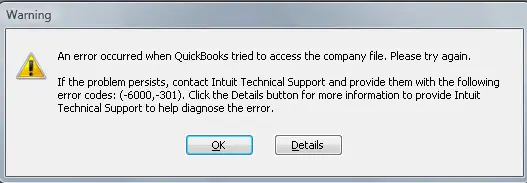
The full error message reads:
“Warning: An error occurred when QuickBooks Desktop tried to access the company file. Please try again. If the problem persists, contact Intuit Technical Support and provide them with the following error codes: (-6000, -301).”
What the -301 Code Specifically Means?
The -301 secondary code is the most technically specific of all the common -6000 variants. It identifies a failure at the file access initialization layer — QuickBooks found the company file, reached it through the path, but could not fully initialize the internal database connection needed to open it. This failure can stem from three specific conditions:
- Supporting configuration file damage — one or all of the three files that accompany the .QBW are corrupted or missing
- Encryption interference — the folder or drive is encrypted and QuickBooks cannot decrypt the content it needs to read
- Environmental failure — insufficient disk space, damaged folder structure, version mismatch, or corrupted QuickBooks program files
The Three Supporting Files Specific to Error -301
Unlike other -6000 errors that reference only .ND and .TLG, Error -6000, -301 specifically involves all three supporting configuration files. The third — the .DSN file — is largely undocumented in competing guides but is a confirmed -301-specific trigger.
- .TLG — Transaction Log File
Records uncommitted transactions from the current session. If corrupted due to an improper shutdown, disk write error, or file mismatch, QuickBooks cannot verify data integrity and returns -6000, -301.
- .ND — Network Data (Network Descriptor) File
Contains the hostname and port number of the machine hosting the company file for multi-user access. When stale after a server rename or IP change, QuickBooks cannot complete the network handshake and returns -6000, -301.
- .DSN — Data Source Name File (UNIQUE TO -301)
Contains the database connection string — the internal parameters QuickBooks uses to connect to the company file’s embedded database engine. Unlike .ND (network address) and .TLG (transaction log), the .DSN handles the database connection initialization itself.
Symptoms of QuickBooks Error -6000, -301
- Error dialog appears immediately when attempting to open the company file.
- QuickBooks becomes unresponsive or freezes for 30-60 seconds before displaying the error.
- Error appears when accessing a company file on a server while other files open correctly.
- After a recent upgrade of Windows or QuickBooks, a previously accessible file now returns -6000, -301.
- Recently moved server or changed drive mappings, and the error appears immediately after.
- Error appears only under a specific Windows user account, while other accounts on the same machine can open the file.
- The company file was previously on an encrypted drive that has since had its encryption settings changed.
- QuickBooks prompts to repair or rebuild the company file at launch.
Scenario-Based Troubleshooting: Beginner to Advanced
Scenario 1: Error Appears on Open — Environmental or Support File Cause
Applies to: Users whose company file recently worked but now returns -6000, -301 on open. Most likely causes: corrupted .TLG, .ND, or .DSN files; encryption software on the folder; insufficient disk space.
Fix 1: Rename the .TLG, .ND, and .DSN Supporting Files
Beginner | Time: 5-10 minutes
This is the primary fix for error -6000, -301 and the one Intuit’s own support pages recommend first. Unlike other -6000 errors where only .ND and .TLG are renamed, Error -301 specifically requires renaming the .DSN file as well. All three files are automatically regenerated by QuickBooks when they are absent.
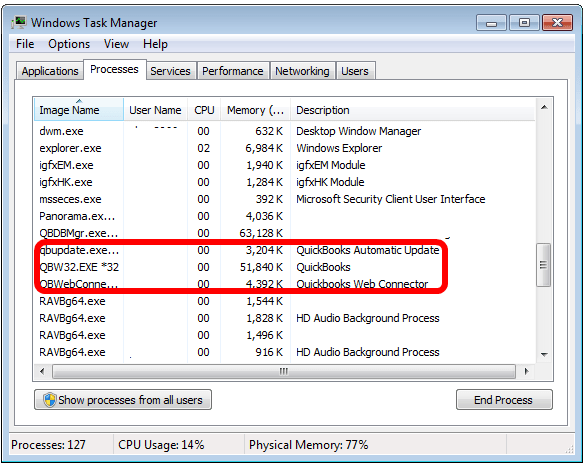
1. Close QuickBooks completely. Open Task Manager (Ctrl + Shift + Esc) and end every instance of QBW32.exe.
2. Open File Explorer and navigate to the company file folder: C:\Users\Public\Public Documents\Intuit\QuickBooks\Company Files
Look for files with the same base name as your company file but with these extensions:
* [CompanyFileName].QBW.TLG
* [CompanyFileName].QBW.ND
* [CompanyFileName].QBW.DSN (or [CompanyFileName].DSN)
3. Right-click each file -> Rename -> add .OLD to the end of each name. Result: [Name].QBW.TLG.OLD, [Name].QBW.ND.OLD, [Name].QBW.DSN.OLD
4. Close File Explorer. Open QuickBooks and attempt to open the company file.
5. QuickBooks will automatically generate new .TLG, .ND, and .DSN files during the next successful open.
Fix 2: Check and Free Up Disk Space
Beginner | Time: 5-15 minutes
Insufficient disk space on the drive containing the company file is a documented, confirmed cause of -6000, -301. QuickBooks requires space to write the .TLG transaction log during each session.
1. Open File Explorer -> click This PC.
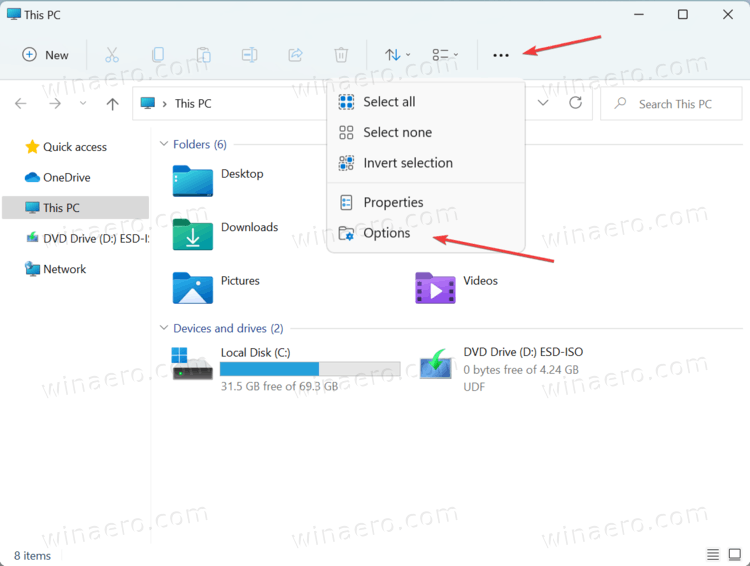
2. Identify the drive where the company file is stored (usually C: for local machines, or the server’s drive).
3. Check available space shown beneath the drive. QuickBooks requires approximately 2 GB minimum on both the company file drive and the Windows system drive. For large company files, 5 GB or more is recommended.
4. If below 2 GB: free up space by emptying the Recycle Bin, removing temporary files (Start -> type %temp% -> delete all contents), or moving unneeded files to external storage.
5. After freeing space, attempt to open the company file.
Fix 3: Disable Encryption on the Company File Folder
Intermediate | Time: 10-20 minutes
Encryption applied to the company file folder or drive prevents QuickBooks from reading the file content it needs to initialize the database connection. This is a documented -301-specific cause.
Check for Windows EFS (Encrypting File System):
1. Navigate to the company file folder in File Explorer.
2. Right-click the folder -> Properties -> Advanced button (under the General tab).
3. If the checkbox ‘Encrypt contents to secure data’ is checked, encryption is active.
4. Uncheck this option -> click OK -> Apply.
5. When prompted, select ‘Apply changes to this folder, subfolders, and files’ -> OK.
6. Attempt to open the company file.
Check for Windows BitLocker:
1. Click Start -> Settings -> Update & Security -> Device encryption.
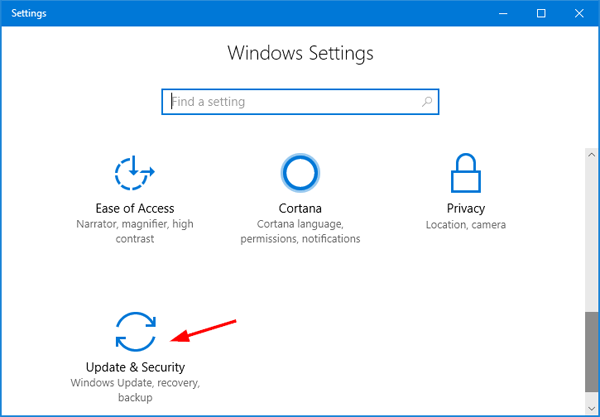
2. If Device encryption is shown as On and the company file is on the encrypted drive, BitLocker is the cause.
3. Contact your IT administrator. As a workaround: move the company file to a non-encrypted folder or drive, then update the QBDSM scan to point to the new location.
Disable third-party encryption software:
1. Identify any installed encryption application (VeraCrypt, Symantec, McAfee Drive Encryption, etc.).
2. Open the application and remove the company file folder from the encrypted volume or exclusion list.
Fix 4: Update QuickBooks Desktop to the Latest Release
Beginner | Time: 10-20 minutes
If the company file was created or last saved by a newer QuickBooks version than the one currently running, -6000, -301 is the result of a version mismatch.
1. Open QuickBooks (hold Ctrl while clicking the QB icon to prevent auto-opening the last file).
2. Go to Help -> Update QuickBooks Desktop.
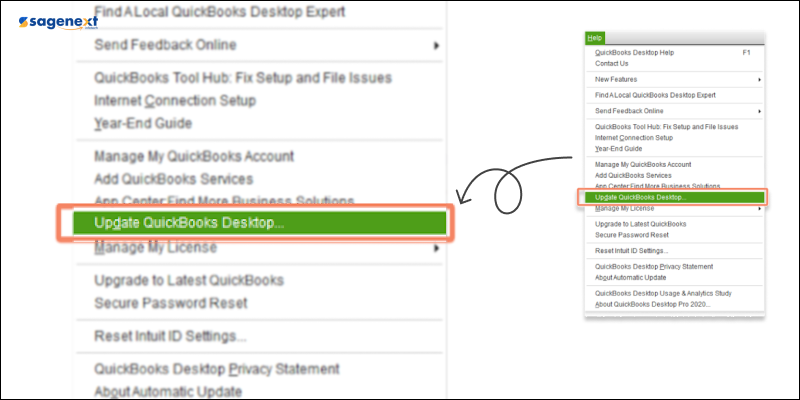
3. Click the Update Now tab. Check Reset Update to clear cached partial downloads.
4. Click Get Updates and allow the download to complete.
5. Close and reopen QuickBooks when prompted to install. Click Yes to install. Follow on-screen instructions.
6. Restart your computer after installation. Attempt to open the company file.
Scenario 2: Error Appears in Multi-User Mode — Network or Path Issue
Applies to: Users where the company file opens correctly on the server machine (local access) but workstations return -6000, -301 in multi-user mode. Most likely causes: stale .ND file, Database Server Manager not running or pointing to wrong folder, firewall blocking ports.
Fix 5: Rescan the Company File Folder in QuickBooks Database Server Manager Beginner-Intermediate | Time: 5-10 minutes
The Database Server Manager maintains the .ND file. If the file was moved, server renamed, or drive mapping changed, the .ND file contains the wrong path. A rescan regenerates it with current correct information.
Via QuickBooks Database Server Manager:
1. On the server machine: click Start -> search ‘QuickBooks Database Server Manager’ -> open it.
2. Click Scan Folders. Verify the company file folder is listed. If not: click Add Folder -> browse to it -> OK.
3. Click Start Scan. After it completes, verify the .ND file has been regenerated (check file timestamp).
4. Open QuickBooks on a workstation and test.
Also restart the Windows service:
1. Press Windows + R -> type services.msc -> Enter.
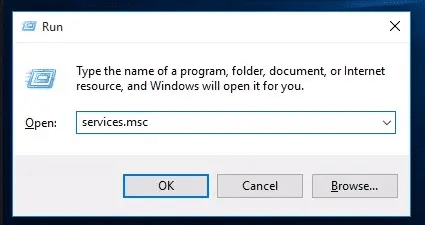
2. Find QuickBooksDB followed by a two-digit number (e.g., QuickBooksDB32 for QB 2022). Right-click -> Restart (or Start if stopped).
3. Also restart QBCFMonitorService if present.
Fix 6: Set Correct Folder Permissions for the Company File Directory
Intermediate | Time: 10-15 minutes
The QuickBooks Database Server Manager service account (QBDataServiceUserXX) must have Full Control on the company file folder in multi-user environments.
1. On the server, navigate to the company file folder in File Explorer.
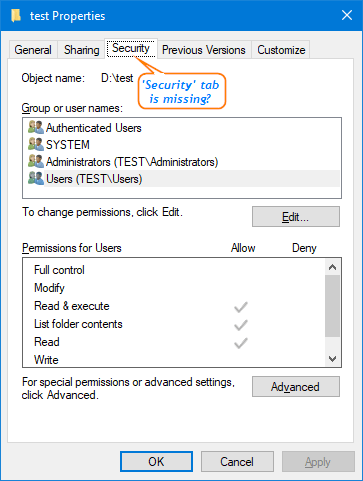
2. Right-click the folder -> Properties -> Security tab -> Edit.
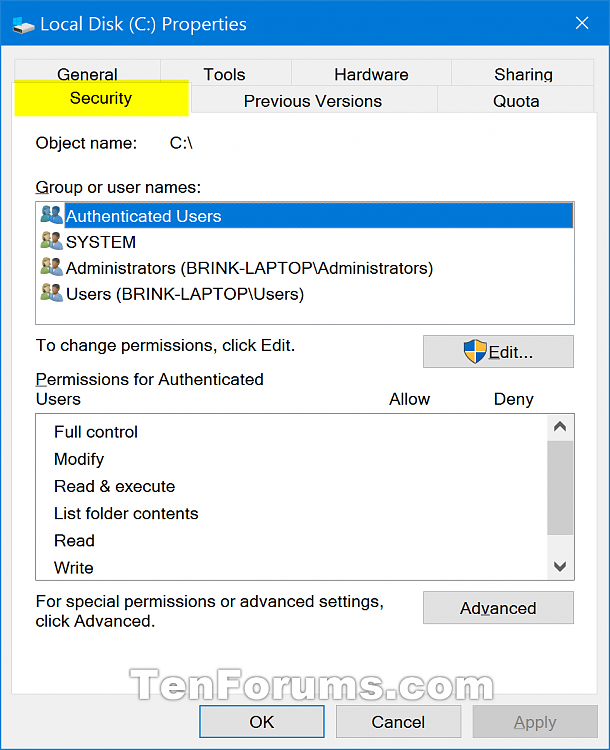
Verify these accounts have Full Control:
* The Windows user account running QuickBooks
* NETWORK SERVICE
* LOCAL SERVICE
* QBDataServiceUser28 (replace number with your QB year: 27 for QB 2021, 28 for QB 2022, 29 for QB 2023, 30 for QB 2024)
3. If QBDataServiceUser is missing: click Add -> type the account name -> Check Names -> grant Full Control. Click Apply -> OK.
4. Run a fresh scan in QuickBooks Database Server Manager (Fix 5). Test from a workstation.
Fix 7: Configure Windows Firewall to Allow QuickBooks Ports
Intermediate-Advanced | Time: 20-35 minutes
A firewall blocking QuickBooks’ required TCP ports prevents the Database Server Manager from completing the file access handshake in multi-user mode.
1. On the server: Start -> Windows Defender Firewall -> Advanced Settings -> Inbound Rules -> New Rule -> Port -> Next -> TCP -> enter ports for your version -> Next.
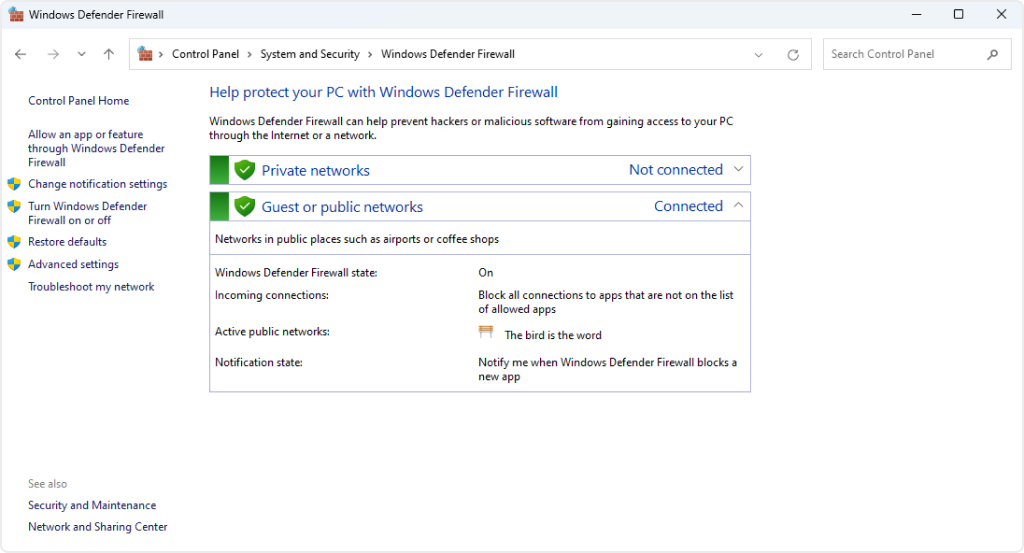
2. Allow the Connection -> Next -> check Domain, Private, and Public -> Next. Name the rule ‘QuickBooks Inbound’ -> Finish.
3. Repeat for Outbound Rules with the same ports.
4. Add QB executables as exceptions (Start -> Defender Firewall -> Allow an app): QBW32.exe, QBDBMgrN.exe, QBCFMonitorService.exe from C:\Program Files\Intuit\QuickBooks [Year]\. Check Private and Public for each.
5. Repeat both steps on each workstation.
Scenario 3: Error After Company File Move, Server Change, or Reinstall
Applies to: Users who recently moved the company file, reinstalled Windows, or changed server drive configuration. Most likely causes: .ND file path outdated, new folder lacks correct permissions, path contains special characters.
Fix 8: Move the Company File to a New Clean Folder
Intermediate | Time: 10-20 minutes
If the original folder has file system-level corruption or the path has changed in a way producing -6000, -301, creating a new folder and moving the file there removes the corrupt folder from the equation.
1. Close QuickBooks on all machines. End all QBW32.exe processes in Task Manager.
2. Create a new folder at a clean path, e.g.: C:\QB_CompanyFiles\
3. COPY (do not cut) the .QBW company file to the new folder. Do NOT copy the .TLG, .ND, or .DSN files — leave them behind. Fresh ones will be generated.
4. Right-click the new folder -> Properties -> Security -> set the same permissions as Fix 6 (add QBDataServiceUserXX with Full Control).
5. Open QuickBooks -> File -> Open or Restore Company -> Open a Company File. Browse to the new folder and open the .QBW file.
6. If the file opens without -6000, -301: open QuickBooks Database Server Manager -> Scan Folders -> Add Folder -> point to the new folder path -> Start Scan.
Fix 9: Remove Special Characters and Spaces from the File Path
Beginner | Time: 5 minutes
Folder or file paths containing special characters (&, #, @, %) or paths over 210 characters total cause QuickBooks’ internal path parser to fail, producing -6000, -301.
1. Navigate to the company file in File Explorer.
2. Right-click the .QBW file -> Rename -> remove any characters that are not letters, numbers, hyphens, or underscores. Remove any leading or trailing spaces.
3. Also rename the folder containing the company file if it contains special characters or spaces.
4. Rename or delete the .TLG, .ND, and .DSN files in the same folder (they will be regenerated).
5. Open QuickBooks and attempt to open the renamed file.
Scenario 4: Error Persists After All Basic Fixes — File or Installation Damage
Applies to: Users who have completed Fixes 1-9 without resolution. The problem has escalated to internal company file data damage or QuickBooks installation damage.
Fix 10: Run QuickBooks File Doctor
Beginner-Intermediate | Time: 15-30 minutes
File Doctor diagnoses both company file data issues and network configuration problems. For -6000, -301, it addresses all three supporting file types, validates hosting configuration, and runs lightweight data integrity checks.
1. Close QuickBooks.
2. Open QuickBooks Tool Hub -> Company File Issues.
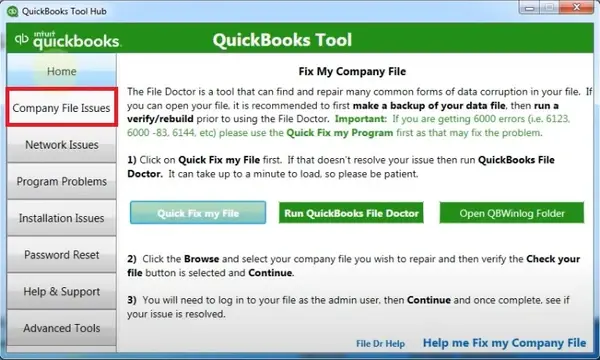
3. Click Run QuickBooks File Doctor. From the dropdown, select your company file. If not listed, click Browse.
4. Select Check your file and network (the full scan option).
5. Enter your QuickBooks admin password -> click Next.
6. Allow the scan to run (5-30 minutes). Open QuickBooks and test after completion.
Fix 11: Run Verify Data and Rebuild Data
Intermediate | Time: 20-60 minutes
When the supporting file rename and File Doctor have not resolved -6000, -301, internal data damage in the .QBW file is the most likely remaining cause.
Verify Data:
1. Open QuickBooks and open the company file (if it opens at all).
2. Go to File -> Utilities -> Verify Data. Allow the scan to run to completion.
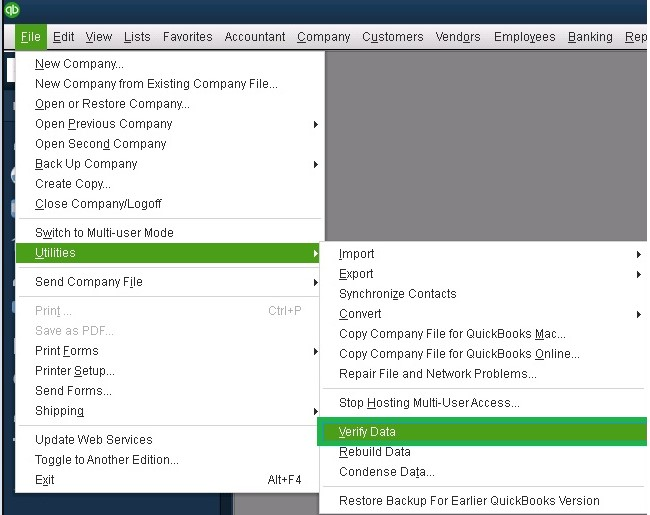
Interpret the result:
* ‘QuickBooks detected no problems with your data’ — no data damage. Return to Fix 5 or Fix 8 for the cause.
* QuickBooks prompts to Rebuild — proceed immediately.
* LVL_ERROR entries appear in the verification log — internal damage confirmed. Proceed to Rebuild.
Rebuild Data:
1. Go to File -> Utilities -> Rebuild Data.
2. When prompted, create a backup before rebuilding. Save it to a separate local folder.
3. Allow the Rebuild to run to completion. Do not close QuickBooks during this process.
4. Run Verify Data again after Rebuild. If it reports ‘no problems,’ the damage is repaired.
5. If errors persist after two Rebuild passes, proceed to Fix 12 or Fix 13.
Fix 12: Repair or Reinstall QuickBooks Desktop
Intermediate | Time: 20-45 minutes
Damaged QuickBooks program files can cause -6000, -301 on every file open attempt.
Repair first:
1. Close QuickBooks -> Control Panel -> Programs and Features -> QuickBooks Desktop -> Uninstall/Change -> Repair. Follow instructions. Restart your computer. Test.
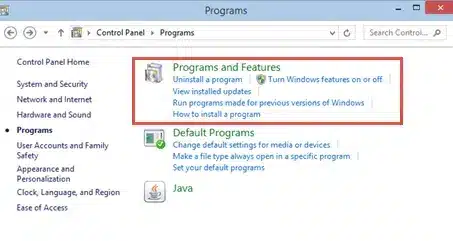
Full reinstall (if repair does not resolve):
1. Control Panel -> Programs and Features -> QuickBooks Desktop -> Uninstall/Change -> Remove. Follow all prompts.
2. Delete remaining folders: C:\Program Files\Intuit\QuickBooks [Year] and C:\ProgramData\Intuit\QuickBooks [Year]
3. Delete the Entitlement Client folder: C:\ProgramData\Intuit\Entitlement Client\v8
4. Restart your computer. Download a fresh installer from downloads.quickbooks.com/app/qbdt/products. Run with your license details.
Scenario 5: Company File Cannot Be Opened at All — Data Recovery
Applies to: Users where the company file fails to open from the Desktop, Verify/Rebuild cannot run, and File Doctor has not resolved the issue. Severe internal data damage requiring recovery.
Fix 13: Restore from the Most Recent Clean Backup
Beginner | Time: 10-30 minutes
If a clean .QBB backup exists from before the error appeared, restoring it is the fastest complete resolution.
1. Identify the most recent .QBB backup file from before the error occurred.
2. In QuickBooks: File -> Open or Restore Company -> Restore a Backup Copy -> Local Backup -> Next.
3. Browse to the .QBB file -> Open.
4. Choose a restore destination on the local C: drive (not the same folder as the damaged file).
5. Name the restored file distinctly from the damaged file. Open the restored file and verify it is intact.
6. Re-enter any transactions entered between the backup creation date and the error.
Fix 14: Use Auto Data Recovery (ADR)
Advanced | Time: 30-60 minutes
When no clean backup is available, QuickBooks’ Auto Data Recovery provides a path to a recent recovery point through automatically maintained copies.
1. Create a folder named QBTest on your desktop.
2. Navigate to the company file folder. Copy the .TLG file into QBTest.
3. Locate the hidden subfolder QuickBooksAutoDataRecovery in the company file folder. (File Explorer -> View -> check Hidden items.)
4. Inside the folder, find the file with the .QBW.adr extension. Copy it into QBTest.
5. In QBTest, rename the .QBW.adr file by removing the .adr extension. Result: a .QBW file.
6. Open QuickBooks -> File -> Open or Restore Company -> Open a Company File -> select the .QBW from QBTest.
7. Go to File -> Utilities -> Verify Data. If there are no errors, the recovered file is usable.
8. Copy the valid file to the main company file folder (renaming the damaged original first).
When the Error Strikes: Timeline of Impact
Just like Error -83, QuickBooks Error -6000, -301 does not disrupt or freeze the actual physical data transfer during a migration. You can copy, move, or migrate the file to a new server or cloud infrastructure without any warnings flashing on the screen.
Instead, this error acts strictly as a post-migration gatekeeper. It strikes the exact second you launch QuickBooks on the new setup and attempt to open the migrated .qbw file for the very first time.
The Operational Impact on the Migration Process
While Error -83 is heavily tied to network permissions, Error -301 specifically means QuickBooks cannot initialize the file because it is choking on damaged transaction logs (.TLG), network descriptors (.ND), or active Windows encryption on the new host drive. Its presence impacts your migration deployment in three ways:
- It Flags a Conflict with New Server Security: A very common cause of Error -301 during migration is that the new server or drive has automated encryption software (like BitLocker or third-party security) enabled. The error serves as an immediate indicator that your new hosting environment’s automated security is actively blocking QuickBooks from writing to its own database.
- It Forces a “Support File” Purge: The migration process successfully moved the core database, but it also moved the old server’s .TLG (Transaction Log) and .ND files. Error -301 indicates that these supporting files are structurally incompatible with the new server’s database manager version or path layout. The migration cannot proceed until these legacy files are manually deleted (.OLD) so the new server can generate fresh ones.
- It Halts the Timeline for local storage checks: Error -301 can also be triggered if the target migration drive is critically low on disk space, preventing QuickBooks from allocating memory to open the file. This forces the migration team to pause the launch, audit server partition capacities, and clear room before users can log in.
Connected Error Codes: Cross-Referencing Symbology
When Error -6000, -301 halts your system, it rarely occurs in total isolation. Because its symptoms point to broken support paths, active file locking, or permission restrictions, it is frequently paired with a connecting error.
Identifying these twin errors helps isolate whether your issue is rooted in infrastructure or data damage:
- Error -6000, -83 (The Environment Match): If your symptom involves a recently moved server or changed drive mappings, Error -301 will often alternate with Error -83. While -301 indicates that the supporting files (.ND/.TLG) are failing to initialize on the new drive, -83 serves as the structural confirmation that the network pathing or Windows folder permissions are the root cause blocking that initialization.
- Error -6000, -82 (The Hosting Conflict Match): When the symptom is isolated to a specific Windows user account or machine, it frequently bridges into Error -82. This indicates that while one machine is throwing a -301 because it cannot read the file initialization parameters, another workstation on the network has accidentally enabled “Hosting Mode,” locking the database engine.
- Error -6150, -1006 (The Encryption Match): If your symptom involves a recently encrypted drive or an unexpected file repair prompt, it directly connects to Error -6150. Because QuickBooks cannot decipher a database file that has had its encryption keys or permissions altered by Windows, it misinterprets the security block as an invalid, unrecognizable, or missing file extension.
Preventive Measures for Error -6000 -301
- Update QuickBooks: Always run the latest QuickBooks Desktop release to ensure compatibility and reduce corruption risks.
- Maintain Support Files: Regularly check and rename damaged .ND, .TLG, and .DSN files (QuickBooks will auto‑generate fresh ones).
- Use QuickBooks Tool Hub: Run File Doctor to repair company file damage before it escalates.
- Avoid Encryption Conflicts: Disable third‑party encryption software during QuickBooks operations, as it can corrupt company data.
- Check Permissions: Ensure Windows user accounts and QuickBooks Desktop have full access rights to the company file.
- Backup Company Files: Maintain regular backups to restore clean versions if corruption occurs.
- Stable Environment: Keep Windows OS updated, ensure stable internet connectivity, and avoid hosting conflicts across multiple computers
Conclusion:
QuickBooks Error -6000, -301 is a file access initialization failure that almost always traces back to damaged support files (.ND, .TLG, .DSN), encryption conflicts, or environmental issues such as disk space and folder permissions. The troubleshooting path is layered: start with beginner fixes like renaming support files and checking disk space, then progress to intermediate steps such as disabling encryption, rescanning folders in Database Server Manager, and correcting permissions. If the error persists, advanced measures like running File Doctor, rebuilding data, repairing QuickBooks installation, or restoring from backup may be required.
Prevent recurrence by keeping QuickBooks updated, maintaining verified backups, ensuring stable hosting environments, and proactively monitoring support file health. With structured escalation, most cases resolve without permanent data loss.
FAQs – QuickBooks Error -6000 -301
What causes Error -6000 -301?
It usually occurs when QuickBooks company support files (.ND, .TLG, .DSN) are damaged, or when encryption software interferes with file access.
Can antivirus or encryption tools trigger this error?
Yes. Third‑party encryption or overly restrictive antivirus settings can block QuickBooks from accessing company files.
Is this error related to multi‑user mode?
Often, yes. Incorrect hosting settings or damaged network descriptor files (.ND) can cause access issues in multi‑user environments.
How do I prevent recurrence of Error -6000 -301?
Keep QuickBooks updated, repair support files regularly, disable encryption conflicts, and maintain verified backups.
Can QuickBooks Tool Hub fix this error?
Yes. Running File Doctor via Tool Hub can repair company file damage and reset support files.
Does this error mean my company file is permanently damaged?
Not necessarily. In most cases, repairing support files or restoring from backup resolves the issue without permanent data loss.