
Quickbook Error -6000, – 82 is a company file access denied and hosting conflict error. It occurs when Quickbooks desktop attempts to open a company file and finds that the file is either currently locked by another session, being claimed by a conflicting host on the network, or blocked due to a filename or configuration problem that prevents Quickbooks from acquiring the file lock it needs to proceed.
The error message:
- “Error -6000, -82: QuickBooks is unable to open the company file.” – Appears when QuickBooks cannot establish a connection to the company file due to hosting or network issues.
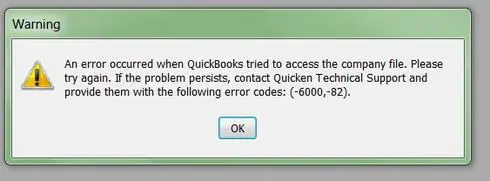
- “Error -6000, -82: The company file is located on another computer.” – Indicates that the file is stored on a server or another workstation, but QuickBooks cannot access it because of folder permissions or Database Server Manager problems.
- “Error -6000, -82: Company file access denied.” – The most direct message, triggered when folder permissions or hosting settings block QuickBooks from opening the file.
This error belongs to the -6000 series of quickbooks company file error, but the secondary code -82 has a specific and narrower meaning than other variants. Understanding that distinction is the most efficient path to the correct fix.
What the -82 Code Specifically Means?
Every -6000 error indicates that QBW32.exe failed to complete a company file operation. The secondary code identifies where in the file-open sequence that failure occurred:
| Error Code | Root Failure | File Damaged? | Primary Fix |
| -6000, -77 | Access denied — permissions or path blocked | No | Folder permissions, firewall, UNC path |
| -6000, -82 | File lock or hosting conflict — cannot acquire the access | Almost never | Remove lock file, end QB processes, fix hosting |
| -6000, -83 | Internal file data damage | Yes | File Doctor, Rebuild Data, ADR recovery |
| -6000, -106 | Multi-user connection failure, often paired with -82 | No | Hosting settings, Database Server Manager |
The -82 code specifically means that QuickBooks found the company file, reached it through the path, but was denied a file lock. The file content is almost always intact. This is a file-state conflict, not a data corruption error.
The three concrete causes of -82 are:
* A stale lock file (.QBW.lock) left behind by an abnormally terminated previous session
* A QuickBooks process still running in memory that invisibly holds the file open — even though QuickBooks appears closed
* A hosting conflict — one or more workstations have ‘Host Multi-User Access’ enabled when only the server should have it
A fourth documented cause is a trailing space in the company file name — confirmed in Intuit’s own support documentation — which causes QuickBooks’ internal file reference to fail to match the actual filename on disk.
Root Cause Analysis of Quickbook Error -6000, -82
1. File Name/Path Issues
- Extra spaces or special characters in the company file name or extension.
- File stored in a deeply nested or restricted directory.
- Impact: QuickBooks fails to parse the file path correctly, leading to denial of access.
2. Hosting Conflicts
- Multiple workstations set to host the company file simultaneously.
- Incorrect hosting configuration in File → Utilities.
- Impact: Database Server Manager cannot establish a stable multi‑user connection.
3. Folder Permissions
- Windows user accounts lack Full Control over the folder containing the company file.
- NTFS restrictions or domain policy blocks QuickBooks access.
- Impact: QuickBooks is denied read/write privileges, triggering the error.
4. Network Setup Problems
- Company file stored on another computer/server with unstable connectivity.
- Incorrectly mapped network drives or UNC path issues.
- Impact: QuickBooks cannot locate or maintain a connection to the file.
5. Firewall/Antivirus Restrictions
- Security software blocks QuickBooks ports or Database Server Manager processes.
- Impact: QuickBooks requests are rejected, resulting in “Access Denied.”
6. Outdated Database Server Manager
- Old or incompatible Database Server Manager version.
- Failure to rescan company file folders after updates.
- Impact: Multi‑user mode fails, preventing file access.
Symptoms of Quickbooks Error -6000, -82
Following are the symptoms that can be seen:
- Company file won’t open: QuickBooks displays the error immediately when attempting to open the company file.
- Access denied pop‑up: Users see the message: “Error -6000, -82: Company file access denied.”
- Multi‑user mode failure : The file opens in single‑user mode but fails when switching to multi‑user mode.
- File located on another computer: Pop‑up states the file is stored on another system, but QuickBooks cannot connect.
- Unexpected disconnections: Users are dropped from the company file session when multiple users attempt access.
- Slow or unresponsive QuickBooks: QuickBooks hangs or freezes while trying to establish a connection to the company file.
- Firewall/security alerts: Antivirus or firewall software may show blocked connection attempts when QuickBooks tries to access the file.
Scenario-Based Troubleshooting: Beginner to Advanced level
Scenario 1: Sudden -6000, -82 After a Crash, Power Failure, or Forced Shutdown
Applies to: Users whose QuickBooks was working correctly until a system crash, power loss, server restart, or force-quit. Most likely cause: stale .QBW.lock file or QuickBooks processes still running in memory.
Fix 1: Delete the Stale .QBW.lock File
Beginner | Time: 3-5 minutes
The lock file is the most common single cause of -6000, -82. Deleting it removes the stale session marker. QuickBooks will create a new valid lock file the next time the company file is opened normally.
1. Ensure QuickBooks is closed on every machine in the network.
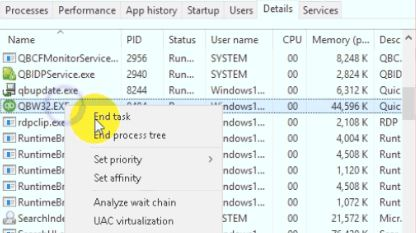
2. Open Task Manager (Ctrl + Shift + Esc). End every instance of: QBW32.exe, QBDBMgrN.exe, QBCFMonitorService.exe. Repeat on all networked machines.
3. Navigate to the company file folder: C:\Users\Public\Public Documents\Intuit\QuickBooks\Company Files
4. Look for a file named [CompanyFileName].QBW.lock. To show hidden files: File Explorer -> View -> Options -> View tab -> ‘Show hidden files’ and uncheck ‘Hide protected operating system files’.
5. Right-click the .QBW.lock file -> Delete -> confirm.
6. Wait 30 seconds. Open QuickBooks on the server machine first. Attempt to open the company file.
Note: If no .QBW.lock file is visible but the error persists, QuickBooks processes are holding the lock in memory without a lock file. Proceed to Fix 2.
Fix 2: End All QuickBooks Processes Across All Networked Machines
Beginner | Time: 5-10 minutes
A QBW32.exe or Database Server Manager process persisting in memory after an abnormal close holds the company file lock invisibly — no lock file will be present, but the error will continue.
1. On every machine connected to the QuickBooks network, open Task Manager (Ctrl + Shift + Esc).
2. Click the Details tab.
3. Find and End Task on each of: QBW32.exe, QBDBMgrN.exe, QBCFMonitorService.exe, QBUpdate.exe
4. After ending processes on all machines, wait 30 seconds.
5. Open QuickBooks on the server machine first. Open the company file. If a login window appears instead of the error, the lock has been cleared.
Note: Always reopen QuickBooks on the server before any workstation. If a workstation connects before the server Database Server Manager has restarted, the lock conflict can re-occur.
Fix 3: Restart the Computer Hosting the Company File
Beginner | Time: 5-10 minutes
A full restart of the server machine clears all process memory, releases all file handles, and forces a fresh start of the Database Server Manager service.
1. Inform all users to save their work and close QuickBooks.
2. Restart the server machine (the machine where the .QBW company file is stored).
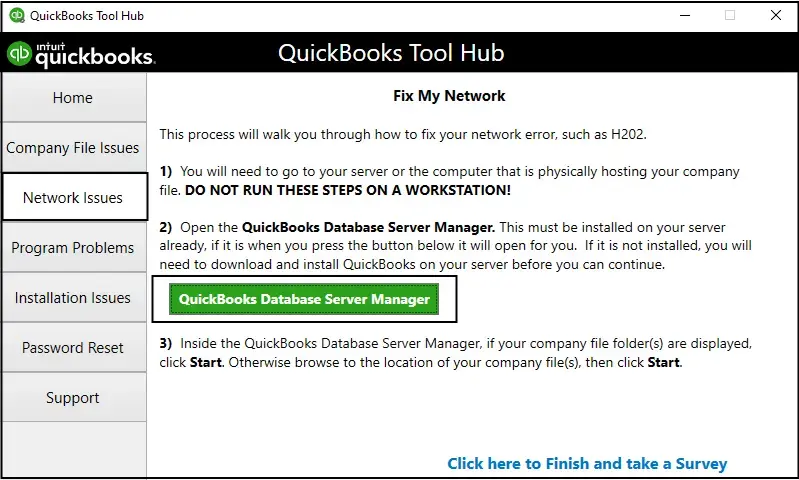
3. After the server restarts and loads, open QuickBooks on the server. Confirm Database Server Manager has started: Start -> search QuickBooks Database Server Manager -> confirm service shows as running.
4. Attempt to open the company file on the server first, then from workstations.
Scenario 2: -6000, -82 in Multi-User Mode — Works on Server but Not Workstations
Applies to: Users where the company file opens without error on the server machine but returns -6000, -82 on one or all workstations. Most likely cause: hosting conflict.
Fix 4: Disable Hosting on All Workstations
Beginner | Time: 5-15 minutes
Every workstation must have hosting disabled; only the server should host. This is the most common cause of multi-user -6000, -82.
On each workstation (repeat on every workstation in the network):
1. Open QuickBooks without opening any company file — hold Ctrl while clicking the QuickBooks icon to bypass the auto-open.
2. Go to File -> Utilities.
3. If the menu shows ‘Stop Hosting Multi-User Access’ — click it. Click Yes to confirm, and Yes again to close the company file.
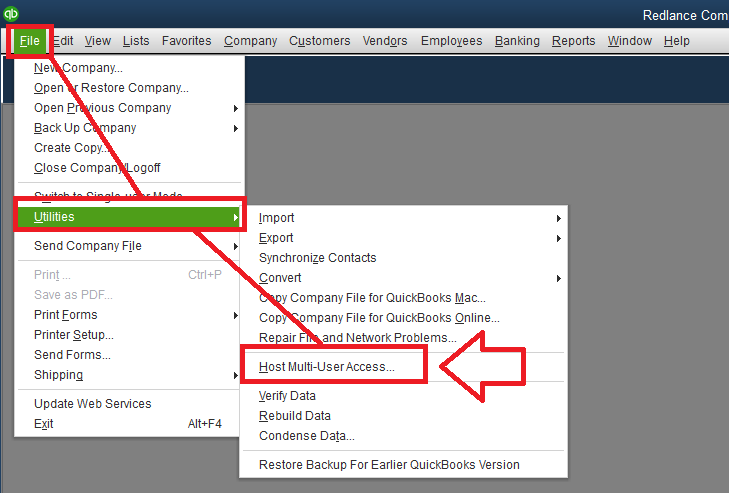
4. If the menu shows ‘Host Multi-User Access’ — hosting is already off on this machine. No action needed.
On the server machine:
1. Open QuickBooks on the server -> File -> Utilities.
2. The menu must show ‘Stop Hosting Multi-User Access’ — confirms hosting is active on the server. Correct.
3. If the server shows ‘Host Multi-User Access’ instead — click it to enable hosting on the server.
Fix 5: Verify and Correct the Hosting Mode Setting
Beginner-Intermediate | Time: 5-10 minutes
QuickBooks has three hosting mode settings visible in the Product Information window (F2 key) under Local Server Information. A workstation set to ‘Hosting Local and Remote Files’ causes -82.
1. On any machine showing the error, open QuickBooks and press F2 to open the Product Information window.
2. Scroll to the bottom and find the Local Server Information section. Check the Hosting value.
* ‘Hosting Local Files Only’ — correct for the server
* ‘Hosting Local and Remote Files’ — this on a workstation means it is trying to host the remote company file. This causes -82.
* ‘Hosting Off’ — correct for workstations that access but do not host the file
3. If a workstation shows ‘Hosting Local and Remote Files’ -> File -> Utilities -> Stop Hosting Multi-User Access.
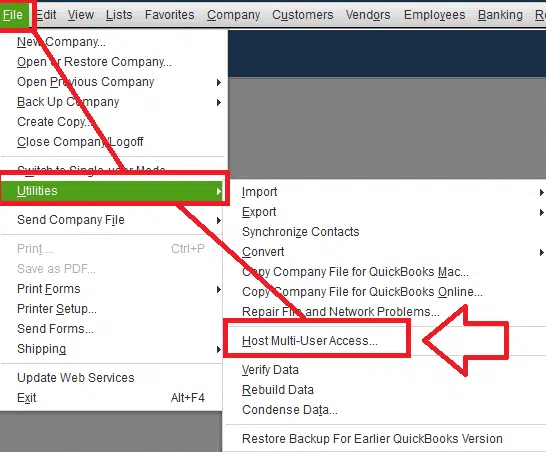
4. After adjusting, switch to Multi-User Mode: File -> Switch to Multi-User Mode.
5. Open the company file and press F2 again to verify the hosting value is now correct.
Fix 6: Switch to Multi-User Mode After Hosting Correction
Beginner | Time: 3-5 minutes
After correcting hosting settings, QuickBooks may still be in single-user mode on the server — blocking workstation connections.
1. On the server machine, open QuickBooks and open the company file.
2. Go to File -> Switch to Multi-User Mode. Click Yes to confirm.
3. On each workstation, open QuickBooks and open the company file. Users should see the login prompt rather than the error.
Scenario 3: -6000, -82 on a Single-User Setup or After File Rename/Move
Applies to: Users running QuickBooks on a single machine, or users who recently renamed or moved their company file. Most likely causes: trailing space in the filename, corrupted QBWUSER.INI, or stale .ND/.TLG files.
Fix 7: Remove Trailing Spaces from the Company File Name
Beginner | Time: 3-5 minutes
A space between the file name and the .QBW extension is a confirmed -6000, -82 trigger documented by Intuit. The space is invisible in most file browsers.
1. Log out of QuickBooks on all machines. End all QuickBooks processes in Task Manager.
2. Navigate to the company file folder.
3. Right-click the .QBW file -> Rename.
4. Place the cursor immediately before .QBW and press Backspace once or twice to remove any spaces. The name should read CompanyName.QBW with no space before the extension.
5. Press Enter to save. Rename or delete the corresponding .ND and .TLG files — they will be recreated.
6. Attempt to open the company file.
Fix 8: Rename the .ND and .TLG Configuration Files
Beginner | Time: 5-10 minutes
Corrupted or mismatched .ND and .TLG files can prevent QuickBooks from completing the pre-open file state check, producing -82. Renaming them forces fresh file generation.
1. Close QuickBooks on all machines. End all QBW32.exe processes via Task Manager.
2. Navigate to the company file folder: C:\Users\Public\Public Documents\Intuit\QuickBooks\Company Files
3. Locate [CompanyFileName].QBW.ND and [CompanyFileName].QBW.TLG.
4. Right-click each -> Rename -> add .OLD to the end. Result: [CompanyFileName].QBW.ND.OLD and [CompanyFileName].QBW.TLG.OLD
5. Open QuickBooks and attempt to open the company file. New .ND and .TLG files will be generated automatically.
Fix 9: Rename or Delete the QBWUSER.INI File
Intermediate | Time: 5-10 minutes
The QBWUSER.INI file maintains QuickBooks’ internal list of recently opened company files. A corrupted entry can cause -6000, -82 even when the file and hosting settings are correct.
1. Close QuickBooks. End all QuickBooks processes in Task Manager.
2. Navigate to: C:\Users\[YourWindowsUsername]\AppData\Local\Intuit\QuickBooks [Year]\ (Enable hidden items: File Explorer -> View -> Hidden items if AppData is not visible.)
3. Locate QBWUSER.INI. Right-click -> Rename -> add .OLD to the end: QBWUSER.INI.OLD
4. Open QuickBooks. It will create a fresh QBWUSER.INI and prompt you to locate your company file.
5. Navigate to and open the company file manually.
Scenario 4: -6000, -82 Persists After Lock and Hosting Fixes — Deeper File Issue
Applies to: Users who have completed Fixes 1-9 and the error continues. Minor data damage inside the company file is the most likely remaining cause.
Fix 10: Run Quick Fix My Program in QuickBooks Tool Hub
Beginner-Intermediate | Time: 10-15 minutes
Quick Fix My Program closes all background QuickBooks processes, clears program-level temporary files, and performs a lightweight integrity check.
1. Close QuickBooks completely. Open Task Manager and end all QuickBooks-related processes.
2. If QuickBooks Tool Hub is not installed, download it from Intuit’s official website.
3. Open QuickBooks Tool Hub -> Program Problems -> Quick Fix my Program.
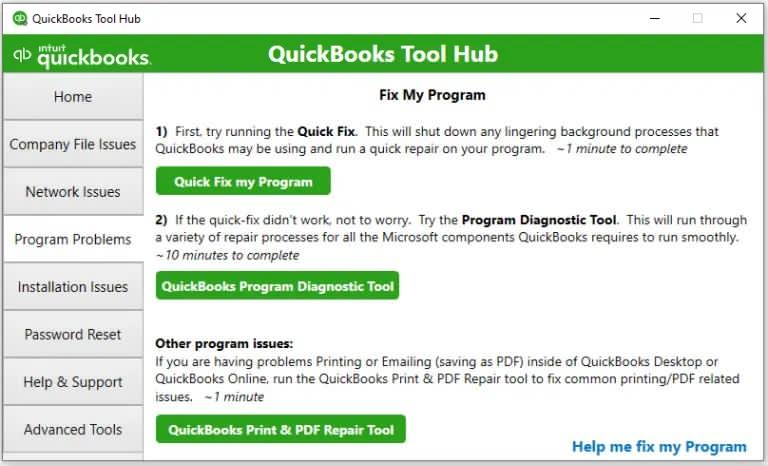
4. Allow the tool to complete (2-5 minutes). Open QuickBooks Desktop and attempt to open the company file.
Fix 11: Run QuickBooks File Doctor
Beginner-Intermediate | Time: 15-30 minutes
QuickBooks File Doctor automatically diagnoses both company file issues and network connectivity problems. For -6000, -82 it detects hosting conflicts, file integrity problems, and lock-related errors that manual steps may not address.
1. Close QuickBooks. Open QuickBooks Tool Hub -> Company File Issues.
2. Click Run QuickBooks File Doctor. Select your company file from the dropdown, or Browse to locate it.
3. Select Check your file and network. Enter your QuickBooks admin password when prompted.
4. Allow the scan to run to completion (5-30 minutes). Test QuickBooks after — regardless of what the tool reports.
Note: File Doctor may report ‘could not fix all issues’ even when the error is resolved. Always test QuickBooks after the tool finishes regardless of the reported result.
Fix 12: Run Verify Data and Rebuild Data
Intermediate | Time: 15-45 minutes
When minor data damage inside the .QBW file prevents QuickBooks from acquiring the lock, the Verify and Rebuild utility repairs internal data structure errors.
Verify Data:
1. Open QuickBooks and open the company file (if it opens, even intermittently).
2. Go to File -> Utilities -> Verify Data.
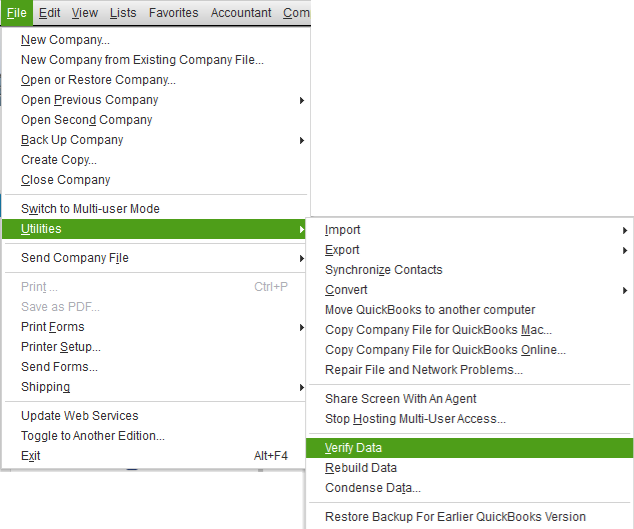
3. If ‘QuickBooks detected no problems with your data’ appears — the file has no data damage. Return to Fix 4 or Fix 5.
4. If Verify Data reports errors, proceed immediately to Rebuild Data.
Rebuild Data:
1. Go to File -> Utilities -> Rebuild Data.
2. QuickBooks will prompt you to back up the company file. Create the backup. Do not skip this step.
3. After the backup, the Rebuild process runs. Allow it to complete — do not close QuickBooks.
4. After Rebuild completes, run Verify Data again to confirm all errors are cleared.
Note: If Verify Data reports errors that Rebuild cannot clear after two rebuild passes, the file has damage beyond what the built-in tool can repair. Proceed to Fix 13.
Scenario 5: -6000, -82 After a QuickBooks Update or New Installation
Applies to: Users who received this error after applying a QuickBooks Desktop update or installing QuickBooks on a new machine.
Fix 14: Update QuickBooks to the Latest Release
Beginner | Time: 10-20 minutes
QuickBooks updates include fixes for known -6000 series errors. If an intermediate update was applied but more recent patches exist, the remaining bug may be addressed by the latest release.
1. Open QuickBooks -> Help -> Update QuickBooks Desktop.
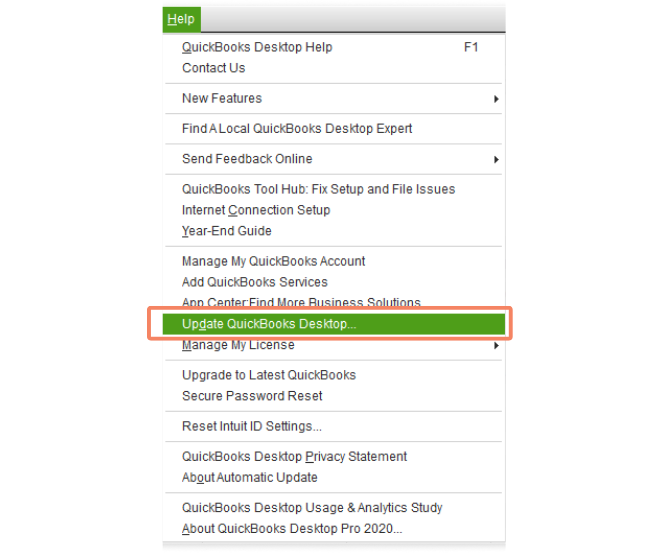
2. Click Update Now. Check Reset Update to clear cached partial downloads. Click Get Updates.
3. After download, restart QuickBooks and accept the install prompt. Restart your computer after installation.
4. After restarting, re-verify hosting settings on all machines (Fix 4) — updates sometimes reset hosting configuration.
Fix 15: Repair the QuickBooks Installation
Intermediate | Time: 20-35 minutes
A QuickBooks update that did not complete cleanly can damage program files, producing -6000, -82 on every file open attempt. Repair restores all program files to their correct state without affecting company data.
1. Close QuickBooks.
2. Go to Control Panel -> Programs and Features -> select QuickBooks Desktop -> Uninstall/Change.
3. In the installer window, select Repair. Follow all on-screen steps to completion.
4. Restart your computer. Attempt to open the company file. After a repair, re-verify hosting settings on all machines.
Preventive Measures
Below are the preventive measures that need to be taken into consideration:
- Keep QuickBooks updated – Regularly install the latest QuickBooks Desktop and Database Server Manager updates to avoid compatibility issues.
- Maintain proper hosting setup – Ensure only the server computer hosts the company file. Disable hosting on all workstations.
- Verify folder permissions – Grant Full Control to QuickBooks users for the folder containing the company file.
- Use stable network connections – Avoid unstable Wi‑Fi; prefer wired connections for multi‑user setups.
- Configure firewall/antivirus exceptions – Whitelist QuickBooks executables and ports in firewall and antivirus settings.
- Standardize file naming – Remove spaces or special characters from company file names and extensions.
- Regular backups – Schedule automated backups to protect against corruption during access errors.
- Rescan company file folders – Use Database Server Manager to rescan folders after updates or relocations.
Quickbooks Error -6000, -82: Quickbooks Desktop Vs Online
QuickBooks Error -6000, -82, company file access denied is a QuickBooks Desktop-specific issue that occurs when the software cannot open the company file due to hosting conflicts, folder permission restrictions, file name/path problems, or outdated Database Server Manager, typically disrupting multi-user access, on the other side, QuickBooks Online does not encounter this error because it runs entirely in the cloud, meaning local file access issues like -6000, -82 are irrelevant, though Online users may face browser or login-related problems instead.
FAQs
Q1. What does error code -82 specifically mean in QuickBooks Error -6000, -82?
The -82 code indicates a file lock or hosting conflict failure. QuickBooks located the company file and reached it through the path, but could not acquire the lock it needs to open the file — either because a stale lock file from a previous crashed session still exists, because a QuickBooks process in memory holds the lock, or because a hosting conflict means two machines are simultaneously claiming the file. This is distinct from -77 (permissions/access denial) and -83 (file data damage).
Q2. Is my company file data at risk when Error -6000, -82 appears?
Almost never. Error -6000, -82 is a file lock or hosting conflict — QuickBooks is blocked from reaching the file, but the file itself is not modified. Your financial data in the .QBW file is almost always intact. The only exception is when -82 is accompanied by minor data damage from a session interrupted mid-write, in which case Verify and Rebuild Data (Fix 12) addresses the problem.
Q3. What is a .QBW.lock file and is it safe to delete?
The .QBW.lock file is a session marker created by QuickBooks when a company file is opened. Under normal operation, QuickBooks deletes this file automatically when the session ends. If QuickBooks crashes or is force-quit, the lock file is not deleted and becomes stale. Deleting a stale .QBW.lock file is safe — it will be recreated the next time the company file is opened normally.
Q4. Why does -6000, -82 appear in multi-user mode but not on the server directly?
When you open the file on the server, QuickBooks accesses it as a local file, bypassing the hosting layer. In multi-user mode, workstations go through the Database Server Manager and the network hosting layer. A hosting conflict — where a workstation has hosting enabled alongside the server — creates competing file-open requests visible only in multi-user mode. Fix 4 (disable hosting on all workstations) resolves this.
Q5. Can -6000, -82 and -6000, -106 appear at the same time?
Yes. Error -106 frequently appears alongside -82 in multi-user environments. -82 indicates the lock or hosting conflict; -106 indicates the multi-user connection failed as a result. Resolving the -82 cause (Fix 4 or Fix 5) typically resolves -106 simultaneously.
Q6. Can antivirus software alone cause Error -6000, -82?
Yes. Aggressive antivirus settings may block QuickBooks ports or processes, leading to denied access.
Q7. Is the error linked to Windows user accounts?
Absolutely. If the Windows account lacks Full Control over the company file folder, QuickBooks will deny access.