
QuickBooks Error -6147, 0 is a company file and backup file access error. It occurs when QuickBooks Desktop fails to open a company file (.QBW), restore a backup file (.QBB), or access a file that has been moved, damaged, or stored in a location that QuickBooks cannot reliably reach.
The error message reads in one of the following forms:
Error code -6147, 0 when attempting to open my company file or a backup file.
Unable to access company file: Error codes (-6147, 0).
QuickBooks is unable to open this company file.
Error -6147, 0 is a company file access error. It means Quickbooks Desktop found your company file (.QBW) but cannot read or write to it properly. The two most common triggers are:
- You are trying to open a company file that was recently moved, renamed, or restored from a backup.
- You are trying to switch your company file from single- user mode to multi- user mode on a network.
- The company file or its transaction log file (.TLG) is damaged or out of sync.
- Windows is blocking Quickbooks from accessing the file due to permission or firewall settings.
The best part is this error doesn’t mean that your data is corrupted or permanently deleted. It is almost always a configuration or access problem that can be fixed in under minutes.
Root Cause Analysis – QuickBooks Error -6147, 0
Following is the root cause analysis:
Primary Root Causes
- Damaged company file (.QBW) or backup (.QBB).
- Incorrect backup location — restoring from a network drive, external device, or restricted folder.
- Corrupted support files (.ND, .TLG).
- File path issues — special characters (&, %, #) or overly long paths (>210 characters).
- Permission conflicts — insufficient Windows or QuickBooks Database Server Manager rights.
- Migration errors — attempting Desktop → Online conversion with an inaccessible backup.
Environmental & System Factors
- Disk space limitations — insufficient free space to restore or rebuild files.
- Firewall restrictions — blocking QuickBooks ports during multi‑user or migration operations.
- Version mismatch — restoring a backup created in a newer QuickBooks release.
- Encryption conflicts — restoring from encrypted drives or folders.
Symptoms of Error -6147, 0
- QuickBooks displays: “This is not a QuickBooks data file or QuickBooks cannot open the company file.”
- Error appears when restoring from a backup stored on a server or external drive.
- QuickBooks freezes or becomes unresponsive during file open.
- The error occurs after migration attempts from Desktop to Online.
Problems Converting QuickBooks Desktop to Online – Error -6147, 0
Many users encounter Error -6147, 0 when attempting to convert QuickBooks Desktop files into QuickBooks Online. This happens because the backup or company file is either damaged, stored in the wrong location, or blocked by path/permission conflicts.
- File integrity check: Run Verify Data & Rebuild Data in Desktop before migration.
- Local restore first: Always restore the backup on the local C:\ drive before attempting conversion.
- Support file reset: Rename .ND and .TLG files to allow QuickBooks to regenerate fresh ones.
- Tool Hub/File Doctor: Repair corruption before initiating migration.
Key Insight: Migration tools cannot process a file that is already inaccessible in Desktop. Fix the error locally first, then retry the conversion.
Migrating from QuickBooks Desktop to QuickBooks Online – Error -6147, 0
Error -6147, 0 often surfaces during the Desktop → Online migration workflow because the backup file is not properly restored or validated.
- Step 1: Restore the backup in QuickBooks Desktop successfully.
- Step 2: Run Verify Data & Rebuild Data to confirm file integrity.
- Step 3: Ensure the file path is clean (no special characters, short folder names).
- Step 4: Use the builtin Export to QuickBooks Online tool from Desktop.
- Step 5: If migration fails, re‑run File Doctor and attempt again with a fresh backup.
Note: Migration errors are not caused by QuickBooks Online itself — they originate from Desktop file corruption or path issues. Resolving Error -6147, 0 in Desktop ensures a smoother transition to Online.
Quick Fixes for Quickbook Error -6147, 0
Fix 1 — Run the QuickBooks File Doctor (Do This First)
Intuit built a free tool called the QuickBooks Tool Hub that contains the File Doctor. It handles the most common causes of -6147, 0 automatically. Start here before anything else.
1.Download QuickBooks Tool Hub
Go to Intuit’s official support page and download the QuickBooks Tool Hub (search “Intuit QuickBooks Tool Hub download”). Install it like any normal Windows program.
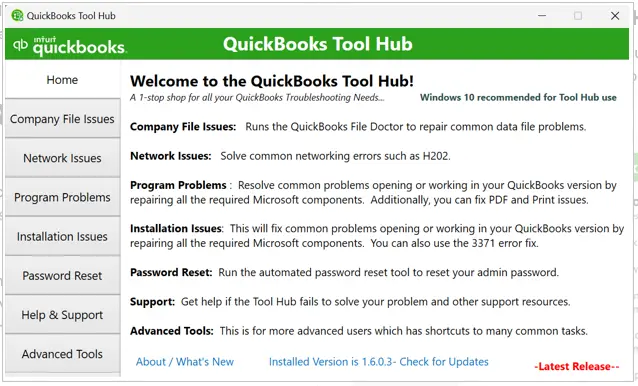
2.Open the Tool Hub and click “Company File Issues”
Launch the Tool Hub from your Desktop. On the left menu, click Company File Issues. Then click Run QuickBooks File Doctor.
3.Browse to your company file
The File Doctor will ask you to locate your .QBW file. Click Browse, navigate to where your file is stored, select it, and click Open.
4.Choose “Check your file” and enter your Admin password
Select Check your file (middle option), click Continue, and enter your QuickBooks Administrator password when prompted.
5.Wait for the scan to complete
The scan can take anywhere from 5 to 15 minutes depending on your file size. Do not close the window or use QuickBooks during this time.
6.Try opening your company file
Once the scan finishes, close the Tool Hub, reopen QuickBooks, and try to open your company file. For many users, the error is now gone.
Fix 2 — Rename the .ND and .TLG Files
QuickBooks creates two helper files alongside every company file: a Network Data file (.ND) and a Transaction Log file (.TLG). When these files become outdated or corrupted, QuickBooks throws error -6147, 0 instead of opening normally. Renaming them forces QuickBooks to build fresh, clean versions automatically.
This fix works on both single-user and multi-user setups and takes about two minutes.
1. Close QuickBooks completely on all computers. Right-click the QuickBooks icon in the Windows taskbar and choose Close Window.
2. Open File Explorer (press Windows key + E) and navigate to the folder where your company file is stored. This is usually C:\Users\Public\Documents\Intuit\QuickBooks\Company Files or a custom folder on your server.
3. Look for two files with the same name as your company file but ending in .ND and .TLG. For example, if your file is MyBusiness.QBW, you are looking for MyBusiness.ND and MyBusiness.TLG.
4. Right-click MyBusiness.ND and choose Rename. Add .OLD to the end so it becomes MyBusiness.ND.OLD and press Enter. Repeat this step for MyBusiness.TLG, renaming it to MyBusiness.TLG.OLD.
5. Reopen QuickBooks and try to open your company file. QuickBooks will automatically create new, clean .ND and .TLG files.
Why is this safe?
Renaming these files does not delete them or touch your actual company data. The .ND and .TLG files are temporary helpers. Your real financial data lives entirely inside the .QBW file. If anything goes wrong, you can rename these files back by removing the .OLD suffix.
Fix 3 — Move the Company File to a Local Drive
If your company file is stored on a network drive, external hard drive, USB stick, cloud-synced folder (such as Dropbox, OneDrive, or Google Drive), or a mapped drive, this is very likely the root cause of your -6147, 0 error.
QuickBooks Desktop is not designed to open company files directly from these locations. It needs the file on a local hard drive or a properly configured server with QuickBooks Database Server Manager running.
6. Copy your company file (.QBW) to your local Desktop or to C:\Users\Public\Documents\Intuit\QuickBooks\Company Files.
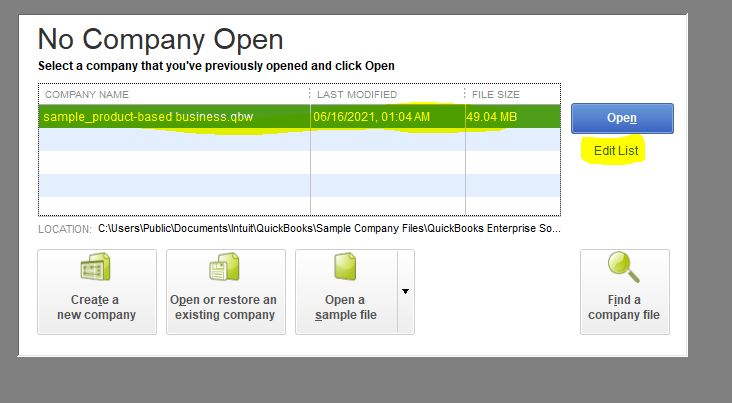
7. Open QuickBooks, click File, then Open or Restore Company, then Open a company file.
8. Browse to the location where you just copied the file, select it, and click Open.
Cloud Sync Warning
Never store an active QuickBooks company file in a folder that is automatically synced by Dropbox, OneDrive, iCloud, or Google Drive. These sync programs lock files while uploading, which corrupts the transaction log and triggers errors like -6147, 0. If you use cloud backup, use QuickBooks’ built-in backup feature or a solution designed for QuickBooks files.
9. If it opens successfully, this is the cause. From now on, keep the file in this local folder and do not sync it with cloud storage while QuickBooks is running.
Fix 4 — Check Windows Folder Permissions
Windows controls which programs can read and write to which folders. If the folder containing your company file is set to read-only, or if your user account does not have full control, QuickBooks cannot save changes to the file and throws this error.
10. Open File Explorer and navigate to the folder containing your .QBW file.
11. Right-click the folder (not the file) and choose Properties.
12. Click the Security tab. Under Group or user names, click on your Windows user account or on the group Everyone.
13. In the Permissions section at the bottom, make sure Full Control is checked under the Allow column. If it shows Deny or is unchecked, click Edit, select your user, check Full Control under Allow, and click Apply and then OK.
14. Also click the General tab and make sure the Read-only checkbox is unticked. Click Apply and OK.
15. Restart QuickBooks and try opening the file again.
Fix 5 — For Multi-User Mode: Restart the Database Server Manager
If you are running QuickBooks in multi-user mode and the error appears when workstations try to connect, the QuickBooks Database Server Manager service on your host computer may have stopped or become unresponsive. This service is what allows multiple computers to access the same company file simultaneously.
16. On the computer that hosts the company file (the server), open the QuickBooks Tool Hub.
17. Click Network Issues in the left menu, then click QuickBooks Database Server Manager.
18. If your company file folder is listed, click Scan Now. If it is not listed, click Browse, add the folder, and then click Scan Now.
19. Once the scan completes, go back to any workstation and try switching to multi-user mode.
| Also Check Your Firewall: Windows Firewall and third-party antivirus programs sometimes block the QuickBooks ports (4182 and 8019) that multi-user mode requires. In the QuickBooks Tool Hub, click Network Issues and then click QuickBooks File Doctor to automatically configure your firewall settings for QuickBooks. |
Fix 6 — Restore from a Recent Backup
If you have tried all of the fixes above and the company file still will not open, the file itself may be damaged beyond automatic repair. This is rare, but it happens, especially if the file was on a drive that experienced a power failure or if the computer was shut down while QuickBooks was saving.
If you have a recent backup (QuickBooks creates these automatically if you enabled Auto Backup), follow these steps:
20. Open QuickBooks and click File, then Open or Restore Company, then Restore a backup copy, then Local Backup.
21. Browse to your most recent .QBB backup file and click Open. QuickBooks will ask you where to restore it. Choose your company files folder and give it a slightly different name to avoid overwriting anything.
22. Once restored, open the file and verify that your data looks correct. You may need to re-enter transactions that occurred after the backup was made.
Prevention: Keeping Error -6147, 0 From Recurring
- Always keep backup and company file paths under 210 characters. Create a simple folder structure: C:\QB\Backups\ for backups and C:\QB\Company\ for company files. Short names, short paths.
- Always restore backups from the local C: drive. Copy the .QBB file to a local folder before restoring. Never restore directly from a network drive, USB drive, or cloud-synced folder.
- Use UNC paths instead of mapped drives for multi-user access. UNC paths (\\ServerName\SharedFolder\) are persistent across reboots and user sessions. Mapped drive letters are session-dependent and can disappear after a restart or Windows update.
- Monitor company file size monthly for Pro and Premier users. Check file size via right-click -> Properties -> Size. If approaching 100-120 MB, plan to condense data or archive closed periods before errors begin.
- Keep QuickBooks and Windows updated. Intuit patches known -6147 triggers in regular updates.
- Run Verify Data monthly. Early detection of data errors allows Rebuild Data to fix them before they escalate to -6147, 0 failures.
- Shut QuickBooks down properly before shutting down Windows. Use File -> Close Company -> File -> Exit. An interrupted write to the company file or its .TLG log is the most common cause of the file corruption that produces -6147, 0.
- Set up Windows Firewall exceptions for QuickBooks during initial multi-user deployment. Opening the required TCP ports proactively prevents the firewall-blocking variant of -6147, 0.
Conclusion:
QuickBooks Error -6147, 0 is primarily a file access failure triggered when backups or company files are damaged, stored in incorrect locations, or blocked by path/permission conflicts. The repair path is progressive: start with beginner fixes like renaming support files and restoring backups locally, then move to intermediate steps such as running Tool Hub, File Doctor, and Verify/Rebuild Data. If the error persists, advanced measures like repairing QuickBooks installation or restoring from clean backups may be required.
Prevent recurrence by maintaining verified backups, ensuring proper file paths and permissions, and keeping QuickBooks updated. With structured escalation, most cases resolve without permanent data loss.
Frequently Asked Questions (FAQs)
Q1. What exactly causes QuickBooks Error -6147, 0?
Error -6147, 0 is triggered when QuickBooks cannot open or restore a company file. The three causes unique to this error (not shared with other -6000 variants) are: (1) the full file path exceeds 210 characters; (2) the mapped drive used to access the company file has been deleted or disconnected; and (3) the company file has exceeded the size limit for the QuickBooks version being used (approximately 150 MB for Pro and Premier). Other causes include restoring a backup from external storage, corrupted .ND/.TLG files, damaged company file data, and version mismatches.
Q2. What is the 210-character path limit and how do I check it?
QuickBooks has a hard internal limit of 210 characters for the full path to a company file or backup file, including the drive letter, all folder names separated by backslashes, the file name, and the file extension. To check: open File Explorer, navigate to the file, click the address bar to see the full path, then count the characters (or paste into a text editor and use word count). If the total exceeds 210, shorten folder names, rename the file, or move it to a shorter path like C:\QB\.
Q3. Is my company file data at risk when Error -6147, 0 appears?
Often no. When -6147, 0 is caused by a path length issue, a missing mapped drive, or an external storage location problem, the company file data is completely intact. The copy-to-Desktop test confirms this: if the file opens successfully from the Desktop, the data is safe and the issue is entirely path/location-related. Data risk exists only when the file also fails to open from the Desktop, indicating internal data damage.
Q4. What is the reboot.bat file and how does it help with Error -6147, 0?
The reboot.bat file is a QuickBooks utility script located in the QuickBooks program installation folder. Running it with administrator privileges re-registers QuickBooks’ Windows components, clears corrupted program registration entries, and can resolve -6147, 0 cases where damaged program file registration is preventing QuickBooks from properly initializing the company file connection. It is specific to QuickBooks and is not part of Windows — it must be run from the QuickBooks installation folder.
Q5. Can I recover data from a company file that shows Error -6147, 0?
Yes — in most cases. Start with the copy-to-Desktop test. If the file opens from the Desktop, all data is intact. If not, use the Auto Data Recovery rename technique (Fix 16) to access the .ADR copy of the file. For maximum recovery, use the full ADR procedure with the .TLG transaction log (Fix 19). If ADR is not available or is also damaged, restore from the most recent clean backup (Fix 18).
Q6. Why does the company file size cause Error -6147, 0?
QuickBooks Pro and Premier have documented performance thresholds around 150 MB for company file size. As the file grows beyond this threshold, QuickBooks’ internal file initialization sequence takes longer and becomes more prone to timeout failures. When the initialization takes too long or encounters resource constraints from the large file, QuickBooks returns -6147, 0. Condensing historical data (File -> Utilities -> Condense Data) reduces the file size and typically resolves this variant of the error.
Q7. What should I do if the mapped drive for the company file has been deleted?
Re-create the drive mapping through File Explorer (right-click This PC -> Map network drive) using the same drive letter QuickBooks expects, pointing to the same network share. Enable ‘Reconnect at sign-in’ to make it persistent. Then as a long-term fix, switch QuickBooks to use the UNC path (\\ServerName\SharedFolder\Company.QBW) instead of the drive letter — UNC paths are not affected by drive mapping changes.