
QuickBooks Error PS038 occurs when QuickBooks fails to download or process payroll updates because one or more paychecks are marked as “Online to Send” but remain stuck in the payroll system. The error typically appears when users attempt to update payroll tax tables or send payroll data to Intuit, causing the update process to stop before completion.
Since payroll updates contain the latest tax calculations, compliance changes, and payroll service enhancements, Error PS038 can prevent businesses from processing payroll accurately. If unresolved, the issue may lead to outdated tax tables, payroll submission delays, and synchronization problems between QuickBooks and payroll services.
QuickBooks Error PS038 is primarily a payroll update issue rather than a general software update problem. The error commonly occurs when unsent paychecks become damaged, payroll transactions fail to synchronize properly, or payroll data remains pending in the company file. Identifying and resolving the stuck paycheck is usually the key to restoring successful payroll updates.
Why Does QuickBooks Error PS038 Occur
QuickBooks Error PS038 mainly occurs when payroll transactions remain stuck in the sending queue and prevent payroll updates from completing successfully.
QuickBooks payroll update failures related to Error PS038 are commonly caused by:
- Paychecks stuck in “Online to Send” status
- Damaged payroll transactions
- Corrupted paycheck data
- Incomplete payroll synchronization
- Interrupted payroll update process
- Outdated QuickBooks Desktop version
- Damaged company file data
- Payroll service communication failures
- Corrupted payroll update files
- Network interruptions during payroll transmission
What Error Messages Appear With QuickBooks Error PS038
QuickBooks Error PS038 usually appears when payroll updates fail because QuickBooks detects unsent payroll transactions.
“You’ve retrieved the latest payroll update and validated your Payroll subscription. We strongly recommend that you go online again before a certain date.”
- Meaning: Payroll updates were downloaded, but QuickBooks detected pending payroll transactions.
- Cause: Paychecks remain stuck in the sending queue.
- Impact: Payroll updates cannot be completed successfully.
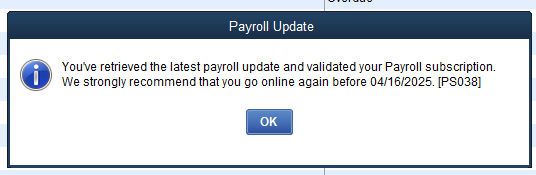
“Payroll Update Error PS038.”
- Meaning: QuickBooks cannot process payroll updates because payroll data requires attention.
- Cause: Damaged or unsent payroll transactions.
- Impact: Payroll updates fail repeatedly.
“QuickBooks cannot send payroll data.”
- Meaning: Payroll information remains pending and cannot synchronize with Intuit services.
- Cause: Corrupted paycheck records or synchronization failures.
- Impact: Payroll processing interruptions.
“Online to Send transactions detected.”
- Meaning: QuickBooks found payroll checks waiting to be transmitted.
- Cause: Payroll transmission was interrupted previously.
- Impact: Payroll update installation stops.
What Symptoms Indicate QuickBooks Error PS038
QuickBooks Error PS038 mainly affects payroll updates and payroll synchronization. Users typically notice payroll-related issues before the complete error appears.
- Payroll updates fail repeatedly: QuickBooks downloads payroll updates but cannot install them because pending payroll transactions block the process.
- Tax table updates do not install: The payroll update process starts normally but stops before completion.
- Paychecks remain marked as “Online to Send”: Certain payroll transactions continue showing a pending transmission status.
- Payroll synchronization issues occur: QuickBooks fails to communicate properly with payroll services.
- Repeated payroll update notifications appear: The software continuously requests payroll updates because previous installations failed.
- Payroll processing becomes delayed:Users may experience interruptions while sending payroll information to Intuit.
QuickBooks Payroll Error PS038 – Step‑by‑Step Solutions to Fix Stuck Paychecks
To resolve PS038, update QuickBooks, clear stuck paychecks, verify subscriptions, repair files, and adjust system settings until payroll updates install successfully. These methods progress from simple fixes like sending payroll data to advanced repairs such as renaming CPS folders or using Tool Hub utilities.
Solution 1: Update QuickBooks and Send Payroll Data
Stuck paychecks are the top reason for PS038. Updating QuickBooks and sending pending payroll data often clears the backlog.
Follow These Steps:
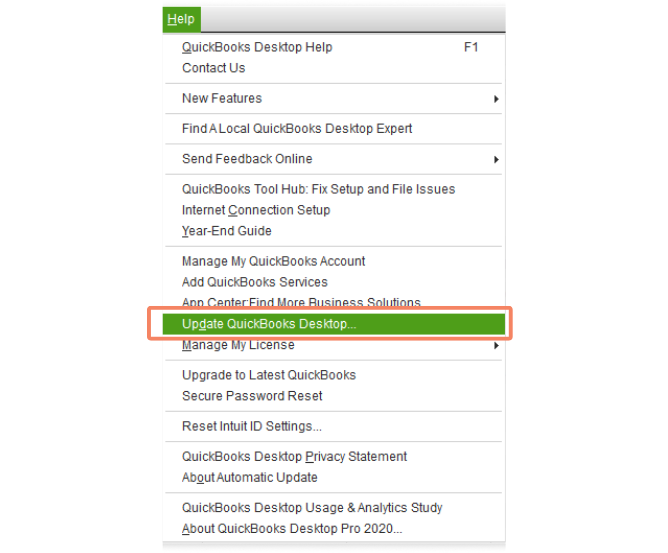
- Go to Help → Update QuickBooks Desktop → Update Now → Get Updates. Restart QuickBooks once updates are installed.
- Go to Employees → My Payroll Service → Send Usage Data (or Send Payroll Data if available).
- In the Send/Receive window, click Send All and enter your payroll PIN if prompted.
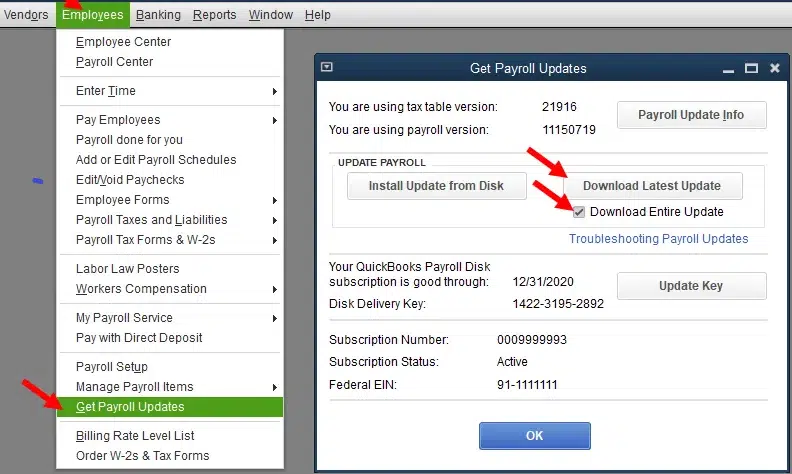
- Retry payroll update: Employees → Get Payroll Updates → Download Entire Update.
Estimated Time: 10–15 minutes
Risk Level: Low
Verification: Confirm payroll update completes without PS038.
Solution 2: Find Stuck Paychecks and Run Verify/Rebuild Data
Stuck paychecks marked “Online to send” can trigger PS038. Running Verify/Rebuild clears corruption.
Follow These Steps:
- Go to Edit → Find → Advanced.
- Filters: Detail Level = Summary Only, Online Status = Online to send.
- Click Find to list paychecks.
- Go to File → Utilities → Verify Data.
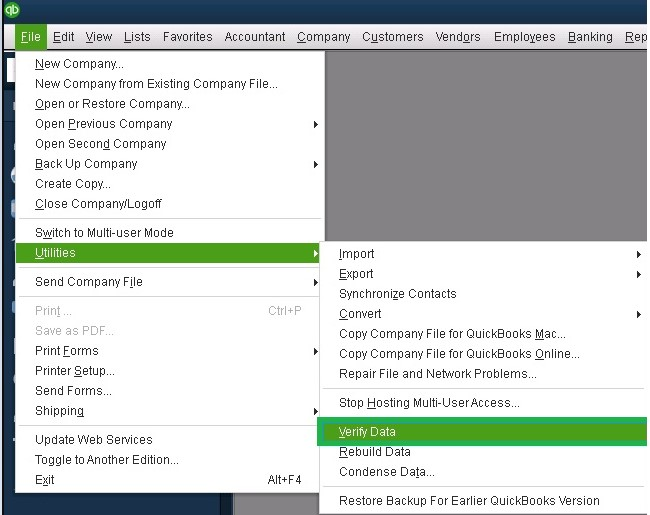
- Go to File → Utilities → Rebuild Data. Create a backup when prompted.
- (Optional) Run Verify again to confirm no errors remain.
- Retry payroll update.
Estimated Time: 15–20 minutes
Risk Level: Low
Verification: Paychecks no longer show “Online to send” status.
Solution 3: Edit and Save (Toggle) Each Stuck Paycheck
If paychecks remain stuck, toggling forces QuickBooks to re‑save them internally.
Follow These Steps:
- Open the oldest stuck paycheck.
- Click Paycheck Detail → add a duplicate line of the last earnings item.
- When prompted with Net Pay Locked, click No.
- Save the paycheck.
- Reopen it, delete the duplicate line, and save again.
- Repeat for all stuck paychecks.
Estimated Time: 5–10 minutes per paycheck
Risk Level: Medium (editing historical records requires care)
Verification: Paychecks clear “Online to send” status; payroll update succeeds.
Solution 4: Verify Payroll Subscription and Service Key
Inactive subscriptions or incorrect service keys block payroll updates.
Follow These Steps:
- Go to Employees → My Payroll Service → Manage Service Key.
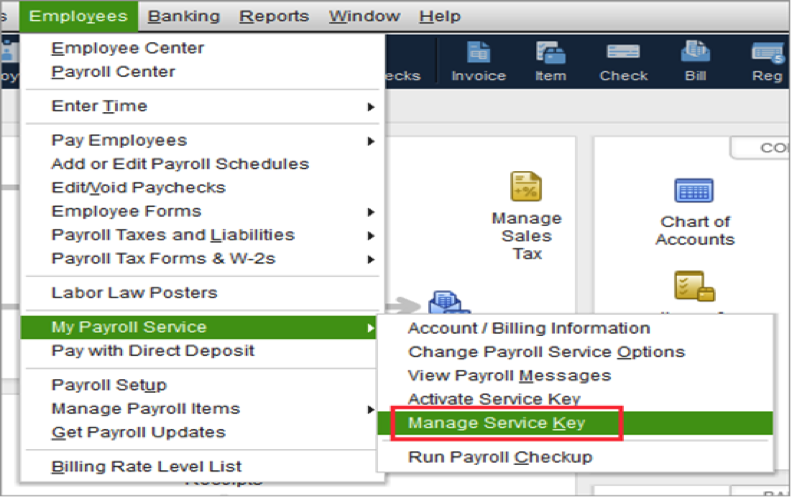
- Check subscription status: must show Active.
- If active, click Edit and confirm the 16‑digit service key.
- Save changes and finish setup.
- Retry payroll update.
Estimated Time: 5–7 minutes
Risk Level: Low
Verification: Payroll update downloads successfully with active subscription.
Solution 5: Rename the QuickBooks CPS Folder
Corrupted CPS files block payroll updates. Renaming forces QuickBooks to create a fresh folder.
Follow These Steps:
Navigate to:
- C:\Program Files (x86)\Intuit\QuickBooks <Year>\Components\Payroll\CPS
- Right‑click the CPS folder → Rename to CPSOLD.
- Reopen QuickBooks → Employees → Get Payroll Updates → Download Entire Update.
Estimated Time: 5 minutes
Risk Level: Low
Verification: New CPS folder created; payroll update installs successfully.
Solution 6: Repair QuickBooks Desktop Program (Tool Hub)
QuickBooks Tool Hub repairs installation and program issues affecting payroll.
Follow These Steps:
- Download and install QuickBooks Tool Hub (v1.6 or later).
- In the Tool Hub, go to Program Problems → Quick Fix My Program.
- If unresolved, go to Installation Issues → QuickBooks Install Diagnostic Tool.
- Restart computer and retry payroll update.
Estimated Time: 20–25 minutes
Risk Level: Low
Verification: Payroll update completes without PS038.
Solution 7: Repair Company File with File Doctor
Deep corruption in payroll data may require File Doctor.
Follow These Steps:
- Open Tool Hub → Company File Issues → QuickBooks File Doctor.
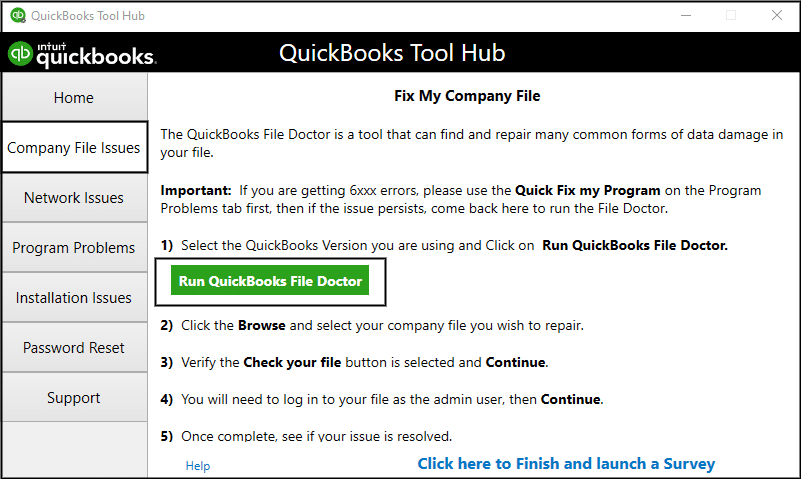
- Select company file → choose Check your file.
- Enter Admin password → run scan.
- Retry payroll update.
Estimated Time: 20–30 minutes
Risk Level: Medium
Verification: File Doctor reports no issues; payroll update succeeds.
Solution 8: Check Firewall and Security Settings
Blocked connectivity prevents QuickBooks from downloading payroll updates.
Follow These Steps:
- Configure firewall to allow QuickBooks ports (80, 443).
- Add QuickBooks executables (QBW32.exe, etc.) as exceptions.
- Temporarily disable antivirus/firewall and retry update.
- Ensure TLS 1.2 is enabled in Internet Options.
Estimated Time: 10–15 minutes
Risk Level: Medium (system exposed while security disabled)
Verification: Payroll update downloads successfully with firewall/antivirus configured.
Preventive Measures for QuickBooks Payroll Error PS038
To reduce the chances of encountering PS038, adopt proactive practices that keep payroll data flowing smoothly and QuickBooks stable.
- Send payroll data regularly – After each payroll run, transmit usage data to Intuit so paychecks don’t remain stuck in “Online to send” status.
- Keep QuickBooks updated – Install the latest QuickBooks Desktop and payroll tax table updates at least every 45 days.
- Maintain active payroll subscription – Ensure billing information and service keys are current to avoid subscription validation errors.
- Back up company files – Create backups before and after payroll runs to safeguard against corruption.
- Run periodic file maintenance – Use Verify Data monthly and Rebuild Data when issues appear to catch corruption early.
- Ensure reliable internet and security settings – Use a stable connection and configure firewall/antivirus to allow QuickBooks access on ports 80 and 443.
- Run QuickBooks with proper permissions – Launch QuickBooks as Administrator and perform payroll updates in single‑user mode for best results.
When QuickBooks Payroll Error PS038 occurs, it often overlaps with other payroll and update errors because the root causes (stuck paychecks, corrupted update files, subscription validation, or blocked connectivity) are shared. The most commonly affected errors include:
| Error Code | Cause | Impact | Quick Fix |
| Error 15271 | Update file validation failure due to damaged or incomplete files. | Payroll/maintenance updates fail to install. | Run QuickBooks as Administrator, reset updates, repair installation. |
| Error 12038 | Misconfigured SSL/TLS or firewall restrictions block secure connection. | Payroll updates cannot be downloaded. | Enable TLS 1.2, adjust firewall/antivirus settings. |
| Error 12031 | Secure connection failure in Internet Explorer/Edge settings. | Payroll update process interrupted. | Reconfigure Internet Options, enable proper SSL/TLS. |
| Error 12157 | Multiple QuickBooks versions or outdated Windows components. | Payroll updates fail repeatedly. | Update Windows, remove duplicate QuickBooks versions. |
| Error 1722 | Damaged QuickBooks installation components. | Program crashes or update installation stops. | Repair QuickBooks via Tool Hub or reinstall. |
QuickBooks Payroll Error PS038 – Impact on Migration (Desktop to Online and ERP Systems)
When QuickBooks Payroll Error PS038 occurs during migration, it doesn’t just affect Desktop to Online transitions — it can also disrupt migrations to other ERP platforms such as Microsoft Dynamics 365 Business Central, NetSuite, or Xero. The error arises because payroll or update files cannot be validated, leaving paychecks stuck in “Online to send” status. This blocks the migration workflow, prevents payroll data from syncing correctly, and delays compliance readiness.
- In Desktop to Online migration, PS038 halts the transfer of payroll updates, forcing technicians to clear stuck paychecks and validate CPS folders before continuing.
- In Desktop to ERP migration, PS038 is even more critical: ERP systems require clean, validated data. If payroll updates remain incomplete, migration scripts fail or transfer outdated tax tables, leading to compliance risks and operational delays.
- In QuickBooks Online, PS038 does not occur because updates are cloud-managed by Intuit, eliminating local file validation issues.
QuickBooks Payroll Error PS038 – Desktop vs Online Impact
QuickBooks Payroll Error PS038 is exclusive to QuickBooks Desktop, where it occurs if paychecks remain stuck in “Online to send” status or when payroll update files fail validation due to corrupted CPS folders, inactive subscriptions, or firewall restrictions.
In contrast, QuickBooks Online is not affected by PS038, since payroll updates are managed automatically through Intuit’s cloud servers, eliminating the need for local file validation or manual data transmission. This means Desktop users must troubleshoot system settings and file corruption to fix PS038, while Online users avoid the error entirely because updates and payroll compliance are handled seamlessly in the cloud.
Conclusion:
QuickBooks Payroll Error PS038 primarily arises when paychecks remain stuck in “Online to send” status or when payroll update files fail validation, blocking tax table updates and payroll compliance. The error is exclusive to QuickBooks Desktop, where local file validation, CPS folder corruption, inactive subscriptions, or firewall restrictions can interrupt updates. In migration scenarios—whether moving to QuickBooks Online or other ERP systems like NetSuite or Dynamics 365—PS038 becomes more critical, as incomplete payroll updates stall data transfer and risk compliance delays.
By following structured solutions—updating QuickBooks, clearing stuck paychecks, verifying subscriptions, repairing files, and configuring system settings—technicians can resolve PS038 effectively. Preventive measures such as sending payroll data regularly, keeping QuickBooks updated, maintaining active subscriptions, and ensuring secure connectivity help minimize recurrence. Addressing PS038 proactively ensures payroll updates install smoothly, migration timelines remain intact, and businesses stay compliant with tax and payroll regulations.
FAQs
Why does PS038 only affect QuickBooks Desktop and not Online?
Because Desktop relies on local file validation and manual payroll data transmission, while Online updates are cloud‑managed automatically by Intuit.
Can stuck paychecks cause compliance risks if PS038 is ignored?
Yes. Outdated tax tables and unsent payroll data can lead to incorrect filings, penalties, or delayed employee payments.
Does PS038 impact migration to other ERP systems like NetSuite or Dynamics?
Absolutely. If payroll updates remain incomplete, migration scripts fail or transfer outdated data, delaying ERP adoption and compliance readiness.
Can renaming the CPS folder fix PS038 permanently?
No. It clears corrupted update files temporarily, but preventive measures like regular updates and sending payroll data are needed to avoid recurrence.
Is toggling stuck paychecks safe for historical payroll records?
Yes, if done carefully. The toggle process doesn’t alter net pay or taxes, but technicians must verify amounts remain unchanged after edits.
Can firewall or antivirus settings alone trigger PS038?
Yes. If QuickBooks executables or ports are blocked, payroll updates fail even if paychecks are not stuck.