
QuickBooks Error 12157 occurs when QuickBooks fails to download or install updates because the software cannot establish a secure connection with Intuit servers. The update process may freeze, stop midway, or display internet connectivity messages while updating QuickBooks Desktop or payroll services. This error mainly affects software updates, payroll downloads, and online services, making it difficult for users to keep QuickBooks updated.
The issue is commonly related to internet connection problems, damaged Windows settings, firewall restrictions, incorrect SSL configuration, or network interruptions. If the error is not resolved on time, QuickBooks may continue failing updates repeatedly and interrupt important accounting operations.
What is QuickBooks Error 12157
QuickBooks Error 12157 is an update-related error that appears when QuickBooks cannot connect properly with Intuit servers during updates.
The error generally occurs while:
- Updating QuickBooks Desktop
- Downloading payroll updates
- Accessing online QuickBooks services
- Connecting with secure update servers
Why Does QuickBooks Error 12157 Occur
QuickBooks Error 12157 mainly occurs because the software cannot complete secure internet communication during updates. Network interruptions and security restrictions are the most common reasons behind the issue.
Common Causes of Error 12157
- Weak or unstable internet connection
- Incorrect SSL settings
- Firewall blocking QuickBooks updates
- Internet Explorer configuration problems
- Damaged Windows network files
- Antivirus interference
- Incorrect DNS settings
- Timeout during update download
- Corrupted QuickBooks installation files
What are the Symptoms of QuickBooks Error 12157
Users usually notice repeated update failures and internet-related interruptions before the error fully appears.
Common Symptoms Include:
- Update stops midway: QuickBooks update begins but halts before completion, often rolling back changes. This leaves the software outdated and prone to recurring errors.
- Payroll updates fail: Payroll patches repeatedly fail to install, preventing compliance updates and blocking payroll processing.
- Freezes during updates: The application becomes unresponsive while applying updates, forcing users to restart and leaving updates incomplete.
- Internet timeout: Network interruptions cause QuickBooks to lose connection, leading to timeout messages and failed online operations.
- Banking features stop: Online banking integration disconnects, preventing transaction downloads or account synchronization.
- Slow/unresponsive: QuickBooks performance drops significantly, especially during update checks or online tasks, frustrating users.
- Secure connection errors: Frequent SSL/TLS errors block QuickBooks from connecting securely to payroll, banking, or licensing services.
Troubleshooting Steps to Resolve QuickBooks Error 12157
QuickBooks Error 12157 can usually be solved quickly by repairing internet settings, correcting firewall restrictions, and updating SSL configurations. The troubleshooting methods below will help QuickBooks reconnect with Intuit servers and complete the update process successfully.
How to Verify Internet Connection Settings
Incorrect internet settings can prevent QuickBooks from accessing Intuit update servers.
Follow These Steps to Verify Internet Settings
- Open QuickBooks Desktop.
- Go to Help > Internet Connection Setup.
- Select Use my computer’s Internet connection settings.
- Click Next.
- Choose Advanced Connection Settings.
- Verify the internet configuration.
- Save the changes and restart QuickBooks.
Retry the QuickBooks update after reopening the program.
How to Configure TLS Security Settings in Windows
Modern Intuit servers require secure TLS protocols to download software and payroll updates. Enabling outdated SSL protocols will actually cause Error 12157 to occur.
Follow These Steps to Enable TLS and Disable SSL:
- Restart your computer and retry the QuickBooks update.
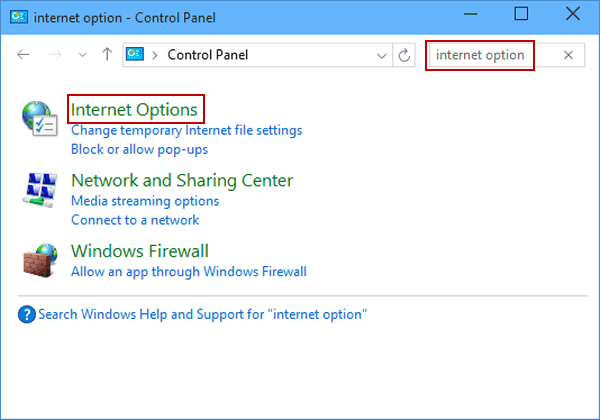
- Press Windows Key + R on your keyboard to open the Run dialog box.
- Type inetcpl.cpl and press Enter to open the Internet Properties window.
- Switch to the Advanced tab at the top.
- Scroll down to the Security section at the bottom of the list.
- Uncheck / Turn Off: * Use SSL 2.0
- Use SSL 3.0
- Check / Turn On: * Use TLS 1.2 (and Use TLS 1.3 if available)
- Click Apply, then click OK.
How to Fix Firewall Blocking Issues
Windows Firewall or antivirus programs may block QuickBooks update services from connecting to the internet.
Important QuickBooks Files
- QBW32.exe
- QBUpdate.exe
- QBDBMgrN.exe
- IntuitSyncManager.exe
Follow These Steps to Configure Firewall Settings
- Open Windows Defender Firewall.
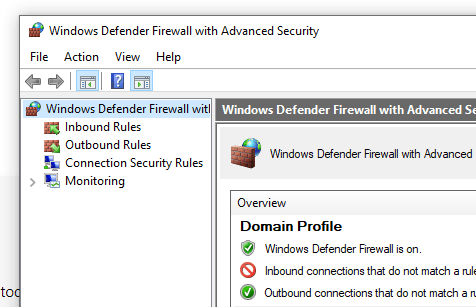
- Click Advanced Settings.
- Select Inbound Rules.
- Create a new rule for QuickBooks files.
- Allow the connection.
- Repeat the same process for Outbound Rules.
- Save the changes and restart the computer.
After restarting, try updating QuickBooks again.
How to Flush DNS Settings in Windows
Damaged DNS settings can interrupt QuickBooks communication with update servers.
Follow These Steps to Flush DNS
- Press Windows + R.
- Type CMD and press Enter.
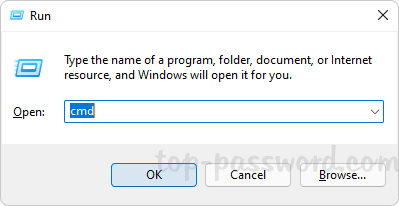
- Run the following command:
ipconfig /flushdns
- Restart the system.
Launch QuickBooks again and retry the update process.
How to Run QuickBooks in Safe Mode With Networking
Safe Mode with Networking helps identify whether background applications are blocking QuickBooks updates.
Follow These Steps to Use Safe Mode
- Restart the computer.
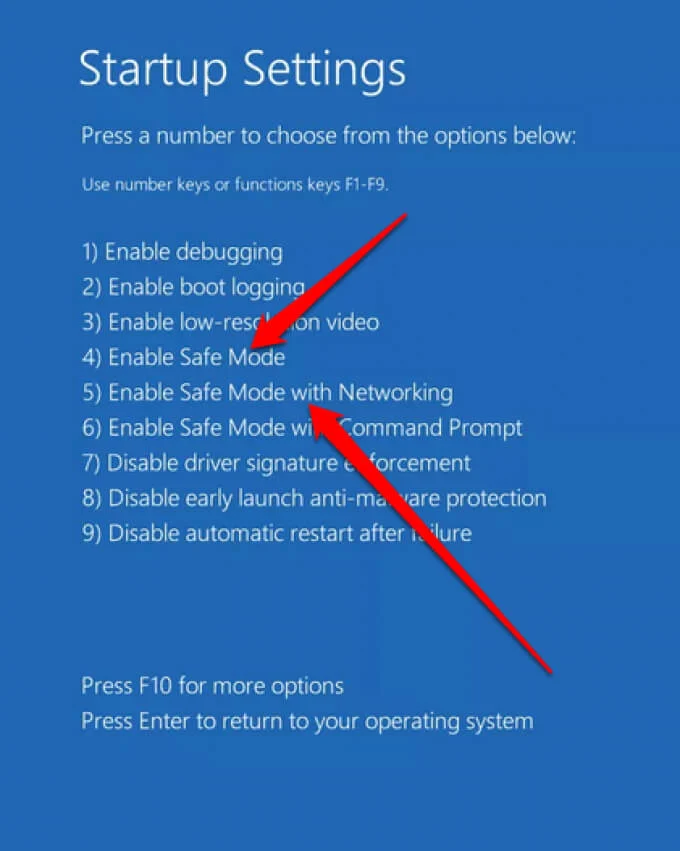
- Press F8 before Windows starts.
- Select Safe Mode with Networking.
- Open QuickBooks Desktop.
- Try downloading the update again.
If the update works in Safe Mode, another application or antivirus program is likely causing the issue.
How Can Server Migration Trigger QuickBooks Error 12157
QuickBooks Error 12157 is commonly reported after QuickBooks migration to a new server or hosting environment. Network settings often become misconfigured during migration, which interrupts QuickBooks updates.
Migration-Related Causes Include
- Firewall settings not transferred properly
- DNS mismatch after migration
- SSL settings reset on the new server
- Incorrect hosting configuration
- Network interruption during migration
These issues prevent QuickBooks from connecting securely with Intuit servers.
How to Prevent QuickBooks Error 12157 After Migration
Proper server and network configuration after migration helps prevent repeated update failures in QuickBooks.
Important Preventive Measures:
Firewall permissions: Make sure QuickBooks executables and required ports are allowed so multi‑user mode and services don’t get blocked.
SSL settings: Uncheck SSL 2.0 and SSL 3.0 in your Internet Options, and instead check TLS 1.2 (and TLS 1.3). Modern Intuit servers reject older SSL protocols for security, so enforcing TLS 1.2 is required for QuickBooks to establish a secure connection and prevent Error 12157.
Test updates: After migration, run QuickBooks updates manually and confirm the release version to avoid patch failures.
Hosting configuration: Only the server should host the company file; disable hosting on all workstations to prevent H202/H505 errors.
Internet connectivity: Verify a stable connection before updates or payroll runs to avoid timeouts and sync issues.
Antivirus exclusions: Add QuickBooks folders and executables to antivirus exceptions so services aren’t quarantined or blocked.
Performing these checks immediately after migration helps avoid future update interruptions.
Conclusion
QuickBooks Error 12157 mainly occurs when QuickBooks fails to connect with Intuit servers while downloading updates. Internet connectivity problems, firewall restrictions, SSL configuration issues, and migration-related network errors are the most common reasons behind the problem.
Repairing internet settings, updating firewall permissions, correcting DNS configuration, and verifying SSL settings usually resolve the error successfully and restore QuickBooks update functionality.
FAQs
Is Error 12157 related to Internet Explorer settings?
Yes, but indirectly. While Internet Explorer is retired, QuickBooks still relies on its underlying Windows network engine (WinINet). Misconfigured security protocols or proxy settings in the Windows Internet Options menu will directly trigger Error 12157.
Does Error 12157 affect payroll updates only?
No, it can block both payroll and software updates, preventing QuickBooks from staying current with compliance and feature patches.
Can multiple QuickBooks versions cause Error 12157?
Yes, running multiple versions of QuickBooks Desktop on the same system can conflict with update services and lead to Error 12157.
Is Error 12157 linked to Windows updates?
Sometimes. Outdated Windows components like .NET Framework or Internet Explorer can interfere with QuickBooks’ ability to connect securely.
Can antivirus software trigger Error 12157?
Yes, security programs may block QuickBooks update executables. Whitelisting QuickBooks files usually resolves this.
Does QuickBooks Tool Hub fix Error 12157?
Yes, Tool Hub includes utilities like File Doctor that can repair connectivity issues and help resolve Error 12157.