
QuickBooks Error 1722 is a window installer error that typically appears during the installation or update of QuickBooks Desktop. The error indicates that a required component or script failed to execute properly, interrupting the overall installation process.
This error is often linked to damaged windows components, incorrect system permission, or conflict with third party applications. Since it prevents QuickBooks from installing correctly, it can disrupt business operations and delay critical accounting tasks. Understanding the triggering points and underlying causes of error 1722 is important for ensuring the smooth set up of QuickBooks Desktop.
In many cases, Error 1722 can also appear alongside other installation related errors making it more difficult to diagnose without proper understanding. This error can affect both installation and updates, especially when the system configurations are outdated or are not properly set.
Common causes include damaged Windows components, incorrect permissions, or conflicts with third‑party applications. This error can disrupt accounting workflows, delay financial reporting, and often appears alongside related installation errors like 1334, 1904, or 1603. Understanding its triggers, symptoms, and fixes is essential for ensuring smooth QuickBooks Desktop setup and preventing recurrence during future updates.
Common Error Pop Up messages for 1722
Following are the common errors that can be reflected:
“Error 1722: There is a problem with this Windows Installer package. A program run as part of the setup did not finish as expected.”
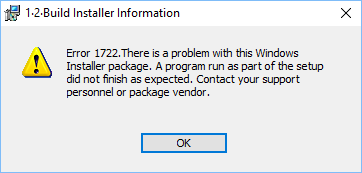
- Meaning: The Windows Installer tried to run a supporting program or script during QuickBooks setup, but it failed or stopped unexpectedly.
- Cause: Damaged installer files, missing system components, or blocked permissions.
- Impact: QuickBooks installation halts before completion.
“QuickBooks installation failed due to runtime error 1722.”
- Meaning: A runtime process (background task) required by QuickBooks crashed during installation.
- Cause: Conflicts with antivirus/firewall, corrupted registry entries, or outdated drivers.
- Impact: QuickBooks cannot install or update properly.
“Error 1722 – Setup cannot continue because required system components are missing or corrupted.”
- Meaning: Essential Windows components like .NET Framework, MSXML, or Visual C++ are damaged or not installed.
- Cause: Incomplete Windows updates or corrupted system files.
- Impact: QuickBooks setup stops midway with rollback errors.
“Installation interrupted: Error 1722 encountered during QuickBooks setup.”
- Meaning: The installation process was interrupted by a system error or external program.
- Cause: Background apps interfering, insufficient permissions, or unstable system environment.
- Impact: QuickBooks setup fails and rolls back changes.
“The RPC Server is Unavailable” (Networking/Domain)
- Meaning: This message indicates that the Remote Procedure Call (RPC) service which Windows uses to allow programs to communicate across the system or network is not responding.
- Causes: RPC service disabled or not running. Connectivity issues with Domain/network.
- Impact:QuickBooks setup or repair cannot complete because required system calls fail.Installation may stop midway or roll back.
Symptoms of QuickBooks Error 1722
Following are symptoms of Quickbook Error 1722:
- Installation or update stops with Error 1722 message
This is the most direct symptom where the setup process halts and displays the error. It indicates that a required installer action failed to execute, preventing the installation from continuing. - QuickBooks setup freezes, crashes, or rolls back
During installation, the system may become unresponsive or the setup may automatically reverse (rollback). This happens when Windows detects a failed installation step and cancels the process to avoid incomplete configuration. - Repeated installation failure
Even after restarting your system and trying again, the error persists. This suggests a deeper issue such as corrupted Windows Installer components or damaged QuickBooks installation files. - Slow or unresponsive system during installation
Your computer may lag or hang while installing QuickBooks. This usually occurs when system resources are strained or when Windows struggles to process installer scripts. - Failure to execute installer scripts or components
QuickBooks relies on background scripts to complete installation. If these scripts fail due to permission issues or corrupted system files, Error 1722 is triggered.
Common Scenarios and Their Fixes
Scenario 1: Setup Fails Immediately (Error 1722 at Start of Installation)
Explanation:
QuickBooks cannot begin installation because background apps, antivirus, or restricted permissions are blocking the setup process.
Steps:
- Restart Your System
- Click Start → Restart.
- Clears temporary locks and refreshes system memory.
- Estimated Time: 2–3 minutes
- Close All Running Programs
- Press Ctrl + Shift + Esc to open the Task Manager.
- End unnecessary tasks (browsers, apps, utilities).
- Estimated Time: 5 minutes
- Temporarily Disable Antivirus/Firewall
- Open antivirus software → disable real‑time protection.
- Open Control Panel → Windows Firewall → Turn off Firewall.
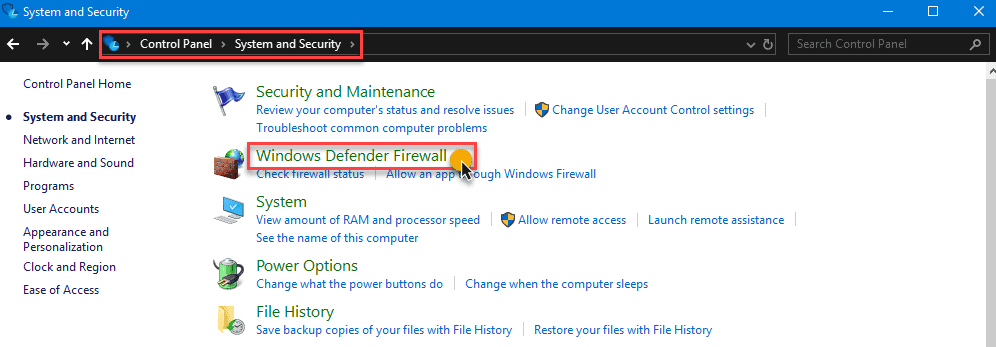
- Re‑enable both after installation.
- Estimated Time: 5–10 minutes
- Run Installer as Administrator
- Right‑click QuickBooks setup file → select Run as Administrator.
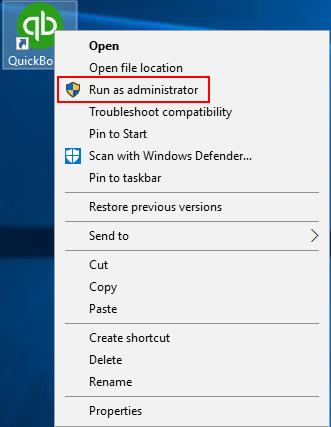
- Grants full system permissions to the installer.
- Estimated Time: 10 minutes
Risk Level: Low (temporary changes, easily reversible).
Verification: QuickBooks installer should launch without rollback errors.
Scenario 2: Setup Fails Midway with Rollback Errors
Explanation:
Error 1722 often appears when Windows components (.NET Framework, MSXML, Visual C++) are damaged or missing.
Steps:
- Repair System Registry
- Fix registry entries linked to Error 1722.
- Run a full system scan.
- Use Disk Cleanup to remove temporary files.
- Update device drivers.
- Estimated Time: 20–30 minutes
- Run Windows File Checker (SFC)
- Open Command Prompt (Admin).
- Type sfc /scannow → press Enter.
- Allow scan to repair corrupted files.
- Estimated Time: 20–25 minutes
- Run QuickBooks Install Diagnostic Tool
- Download QuickBooks Tool Hub.
- Go to Installation Problems → Install Diagnostic Tool.
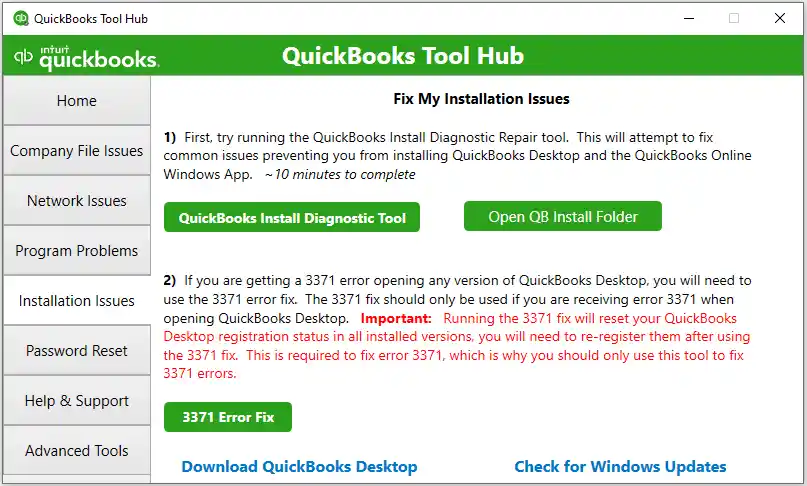
- Allow tools to scan and repair system components.
- Estimated Time: 20–25 minutes
Risk Level: Medium (system component repairs).
Verification: Installer should complete without rollback errors.
Scenario 3: Error During Repair or Update
Explanation:
Error 1722 may trigger when QuickBooks attempts to repair/update but encounters corrupted installation files or blocked processes.
Steps:
- Uninstall QuickBooks
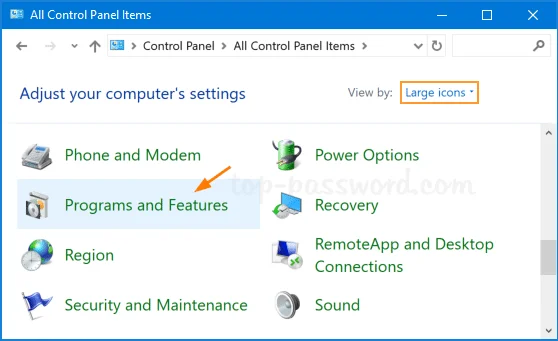
- Go to Control Panel → Programs and Features.
- Select QuickBooks → click Uninstall.
- Perform a Clean Install of QuickBooks
- Use QuickBooks Clean Install Tool via Tool Hub.
- Reinstall QuickBooks with fresh setup files.
- Update Windows
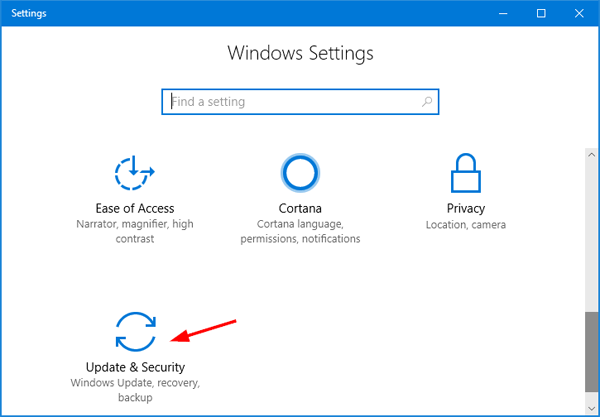
- Go to Settings → Update & Security → Windows Update.
- Install pending updates to ensure compatibility.
Risk Level: Medium–High (requires reinstall, may affect user data if not backed up).
Verification: QuickBooks should repair/update successfully without error prompts.
Scenario 4: Persistent Error Despite Reinstallation
Explanation:
If Error 1722 persists even after reinstalling, it may be due to deep system corruption or conflicting third‑party software.
Steps:
- Selective Startup Mode
- Run MSCONFIG → choose Selective Startup.
- Reinstall QuickBooks in a clean environment.
- Switch back to Normal Startup after installation.
- Clean Install of Windows (Last Resort)
- Backup data.
- Perform OS reinstallation.
- Reinstall QuickBooks.
Risk Level: High (system‑wide changes).
Verification: Fresh environment ensures QuickBooks installs without error.
Recurrence and Prevention Notes
- Keep Windows updated regularly to avoid installer conflicts.
- Always uninstall older QuickBooks versions completely before reinstalling.
- Run QuickBooks setup with Administrator rights to ensure proper permissions.
- Configure antivirus/firewall exclusions for QuickBooks installer and program files.
- Use QuickBooks Tool Hub periodically to repair installation components.
- Perform routine Disk Cleanup to remove temporary files.
- Keep device drivers and Microsoft components (.NET, MSXML, Visual C++) updated.
- Avoid interrupted installations by ensuring stable internet and power supply.
QuickBooks Error 1722: Desktop vs Online
QuickBooks Error 1722 is an issue that only affects QuickBooks Desktop, because it’s tied to the Windows Installer package and damaged system components like .NET Framework, MSXML, or Visual C++. It usually appears during installation, repair, or update when Windows cannot properly execute the installer scripts. In contrast, QuickBooks Online runs entirely in a web browser and does not encounter Error 1722 at all. Online users may face browser‑related problems such as cache conflicts, extension interference, or connectivity issues, but these are not installation errors.
FAQs:
Q1. Does QuickBooks Online ever show Error 1722?
No. Error 1722 is a Windows Installer issue that only affects QuickBooks Desktop. Online users may face browser‑related problems (cache, extensions, connectivity), but not installer errors.
Q2. Why does Error 1722 sometimes appear with “The RPC Server is Unavailable”?
This happens when the Remote Procedure Call (RPC) service is disabled or blocked. Since QuickBooks relies on RPC for system communication, the installer fails if the service isn’t running or if domain/network connectivity is broken.
Q3. Can antivirus software trigger Error 1722?
Yes. Real‑time protection or firewall rules can block QuickBooks installer scripts, causing Error 1722. Temporarily disabling antivirus/firewall during installation often resolves this.
Q4. Is reinstalling QuickBooks always the solution for Error 1722?
Not necessarily. While a clean reinstall can fix corrupted QuickBooks files, the error often stems from damaged Windows components (.NET, MSXML, Visual C++). Repairing those first is critical.
Q5. How do I confirm if Error 1722 is fixed?
After applying fixes, check:
- QuickBooks installs without rollback.
- Event Viewer logs show successful installation.
- QuickBooks launches and all features work without missing components.
Q6. Can outdated Windows updates cause Error 1722?
Yes. Missing or incomplete updates often leave system components broken. Installing the latest Windows updates is a key prevention step.
Q7. What’s the risk level of performing a clean Windows install for Error 1722?
High. It’s a last‑resort solution when all other fixes fail. It wipes system data, so backups are mandatory before proceeding.