
QuickBooks Error 15271 occurs when QuickBooks fails to install a payroll update or maintenance release because a required update file cannot be validated successfully. The error generally appears during the update process when QuickBooks identifies that one of the downloaded files is incomplete, damaged, or unable to pass verification checks.
Payroll updates and maintenance releases contain important tax table changes, security patches, and performance improvements. When Error 15271 interrupts the update process, QuickBooks may continue operating with outdated files, which can affect payroll calculations, software functionality, and compliance requirements.
QuickBooks Error 15271 is commonly associated with damaged update components, User Account Control (UAC) restrictions, corrupted QuickBooks files, or interrupted update downloads. In many cases, the error appears after an incomplete update installation or when Windows security settings prevent QuickBooks from validating update files properly.
Why Does QuickBooks Error 15271 Occur?
QuickBooks Error 15271 mainly occurs when QuickBooks cannot verify or install update files successfully. Problems with update validation and Windows permissions are among the most common causes behind this issue.
QuickBooks update failures related to Error 15271 are commonly caused by:
- Corrupted QuickBooks update files
- Incomplete payroll update downloads
- User Account Control (UAC) restrictions
- Damaged QuickBooks installation files
- Incorrect Windows permissions
- Antivirus interference during updates
- Firewall restrictions
- Corrupted Windows system files
- Interrupted maintenance release installation
- Outdated QuickBooks Desktop version
Causes of QuickBooks Error 15271
This error arises when payroll or software updates fail due to file validation issues or system restrictions. Below are the most common causes technicians should check:
- Corrupted installation files: Damaged or incomplete QuickBooks Desktop or payroll update files trigger validation errors.
- Incorrect Windows registry entries: Faulty or outdated registry keys linked to QuickBooks updates prevent proper installation.
- Antivirus or firewall interference: Security software blocks QuickBooks update files from downloading or installing.
- Outdated Windows OS: Missing system updates or compatibility issues with older Windows versions cause update failures.
- User Account Control restrictions:UAC settings may deny QuickBooks the necessary permissions to validate or install updates.
- Damaged QuickBooks program files: Corruption in QuickBooks Desktop files interrupts payroll update processes.
- Network or server issues: Unstable internet connections or problems with QuickBooks servers can block update validation.
What Error Messages Appear With QuickBooks Error 15271?
QuickBooks Error 15271 typically appears with payroll update and maintenance release warnings. These messages indicate that QuickBooks failed to validate or install update files successfully.
“Error 15721: Incorrect configuration of microsoft internet explorer”
- Meaning: QuickBooks cannot validate update files due to incorrect Internet Explorer settings.
- Cause: Misconfigured SSL/TLS, proxy, or outdated browser version.
- Impact: Payroll updates fail, leaving tax tables outdated and blocking migration or maintenance releases.
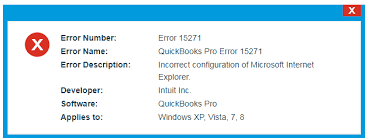
“Error 15271: A file cannot be validated.”
- Meaning: QuickBooks detected an update file that failed security verification.
- Cause: Damaged or incomplete update files.
- Impact: Payroll or software updates fail.
“The payroll update did not complete successfully.”
- Meaning: QuickBooks could not install payroll update files.
- Cause: Interrupted download or damaged update components.
- Impact: Payroll tax tables remain outdated.
“Maintenance Release Update has failed.”
- Meaning: QuickBooks could not install a maintenance release update.
- Cause: Update validation failure or permission restrictions.
- Impact: Software remains on an older release version.
“QuickBooks cannot complete the update process.”
- Meaning: Required update files could not be installed successfully.
- Cause: Corrupted installation files or Windows security restrictions.
- Impact: Update installation stops before completion.
What Symptoms Indicate QuickBooks Error 15271?
QuickBooks Error 15271 mainly affects payroll updates, maintenance releases, and update verification processes. Users often notice repeated update failures before the complete error appears.
- Payroll updates fail repeatedly: QuickBooks downloads payroll updates but cannot install them because file validation fails.
- Maintenance releases do not install: The software successfully downloads updates but cannot complete the installation process.
- QuickBooks displays update verification warnings: Security verification messages may appear during update installation.
- Repeated update notifications appear: QuickBooks continuously prompts users to install updates because previous attempts failed.
- Payroll tax tables remain outdated: The latest payroll updates are not applied successfully to the company file.
- QuickBooks freezes during updates: The software may become unresponsive while attempting to verify update files.
Fix QuickBooks Error 15271 in Minutes
QuickBooks Error 15271 can usually be resolved by repairing update files, adjusting Windows security settings, and reinstalling damaged QuickBooks components. The troubleshooting methods below focus specifically on resolving update validation failures.
Solution 1: Update QuickBooks Desktop
Updating ensures you’re on the latest release, which often resolves validation errors.
Follow These Steps to Update QuickBooks:
- Open QuickBooks Desktop.
- Press F2 (or Ctrl + 1) to open Product Information.
- Compare your version/release with the latest available (e.g., QuickBooks 2024 R16_52, QuickBooks 2023 R16_47).
- Use the Help > Update QuickBooks Desktop option to download and install updates.
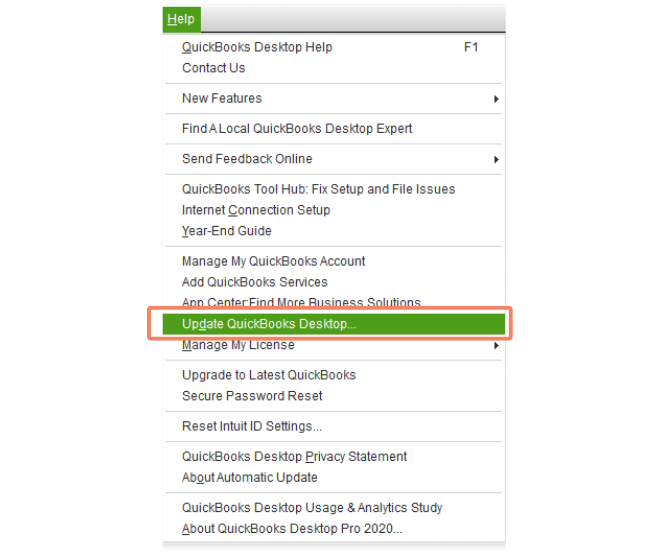
- Restart QuickBooks and your computer.
- If you have Payroll, update the tax table.
Estimated Time: 10–15 minutes
Risk Level: Low
Verification: Check Product Information window to confirm the latest release is installed.
Solution 2: Turn Off UAC Settings
User Account Control may block QuickBooks from validating update files.
Follow These Steps to Disable UAC:
- Press Windows + R, type Control Panel, and click OK.
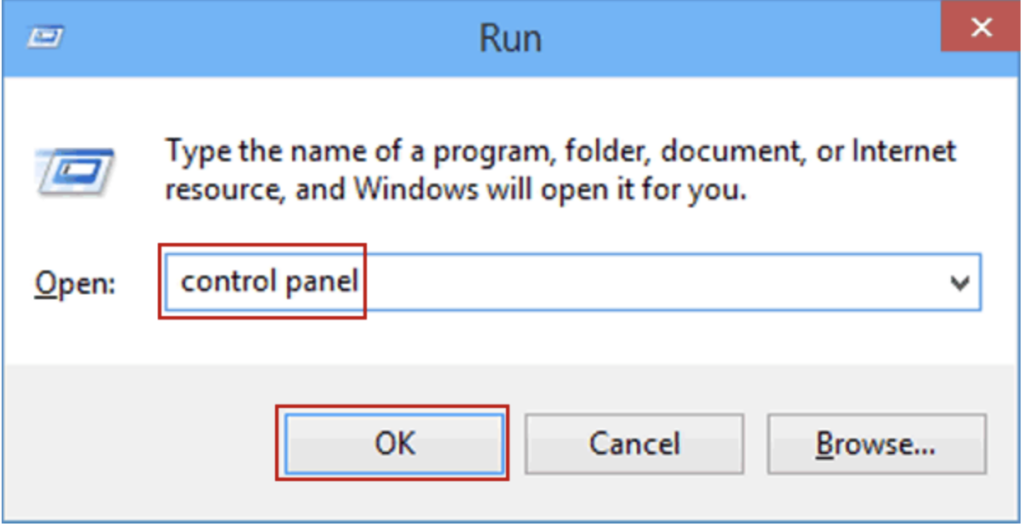
- Go to User Accounts > User Accounts (Classic View).
- Select Change User Account Control settings.
- Move the slider to Never Notify and click OK.
Estimated Time: 3–5 minutes
Risk Level: Medium (system less secure while UAC is off)
Verification: Retry QuickBooks update; re‑enable UAC after successful installation.
Solution 3: Clear Junk Files in Windows
Excess junk files can interfere with QuickBooks updates.
Follow These Steps Using Disk Cleanup:
- Open Start menu, type Disk Cleanup, and select it.
- Choose drive (usually C:) and click OK.
- Select file types (Temporary Internet Files, Recycle Bin, etc.).
- Click Clean up system files for deeper cleanup.
- Confirm deletion.
Using Storage Sense (Windows 10/11):
- Go to Settings > System > Storage.
- Toggle on Storage Sense or manually delete temporary files.
Estimated Time: 5–10 minutes
Risk Level: Low
Verification: Retry QuickBooks update after cleanup.
Solution 4: Install Payroll Updates in Safe Mode
Safe Mode prevents third‑party interference during update installation.
Follow These Steps:
- Restart your computer and press F8 repeatedly.
- Select Safe Mode from Advanced Boot Options.
- Launch QuickBooks and retry payroll update.
Estimated Time: 10 minutes
Risk Level: Low
Verification: Confirm payroll update installs successfully in Safe Mode.
Solution 5: Run QuickBooks Diagnostic Tool
The Diagnostic Tool repairs installation and update issues.
Follow These Steps:
- Close QuickBooks Desktop.
- Download and install QuickBooks Tool Hub from Intuit.
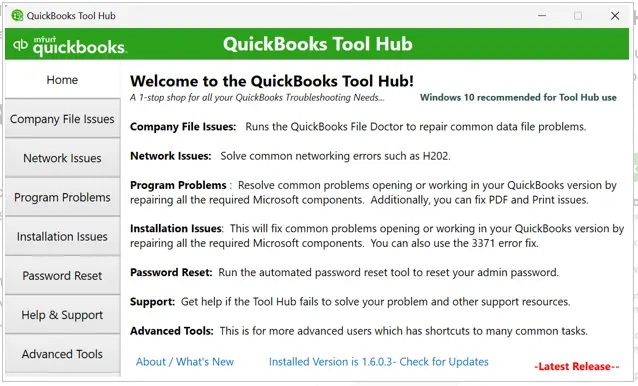
- Open Tool Hub > Installation Issues tab.
- Run QuickBooks Install Diagnostic Tool (may take up to 20 minutes).
- Restart your computer.
- Open QuickBooks and retry the update.
Estimated Time: 20–25 minutes
Risk Level: Low
Verification: Check if Error 15271 is resolved after restart.
Solution 6: Configure Firewall and Antivirus Settings
Security software may block QuickBooks update files.
Follow These Steps:
- Temporarily disable antivirus/firewall.
- Retry QuickBooks update.
- Add exceptions for QuickBooks executables: QBW32.exe, qbupdate.exe, QBWebConnector.exe.
- Re‑enable antivirus/firewall immediately after update.
Estimated Time: 10 minutes
Risk Level: Medium (system exposed while security disabled)
Verification: Update completes successfully with exceptions configured.
Solution 7: Perform Clean Installation in Selective Startup Mode
Selective Startup prevents conflicts with other programs during installation.
Follow These Steps:
- Press Windows + R, type msconfig, press Enter.
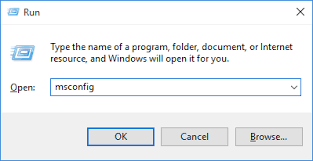
- In the General tab, select Selective Startup and uncheck Load startup items.
- In the Services tab, check Hide All Microsoft Services, then click Disable All.
- Ensure Windows Installer is checked.
- Restart computer.
- Uninstall QuickBooks via Control Panel, then reinstall fresh copy.
- Return to msconfig, select Normal Startup, and restart again.
Estimated Time: 30–40 minutes
Risk Level: Medium
Verification: QuickBooks reinstalls cleanly and updates without error.
Solution 8: Install Digital Signature Certificate
Missing or outdated digital signatures block update validation.
Follow These Steps:
- Close QuickBooks.
- Locate QBW32.exe (usually in C:\Program Files\Intuit\QuickBooks).
- Right‑click > Properties > Digital Signatures tab.
- Select Intuit, Inc., then click Details > View Certificate.
- Choose Install Certificate and follow prompts.
- Restart system and retry QuickBooks update.
Estimated Time: 5–7 minutes
Risk Level: Low
Verification: Update installs successfully after certificate installation.
Preventive Measures for Error 15271
To minimize the chances of encountering this error, users should adopt proactive system and application practices that keep QuickBooks stable and update‑ready.
- Keep QuickBooks updated : Always install the latest QuickBooks Desktop and payroll updates to avoid validation conflicts.
- Maintain Windows updates: Ensure the operating system is patched regularly, as outdated components often cause compatibility issues.
- Configure antivirus/firewall exceptions: Add QuickBooks and payroll update files to trusted lists so security software doesn’t block them.
- Run QuickBooks as administrator: Granting elevated permissions prevents User Account Control (UAC) from interfering with update validation.
- Verify registry health: Use Windows tools or IT support to keep registry entries clean and consistent, avoiding update crashes.
- Stabilize internet connection: Payroll updates require uninterrupted connectivity; unstable networks can corrupt downloads.
- Perform periodic file repair: Run QuickBooks File Doctor or Install Diagnostic Tool to catch and fix corruption early.
Error 15271 During Migration – Causes & Fixes
When QuickBooks Error 15271 occurs during migration, it usually signals that payroll or update files cannot be validated, which blocks the update process and interrupts the migration flow. This error often stems from corrupted installation files, permission restrictions, or incomplete system updates, and its impact during migration is more critical because it halts the transfer of clean, compliant data. As a result, payroll updates remain incomplete, tax tables may be outdated, and migration timelines are delayed until the validation issue is resolved, making Error 15271 a direct obstacle to smooth data transfer and operational continuity.
When QuickBooks Error 15271 appears during migration, it typically means the payroll or update file cannot be validated, which blocks the update process and stalls the migration. The most common causes include corrupted installation files, User Account Control restrictions, outdated Windows components, or interference from antivirus/firewall settings.
To troubleshoot in a migration context:
- Corrupted files → Run QuickBooks Install Diagnostic Tool or perform a clean install before retrying migration.
- UAC restrictions → Temporarily disable User Account Control to allow QuickBooks to validate update files.
- Outdated Windows → Install pending Windows updates to ensure compatibility with QuickBooks migration tools.
- Firewall/antivirus interference → Configure exceptions for QuickBooks or disable security software during the update phase.
Conclusion
QuickBooks Error 15271 mainly occurs when QuickBooks fails to validate payroll or maintenance release update files. Damaged update downloads, UAC restrictions, corrupted QuickBooks files, and antivirus interference are among the most common reasons behind the issue.
Running QuickBooks as Administrator, resetting update files, repairing QuickBooks installation components, and correcting Windows security settings usually resolve the error successfully. Regular software updates and proper security configuration also help prevent future QuickBooks update failures.
FAQs
Q1. What does QuickBooks Error 15271 mean?
QuickBooks Error 15271 indicates that a payroll or maintenance release update file failed validation during installation.
Q2. Why does QuickBooks say a file cannot be validated?
The message appears when QuickBooks detects damaged, incomplete, or unverified update files.
Q3. Can UAC settings cause Error 15271?
Yes. User Account Control may prevent QuickBooks from installing update files properly.
Q4. Does resetting QuickBooks updates fix Error 15271?
Yes. Resetting updates forces QuickBooks to download fresh update files and often resolves validation issues.
Q5. Can antivirus software trigger Error 15271?
Yes. Antivirus programs may block update files during verification and installation.
Q6. Does QuickBooks Online experience Error 15271?
No. Error 15271 only affects QuickBooks Desktop because Online updates occur automatically through cloud servers.