
To fix QuickBooks Error 12031, start by checking the internet connection and QuickBooks’ internet settings. Continued errors require a review of TLS 1.2, firewall and antivirus settings, followed by resetting the QuickBooks update and retrying the update in Single-user mode.
QuickBooks Error 12031 belongs to the 12xxx series of errors associated with internet connection issues involving the Windows Internet (WinINet) API used by QuickBooks for secure data transmission. A connection reset occurs when an established network connection ends unexpectedly. A timeout occurs when the server does not respond within the required time.
QuickBooks uses the Windows Internet Stack, including components shared with Internet Explorer, to manage internet requests. Operating system-level internet settings therefore affect the network communication required for QuickBooks updates.
This guide explains the causes of QuickBooks Error 12031 and presents basic and advanced troubleshooting steps for resolving the error and completing QuickBooks updates.
QuickBooks Update Error 12031 frequently occurs during the following operations:
- Updating the QuickBooks Desktop application to the latest release.
- Downloading and installing new payroll tax table updates.
- Refreshing subscription status or validating license information.
- Accessing live services such as the Employee Center or Connected Services.
The software immediately halts the active process upon receiving a “Reset” (RST) packet to prevent the corruption of incoming update files.
What Causes QuickBooks Error 12031?
QuickBooks Error 12031 occurs when QuickBooks Desktop cannot maintain a stable connection to Intuit’s servers while downloading an update. The most common causes include:
- Internet Connection Problems: An unstable or unavailable internet connection can prevent QuickBooks Desktop from completing its connection to Intuit’s update servers.
- Incorrect Internet Settings: Incorrect Windows internet settings, including proxy or connection settings, can interfere with the secure connection QuickBooks needs to download updates.
- Firewall Restrictions: Windows Firewall or another firewall can block QuickBooks from communicating with Intuit’s update servers.
- Antivirus or Security Software Interference: Third-party antivirus and security software can restrict QuickBooks’ network connection and interrupt the update process.
- TLS or Security Protocol Issues: Outdated or misconfigured TLS settings can prevent QuickBooks Desktop from establishing the secure connection required to communicate with Intuit’s servers.
- Proxy, VPN, or Network Restrictions: A proxy server, VPN, or managed network can restrict or redirect QuickBooks’ connection to the required update services, causing the connection to fail.
Deep Diagnosis of QuickBooks Error 12031
To identify the root cause of QuickBooks Error 12031, it is essential to analyze the network connection between your computer and Intuit’s servers. This process involves checking if any network barriers are preventing a successful connection.
1. Test Network Reachability
The first step is to check whether your system can reach the Intuit servers by resolving the domain name. This verifies if there are any basic connectivity issues or DNS (Domain Name System) failures.
- Open Command Prompt on your computer. To do this, press Windows + R, type cmd, and hit Enter.
- Type the following command and press Enter: “ping quickbooks.intuit.com”
- Successful Response: If you see replies (responses) from the server, it means your computer can find and connect to the Intuit server, confirming that DNS resolution is working fine.
- Request Timed Out: If you see “Request Timed Out,” it indicates that your computer cannot communicate with the Intuit server, suggesting a problem with DNS resolution or a complete network blockage.
Testing reachability helps identify basic network issues like DNS errors or network restrictions that could be causing the problem.
2. Analyze the Network Path
Next, use the Traceroute command to check the network path between your computer and Intuit’s servers. This tool helps to identify where in the network the connection is getting dropped.
In Command Prompt, type the following command and press Enter:
tracert quickbooks.intuit.com
- What it shows: The command will list each network device (called “hops”) between your computer and the Intuit server.
- Look for any “Request Timed Out” messages or high latency at certain hops.
- If the timeout happens early (within the first few hops), the issue likely lies with your local network or ISP.
- If the timeouts appear later in the trace, the problem could be with Intuit’s servers or a major internet backbone provider.
- Look for any “Request Timed Out” messages or high latency at certain hops.
Traceroute helps pinpoint where the breakdown occurs, allowing you to narrow down whether the issue is in your local network or beyond your control (e.g., with your ISP or Intuit’s server network).
3. Port Accessibility Validation
For QuickBooks to connect securely and download updates, Port 443 (HTTPS) must be open. A closed port could prevent QuickBooks from accessing the update servers.
You can use PowerShell, a command-line tool built into Windows, to check if Port 443 is open. PowerShell allows you to run commands and troubleshoot network issues.
- To open PowerShell, press Windows + X and select Windows PowerShell.
Type the following command in PowerShell and press Enter: Test-NetConnection -ComputerName quickbooks.intuit.com -Port 443
- TcpTestSucceeded: True means the port is open, and QuickBooks can communicate securely with the Intuit server.
- TcpTestSucceeded: False indicates that Port 443 is blocked by a firewall, router, or security software, preventing the connection.
Verifying Port 443 ensures QuickBooks has a secure channel to connect and download necessary updates. If the port is blocked, you will need to configure your firewall or router to allow access.
These diagnostic steps will help you identify whether the issue is due to network configuration problems, DNS errors, or a blocked port, all of which can contribute to QuickBooks Error 12031.
How to Fix QuickBooks Error 12031
To Fix QuickBooks Error 12031 try the solutions below in order. These structured solutions for QuickBooks Update Error 12031 address the specific environmental and configuration issues that lead to connection resets.
Solution 1: Check Your Internet Connection
A weak or interrupted internet connection can prevent QuickBooks Desktop from connecting to Intuit’s servers and downloading an update.
Step 1: Open a web browser such as Google Chrome or Microsoft Edge.
Step 2: Visit a secure website, such as your bank’s website, and check whether it loads normally.
Step 3: If the website does not open, restart your modem or router and reconnect your computer to the internet.
Step 4: Try opening the website again after the connection is restored.
Step 5: If secure websites open normally but QuickBooks still shows Error 12031, continue to the next solution.
Note: A working internet connection does not always mean that QuickBooks can connect to Intuit’s servers. Firewall, antivirus, TLS, or other security settings can still block the connection.
Solution 2: Check QuickBooks Internet Connection Settings
Incorrect internet settings can prevent QuickBooks Desktop from establishing the connection required for updates.
Step 1: Open QuickBooks Desktop.
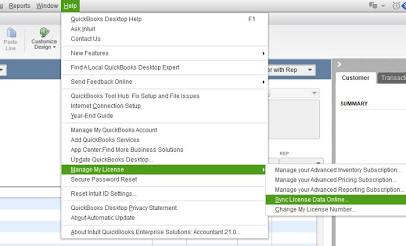
Step 2: Select Help from the top menu.
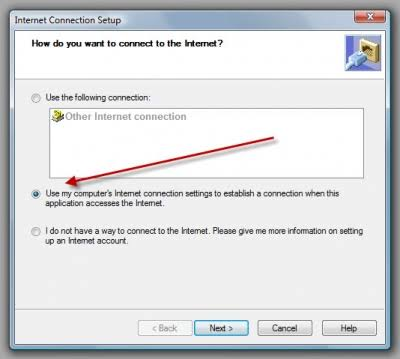
Step 3: Select Internet Connection Setup.
Step 4: Select Use my computer’s Internet connection settings to establish a connection when this application accesses the Internet.
Step 5: Select Next and then select Done.
Step 6: Close and reopen QuickBooks Desktop.
Step 7: Try downloading the payroll or QuickBooks Desktop update again.
Solution 3: Run Intuit’s TLS 1.2 Utility
QuickBooks Desktop requires a secure connection to communicate with Intuit’s online services. Intuit provides the TLS 1.2 Utility to check and configure TLS settings on supported Windows systems.
Step 1: Close QuickBooks Desktop.
Step 2: Download the TLS 1.2 Utility from Intuit’s official support resources.
Step 3: Open the downloaded utility.
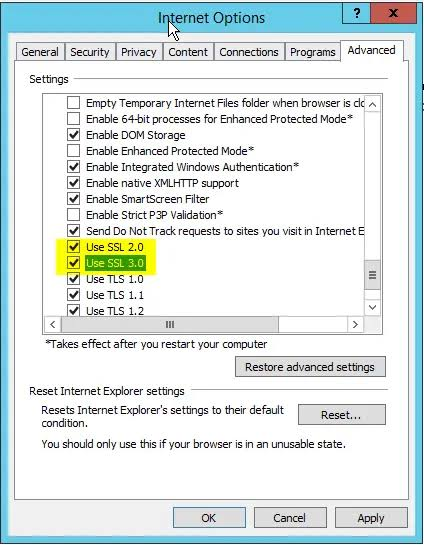
Step 4: Follow the instructions shown by the utility to check your TLS configuration.
Step 5: Complete any recommended changes provided by the utility.
Step 6: Restart your computer if the utility asks you to do so.
Step 7: Open QuickBooks Desktop and try the payroll or Desktop update again. If the update still fails, check your firewall and antivirus settings.
Solution 4: Check Firewall and Antivirus Settings
Windows Firewall or third-party security software can block QuickBooks from connecting to Intuit’s servers.
Step 1: Close QuickBooks Desktop.
Step 2: Open Windows Security from the Windows Start menu.
Step 3: Select Firewall & network protection.
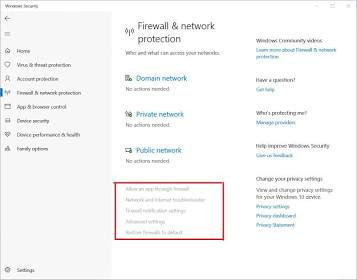
Step 4: Check whether your firewall is blocking QuickBooks Desktop.
Step 5: Allow QuickBooks through the firewall if it is blocked.
Step 6: If you use third-party antivirus or internet security software, open its settings and check whether QuickBooks is being blocked.
Step 7: Temporarily disable the third-party security software only if necessary to determine whether it is causing the connection problem.
Step 8: Open QuickBooks Desktop and try the update again.
Important: Do not leave your firewall or antivirus disabled after testing. If the update works only when security software is disabled, configure an appropriate QuickBooks exception or ask your IT administrator for help.
If you use QuickBooks on a company network, a network administrator may also need to check whether a firewall, proxy, VPN, or other security control is blocking QuickBooks.
Solution 5: Reset the QuickBooks Desktop Update
A failed or incomplete update can sometimes prevent QuickBooks from downloading the update correctly. Resetting the update clears the previous update download and allows QuickBooks to download it again.
Step 1: Open QuickBooks Desktop.
Step 2: Select Help.
Step 3: Select Update QuickBooks Desktop.
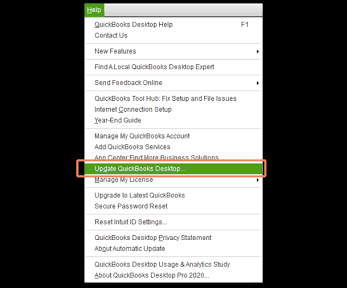
Step 4: Select the Update Now tab.
Step 5: Select the Reset Update checkbox.
Step 6: Select Get Updates.
Step 7: Wait for QuickBooks to finish downloading the update.
Step 8: Close QuickBooks Desktop after the download finishes.
Step 9: Reopen QuickBooks Desktop.
Step 10: Try installing the available update again.
Solution 6: Retry the Update in Single-User Mode
QuickBooks Desktop can be used in Single-user or Multi-user mode. Switching to Single-user mode can help when another user or QuickBooks process is accessing the company file during the update.
Step 1: Ask other users to close the QuickBooks company file.
Step 2: Open the company file in QuickBooks Desktop.
Step 3: Select File from the top menu.
Step 4: Select Switch to Single-user Mode.
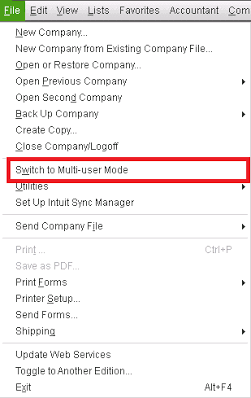
Step 5: Select Help.
Step 6: Select Update QuickBooks Desktop.
Step 7: Open the Update Now tab.
Step 8: Select Reset Update if the previous update attempt failed.
Step 9: Select Get Updates.
Step 10: After the update downloads, restart QuickBooks Desktop and check whether Error 12031 is resolved.
Solution 7: Try QuickBooks Update in Safe Mode With Networking
Safe Mode with Networking starts Windows with only essential drivers and services while still allowing network access. If the update works in this mode, another Windows application or security process may be interfering with QuickBooks.
Step 1: Save your work and close all open applications.
Step 2: Restart your Windows computer.
Step 3: Enter Safe Mode with Networking using the Windows recovery options.
Step 4: Sign in to Windows after the computer starts in Safe Mode with Networking.
Step 5: Open QuickBooks Desktop.
Step 6: Select Help → Update QuickBooks Desktop.
Step 7: Try downloading the available update.
Step 8: If the update works in Safe Mode with Networking, restart Windows normally.
Step 9: Check recently installed security software or other applications that could be interfering with QuickBooks.
Solution 8: Use QuickBooks Tool Hub
QuickBooks Tool Hub can help troubleshoot QuickBooks program and installation problems that may interfere with updates.
Step 1: Close QuickBooks Desktop.
Step 2: Download the latest version of QuickBooks Tool Hub from Intuit’s official website.
Step 3: Install QuickBooks Tool Hub on your computer.
Step 4: Open QuickBooks Tool Hub.
Step 5: Select the troubleshooting tool that matches the QuickBooks program or installation problem you are experiencing.
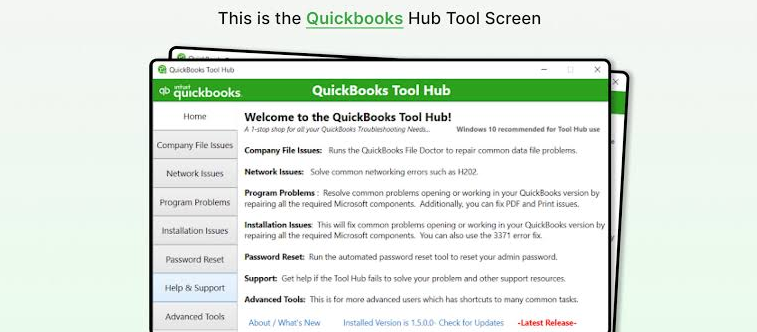
Step 6: Follow the instructions shown by the tool.
Step 7: Restart your computer after the troubleshooting process finishes.
Step 8: Open QuickBooks Desktop and try the update again.
Note: QuickBooks Tool Hub does not specifically guarantee a fix for Error 12031. It can help identify or resolve related QuickBooks program and installation problems.
Solution 9: Reinstall QuickBooks Using Selective Startup
If the previous solutions do not resolve Error 12031, another Windows application or service may be interfering with QuickBooks. Selective Startup allows you to temporarily limit background programs while reinstalling QuickBooks.
Step 1: Sign in to Windows with an administrator account.
Step 2: Press Windows + R on your keyboard to open the Run window.
Step 3: Type msconfig and select OK.
Step 4: Select the General tab.
Step 5: Select Selective startup and clear the Load startup items checkbox.
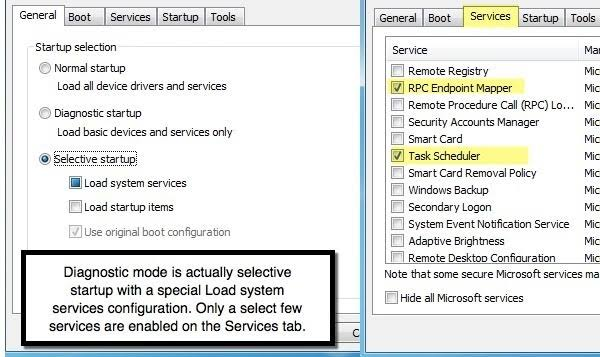
Step 6: Select the Services tab.
Step 7: Select Hide all Microsoft services.
Step 8: Select Disable all.
Step 9: Select OK and restart the computer.
Step 10: Reinstall QuickBooks Desktop while Windows is running in Selective Startup.
Step 11: Restart the computer after completing the installation.
Step 12: Open QuickBooks Desktop and try downloading the payroll or Desktop update again.
Important: Selective Startup changes how Windows loads background services. Return Windows to its normal startup configuration after completing the troubleshooting process.
Enterprise Scenarios Impacting QuickBooks Error 12031
Managed networks introduce complex routing that frequently triggers QuickBooks Error 12031. Follow the given below enterprise scenarios that impact QuickBooks update Error 12031:
1. SSL Inspection and Man-in-the-Middle (MITM) Security
Many enterprise firewalls decrypt traffic to scan for malware. This process breaks the end-to-end encryption required by QuickBooks. When QuickBooks detects a substituted certificate, it resets the connection to protect data.
Resolution: Request the IT department to create an SSL Inspection Exclusion for the Intuit domain.
2. Bandwidth Throttling and QoS Policies
Quality of Service (QoS) rules may prioritize web browsing over background update services. If QuickBooks packets are delayed excessively, the server may send an RST packet to close the “stale” connection.
Resolution: Assign high-priority status to QuickBooks executable traffic within the network’s QoS settings.
Prevention of QuickBooks Error 12031
Implementing these maintenance strategies reduces the likelihood of future connectivity failures for QuickBooks Error 12031:
- Maintain OS Health: Install Windows updates regularly. These updates often include patches for the WinINet API and security protocol libraries.
- Monitor VPN Usage: Deactivate VPN services before starting large payroll updates. VPNs often fluctuate in stability, leading to the packet loss that triggers 12031 errors.
- Perform Regular Single-User Updates: Execute software updates in Single-User Mode. This ensures that no other workstations are accessing the company file, reducing network overhead during the update process.
- Use Static IP for Workstations: Assigning a static IP to the QuickBooks host prevents connection resets caused by DHCP lease renewals during an active download.
Real Case Studies: QuickBooks Error 12031
Case 1: The Third-Party Firewall Conflict
A small accounting firm encountered Error 12031 after installing a new security suite. The software’s “Web Protection” feature was silently resetting HTTPS connections to Intuit. By adding an exclusion for QuickBooksUpdate.exe, the firm restored payroll functionality within minutes.
Case 2: Outdated Security Protocols in a Legal Office
A legal department could not download tax tables on a Windows 10 machine. Investigation revealed that TLS 1.2 was disabled in the system settings. Once the protocol was enabled, the connection reset issue was resolved immediately.
How Error 12031 Disrupts QuickBooks Online Migration?
Migrating from QuickBooks Desktop to QuickBooks Online requires uploading your entire, heavy company file to the cloud over a secure, sustained connection. Error 12031 frequently strikes mid-migration when security firewalls, aggressive antivirus software, or unstable networks mistake this prolonged data transfer for a security threat and abruptly reset the connection.
To prevent this interruption and ensure a seamless cloud transition, switch QuickBooks to Single-User Mode, bypass Wi-Fi by using a reliable wired Ethernet cable, and temporarily disable any deep packet inspection on your router or firewall before launching the export wizard.
When to Call Support?
Persistent Error 12031 occurrences despite following these steps suggest a deeper conflict with the ISP or a hardware failure in the network interface card (NIC). At this stage, professional intervention is necessary to perform advanced packet analysis.
Information to Keep Handy Before Contacting an Expert:
- QuickBooks Desktop version, year, and release number (Press F2 to find this).
- The exact wording of the error message and the numerical code.
- The results of the netsh winsock reset command.
- Confirmation of whether the error occurs on all workstations or just one.
If immediate payroll or update access is required and internal troubleshooting has reached its limit, connecting with a QuickBooks expert like us can help isolate enterprise network constraints and restore secure connectivity efficiently. Contact QuickBooks Support: +1-802-778-9005
Conclusion
QuickBooks Error 12031 is a resolvable network reset issue that stems from misconfigured security settings or environmental barriers. By systematically verifying the Windows internet configuration, adjusting firewall rules, and ensuring protocol compatibility, users can eliminate the triggers for this error.
Maintaining a clean network stack and following best practices for software updates ensures that QuickBooks remains a reliable platform for business financial management.
Frequently Asked Questions
Is Error 12031 different from Error 12029?
Error 12031 confirms that QuickBooks successfully connected to the server but the connection was forcefully reset during data transfer. Error 12029 indicates a timeout, meaning the server never responded after the request was sent. Intuit categorizes Error 12031 as a connection reset by peer issue, while Error 12029 reflects a WinHTTP timeout failure. Both errors relate to update communication, but Error 12031 points to mid-stream interruption rather than delayed response.
Will Error 12031 delete my company files?
Error 12031 impacts network communication only, not local data storage. QuickBooks company files (.QBW), payroll records, and accounting data remain stored on the hard drive and are not accessed during update failures. Intuit confirms that update errors do not modify or delete company data unless a file repair operation is explicitly initiated. This error does not pose a data-loss risk.
Why does my internet work for Google but not for QuickBooks?
QuickBooks requires secure TLS-based HTTPS communication over port 443 and uses Windows Internet components rather than browser-specific engines. Chrome and Firefox bypass Windows Internet Options, while QuickBooks depends on them. Firewall rules, proxy settings, or disabled TLS protocols can block QuickBooks traffic even if normal browsing works. Microsoft and Intuit both document this behavior for WinHTTP-based applications.
Can a slow internet connection cause Error 12031?
Slow or unstable connections increase packet loss and retransmission, which can trigger servers to reset the connection to protect data integrity. Microsoft documents connection resets as a standard response to corrupted or incomplete data packets. QuickBooks update servers may terminate the session if data validation fails mid-transfer.
How to fix QuickBooks Error 12031?
Fixing Error 12031 requires stabilizing the secure data stream between QuickBooks and Intuit servers. Intuit recommends verifying firewall and antivirus exceptions, enabling TLS 1.2, updating Windows components, and resetting QuickBooks updates. Running QuickBooks Tool Hub network diagnostics helps identify connection resets caused by security software. Resolution occurs once uninterrupted HTTPS data transfer is restored.
What is the error downloading software update 12031?
This error indicates that QuickBooks started downloading an update but the server closed the connection before completion. Intuit links this behavior to firewall filtering, antivirus scanning, or unstable network paths. The software download fails even though initial connectivity exists. This error does not indicate program corruption.
How do I fix a QuickBooks update error?
QuickBooks update errors are resolved by removing environmental blocks, not by reinstalling data. Intuit recommends updating Windows, configuring Internet Options, allowing QuickBooks through security software, and using Tool Hub utilities. Most update failures originate outside the application itself. Following Intuit’s prescribed sequence restores update functionality reliably.
How to fix Error 12002 in QuickBooks?
Error 12002 indicates a connection timeout during update requests, often caused by slow networks or restricted outbound traffic. Intuit recommends verifying internet speed, disabling proxy interference, enabling TLS 1.2, and resetting QuickBooks updates. This error reflects delayed server responses rather than authentication failure. Stabilizing network throughput resolves the issue.