
Few technical roadblocks are as frustrating as a critical deployment failure right when you need to run payroll, generate reports, or close out your books. QuickBooks Error 1603 is one of the most common yet disruptive installation errors encountered by desktop users. It typically surfaces without warning during a fresh software setup, a major version upgrade, or a routine maintenance patch, abruptly halting the process and rolling back all installation progress.
To effectively fix this issue, you must understand its true nature: Error 1603 is not a flaw within the QuickBooks application code. Instead, it is a generic Windows Installer subsystem abort code. It serves as an umbrella notification indicating that the underlying Microsoft operating system layer has blocked the installation engine (msiexec.exe) from modifying protected directories, writing configuration scripts to the system registry, or linking with core framework components.
When Error 1603 strikes, it points to a deeper environmental conflict. The primary culprits are usually corrupted Microsoft .NET Framework assemblies, unaligned MSXML parser objects, restrictive administrative permissions, or hyper-aggressive third-party security software. Ignoring this failure or repeatedly forcing the setup wizard without addressing the underlying Windows root cause will only lead to continuous rollback loops, unstable software launches, and potential compatibility system crashes.
This technical guide provides a structured, step-by-step breakdown to help you diagnose and resolve QuickBooks Error 1603 across Windows 10 and Windows 11. By validating environmental prerequisites, running targeted component repairs, and understanding how data migration patterns trigger this roadblock, you can safely realign your system and restore QuickBooks to full operational health.
When does this error occur?
The user may encounter this error in the below mentioned scenarios:
- Updating Quickbooks to a newer version or release.
- Installing Quickbooks Desktop for the first time.
- Installing additional components required by Quickbooks.
Common error message
User may see message like:
“Error 1603: The update installer has encountered an internal error”
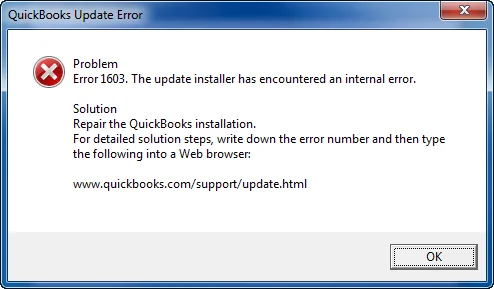
If you’re installing QuickBooks Desktop for the first time and suddenly see Error 1603, don’t panic. This is a common installation error that happens when your computer blocks QuickBooks from finishing setup. It usually means something in your hard drive, software, or operating system isn’t working correctly.
What Does Error 1603 Mean?
The error means that the QuickBooks needs certain Windows components (like .NET Framework, MSXML, and Visual C++) to install properly. If these are damaged, missing, or blocked, QuickBooks shows Error 1603.
- Hard drive issues → Not enough space, corrupted files, or bad sectors.
- Software issues → Damaged installer, antivirus/firewall blocking setup.
- Operating system issues → Outdated Windows updates, registry errors, or Windows Installer service problems.
Critical Prerequisites Before Troubleshooting
To prevent the installation script from failing repeatedly or throwing unhandled exceptions, the local Windows operating system must meet these technical baselines before executing any repair routines:
- Verify 64-Bit Architecture Alignment: Modern versions of QuickBooks Desktop natively require a native, 64-bit installation of Windows 10 or Windows 11. The installer scripts will fail if deployed on 32-bit legacy machines, Windows “S Mode,” or ARM-based processors (e.g., Snapdragon architecture) without specialized x64 emulation layers.
- Elevate System Access to Local Administrator: The Windows Installer engine must write to protected paths like C:\Program Files\Common Files and the HKEY_LOCAL_MACHINE registry hive. You must log into an account with explicit local administrator rights.
- Unhide System Files & Operating Paths: Many target folders (such as AppData and ProgramData) are hidden by default. Open File Explorer, go to View > Show, and check Hidden items.
- Audit Windows Installer Service Status: Press Win + R, type services.msc, and hit Enter. Locate Windows Installer. Ensure its Startup Type is Manual or Automatic, and that the service is not disabled.
Technical Root Causes: The Windows Subsystem Connection
QuickBooks acts as a wrapper application that relies entirely on a foundation of core Microsoft ecosystem frameworks. A failure in any of these subsystems triggers a 1603 abort code:
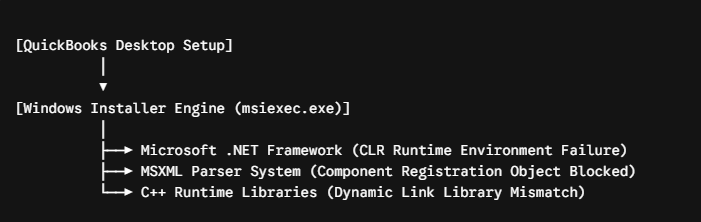
- Microsoft .NET Framework Corruption: QuickBooks utilizes the .NET Common Language Runtime (CLR) to execute background logic. If the assembly cache (C:\Windows\Microsoft.NET\Framework64) is corrupted, the installer immediately aborts.
- Damaged MSXML Parser Objects: QuickBooks uses Microsoft XML (MSXML) to process structural data and configuration profiles. If the msxml6.dll component registration is missing or unmapped in the Windows Registry, the setup engine will crash.
- Registry Hive Permission Constraints (SYSTEM vs. Admin): If the Windows Security Descriptor for registry keys under HKLM\Software lacks SYSTEM or Administrators ownership, the security subsystem denies access, throwing a sub-error that rolls back the installation.
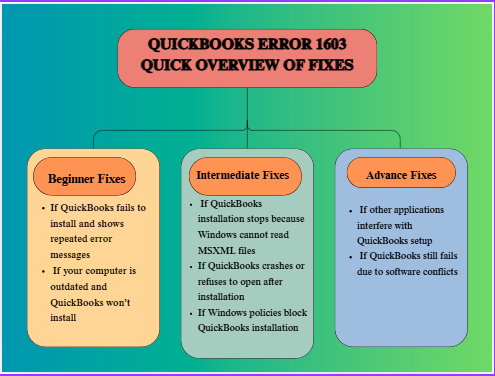
Common Situations and Fixes from Beginner to Advance Level
Beginner Fixes (Low Risk, Quick Wins)
Scenario 1. If QuickBooks fails to install and shows repeated error messages → Use the QuickBooks Install Diagnostic Tool
- Explanation: This tool automatically scans your system for damaged components like .NET Framework, MSXML, and C++. These are essential for QuickBooks to install.
- Steps: Download QuickBooks Tool Hub, open it, go to Installation Issues, and run the Diagnostic Tool. Wait 20–25 minutes for the scan to complete. Restart your computer.
- Estimated Time: 20–25 minutes
- Risk Level: Low
- Verification: QuickBooks installation should proceed without rollback errors.
Scenario 2. If your computer is outdated and QuickBooks won’t install → Update Windows
- Explanation: QuickBooks requires the latest Windows patches to work properly. Missing updates can block installation.
- Steps: Open Control Panel → Windows Update → Check for Updates → Install all pending updates. Restart your computer.
- Estimated Time: 15–20 minutes
- Risk Level: Low
- Verification: QuickBooks installs successfully after updates.
Intermediate Fixes (Medium Risk, Technical Knowledge Needed)
Scenario 3. If QuickBooks installation stops because Windows cannot read MSXML files → Repair the MSXML Component
- Explanation: MSXML helps QuickBooks communicate with Windows. If it’s broken, installation halts.
- Steps: Insert QuickBooks CD (if using CD installation). Run the MSXML installer command (msiexec.exe /forum “D:\QBOOKS\msxml.msi”). Replace “D” with your CD drive letter.
- Estimated Time: 15–20 minutes
- Risk Level: Medium
- Verification: Installer no longer halts midway.
Scenario 4. If QuickBooks crashes or refuses to open after installation → Fix the Microsoft .NET Framework
- Explanation: QuickBooks relies heavily on .NET Framework. If it’s corrupted, QuickBooks won’t run.
- Steps: Go to Control Panel → Programs and Features → Turn Windows features on/off. Refresh settings for .NET Framework 4.5 (or later) and 3.5 SP1 by disabling and re-enabling them. Restart your computer.
- Estimated Time: 30–40 minutes
- Risk Level: Medium
- Verification: Event Viewer shows no 1603 errors.
Scenario 5. If Windows policies block QuickBooks installation → Change Windows Security Settings
- Explanation: Sometimes Windows policies prevent third‑party apps from installing. Adjusting Local Group Policy fixes this.
- Steps: Log in as Administrator. Open Run → type gpedit.msc.
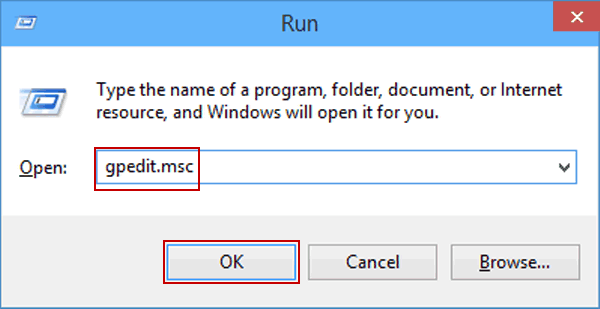
Go to Computer Configuration → Administrative Templates → Windows Components → Windows Installer. Set “Prohibit User Installs” to “Not Configured.”
- Estimated Time: 20–30 minutes
- Risk Level: Medium
- Verification: QuickBooks installs without policy restrictions.
Advanced Fixes (Higher Risk, Technician Recommended)
Scenario 6. If other applications interfere with QuickBooks setup → Install QuickBooks in Safe Mode
- Explanation: Safe Mode loads only essential Windows services, preventing conflicts with other apps.
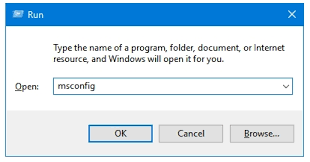
- Steps: Open Run → type msconfig. In the Boot tab, select Safe Mode. Restart your computer and install QuickBooks. Return to msconfig and disable Safe Mode after installation.
- Estimated Time: 30–40 minutes
- Risk Level: High
- Verification: Installation succeeds in Safe Mode.
Scenario 7. If QuickBooks still fails due to software conflicts → Install QuickBooks in Selective Startup Mode
- Explanation: Selective Startup disables non‑Microsoft services temporarily, isolating QuickBooks from conflicts.
- Steps: Backup your company files. Open Run → type msconfig. Select “Selective Startup” and enable “Load System Services.” Hide Microsoft services → Disable all → re‑enable Windows Installer. Restart and install QuickBooks. Return to Normal Startup after installation.
- Estimated Time: 45–60 minutes
- Risk Level: High
- Verification: Installation succeeds; return to Normal Startup afterward.
Scenario 8. If the QuickBooks installer won’t start at all → Restart the Windows Installer Service
- Explanation: If the Windows Installer service is stuck, QuickBooks can’t install. Restarting it resets the installer engine.
- Steps: Open Control Panel → System and Security → Administrative Tools → Services.
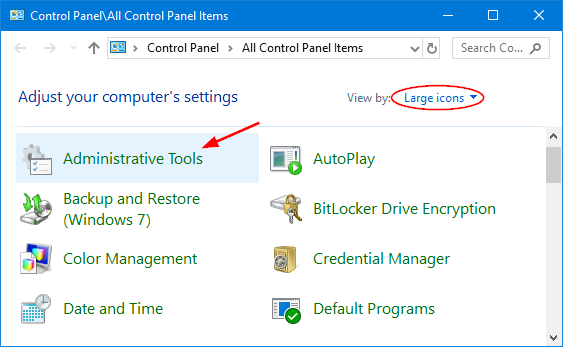
- Find “Windows Installer.” Stop the service, then Start it again.
- Estimated Time: 10–15 minutes
- Risk Level: Medium
- Verification: Installer launches successfully.
QuickBooks Error 1603 Across Desktop and Online: Impact Analysis
QuickBooks Desktop
- Installation failure or rollback during setup → QuickBooks cannot be installed or updated, halting business operations.
- Inability to apply updates or patches → Leaves the software vulnerable to bugs and compatibility issues.
- Risk of partial installs leading to instability or data corruption if interrupted → May cause QuickBooks to crash or behave unpredictably, risking company file integrity.
QuickBooks Online
- No direct impact → Error 1603 is Desktop‑specific.
- Possible confusion for users migrating between Desktop and Online platforms → Misunderstanding the scope of the error can waste troubleshooting time or lead to unnecessary support calls.
Error 1712 – Missing or Damaged Windows Components
This error occurs when essential Windows components required by QuickBooks are missing, corrupted, or blocked by leftover data from previous installations. It typically appears as “Unable to install update – Error 1712.”
Link to 1603: Both are Windows Installer errors. Error 1712 highlights missing components, while Error 1603 is a broader installer failure. They often appear together when the system environment is unstable.
Error 1935 – .NET Framework Installation Failure
Error 1935 arises when QuickBooks or other applications fail to install Microsoft .NET Framework assemblies. The common message is “Error 1935: An error occurred during the installation of assembly components.”
Link to 1603: Directly related. Error 1603 often cites .NET Framework as the blocked or damaged component. If .NET repair fails, Error 1935 may surface as a secondary error during installation.
Error 1904 – Damaged File or Registry Issue
This error appears when a specific file or registry entry required by QuickBooks cannot be registered during installation. Typical message: “Error 1904: [file path] failed to register.”
Link to 1603: Error 1603 is the umbrella installer failure, while Error 1904 pinpoints the exact file or registry key causing the halt. It is often a sub‑error of 1603.
Error 1402 – Permission Denied for Registry Key
Error 1402 occurs when QuickBooks installer cannot access or modify a registry key due to insufficient permissions. The message usually reads: “Error 1402: Could not open key [registry path].”
Link to 1603: Strongly connected. Error 1603 often arises from insufficient user permissions, and Error 1402 is the specific manifestation of that root cause.
Structural Breakdown: Workstation Migration Triggers
Migrating QuickBooks from an old computer to a new Windows 10 or Windows 11 environment is a primary catalyst for Error 1603. This typically happens through two common technical errors:
1. The Cloned Directory Hash Mismatch
Using system imaging software or manually copying raw program directories (such as C:\Program Files\Intuit) to a new workstation bypasses the native Windows installation process.
The copied files carry security descriptors, cryptographic hashes, and digital signatures tied to the old machine’s security database. When a subsequent update patch is launched, the Windows Installer (msiexec.exe) evaluates the local environment hashes, detects a structural mismatch, and throws Error 1603 to prevent security exploitation.
2. Orphaned Registry Strings and Broken Security Identifiers ($SIDs$)
Automated data-transfer utilities often migrate absolute registry paths from the source machine. These legacy registry keys direct the installation engine to look for shared components or temporary update caches under user profiles or absolute directory maps that do not exist on the destination operating system.
Furthermore, inherited directory permissions carry the old machine’s Security Identifier ($SID$). Even if your new Windows user account has administrative privileges, the local User Account Control ($UAC$) blocks file modifications because it cannot validate the orphaned $SID$.
The Migration Rule: Never migrate application files—only data files. Always run a native, clean installation package directly on the destination machine, then restore your raw .qbw or .qbb accounting databases.
Preventive Measures: Keeping QuickBooks Installations Error‑Free
To minimize the chances of encountering Error 1603 during QuickBooks Desktop installation or updates, follow these proactive steps:
- Keep Windows Updated → Regularly install the latest Windows patches to ensure compatibility with QuickBooks.
- Maintain System Components → Periodically repair or refresh critical components like .NET Framework, MSXML, and Visual C++.
- Run as Administrator → Always install QuickBooks with full admin rights to avoid permission conflicts.
- Disable Antivirus/Firewall Temporarily → Security software can block installers; disable them during setup and re‑enable afterward.
- Clean Previous Installations → Use QuickBooks Tool Hub or Clean Install Tool to remove leftover files before reinstalling.
- Ensure Disk Health → Check for sufficient free space and run disk cleanup or error‑checking tools to prevent corruption.
Conclusion: Fixing QuickBooks Error 1603 for Smooth Installation
QuickBooks Error 1603 is a common yet critical installation issue that stems from damaged Windows components, insufficient permissions, or software conflicts. While it primarily affects QuickBooks Desktop, understanding its causes, related errors, and preventive measures ensures faster resolution and minimizes downtime.
By following structured troubleshooting steps from beginner fixes like running the QuickBooks Tool Hub to advanced methods such as Selective Startup you can restore stability and complete installation successfully. For long‑term reliability, keep Windows updated, maintain system components, and always install QuickBooks with administrator rights.
With these practices, businesses can avoid recurring installation failures and enjoy a seamless QuickBooks experience.
FAQs
1. Why does Error 1603 keep coming back even after I fix it once?
Recurring Error 1603 usually means underlying Windows components (like .NET Framework or MSXML) are unstable or outdated. Running QuickBooks Tool Hub may fix it temporarily, but long‑term prevention requires updating Windows, repairing components, and ensuring antivirus/firewall settings don’t block installers.
2. Can Error 1603 damage my QuickBooks company file?
No, Error 1603 only affects installation or updates. Your company data remains safe. However, repeated failed installs can leave QuickBooks unstable, which indirectly risks crashes during use. Always back up your company file before attempting fixes.
3. Is Error 1603 linked to other QuickBooks installation errors?
Yes. It often appears alongside:
- Error 1712 (missing Windows components)
- Error 1935 (.NET Framework failure)
- Error 1904 (damaged file/registry issue)
Error 1402 (permission denied for registry keys)
- These are either causes or sub‑errors of 1603, so fixing them often resolves 1603 as well.
4. Do I need to reinstall Windows to fix Error 1603?
Rarely. A full Windows reinstall is only needed if core components are irreparably damaged. In most cases, repairing .NET Framework, updating Windows, or using Selective Startup resolves the error without reinstalling the OS.
5. How can I prevent Error 1603 in future installations?
- Always install QuickBooks as Administrator.
- Keep Windows fully updated.
- Regularly repair/refresh .NET Framework and MSXML.
- Use QuickBooks Tool Hub before major updates.
- Ensure sufficient disk space and system health.
6. Does QuickBooks Online face Error 1603?
No. QuickBooks Online runs in a browser and doesn’t depend on Windows Installer. The error is Desktop‑specific, but Online users migrating from Desktop may see references to it in forums, which can cause confusion.