
QuickBooks Error 1935 by running the QuickBooks Install Diagnostic Tool from QuickBooks Tool Hub, installing pending Windows updates, and repairing the required Microsoft .NET Framework components. If the error continues, install QuickBooks in Selective Startup mode to reduce interference from third-party antivirus software and background programs.
QuickBooks Error 1935 is an installation or update error that occurs when QuickBooks Desktop cannot successfully install or modify a required component on Windows.
During installation, QuickBooks Desktop may need to install or register required .NET Framework and assembly components used by Windows applications. Some of these assemblies can be associated with the Global Assembly Cache (GAC), a Windows location used to store shared .NET assemblies. Problems with required framework components or interruptions during installation can prevent the setup from completing successfully.
The error commonly occurs when Microsoft .NET Framework files are being used by another installation, when antivirus or antispyware software interferes with the setup, or when required .NET Framework components are missing or damaged. A broader Windows issue can also prevent the installation from completing successfully.
This guide explains how to resolve QuickBooks Error 1935 by troubleshooting .NET Framework, Windows components, installation conflicts, and third-party software interference.
What Is QuickBooks Error 1935?
QuickBooks Error 1935 surfaces when the installation engine is blocked from creating assembly components required by QuickBooks to interact with Windows core libraries. The official Error 1935 can appear with messages such as:
- “Error 1935: This setup requires .NET Framework”
- “Error 1935: An error occurred during the installation of assembly component.”
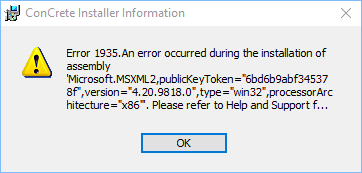
Unlike connectivity-based 12000-series errors, Error 1935 indicates an underlying operational conflict within the host environment’s execution layer. QuickBooks requires highly specific versions of the Microsoft .NET Framework to bridge application logic with system resources. If the .NET installation is compromised or if an active background process locks the targeted assembly during the setup cycle, the installation aborts immediately.
QuickBooks Error 1935: Quick Checklist
Before initiating deep system troubleshooting, validate these five fundamental conditions to determine if the local environment satisfies the minimum requirements for a clean installation.
| Checkpoint | Action Item | Expected Target |
| 1. Admin Privileges | Right-click the installer and choose Run as Administrator. | Bypasses local execution restrictions on system folders. |
| 2. Windows Updates | Check for pending Windows Updates in the system settings. | Ensures the latest cryptographic and .NET patches are installed. |
| 3. Active Installers | Open Task Manager and terminate lingering installation tasks (e.g., msiexec.exe). | Prevents concurrent installation locks on the Windows registry. |
| 4. Security Software | Temporarily disable active third-party antivirus shields. | Security software may interfere with installation. |
| 5. .NET Framework Status | Check if the Microsoft .NET Framework feature is active in Windows Features. | Confirms the structural baseline for QuickBooks deployment is available. |
Common Causes of QuickBooks Error 1935
QuickBooks Error 1935 can occur when Windows cannot complete the installation of QuickBooks Desktop or a required Microsoft .NET Framework component. The most common causes include the following.
Microsoft .NET Framework is missing or damaged
QuickBooks may encounter Error 1935 when a required .NET Framework component is not installed correctly or has become damaged.
Another installation is using .NET Framework files
A different installation process may be using required .NET Framework files when QuickBooks tries to install its components. The conflict can prevent the QuickBooks installation from completing.
Antivirus or antispyware interference
Third-party antivirus or antispyware software can interfere with the QuickBooks installation process. Intuit specifically identifies security software as a possible cause of Error 1935.
Another program is preventing .NET Framework installation
A background program or another active process can prevent the required .NET Framework components from being installed correctly. Intuit lists a program preventing .NET Framework installation as one possible cause.
Windows system damage
Persistent Error 1935 can indicate a broader Windows operating system problem when the recommended QuickBooks and .NET Framework troubleshooting steps do not resolve the issue. Intuit recommends consulting a qualified IT professional or Microsoft if the error continues after the standard fixes.
Advanced Windows Repair for Error 1935
These tools can be considered when Windows system corruption is suspected, particularly after the Intuit-recommended troubleshooting steps fail. System-level verification utilities allow administrators to scan, isolate, and repair broken system dependencies before deploying QuickBooks.
- sfc / scannow — Scans protected system files and replaces corrupted system caches that disrupt the installer.
- DISM.exe / Online / Cleanup-image / Restorehealth — Connects to Windows Update servers to repair damaged base system image configurations.
QuickBooks Error 1935: Deep Diagnosis
Isolating the structural breakdown between the QuickBooks installer and the Windows subsystem prevents unnecessary application re-installs when the actual issue resides within operating system libraries.
1. Identify Assembly Logs
Windows Event Viewer can provide additional information about the failed installation, especially when the standard troubleshooting steps do not identify the cause.
Reviewing the Windows Event Viewer provides definitive proof of which component triggered the exception.
- Open Event Viewer (eventvwr.msc).
- Expand Windows Logs and select Application.
- Filter for errors matching MsiInstaller to locate the exact GUID or assembly file that timed out or was rejected.
2. Check the .NET Optimization Service
The Microsoft .NET Framework relies on background optimization queues to compile assembly units. If this service hangs, file deployments stall.
- Open the Services panel (services.msc).
- Locate the Microsoft .NET Framework NGEN services.
- Ensure they are not in a permanently stuck “Starting” state, which locks execution queues.
Troubleshooting Solutions with Cause: QuickBooks Installation Error 1935
Follow these structured steps chronologically to eliminate background blocks and repair broken system architectures.
Solution 1: Repair or Reinstall Microsoft .NET Framework
The required .NET Framework version can depend on the QuickBooks Desktop version and Windows environment. Microsoft says its .NET Framework Repair Tool detects common .NET Framework setup/update problems and attempts to repair supported .NET Framework installations.
Since Error 1935 centers primarily on damaged assembly runtimes, repairing the system’s .NET Framework often addresses the issue at its source.
- Close all open applications and open the Control Panel.
- Select Programs and Features and click Turn Windows features on or off.
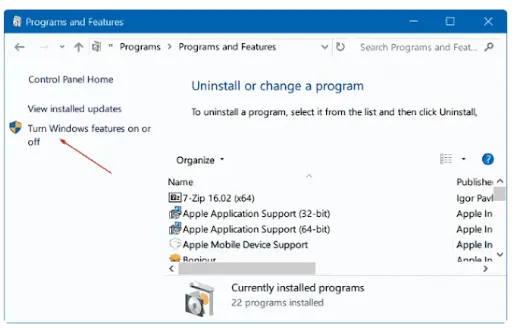
- Locate .NET Framework 4.8 (or the current version installed) along with .NET Framework 3.5.
- Uncheck both options, restart the computer, and then return to the menu to re-check them. This forces Windows to reload clean copies of the core framework libraries.
Solution: Repair Microsoft MSXML
Damaged or unregistered MSXML components can cause QuickBooks Desktop installation and runtime problems.
Intuits Repair Mircrosoft MSXML steps.
Solution 2: Run the QuickBooks Install Diagnostic Tool
The QuickBooks Install Diagnostic Tool can diagnose and repair issues involving Microsoft components used by QuickBooks Desktop. According to Intuit the process can take up to 20 minutes.
- Download and open the latest version of QuickBooks Tool Hub.
- Navigate to the Installation Issues tab.
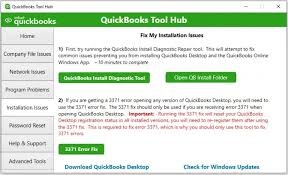
- Select QuickBooks Install Diagnostic Tool and let it execute. This utility automatically detects and repairs broken components across the registry and .NET infrastructure.
- Restart Windows after the tool finishes, then try the QuickBooks installation again.
Solution 3: Install Pending Windows Updates
Steps:
- Open Settings.
- Open Windows Update.
- Select Check for updates.
- Install available updates.
- Restart Windows.
- Run the QuickBooks installation again.
Important note: Microsoft says Windows 10 support ended on October 14, 2025.
Solution 4: Perform Installation in Selective Startup Mode
Selective Startup reduces interference from third-party services and startup programs while you retry the installation. Microsoft describes a clean boot as starting Windows with essential drivers and startup programs to isolate software conflicts; it specifically cautions that System Configuration should be used carefully.
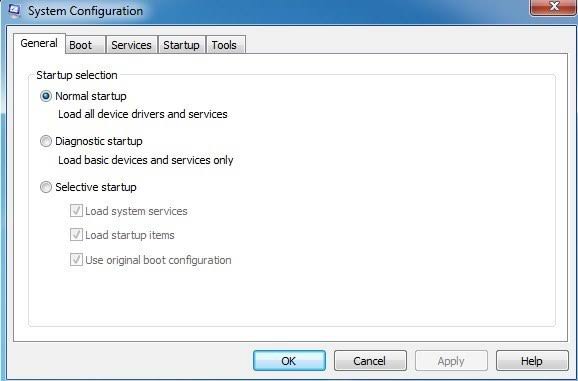
- Open the Run command (Win + R), type msconfig, and press Enter.
- Under the General tab, select Selective Startup and clear the Load Startup Items checkbox.
- Move to the Services tab, select Hide all Microsoft services, and click Disable All.
- Click Apply, restart your computer, and run the QuickBooks setup wizard again. Remember to return msconfig to Normal Startup once the installation finishes.
Safety note
After testing the installation, return Windows to Normal Startup and re-enable the services and startup programs you disabled.
Solution 5: Register and Reset the Windows Installer Service
Use this step only after the Intuit-recommended troubleshooting methods fail. The commands affect the Windows Installer registration and should be run from an administrator account.
A stalled Windows Installer subsystem can drop assembly files mid-transaction.
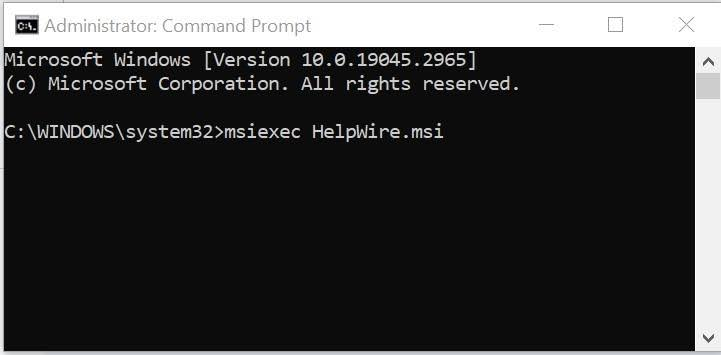
- Press the Windows key on your keyboard or click the Search icon on the taskbar.
TypecmdorCommand Prompt. Open the Command Prompt as an administrator. - Type msiexec /unreg and hit Enter to release the current registration.
- Type msiexec /regserver and hit Enter to re-register the core components within the Windows environment.
- Attempt the installation once more.
Enterprise Scenarios Impacting QuickBooks Error 1935
In enterprise networks managed by centralized active directory environments, Error 1935 often occurs due to domain-wide security profiles rather than local machine errors.
- Group Policy Objects (GPO) Restricting Registries: Strict enterprise security baselines may block local execution changes to the HKEY_LOCAL_MACHINE\SOFTWARE\Microsoft\Fusion registry pathway. If the installer cannot read or write to this cache, deployment fails instantly.
- Aggressive Endpoint Detection and Response (EDR): Enterprise EDR systems treat silent assembly manipulation as potential malware activity. Whitelisting the installer package package globally via the management console mitigates this block.
Prevention of QuickBooks Error 1935
To prevent future deployment exceptions and maintain long-term stability:
- Always keep the Windows operating system fully patched with up-to-date quality rollouts.
- Deploy QuickBooks while running a clean system environment with minimum background tasks.
- Ensure that all relevant Microsoft Visual C++ redistributable packages are kept up to date.
Real Case Studies
Case 1: The Missing Security Patch
An accounting group encountered Error 1935 on a freshly deployed workstation. Advanced logging revealed that a missing SHA-2 code-signing validation patch was preventing the system from confirming the identity of the Intuit installation files. Running a comprehensive Windows update restored the necessary validation structures, allowing the installation to complete successfully.
Case 2: Endpoint Protection Lockout
An enterprise infrastructure team could not install QuickBooks on any endpoint within a specific department. Investigation showed that their centralized anti-malware platform was locking down the Global Assembly Cache (GAC) directory. Once an explicit directory exemption rule was pushed down through the domain policy, the deployments proceeded without further error.
When to Call Support for QuickBooks Error 1935?
If Error 1935 continues after restarting Windows, updating Windows, running the QuickBooks Install Diagnostic Tool, repairing the required Windows components, and testing Selective Startup, the problem may involve a broader Windows installation or configuration issue.
Information to Keep Handy Before Contacting an Expert
To expedite your support session and avoid repetitive troubleshooting loops, gather and prepare the following technical details before reaching out:
- The Exact Error Text: Note down the specific file string, GUID, or assembly name listed right after the “Error 1935” text block.
- Workstation Environment: The precise version of your Windows operating system (e.g., Windows 11 Enterprise, build version) and its current patch status.
- QuickBooks Details: The specific edition, year, and version of the QuickBooks Desktop installer you are deploying.
- Diagnostic Logs: Results from running the QuickBooks Install Diagnostic Tool or systemic scans like sfc /scannow.
- Security Architecture: The name and version of any active third-party antivirus, anti-malware, or endpoint detection and response (EDR) software monitoring the workstation.
Conclusion
QuickBooks Error 1935 is a critical barrier to software deployment, deeply rooted in the underlying health of your Windows system libraries and Microsoft .NET Framework components. Unlike basic software glitches, this error signifies a breakdown in how the installer communicates with your operating system’s Global Assembly Cache.
By systematically addressing the root causes—whether that means running automated diagnostic utilities, repairing damaged .NET installations, or temporarily stripping away background environment restrictions—you can successfully eliminate the roadblock and ensure a stable, secure installation of QuickBooks Desktop. Keeping your operating system updated and maintaining clean deployment environments remain your best defense against structural installation failures.
Frequently Asked Questions
What does “Assembly Component” mean in Error 1935?
An assembly component is a building block of code (typically a DLL file) within the Microsoft .NET Framework that QuickBooks relies on to complete tasks. Error 1935 means Windows was blocked from registering this block of code during setup.
Can I just bypass the .NET installation during QuickBooks setup?
No. If the QuickBooks installation requires a .NET Framework component, the installation needs that component to complete successfully. Repair or install the required .NET Framework instead of trying to bypass the failed component.
Why does my antivirus block a safe program like QuickBooks?
Antivirus systems rely heavily on heuristic tracking to stop malware. Because the QuickBooks installation script modifies core system paths and updates your registry with new components, strict security shields can mistake this behavior for an active system threat.
Does QuickBooks Error 1935 mean my company data file is damaged?
No. Error 1935 is strictly an installation and system framework error. It means the software cannot properly install or update its own program files on the computer. Your actual company data file (.qbw) remains completely safe, unaffected, and untouched by this process.
What should I do if the QuickBooks Install Diagnostic Tool fails to fix Error 1935?
If the automated tool fails, it indicates a deep-seated issue with your operating system that a standard application utility cannot repair. You will need to manually fix or reinstall the Microsoft .NET Framework through the Windows Control Panel, perform an installation in Selective Startup Mode, or check the Windows Event Viewer to see if a strict corporate security policy or third-party antivirus is actively blocking the installation.
Is QuickBooks Error 1335 the same as Error 1935?
No. QuickBooks Error 1335 and Error 1935 are separate installation errors. Error 1335 generally relates to a missing or damaged installation file, while Error 1935 is associated with installation of QuickBooks or .NET Framework and can involve .NET Framework or software interference.
Why does QuickBooks show “Error 1935: An error occurred during the installation of assembly”?
QuickBooks can display Error 1935 when Windows cannot complete the installation of a required component. Intuit identifies problems such as .NET Framework files being in use, antivirus or antispyware interference, and missing or damaged .NET Framework components as possible causes.
Restarting Windows, updating Windows, using the QuickBooks Install Diagnostic Tool, and repairing the affected Windows components are the recommended troubleshooting paths.