
QuickBooks Error 1904 occurs exclusively during the installation of QuickBooks Desktop when the system fails to register one or more essential files. This leaves QuickBooks either partially installed or not installed at all. The error message often points to a specific DLL or module, but the underlying issue is rarely the file itself.
Instead, the problem lies in Windows system dependencies:
- Missing Windows components such as Microsoft .NET Framework, MSXML, or Visual C++ Redistributables, which QuickBooks relies on for installation routines.
- Insufficient permissions when the installer cannot access registry keys or Program Files directories, blocking DLL registration.
- Background process interference from antivirus, firewalls, or other applications that restrict QuickBooks executables during setup.
This makes Error 1904 particularly challenging: the same error message can appear for different root causes depending on the Windows environment. Simply retrying installation or following basic fixes may not resolve the issue unless the specific Windows dependency is identified and repaired.
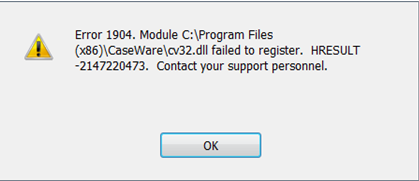
Error Pop Up While Registering File
Below are some of the most commonly seen error messages:
- Module Registration Failure
“Error 1904: Module [file path/name] failed to register.”
This is the most direct form of the error. It indicates that a particular file could not be registered due to system restrictions or missing components.
- DLL File Registration Failure
“Error 1904: Failed to register file [filename].dll”
This message appears when a DLL (Dynamic Link Library) file cannot be properly registered. These files are essential for QuickBooks to function correctly.
- Microsoft Component Error
“Error 1904: Failed to register Microsoft MSXML, C++ or .NET Framework components.”
Sometimes the issue is not with QuickBooks itself but with Microsoft components required during installation.
- Unexpected Installation Error
“An error occurred while installing the assembly component…”
This type of message indicates a deeper system issue, often related to Windows installer or system file problems.
- File Path Related Errors
“Error writing to file…” or “Access denied while registering file…”
These errors usually point to:
- Permission issues
- Restricted system folders
- Security software interference
Even though the file names may differ, all these messages indicate one core problem:
Your system is unable to complete the file registration process required for QuickBooks installation.
The variation in messages simply depends on:
- Which file failed
- What system component is affected
- Where the installation process stopped
Symptoms of QuickBooks Error 1904
1. QuickBooks Freezes Mid‑Install
Definition: The installation wizard stops responding or hangs midway. Progress bar may stall indefinitely, forcing the user to cancel or restart.
Why it matters: Indicates the installer is unable to register essential files, often due to system component or permission issues.
2. Pop‑Up Message: “Module failed to register”
Definition: A dialog box appears during installation stating that a specific module or file path could not be registered.
Why it matters: This is the most direct form of Error 1904, pointing to restricted permissions or missing Windows components.
3. System Rollback Messages
Definition: After the error, Windows attempts to undo installation changes. Users see messages like “Rolling back action” or the installer closes abruptly.
Why it matters: Confirms that QuickBooks installation was incomplete, leaving the software partially installed or not installed at all.
Root Causes of QuickBooks Error 1904
1. Damaged or Missing Windows Components
QuickBooks relies on several Microsoft dependencies during installation, including:
- .NET Framework – essential for running QuickBooks services.
- MSXML – required for XML file parsing and registration.
- Visual C++ Redistributables – provide runtime libraries for QuickBooks modules.
If any of these components are corrupted, outdated, or missing, QuickBooks cannot register critical files (like .dll or .ocx), triggering Error 1904.
Risk: High recurrence if components remain unrepaired.
2. Restricted Permissions or Non‑Admin Accounts
QuickBooks installation requires administrator‑level privileges to register modules and write to system directories.
- If the user is logged in with a standard account, registry keys and system files may be blocked.
- Group policies in enterprise environments can also restrict installer actions.
This results in failed registration of modules and rollback errors.
Risk: Moderate recurrence unless permissions are corrected.
3. Antivirus or Firewall Interference
Security software often blocks QuickBooks installer actions, mistaking them for suspicious activity.
- Antivirus programs may prevent .dll or .ocx files from registering.
- Firewalls can block QuickBooks services during installation.
- Specific cases (e.g., Bitdefender) are known to block QuickBooks modules unless exclusions are added.
Temporarily disabling security software or adding QuickBooks folders to the exclusion list usually resolves this.
Risk: Low recurrence once exclusions are configured.
QuickBooks Desktop Error 1904 – Detailed Troubleshooting Guide
LEVEL 1: Beginner (15–30 minutes)
Scenario 1: Error Appears but Installation Completes
- Steps (5–10 min):
- When Error 1904 appears, click Ignore.
- Allow installation to finish completely.
- Restart your system before opening QuickBooks.
- Why it works: Windows often registers missing DLLs or components during the reboot process. The restart clears temporary locks and allows the OS to finalize pending registrations, meaning the error is non‑critical if QuickBooks launches afterward.
Scenario 2: QuickBooks Installs but Won’t Open
- Steps (20 min):
- Download QuickBooks Tool Hub from Intuit’s official site.
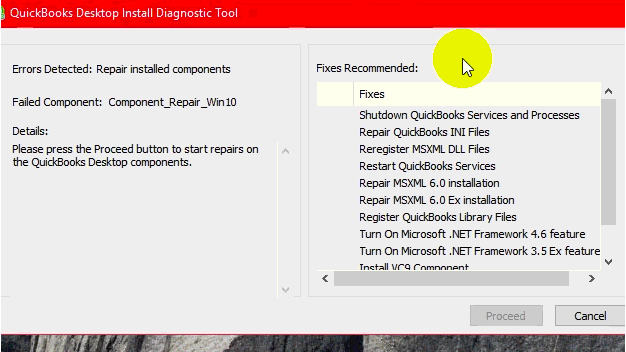
- Open Tool Hub → select Installation Issues → run Install Diagnostic Tool.
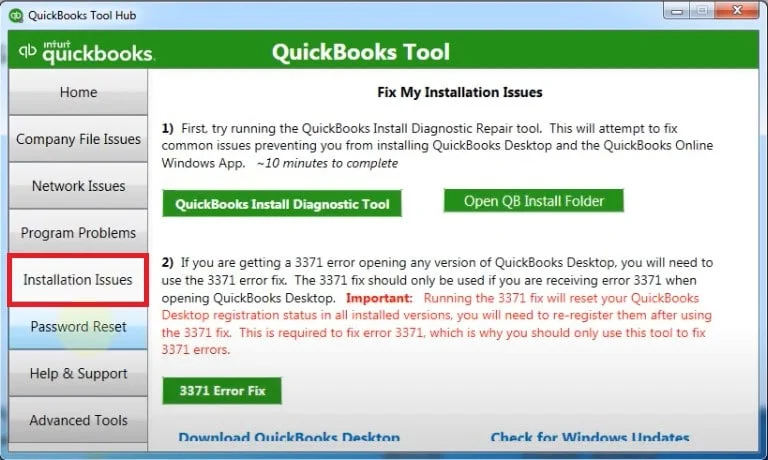
- Wait for the scan (15–20 minutes).
- Restart your system after completion.
- Why it works: The Diagnostic Tool repairs Microsoft dependencies like .NET Framework, MSXML, and C++ runtime libraries. These are essential for QuickBooks to launch, and repairing them restores stability.
Scenario 3: Installation Fails After Restart
- Steps (10 min):
- Restart your computer again.
- Attempt reinstalling QuickBooks Desktop.
- Why it works: A second restart clears “ghost” processes or temporary locks that may still block installation. Reinstalling after a clean boot ensures the installer can write files without interference.
LEVEL 2: Intermediate (30–45 minutes)
Scenario 4: Permission Denied Errors
- Steps (15–20 min):
- Press Windows key → type CMD → right‑click → Run as Administrator.
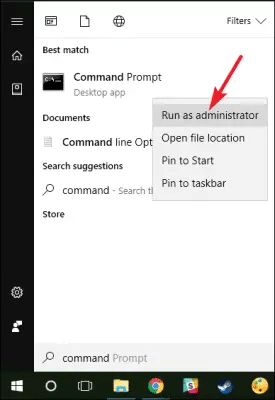
- Enter: net user administrator /active:yes.
- Press Ctrl + Alt + Delete → Switch User → Administrator account.
- Install QuickBooks under this account.
- Disable admin after installation: net user administrator /active:no.
- Why it works: The hidden Administrator account bypasses restricted permissions. It ensures QuickBooks has full system privileges to register DLLs and components, preventing blocked installations.
Scenario 5: QuickBooks Cannot Access Program Files
- Steps (10–15 min):
- Navigate to C:\Program Files\Common Files.
- Right‑click → Properties → Security → Edit.
- Select Users → enable Modify, Read & Execute, Write.
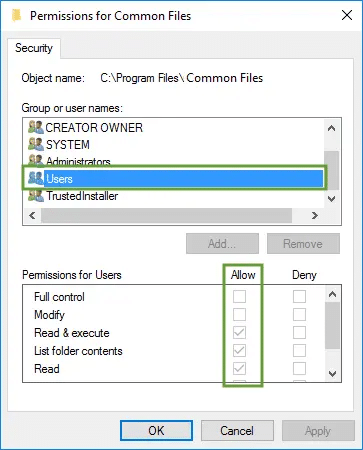
- Click Apply → OK.
- Why it works: QuickBooks needs to write DLLs and configuration files in Program Files. Adjusting folder permissions ensures the installer can register components without being blocked by Windows security policies.
LEVEL 3: Advanced (45–75 minutes)
Scenario 6: .NET Framework Corruption
- Steps (20 min):
- Open Control Panel → Programs & Features.
- Locate Microsoft .NET Framework.
- Choose Repair or uninstall/reinstall.
- Why it works: QuickBooks relies heavily on .NET for installation routines. Repairing or reinstalling restores missing runtime libraries, ensuring QuickBooks can execute properly.
Scenario 7: XML Parsing Failure
- Steps (10–15 min):
- For 64‑bit: cd windows\syswow64 → regsvr32 MSXML6.dll.
- For 32‑bit: regsvr32 MSXML6.dll.
- Why it works: QuickBooks uses MSXML for parsing installation scripts. Re‑registering the DLL restores XML parsing functionality, allowing the installer to interpret configuration files correctly.
- Steps (20–40 min):
- Open Settings → Update & Security.
- Click Check for Updates.
- Install all pending updates.
- Restart system.
- Why it works: QuickBooks Desktop requires compatibility with the latest Windows libraries. Updating ensures missing patches or outdated system files don’t block installation.
LEVEL 4: Special Cases (30–60 minutes)
Scenario 9: Antivirus Conflict (Bitdefender)
- Steps (10–15 min):
- Open Bitdefender settings.
- Add exclusions for:
- C:\Program Files\Common Files
- C:\Program Files\Intuit
- Why it works: Antivirus software often blocks DLL registration. Adding exclusions ensures QuickBooks can install without interference, while keeping protection active.
Scenario 10: QBversionTool.dll Error
- Steps (20–30 min):
- Run QuickBooks Install Diagnostic Tool again.
- Test permissions by saving a file in C:\Program Files\Common Files.
- If saving fails → adjust folder permissions.
- Why it works: This error indicates either corrupted DLLs or blocked write access. Running diagnostics repairs dependencies, while permission testing confirms whether Windows security is preventing QuickBooks from writing files.
Error 1904 in Migration Pathways: Desktop Dependency vs Online Immunity
Understanding Error 1904 – Desktop Exclusive
QuickBooks Error 1904 is tied only to QuickBooks Desktop installations. It occurs when Windows fails to register essential DLLs or Microsoft components, leaving the software partially installed or unstable. Since QuickBooks Online runs entirely in a browser, it does not rely on local DLLs, .NET Framework, MSXML, or system file registration — meaning this error is irrelevant in the Online environment.
Impact During Migration
When transitioning from QuickBooks Desktop to QuickBooks Online, Error 1904 plays a critical role in determining whether migration can proceed smoothly:
- Pre‑Migration Impact
- If Desktop is only partially installed due to Error 1904, migration utilities may fail to access company files.
- The error prevents proper initialization of QuickBooks Desktop, blocking the export tool required for migration.
- Migration Tool Dependency
- Migration utilities depend on a fully functional Desktop environment to read and transfer company data.
- A corrupted installation caused by Error 1904 means the tool cannot authenticate or connect to the company file.
- Post‑Migration Freedom
- Once data is successfully migrated to QuickBooks Online, Error 1904 no longer applies.
- Online users are insulated from DLL registration issues, since the platform is browser‑based and cloud‑hosted.
Why This Matters
Error 1904 acts as a Desktop installation barrier. If QuickBooks Desktop is not properly installed, migration cannot begin because the export utility requires a stable environment to read company files. However, once migration is complete, the error has no relevance in QuickBooks Online. In fact, moving to Online can be seen as a preventive strategy against recurring installation errors, since Online eliminates dependency on local Windows components and DLL registrations.
How Error 1904 Connects with Other QuickBooks Errors
QuickBooks Error 1904 is an installation‑specific error that occurs when Windows fails to register essential DLLs or Microsoft components. Unlike update errors (12xxx series), this one blocks proper installation, leaving QuickBooks Desktop partially installed or unstable.
Commonly Affected Errors Alongside 1904
- Error 1935 → Appears when Microsoft .NET Framework installation fails, often surfacing during QuickBooks setup.
- Error 1402 → Triggered when the installer cannot access registry keys, linked to permission restrictions.
- Error 1723 → Indicates missing or corrupted Windows installer components, preventing QuickBooks from completing setup.
- Error 1603 → A general installation failure, often tied to damaged Windows files or insufficient privileges.
Why These Errors Cluster Together
- Shared dependency on Microsoft components: QuickBooks Desktop relies on .NET Framework, MSXML, and C++ runtime libraries. If these are corrupted, multiple installation errors (1904, 1935, 1603) appear in sequence.
- Registry and permission restrictions: Errors like 1402 and 1904 surface when Windows denies access to registry keys or Program Files folders, blocking DLL registration.
- Installer corruption: Damaged Windows Installer services or missing system files can trigger a chain of installation errors, especially when QuickBooks attempts to register multiple modules.
- Antivirus/security conflicts: Security software blocking DLL writes can cause 1904 to appear alongside 1935 or 1603, since all rely on smooth component registration.
Migration Impact
When migrating from QuickBooks Desktop to QuickBooks Online, installation errors like 1904 can directly affect the process:
- Pre‑Migration Impact → If Desktop is only partially installed, migration utilities cannot access company files, halting the export process.
- Tool Dependency → Migration tools require a fully functional Desktop environment. Errors like 1904 or 1935 prevent proper initialization, blocking data transfer.
- Post‑Migration Freedom → Once data is moved to QuickBooks Online, installation errors no longer apply, since Online is browser‑based and independent of local DLLs or Microsoft components.
Prevention & Recurrence Notes
Error 1904 often reappears if the underlying system issues aren’t addressed. These proactive steps reduce the chance of recurrence and strengthen installation reliability:
1. Keep Windows Components Updated
Explanation: QuickBooks depends on Microsoft components like .NET Framework, MSXML, and Visual C++ Redistributables. Outdated or missing versions are a leading cause of Error 1904.
Impact: Regular Windows Updates ensure these libraries remain compatible, preventing repeated registration failures.
2. Always Install QuickBooks with Admin Rights
Explanation: QuickBooks needs full access to system directories and registry keys during installation. Installing under a standard user account often blocks file registration.
Impact: Running the installer as Administrator guarantees the necessary permissions, reducing rollback errors and incomplete installs.
3. Configure Antivirus Exclusions Before Installation
Explanation: Security software (especially Bitdefender) can block QuickBooks modules, mistaking them for suspicious activity. Simply disabling antivirus isn’t enough, as DLLs may still be quarantined.
Impact: Adding QuickBooks folders (C:\Program Files\Common Files, C:\Program Files\Intuit) to antivirus exclusions ensures smooth installation and prevents future conflicts.
Conclusion:
QuickBooks Error 1904 is a module registration failure that can stop installation midway or leave the software only partially installed. While the error message often points to a specific file, the real cause usually lies in deeper damaged Windows components, restricted permissions, or antivirus interference.
By following the scenario‑based fixes outlined in this guide from beginner quick actions to advanced system repairs technicians can resolve the error efficiently and minimize downtime. Preventive measures such as keeping Windows components updated, installing with administrator rights, and configuring antivirus exclusions further reduce recurrence.
If the error persists even after applying all scenarios, it may indicate underlying Windows corruption. In such cases, escalation to certified QuickBooks experts is the safest path forward.
FAQs
1. Does Error 1904 always mean the same file is damaged?
No. The error message highlights the file that failed to register, but the underlying cause is often system‑level — such as missing Microsoft components, restricted permissions, or antivirus interference. The file itself is rarely the true problem.
2. Can QuickBooks still run if I ignore Error 1904?
Sometimes yes, if installation completes and Windows later registers the missing file. However, ignoring the error can leave QuickBooks partially installed, leading to crashes or missing features. Always verify by restarting and opening QuickBooks before assuming it’s safe.
3. Why does Bitdefender specifically cause Error 1904?
Bitdefender aggressively blocks DLL registration during installation, mistaking QuickBooks modules for suspicious activity. Unless exclusions are added for QuickBooks folders, the installer will fail even if antivirus is temporarily disabled.
4. Is Error 1904 related to QuickBooks Online?
No. Error 1904 is exclusive to QuickBooks Desktop installation. QuickBooks Online runs in a browser and does not rely on local DLL or system component registration.
5. How do I confirm if the issue is permissions‑related?
Try saving a simple text file in C:\Program Files\Common Files. If saving fails, it’s a permissions issue. Running the installer under the hidden Administrator account usually resolves this.
6. What’s the difference between Error 1904 and Error 1935?
The basic difference is as follows:
- Error 1904 → File/module registration failure.
- Error 1935 → Microsoft .NET Framework installation failure.
Both occur during setup, but 1935 points directly to damaged .NET, while 1904 can involve multiple components.
7. Can Error 1904 recur after a successful installation?
Yes, if Windows components remain outdated or antivirus exclusions aren’t configured. Even after QuickBooks installs, future updates or repairs may trigger the same error unless preventive measures are applied.