
To fix QuickBooks Error 1712, start by downloading and running QuickBooks Tool Hub and use Quick Fix my Program followed by the QuickBooks Install Diagnostic Tool. Quick Fix my Program can address common QuickBooks program issues, while the Install Diagnostic Tool checks and repairs installation-related Windows components. If the error continues, verify that you are using a Windows administrator account before attempting another installation or update.
QuickBooks Error 1712 is one of the most frequent installation errors in QuickBooks Desktop. It appears during installation or update, abruptly halting the process and leaving the system in an incomplete or unstable state. Many users attempt repeated reinstalls, only to encounter the same error again.
Error 1712 stems from Windows‑level conflicts, not QuickBooks defects. The error occurs when the Windows Installer cannot complete or roll back an installation due to corrupted system components, damaged registry entries, or leftover files from previous setups. These conflicts disrupt the installer’s ability to create or restore temporary files, causing QuickBooks to fail mid‑installation.
QuickBooks relies heavily on Windows Installer services to copy files, update registry entries, and manage rollback operations. If these services are corrupted, installation fails.
- Version Compatibility:
- QuickBooks 2021–2023 requires Windows 10 (64‑bit) with .NET Framework 4.7+.
- QuickBooks 2024–2025 requires Windows 11 or Server 2022 (64‑bit) with .NET Framework 4.8 + MSXML6.
- OS‑Specific Triggers:
- Windows 7 (unsupported) often fails due to outdated installer services.
- Windows 10 may encounter rollback errors after cumulative updates.
- Windows 11/Server 2022 requires updated frameworks; missing MSXML6 frequently triggers Error 1712.
If left unresolved, Error 1712 can:
- Block QuickBooks installation or updates entirely.
- Degrade overall system performance.
- Trigger repeated installation failures and rollback loops.
This guide explains what QuickBooks Error 1712 means, why installation or rollback can fail, how to identify the underlying installation condition, and which troubleshooting method to use for each situation.
Root Cause Analysis: Why QuickBooks Error 1712 Occurs?
QuickBooks Desktop Error 1712 occurs when Windows cannot complete or reverse a QuickBooks installation or update because required files, system components, permissions, or installation resources are unavailable, damaged, or conflicting.
During a QuickBooks Desktop installation or update, Windows Installer performs several important tasks. It creates a temporary installation plan, prepares the required system changes, stores rollback files that can restore the previous state if the installation fails, and then copies files, registers components, and updates system entries.
Error 1712 can occur when Windows cannot complete any of these steps. For example, missing or damaged Windows components can prevent the installer from making the required system changes, while corrupted or missing rollback files can prevent Windows from restoring the system after an unsuccessful installation.
Intuit identifies missing Windows components as one possible cause of the error. The error message may state:
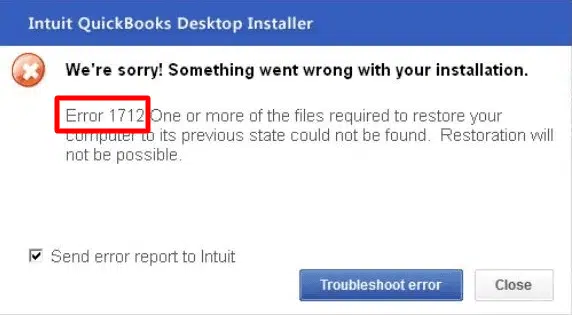
“We’re sorry! Something went wrong with your installation. Error 1712. One or more of the files required to restore your computer to its previous state could not be found. Restoration will not be possible.”
Other factors can also interfere with the installation process, including the given points below:
- Incomplete previous QuickBooks installation: Leftover files or system entries from an earlier QuickBooks Desktop installation can conflict with a new installation or update.
- Damaged Windows components: Missing or damaged components such as .NET Framework, MSXML, or Visual C++ can prevent QuickBooks Desktop from completing the installation.
- Windows registry issues: Incorrect or damaged registry entries can interfere with the installation and registration of QuickBooks components.
- Insufficient administrator permissions: Restricted Windows permissions can prevent the installer from creating, modifying, or registering required files and system entries.
- Pending Windows updates: An outdated Windows installation or pending system updates can interfere with the Windows installation process.
- Conflicting background processes or security software: Antivirus programs, firewalls, or other background applications can block, scan, or interfere with QuickBooks installation files.
- Corrupted rollback files or temporary folders: Missing or damaged temporary installation resources can prevent Windows from completing the installation or restoring the previous system state.
In short, QuickBooks Error 1712 is primarily an installation or rollback failure that occurs when Windows cannot complete the system changes required to install or update QuickBooks Desktop.
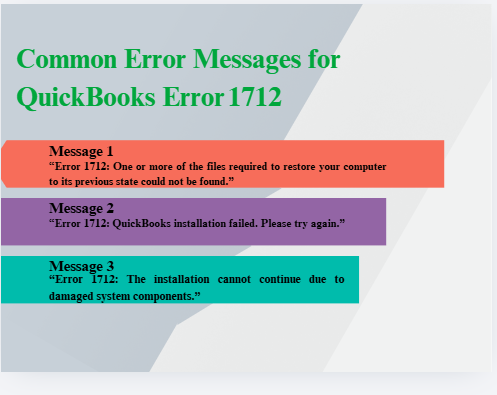
Common Error Messages for QuickBooks Error 1712
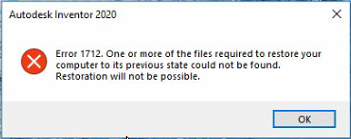
1. “Error 1712: One or more of the files required to restore your computer to its previous state could not be found.”
Windows attempted to roll back the installation but couldn’t locate the rollback files. This indicates leftover or corrupted system files from a previous QuickBooks installation.
2. “Error 1712: QuickBooks installation failed. Please try again.”
A generic installer failure message. It doesn’t reveal the root cause but signals that Windows Installer was unable to complete the setup process.
3. “Error 1712: The installation cannot continue due to damaged system components.”
This points to deeper system‑level issues such as corrupted registry entries, damaged .NET Framework, or missing Windows components that block QuickBooks from installing.
Why Does QuickBooks Error 1712 Occur?
QuickBooks Error 1712 is triggered by Windows Installer conflicts rather than QuickBooks defects. The following are the most common causes, explained with their Windows impact:
1. Installation Was Interrupted
- System shutdowns or restarts during installation corrupt temporary setup files.
- Windows cannot restore rollback files, leading to Error 1712.
- Windows context: On Windows 10/11, interrupted cumulative updates often leave the installer unstable.
2. Windows Installer Is Not Working Properly
- The Windows Installer service may be disabled, corrupted, or missing essential files.
- QuickBooks depends on this service to copy files, update registry entries, and manage rollback operations.
- Windows context:
- Windows 7 often fails due to outdated installer services.
- Windows 10/11 may require restarting the installer service via services.msc.
3. Old QuickBooks Files Still Present
- Residual folders or registry entries from previous QuickBooks versions interfere with new installations.
- Windows attempts to reuse or conflict with these files, causing rollback errors.
- Windows context: On Windows 10/11, leftover files in ProgramData or AppData are common triggers.
4. Insufficient Permissions
- Installing QuickBooks without Administrator rights blocks access to system folders and registry keys.
- Windows security restrictions prevent the installer from completing its tasks.
- Windows context:
- Windows 7 requires explicit Admin login.
- Windows 10/11 require “Run as Administrator” for setup files.
5. Damaged System Files
- Missing or corrupted Windows components (e.g., .NET Framework, MSXML, Visual C++) disrupt installation.
- Damaged registry entries or DLLs block QuickBooks setup.
- Windows context:
- QuickBooks 2021–2023 requires .NET 4.7+ on Windows 10.
- QuickBooks 2024–2025 requires .NET 4.8 + MSXML6 on Windows 11/Server 2022.
6. Antivirus or Third‑Party Interference
- Security software may block installer processes or quarantine QuickBooks files.
- Background apps interfere with Windows Installer, causing repeated failures.
- Windows context:
- On Windows 10/11, Defender or third‑party antivirus often blocks registry changes during installation.
User Notes
Error 1712 is a Windows environment problem. QuickBooks is the affected application, but the defect lies in Windows services. Before troubleshooting, technicians should:
- Verify OS compatibility (Windows 10 for QuickBooks 2021–2023, Windows 11/Server 2022 for QuickBooks 2024–2025).
- Confirm required frameworks (.NET 4.7+ or 4.8, MSXML6).
- Ensure Windows Installer service is running and system files are intact.
Common Signs You’ll Notice Common Situations For QuickBooks Error 1712
Along with Error 1712, you might see:
- Installation stops in between
- System becomes slow
- QuickBooks doesn’t open properly
- Same error appears again and again
These signs mean the issue is not just QuickBooks—it’s your system.
Common Situations and Fixes For QuickBooks Error 1712
Instead of trying random fixes, let’s do this step by step based on your situation.
Case 1: Error Appears Right at the Start of Installation
What this means:
Your system is not even allowing QuickBooks to start installing. This usually happens due to background apps or security restrictions.
Step‑by‑step solution:
- Restart your system (2–3 minutes)
- Windows 7: Start → Restart
- Windows 10/11: Start → Power → Restart
Close all running programs (5 minutes)
- Press Ctrl + Shift + Esc (Task Manager) → End unnecessary tasks
Temporarily disable antivirus (5 minutes)
- Open antivirus software → Turn off protection briefly → Re‑enable later
Run installer as Administrator (1 minute)
- Right‑click QuickBooks setup file → Select Run as Administrator
Case 2: Installation Starts but Stops in the Middle
What this means:
The installation begins but fails due to system or installer issues.
Step‑by‑step solution:
- Download QuickBooks Tool Hub (5 minutes)
- Install and open Tool Hub (5 minutes)
- Run QuickBooks Install Diagnostic Tool (15–20 minutes)
- Restart your computer (2–3 minutes)
- Windows 7: Start → Restart
- Windows 10/11: Start → Power → Restart
- Try installing QuickBooks again (10 minutes)
Case 3: Error Appears After a Failed Installation
What this means:
QuickBooks was partially installed and left incomplete files behind.
Step‑by‑step solution (Clean Install):
- Uninstall QuickBooks (10 minutes)
- Windows 7: Control Panel → Programs and Features → QuickBooks → Uninstall
- Windows 10/11: Settings → Apps → QuickBooks → Uninstall
- Delete leftover folders (10–15 minutes)
- C:\Program Files\Intuit
- C:\ProgramData\Intuit
- C:\Users\<UserName>\AppData\Local\Intuit
- Rename folders with .old if deletion fails (2 minutes)
- Restart your system (2–3 minutes)
- Reinstall QuickBooks using fresh setup file → Run as Administrator (10–15 minutes)
Case 4: Error Keeps Coming Back Again and Again
What this means:
The problem is deeper — your system files may be damaged.
Step‑by‑step solution:
- Open Command Prompt as Administrator (2 minutes)
- Windows 7: Start → Accessories → Right‑click Command Prompt → Run as Administrator
- Windows 10/11: Search “cmd” → Right‑click → Run as Administrator
- Run sfc /scannow (10–20 minutes)
- Restart your system (2–3 minutes)
- Update Windows (15–30 minutes depending on updates)
- Windows 7: Control Panel → Windows Update → Check for updates
- Windows 10/11: Settings → Update & Security → Windows Update → Check for updates
Case 5: System Behaves Strange During Installation
What this means:
There may be issues with Windows Installer or permissions.
Step‑by‑step solution:
- Press Windows + R → Type services.msc (1 minute)
- Locate Windows Installer → Right‑click → Restart (2 minutes)
- Double‑click Windows Installer → Set Startup Type = Automatic (2 minutes)
- Ensure Admin Access (2–3 minutes)
- Windows 7: Log in with Admin account
- Windows 10/11: Settings → Accounts → Verify Administrator rights
If You’re Not Sure Which Case You Fall Into
Follow this simple order:
- Restart system
- Run QuickBooks Tool Hub
- Clean uninstall + reinstall
- Run sfc /scannow
- Update Windows
This covers almost all situations
Important Tips While Fixing
- Always restart after major steps
- Don’t skip steps in between
- Use official QuickBooks setup files
- Avoid multiple installation attempts without cleanup
Preventive Measures for Error 1712
To reduce the risk of encountering QuickBooks Error 1712 during installation or updates, apply these proactive steps:
- Keep Windows Updated → Regularly install the latest patches to ensure compatibility with QuickBooks.
- Clean Previous Installations → Use QuickBooks Tool Hub or Clean Install Tool to remove leftover files before reinstalling.
- Maintain System Components → Periodically repair or refresh .NET Framework, MSXML, and Visual C++ libraries.
- Run Installations as Administrator → Ensures proper access to registry keys and system folders.
- Disable Antivirus/Firewall Temporarily → Prevents security software from blocking installer processes.
- Check Disk Health and Space
Conclusion:
QuickBooks Error 1712 is more than a simple installation failure it reflects deeper conflicts within the Windows Installer environment. By understanding its mechanism and applying structured troubleshooting, users can break free from repeated installation loops and restore QuickBooks Desktop successfully. Long‑term prevention depends on maintaining a healthy Windows system: keeping updates current, repairing essential components, and performing clean installs when necessary. With these practices, businesses can minimize downtime, avoid recurring installation errors, and ensure QuickBooks runs smoothly for daily operations.
FAQs
1. Why does Error 1712 appear even after a clean reinstall of QuickBooks?
Because the error is tied to Windows Installer conflicts, not QuickBooks itself. Leftover registry entries, damaged rollback files, or corrupted system components can persist even after a reinstall, causing the error to reappear.
2. Can Error 1712 affect other applications besides QuickBooks?
Yes. Since it originates from the Windows Installer, other programs that rely on the same components (.NET Framework, MSXML, Visual C++) may also fail to install or update, making it a system‑wide issue rather than QuickBooks‑specific.
3. Is Error 1712 a sign of deeper system instability?
Often, yes. Repeated Error 1712 occurrences suggest that Windows Installer or rollback mechanisms are corrupted. This can indicate broader system health problems, such as damaged registry entries or incomplete Windows updates.
4. Can Error 1712 be prevented without advanced IT support?
Yes. Users can reduce risk by keeping Windows updated, running installations with administrator rights, and using QuickBooks Tool Hub before major updates. These simple steps often prevent the installer from failing.
5. Does Error 1712 risk QuickBooks company data?
No direct risk. The error blocks installation or updates but does not damage company files. However, repeated failed installs can leave QuickBooks unstable, indirectly increasing the chance of crashes during use.