
QuickBooks Error 12037 occurs when QuickBooks fails to download payroll or software updates because the program cannot establish a secure internet connection. The error usually appears when QuickBooks verifies digital signatures or tries to communicate with Intuit update servers during the update process.
Incorrect system date and time settings, invalid internet configuration, SSL issues, or blocked update communication are the most common reasons behind this error. Since QuickBooks depends on secure internet protocols for updates, even minor configuration problems can interrupt the entire update process.
QuickBooks Error 12037 is mainly associated with update failures and secure connection interruptions rather than general network damage. The error commonly affects payroll updates, maintenance releases, and online QuickBooks services, especially on systems with outdated internet settings or incorrectly configured Windows components.
Why Does QuickBooks Error 12037 Occur
QuickBooks Error 12037 mainly occurs when QuickBooks cannot verify or maintain secure communication while downloading updates. Internet configuration and system settings play a major role in triggering the error.
QuickBooks update failures related to Error 12037 are commonly caused by:
- Incorrect system date and time settings
- Invalid Internet Explorer configuration
- SSL settings disabled in Windows
- Firewall blocking QuickBooks updates
- Interrupted internet connection
- Damaged DNS settings
- Antivirus restrictions on QuickBooks
- Corrupted Windows internet components
- Incorrect security certificate verification
- Outdated Windows settings
What Error Messages Appear With QuickBooks Error 12037
QuickBooks Error 12037 usually appears with update verification or internet communication messages. These warnings indicate that QuickBooks failed to establish a secure update connection.
“QuickBooks failed to download updates.”
- Meaning: QuickBooks could not communicate properly with the update server.
- Cause: Incorrect internet or SSL settings.
- Impact: Software updates stop before completion.
“Error 12037: A secure connection to the server could not be established.”
- Meaning: QuickBooks failed to verify secure communication during updates.
- Cause: Invalid date/time settings or SSL configuration problems.
- Impact: Payroll and software updates fail.
“Payroll update did not complete successfully.”
- Meaning: Payroll files could not download properly from Intuit servers.
- Cause: Interrupted update communication.
- Impact: Payroll tax tables remain outdated.
“Internet connection error while updating QuickBooks.”
- Meaning: QuickBooks could not maintain stable internet communication.
- Cause: Incorrect browser or internet settings.
- Impact: Online services stop responding.
What Symptoms Indicate QuickBooks Error 12037
QuickBooks Error 12037 mainly affects software updates, payroll synchronization, and secure internet verification. Most users notice repeated update interruptions before the complete error appears.
- QuickBooks updates stop midway: The software begins downloading updates but fails during verification or server communication.
- Payroll updates fail repeatedly: QuickBooks cannot synchronize payroll services because update communication gets interrupted.
- QuickBooks displays secure connection warnings: SSL certificate or internet security warnings may appear during updates.
- Online QuickBooks services stop responding: Connected banking and payroll services fail because QuickBooks cannot establish secure communication.
- QuickBooks freezes during update installation: The application may become slow or unresponsive while retrying failed update requests.
- Update verification repeatedly fails: QuickBooks cannot validate downloaded update files because secure verification fails.
Understanding Error 12037 on Windows 11
While network timeouts can happen on any operating system, Windows 11 features strict, modern security architecture that makes it uniquely prone to triggering Error 12037. Unlike its predecessors, Windows 11 aggressively enforces updated cryptographic baselines like TLS 1.3 and implements hyper-sensitive digital certificate validation. This creates a distinct compatibility gap for QuickBooks users:
- Vanishing Legacy Support: Routine Windows 11 updates frequently reset system-wide internet policies, silently disabling or restricting the older cryptographic protocols and fallback channels that the QuickBooks update engine still relies on.
- Aggressive Security Flags: Windows 11’s upgraded SmartScreen and Windows Defender frameworks constantly scrutinize background data transmissions. If your system clock or network certificates are even slightly out of sync, the OS will instantly tag the background update executable (
QBUpdate.exe) as untrusted and drop the connection.
When this happens, your internet browser will work perfectly, but Windows 11 will actively sever QuickBooks’ connection to Intuit’s servers, resulting in a persistent 12037 error.
How Can QuickBooks Error 12037 Be Fixed In Minutes
QuickBooks Error 12037 can usually be resolved by correcting system date and time settings, repairing internet configuration, and restoring secure SSL communication. The troubleshooting solutions below focus specifically on fixing QuickBooks update verification failures.
How to Correct System Date and Time Settings
Incorrect system date and time settings are one of the most common reasons behind QuickBooks Error 12037. QuickBooks cannot verify secure certificates properly when Windows date and time are incorrect.
Follow These Steps to Correct Date and Time
- Right-click the clock on the Windows taskbar.
- Select Adjust Date/Time.
- Enable automatic date and time settings.
- Verify the correct time zone.
- Click Sync Now.
- Restart the computer.
Estimated Time: 3–5 minutes
Risk Level: Low
Verification: Retry the QuickBooks update after correcting the system clock.
How to Verify Internet Connection Settings in QuickBooks
Incorrect internet settings can block QuickBooks from communicating securely with Intuit servers during updates.
Follow These Steps to Verify Internet Settings
- Open QuickBooks Desktop.
- Go to Help > Internet Connection Setup.
- Select Use my computer’s internet connection settings.
- Click Next.
- Open Advanced Connection Settings.
- Verify the internet configuration.
- Save the changes and restart QuickBooks.
Estimated Time: 5–10 minutes
Risk Level: Low
Verification: Retry payroll or software updates after reopening QuickBooks.
How to Configure SSL Settings for QuickBooks Updates
QuickBooks uses SSL settings to establish encrypted communication with Intuit servers. Disabled SSL settings often trigger Error 12037.
Follow These Steps to Enable SSL Settings
- Open Control Panel.
- Select Internet Options.
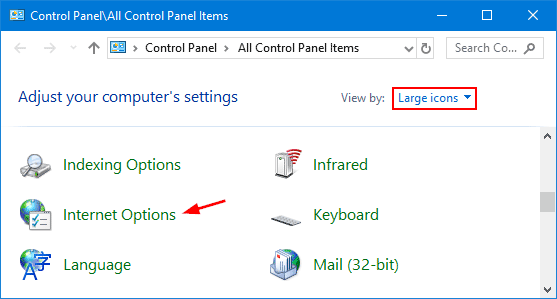
- Open the Advanced tab.
- Scroll to the Security section.
- Enable:
- Use SSL 2.0
- Use SSL 3.0
- Click Apply and then OK.
- Restart the system.
Estimated Time: 5–8 minutes
Risk Level: Low
Verification: Retry the update process after restarting the computer.
How to Reset QuickBooks Updates
Damaged update downloads may repeatedly trigger QuickBooks Error 12037 during installation verification.
Follow These Steps to Reset QuickBooks Updates
- Open QuickBooks Desktop.
- Go to Help > Update QuickBooks Desktop.
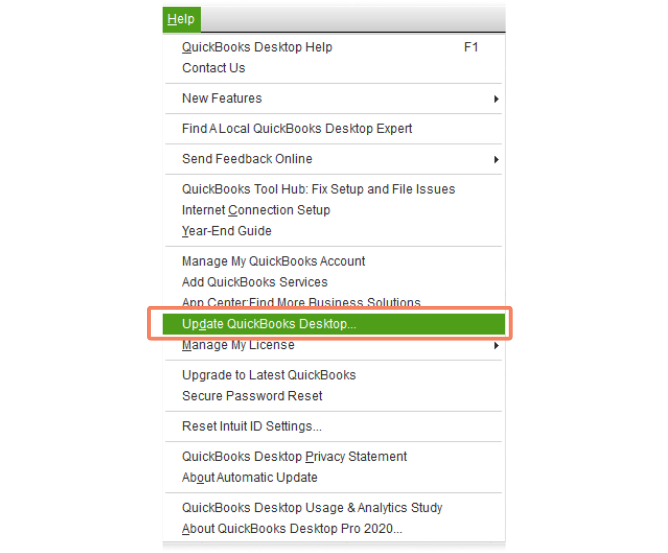
- Select the Update Now tab.
- Click Reset Update.
- Select Get Updates.
- Restart QuickBooks after the download completes.
Estimated Time: 10–15 minutes
Risk Level: Low
Verification: QuickBooks updates should install successfully after resetting update files.
How to Fix Firewall Restrictions Blocking QuickBooks Updates
Firewall settings may prevent QuickBooks from connecting securely with Intuit update servers.
Important QuickBooks Files
- QBW32.exe
- QBUpdate.exe
- QBDBMgrN.exe
- IntuitSyncManager.exe
Follow These Steps to Configure Firewall Rules
- Open Windows Defender Firewall.
- Click Advanced Settings.
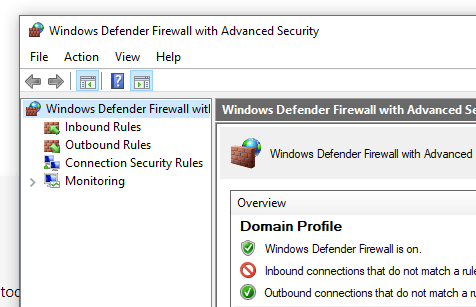
- Select Inbound Rules.
- Create new rules for QuickBooks files.
- Allow the connection.
- Repeat the process for Outbound Rules.
- Restart the computer.
Estimated Time: 10–20 minutes
Risk Level: Medium
Verification: Retry the QuickBooks update after system restart.
How to Repair Internet Explorer Configuration
QuickBooks Desktop uses Internet Explorer settings for secure internet communication even if another browser is installed.
Follow These Steps to Repair Internet Explorer Settings
- Open Internet Options from Control Panel.
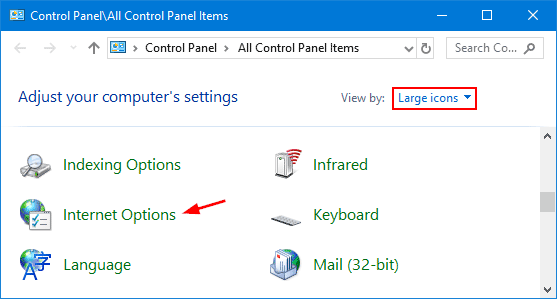
- Open the Connections tab.
- Click LAN Settings.
- Disable unnecessary proxy settings.
- Open the Advanced tab.
- Restore default internet settings.
- Save changes and restart Windows.
Estimated Time: 8–12 minutes
Risk Level: Low
Verification: Retry QuickBooks updates after restoring browser settings.
QuickBooks Online Vs Desktop In Reference To Error 12037
QuickBooks Error 12037 mainly affects QuickBooks Desktop because Desktop depends on Windows internet settings, SSL configuration, and installed update components. The error appears when QuickBooks fails to verify secure update communication. By comparing QuickBooks Online vs Desktop, it’s clear that Online does not experience Error 12037 since it operates entirely through a web browser and relies on Intuit’s servers for updates, avoiding Windows‑based components and SSL misconfigurations.
QuickBooks Error 12037 After Server Migration
When QuickBooks is migrated to a new server or hosting environment, Error 12037 often appears because the update communication settings don’t carry over correctly. Migration can reset or alter firewall rules, SSL/TLS configurations, and internet settings, which are critical for QuickBooks to securely connect with Intuit’s update servers.
Key Details:
- Firewall resets: New servers may block QuickBooks executables or ports, preventing updates.
- SSL/TLS mismatches: Migration can disable TLS 1.2 or revert to outdated SSL protocols, causing secure connection errors.
- Internet configuration changes: Proxy or DNS differences between old and new servers may interrupt update communication.
- Verification step: Running a manual QuickBooks update immediately after migration helps confirm secure connectivity and patch installation.
How Error 12037 Relates to Other QuickBooks Errors
QuickBooks Error 12037 doesn’t occur in isolation. It belongs to the 12xxx series of internet/update errors, which often appear together because they share the same root causes — misconfigured internet settings, SSL/TLS issues, firewall restrictions, or unstable connectivity.
Commonly Affected Errors
- Error 12038: Appears when QuickBooks cannot verify secure server communication due to invalid internet or SSL settings.
- Error 12045: Triggered by incorrect system date/time or certificate mismatches, blocking payroll updates.
- Error 12157: Another payroll update failure, often linked to firewall restrictions or multiple QuickBooks versions installed.
- Error 12031: Similar to 12037, caused by QuickBooks failing to establish secure communication during updates.
Why They Cluster Together
- Shared dependency on Windows internet settings: QuickBooks Desktop uses Internet Explorer/Windows SSL configurations, so if those are misconfigured, multiple errors appear.
- Firewall/security restrictions: Blocking QuickBooks executables or ports can trigger several update errors in one session.
- Outdated or corrupted Windows components: Damaged DNS, Winsock, or SSL libraries often cause a chain of related errors.
- Migration impact: After moving QuickBooks to a new server, firewall rules and SSL/TLS settings reset, leading to multiple errors surfacing together.
Conclusion
QuickBooks Error 12037 mainly occurs when QuickBooks fails to establish secure communication while downloading updates. Incorrect system date and time settings, invalid internet configuration, SSL issues, and interrupted update verification are the most common reasons behind the error.
Correcting Windows date and time settings, repairing internet configuration, restoring SSL communication, and resetting QuickBooks updates usually resolve the issue successfully. Maintaining proper internet and security settings also helps prevent future QuickBooks update interruptions.
FAQs
Q1. Can incorrect date and time settings cause QuickBooks Error 12037?
Yes. Incorrect system date and time settings prevent QuickBooks from validating secure update certificates properly.
Q2. Why does QuickBooks fail updates with Error 12037?
The error usually occurs because QuickBooks cannot establish or verify secure communication with Intuit servers.
Q3. Does Internet Explorer affect QuickBooks updates?
Yes. QuickBooks Desktop uses Internet Explorer settings for internet communication and update verification.
Q4. Can antivirus software trigger QuickBooks Error 12037?
Yes. Antivirus applications may block QuickBooks update files or interrupt secure communication during updates.
Q5. Does QuickBooks Online show Error 12037?
No. Error 12037 mainly affects QuickBooks Desktop because it relies on Windows update and internet components.
Q6. Can resetting QuickBooks updates resolve Error 12037?
Yes. Resetting update downloads often fixes damaged or incomplete update files causing the error.