
QuickBooks Error 1606 occurs when QuickBooks Desktop cannot access a location required during installation or an update. The message usually reads, “Error 1606: Could not access network location [path].” The issue may be related to an unavailable location, a Windows user-profile problem, or incorrect folder settings in Windows.
Fix QuickBooks Error 1606 by installing QuickBooks from an Administrator account, then try Selective Startup or a new Windows Administrator user. Review registry settings only if the error continues and the affected location points to a Windows folder-path problem.
QuickBooks Error 1606 is a classic installer-level issue that surfaces when the installation wizard cannot access a specific network location or path directory. Much like Error 1904, which stems from module registration failures, Error 1606 is heavily dependent on the Windows environment.
The error message typically reads:
“Error 1606: Could not access network location [Public Documents/Common Files/path].”
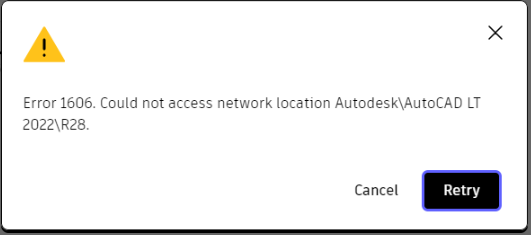
While the error sounds like a network or internet connectivity problem, it is rarely about your Wi-Fi or local area network. Instead, the problem lies deep within Windows registry keys or damaged user profile paths that point QuickBooks to non-existent, localized, or restricted directories.
Check the Location Named in the Error Before Trying a Fix
QuickBooks Error 1606 does not always mean that QuickBooks itself cannot find a network. The location shown after the error message can help identify what Windows cannot access.
Before trying advanced troubleshooting, write down the complete path shown in: Error 1606: Could not access network location [path].
The next step depends on the type of location shown:
- A user or system folder path: Check the affected Windows account and folder configuration.
- A shared or network location: Confirm that the location is available and accessible.
- A location that appears incorrect or no longer exists: A Windows folder-path or registry setting may need to be reviewed.
Which Windows Systems Experience This Error?
Error 1606 can appear on any version of Windows supporting QuickBooks Desktop, but it manifests most prominently on:
- Windows 11 and Windows 10 (Multi-User Profiles): Frequently caused by misconfigured OneDrive sync settings that redirect the default C:\Users\Public\Documents folder to a cloud path.
- Windows Server (2012, 2016, 2019, 2022): Often triggered during multi-user setup deployments when Folder Redirection Group Policies are active, mapping user shell folders to a network drive rather than a local drive.
Symptoms of QuickBooks Error 1606
- Abrupt Installation Halt: The installation wizard stops completely, usually right after accepting the license agreement or during the “Computing Space Requirements” phase.
- Active Directory/Group Policy Rollback: On Windows servers, the installer errors out and cleanly rolls back actions, leaving no trace of partial installation folders.
- Corrupted Shortcut Icons: If the error happens during an update patch, existing QuickBooks icons may turn blank or lose their file path mapping.
Common Causes of QuickBooks Error 1606
Folder redirection or cloud-sync configuration can sometimes change where Windows expects certain user folders to be located. Only investigate this area if the location shown in Error 1606 is related to a redirected or unavailable folder.
1. The “OneDrive” Cloud Sync Trap
Real-Life Scenario: A small business owner upgrades to a new Windows 11 PC. Windows automatically configures Microsoft OneDrive to back up the Documents folder. When the QuickBooks installer looks for the local path C:\Users\Public\Documents\Intuit, it encounters a virtualized cloud path redirect (OneDrive – CompanyName), glitches, and throws Error 1606.
2. Corrupted Windows Shell Subkeys
Real-Life Scenario: An IT administrator uninstalls an old software utility that improperly modifies the Windows registry. The registry subkey User Shell Folders is left pointing to an invalid or deleted drive path (like an old external backup drive E:\). When QuickBooks attempts to query Windows for the location of public files, the broken registry entry triggers Error 1606.
3. Strict Server Group Policies (Folder Redirection)
Real-Life Scenario: In a corporate office running a Windows Server environment, profiles are mirrored so users can log into any workstation. The server redirects the Common Files folder to a network share. Because the QuickBooks installation package installs with localized system privileges, it cannot access that network-redirected path, aborting the process.
Before You Start Troubleshooting
- Close the QuickBooks installer.
- Restart Windows once.
- Note the complete location shown in the Error 1606 message.
- Sign in using an account with Administrator rights.
- Back up the Windows registry before making any registry changes.
- If QuickBooks is already installed and the error occurs during an update, do not confuse the issue with company-file damage.
How to Fix QuickBooks Error 1606?
Follow the step-by-step solutions below, based on Intuit’s official research, to resolve QuickBooks Error 1606.
Solution 1: Install QuickBooks Using a Windows Administrator Account
This means signing in with a Windows account that has administrator rights, not simply any user account.
- Steps (10–15 min):
- Close all programs and restart your computer to terminate hung installation tasks.
- Log into Windows using a different, clean local Administrator account.
- Right-click the QuickBooks Installer file and choose Run as Administrator.
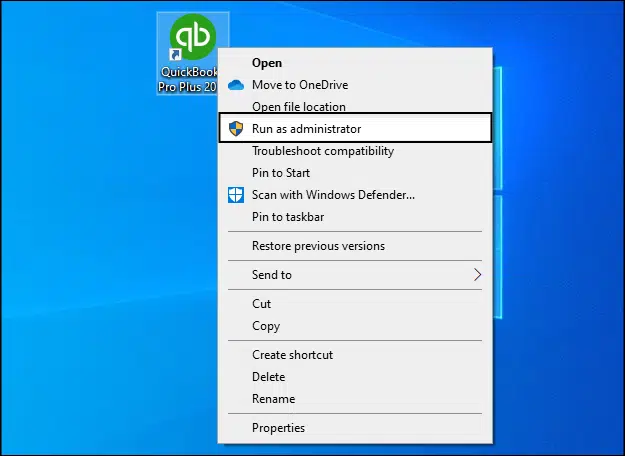
- Why it works: Bypasses temporary credential glitches and ensures the Windows Installer engine has unhindered structural access to your root local drives.
Solution 2: Install QuickBooks in Selective Startup Mode
Take a backup of the QuickBooks company file before starting. Keep the QuickBooks product and license number available.
- Steps:
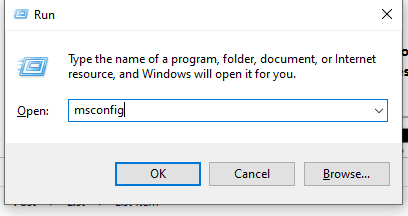
- Press the Windows key + R to open the Run window. Type msconfig and press Enter.
- Click the General tab. Select Selective startup and Load system services. Go to the Services tab and check Hide all Microsoft services. Click Disable all, then uncheck Hide all Microsoft services again.
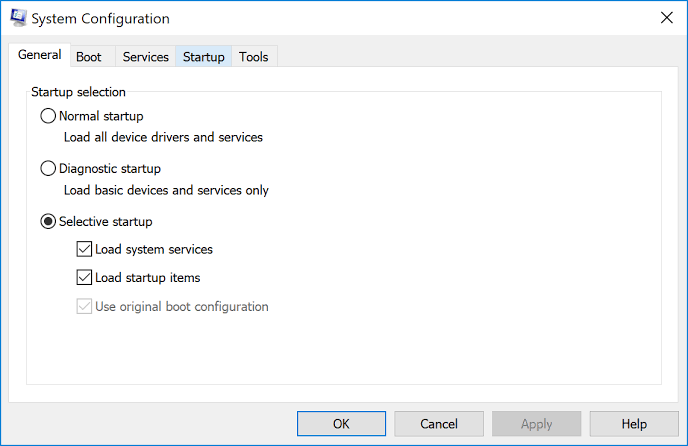
- Select the Windows Installer checkbox from the services list. Click OK and restart the computer.
- Install QuickBooks Desktop. Return to Normal startup afterward: open Run, type msconfig, select Normal startup on the General tab, click OK, and restart.
Solution 3: Create a New Windows Administrator User
If Error 1606 continues after installing from an Administrator account, the Windows user profile currently in use may be contributing to the problem. Testing the installation from a newly created Administrator account can help determine whether the issue is account-specific.
Solution 4: Check Whether the Location Named in the Error Is Available
Confirm whether the path shown in the error message still exists, is reachable, and is not redirected somewhere unexpected. Check the following::
- Is the location still available?
- Can Windows access the folder?
- Does the path refer to a disconnected shared location?
- Does the location look incorrect, or point to a cloud-synced path such as OneDrive instead of a local folder?
If OneDrive sync is redirecting the affected folder, temporarily pausing the Documents backup in OneDrive settings and retrying the installation can confirm whether cloud-sync redirection is the cause.
If the location is a local Windows folder, open File Explorer and check whether the complete path exists. If the folder exists locally but access still fails, review the folder permissions and confirm that the affected Windows account has appropriate access.
Folder redirection or cloud-sync configuration can sometimes change where Windows expects certain user folders to be located. Only investigate this area if the location shown in Error 1606 is related to a redirected or unavailable folder.
For example, if the error points to a folder that has been redirected through OneDrive, you can check whether OneDrive Documents backup is affecting the path:
- Steps (20–30 min):
- Right-click the OneDrive icon in your system tray and select Settings.
- Navigate to the Backup or Sync and Backup tab and click Manage Backup.
- Toggle Off the backup for the Documents folder (this forces Windows back to local pathing).
- Try installing QuickBooks again. Once finished, you can safely re-enable your OneDrive sync.
Expected Local Path: C:\Users\Public\Documents
OneDrive Interference: C:\Users\YourName\OneDrive\Documents
Broken Public Folder Permissions
- Steps (15 min):
- Open File Explorer and go to C:\Users.
- Right-click the Public folder and choose Properties, then open the Security tab.
- Click Edit, choose Everyone, and make sure Full Control is checked.
- Click Apply and OK.
Solution 5: Review Windows User Shell Folder Settings
WARNING: Modifying the Windows Registry incorrectly can cause severe operating system instability. Back up your registry before proceeding.
- Steps (30–45 min):
- Press Windows Key + R, type regedit, and hit Enter.
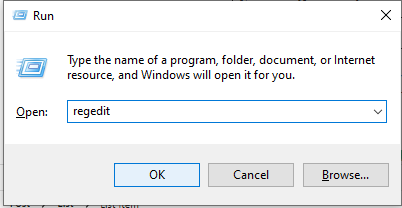
- Navigate to the following path:
HKEY_LOCAL_MACHINE\Software\Microsoft\Windows\CurrentVersion\Explorer\User Shell Folders
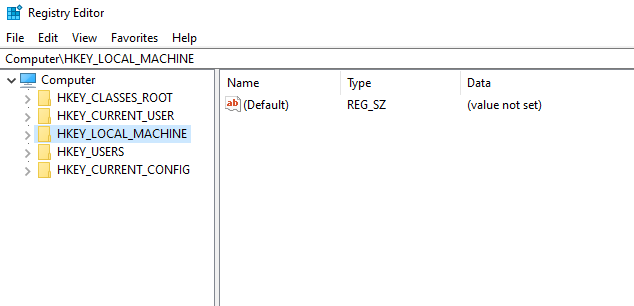
- In the right window panel, look for entries displaying an incorrect drive letter or a cloud-synced path (e.g., pointing to D:\ or an empty path when Windows is installed on C:\).
- Double-click the problematic string (like Common Documents) and modify its Value Data back to the default local format: %PUBLIC%\Documents
- Close the registry editor, restart your machine, and retry the QuickBooks installation.
| Registry Entry | Default Correct Value |
| Common Documents | %PUBLIC%\Documents |
| Common AppData | %ProgramData% |
Only review or modify registry values when the inaccessible location and Windows configuration point to a folder-path problem. Back up the registry first. If you are not comfortable editing the registry, contact a qualified system administrator.
Solution 6: Use QuickBooks Tool Hub for Installation-Related Troubleshooting
QuickBooks Tool Hub’s Installation Issues section is designed to catch common installation and update errors, including missing components tied to setup. Run it after the account and startup-mode solutions above if the error is still occurring.
- Steps (15–20 min):
- Download the QuickBooks Tool Hub from the official Intuit site.
- Go to Installation Issues and select QuickBooks Install Diagnostic Tool.
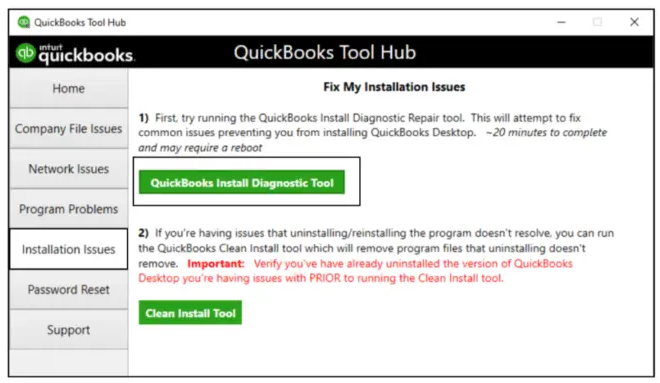
- Allow the tool to run completely, then restart the system.
- Why it works: It verifies and reinstalls underlying Windows framework components, resolving missing hooks that cause the installer to look in the wrong directory paths.
Solution 7: Install Pending Windows Updates
Open Windows Update and install any pending updates, then restart your computer before reinstalling QuickBooks. This does not resolve every case of Error 1606, but an outdated Windows Installer component can contribute to installation failures, so it is worth ruling out as a supporting step.
If you’re experiencing installation problems while preparing to move from QuickBooks Desktop to QuickBooks Online, review our guide on preparing your QuickBooks Desktop data before conversion.
Migration Pathways: Desktop vs. Online
| Feature | QuickBooks Desktop | QuickBooks Online |
| Vulnerability to Error 1606 | High (Requires absolute local path integrity) | Zero (Browser-based cloud environment) |
| System Registry Dependency | Heavily dependent on Windows Shell architecture | Completely independent of Windows configurations |
| Pre-Migration Hurdle | Critical: If Error 1606 prevents installation, you cannot launch the file to initiate an export. | Seamlessly accepts data once the export file is generated. |
How to Reduce the Risk of QuickBooks Error 1606
- Install QuickBooks from a Windows account with appropriate Administrator permissions.
- Avoid interrupting an installation or update.
- Keep Windows updated.
- Make sure required Windows folders and shared locations are available.
- Avoid changing Windows system-folder paths unless necessary.
- Back up the registry before making advanced configuration changes.
- Use a qualified IT administrator for registry or managed-network changes.
What Not to Do for QuickBooks Error 1606
- Don’t run Rebuild Data for an installation-location problem.
- Don’t use File Doctor as the primary fix.
- Don’t edit the registry without backing it up.
- Don’t randomly change folder paths without checking the location shown in the error.
Prevention & Recurrence Notes
QuickBooks Error 1606 is notorious for reappearing during future software updates or patch installations if the underlying structural Windows path issues aren’t completely ironed out. To safeguard your system against a relapse, implement these proactive measures:
1. Hardcode Default Public Paths in Your OS
When third-party utilities or cloud backups rewrite system pointers, Windows loses track of its standard paths. Ensure your system’s public environment variable is correctly configured by typing set public in a Windows Command Prompt. It should strictly return: PUBLIC=C:\Users\Public If it points to a network share or cloud drive, your system environment variables need a manual reset via Windows Advanced System Settings.
2. Standardize Network Deployments (For IT Admins)
If you operate in a domain or corporate environment using Group Policies (GPO):
- Avoid using Folder Redirection policies on the Common Files or Public Documents directories for workstations running local desktop database software.
- Utilize a loopback processing policy or create a specific GPO exclusion group for accounting workstations to keep their shell folders strictly local.
3. Pause Real-Time Mirroring Tools During Infrastructure Changes
When upgrading, repairing, or installing new versions of QuickBooks, temporarily pause real-time disk-mirroring or synchronization tools (such as Dropbox, OneDrive, or Box Sync). Keeping them active causes an immediate file lock collision when the QuickBooks installation wizard tries to create new tracking subfolders in real-time.
Conclusion
QuickBooks Error 1606 is fundamentally a Windows file mapping disconnect, not a flaw within the QuickBooks software itself. When Windows incorrectly routes public folder pathways due to cloud-sync adjustments, corrupted registry keys, or aggressive network group policies, the QuickBooks installer is left stranded without a valid directory to write its data.
By approaching the issue systematically starting with basic user account switches, escalating to cloud sync modifications, and if necessary, correcting corrupted entries directly within the Windows Registry—technicians and users can reliably restore order to the operating system’s folder hierarchy.
FAQs
1. Does Error 1606 mean my QuickBooks company data file is corrupted?
No. Error 1606 is strictly an installation and update layer error. It means the program’s primary setup engine cannot find a place to put the application files on your hard drive. Your underlying company financial data (.qbw files) remains completely safe and unaffected.
2. Can I manually create the folder path listed in the error to bypass it?
Sometimes, but it rarely fixes the root issue. If the error reads “Could not access network location C:\Users\Public\Documents”, manually creating that folder might slip the installer past the initial check. However, if the underlying registry subkey is still broken, QuickBooks will likely crash or throw missing component errors later during operation.
3. Why does this error happen on a brand-new computer out of the box?
This happens because many modern PC manufacturers automatically configure automated cloud storage (like Microsoft OneDrive) directly into the initial Windows setup wizard. By routing your primary Documents folders to the cloud immediately upon boot-up, it creates a path mapping conflict before you even download your first desktop application.
4. What is the fundamental difference between Error 1606 and Error 1904?
Error 1606 means the installer cannot find the folder destination on your hard drive to place or read system components.
Error 1904 means the installer found the folder and successfully placed the component, but the Windows operating system refused to register or execute the file due to permissions or missing runtime frameworks (.NET/C++).
5. Can I just switch to QuickBooks Online to permanently avoid this?
Yes you can switch from QuickBooks Desktop to QuickBooks Online. QuickBooks Online operates entirely inside an internet browser workspace. Because it does not install local dynamic link libraries (.dll files), write registry subkeys, or require localized public document directories on your hard drive, it is completely immune to both Error 1606 and Error 1904.
6. I modified my registry to fix the error, but the next Windows Update broke it again. Why?
Major Windows Feature Updates often scan system registry paths to ensure consistency with Microsoft’s default cloud backup rules. If Windows detects that OneDrive backup was partially disabled or modified outside of standard parameters, it may automatically “repair” the path back to a cloud directory, inadvertently triggering Error 1606 during your next QuickBooks maintenance release.
Follow the OneDrive managed backup configuration steps in the Advanced section to make the change permanent.
7. Why does Error 1606 say “network location” when I am not using a network?
Windows can use stored folder paths and redirected locations; the wording does not necessarily mean the physical internet or network connection is the root cause.
8. Which location should I check in Error 1606?
Note the complete path displayed after the error message and investigate that location first.
9. Should I edit the Windows registry to fix Error 1606?
Only if simpler solutions fail and the problem points to an incorrect Windows folder-path setting. Back up the registry first — incorrect changes can seriously affect Windows.
10. Will creating a new Windows user fix Error 1606?
It can help determine whether the problem is associated with the current Windows user profile.
11. Can I fix Error 1606 by repairing my QuickBooks company file?
No. Company-file utilities such as Verify/Rebuild address data integrity problems and should not be presented as a direct fix for an installation location error.