
QuickBooks Error 15240 occurs when QuickBooks fails to download payroll updates or install software updates successfully. The error generally appears during update verification when QuickBooks cannot complete the update process because of incorrect internet settings, invalid system date and time configuration, or insufficient administrator permissions.
QuickBooks uses secure internet communication to download payroll tax tables and maintenance releases. When the system fails to verify update files or establish proper update communication, Error 15240 interrupts the update process and stops QuickBooks from installing the latest updates.
The error is commonly associated with Internet Explorer misconfiguration, firewall restrictions, disabled QuickBooks permissions, or damaged update files. In many cases, users experience repeated payroll update failures, digital signature verification issues, or incomplete maintenance release installations because QuickBooks cannot complete secure update communication properly.
Why Does QuickBooks Error 15240 Occur?
QuickBooks Error 15240 mainly occurs when QuickBooks cannot verify or install update files properly during payroll or software updates. Incorrect system configuration and security restrictions are the biggest reasons behind the issue.
QuickBooks update problems related to Error 15240 are commonly caused by:
- Incorrect system date and time settings
- Internet Explorer security misconfiguration
- Firewall blocking QuickBooks updates
- QuickBooks not running as Administrator
- Damaged QuickBooks update files
- Invalid digital signature verification
- Antivirus interference
- Corrupted Windows components
- Incorrect shared download drive configuration
- Disabled QuickBooks File Copy Service (FCS)
What Error Messages Appear With QuickBooks Error 15240?
QuickBooks Error 15240 usually appears with payroll update or maintenance release warnings. These messages indicate that QuickBooks failed to complete the update installation successfully.
“Error 15240: The payroll update did not complete successfully.”
- Meaning: QuickBooks failed while downloading or installing payroll updates.
- Cause: Incorrect internet settings or damaged update verification.
- Impact: Payroll tax tables remain outdated.
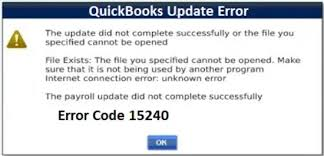
“File Exists: The file you specified cannot be opened.”
- Meaning: QuickBooks could not access required update files during installation.
- Cause: File permission restrictions or another program using the file.
- Impact: Maintenance release installation stops midway.
“Internet connection error: unknown error.”
- Meaning: QuickBooks failed to establish proper communication with update servers.
- Cause: Internet Explorer or firewall configuration issues.
- Impact: Software updates fail repeatedly.
“QuickBooks cannot verify digital signatures.”
- Meaning: Secure verification of update files failed during installation.
- Cause: Incorrect date/time settings or SSL configuration issues.
- Impact: QuickBooks blocks update installation.
What Symptoms Indicate QuickBooks Error 15240?
QuickBooks Error 15240 mainly affects payroll synchronization, software updates, and maintenance release installation. Most users notice repeated update failures before the complete error appears.
- Payroll updates fail repeatedly: QuickBooks cannot install payroll tax table updates because the update process stops during verification.
- Maintenance release installation stops midway: The software downloads updates but fails during installation or validation.
- QuickBooks freezes during updates: QuickBooks may become slow or unresponsive while retrying failed update requests.
- Digital signature verification warnings appear: Users may notice secure certificates or update verification warnings during updates.
- QuickBooks continuously prompts for updates: The software repeatedly asks users to install updates because previous installations failed.
- Online payroll services stop responding: Payroll synchronization may fail because QuickBooks cannot complete update verification properly.
Proven Solutions To Fix QuickBooks Error 15240 In Minutes
QuickBooks Error 15240 can usually be resolved by correcting internet settings, verifying system date and time configuration, and restoring proper update permissions. The troubleshooting methods below focus specifically on fixing payroll and maintenance release update failures.
Solution 1: How to Run QuickBooks as Administrator?
QuickBooks may fail updates if the program does not have proper administrator permissions during update installation.
Follow These Steps to Run QuickBooks as Administrator
- Close QuickBooks Desktop.
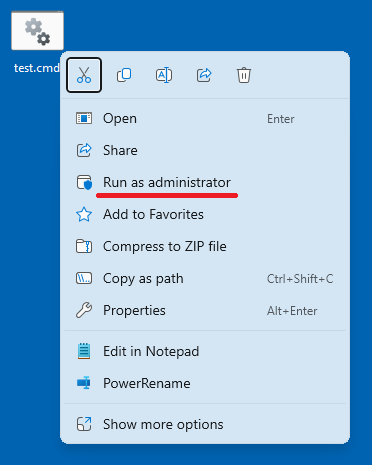
- Right-click the QuickBooks icon.
- Select Run as Administrator.
- Open QuickBooks again.
- Retry the payroll or software update.
Estimated Time: 2–3 minutes
Risk Level: Low
Verification: Retry the update process and check whether Error 15240 disappears.
Solution 2: How to Correct System Date and Time Settings?
Incorrect Windows date and time settings prevent QuickBooks from validating digital signatures during updates.
Follow These Steps to Correct Date and Time
- Right-click the Windows clock.
- Select Adjust Date/Time.
- Enable automatic date and time settings.
- Verify the correct time zone.
- Click Sync Now.
- Restart the computer.
Estimated Time: 3–5 minutes
Risk Level: Low
Verification: Retry the QuickBooks update after correcting the system clock.
Solution 3: How to Verify Internet Explorer Settings?
QuickBooks Desktop depends on Internet Explorer settings for secure update communication even if another browser is installed.
Follow These Steps to Verify Browser Settings
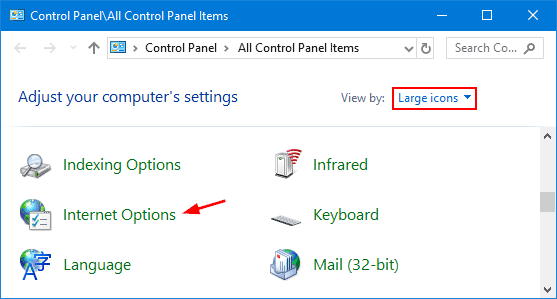
- Open Control Panel.
- Select Internet Options.
- Open the Connections tab.
- Click LAN Settings.
- Disable unnecessary proxy settings.
- Open the Advanced tab.
- Restore default browser settings.
- Save changes and restart Windows.
Estimated Time: 8–12 minutes
Risk Level: Low
Verification: Retry payroll or maintenance release updates after restarting the system.
Solution 4: How to Configure SSL Settings for QuickBooks Updates?
QuickBooks uses SSL settings to establish secure encrypted communication while downloading payroll updates and maintenance releases.
Follow These Steps to Enable SSL Settings
- Open Internet Options.
- Select the Advanced tab.
- Scroll to the Security section.
- Enable:
- Use SSL 2.0
- Use SSL 3.0
- Click Apply and then OK.
- Restart the computer.
Estimated Time: 5–8 minutes
Risk Level: Low
Verification: Retry QuickBooks updates after restarting the system.
Solution 5:How to Reset QuickBooks Updates?
Damaged update downloads can repeatedly trigger QuickBooks Error 15240 during payroll or maintenance release installation.
Follow These Steps to Reset QuickBooks Updates
- Open QuickBooks Desktop.
- Go to Help > Update QuickBooks Desktop.
- Open the Update Now tab.
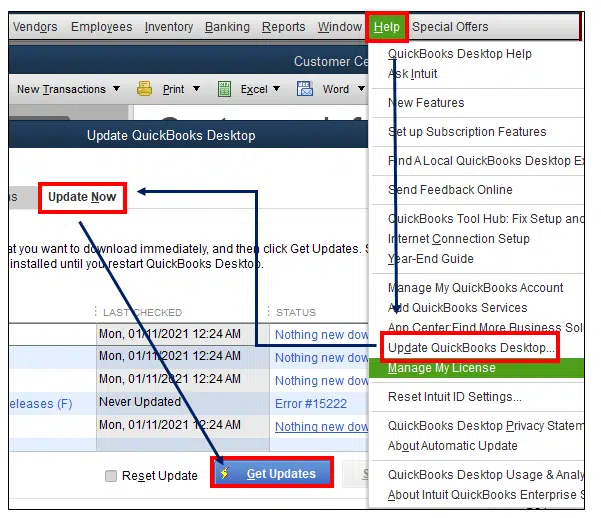
- Select Reset Update.
- Click Get Updates.
- Restart QuickBooks after updates download.
Estimated Time: 10–15 minutes
Risk Level: Low
Verification: Maintenance release updates should install successfully after resetting update files.
Solution 6: How to Fix Firewall Restrictions Blocking QuickBooks Updates?
Firewall settings may block QuickBooks from establishing secure communication with Intuit update servers.
Important QuickBooks Files
- QBW32.exe
- QBUpdate.exe
- QBDBMgrN.exe
- IntuitSyncManager.exe
Follow These Steps to Configure Firewall Rules
- Open Windows Defender Firewall.
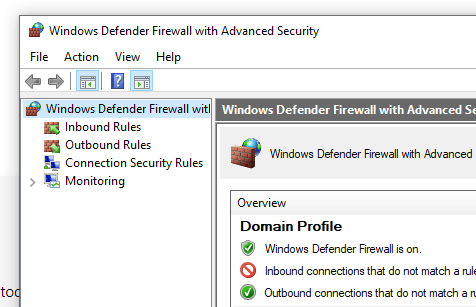
- Click Advanced Settings.
- Select Inbound Rules.
- Create rules for QuickBooks files.
- Allow the connection.
- Repeat the process for Outbound Rules.
- Restart the computer.
Estimated Time: 10–20 minutes
Risk Level: Medium
Verification: Retry the payroll update after restarting Windows.
Solution 7: Can QuickBooks Tool Hub Fix Error 15240?
Yes, QuickBooks Tool Hub can help repair damaged QuickBooks update components and resolve common payroll update failures associated with Error 15240.
Follow These Steps to Use QuickBooks Tool Hub
- Download and install QuickBooks Tool Hub.
- Open the utility.
- Select Program Problems.
- Run Quick Fix my Program.
- Open Installation Issues if needed.
- Run the QuickBooks Install Diagnostic Tool.
- Restart the computer.
Estimated Time: 15–25 minutes
Risk Level: Low
Verification: Retry payroll or maintenance release updates after the repair completes.
Impact of QuickBooks Error 15240 on Migration Across Platforms
QuickBooks Error 15240 typically arises when payroll or maintenance updates fail due to incorrect system date/time, damaged update files, or misconfigured internet settings. While this is disruptive in day‑to‑day use, its effect is magnified during migration processes across platforms.
Desktop to Online Migration
- Error 15240 blocks payroll and maintenance updates, leaving the Desktop company file outdated. The migration utility requires the latest release, so the process stalls until updates are fixed.
Desktop to Enterprise Migration
- Enterprise relies on updated payroll and security components. If Error 15240 prevents updates, the company file may fail validation during migration, causing incomplete or corrupted data transfer.
Desktop to ERP Systems (Business Central, NetSuite, etc.)
- ERP migration tools demand stable, fully updated Desktop files. Outdated payroll tax tables or failed digital signature verification caused by Error 15240 can block or distort data mapping during ERP conversion.
Multi‑User Hosting Migration
- Error 15240 can disrupt payroll synchronization and update verification across hosted environments, leading to migration failures when moving to cloud hosting or third‑party managed services.
Errors Commonly Affected by Error 15240
When Error 15240 occurs, it often cascades into other QuickBooks errors because update, payroll, and communication processes are interconnected. The errors that generally get affected are as follows:
- Error 15227: Both 15227 and 15240 are updated‑related errors. If 15240 blocks payroll updates, Error 15227 often appears when maintenance releases fail repeatedly.
- Error 12007 : Triggered by incorrect internet settings or firewall restrictions. Since 15240 also involves misconfigured internet/date settings, these two errors often overlap.
- Error 12037: Occurs when QuickBooks cannot connect securely to update servers. Error 15240 can indirectly cause 12037 if SSL or certificate validation fails.
- Error 12038: Another update communication error. If 15240 blocks payroll updates, 12038 may appear when QuickBooks retries the connection.
- Error H101/H202: Multi‑user hosting errors. Outdated payroll or maintenance updates caused by 15240 can disrupt hosting synchronization, leading to H‑series errors.
- Error 1722: Installation error linked to damaged Windows components. Since 15240 often involves corrupted update files or system misconfigurations, it can escalate into 1722 during reinstallation attempts.
Conclusion
QuickBooks Error 15240 mainly occurs when QuickBooks fails to download or install payroll and software updates successfully. Incorrect date and time settings, Internet Explorer misconfiguration, firewall restrictions, and damaged update files are the most common reasons behind the issue.
Running QuickBooks as Administrator, correcting system date and time settings, repairing internet configuration, and resetting QuickBooks updates usually resolve the error successfully. Maintaining proper security and internet settings also helps prevent future payroll update failures.
FAQs
Q1. What does QuickBooks Error 15240 mean?
QuickBooks Error 15240 indicates that QuickBooks failed to complete payroll or software updates successfully.
Q2. Can incorrect date and time settings trigger Error 15240?
Yes. Incorrect system date and time settings prevent QuickBooks from validating digital signatures during updates.
Q3. Why does QuickBooks payroll update fail with Error 15240?
Payroll updates usually fail because of incorrect internet settings, firewall restrictions, or damaged update verification.
Q4. Does Internet Explorer affect QuickBooks updates?
Yes. QuickBooks Desktop uses Internet Explorer settings for secure update communication and payroll synchronization.
Q5. Can running QuickBooks as Administrator fix Error 15240?
Yes. Running QuickBooks with administrator permissions often resolves update installation restrictions.
Q6. Does QuickBooks Online show Error 15240?
No. Error 15240 mainly affects QuickBooks Desktop because it relies on Windows-based update and payroll components.