
QuickBooks Error H101 is a multi user hosting error that generally appears when QuickBooks desktop fails to establish proper communication with the company file stored on another computer or dedicated server. The error belongs to the H- series family of Quickbooks errors, which are specifically associated with network hosting , server connectivity, and multi-user communication failures. In many cases, the error develops when users attempt to switch QuickBooks into multiuser mode or access a company file hosted on another system within the network.
The common pop up message states:
Can not access the company file because of QuickBooks Multi-User Mode H101, and need immediate fixes!!!
Many businesses first encounter Error H101 during migration workflows, for example, after shifting QuickBooks Desktop to a new server, enabling multi‑user mode, or updating firewall and network permissions. In these scenarios, the error prevents the migration utility from properly accessing the company file.
In office environments where multiple employees depend on simultaneous QuickBooks access, H101 can halt the migration process by blocking shared data. This means invoices, payroll records, vendor transactions, and accounting files cannot be synchronized or converted to QuickBooks Online or exported to Business Central.
Instead of being just a “network error,” H101 becomes a migration barrier:
- It forces technicians to resolve hosting conflicts and firewall rules before conversion.
- It exposes the limitations of Desktop’s server‑dependent architecture, which does not translate well to cloud environments.
- It often drives businesses to adopt cloud‑based or ERP systems, where multi‑user access is native and errors like H101 cannot occur.
QuickBooks Error H101 – Effect on Migration
When businesses attempt to migrate from QuickBooks Desktop to Online or ERP systems, Error H101 often emerges as a critical blocker. The error occurs when a workstation fails to connect to the host server in multi‑user mode, leaving the company file inaccessible to migration utilities.
During migration, this has two major effects:
- Disruption of Migration Workflow
- H101 prevents the migration tool from establishing a stable connection with the company file. As a result, invoices, payroll records, vendor transactions, and accounting data cannot be synchronized or exported. This stalls the migration process across departments, leaving teams unable to proceed until the error is resolved.
- Conversion Failure
- Migration utilities require the company file to be opened in single‑user mode. If H101 persists, the file remains locked in a failed multi‑user state, causing the conversion to halt or produce incomplete data. In some cases, corrupted ND files or blocked ports lead to partial transfers, resulting in unstable records in QuickBooks Online or ERP platforms.
QuickBooks Error H101- Desktop vs Online
Error H101 is exclusive to Desktop because it arises in multi‑user hosting environments. Desktop relies on the QuickBooks Database Server Manager and proper network configuration. If a workstation tries to access a company file without correct hosting or firewall settings, H101 appears.
Quickbooks online is cloud‑based and does not use local hosting or server manager. Therefore, H‑series errors (H101, H202, H303, H505) do not occur in QuickBooks Online. Instead, Online users may face browser‑related issues (cache, login errors, or connectivity drops), but not hosting conflicts.
Symptoms of QuickBooks Error H101
Following are the symptoms that can trigger error H101:
- Multi‑user mode failure: Workstations cannot open the company file in multi‑user mode.
- Error message: “Error H101 – This company file is on another computer and QuickBooks needs help connecting.”
- Single‑user restriction: File opens only in single‑user mode on the host computer.
- Connection drops: Frequent disconnections between server and workstations.
- Performance lag: Slow response when attempting to access or update company files.
Major Root Causes
Below mentioned is the root caused analysis of error H101:
- Incorrect hosting configuration:Hosting enabled on workstations instead of only on the server.
- Firewall or port blocking:Windows firewall or antivirus software blocks QuickBooks communication ports (e.g., 8019, 56728).
- Database Server Manager issues: QuickBooksDBXX service not running or misconfigured, preventing proper file sharing.
- Damaged or missing ND file: The network descriptor (.ND) file is corrupted or missing, breaking the link between workstations and the server.
- DNS or host file misconfiguration: Incorrect mapping of server IP in the Windows host file or DNS settings.
- Antivirus restrictions: Third‑party security software interferes with QuickBooks services.
Beginner-Level Solutions to Fix QuickBooks Error H101
Solution 1: Restart QuickBooks and Network Systems
Temporary communication failures may disappear after restarting systems.
Steps:
- Close QuickBooks completely on all systems
- Restart:
- Server computer
- Workstations
- Router/modem
- Open QuickBooks on the server first
- Retry opening the company file in multi-user mode
Why This Helps
It refreshes temporary network and database communication sessions.
Solution 2: Verify Hosting Settings
Incorrect hosting configuration is a major trigger of Error H101.
On Workstations:
- Open QuickBooks
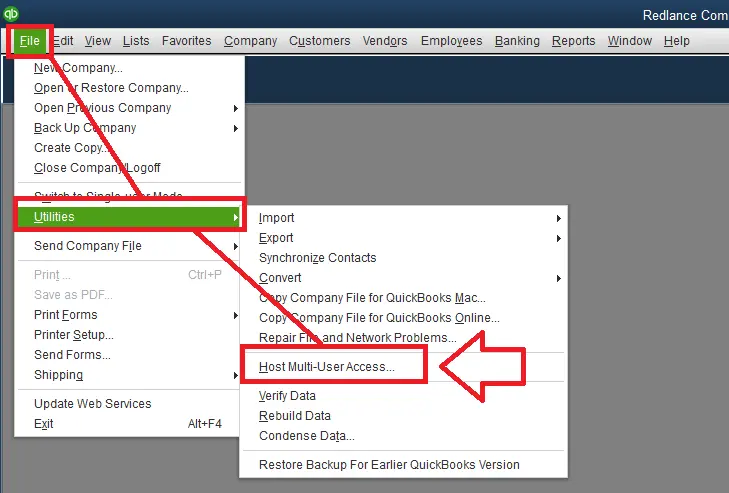
- Go to File → Utilities
- If “Stop Hosting Multi-User Access” appears, click it
On Server:
- Open QuickBooks
- Go to File → Utilities
- Ensure “Host Multi-User Access” is enabled
Why This Matters
Only the dedicated server should host the company file.
Solution 3: Update QuickBooks Desktop
Outdated QuickBooks versions may contain unresolved hosting and network bugs.
Steps:
- Open QuickBooks
- Go to Help → Update QuickBooks Desktop
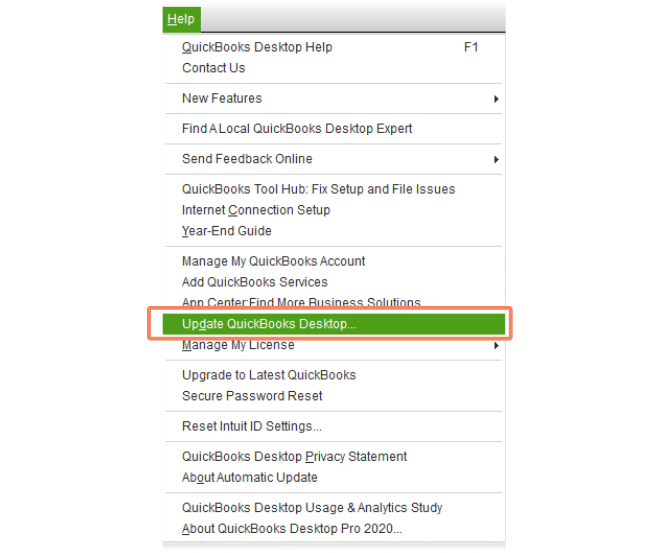
- Install all updates
- Restart QuickBooks
Importance
Updated releases improve hosting communication and server compatibility.
Intermediate Solutions for Persistent Error H101
Solution 4: Rename the ND File
Damaged ND files are one of the leading causes of Error H101.
Steps:
- Open the company file folder
- Locate the .ND file
- Right-click → Rename
- Add “.OLD” at the end
Example:
- companyfile.qbw.nd → companyfile.qbw.nd.old
Why This Works
QuickBooks automatically creates a fresh ND file during the next scan.
Solution 5: Run QuickBooks Database Server Manager
QuickBooks Database Server Manager repairs hosting communication issues.
Steps:
- Download QuickBooks Tool Hub
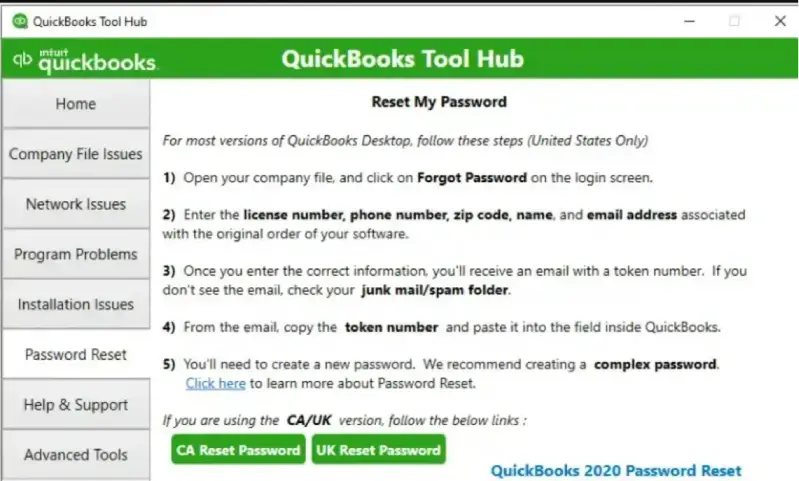
- Open Network Issues
- Launch Database Server Manager
- Scan the company file folder
What It Repairs
- Hosting communication failures
- Server connection issues
- Multi-user synchronization problems
Solution 6: Run QuickBooks File Doctor
QuickBooks File Doctor repairs network and company file issues.
Steps:
- Open QuickBooks Tool Hub
- Select Company File Issues
- Run QuickBooks File Doctor
- Scan the affected company file
What It Repairs
- Hosting conflicts
- Minor company file damage
- Network communication failures
- Database inconsistencies
Advanced Solutions for Recurring QuickBooks Error H101
Solution 7: Configure Firewall Exceptions
Allow These Files:
- QBDBMgrN.exe
- QBW32.exe
- FileManagement.exe
- QuickBooks Database Services
Also Open QuickBooks Ports
Blocked ports interrupt workstation-to-server communication.
Why This Helps
Firewall restrictions are one of the leading causes of Error H101.
Solution 8: Flush DNS and Reset Network Configuration
Steps:
- Open Command Prompt as Administrator
- Run:
- ipconfig /flushdns
- ipconfig /release
- ipconfig /renew
Advanced Benefit
Refreshes corrupted DNS and network routing paths.
Solution 9: Restart QuickBooks Database Services
Steps:
- Press Windows + R
- Type services.msc
- Locate:
- QuickBooksDBXX
- Restart the service
Why This Helps
Refreshes inactive database communication sessions.
Solution 10: Verify Folder Permissions
Improper folder permissions may block server communication.
Steps:
- Right-click the company file folder
- Select Properties → Security
- Grant:
- Full Control
- Read/Write permissions
- Save changes
Importance
Proper permissions are required for stable multi-user access.
Why Does QuickBooks Error H101 Keep Returning?
Common recurrence patterns are as follows:
- Hosting Enabled on Multiple Systems: Multiple hosting systems create repeated server conflicts.
- Antivirus Updates: Security software updates may suddenly block QuickBooks communication.
- Weak Wi-Fi Connectivity: Unstable network connections interrupt multi-user synchronization.
- Windows Firewall Changes: Windows updates may modify firewall and communication rules automatically.
- Damaged ND Files: Corrupted network descriptor files repeatedly interrupt server communication.
Preventive Measures
Below are the preventive measures recommended to reduce the chances of QuickBooks Error H101 and maintain stable multi-user communication services:
- Keep QuickBooks updated regularly
- Enable hosting only on the dedicated server
- Maintain stable wired network connectivity
- Keep firewall and antivirus exclusions updated
- Backup company files regularly
- Avoid unstable public or shared networks
- Monitor QuickBooks database services periodically
- Run Database Server Manager regularly
- Avoid forced system shutdowns
- Maintain proper folder permissions for all QuickBooks users
Conclusion
QuickBooks Error H101 is more than a routine network glitch — it is a migration barrier. When businesses attempt to move from QuickBooks Desktop to Online or export data into ERP platforms like Business Central, unresolved H101 blocks access to the company file, halts synchronization, and disrupts conversion utilities.
By fixing hosting conflicts, firewall rules, ND file corruption, and Database Server Manager issues, technicians not only restore multi‑user access but also prepare the environment for smooth migration. This error underscores the limitations of Desktop’s server‑dependent architecture and explains why many organizations transition to cloud‑based systems, where multi‑user access is native and H‑series errors cannot occur.
Frequently Asked Questions
Does Error H101 occur in QuickBooks Online?
No. H‑series errors are exclusive to Desktop because they depend on local hosting. Online is cloud‑based and immune to these issues.
Can Error H101 block migration to QuickBooks Online?
Yes. Migration utilities require the company file to be accessible in single‑user mode. If H101 persists, the conversion tool cannot read or export the file.
Why does H101 appear after moving QuickBooks to a new server?
Because firewall rules, ND files, and hosting settings often reset during server migration. These must be reconfigured before migration can proceed.
How does H101 affect migration to Business Central or ERP systems?
It highlights the fragility of Desktop’s hosting model. ERP systems eliminate local hosting, so resolving H101 is part of preparing data for export.
Can H101 cause partial or corrupted migration?
Yes. Damaged ND files or blocked ports may allow partial data transfer, leading to incomplete or corrupted records in the new system.
What technician steps ensure migration success after H101?
Disable hosting on workstations, repair ND files, configure firewall exceptions, verify Database Server Manager, and run Verify/Rebuild Data before migration.