
QuickBooks Error 1334 is a disruptive deployment exception that surfaces when the setup framework whether executing a fresh installation, a patch update, or a system repair loses its handle on critical installation files. It typically manifests with a message stating that a specific dynamic-link library (.dll) or cabinet (.cab) file cannot be accessed or written. However, the explicit file named in the pop-up is rarely the true culprit; rather, it is merely the point at which the installation pipeline fractured.
Because this error can trigger unpredictably at various stages of deployment stalling at initial initialization or failing mid-way through a partial install troubleshooting by simply retrying the installer is rarely successful. The breakdown is almost always tethered to deeper system-level conflicts, such as orphaned registry keys from legacy versions, restrictive security permissions, or a desynchronized Windows Installer engine.
To permanently resolve QuickBooks Error 1334, we must look past the surface-level error message and isolate the structural breakdown between the QuickBooks installer and the Windows subsystem.
Diagnosis Preview: What Lies Beneath
To resolve this issue systematically, our deep diagnosis focuses on three core layers of system infrastructure:
- The Assembly & Installer Logs: Auditing the MsiInstaller registry traces inside the Windows Event Viewer to pinpoint whether the issue is a corrupt source payload or an Access Denied security block.
- The Windows Installer Engine State: Verifying and re-registering the msiexec.exe service to flush out dead execution threads and stuck transaction queues.
- System Component Health: Using system-level utilities like SFC and DISM to repair base operating system file structures and deployment paths before re-attempting the QuickBooks setup.
Common Error Message for QuickBooks Error 1334
Message Displayed:
“Error 1334. The file cannot be installed. Insert the QuickBooks CD and try again.”
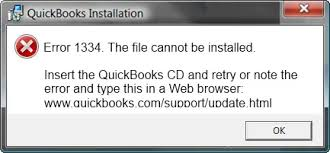
What This Means
- QuickBooks setup is unable to locate or install a required file.
- The installer may be referencing a missing or corrupted file in the installation package (often from the cabinet file data1.cab).
- This typically occurs during installation, update, or repair of QuickBooks Desktop.
Root Causes:
- Damaged installation media (CD/DVD or downloaded installer).
- Missing or corrupted Windows components (.NET Framework, MSXML, Visual C++).
- Antivirus or firewall interference blocking file registration.
- System file corruption or incomplete updates.
Impact:
- QuickBooks cannot proceed with installation or update.
- Users may be stuck in a loop where the installer repeatedly prompts for the CD.
Symptoms of QuickBooks Error 1334
1. Pop‑Up Error Message
- Message Displayed: “Error 1334. The file cannot be installed. Insert the QuickBooks CD and try again.”
- Explanation: This indicates the installer cannot locate or register a required file. The missing file reference is often a symptom of deeper issues such as damaged installation media or corrupted system components.
2. Installer Halts or Rolls Back
- Explanation: The setup process may stop midway and undo changes. This rollback suggests that QuickBooks encountered a critical error while trying to access system files or dependencies like .NET Framework or MSXML.
3. Repeated Prompts for Missing Files
- Explanation: QuickBooks may continuously ask for the CD or installation source. This loop points to incomplete installation files or leftover fragments from previous installs that confuse the setup process.
4. Setup Freezes or Fails to Progress
- Explanation: The installation wizard may hang at a certain stage. This usually occurs when background applications, antivirus, or firewall settings interfere with QuickBooks file registration.
5. Partial Installation – QuickBooks Won’t Launch
- Explanation: QuickBooks may appear installed but fails to open. This indicates that essential components were skipped or corrupted during setup, leaving the program unusable.
Structural Breakdown of QuickBooks Error 1334
While QuickBooks Error 1935 indicates a failure to write or register an assembly component, QuickBooks Error 1334 represents a hard extraction or read failure. The Windows Installer (msiexec.exe) loses its handle on the source payload—specifically cabinet (.cab) or dynamic-link library (.dll) files—meaning the system cannot verify file integrity during the decompression phase.
Deep Diagnosis & Isolation Procedures of QuickBooks Error 1334
1. Identify Installer Traces (MsiInstaller Logs)
Reviewing the Event Viewer determines whether the installation media is corrupt, or if local file permissions are rejecting the extraction payload.
- Open the Event Viewer (eventvwr.msc).
- Expand Windows Logs and select Application.
- Filter the log for Event ID 11334 or Source: MsiInstaller.
- Analysis: Look closely at the log description. If it lists a specific file path (e.g., Data1.cab or qbcomponents.dll), the source media or download package is corrupted. If it throws an Access Denied code, local security permissions are locking the temp directory.
2. Verify Windows Installer Service State
QuickBooks deployments stall or fail to write files if the local msiexec.exe engine is un-registered, or if previous installation attempts left the transaction queue locked.
- Open the Services panel (services.msc).
- Locate the Windows Installer service.
- Verify its status. If it is permanently stuck in a “Running” state while no installation is active, it has cached a dead thread.
- Resolution: Right-click the service, select Stop, then Start to flush the execution stack. If it is greyed out, you must re-register the engine via the command line.
Common QuickBooks Troubleshooting Scenarios & Their Fixes For QuickBooks Error 1334
Scenario 1: Setup Fails Immediately (QuickBooks Error 1334 at Start of Installation)
Explanation:
QuickBooks cannot begin installation because background apps, antivirus, or restricted permissions are blocking the setup process.
Steps:
- Restart Your System
- Click Start → Restart.
- Clears temporary locks and refreshes system memory.
- Estimated Time: 2–3 minutes
- Close All Running Programs
- Press Ctrl + Shift + Esc to open the Task Manager.
- End unnecessary tasks (browsers, apps, utilities).
- Estimated Time: 5 minutes
- Temporarily Disable Antivirus/Firewall
- Open antivirus software → disable real‑time protection.
- Open Control Panel → Windows Firewall → Turn off Firewall.
- Re‑enable both after installation.
- Estimated Time: 5–10 minutes
- Run Installer as Administrator
- Right‑click QuickBooks setup file → select Run as Administrator.
- Grants full system permissions to the installer.
- Estimated Time: 10 minutes
Risk Level: Low (temporary changes, easily reversible).
Verification: QuickBooks installer should launch without rollback errors.
Scenario 2: Setup Fails Midway with Rollback Errors
Explanation:
QuickBooks Error 1334 often appears when Windows components like .NET Framework, MSXML, or C++ are damaged or missing.
Steps:
- Download QuickBooks Tool Hub.
- Open Tool Hub → go to Installation Issues.

- Run QuickBooks Install Diagnostic Tool.
- Wait 20–25 minutes for scan → restart system.
Risk Level: Low (safe automated repair).
Verification: Installation should complete without rollback errors.
Estimated Time: 20–25 minutes
Scenario 3: Setup Fails Due to Damaged .NET Framework
Explanation:
QuickBooks relies on Microsoft .NET Framework. If it’s disabled or corrupted, installation fails.
Steps:
- Open Control Panel → Programs and Features → Turn Windows features on/off.
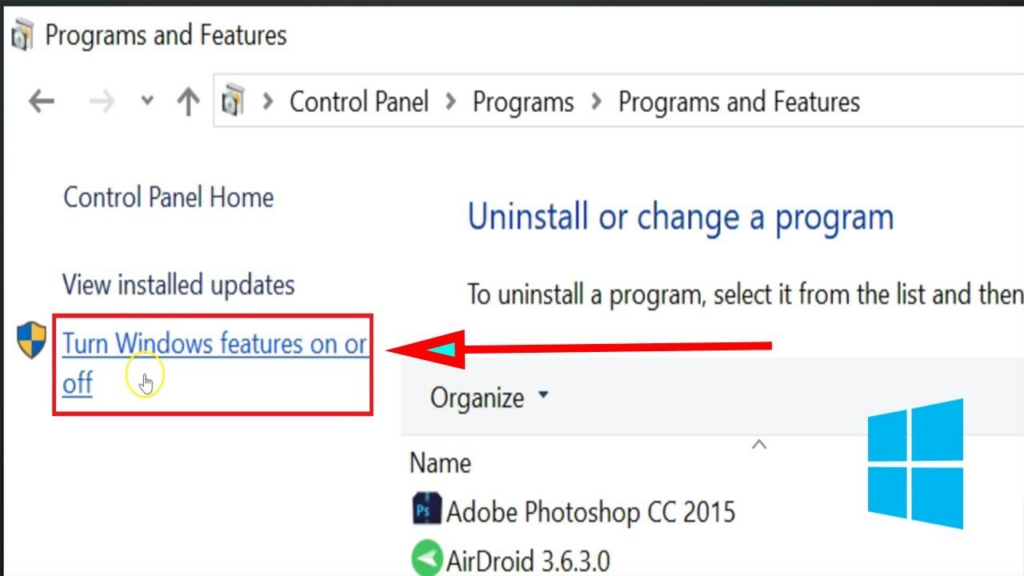
- Toggle .NET Framework 4.5, 3.5 SP1, 4.6, 4.7, 4.8 (disable → restart → re‑enable).
- Restart after each change.
Risk Level: Medium (system component repair).
Verification: QuickBooks installer should run without .NET dependency errors.
Estimated Time: 25–40 minutes
Scenario 4: Setup Fails Due to MSXML Component Corruption
Explanation:
MSXML enables QuickBooks to store data in XML format. If corrupted, installation halts.
Steps:
- Press Windows + R → type CMD → Enter.
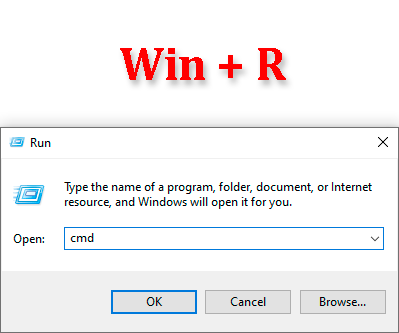
- Run commands:
- cd\windows\syswow64 (for 64‑bit OS only)
- regsvr32 MSXML6.dll
- Press Enter → restart system.
Risk Level: Low
Verification: QuickBooks activation should complete successfully.
Estimated Time: 10–15 minutes
Scenario 5: Setup Failed After Recent System Changes
Explanation:
If QuickBooks worked earlier but fails after updates or new installs, a System Restore can roll back changes.
Steps:
- Log in as Administrator.
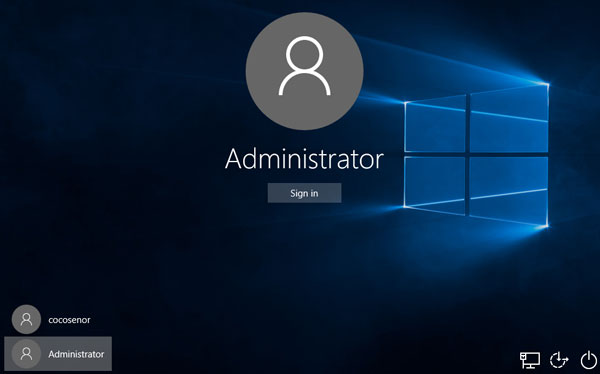
- Go to Accessories → System Tools → Restore.
- Select Restore my PC to an earlier date.
- Choose a restore point before the error appears.
- Restart your computer.
Risk Level: Medium (restores system state, may undo recent changes).
Verification: QuickBooks should install without error after restore.
Estimated Time: 20–30 minutes
Recurrence Prevention Notes For QuickBooks Error 1334
QuickBooks Error 1334 often reappears if the underlying causes are not addressed. These proactive measures help technicians prevent the error from recurring and ensure smoother installations in the future.
1. Keep Windows Updated
- Explanation: QuickBooks relies on Microsoft components like .NET Framework, MSXML, and Visual C++. Outdated Windows versions may not support the latest QuickBooks installer.
- Action: Regularly install Windows Updates to ensure compatibility.
- Impact: Prevents repeated installation conflicts caused by missing patches.
2. Uninstall Older QuickBooks Versions Completely
- Explanation: Leftover files from previous installations often trigger QuickBooks Error 1334 during new installs.
- Action: Use Control Panel → Programs and Features or the QuickBooks Clean Install Tool to remove old versions before reinstalling.
- Impact: Eliminates file conflicts and ensures a clean environment for setup.
3. Run Installer with Administrator Rights
- Explanation: Limited permissions can block QuickBooks from registering system files.
- Action: Always right‑click the installer and choose Run as Administrator.
- Impact: Reduces rollback errors and incomplete installations.
4. Configure Antivirus/Firewall Exclusions
- Explanation: Security software may block QuickBooks modules during installation.
- Action: Add QuickBooks folders (C:\Program Files\Intuit\, C:\Program Files\Common Files\) to antivirus and firewall exclusions before setup.
- Impact: Prevents repeated file registration failures.
5. Verify System Requirements Before Installation
- Explanation: Insufficient disk space, outdated hardware, or unsupported OS versions can cause recurring setup errors.
- Action: Check RAM, processor, and available disk space against QuickBooks Desktop requirements.
- Impact: Ensures installation stability and prevents mid‑process failures.
6. Perform Regular System Maintenance
- Explanation: Corrupted system files or registry entries can block QuickBooks setup.
- Action: Run Disk Cleanup, System File Checker (sfc /scannow), and keep drivers updated.
- Impact: Maintains a healthy environment for QuickBooks installation and updates.
QuickBooks Error 1334 is a common installation issue, but it is often confused with other similar errors that occur during setup, repair, or update. Recognizing these related errors helps users avoid misdiagnosis and apply the correct troubleshooting steps.
Similar QuickBooks Setup Failures
- QuickBooks Error 1328
- Message: Usually appears when QuickBooks cannot update or patch existing files.
- Root Cause: Corrupted cabinet files or incomplete patch updates.
- Primary Fix: Repair installation files or reinstall QuickBooks with a clean setup.
- QuickBooks Error 1904
- Message: “Error 1904: [file name] failed to register.”
- Root Cause: Damaged Microsoft components or missing dependencies.
- Primary Fix: Repair Microsoft .NET Framework, MSXML, or Visual C++ redistributables.
- QuickBooks Error 1723
- Message: “Error 1723: There is a problem with this Windows Installer package.”
- Root Cause: Missing DLL files or issues with Windows Installer.
- Primary Fix: Repair Windows Installer and ensure system files are intact.
Real Life Scenarios: QuickBook Error 1334
To see how this plays out in the real world, it helps to look at actual situations IT professionals and accountants run into. Because QuickBooks Error 1334 is a hard extraction or read failure, it usually happens during critical business moments.
Here are three common real-life scenarios where this structural breakdown happens, along with exactly how they are solved.
Scenario 1: The “Ghost” of an Old Version (Registry Corruption)
The Setup: A tax firm decides to upgrade their multi-user environment from an old version of QuickBooks Desktop to the latest version. They run the installer, but halfway through, it crashes with QuickBooks Error 1334, stating that a specific .dll file cannot be installed.
- The Real-World Cause: The firm had previously uninstalled an older version of QuickBooks, but the uninstaller left behind orphaned registry keys and cached installation data in the C:\ProgramData directory. When the new installer tried to write the new files, the Windows Installer (msiexec.exe) looked at the old, broken registry paths, got confused about where to put the files, and threw a read error.
- The Resolution:
- The IT administrator completely uninstalled the partial setup.
- They manually wiped or renamed the leftover Intuit folders to QuickBooks.old.
- They re-registered the installer using msiexec /regserver to clear the cached threads before successfully running the new installation.
Scenario 2: The Hyper-Aggressive Antivirus (False Positive Block)
The Setup: A small business owner downloads a legitimate update patch directly from the Intuit website. As soon as the patch reaches 60% installation, a pop-up flashes: “Error 1334: The file Data1.cab cannot be installed.”
- The Real-World Cause: The business owner recently installed a strict, third-party security suite. During the update, the QuickBooks installer attempted to unpack a massive number of files quickly into the Windows Temp directory. The antivirus flagged this rapid file extraction as suspicious “ransomware-like” behavior and instantly locked down the temporary folder, cutting off the installer’s access mid-stream.
- The Resolution:
- The owner checked the Windows Event Viewer (MsiInstaller logs) and found an Access Denied error pointing to the Temp folder.
- They booted the computer into Selective Startup (disabling all third-party security services temporarily).
- The patch installed seamlessly without interference, and the antivirus was turned back on immediately afterward.
Scenario 3: The Bad Network Share (Packet Loss Deployment)
The Setup: An IT manager is trying to deploy QuickBooks across a local office network. Instead of downloading the installer locally onto each machine, they run the installation .exe directly from a shared network drive (NAS) onto a workstation over a shaky Wi-Fi connection.
- The Real-World Cause: Because the network connection dropped a few data packets while extracting the large .cab compression files over the air, the local Windows Installer engine received a corrupted stream of data. Unable to verify the file integrity of the incoming payload, the system aborted the process and assumed the “CD or installation media” was missing.
- The Resolution:
- The IT manager copied the QuickBooks setup file directly from the network share onto the local C:\ drive of the workstation.
- They ran sfc /scannow to ensure the local system caches hadn’t been disrupted by the abrupt network disconnect.
- Running the installer locally fixed the pathing issue and bypassed the network instability entirely.
QuickBooks Error 1334 – QuickBooks Desktop vs Online
QuickBooks Desktop:
- QuickBooks Error 1334 is specific to Desktop. It occurs during installation, repair, or update when the setup cannot access required files (damaged, missing, or blocked by system conflicts). Root causes include corrupted installation files, damaged Windows components (.NET, MSXML, C++), or antivirus/firewall interference.
QuickBooks Online:
- QuickBooks Error 1334 does not apply to Online. Since QuickBooks Online runs in a web browser and doesn’t require local installation, users will never encounter this error. Online issues are usually browser‑related (cache, connectivity, or service errors), not installation failures.
Conclusion
QuickBooks Error 1334 is a recurring installation issue that arises when the setup process cannot access or register essential files. Although the error message highlights a single missing file, the underlying causes are broader ranging from damaged installation media and corrupted Windows components to antivirus interference or leftover files from previous versions.
By approaching the problem through scenario‑based troubleshooting, technicians can quickly identify the stage at which the error occurs and apply the most effective fix whether it’s restarting the system, repairing .NET Framework, running the QuickBooks Install Diagnostic Tool, or performing a clean reinstall.
FAQs
1. Why does this error happen?
QuickBooks Error 1334 occurs when the QuickBooks installer cannot access or register essential files. While the pop‑up message highlights a single missing file, the real issue is often broader — damaged installation files, incomplete updates, corrupted Windows components (.NET Framework, MSXML, Visual C++), or leftover files from previous installations. In short, it’s a file access and registration failure during setup.
2. Can antivirus cause this issue?
Yes. Antivirus or firewall software can mistakenly block QuickBooks installation files, treating them as potential threats. This interference prevents QuickBooks from registering critical executables and DLLs, leading to QuickBooks Error 1334. Temporarily disabling antivirus/firewall or adding QuickBooks folders to the exclusion list often resolves this scenario.
3. Does this error affect QuickBooks Online?
No. QuickBooks Error 1334 is specific to QuickBooks Desktop because it involves local installation files and Windows components. QuickBooks Online runs in a browser and does not require installation, so users will not encounter this error there. Online issues are usually browser‑related (cache, connectivity, or login problems).
4. Why does the installer keep asking for the CD?
This happens when the installer cannot locate required cabinet files (like data1.cab) or when the installation media is damaged. Even if the CD is inserted, corrupted files or incomplete downloads can trigger repeated prompts. A clean reinstall using a fresh QuickBooks installer usually resolves this.
5. Can retrying the installation fix the error?
Simply retrying often does not work. Since the root cause is usually corrupted files or blocked components, the same error reappears. Running the QuickBooks Install Diagnostic Tool, repairing Windows components, or performing a clean uninstall/reinstall is necessary for a permanent fix.
6. How can I prevent QuickBooks Error 1334 from recurring?
Keep Windows updated with the latest patches.
Always uninstall older QuickBooks versions completely before reinstalling.
Run the installer with administrator rights.
Configure antivirus/firewall exclusions for QuickBooks folders.
Verify system requirements and perform regular system maintenance.