
QuickBooks Tool Hub doesn’t always fix Error 1642, especially if the Microsoft .NET Framework is damaged or locked. When this happens, QuickBooks can’t communicate with Windows and the update fails.
The error usually appears during an update, when the installer can’t access the .NET Framework and QuickBooks is unable to apply the latest patches or security fixes. Resetting the .NET Framework manually through Windows Settings is often needed to restore these components and let updates finish successfully.
Contents
Why Manual and Automatic .NET Configuration is Necessary
QuickBooks requires specific versions of the Microsoft .NET Framework—typically 3.5 and 4.8—to be enabled and active. If these frameworks are toggled off, corrupted, or blocked by pending file conflicts, QuickBooks cannot communicate with Windows Installer and the update process fails.
- Automatic Repair: The QuickBooks Tool Hub or Microsoft’s .NET Repair Tool can scan and fix common framework issues.
- Manual Repair: When automatic repair fails, manually adjust .NET Framework settings in Windows Features or reinstall the components to restore functionality.
QuickBooks requires specific versions of the Microsoft .NET Framework typically 3.5 and 4.8 to be enabled and active. If these are toggled off, corrupted, or have pending file conflicts, the QuickBooks installer cannot proceed and the 1642 error persists.
Automatic Solution
Use the Microsoft .NET Framework Repair Tool
If you prefer a hands‑off approach, Microsoft provides an official repair utility that scans and fixes problems automatically.
- Search for and download the official Microsoft .NET Framework Repair Tool.
- Follow the on-screen prompts to install and run the tool.
- Accept the license terms and choose Apply Changes to re-register the .NET service.
- Restart your computer once the tool completes its process.
- Reopen QuickBooks and retry the update.
Manual Solutions
Solution 1: Toggle .NET Framework via Windows Features
Repairing or reinstalling the .NET Framework eliminates Error 1642 by fixing broken Windows components QuickBooks depends on. This forces Windows to re‑index and re‑verify .NET files, clearing the communication block and restoring proper installer function.
For Windows 10 and Windows 11
Before you start: Determine which versions of the .NET Framework are having issues. In most cases, you’ll need to reinstall the affected version along with all later versions.
- Close all open programs.
- Open the Windows Start menu.
- Enter “Control Panel” into the search and open Control Panel.
- Navigate to Programs and Features.
- Choose Uninstall a Program.
Note: Don’t worry, you aren’t uninstalling anything.
- Select Turn Windows features on or off.
- Locate .NET Framework on the list.
- Check the settings for both .NET Framework 4.5 (or later) and .NET Framework 3.5 SP1.
Note: The steps to fix .NET. Framework 4.5, 4.6, 4.7, and 4.8 are the same.
Check NET Framework 4.5 (or later)
If the .NET Framework 4.5 (or later) checkbox isn’t checked:
- Tickmark the checkbox to turn on .NET Framework 4.5 (or later).
- Click OK to save your changes.
- Restart your computer.
If the .NET Framework 4.5 (or later) checkbox is already checked:
- Select the checkbox to turn off .NET Framework 4.5 (or later). Don’t turn it back on.
- Choose OK to save your changes.
- Restart your computer.
- Once you sign back into Windows, follow the steps to turn on the .NET Framework 4.5 again.
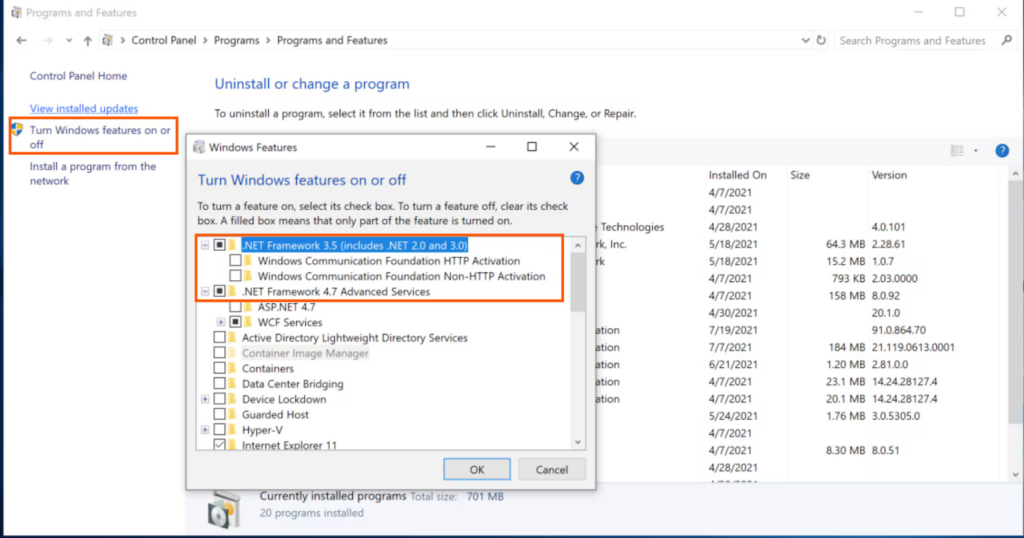
Check NET Framework 3.5 SP1
If the .NET Framework 3.5 SP1 checkbox isn’t checked:
- Tickmark the checkbox to turn on .NET Framework 3.5 SP1.
- Click OK to save your changes.
- Restart your computer.
If the .NET Framework 3.5 SP1 checkbox is already checked:
- Select the checkbox to turn off .NET Framework 3.5 SP1. Don’t turn it back on.
- Choose OK to save your changes.
- Restart your computer.
- After logging back into Windows, proceed with enabling the .NET Framework 3.5 SP1 again.
Important: Contact a Microsoft support representative or an IT professional if an error appears while turning the .NET Framework on or off, as the issue is likely related to the operating system rather than QuickBooks.
Solution 2: Repair Microsoft MSXML Components
QuickBooks Desktop uses Microsoft XML (MSXML) to run installer scripts. This ensures the setup process can execute properly without being blocked by corrupted system files. If these components are damaged, installation may fail with Error 1642.
Register the MSXML DLL files
64-Bit operating system, register MSXML with the following steps:
- Choose the Windows Start menu and type cmd.
- Right-click cmd and select Run as Administrator.
- At the C: prompt, enter cd\windows\syswow64.
- Type regsvr32 MSXML6.dll and click Enter.
- Install QuickBooks Desktop application at the end.
32-Bit operating system, register MSXML with the following commands:
- Hold and press Windows+R on your keyboard to open the Run command.
- Type cmd, and click Enter.
- Enter regsvr32 MSXML6.dll, and select Enter.
- Install QuickBooks Desktop in the end.
Solution 3: Re-register Windows Installer
Error 1642 can occur if the Windows Installer registration is corrupted. Re‑registering resets its configuration, ensuring the system recognizes the installer correctly and can execute MSI files.
- Click Start, select Run, type cmd, and choose Command Prompt.
- At the command prompt, type the following, and click OK after each line:
- MSIEXEC /UNREGISTER
- MSIEXEC /REGSERVER
- Even if nothing appears to happen, the commands complete successfully.
- Try to run your Windows Installer-based application again.
Verify QuickBooks Update After Repair
- Open QuickBooks Desktop.
- Go to Help > Update QuickBooks Desktop > Update Now.
- Confirm the update completes without Error 1642.
- Run a quick task in your company file to ensure stability.
Common Post‑Repair Errors
- “File not found” error: Proceed to the Clean Install Spoke for a fresh installation of QuickBooks.
- “Update did not complete” message: Check your internet connection, disable antivirus/firewall temporarily, and retry.
- QuickBooks crashes during update: Run the QuickBooks Install Diagnostic Tool again and confirm .NET Framework is enabled.
Troubleshooting Manual Fixes
Error: “Windows couldn’t complete the requested changes”
- Run Windows Update first to clear pending system restarts.
- Retry the .NET repair steps after updates are applied.
- If the error persists, run System File Checker (sfc /scannow) to repair Windows system files.
Other helpful checks:
- Ensure enough free disk space on your system drive (C:).
- Always run QuickBooks and repair tools as Administrator.
- Complete all pending Windows restarts before retrying QuickBooks updates.
Next Step: Windows Update & OS Requirements
Error 1642 may still appear during QuickBooks updates if Windows is not fully updated or the operating system does not meet requirements. QuickBooks relies on Microsoft components like .NET Framework, MSXML, and Visual C++ Redistributables, and these must be current for the installer to work correctly.
Check out All the related Frequently Asked Questions around QuickBooks Error 1642