
QuickBooks Error 1642 often appears when updating QuickBooks Desktop if the Microsoft .NET Framework or related components are damaged. Since QuickBooks is already installed, the update process fails because the installer cannot communicate properly with Windows components.
The QuickBooks Tool Hub is Intuit’s official first‑response solution. It provides an automated way to repair the .NET Framework, MSXML, and Microsoft Visual C++ Redistributables, the core dependencies that trigger Error 1642.
Why the Tool Hub is the Best Fix for Update Failures
QuickBooks Tool Hub doesn’t just patch QuickBooks; it repairs the Microsoft components that updates rely on. It targets:
- .NET Framework (required for QuickBooks updates)
- MSXML (runs installer scripts)
- Microsoft Visual C++ Redistributables (supports runtime libraries)
This makes the QuickBooks Tool Hub the most reliable first step for resolving Error 1642 during updates, as it repairs critical Microsoft components without requiring advanced technical expertise.
Step-by-Step Guide to Fix .NET Framework Error 1642
QuickBooks Error 1642 is triggered when damaged Microsoft .NET Framework or related components block the installer from completing an update. The following step‑by‑step guide explains how to use the QuickBooks Tool Hub’s Diagnostic Tool to repair these dependencies, ensuring smoother installations and updates.
Step 1: Download and Install the Latest QuickBooks Tool Hub
Preparation
- Close QuickBooks Desktop completely.
- Ensure you have a stable internet connection.
- For best results, use Tool Hub on Windows 10, 64‑bit.
Installation Steps
- Close QuickBooks.
- Download and install the most recent QuickBooks Tool Hub version (1.6. 0.8).
- Save the file somewhere you can easily find it such as your Downloads folder or your Windows desktop.
Note: To find out which tool hub version you have, select the Home tab and the version will be on the bottom.
- Open the downloaded file QuickBooksToolHub.exe to start the installation.
- Follow the on-screen steps to install and agree to the terms and conditions.
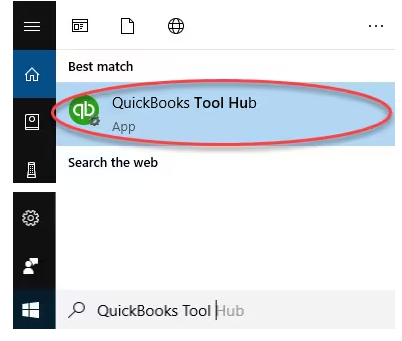
- When the installation finishes, click twice on your Windows desktop icon to open the tool hub.

Note: If you are unable to find the icon, do a search in Windows for QuickBooks Tool Hub and select the program.
Step 2: Run QuickBooks Install Diagnostic tool

If something went wrong during the QuickBooks installation process, it may cause problems when you try to use it. Run the QuickBooks Install Diagnostic Tool to fix common installation issues.
- Open the QuickBooks Tool Hub and then choose Installation Issues.
- Select QuickBooks Install Diagnostic Tool. Let the tool run. It may take up to 20 minutes to detect the issue.
- When it’s done, restart your computer and start QuickBooks Desktop, then open your data file.
- Update your QuickBooks to the latest release. This will make sure you have the most recent fixes and security updates.
Step 3: Verifying the Fix
Since QuickBooks is already on your system, the next step is to confirm that the update runs correctly. This ensures that the repaired Microsoft components are functioning as expected and that QuickBooks can apply updates without interruption.
- Restart QuickBooks Desktop once the update completes successfully.
- Open your company file to confirm it loads without errors.
- Perform a quick task such as creating an invoice, running a report, or entering a transaction to check stability.
- Navigate to Help > Update QuickBooks Desktop > Update Now and re‑check for updates to ensure the latest patches are applied.
- If Error 1642 reappears, rerun the Tool Hub diagnostic tool to repair components again.
Troubleshooting the Tool Hub Itself
What if the Diagnostic Tool stops responding?
- Check Windows Task Manager to confirm the tool is still running.
- Ensure no other installers or background updates are active.
- Restart your computer and try running the Tool Hub again.
- Run the tool as an Administrator to avoid permission conflicts.
“Tool Hub could not repair Microsoft components automatically”
- Make sure Windows is updated with the latest patches before retrying the repair.
- Temporarily disable antivirus or firewall software if they interfere with the process.
- Restart your computer and run the Tool Hub again.
Other Common Issues
- Reinstall the Tool Hub using the latest installation file from Intuit.
- Always download the newest version to ensure compatibility with current .NET updates.
- Allow up to 25 minutes depending on system speed; avoid interrupting the process.
Next Step: Manual/ Automatic Repair (Spoke 2)
Proceed to (Manual/Automatic Repair) for advanced troubleshooting if the QuickBooks Install Diagnostic tool cannot fix the .NET Framework automatically. This path includes manually toggling the .NET Framework, using Microsoft’s .NET Repair Tool, or repairing MSXML components.
Check out All the related Frequently Asked Questions around QuickBooks Error 1642