
To fix the QuickBooks “Your File Size Is Too Large” error during QuickBooks Desktop-to-Online migration, check the company file’s Total Targets count first rather than the .QBW file’s storage size. Current QuickBooks migration guidance requires supported Desktop files to have fewer than 4,000,000 targets. If the count is too high, update QuickBooks, verify the company file, create a backup, and use the Condense Data utility to reduce the target count before trying the migration again.
Switching from QuickBooks Desktop to Online gives you cloud access, mobile flexibility, and real-time collaboration. It eliminates manual updates and local server dependency, making financial management more scalable, secure, and efficient ideal for businesses adapting to remote work and digital operations.
QuickBooks Online gives you automatic backups, faster bank feeds, and real-time syncing with accountants. You can access financial data from any device, avoid manual updates, and integrate with apps like Shopify. These micro-level advantages make your daily operations smoother, more secure, and far more efficient than QuickBooks Desktop.
During conversion, QuickBooks migrates your chart of accounts, customers, vendors, and transactions. However, attachments, custom templates, audit trails, and recurring entries aren’t transferred. These limitations often trigger errors or missing data issues. By understanding what’s excluded, you can prepare backups, adjust expectations, and resolve post-conversion errors more effectively ensuring a smoother, more predictable migration experience.
Company File Size & Conversion Limits: QuickBooks Desktop to Online
Knowing QBO’s file and target limitations helps you identify why the error occurred during migration. Every invoice, customer, payroll entry, or inventory item adds to your file’s targets, and exceeding roughly 2 million targets triggers the error.
By understanding these limits, you can pinpoint which areas of your file need condensing, splitting, or cleanup, making it possible to migrate without losing critical business data.
Does QuickBooks Have a File Size Limit for Online Migration?
Yes, but the important measurement is not simply the size of your
.QBWfile in MB or GB. QuickBooks uses the Total Targets count to determine whether the Desktop company file meets the current migration threshold. A large file can still be eligible if its target count is below the threshold, while a file’s physical storage size alone does not tell you whether it can be migrated.
Targets are the count QuickBooks uses to determine whether a Desktop company file meets the migration threshold. The Total Targets value includes records and data elements within the company file, so it does not correspond directly to the file’s size in MB or GB.
To check the count, open your company file and press F2 or Ctrl+1. In the Product Information window, look for Total Targets. You need to think of your QuickBooks file not in terms of storage space but in terms of “targets”.
- Each transaction (invoice, bill, check, journal entry) is a target.
- Each list item (customer, vendor, employee, inventory item) is a target.
- Each link between lists and transactions (like a customer attached to an invoice or an item tied to a bill) counts toward your total.
QuickBooks Desktop File Size Limits for QuickBooks Online
| QuickBooks Desktop version | Current migration target threshold |
|---|---|
| QuickBooks Desktop Enterprise 2022 and newer | 4,000,000 targets |
| QuickBooks Desktop Pro/Premier 2022 and newer | 4,000,000 targets |
| QuickBooks Desktop for Mac | 4,000,000 targets |
Important: QuickBooks uses Total Targets rather than the physical
.QBWfile size in MB to determine this migration threshold. Files with more than 750,000 targets may take longer to migrate and may have a higher risk of data discrepancies, particularly with inventory.
Earlier Versions (2018–2021 and older)
- Target capacity was less stable. Files approaching 1.5–1.8 million targets often became sluggish or unstable before conversion.
- Condense Tool Behavior:
- 2019 and newer: condenses file size while retaining details.
- 2018 and older: converts older transactions into journal entries, which may cause reconciliation mismatches.
- 2019 and newer: condenses file size while retaining details.
What Moves and What Doesn’t When Converting QuickBooks Desktop to Online?
When you move from QuickBooks Desktop (QBD) to QuickBooks Online (QBO), it’s essential to understand that not everything in your file will transfer, and some data will appear differently than you expect. Assuming your entire historical file regardless of size will migrate intact is a common misconception.
1. What You Can Reliably Migrate
You will bring over your core lists: customers, vendors, employees, and your chart of accounts. Account balances and basic transaction history from the past 2–3 years are included, along with standard reports tied to those transactions. Open invoices, unpaid bills, and reconciled balances within this period will transfer, but older transactions often appear only as summary balances, not detailed line items. This is particularly important if you rely on detailed historical reporting.
2. What You Should Expect to Lose
Certain items will not migrate, even if they are critical to your operations. Bank reconciliation reports, audit trails, budgets, recurring charges, custom templates, memorized or advanced reports, and deleted transactions will be left behind. Custom fields, classes, locations, multi-currency setups, and inventory details often fail to transfer accurately. Payroll histories, tax forms, and payroll liabilities may not migrate completely, which can affect compliance. Attachments, while partially transferable, are limited by file type, size, and quantity.
3. User Roles and Permissions
Your role-based access and user permissions in QBD do not map perfectly to QBO. Some users may lose visibility into certain accounts, transactions, or reports. Accountant-only reports and payroll-specific data may also fail to migrate fully.
4. Optional Add-Ons Through Third-Party Tools
Attachments, unreconciled transactions, and extended fiscal data can sometimes be migrated via specialized third-party tools, but success is not guaranteed. You’ll need to evaluate the cost, effort, and potential data integrity risks before relying on these solutions.
5. Key Insights and Recommendations
File size does not equal completeness. Even a massive QBD file may contain historical or custom data that QBO does not recognize.
To reduce surprises, you should perform a thorough pre-migration cleanup:
- Reconcile all accounts and resolve open transactions.
- Export audit trails, budgets, recurring templates, and advanced reports manually.
- Archive or back up payroll, tax, and inventory details.
- Review custom fields and user permissions to plan adjustments in QBO.
By preparing carefully, you ensure continuity, minimize downtime, and set realistic expectations for your online environment, making the transition smoother and more predictable.
How to Check the Problem
- Check Total Targets – Press F2 (or Ctrl+1) in QuickBooks Desktop and find the Total Targets count. Compare it with the current 4,000,000-target migration threshold. If it exceeds the threshold, back up your company file and proceed with the Condense Data process.
- Verify and Rebuild Data – Go to File → Utilities → Verify Data. If errors appear, follow with Rebuild Data. Run Verify and Rebuild to identify and repair data damage before attempting migration.
- Test with a Portable File – Create a Portable Company File and restore it in a separate folder or on another computer. This forces QuickBooks to re-index the database. Often, this step trims out temporary bloat and reveals if the problem is pure size or a corruption issue.
How to Fix “Your File Size is Too Large” Error: Prioritized, Step-by-Step (With Trade-Offs)
When your QuickBooks Desktop file exceeds QuickBooks Online’s import limits, migration stops, leaving you stuck. This usually happens because of decades of transactions, large customer/vendor/item lists, attachments, and non-essential data that push your file past QBO’s target ceiling.
In this guide, you’ll learn to identify bloated or corrupted data, and systematically reduce file size. Each step is prioritized from non-destructive repairs to advanced solutions, with clear trade-offs so you know what detail may be lost or preserved.
Rule of thumb: Always backup before any major operation (Create Local Backup/.QBB). This ensures you can safely restore your file if anything goes wrong during cleanup, condensing, or migration.
1) Backup → Verify → Rebuild (First, Non-Destructive Step)
Why: This sequence addresses hidden corruption and indexing errors that silently inflate your file size. In many cases, repairing these issues reduces the Total Targets count enough to allow conversion.
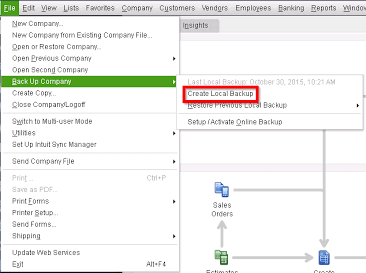
How (Step-by-Step):
- Switch to Single-User Mode – Only one user can run these utilities. Go to File → Switch to Single-User Mode.
- Create a Local Backup:
- Navigate to File → Back Up Company → Create Local Backup.
- Save at least one .QBB in a secure location outside your main working folder.
- Run Verify Data:
- Go to File → Utilities → Verify Data.
- If issues appear, note them; this tells you whether corruption exists.
- Run Rebuild Data:
- Go to File → Utilities → Rebuild Data.
- Follow prompts; QuickBooks automatically repairs damaged indexes and links.
- Repeat Verify:
- After rebuilding, run Verify Data again. Repeat rebuild if any errors persist. Only continue once Verify reports no issues.
Trade-Off: Non-destructive: this process does not remove valid transactions or lists.
2) Condense Your Data (Purposeful Reduction of Targets)
Why: Condensing reduces older or non-essential transaction detail, lowering your Total Targets so the file can pass QuickBooks Online’s limits. Without this step, even a clean file may still be too large to migrate.
Two Main Condense Paths & Trade-Offs:
- QuickBooks Desktop 2019 and newer:
- Condense trims file size while keeping most transaction-level details intact.
- Migration is safer, and reports remain largely consistent.
- QuickBooks Desktop 2018 and older:
- Condense converts old transactions into summary journal entries.
- Drill-down capability is lost, and some reports may not match exactly.
- Use cautiously — once condensed, granular detail cannot be restored except from backups.
How (Step-by-Step):
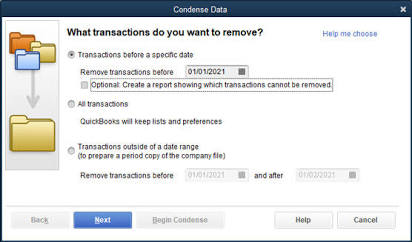
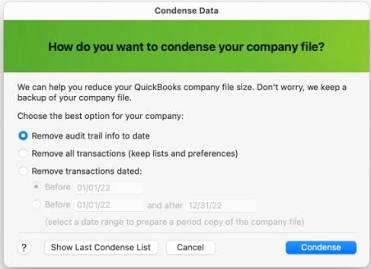
- Open Condense Utility: Go to File → Utilities → Condense Data.
- Choose a Method:
- Option A: Keep all transactions but remove audit trail entries up to a chosen date.
- Option B: Permanently remove selected older transactions (pick carefully; this cannot be undone).
- Follow Prompts: QuickBooks will create an archived copy automatically. Save it securely for historical audits.
Trade-Offs:
- Condensed files may produce reports that differ slightly from the original.
- Older versions (pre-2019) sacrifice drill-down detail in favor of file size reduction.
- Always verify the condensed file before attempting migration.
3) Create a Portable Company File → Restore (Quick Reindex + Shrink)
Why: Creating a portable file (.QBM) and restoring it forces QuickBooks to rebuild its internal indexes, removes temporary files like .TLG, and can reduce hidden bloat. This process often resolves minor corruption and trims enough weight from your file to bring it under QuickBooks Online’s limits. It’s faster than a full rebuild and targets transient data that inflates file size without affecting actual transactions.
How (Step-by-Step):
- Switch to Single-User Mode & Admin Login:
- Only one user should be logged in. Make sure you have full admin rights to avoid permission conflicts.
- Go to File → Switch to Single-User Mode.
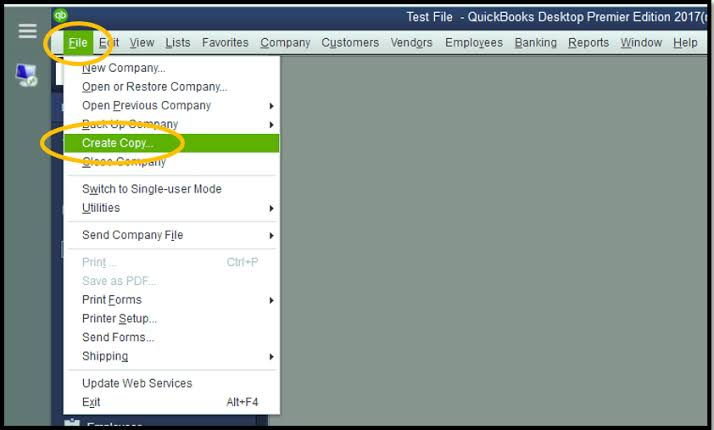
- Create Portable File:
- Navigate to File → Create Copy → Portable Company File.
- Save the .QBM in a separate, accessible folder.
- Restore Portable File:
- Go to File → Open or Restore Company → Restore a Portable File.
- Restore it to a new folder or location to prevent overwriting the original file.
Trade-Offs:
- Portable files are not full backups; they exclude some manager settings and configuration files.
- Always maintain a full .QBB backup before this step to prevent accidental loss of critical data.
- Some customizations or attachments may need re-linking after the restore.
4) Clean Lists & Prune Non-Essential Data (Manual but High Impact)
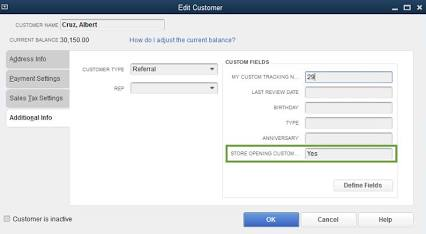
Why: Large or unused lists, old templates, and non-essential data inflate your Total Targets and file size. Manually cleaning these elements can have an immediate effect on reducing the file weight, often enough to make conversion to QuickBooks Online possible.
How (Step-by-Step):
- Merge or Delete Unused Customers, Vendors, and Items
- Identify entries with zero transactions or duplicates.
- Use Edit → Edit Customer/Vendor/Item → Make Inactive or merge them carefully to consolidate.
- Remove Obsolete Classes and Locations
- Navigate to Lists → Class List or Location List.
- Delete or mark inactive the ones that are no longer in use.
- Delete Unused Memorized Transactions/Templates
- Go to Lists → Memorized Transaction List.
- Remove entries that are outdated or never used.
- Export and Remove Old Attachments
- Export PDFs, receipts, and other attachments to a local folder or document management system.
- Once exported, detach them from transactions in QuickBooks to reduce file size.
Trade-Offs:
- Deletions are permanent. Once removed, the data cannot be restored in QuickBooks except from backups.
- Always export a CSV or Excel copy of any list or attachment before deletion.
- Careful pruning can significantly lower Total Targets, but improper deletion can affect historical reporting, so review before you remove.
5) Split the Company File (Advanced — Use When History is Huge)
Why: If your QuickBooks Desktop file spans decades of transactions, even after condensing and pruning, it may still exceed QuickBooks Online limits. Splitting the file lets you migrate only the active years while keeping older history accessible separately. This reduces targets drastically and ensures the current data moves cleanly.
How (Step-by-Step):
- Define Archive or Cut-Off Date: Decide which year or period will remain in QBO. Older transactions will go into a separate archive file.
- Condense and Clean Older Years:
- Use the Condense Utility and remove non-essential lists, unused templates, and historical attachments from the older period.
- Export attachments or reports if needed for audit purposes.
- Create a Separate Archive File: Restore the condensed older years into a new file, separate from your active company file.
- Migrate Current File to QBO:
- Keep only the active years in your main file. Migrate this trimmed, clean version to QuickBooks Online.
- Make sure opening balances match the archived history to avoid discrepancies. This may require coordination with your accountant
Trade-Offs:
- You lose drill-down capability for archived transactions inside QBO.
- Archived QuickBooks Desktop files remain necessary for historical audits or reporting.
- Requires careful planning — incorrect cut-offs or missing balances can break reconciliations.
6) Use Professional / Third-Party Conversion Tools or Intuit’s Batch Tools
Why: If condensing, pruning, and creating portable files still leaves your company file over QuickBooks Online’s target limits, or if you need to migrate attachments, inventory detail, or complex transaction histories precisely, professional tools are your next option. These tools are designed to handle files that standard QBO migration cannot process.
Options:
- Intuit’s Accountant Batch Migration Tools:
- Designed for accountants managing multiple client files.
- Can handle staged migrations and larger target counts than standard QBO imports.
- Certified Partner Converters (e.g., Movemybooks, other partner services):
- Can migrate complex setups including inventory, serialized items, and attachments.
- Often offer custom mapping and post-migration support to ensure data integrity.
- Commercial Conversion Services
- Import large client portfolios with higher thresholds.
- Can manage multi-year histories while preserving transactional accuracy.
Trade-Offs:
- Cost: These services typically charge per file or per hour.
- Time vs Accuracy: While more expensive, they save time and reduce risk of lost data, ensuring detailed history and attachments migrate correctly.
- Dependency: You rely on external tools or partners, so plan for scheduling and secure data transfer.
Final Notes
- Condense vs Accuracy: When you condense your QuickBooks Desktop file, especially in versions prior to 2019, you reduce file size by summarizing older transactions. Your Profit & Loss and balance sheet may still be accurate, but you lose the ability to drill back into individual invoices, bills, or journal entries. If you need audit-level history or want every transaction accessible for review, always keep a separate archived QBD file. Condense is a tool for migration feasibility, not a replacement for full historical records.
- Third-Party Migration is Not a Failure: Using professional migration tools, batch utilities, or Intuit-certified partners is a legitimate strategy when you need complete data transfer — including attachments, long inventory histories, and complex custom fields. These tools exist for large files that exceed QBO’s native limits and for clients where accuracy and completeness outweigh cost and manual effort. Treat it as a strategic option, not a fallback.
- Test First: Always perform a trial migration on a copy of your file. This reveals exactly what will migrate, highlights unsupported features, and shows any remaining target or file-size issues. Testing first prevents surprises, lets you plan corrections, and ensures your final migration is smooth.
Takeaway:
- Each approach involves trade-offs between file size, detail retention, and operational practicality. Backups, careful planning, and staged migrations keep your data safe while maximizing what you bring into QBO.
Risk & Recovery When You See “Your File Size Is Too Large”
When QuickBooks flags your company file as too large for migration, it’s a warning that both data integrity and migration success are at risk. You need to handle this carefully to avoid permanent loss or incomplete transfers.
- Data Integrity vs. File Size Reduction – Shrinking or condensing your file may solve the size problem, but it comes at a cost. Utilities like the Condense tool convert detailed transactions into summary journal entries, removing the ability to drill down into invoices, bills, or payments. You must weigh the benefit of a smaller file against the permanent loss of transaction-level detail, especially if you need historical data for audits, reporting, or reconciliations.
- Impact on Reconciliations – When you reduce your file size, previously reconciled accounts may break. Condensed transactions can no longer match old reconciliation points, meaning you’ll need to reconcile manually in QBO. Failing to plan for this can result in mismatched balances, accounting errors, and frustration when trying to maintain continuity in your books.
- Archival Strategy – Even if you shrink the file or migrate partially, always retain a full QBD backup. Keeping the original file ensures you have a permanent reference for any historical detail lost during condensing. This file becomes your archival source for past transactions, audit trails, budgets, and reports that QBO cannot replicate.
- Backups Are Mandatory – Before taking any action—whether condensing, shrinking, or attempting migration—create a verified .QBB backup. This is your safety net. If anything goes wrong, including migration failure, corruption, or accidental deletion, you can always restore the original data. Skipping this step exposes you to irreversible loss.
QuickBooks Online Migration Guidance
Migrating from QuickBooks Desktop (QBD) to QuickBooks Online (QBO) can be straightforward — but only if you understand what migrates, what doesn’t, and why large files often fail. Intuit provides clear guidelines in their official guide on condensing QuickBooks Desktop files before import.
Before migrating, save the QuickBooks Desktop company file on your computer’s local hard drive rather than on a server, network drive, or cloud-synchronization folder. Intuit recommends using a local company file when preparing the Desktop data for migration.
Conclusion
Understanding your company file size and QuickBooks Online conversion limits is the first step in resolving the “Your File Size Is Too Large” error.
By checking your file, identifying the root cause, and following the hierarchy of fixes—from condensing and cleaning to creating portable files or splitting data—you can address the issue efficiently and safely. Following these methods, as recommended by official QuickBooks guidelines, ensures a smooth migration, preserves historical data, and prevents reconciliation errors.
Don’t let file size issues delay your accounting. Start reviewing your company file today or consult a QuickBooks expert for a seamless transition.
Frequently Asked Questions
-
How much space does QuickBooks Desktop take up?
Your QuickBooks Desktop program doesn’t use much storage, but your company file (.QBW) grows as you add transactions, payroll, inventory, and attachments. Large or complex files can reach several hundred MBs or even a few GBs, which may impact QuickBooks Desktop to Online migration.
-
How can I free up storage without deleting anything?
You can condense your company file, archive older transactions, or remove unused lists. Go to Utilities → Condense Data in QuickBooks Desktop. This reduces file size while keeping essential data intact and improves migration success.
-
Why is my storage still full after deleting everything?
QuickBooks keeps audit trails and historical links, so simply deleting data won’t reduce file size. You should condense your file or create a portable copy to truly reduce size before migrating to QBO.
-
How do I archive data in QuickBooks Desktop?
Use File → Utilities → Condense Data or Backup Options → Save a copy of company data. Archiving older fiscal years or unused transactions helps streamline your file for migration and preserves historical records safely.
-
Is QuickBooks Online slower than Desktop?
Performance depends on internet speed, file complexity, and browser efficiency. Large company files can load slower in QBO, but cleaning your file and condensing unnecessary data before migration helps maintain smooth performance.
-
What is the file size limit of QuickBooks Online?
QBO accepts files up to roughly 2 million targets (including invoices, transactions, customers, and inventory items). Exceeding this triggers the “Your File Size Is Too Large” error. Condensing, splitting, or archiving your data ensures a successful migration.
Useful-Resources
Comparisons
Issues
Third Party Service Providers