
If you’re planning to move from QuickBooks Desktop to QuickBooks Online, you’re adopting a modern, cloud-based accounting solution. Many businesses are making the switch to enjoy greater flexibility, real-time collaboration, and improved financial management. Migrating to QuickBooks Online is more than updating software, it’s a shift toward scalable, accessible, and optimized business workflows.
Data migration requires careful handling to maintain accuracy, retain historical records, and avoid compliance issues. In this step-by-step guide, you’ll learn how to convert QuickBooks Desktop to QuickBooks Online, including preparation steps, expert insights, key benefits, limitations, and answers to the most common migration questions. By the end, you’ll have a clear roadmap to ensure a seamless transition with complete data integrity, accurate reporting and uninterrupted business operations.
Steps to Transfer QuickBooks Desktop to QuickBooks Online
Moving from QuickBooks Desktop to QuickBooks Online involves a structured process to ensure accuracy, efficiency, and data security. Each step is designed to maintain financial integrity, preserve historical records, and provide a seamless transition to the cloud-based platform.
Step 1: Prepare Your QuickBooks Desktop File
Before initiating the migration, ensure your QuickBooks Desktop file is ready and you have an active QuickBooks Online subscription.
Note: You have 90 days from the time you create your QuickBooks Online account to move your data. If you are unsure how old your company is, sign in to QuickBooks Online and refresh the migration page for personalized information
- Update QuickBooks Desktop to the latest release.
- Check that your company file has fewer than 2,000,000 targets.
- Mark inactive customers, vendors, and accounts to clean up data.
- Reconcile all bank and credit card accounts.
- Process all pending payroll transactions and wait 2–3 days after running payroll.
- Verify that employee profiles are accurate and up-to-date.
- Save a copy of the Sales Tax Liability report as PDF.
- Create a full local backup of your company file.
- Run Verify Data and Rebuild Data utilities to ensure file integrity.
- Categorize and reconcile bank feed transactions.
- Confirm QuickBooks Payments admin-level permissions for migration.
- Contact support to set up QuickBooks Time in QuickBooks Online.
- Notify your team about the planned migration schedule.
Step 2: Ensure Your Company File Isn’t Too Big to Export
Each transaction in your file links to multiple entries. For instance, an invoice connects to the customer, items, accounts, estimates, sales tax, and payments. To successfully move data to QuickBooks Online, the total links in your file must be fewer than 2,000,000. Press Ctrl + 1 or F2 to check the number of targets.
If the total exceeds 2,000,000 targets:
- Use the Condense Data utility to streamline your company file and improve performance.
- Select the Lists and Balances or Lists Only options when migrating.
- Create a new QuickBooks Online file and manually enter your opening balances.
Step 3: Get Your Desktop File Ready
Printing a copy of your Sales Tax Liability Report ensures that all tax-related information is accurately captured before migration. This record acts as a reliable reference for entering adjustments in QuickBooks Online, helping maintain compliance and consistency in your financial reporting.
Save Sales Tax Liability Report
- Navigate to Reports, and select Vendors & Payables.
- Choose Sales Tax Liability.
- Select All from the Dates dropdown menu.
- In the Print dropdown, click Save as PDF.
- Choose the folder you want to save it in, name the file, and click Save.
- If you use online banking or import bank transactions
- Categorize and reconcile all bank and credit card statements/transactions.
- Navigate to Banking > select Bank Feeds > Bank Feeds Center.
- If you use QuickBooks Desktop Payroll
- Terminate or Deactivate employees not paid in the current year.
- Make sure employee profile details (full name, Social Security number, date of birth, hire date, and address) are available and updated for all employees.
- Wait 2–3 days after running payroll before migrating to ensure paycheck details transfer correctly.
- Move data at least a few days before the next payroll run to complete the setup in QuickBooks Online Payroll.
- If you use QuickBooks Desktop Payments
To transfer your QuickBooks Payments subscription to Online, the QuickBooks Online admin email must have admin-level permissions in your QuickBooks Desktop Intuit account.
- If you use QuickBooks Time
Contact support to configure your account within QuickBooks Online.
Step 4: Move your QuickBooks Desktop file to QuickBooks Online
There are two options to move your data:
- Migration using QuickBooks Desktop
- Migration using the web-based online tool
Important: If your QuickBooks Desktop version is 2021 or earlier, or you no longer have access to QuickBooks Desktop, you must use the web-based migration tool.
Migration using QuickBooks Desktop
- Sign in as an admin in QuickBooks Desktop.
- Export your QuickBooks Desktop company
- QuickBooks Pro/Premier: Navigate to Company > Export Your Company File to QuickBooks Online.
- QuickBooks Enterprise: Press Ctrl + 1 to open the Product Information window, then press Ctrl + B + Q, and click OK.
- Click “Get Started.”
- You’ll see the “Let’s bring your data to QuickBooks Online” screen.
- Choose what to move:
- Bring all of your company data.
- Bring only lists and balances (useful for large files if you don’t want to transfer every transaction).
- Set up inventory (if applicable):
- Choose Yes to track inventory using FIFO and select a starting date.
- Select No if you want to move inventory manually. Inventory will be listed as non-inventory items.
- Set home currency if you use multi-currency in QuickBooks Desktop.
- Sign in to your QuickBooks Online account:
- If you already have an account, click Yes, sign me in, and Continue.
- If not, select No, I need to create one. This will create a QuickBooks Online Advanced trial company. (We recommend you to purchase the appropriate QuickBooks Online plan at QuickBooks.Intuit.com/accounting before migrating.)
- Sign in with your user ID and password for your QuickBooks Online Subscription.
- Your QuickBooks Online company names and subscriptions will appear. Select the company where you want to move your data.
- Click Continue and select Export. A progress bar will show as your data moves to QuickBooks Online.
Note: If your QuickBooks Online account already contains data, QuickBooks will prompt you to replace the existing information. This action is permanent and irreversible, so proceed with caution.
- Select Agree > Replace.
- Click Yes, go ahead and replace the data, and choose Replace to confirm.
Online Migrator Tool
Use this option if:
- You have QuickBooks Desktop 2021 or older
- You don’t have access to QuickBooks Desktop
Step 1: Open the online tool
- Select your QuickBooks version:
- QuickBooks Pro/Premier
- QuickBooks Enterprise
- QuickBooks for Mac (Convert your Mac file to QuickBooks for Windows before using the tool.)
- Click “Get Started” and sign in with your Intuit Account.
- Upload your company file:
- Go to File and browse to select the QuickBooks Desktop file you want to move.
Note: Only one file can be uploaded at a time.
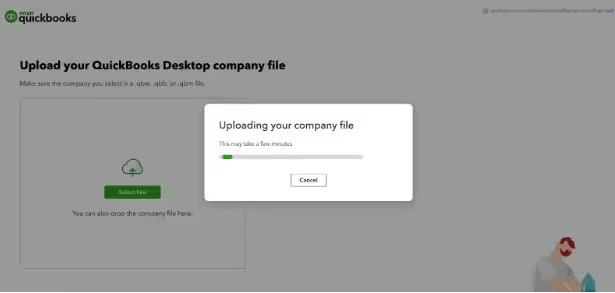
- Click “Open” to upload your file, or simply drag and drop your QuickBooks Desktop file to start the upload.
- Once uploaded, your file will automatically update to the latest QuickBooks Desktop version.
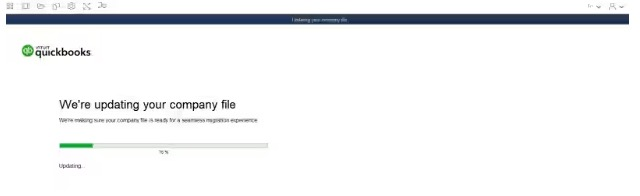
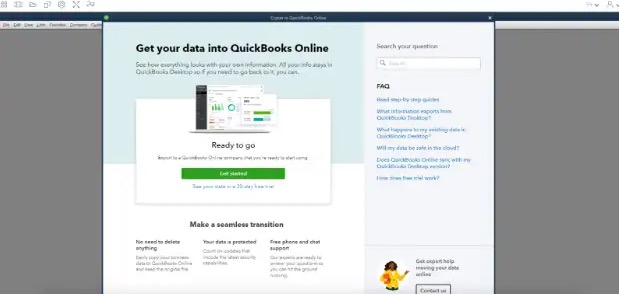
- Move to QuickBooks Online:
- After the update, select the option to move your file to QuickBooks Online.
- Follow the on-screen instructions to complete the migration process.
Step 5: Set Up and Start Using QuickBooks Online
QuickBooks Online design has been updated. If the layout in your version looks different from tutorials or videos, use the in-app Search bar to quickly find the required page.
What to Set Up in Your New QuickBooks Online Company?
- Schedule a 1-hour call with an expert
- Get answers about your data migration, a walkthrough of QuickBooks Online, and guidance on everyday tasks.
- Visit the Move from QuickBooks Desktop to QuickBooks Online Resource Center to schedule your call.
- Review getting started resources
- Explore Get started with QuickBooks Online and Get started and Adjust settings after you sign up for QuickBooks Online.
- Connect your bank or credit card accounts
- Link your accounts to automate transaction tracking and reconciliation.
- Create and send invoices
- Set up invoices for your customers to streamline billing.
- Note: If you track sales tax, configure location-based sales tax in QuickBooks first.
- Track bills and payments
- Enter your bills and learn how to manage payments within QuickBooks Online.
- Set up and run payroll
- Follow the guide to configure and process payroll in QuickBooks Online.
- Note: You’ll need to sign in to QuickBooks Online or review the article Get started with Online Payroll.
Step 6: Verify Your Data (The Most Important Step)
Once your data moves into the cloud, do not take it for granted that everything is perfectly intact. QuickBooks Desktop and QuickBooks Online use slightly different databases, accounting logic, and inventory valuation systems. Before you run a single new transaction or invite your team, you must prove your numbers match down to the exact penny.
Grab a cup of coffee, open your old Desktop file on one screen, your new Online file on the other, and run this three-step verification checklist:
1. The Core Financial Report Matchup
Run the following three reports for “All Dates” using the Accrual basis in both platforms. Print them or export them to Excel and compare them side-by-side:
| Report Name | What to Cross-Check | Why It Matters |
| Trial Balance | Compare the debit and credit balances for every single account. | This is your ultimate safety net. If the total debits and credits match across both platforms, your core double-entry accounting is intact. |
| Profit & Loss (P&L) | Check net income, total revenue, and total expenses for current and prior years. | Ensures your historical tax years and performance metrics didn’t lose any transactions during transit. |
| Balance Sheet | Compare total assets, liabilities, and equity. | Verifies that your historical company value, bank balances, and retained earnings migrated flawlessly. |
2. Clear Out the Critical “Problem Accounts”
Certain accounts behave differently after a migration. Pay close attention to these three:
- Accounts Receivable (A/R) & Accounts Payable (A/P): Run an A/R Aging and A/P Aging report in both versions. Make sure the total outstanding balances match, and check that open invoices are still correctly linked to their respective customers and vendors.
- Undeposited Funds: Check this balance carefully. Sometimes, payments that were sitting in “Undeposited Funds” in Desktop get deposited or duplicated during the cloud shift.
⚠️ The Inventory Valuation Trap (Crucial for Retail/E-commerce) QuickBooks Desktop tracks inventory using the Average Cost method, while QuickBooks Online strictly uses FIFO (First-In, First-Out). Because of this structural shift, your final inventory valuation will likely change upon migration. Consult your CPA immediately to post an adjusting journal entry and determine if you need to file IRS Form 3115 for changing your accounting method.
3. Complete a Fresh Bank Reconciliation
Even if you reconciled everything in Desktop before moving, the migration process can occasionally break the “reconciled” status flags on individual transactions.
- Go to the Reconcile screen in QuickBooks Online for your main bank and credit card accounts.
- Check the opening balances. If they look off, use your last successful reconciliation statement from Desktop to manually mark those historical transactions as cleared.
Why Companies Switch to QuickBooks Online?
Businesses are switching to QuickBooks Online to take advantage of cloud-based features that improve accessibility, collaboration, and efficiency. With remote access, real-time updates, and automatic software upgrades, companies streamline accounting and collaborate seamlessly across multiple locations.
- Remote Access and Multi-Device Compatibility: Access your financial data anytime, anywhere, from any device.
- Automatic Updates with New Features: QuickBooks Online updates automatically with the latest features.
- Real-Time Collaboration with Accountants: Collaborate instantly with accountants and team members.
- Secure Cloud Storage: Store your data safely in the cloud to prevent loss.
- Bank Feeds & Reconciliation: Automatically import and categorize transactions for faster reconciliation.
- Simplified Invoicing and Payments: Create, send, and track invoices with integrated payment options.
- Improved Reporting and Analytics: Generate reports and dashboards for better financial insights.
- Integration with Third-Party Apps: Connect to payroll, CRM, inventory, and other business tools.
- Scalable Solutions: QuickBooks Online grows with your business needs.
- Enhanced Mobile Accessibility: Manage finances on the go using the mobile app.
Limitations When Switching to QuickBooks Online
QuickBooks Online enables cloud-based flexibility and collaboration, though some limitations exist during the transition. Some advanced inventory and industry-specific features from Desktop may not be fully available, a stable internet connection is required, subscription costs can be higher for large teams, offline access is restricted, and very large files may face migration challenges.
- Advanced inventory and industry-specific features may be limited.
- Requires a stable internet connection for reliable access.
- Higher subscription costs for larger teams or advanced plans.
- Limited offline access as compared to Desktop versions.
- Certain custom reports and workflows may need reconfiguration.
- File size and data migration restrictions for very large company files.
- Multi-currency support may be limited in lower-tier plans.
- Integration with some legacy third-party apps may be restricted.
Case Example: QuickBooks Migration
A mid-sized retail store switched from QuickBooks Desktop Premier to QuickBooks Online for real-time financial dashboards, instant remote access and simplified payroll. However, QuickBooks Online’s built-in inventory tools didn’t fully meet their inventory needs, so they integrated a third-party app to regain control over stock management. This example shows that understanding your feature needs in advance ensures a seamless migration.
As of 2025, Intuit is gradually discontinuing certain QuickBooks Desktop versions, making QuickBooks Online as the go-to solution for most businesses.
- QuickBooks Desktop 2021: Support ended on May 31, 2024
- QuickBooks Desktop 2022: Support ended on May 31, 2025
- Pro Plus, Premier Plus, Mac Plus, Enhanced Payroll: New subscriptions discontinued as of Sept 30, 2024; existing subscribers can still renew.
Conclusion!
Migrating from QuickBooks Desktop to QuickBooks Online provides businesses with cloud-based flexibility, real-time collaboration, and streamlined accounting operations. By carefully preparing your data, following a structured step-by-step migration process, and understanding both the benefits and limitations, you can ensure a smooth transition without disrupting business operations. With cloud access, automatic updates, and advanced reporting, QuickBooks Online enables businesses to manage finances efficiently and drive long-term growth.
Looking for professional support? Contact our migration experts for a seamless transfer, or explore our detailed guides on QuickBooks Online setup and payroll integration.
FAQs
How long does QuickBooks migration take?
Migration can take a few hours to a couple of days, depending on file size and data complexity.
Can all data from QuickBooks Desktop be moved to Online?
Most data transfers, including customers, vendors, chart of accounts, and transactions. Some details (like custom reports or attachments) may require manual setup.
Do I need to cancel my QuickBooks Desktop subscription after migration?
Yes, if you no longer plan to use Desktop but keep a backup copy for future reference.
What if my payroll data doesn’t transfer correctly?
QuickBooks Online Payroll setup requires extra verification. Always run payroll migration a few days before the next pay cycle.
Is QuickBooks Online more expensive than Desktop?
Costs vary by plan and number of users. QuickBooks Online can be pricier, but it offers cloud access, automatic updates, and lower IT maintenance expenses.
Can I migrate from QuickBooks Desktop Enterprise to Online?
Yes, but very large company files may need third-party migration tools or professional assistance.
What should I do if errors occur during migration?
Use the QuickBooks Tool Hub or contact Intuit Support to troubleshoot and resolve migration errors.
Useful-Resources
Comparisons
Issues
Third Party Service Providers