
Error 1642 in QuickBooks Desktop usually appears when the update process cannot complete successfully. The most common causes include corruption in the Microsoft .NET Framework, problems with the Windows Installer service, or damaged QuickBooks update files. When this error occurs, QuickBooks is unable to install the latest patches, which not only interrupts the update cycle but also leaves the software exposed to unresolved bugs, performance issues, and potential security vulnerabilities.
By following the solutions step‑by‑step, users can systematically eliminate the causes of Error 1642 and restore QuickBooks updates without unnecessary trial and error.
1.Top Solutions (Success Rate Above 70%)
- Solution 1: Run the QuickBooks Install Diagnostic Tool
- Solution 2: Update Windows (Especially .NET Framework & Installer)
2.Moderate Success Solutions (Success Rate 60–75%)
- Solution 3: Run QuickBooks Update in Administrator Mode
- Solution 4: Temporarily Disable Antivirus / Firewall
3.Advanced Solutions (Success Rate 50–65%)
- Solution 5: QuickBooks Clean Update (Reset Update Cache)
- Solution 6: Repair Microsoft .NET Framework Manually
Contents
- 1 Solution 1: Run the QuickBooks Install Diagnostic Tool (Still #1 for Update Cases)
- 2 Solution 2: Install Windows Updates + Optional .NET Updates
- 3 Solution 3: Run QuickBooks Update in Administrator Mode
- 4 Solution 4: Temporarily Disable Antivirus / Security Software
- 5 Solution 5: QuickBooks Clean Update (Reset Update Cache)
- 6 Solution 6: Repair Microsoft .NET Framework (Manual – Advanced)
Solution 1: Run the QuickBooks Install Diagnostic Tool (Still #1 for Update Cases)
Effectiveness: ~85–90% (Highest)
When Error 1642 appears during a QuickBooks update, it usually means the Microsoft .NET Framework or Windows Installer failed midway through the update process. The QuickBooks Install Diagnostic Tool is designed to automatically detect and repair these issues.
What this tool does:
- Repairs corrupted .NET Framework files
- Fixes Windows Installer issues
- Repairs background components required during QuickBooks updates (MSXML, C++ redistributables)
Step 1: Close QuickBooks completely
- Click the X button at the top‑right corner of your QuickBooks window.
- Press Ctrl + Shift + Esc to open the Task Manager.
- In the Processes tab, look for any QuickBooks processes still running.
- Select each QuickBooks process and click End Task.
- Closing QuickBooks completely prevents conflicts while the diagnostic tool runs.
Step 2: Download and install QuickBooks Tool Hub
- Open your web browser and go to the official Intuit website.
- Search for “QuickBooks Tool Hub download” on the Intuit support page.
- Click the download button to save the QuickBooksToolHub.exe file.
- Save it to a location you can easily find (Desktop or Downloads).
- File size is approximately 50–80 MB and may take a few minutes depending on internet speed.
Step 3: Install Tool Hub on your computer
- Locate the QuickBooksToolHub.exe file you downloaded.
- Double‑click the file to start installation.
- Click Yes when Windows asks for permission.
- Read and accept the terms and conditions.
- Installation takes about minutes and creates a desktop icon.
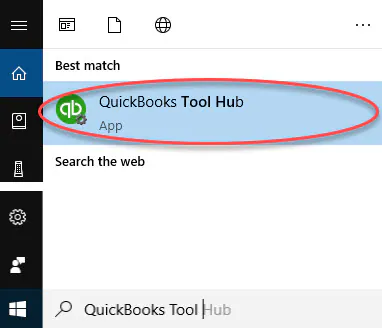
Step 4: Open QuickBooks Tool Hub
- Double‑click the QuickBooks Tool Hub icon on your desktop.
- The Tool Hub window opens with several tabs at the top.
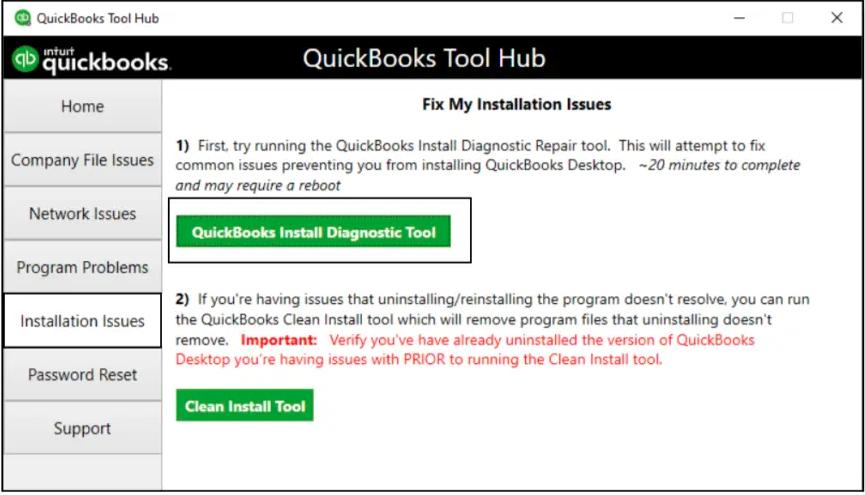
- Click the tab labeled Installation Issues.
- This tab contains tools designed to fix installation/update problems.
- Select QuickBooks Install Diagnostic Tool.
Step 5: Run QuickBooks Install Diagnostic Tool
- Click the QuickBooks Install Diagnostic Tool button.
- A message appears stating the tool may take minutes to complete.
- Click Start to begin the diagnostic process.
- The tool scans your system for problems with .NET Framework, MSXML, and C++ components.
- A progress indicator shows the tool is working.
- Do not close Tool Hub or restart your computer while the tool runs.
- The tool repairs any problems automatically without requiring manual input.
Step 6: Restart your computer
- When the diagnostic tool finishes, close Tool Hub.
- Click the Windows Start button, Power and then Restart.
- Your computer shuts down and restarts automatically.
- Restarting applies the fixes made to system components.
Step 7: Try updating QuickBooks again
- After restart, open QuickBooks Desktop.
- Go to Help and check for “Update QuickBooks Desktop”.
- Click Update Now and install the update.
- The update should proceed without showing Error 1642.
Note:This is the most effective fix for update‑related Error 1642.
Solution 2: Install Windows Updates + Optional .NET Updates
Effectiveness: ~80–85%
QuickBooks relies on the Microsoft .NET Framework installed in Windows to run updates. If Windows or .NET is outdated, the update process may fail, resulting in Error 1642. Installing the latest Windows updates (including optional .NET updates) ensures QuickBooks has the required components to update successfully.
Step 1: Open Windows Settings
- Press Windows + I on your keyboard to open the Settings window.
- In the Settings menu, click Update & Security.
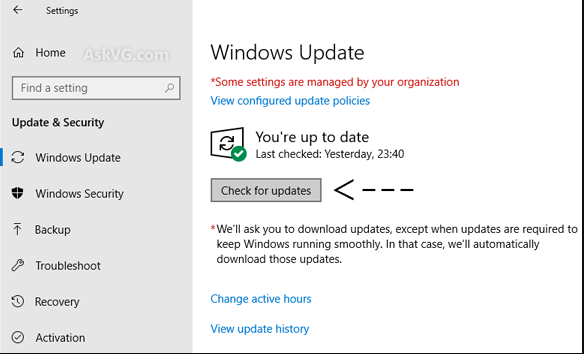
- Select Windows Update from the left‑hand panel.
Step 2: Check for Updates
- In the Windows Update section, click the Check for updates button.
- Windows will search for available updates.
- If updates are found, they will begin downloading automatically.
Step 3: Install Optional Updates (Especially .NET Framework)
- Scroll down and look for Optional updates.
- Expand the list to see available updates.
- Select and install any updates related to Microsoft .NET Framework or system components.
- Installing these optional updates ensures QuickBooks can reuse the latest .NET version during updates.
Step 4: Restart Your Computer
- Once updates are installed, click the Windows Start button, Power and then Restart..
- Your computer will shut down and restart automatically.
- Restarting applies the updates and refreshes system components.
Step 5: Run QuickBooks Update Again
- After restart, open QuickBooks Desktop.
- Go to Help and then “Update QuickBooks Desktop”.
- Click Update Now and allow QuickBooks to download and install the update.
- The update should now proceed without triggering Error 1642.
Note: After updating Windows, run the QuickBooks Install Diagnostic Tool again. This combination significantly increases the success rate of resolving update‑related errors.
Solution 3: Run QuickBooks Update in Administrator Mode
Effectiveness: ~70–75%
Sometimes QuickBooks fails to update because the user account does not have sufficient permissions to modify system files. Running QuickBooks in Administrator Mode ensures the program has full access to required folders and registry entries, preventing Error 1642 during the update process.
Step 1: Close QuickBooks
- If QuickBooks is currently open, click the X button in the top‑right corner to close the program.
- This ensures no background processes interfere when reopening QuickBooks with elevated permissions.
Step 2: Run QuickBooks as Administrator
- Locate the QuickBooks Desktop icon on your desktop or in the Start menu.
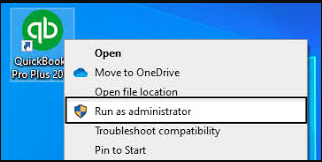
- Right‑click the icon.
- From the menu that appears, select Run as Administrator.
- Click Yes when Windows asks if you want to allow QuickBooks to make changes to your device.
- QuickBooks will now open with elevated permissions.
Step 3: Access QuickBooks Update
- Inside QuickBooks, go to the top menu bar.
- Click Help.
- From the dropdown menu, select Update QuickBooks Desktop.
- The Update window will open.
Step 4: Download and Install the Update
- In the Update window, click the Update Now tab.
- Select the updates available for QuickBooks.
- Click Get Updates to begin downloading.
- Once the download completes, restart QuickBooks.
- When prompted, install the update.
Solution 4: Temporarily Disable Antivirus / Security Software
Effectiveness: ~65–70%
During QuickBooks updates, antivirus or firewall software may mistakenly block installer files or interfere with the .NET Framework processes required for the update. Temporarily disabling these security tools allows QuickBooks to complete the update without interruption.
Note: Security tools should only be disabled temporarily and must be re‑enabled immediately after the update finishes.
Step 1: Disconnect the Internet
- Before disabling antivirus or firewall protection, disconnect your computer from the internet to prevent exposure to threats.
- Click the Network icon in the taskbar available at bottom‑right corner.
- Select your active Wi‑Fi or Ethernet connection.
- Click Disconnect or Turn off Wi‑Fi.
Step 2: Turn OFF Antivirus Real‑Time Protection
- Open your antivirus program (e.g., Norton, McAfee, Avast, or Windows Security).
- Locate the Real‑Time Protection or Active Protection setting.
- Toggle the switch to Off or select Disable temporarily.
- Confirm the action if prompted.
- This prevents the antivirus from blocking QuickBooks update files.
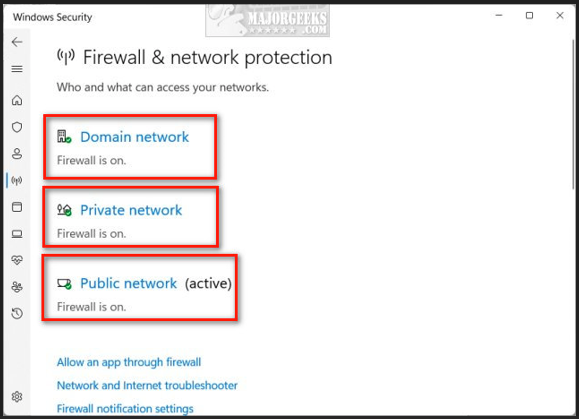
Step 3: Temporarily Disable Windows Defender Firewall
- Press Windows + R, type “control”, and press Enter to open the Control Panel.
- Click System and Security and then open Windows Defender Firewall.
- In the left panel, click Turn Windows Defender Firewall on or off.
- Select Turn off Windows Defender Firewall (not recommended) for both private and public networks.
- Click OK to apply changes.
Step 4: Run the QuickBooks Update
- Open QuickBooks Desktop.
- Go to the “Help” section and select Update QuickBooks Desktop.
- Click Update Now and allow QuickBooks to download and install the update.
- The update should now proceed without triggering Error 1642.
Step 5: Re‑enable All Security Settings
- After the update completes, reconnect to the internet.
- Turn Real‑Time Protection back ON in your antivirus program.
- Re‑enable Windows Defender Firewall by selecting Turn on Windows Defender Firewall in the Control Panel.
- Verify that all security tools are active again to protect your system.
Note: Only disable antivirus and firewall protection temporarily. Leaving them off permanently exposes your computer to security risks.
Solution 5: QuickBooks Clean Update (Reset Update Cache)
Effectiveness: ~60–65%
Sometimes QuickBooks update files get corrupted, leading to errors like 1642. Resetting the update cache clears out old or damaged update files and forces QuickBooks to download fresh ones. This often resolves update‑specific corruption issues and helps the installer run smoothly. It’s a moderately effective fix, best used when repeated update failures occur. However, deeper system issues may still require advanced repair tools or a reinstall.
Step 1: Open QuickBooks
- Double‑click the QuickBooks Desktop icon on your desktop.
- Wait for the program to fully load.
- In QuickBooks, go to the top menu bar.
- Click Help.
- From the dropdown menu, select Update QuickBooks Desktop.
- The Update window will open.
Step 3: Reset the Update Cache
- In the Update window, go to the Update Now tab.
- Check the box labeled Reset Update.
- This clears previously downloaded update files that may be corrupted.
Step 4: Close QuickBooks
- Click the X button in the top‑right corner to close QuickBooks.
- Ensure the program is fully closed before proceeding.
Step 5: Reopen QuickBooks and Download Updates Again
- Double‑click the QuickBooks Desktop icon to reopen the program.
- Go back to the Help menu and Update QuickBooks Desktop.
- Click Update Now to download fresh update files.
- Once the download completes, restart QuickBooks to install the update.
Note: This step is effective when update‑specific corruption is the cause of Error 1642.
Solution 6: Repair Microsoft .NET Framework (Manual – Advanced)
Effectiveness: ~50–60%
When all other fixes fail, the root cause is often deep corruption in Microsoft .NET Framework. Since QuickBooks relies heavily on .NET for updates, repairing it manually can resolve persistent Error 1642. Use this solution if the error occurs during every update attempt, the QuickBooks Install Diagnostic Tool fails, and other fixes (Windows Updates, Clean Update, Admin Mode) did not work. This is an advanced step, typically requiring careful manual repair or reinstall of .NET components.
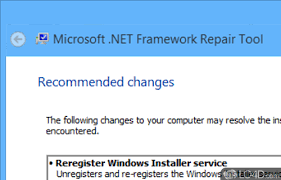
Step 1: Download Microsoft .NET Repair Tool
- Open your web browser and go to the official Microsoft website.
- Search for “.NET Framework Repair Tool”.
- Download the tool to your computer.
Step 2: Run the Repair Tool
- Double‑click the downloaded file.
- Click Yes when Windows asks for permission.
- Follow the on‑screen instructions to repair .NET components.
- The tool automatically scans and fixes common .NET issues.
Step 3: Manually Repair via Windows Features (If Needed)
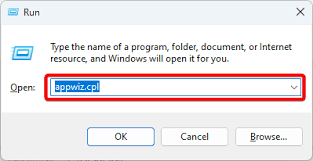
- Press Windows + R, type “appwiz.cpl”, and press Enter.
- In the left panel, click Turn Windows features on or off.
- Locate .NET Framework in the list.
- Uncheck the box to disable it, then click OK.
- Restart your computer.
- Return to the same menu and re‑enable .NET Framework by checking the box again.
- Restart your computer once more to apply changes.
Step 4: Try Updating QuickBooks Again
- Open QuickBooks Desktop.
- Go to help and Update QuickBooks Desktop.
- Click Update Now and install the update.
Note: This step is not recommended without proper IT knowledge, as incorrect changes to .NET Framework may affect other applications on your system.
Check out All the related Frequently Asked Questions around QuickBooks Error 1642