
Error 1642 during installation of QuickBooks Desktop which is related to Microsoft .Net can be solved with solutions ranging from using a diagnostic tool; doing a clean install; and even a manual installation of .Net if any other solutions out there does not work at all
Below are the solutions that will help you to fix Error 1642.
- Top Solutions (Success Rate Above 70%)
- Solution 1: Run the QuickBooks Install Diagnostic Tool
- Solution 2: Update Windows (Especially .NET Framework & Installer)
- Moderate Success Solutions (Success Rate 60–75%)
- Solution 3: Clean Install QuickBooks
- Solution 4: Run Installer as Administrator
- Advanced Solutions (Success Rate 50–65%)
- Solution 5: Install .NET Framework Manually
- Solution 6: Disable Antivirus / Firewall Temporarily
Top Solutions (Success Rate Above 70%)
Contents
- 1 Solution 1: Run the QuickBooks Install Diagnostic Tool
- 2 Solution 2: Update Windows (Especially .NET Framework & Installer)
- 2.1 Step 1: Open Windows Settings
- 2.2 Step 2: Navigate to Windows Update
- 2.3 Step 3: Check for available updates
- 2.4 Step 4: Install all available updates
- 2.5 Step 5: Restart your computer after updates install
- 2.6 Step 6: Verify updates completed successfully
- 2.7 Step 7: Run Install Diagnostic Tool again for best results
- 2.8 Step 8: Attempt QuickBooks installation
- 3 Solution 3: Clean Install QuickBooks
- 3.1 Step 1: Backup your QuickBooks company file
- 3.2 Step 2: Uninstall QuickBooks through Control Panel
- 3.3 Step 3: Rename QuickBooks installation folders
- 3.4 Step 4: Handle access denied errors during renaming
- 3.5 Step 5: Restart your computer
- 3.6 Step 6: Download fresh QuickBooks installer from Intuit
- 3.7 Step 7: Install QuickBooks with administrator rights
- 3.8 Step 8: Complete the installation process
- 4 Solution 4: Run Installer as Administrator
- 5 Solution 5: Install .NET Framework Manually
- 5.1 Step 1: Determine which .NET version QuickBooks needs
- 5.2 Step 2: Go to Microsoft’s official .NET Framework download page
- 5.3 Step 3: Download the .NET Framework installer
- 5.4 Step 4: Run the .NET Framework installer as administrator
- 5.5 Step 5: Restart your computer after installation
- 5.6 Step 6: Enable .NET Framework 3.5 in Windows Features
- 5.7 Step 7: Verify .NET Framework installation
- 5.8 Step 8: Try installing QuickBooks again
- 6 Solution 6: Disable Antivirus / Firewall Temporarily
- 6.1 Step 1: Turn off Windows Defender real-time protection
- 6.2 Step 2: Disable third-party antivirus software
- 6.3 Step 3: Temporarily disable Windows Firewall
- 6.4 Step 4: Disconnect from the internet for safety
- 6.5 Step 5: Run the QuickBooks installation
- 6.6 Step 6: Re-enable all security protections immediately
- 6.7 Step 7: Re-enable third-party antivirus
Solution 1: Run the QuickBooks Install Diagnostic Tool
Effectiveness: 85%+
The QuickBooks Install Diagnostic Tool automatically detects and repairs issues with Microsoft .NET Framework, MSXML, and Windows Installer that cause error 1642. The tool scans your system for corrupted installation components and fixes them without requiring manual troubleshooting. The tool automatically repairs Microsoft .NET Framework files, MSXML components, and C++ redistributables that QuickBooks requires to install properly.
Step 1: Close QuickBooks completely
- Click the X button at the top-right corner of your QuickBooks window to close the program.
- Press Ctrl + Shift + Esc on your keyboard to open Task Manager.
- Look for any QuickBooks processes still running in the Processes tab. Click on each QuickBooks process you see and click “End Task” to stop them.
- Closing QuickBooks completely prevents conflicts while the diagnostic tool runs.
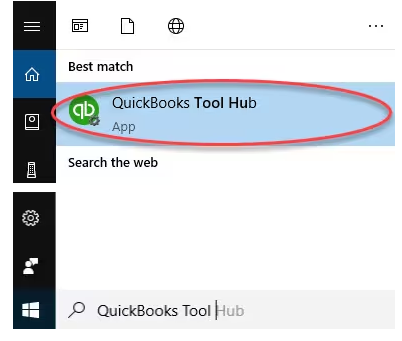
Step 2: Download and install QuickBooks Tool Hub
- Open your web browser and go to the official Intuit website. Search for “QuickBooks Tool Hub download” on the Intuit support page.
- Click the download button to save the QuickBooksToolHub.exe file to your computer.
- Choose a location you can easily find, such as your Desktop or Downloads folder. The file size is approximately 50-80 MB and takes a few minutes to download depending on your internet speed.
Step 3: Install Tool Hub on your computer
- Find the QuickBooksToolHub.exe file you just downloaded. Double-click the file to start the installation.
- Click “Yes” when Windows asks if you want to allow the app to make changes to your device.
- Read the terms and conditions that appear on screen. Click “I Accept” to agree and continue with the installation.
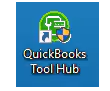
- The Tool Hub installs automatically and creates an icon on your desktop. The installation takes about 2-3 minutes to complete.
Step 4: Open QuickBooks Tool Hub
- Double-click the QuickBooks Tool Hub icon on your desktop to open the program.
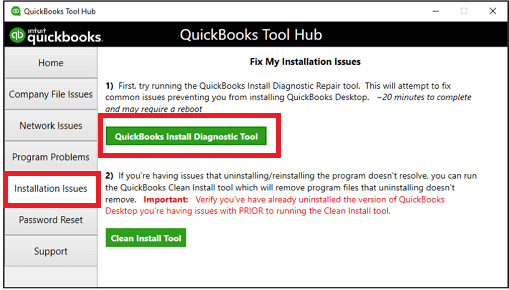
- The Tool Hub window opens and displays several tabs at the top.
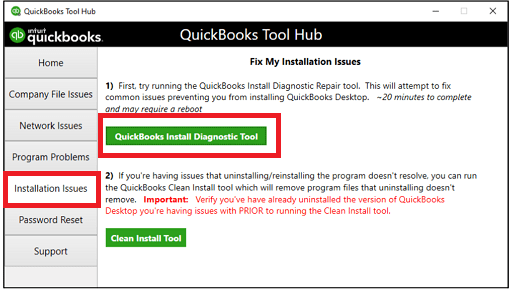
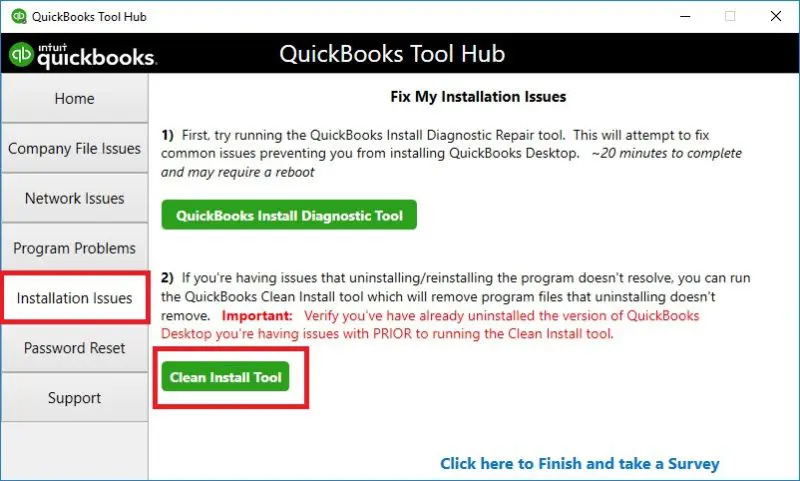
- Look for the tab labeled “Installation Issues” and click on it.
- The Installation Issues tab contains several tools designed to fix installation problems.
- You see options including QuickBooks Install Diagnostic Tool, which is the tool you need for error 1642.
Step 5: Run QuickBooks Install Diagnostic Tool
- Click on the “QuickBooks Install Diagnostic Tool” button in the Installation Issues tab. A message appears telling you the tool may take 10-20 minutes to complete.
- Click “OK” or “Start” to begin the diagnostic process. The tool runs automatically and scans your system for problems with .NET Framework, MSXML, and C++ components.
- You see a progress indicator showing the tool is working. Do not close the Tool Hub window or restart your computer while the tool runs.
- The tool fixes any problems it finds without asking you for additional input.
Step 6: Restart your computer
- The Tool Hub displays a message when the diagnostic tool finishes running. Close the Tool Hub window by clicking the X button.
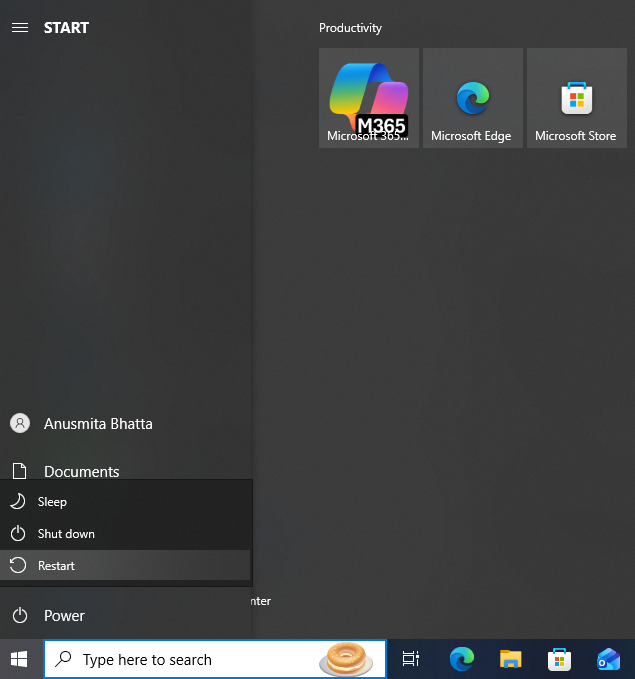
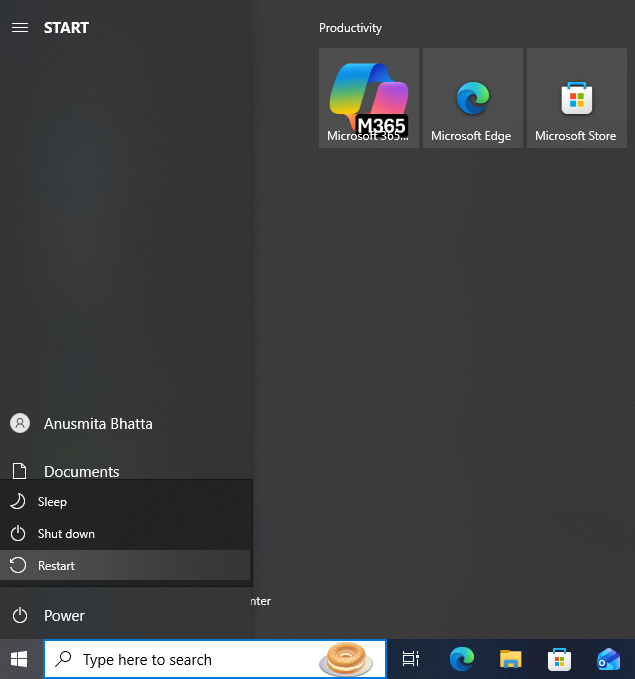
- Click the Windows Start button in the bottom-left corner of your screen.
- Click the Power icon and select “Restart” from the menu.
- Your computer shuts down and restarts automatically. Restarting applies the fixes the diagnostic tool made to your system components.
Step 7: Try installing QuickBooks again
- After your computer restarts, locate your QuickBooks installer file.
- Right-click on the QuickBooks installer file.
- Select “Run as Administrator” from the menu that appears.
- Click “Yes” when Windows asks for permission.
- Follow the on-screen instructions to complete the QuickBooks installation.
- The installation should proceed without showing error 1642. The diagnostic tool repaired the corrupted components that were blocking your installation.
Solution 2: Update Windows (Especially .NET Framework & Installer)
Effectiveness: 75-85%
Error 1642 often appears when the required .NET Framework version is missing or corrupted on your system. Windows updates include critical .NET Framework patches and Windows Installer improvements. Updating Windows ensures these components are fresh and compatible with QuickBooks installation.
Step 1: Open Windows Settings
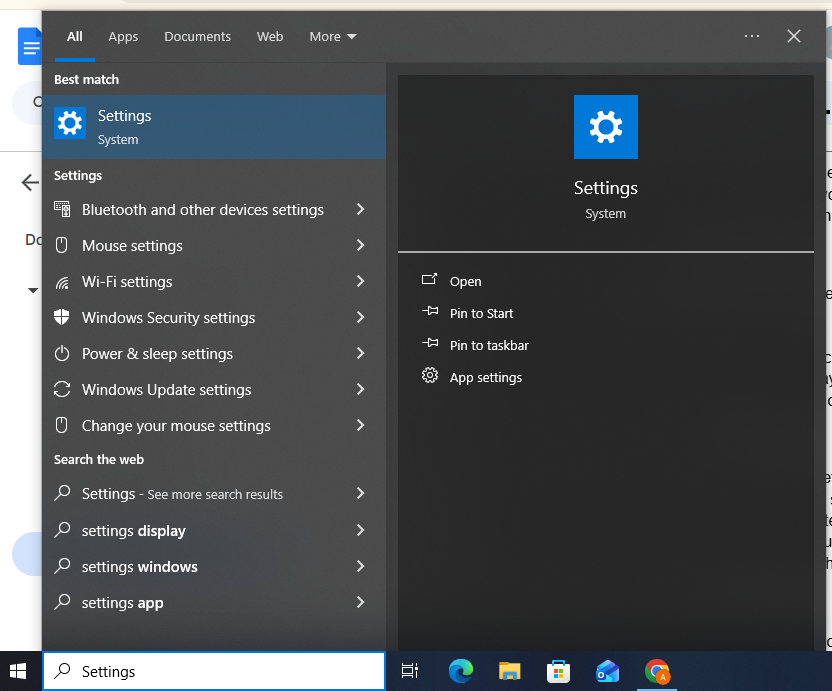
- Press the Windows key on your keyboard (the key with the Windows logo). The Start menu opens on your screen.
- Type “Settings” in the search bar that appears.
- Click on the Settings app (gear icon) in the search results.
- The Windows Settings window opens and displays various configuration options.
- You can also press Windows key + I together to open Settings directly.
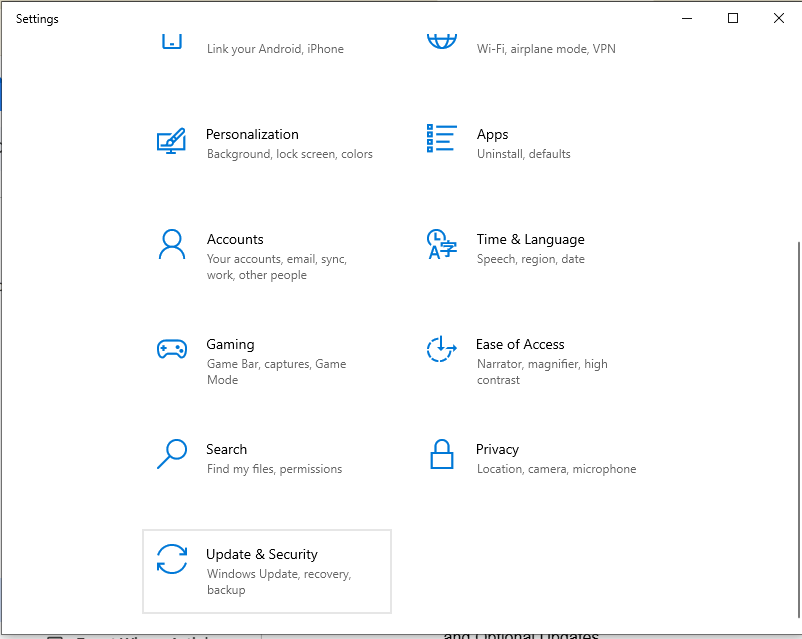
- Look for the “Update & Security” option in the Settings window for Windows 10.
- Click on “Update & Security” to open the update settings.
- For Windows 11 users, click on “Windows Update” directly from the left sidebar.
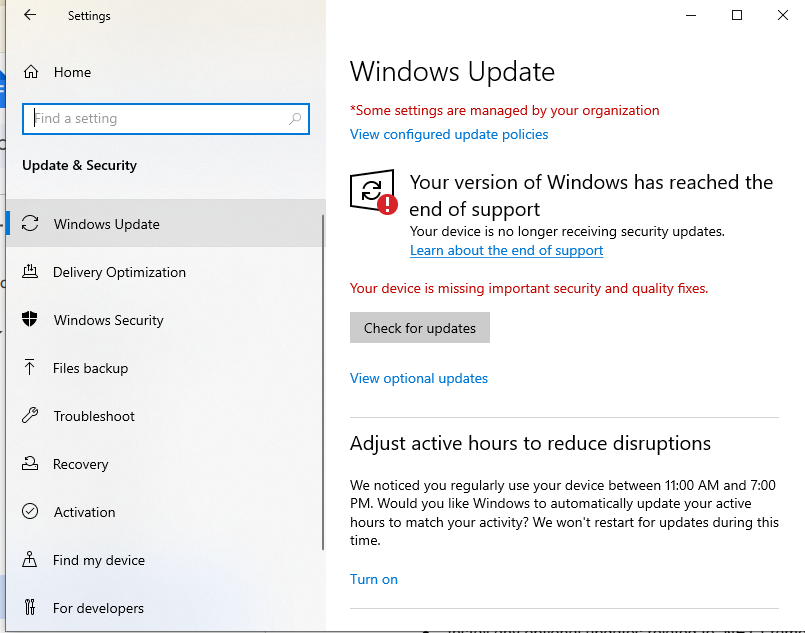
- The Windows Update page shows your current update status.
- You see information about when Windows last checked for updates.
Step 3: Check for available updates
- Click the “Check for updates” button in the Windows Update section. Windows connects to Microsoft servers and searches for available updates.
- The search process takes 1-3 minutes depending on your internet connection.
- A list of available updates appears on your screen when the search completes.
- Windows groups updates into different categories including Security Updates, Feature Updates, and Optional Updates.
Step 4: Install all available updates
- Click “Download and install” or “Install now” for each update shown. Windows begins downloading the updates to your computer.
- The download progress shows as a percentage for each update. Large updates may take 10-30 minutes to download depending on your internet speed.
- Click “View optional updates” at the bottom of the page to see additional updates.
- Install any optional updates related to .NET Framework by clicking “Download and install” next to them.
Step 5: Restart your computer after updates install
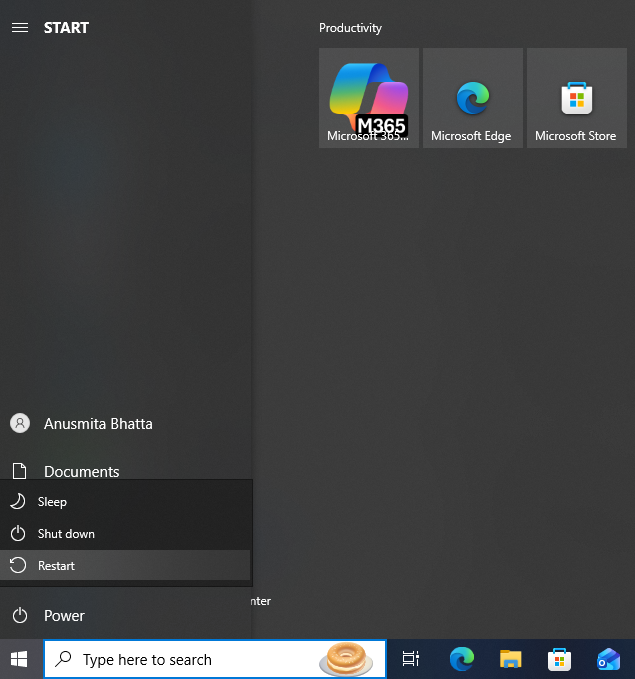
- Windows displays a message saying updates are ready to install or that a restart is required.
- Click “Restart now” to restart your computer immediately.
- Choose “Schedule the restart” if you want to restart at a specific time later.
- Your computer shuts down, installs the updates during restart, and starts up again.
- The restart process takes 5-15 minutes depending on how many updates were installed.
- Do not turn off your computer while updates are installing during restart.
Step 6: Verify updates completed successfully
- After your computer restarts, open Windows Settings again by pressing Windows key + I.
- Navigate back to the Windows Update section.
- Look for a message saying “You’re up to date” or “Your device is up to date.” This confirms all updates installed successfully.
- Check the “Update history” link to see a list of recently installed updates.
- Look for .NET Framework updates in the history list to confirm they are installed.
Step 7: Run Install Diagnostic Tool again for best results
- Open QuickBooks Tool Hub from your desktop icon.
- Click on the Installation Issues tab. Run the QuickBooks Install Diagnostic Tool again even though you just updated Windows.
- The tool verifies that the newly updated components work correctly together.
- Running the tool after Windows updates provides the highest success rate for fixing error 1642.
Step 8: Attempt QuickBooks installation
- Locate your QuickBooks installer file after the diagnostic tool completes. Right-click the installer and select “Run as Administrator.”
- Follow the installation prompts to install QuickBooks.
- The installation should complete without error 1642 now that Windows components are updated.
- Updated .NET Framework and Windows Installer files provide the stable foundation QuickBooks needs.
Moderate Success Solutions (Success Rate 60-75%)
Solution 3: Clean Install QuickBooks
Effectiveness: 70%
A clean installation removes all QuickBooks program files and folders completely before reinstalling. Partial installations from previous failed attempts leave corrupted files that block .NET Framework component installation. The clean install process eliminates these damaged files and provides a fresh foundation for installation.
Step 1: Backup your QuickBooks company file
- Open QuickBooks Desktop if it is currently installed and working.
- Click on the “File” menu at the top of the QuickBooks window.
- Select “Back Up Company” and then “Create Local Backup” from the menu.
- Choose where you want to save the backup file. Save the backup to an external drive or a location separate from your QuickBooks folder.
- The backup file has a .qbb extension and contains all your financial data. Your company data remains safe during the clean install process because you backed it up.
Step 2: Uninstall QuickBooks through Control Panel
- Close QuickBooks completely before starting the uninstall process.
- Press the Windows key and type “Control Panel” in the search bar.
- Click on “Control Panel” to open it.
- Select “Programs and Features” or “Uninstall a Program” from the Control Panel options.
- Find your QuickBooks version in the list of installed programs.
- Click once on QuickBooks to select it. Click the “Uninstall/Change” button at the top of the program list.
- Follow the on-screen prompts to remove QuickBooks from your computer. The uninstall process takes 3-5 minutes to complete.
Step 3: Rename QuickBooks installation folders
- Press Windows key + E together to open File Explorer. Navigate to the following folder locations one at a time. Find the folders that contain QuickBooks installation files at these locations:
- C:\Program Files\Intuit
- C:\Program Files (x86)\Intuit
- C:\ProgramData\Intuit
- C:\Users[Your Username]\AppData\Local\Intuit
- Right-click on each “Intuit” folder you find. Select “Rename” from the menu that appears.
- Add “.old” at the end of the folder name (for example, “Intuit” becomes “Intuit.old”).
- This prevents QuickBooks from accessing old corrupted files during the new installation.
- Repeat this process for all QuickBooks folder locations listed above.
Step 4: Handle access denied errors during renaming
- You may see an “Access Denied” message when trying to rename folders. This means QuickBooks background processes are still running and locking the folders.
- Press Ctrl + Shift + Esc together to open Task Manager.
- Click on the “Processes” tab if it is not already selected.
- Click the “Name” column header to sort processes alphabetically.
- Look for these QuickBooks processes in the list:
- QBDBMgrN.exe
- QBDBMgr.exe
- QBCFMonitorService.exe
- Qbw32.exe
- Click on each process you find and click the “End Task” button.
- Click “Yes” if you see a warning message about terminating the process.
- Try renaming the folders again after ending these processes. The folders should rename successfully now that the processes have stopped.
Step 5: Restart your computer
- Click the Windows Start button.
- Click the Power icon and select “Restart.”
- Your computer shuts down and restarts automatically.
- Restarting clears any remaining QuickBooks processes from memory.
- The restart ensures a completely clean state before reinstalling QuickBooks.
Step 6: Download fresh QuickBooks installer from Intuit
- Open your web browser after your computer restarts.
- Go to the official Intuit QuickBooks website.
- Log into your Intuit account using your email and password.
- Navigate to the “Downloads & Updates” section or “My Account” area.
- Find your QuickBooks product in the list of products you own.
- Click the “Download” button next to your QuickBooks version.
- Save the installer file to your Desktop or Downloads folder. Downloading a fresh installer ensures you do not use a corrupted installer file from previous attempts.
Step 7: Install QuickBooks with administrator rights
- Find the QuickBooks installer file you just downloaded. Right-click on the installer file.
- Select “Run as Administrator” from the context menu. Click “Yes” when Windows asks for permission to allow changes.
- The QuickBooks installation wizard opens on your screen. Enter your License Number and Product Number when prompted.
- You can find these numbers in your purchase confirmation email or on your product packaging.
- Click “Next” to continue through the installation wizard.
Step 8: Complete the installation process
- Accept the license agreement by checking the box and clicking “Next.”
- Choose “Express Installation” for the simplest installation process.
- Click “Install” to begin copying files to your computer.
- The installation progress bar shows the installation status. Installation takes 10-20 minutes depending on your computer speed.
- Click “Finish” when the installation completes. QuickBooks launches automatically after installation finishes.
- Your company data file remains safe because the clean install only affects program files, not data files.
Solution 4: Run Installer as Administrator
Effectiveness: 65%
User Account Control (UAC) permissions block .NET Framework from installing correctly when you run the installer without administrator rights. QuickBooks requires elevated permissions to modify system files and registry entries. Running the installer as administrator grants the necessary permissions for .NET Framework installation to complete.
Step 1: Locate your QuickBooks installer file
- Open File Explorer by pressing Windows key + E together.
- Navigate to the folder where you saved your QuickBooks installer. The installer is usually in your Downloads folder or on your Desktop.
- Look for a file named something like “QuickBooks_2024.exe” or similar. The file has an .exe extension and the QuickBooks logo as its icon.
- Make sure you have downloaded the installer from the official Intuit website to avoid corrupted files.
Step 2: Right-click the installer file
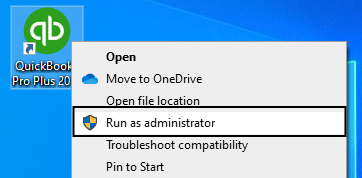
- Position your mouse cursor over the QuickBooks installer file. Right-click on the file to open the context menu.
- A menu appears with several options. Look through the menu options carefully to find the administrator option.
- Different Windows versions may display the menu options in slightly different order.
Step 3: Select “Run as Administrator”
- Click on “Run as Administrator” from the context menu that appeared.
- A User Account Control window pops up asking “Do you want to allow this app to make changes to your device?”
- The UAC prompt shows the installer file name and publisher information. This security prompt ensures you are intentionally giving the installer permission to modify your system.
Step 4: Confirm administrator access
- Click “Yes” in the User Account Control window to grant administrator permissions.
- The QuickBooks installation wizard opens with full administrator rights. You see the QuickBooks welcome screen or setup wizard.
- The installer now has permission to modify system folders, install .NET Framework components, and modify Windows registry.
- Administrator rights allow the installer to complete operations that standard user accounts cannot perform.
Step 5: Proceed with the installation
- Follow the on-screen instructions in the QuickBooks installation wizard. Enter your License Number and Product Number when the installer asks for them.
- Accept the license agreement by checking the box. Choose your installation type (Express or Custom).
- Click “Install” to start copying files to your computer.
- The installation proceeds with full system access. .NET Framework components install without permission errors because the installer has administrator rights.
Step 6: Complete installation and verify success
- Wait for the installation progress bar to reach 100%. Click “Finish” when the installation completes successfully.
- QuickBooks launches automatically if you leave the “Launch QuickBooks” box checked. Try opening QuickBooks manually if it did not launch automatically.
- Your company file should open without errors if the installation succeeded.
- The administrator permissions allowed all necessary system changes to complete.
Advanced Solutions (Success Rate 50-65%)
Solution 5: Install .NET Framework Manually
Effectiveness: 50-65%
Installing .NET Framework manually provides the specific version that QuickBooks requires when automatic installation fails. QuickBooks Desktop relies on specific .NET Framework versions to function. Manually installing from Microsoft’s official website ensures you get clean, uncorrupted Framework files.
Warning: Uninstalling newer .NET Framework versions to install older ones can break other applications on your computer. Only perform .NET Framework version changes if you are comfortable with Windows system administration. Contact an IT professional if you are unsure about modifying .NET Framework installations. Some applications require specific Framework versions and may stop working if you uninstall their required version.
Step 1: Determine which .NET version QuickBooks needs
- QuickBooks Desktop 2022 and newer require .NET Framework 4.8. QuickBooks Desktop 2019 through 2021 require .NET Framework 4.7. All QuickBooks versions also require .NET Framework 3.5 SP1 enabled.
- Check your QuickBooks version by looking at the product name in your purchase confirmation email. Write down which .NET Framework versions you need before proceeding.
- You must install both the 4.x version and enable 3.5 SP1 for QuickBooks to work properly.
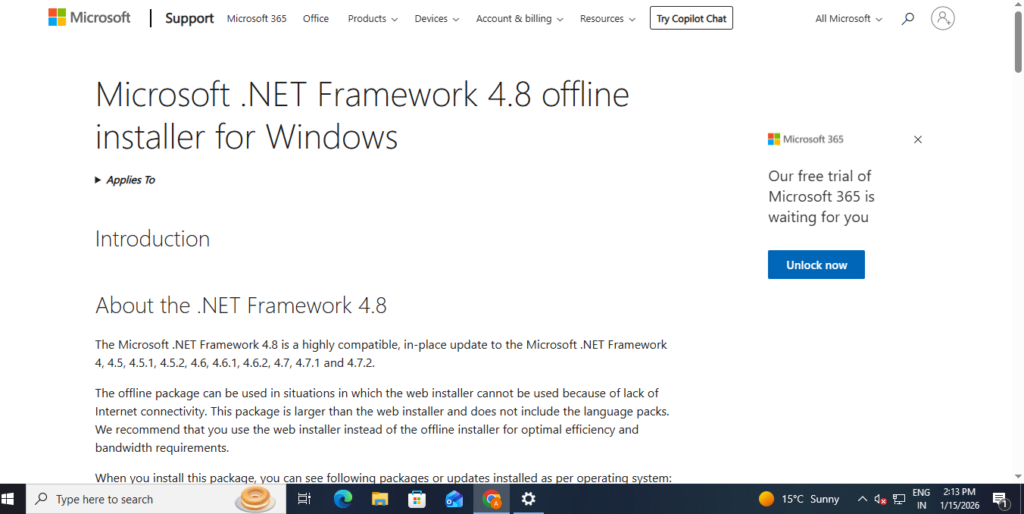
Step 2: Go to Microsoft’s official .NET Framework download page
- Open your web browser and search for “Microsoft .NET Framework download.”
- Click on the official Microsoft download page in the search results. The URL should be microsoft.com/download or dotnet.microsoft.com.
- Look for the .NET Framework version you need (4.7 or 4.8).
- Read the system requirements on the page to confirm your Windows version supports the Framework version.
- Microsoft provides separate installers for different .NET Framework versions.
Step 3: Download the .NET Framework installer
- Click the “Download” button for the .NET Framework version you need. Choose where to save the installer file on your computer.
- Save it to your Desktop or Downloads folder for easy access.
- The download file is approximately 50-100 MB depending on the version.
- Wait for the download to complete before proceeding.
- Check that the file downloaded completely by confirming the file size matches what Microsoft’s website shows.
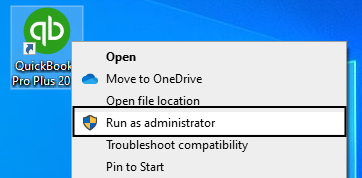
Step 4: Run the .NET Framework installer as administrator
- Find the .NET Framework installer file you just downloaded.
- Right-click on the installer file. Select “Run as Administrator” from the menu.
- Click “Yes” when Windows asks for permission. The .NET Framework setup wizard opens.
- Read and accept the license terms.
- Click “Install” to begin installing .NET Framework on your computer. The installation progress shows as a percentage. .NET Framework installation takes 5-10 minutes depending on your computer speed.
Step 5: Restart your computer after installation
- Click “Finish” when the .NET Framework installation completes.
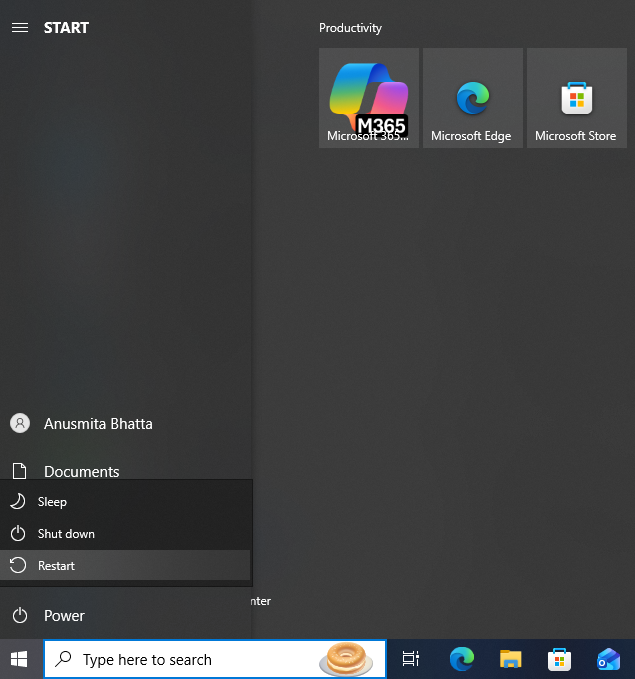
- Click the Windows Start button and select “Restart” from the Power menu. Your computer shuts down and restarts automatically.
- Restarting applies the .NET Framework installation to your system. Windows configures the new Framework components during restart.
- Do not skip the restart because .NET Framework requires a restart to function properly.
Step 6: Enable .NET Framework 3.5 in Windows Features
- Press the Windows key and type “Turn Windows features on or off” in the search bar.
- Click on “Turn Windows features on or off” in the search results.
- The Windows Features dialog box opens showing a list of optional Windows components.
- Scroll down the list to find “.NET Framework 3.5 (includes .NET 2.0 and 3.0).”
- Check the box next to .NET Framework 3.5 to enable it. Click “OK” to save your changes.
- Windows downloads and installs .NET Framework 3.5 if it was not already on your computer.
- This process takes 3-5 minutes. Click “Restart now” when prompted to restart your computer.
Step 7: Verify .NET Framework installation
- Press Windows key + I to open Settings after your computer restarts.
- Click on “Apps” and then “Apps & features.” Type “.NET” in the search box at the top.
- You should see the .NET Framework versions you installed listed in the results.
- The list confirms that .NET Framework installed successfully on your system. Both .NET Framework 4.8 (or 4.7) and .NET Framework 3.5 should appear in the list.
Step 8: Try installing QuickBooks again
- Locate your QuickBooks installer file.
- Right-click the installer and select “Run as Administrator.”
- Follow the installation prompts. The installation should complete without error 1642 now that the required .NET Framework versions are installed.
- QuickBooks can now access the Framework components it needs to install properly.
Solution 6: Disable Antivirus / Firewall Temporarily
Effectiveness: 50-60%
Security software sometimes identifies QuickBooks installation files as potential threats and blocks them. Antivirus programs scan files during installation and may quarantine .NET Framework components. Temporarily disabling protection removes these blocks and allows the installation to complete.
Important safety reminder: Only disable security software temporarily during installation. Keep your computer disconnected from the internet while protections are disabled. Re-enable all security software immediately after QuickBooks installs successfully. Leaving security software disabled exposes your computer to threats from viruses, malware, and hackers.
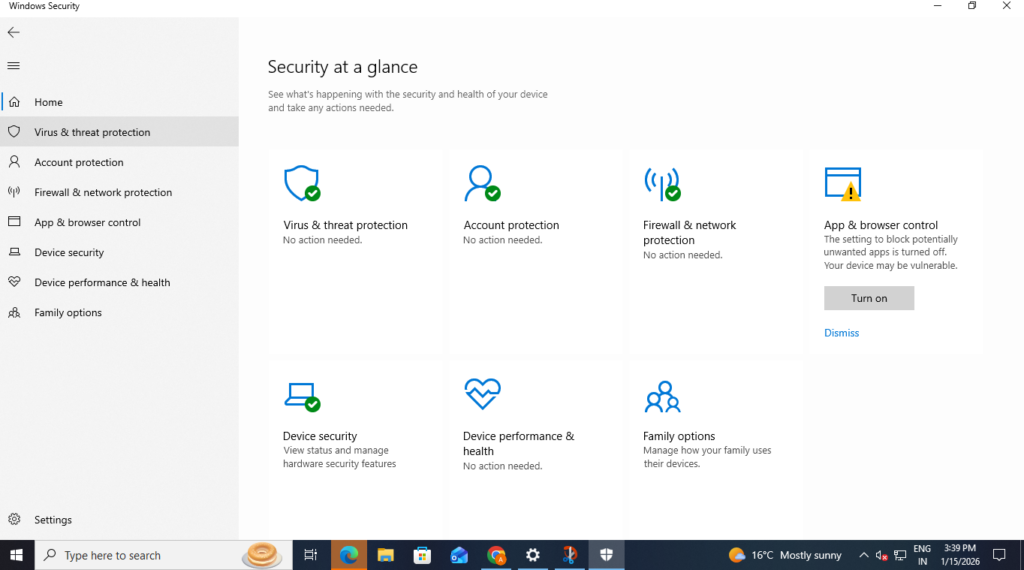
Step 1: Turn off Windows Defender real-time protection
- Click the Windows Start button in the bottom-left corner of your screen.
- Type “Windows Security” in the search bar and press Enter.
- Click on “Windows Security” in the search results to open the security settings.
- Click on “Virus & threat protection” in the left sidebar.
- Click on “Manage settings” under the Virus & threat protection settings section.
- Find the “Real-time protection” toggle switch.
- Click the toggle to turn Real-time protection OFF.
- The switch turns gray when protection is disabled.
- Windows may ask you to confirm this action by clicking “Yes.”
Step 2: Disable third-party antivirus software
- Right-click on your antivirus program icon in the Windows system tray (bottom-right corner near the clock). The system tray shows small icons for programs running in the background.
- Look for icons from Norton, McAfee, Avast, AVG, Kaspersky, or other security programs you have installed.
- Select “Disable,” “Turn Off,” or “Pause Protection” from the menu that appears.
- Choose how long to disable protection (usually options like 10 minutes, 1 hour, or until restart).
- Confirm your choice when the antivirus asks for confirmation. The antivirus icon may change color or show a warning that protection is disabled.
Step 3: Temporarily disable Windows Firewall
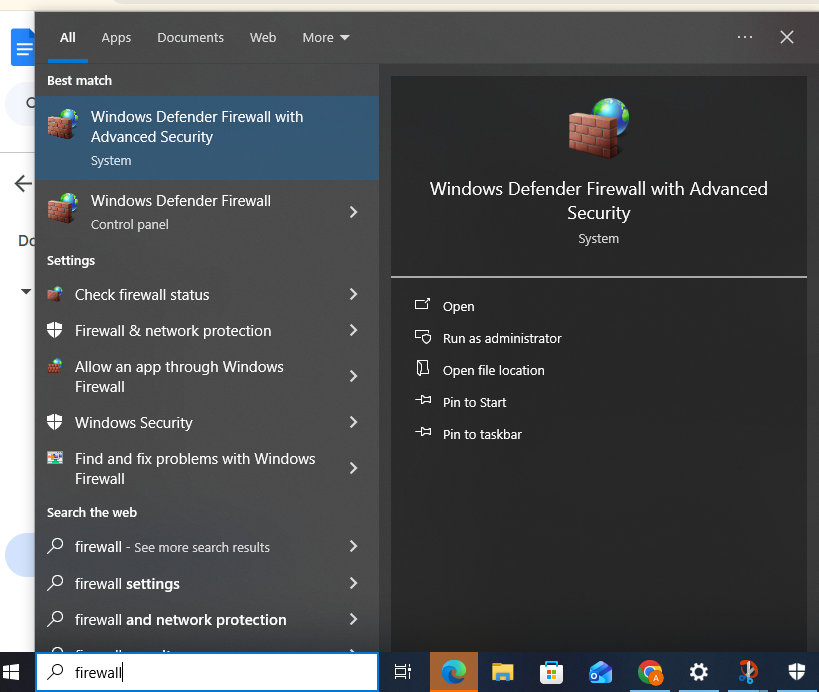
- Type “Firewall” in the Windows search bar and press Enter.
- Click on “Windows Defender Firewall” in the search results.
- Click on “Turn Windows Defender Firewall on or off” in the left sidebar.
- You may need to click “Yes” when User Account Control asks for permission.
- Select “Turn off Windows Defender Firewall” for both Private network settings and Public network settings.
- Click “OK” to save your changes. The Firewall is now temporarily disabled on your computer.
Step 4: Disconnect from the internet for safety
- Click the network icon in the Windows system tray (bottom-right corner). The icon looks like a computer monitor or Wi-Fi signal bars.
- Click on your Wi-Fi network name. Click “Disconnect” to disconnect from your Wi-Fi network.
- You can also unplug your Ethernet cable if you use a wired connection.
- Disconnecting from the internet protects you while your antivirus and firewall are disabled.
- No internet threats can reach your computer while it is offline.
Step 5: Run the QuickBooks installation
- Locate your QuickBooks installer file now that security software is disabled.
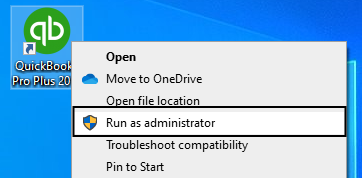
- Right-click the installer and select “Run as Administrator.”
- Click “Yes” to grant administrator permissions. Follow the installation wizard prompts as they appear.
- The installation proceeds without interference from antivirus or firewall software. .NET Framework components install successfully because security software is not blocking them.
- Wait for the installation to complete fully before proceeding.
Step 6: Re-enable all security protections immediately
- Click “Finish” when QuickBooks installation completes. Reconnect to your Wi-Fi network by clicking the network icon and selecting your network.
- Return to Windows Security by searching for it in the Start menu.
- Navigate back to “Virus & threat protection” and “Manage settings.”
- Turn Real-time protection back ON by clicking the toggle switch.
- The switch turns blue when protection is enabled again.
- Return to Windows Defender Firewall settings and turn the firewall back ON for both network types.
Step 7: Re-enable third-party antivirus
- Right-click your antivirus icon in the system tray again. Select “Enable,” “Turn On,” or “Resume Protection” from the menu. Your antivirus protection activates immediately.
- The icon returns to its normal color indicating protection is active.
- Run a quick scan with your antivirus to check your system after having protection disabled. Never leave your antivirus or firewall disabled longer than necessary to complete the installation.
Check out All the related Frequently Asked Questions around QuickBooks Error 1642