
QuickBooks Error 1722 arises when essential Windows components are missing, outdated, or corrupted. This installation error typically results in crashes or rollback failures during setup, blocking QuickBooks from completing the installation successfully. Ensuring Windows Updates are applied and critical system components such as the .NET Framework, MSXML, Visual C++ Redistributables, and Windows Installer are properly configured is key to resolving this issue.
Contents
- 1 Why Windows Updates and System Components Are Required?
- 1.1 Solution 1: Run Windows Update Troubleshooter
- 1.2 Solution 2: Verify Windows Installer Service status
- 1.3 Solution 3: Clear the Windows Update Cache
- 1.4 Solution 4: Manually Install Pending Updates
- 1.5 Solution 5: Reset Windows Update components
- 1.6 Solution 6: Uninstall or reinstall Microsoft Visual C++
- 1.7 Pre‑Installation Checklist for Resolving QuickBooks Error 1722
- 1.8 Additional Ways to Troubleshoot QuickBooks Installation Failures
Why Windows Updates and System Components Are Required?
QuickBooks Desktop relies on several Microsoft technologies to install and run correctly. When these components are outdated, disabled, or corrupted, installation errors like Error 1722 can occur. Keeping Windows updated and ensuring system components are intact is critical for a stable QuickBooks environment.
- Windows Updates deliver security patches, fixes, and improvements that QuickBooks relies on.
- .NET Framework supports installer communication and core QuickBooks functions.
- MSXML processes installer scripts and XML data during setup.
- Visual C++ Redistributables provide runtime libraries required for QuickBooks to run.
- Windows Installer Service manages MSI package installation and configuration for QuickBooks.
Solution 1: Run Windows Update Troubleshooter
Error 1722 can occur if Windows Update services are misconfigured or blocked, preventing QuickBooks from accessing required components during installation. Running the Troubleshooter repairs corrupted settings, clears temporary update files, and restores communication with the Installer service, ensuring QuickBooks can complete setup.
Precautions Before Applying
- Log in as an Administrator before applying updates.
- Disable third‑party antivirus or firewall software that may block update services.
- Ensure your system clock and date are set correctly to avoid update failures.
- Confirm Power Settings are not set to sleep or hibernate during updates.
- Verify that your device is connected to a stable internet connection.
Step-by-Step Guide
- Choose Start > Settings > Update & Security.
- From the left-hand menu, select Troubleshoot > Other troubleshooters.
- Under Most frequent, select Windows Update and click Run the troubleshooter.
- Follow the on-screen instructions to complete the process.
- Once the troubleshooter completes, restart your device to apply the fixes properly.
- Next, check for new updates.
- Select Start > Settings > Windows Update > Check for updates and then install any available updates.
Solution 2: Verify Windows Installer Service status
QuickBooks relies on the Windows Installer (MSI engine) to process installation requests. If the service is disabled or not responding, Error 1722 may appear. Verifying and re‑enabling the Installer service ensures QuickBooks can properly execute MSI packages without rollback failures.
Step 1: Check if the Windows Installer engine is working
- Click Start, type cmd in the Search box.
- Or select Run and type cmd in the dialog (Windows XP or Windows Server 2003), and click Enter to open a Command Prompt window.
- At the command prompt, type MSIExec, and click Enter.
- If no error appears, the engine is working. If errors appear, enter the error message text into a search engine such as Bing or Google to locate troubleshooting information about the issue.
- Try to install or uninstall again.
Step 2: Ensure the Windows Installer service is not disabled
- Select Start, type services.msc in the Search box.
- Or click Run then type services.msc in the dialog (Windows XP or Windows Server 2003), and click Enter to open Services.
- Right-click Windows Installer, and select Properties.
- If the Startup type box is set to Disabled, change it to Manual.
- Choose OK to close the Properties window.
- Click right on the Windows Installer service, and select Start. The service should start without errors.
- Try to install or to uninstall again.
Solution 3: Clear the Windows Update Cache
Corrupted or stuck update files in the Windows cache can block QuickBooks from installing required dependencies. Clearing the cache forces Windows to rebuild fresh update data, eliminating conflicts that trigger Error 1722 during installation.
- Hold and press Win + R, type services.msc, and click Enter.
- Locate the Windows Update service, right-click on it, and choose Stop.
- Go to C:\Windows\SoftwareDistribution.
- Delete all files and folders inside this directory.
- Go back to the Services window, right-click Windows Update, and choose Start.
Solution 4: Manually Install Pending Updates
Outdated system files or missing patches often cause QuickBooks installation errors. Manually installing pending Windows updates ensures critical components like .NET Framework, MSXML, and Visual C++ Redistributables are up to date, reducing the risk of Error 1722.
- Navigate to the Windows Start menu, and click the Gear icon at the left.
- Select Update & Security > Windows Update.
- Choose Check for updates.
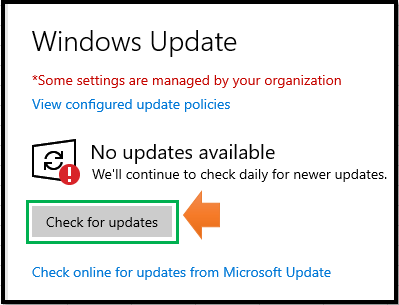
- Click Download & install if any updates are available there. Your device will download and install the updates.
- After this, restart your device to apply the updates.
Solution 5: Reset Windows Update components
QuickBooks may fail to install with Error 1722 when Windows Update services or components are corrupted. Resetting update components (BITS, SoftwareDistribution, Catroot2) restores the update mechanism to its default state, allowing QuickBooks to access the dependencies it needs.
- Press Win + S, type cmd, right‑click Command Prompt, and select Run as administrator.
- Stop the BITS, Windows Update, and Cryptographic services by typing the following commands one at a time:

- Delete the qmgr*.dat files by typing:

- Rename the update folders by typing:
- %Systemroot%\SoftwareDistribution\DataStore
- %Systemroot%\SoftwareDistribution\Download
- %Systemroot%\System32\catroot2

- Reset the BITS and Windows Update services to default security descriptors by typing:

- Switch to the System32 directory by typing:

- Re‑register the BITS and Windows Update files by typing each of these commands and pressing Enter after each:
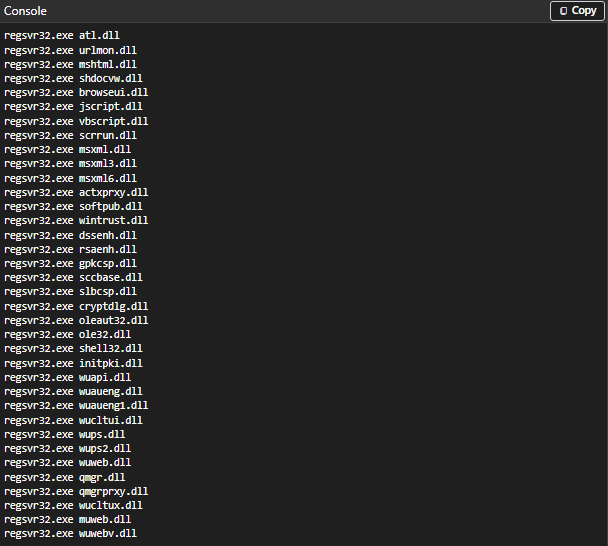
- Reset Winsock by typing:

- For Windows XP or Windows Server 2003, configure proxy settings by typing:

- Restart the BITS services by typing:

- On Windows Vista or Windows Server 2008, clear the BITS queue by entering:

Solution 6: Uninstall or reinstall Microsoft Visual C++
QuickBooks Error 1722 often occurs when essential Microsoft components are missing or corrupted. One of the most critical dependencies is the Microsoft Visual C++ Redistributable Package. QuickBooks Desktop relies on these runtime libraries to execute its installer and core functions.
If the Visual C++ package is outdated or damaged:
- QuickBooks may crash immediately after installation.
- Error codes such as 1722 or 1642 can appear during setup.
- Certain features may fail to load due to missing runtime libraries.
Note: The latest supported Microsoft Visual C++ Redistributable v14 packages are part of the Visual Studio 2015–2022 family, with the current release being version 14.50.35719.0 (x86/x64).
IMPORTANT: These steps involve the Windows operating system, which is not an Intuit product. If you are not comfortable performing them, contact your computer’s manufacturer or Microsoft for assistance.
Uninstall Microsoft Visual C++
- Close all open programs.
- Hold and press Windows+R on your keyboard to open the Run command.
- Enter the Control Panel and click OK.
- Select Uninstall a Program.
- On the list of programs, choose the version of Microsoft Visual C++ for your QuickBooks version. QuickBooks Desktop Pro, Premier and Enterprise: Microsoft Visual C++ 2008 Redistributable
- Choose Uninstall and follow the on-screen instructions to uninstall the program.
- Restart your computer if prompted.
Reinstall Microsoft Visual C++
When installing QuickBooks from a CD:
- Insert the QuickBooks CD in your CD drive. Close the QuickBooks installation window if it opens.
- Hold and press Windows+E on your keyboard to open the Computer window.
- Navigate to D:\ThirdParty\CRT9 or D:\ThirdParty\CRT8, where D: is your CD drive letter.
- Double-click vc_red.msi or vcredist_x86.exe and follow the prompts to install the software.
Download and install Microsoft Visual C++ from the Microsoft website if you don’t have a QuickBooks CD at hand.
Pre‑Installation Checklist for Resolving QuickBooks Error 1722
Ensure your system is properly configured and free of conflicts before installing QuickBooks to avoid Error 1722.
- Windows Updates: Ensure all updates are fully applied.
- .NET Framework: Confirm versions 3.5 and 4.8 are enabled.
- MSXML & Visual C++: Verify components are installed and up to date.
- Windows Installer: Check that the service is active.
- Administrator Access: Run QuickBooks installer with admin rights.
- Pending Restarts: Complete all Windows restarts before retrying installation.
- Security Software: Temporarily disable antivirus or firewall during setup.
- Disk Space: Confirm at least 2 GB free on drive C:.
- System File Integrity: Run sfc /scannow to repair corrupted files.
- Event Viewer: Review logs to identify hidden installer conflicts.
- Update Components: Reset Windows Update services if misconfigured.
Additional Ways to Troubleshoot QuickBooks Installation Failures
Clean Boot Installation
- Perform a clean boot to start Windows with minimal drivers and startup programs.
- This eliminates software conflicts that may block QuickBooks setup.
Disk Cleanup & Temp File Removal
- Run Disk Cleanup to clear temporary files and cached data.
- Excess clutter can interfere with installer scripts and cause rollback errors.
Check User Account Control (UAC) Settings
- Ensure UAC is not set to overly restrictive levels.
- High UAC settings can block installer actions required by QuickBooks.
Repair Windows Installer Registry Keys
- Corrupted registry entries for MSI packages can trigger Error 1722.
- Use Microsoft’s Fix‑It or manual registry repair to restore installer keys.
Update Device Drivers
- Outdated drivers (especially for storage controllers) may cause installation conflicts.
- Update drivers via Device Manager or the manufacturer’s website.
Check Group Policy Restrictions (Multi- User Environments)
- Ensure MSI installations aren’t blocked by corporate policies.
- Verify with IT administrators that QuickBooks installation is permitted.
Next Step: Performing Clean Installation & Disable Antivirus Software
Proceed to Next Solution if updating Windows components and repairing services does not fully resolve Error 1722. This Solution focuses on performing a clean installation of QuickBooks Desktop while temporarily disabling antivirus or firewall software. A clean install removes residual files, registry entries, and corrupted installation data, ensuring QuickBooks installs on a fresh environment without interference from third‑party security programs.
Have Questions & Doubts about QuickBooks Error 1722, Do checkout the Frequently Asked Section…
You are Here: MigrateMyBooks > QuickBooks Error Codes List > QuickBooks Error 1722 > Resolve QuickBooks Error 1722 through Windows Updates and System Components