
Error 1642 often persists not because the .NET Framework is “broken,” but because the Windows Operating System is missing service packs, security certificates, or critical updates. This creates a compatibility gap where QuickBooks cannot update its dependencies. Ensuring Windows is fully updated and system services are running correctly resolves these OS‑level “handshake” issues.
Contents
- 1 Why Your OS Version Matters for .NET Framework
- 1.1 Solution 1: Run Windows Update Troubleshooter
- 1.2 Solution 2: Verify Windows Installer Service status
- 1.3 Solution 3: Update Windows Installer version
- 1.4 Solution 4: Clear the Windows Update Cache
- 1.5 Solution 5: Manually Install Pending Updates
- 1.6 Solution 6: Reset Windows Update components
- 1.7 Solution 7: Reinstall QuickBooks Using Selective Startup Mode
- 2 Minimum System Requirements for .NET & QuickBooks
- 3 Troubleshooting Update Failures
Why Your OS Version Matters for .NET Framework
QuickBooks Desktop requires specific Windows builds to run the latest .NET Framework 4.8.
- If Windows is outdated, the .NET component may remain “locked,” triggering Error 1642 during updates.
- Security patches and service packs are essential for QuickBooks to communicate with Windows Installer and apply updates successfully.
Solution 1: Run Windows Update Troubleshooter
The Windows Update Troubleshooter automatically detects and fixes common problems with update services. It repairs corrupted settings, clears temporary update files, and restores communication between Windows Update and the Installer service, all of which are critical for resolving Error 1642.
Precautions Before Applying
- Ensure you are logged in as an Administrator.
- Temporarily disable third‑party antivirus or firewall software.
- Check that your system clock and date are correct.
- Verify that your Windows Control Panel > Power Settings is not set to sleep/hibernate during updates.
- Make sure your device is connected to a stable internet connection.
Step-by-Step Guide
- Choose Start > Settings > Update & Security.
- From the left-hand menu, select Troubleshoot > Other troubleshooters.
- Under Most frequent, select Windows Update and click Run the troubleshooter.
- Follow the on-screen instructions to complete the process.
- Once the troubleshooter completes, restart your device to apply the fixes properly.
- Next, check for new updates.
- Select Start > Settings > Windows Update > Check for updates and then install any available updates.
Solution 2: Verify Windows Installer Service status
Error 1642 often appears if the Windows Installer service is disabled or the MSI engine is not responding. Verifying the service ensures that the installer can run properly and process installation requests.
Step 1: Check if the Windows Installer engine is working
- Click Start, type cmd in the Search box.
- Or select Run and type cmd in the dialog (Windows XP or Windows Server 2003), and click Enter to open a Command Prompt window.
- At the command prompt, type MSIExec, and click Enter.
- If no error appears, the engine is working. If errors appear, enter the error message text into a search engine such as Bing or Google to locate troubleshooting information about the issue.
- Try to install or uninstall again.
Step 2: Ensure the Windows Installer service is not disabled
- Select Start, type services.msc in the Search box.
- Or click Run then type services.msc in the dialog (Windows XP or Windows Server 2003), and click Enter to open Services.
- Right-click Windows Installer, and select Properties.
- If the Startup type box is set to Disabled, change it to Manual.
- Choose OK to close the Properties window.
- Click right on the Windows Installer service, and select Start. The service should start without errors.
- Try to install or to uninstall again.
Solution 3: Update Windows Installer version
If the Windows Installer version is outdated, it may not support newer installation packages, triggering Error 1642. Updating to the latest version ensures compatibility with modern MSI files.
Important: This method applies only to Windows XP, Windows Vista, Windows Server 2003, Windows Server 2003 R2, and Windows Server 2008.
- Select Start, type cmd in the search box (or select Run and type services.msc on Windows XP/Server 2003), then click Enter to open Command Prompt.
- In the Command Prompt window, type MSIExec, and click Enter.
- If the MSI engine is working, a dialog box will appear showing the current Windows Installer version.
- Check the version number:
- If it is 4.5, the installer is up-to-date.
- If it is lower than 4.5, download and install Windows Installer 4.5 from Microsoft’s official site.
- After updating, restart your system and try to install or to uninstall the application again.
Solution 4: Clear the Windows Update Cache
Corrupted or stuck update files in the cache often block new updates, triggering Error 1642. Clearing the cache forces Windows to rebuild fresh update data, ensuring updates can be downloaded and installed without conflicts.
- Hold and press Win + R, type services.msc, and click Enter.
- Locate the Windows Update service, right-click on it, and choose Stop.
- Go to C:\Windows\SoftwareDistribution.
- Delete all files and folders inside this directory.
- Go back to the Services window, right-click Windows Update, and choose Start.
Solution 5: Manually Install Pending Updates
Manually installing pending updates helps resolve Error 1642 by bypassing automated update failures. This ensures critical patches are applied directly, preventing installer conflicts that trigger the error.
- Navigate to the Windows Start menu, and click the Gear icon at the left.
- Select Update & Security > Windows Update.
- Choose Check for updates.
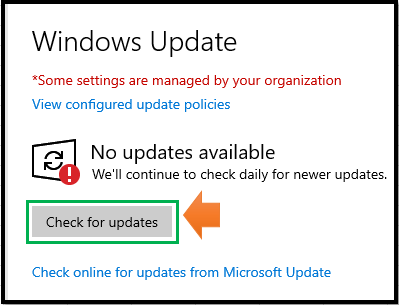
- Click Download & install if any updates are available there. Your device will download and install the updates.
- After this, restart your device to apply the updates.
Solution 6: Reset Windows Update components
Resetting Windows Update components resolves Error 1642 by clearing corrupted cache files, renaming SoftwareDistribution folders, and re‑registering update services. This restores the update mechanism to its default state, allowing updates to install successfully.
- Press Win + S, type cmd, right‑click Command Prompt, and select Run as administrator.
- Stop the BITS, Windows Update, and Cryptographic services by typing the following commands one at a time:

- Delete the qmgr*.dat files by typing:

- Rename the update folders by typing:
- %Systemroot%\SoftwareDistribution\DataStore
- %Systemroot%\SoftwareDistribution\Download
- %Systemroot%\System32\catroot2

- Reset the BITS and Windows Update services to default security descriptors by typing:

- Switch to the System32 directory by typing:

- Re‑register the BITS and Windows Update files by typing each of these commands and pressing Enter after each:
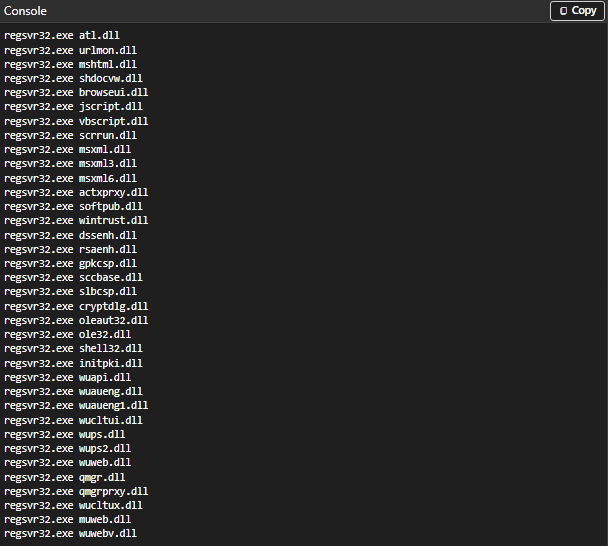
- Reset Winsock by typing:

- For Windows XP or Windows Server 2003, configure proxy settings by typing:

- Restart the BITS services by typing:

- On Windows Vista or Windows Server 2008, clear the BITS queue by entering:

Solution 7: Reinstall QuickBooks Using Selective Startup Mode
Error 1642 may occur when background programs interfere with QuickBooks installation. Running Windows in Selective Startup disables non‑Microsoft services, creating a clean environment where QuickBooks can reinstall and properly connect with the .NET Framework and Windows Installer, reducing update failures.
- Hold and press Windows+R on your keyboard to open the Run command.
- Enter “msconfig,” and click OK.
- Under the General tab, choose Selective Startup and Load system services.
- Navigate to the Services tab, and select Hide all Microsoft Services.
- Click Disable All and uncheck Hide all Microsoft services.
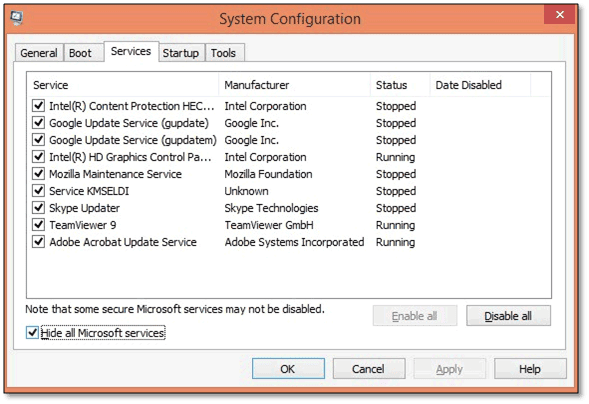
- Choose Windows Installer from the list of services.
- Select OK.
- Click Restart from the System Configuration window.
- Reinstall QuickBooks using the QuickBooks Clean Install Tool.
- Once done, press Windows+R on your keyboard to open the Run command.
- Enter msconfig, and click OK.
- Choose Normal startup in the General tab.
- Select OK.
- Click Restart on the System Configuration window.
Minimum System Requirements for .NET & QuickBooks
QuickBooks Desktop requires specific Windows builds and .NET Framework versions to run updates successfully. If your system does not meet these requirements, Error 1642 may persist even after repair attempts.
| QuickBooks Desktop Version | Supported Windows Version | Required .NET Framework |
| QuickBooks Desktop 2024 | Windows 10 or Windows 11 | .NET Framework 4.8 |
| QuickBooks Desktop 2025 | Windows 11 (latest build) | .NET Framework 4.8 |
Before You Begin:
- Ensure your Windows edition (Home, Pro, Enterprise) is supported.
- Verify that Windows Installer and MSXML components are up to date.
- Confirm at least 2 GB free disk space on drive C: for updates.
- Run QuickBooks and repair tools as Administrator.
Troubleshooting Update Failures
Windows Update Failures
Error 1642 often occurs if Windows Update services are blocked or corrupted.
- Run the Windows Update Troubleshooter to automatically detect and fix common problems.
- Restart your device after the troubleshooter completes.
- Re‑check for updates until Windows reports “You’re up to date.”
Digital Signature Errors
QuickBooks updates may fail if Windows cannot verify the digital signature of a .NET update.
- Ensure your OS has the latest security certificates installed.
- Run Windows Update to apply certificate patches.
- If certificates are missing, download them manually from Microsoft’s official site.
Additional Checks
- Antivirus/Firewall Interference: Temporarily disable third‑party security software during updates.
- Pending Restarts: Complete all Windows restarts before retrying QuickBooks updates.
- System File Integrity: Run sfc /scannow to repair corrupted Windows files that may block updates.
Next Step: The Clean Install Guide for Persistent .NET Errors
Error 1642 can continue even after repairing the .NET Framework and updating Windows if QuickBooks program files or registry entries are corrupted. In such cases, a Clean Install is required. This process removes damaged installation files and reinstalls QuickBooks in a fresh environment, ensuring that essential dependencies such as the .NET Framework, MSXML, and Visual C++ Redistributables integrate correctly and allow updates to complete successfully.
Check out All the related Frequently Asked Questions around QuickBooks Error 1642