
QuickBooks Payroll Error PS036 occurs when QuickBooks cannot verify an active payroll subscription while downloading payroll updates. The error typically appears when the software fails to validate payroll service information with Intuit servers, preventing users from accessing the latest payroll tax tables and payroll features.
Since QuickBooks Payroll requires an active and verified subscription, Error PS036 can stop payroll updates, delay payroll processing, and prevent businesses from using payroll services correctly. The issue is commonly associated with inactive payroll subscriptions, damaged payroll files, incorrect service keys, or company file corruption.
QuickBooks Error PS036 is primarily a payroll subscription verification issue rather than a general payroll update failure. If the subscription validation problem remains unresolved, QuickBooks may continue rejecting payroll updates even when the payroll service is active.
Why Does QuickBooks Error PS036 Occur?
QuickBooks Error PS036 mainly occurs when QuickBooks cannot verify payroll subscription information during payroll updates. Subscription validation issues and damaged payroll components are the most common triggers behind the error.
Payroll subscription verification failures related to Error PS036 are commonly caused by:
- Inactive payroll subscription
- Invalid payroll service key
- Damaged payroll files
- Corrupted company file data
- Incorrect Employer Identification Number (EIN)
- Outdated QuickBooks Desktop version
- Payroll update installation failures
- Internet communication issues
- Damaged CPS payroll folder
- Incorrect payroll setup information
Meaning Of Error Messages:
QuickBooks Error PS036 usually appears with payroll subscription and payroll update warnings. These messages indicate that QuickBooks cannot validate payroll service information successfully.
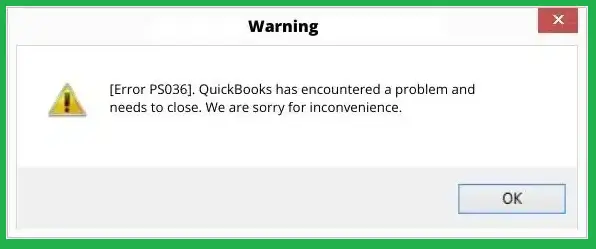
“QuickBooks Payroll cannot verify the subscription.”
- Meaning: QuickBooks failed to validate payroll subscription details.
- Cause: Inactive subscription or damaged payroll configuration.
- Impact: Payroll updates become unavailable.
“Error PS036: Payroll subscription verification failed.”
- Meaning: QuickBooks cannot authenticate payroll service information.
- Cause: Invalid service key or payroll account issues.
- Impact: Payroll tax table updates fail.
“Your payroll service is unavailable.”
- Meaning: Payroll services cannot be accessed due to verification problems.
- Cause: Subscription validation failure.
- Impact: Payroll processing may stop.
“Payroll update did not complete successfully.”
- Meaning: QuickBooks could not verify the payroll subscription before downloading updates.
- Cause: Payroll account or file-related issues.
- Impact: Payroll updates remain incomplete.
What Symptoms Indicate QuickBooks Error PS036?
QuickBooks Error PS036 mainly affects payroll subscription validation and payroll update downloads. Users often notice payroll service interruptions before the complete error appears.
- Payroll updates fail repeatedly: QuickBooks cannot download the latest payroll tax tables because subscription verification fails.
- Payroll services become inaccessible: Users may lose access to payroll-related features despite having an active payroll plan.
- Subscription verification warnings appear frequently: QuickBooks repeatedly requests payroll validation during updates.
- Payroll tax tables remain outdated: The latest payroll calculations are not installed because updates fail.
- Payroll processing becomes interrupted: Users may experience delays while processing employee payroll.
- QuickBooks continuously prompts for payroll updates: The software repeatedly requests updates because previous payroll updates could not complete.
How Can QuickBooks Error PS036 Be Fixed in Minutes
QuickBooks Error PS036 can usually be resolved by validating the payroll subscription, repairing payroll files, and correcting payroll account information. The troubleshooting solutions below focus specifically on fixing subscription verification failures.
Solution 1: Verify Your Payroll Subscription
An inactive or incorrectly configured payroll subscription is one of the most common causes of QuickBooks Error PS036.
Follow These Steps to Verify Payroll Subscription
- Open QuickBooks Desktop.
- Select Employees > My Payroll Service > Account/Billing Information.
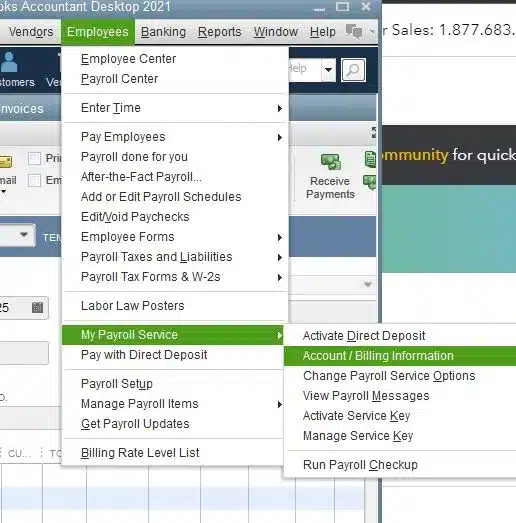
- Sign in using your Intuit account credentials.
- Verify that the payroll subscription status is Active.
- Review the payroll service details.
- Close and reopen QuickBooks.
Estimated Time: 5–10 minutes
Risk Level: Low
Verification: The payroll account should display an active subscription status.
Solution 2: Update the Payroll Service Key
An invalid payroll service key can prevent QuickBooks from verifying the payroll subscription.
Follow These Steps to Update the Service Key
- Open QuickBooks Desktop.
- Select Employees > My Payroll Service > Manage Service Key.
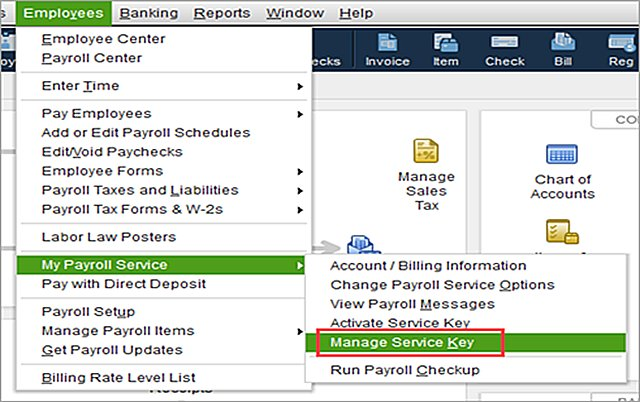
- Highlight the existing service key.
- Select Edit.
- Verify the service key information.
- Click Finish.
- Download payroll updates again.
Estimated Time: 5–10 minutes
Risk Level: Low
Verification: Payroll updates should proceed without subscription validation errors.
Solution 3: Download the Latest Payroll Update
Installing the latest payroll update often refreshes payroll components and resolves subscription verification issues.
Follow These Steps to Download Payroll Updates
- Open QuickBooks Desktop.
- Select Employees > Get Payroll Updates.
- Check Download Entire Update.
- Click Update.
- Wait for the process to complete.
Estimated Time: 10–15 minutes
Risk Level: Low
Verification: The latest payroll tax table version should install successfully.
Solution 4: Rename the CPS Folder
Damaged payroll files stored in the CPS folder can interfere with payroll subscription verification.
Follow These Steps to Rename the CPS Folder
- Close QuickBooks Desktop.
- Open File Explorer.
- Navigate to:
C:\Program Files\Intuit\QuickBooks Components\Payroll - Locate the CPS folder.
- Rename it to CPSOLD.
- Reopen QuickBooks.
- Download payroll updates again.
Estimated Time: 5–10 minutes
Risk Level: Medium
Verification: QuickBooks should create a new CPS folder automatically.
Solution 5: Verify and Rebuild Company File Data
Company file corruption can prevent QuickBooks from validating payroll subscription information correctly.
Follow These Steps to Verify and Rebuild Data
- Open QuickBooks Desktop.
- Select File > Utilities > Verify Data.
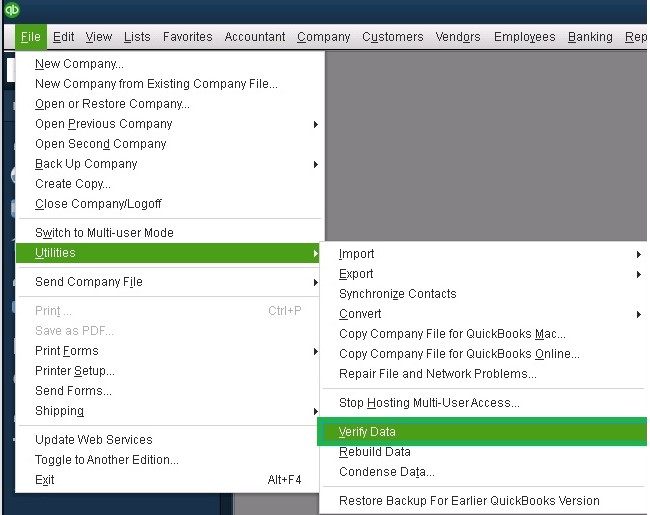
- Allow QuickBooks to scan the company file.
- If issues are found, select Rebuild Data.
- Create a backup when prompted.
- Complete the rebuild process.
Estimated Time: 15–30 minutes
Risk Level: Medium
Verification: Verify Data should report no remaining issues.
Solution 6: Update QuickBooks Desktop to the Latest Release
Running an outdated QuickBooks version can cause payroll subscription verification failures.
Follow These Steps to Update QuickBooks
- Open QuickBooks Desktop.
- Select Help > Update QuickBooks Desktop.
- Click Update Now.
- Select Get Updates.
- Restart QuickBooks after installation.
Estimated Time: 10–20 minutes
Risk Level: Low
Verification: Confirm that the latest QuickBooks release is installed.
Solution 7: QuickBooks Tool Hub Fix Error PS036
Yes. QuickBooks Tool Hub can repair program issues and company file damage contributing to payroll subscription verification failures.
Follow These Steps to Use QuickBooks Tool Hub
- Download and install QuickBooks Tool Hub.
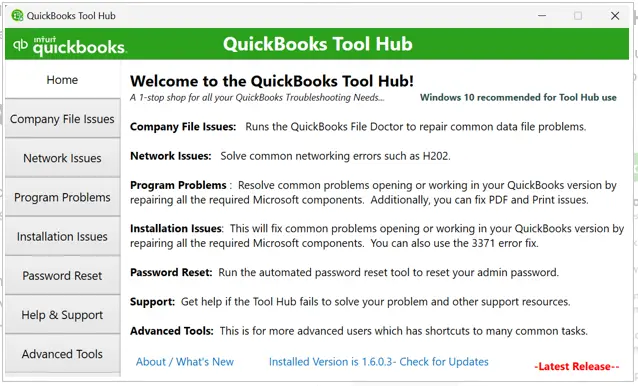
- Open the utility.
- Select Program Problems.
- Run Quick Fix my Program.
- Select Company File Issues.
- Run QuickBooks File Doctor.
- Restart QuickBooks.
Estimated Time: 20–30 minutes
Risk Level: Low
Verification: Retry payroll updates after the repair completes.
Preventive Measures for QuickBooks Payroll Error PS036
To prevent QuickBooks Payroll Error PS036, technicians should verify subscription details, keep QuickBooks and tax tables updated, and maintain file integrity. This ensures payroll updates install smoothly and compliance risks are minimized.
- Verify Payroll Subscription Status: Ensure the payroll subscription is active and correctly linked to your company file.
- Update QuickBooks Desktop: Regularly install the latest QuickBooks Desktop updates to maintain compatibility with payroll services.
- Keep Payroll Tax Tables Current: Download and install payroll tax table updates to avoid compliance issues.
- Validate Service Key and EIN: Confirm that the service key and Employer Identification Number (EIN) are entered correctly in QuickBooks.
- Maintain Paysub.ini File Integrity: Back up or rename corrupted Paysub.ini files to force QuickBooks to generate a fresh one.
- Run QuickBooks Tool Hub Utilities: Use Quick Fix my Program or File Doctor to repair installation and data damage.
- Check Windows Compatibility: Ensure your QuickBooks Desktop version supports your current Windows OS.
- Monitor Multiple Payroll Agreements: Avoid overlapping payroll subscriptions or inactive Direct Deposit agreements that trigger PS036.
Can Damaged Company Files Trigger QuickBooks Error PS036
Yes, Company file corruption can interfere with payroll service validation and prevent payroll subscriptions from being verified properly.
Data-related issues commonly include:
- Corrupted payroll records
- Damaged employee information
- Payroll validation failures
- Company file verification errors
- Subscription-related data corruption
Repairing company file damage often resolves recurring payroll subscription verification errors.
QuickBooks Error PS036 in reference to Desktop and Online
QuickBooks Error PS036 primarily affects QuickBooks Desktop because Desktop stores payroll subscription information locally and requires payroll verification during updates. The error appears when QuickBooks cannot authenticate payroll service details.
QuickBooks Online does not typically experience PS036 because payroll subscriptions are validated directly through Intuit’s cloud-based infrastructure.
QuickBooks Payroll Migration Challenges: Preventing PS036 Subscription Validation Errors
When migrating from QuickBooks Desktop to Online, users often encounter Payroll Error PS036, which arises when payroll subscription validation fails. This error can block payroll continuity during migration, especially if the subscription is inactive, the service key or EIN is incorrect, or the Paysub.ini file is corrupted.
To prevent PS036, users should verify payroll subscription status before migration, ensuring it is active and correctly linked to the company file. Keeping QuickBooks Desktop and payroll tax tables updated is essential for compatibility. Validating the service key and EIN avoids mismatches that trigger subscription errors.
Additionally, maintaining the integrity of the Paysub.ini file helps avoid corruption issues. Running QuickBooks Tool Hub utilities (Quick Fix my Program, File Doctor) can repair installation or data damage. Finally, users should check Windows compatibility and avoid overlapping payroll agreements to ensure smooth migration.
Conclusion
QuickBooks Error PS036 mainly occurs when QuickBooks cannot verify an active payroll subscription while downloading payroll updates. Inactive subscriptions, invalid service keys, damaged payroll files, corrupted company data, and payroll configuration issues are among the most common reasons behind the error.
Verifying the payroll subscription, updating the service key, downloading fresh payroll updates, rebuilding company file data, and repairing payroll components usually resolve the issue successfully. Regular payroll maintenance and keeping QuickBooks updated can also help prevent future payroll subscription verification failures.
FAQs
Q1. What does QuickBooks Error PS036 mean?
QuickBooks Error PS036 indicates that QuickBooks cannot verify an active payroll subscription while downloading payroll updates.
Q2. What causes payroll subscription verification failures?
The error is commonly caused by inactive payroll subscriptions, invalid service keys, damaged payroll files, or company file corruption.
Q3. Can an expired payroll subscription trigger Error PS036?
Yes. QuickBooks cannot download payroll updates if the payroll subscription is inactive or expired.
Q4. Does updating the payroll service key fix Error PS036?
Yes. Verifying and updating the payroll service key often resolves payroll subscription validation issues.
Q5. Can damaged payroll files cause Error PS036?
Yes. Corrupted payroll files can prevent QuickBooks from validating payroll services properly.
Q6. Does QuickBooks Online experience Error PS036?
No. Error PS036 mainly affects QuickBooks Desktop because payroll verification occurs through locally stored payroll components.