
Quickbooks Payroll Error PS033 occurs when Quickbooks cannot read or verify payroll updated files because the payroll data file is damaged, corrupted, or incorrectly configured. The error generally appears while downloading payroll updates or validating payroll subscription, preventing users from accessing the latest payroll tax tables.
Since payroll updates contain important tax calculations and compliance changes, error PS033 can stop payroll processing and causes businesses to work with outdated payroll information. The issue is commonly associated with damaged CPS files, inactive payroll subscriptions, incorrect service keys, or corruption within the company file.
Why Does QuickBooks Payroll Error PS033 Occur?
QuickBooks Payroll Error PS033 mainly occurs when QuickBooks cannot verify payroll files required to download or install payroll updates. Damaged payroll components and subscription-related issues are the most common triggers behind the error.
Payroll update failures related to Error PS033 are commonly caused by:
- Damaged CPS payroll files
- Corrupted payroll update downloads
- Invalid payroll service key
- Inactive payroll subscription
- Damaged company file data
- Incorrect Employer Identification Number (EIN)
- Outdated QuickBooks Desktop version
- Incomplete payroll updates
- Windows permission restrictions
- Corrupted QuickBooks installation files
What Error Messages Appear With QuickBooks Payroll Error PS033?
QuickBooks Error PS033 usually appears with payroll update and payroll subscription warnings. These messages indicate that QuickBooks cannot validate payroll files successfully.
“QuickBooks can’t read your payroll setup files.”
- Meaning: QuickBooks cannot access or verify payroll-related files.
- Cause: Damaged CPS files or corrupted payroll components.
- Impact: Payroll updates fail.
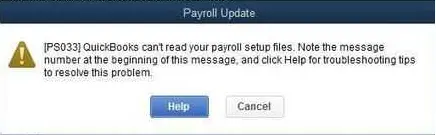
“Payroll Update Error PS033.”
- Meaning: Payroll update files failed validation during installation.
- Cause: Corrupted payroll data or damaged payroll files.
- Impact: Payroll tax table updates stop.
“Your payroll service is unavailable.”
- Meaning: QuickBooks cannot validate payroll subscription information.
- Cause: Invalid service key or damaged payroll files.
- Impact: Payroll features become inaccessible.
“An error occurred while updating payroll.”
- Meaning: QuickBooks encountered a problem while processing payroll updates.
- Cause: Corrupted update files or payroll configuration issues.
- Impact: Payroll updates cannot be completed successfully.
What Symptoms Indicate QuickBooks Payroll Error PS033?
QuickBooks Payroll Error PS033 primarily affects payroll updates, payroll subscription validation, and tax table downloads. Most users notice payroll-related interruptions before the complete error appears.
- Payroll updates fail repeatedly: QuickBooks downloads payroll updates but cannot install them successfully because damaged payroll files interrupt the process.
- Tax table updates do not install: The payroll update starts normally but stops before completion.
- Payroll subscription validation fails: QuickBooks cannot verify the active payroll subscription during updates.
- Payroll services become inaccessible: Users may lose access to payroll-related features and functions.
- Repeated payroll update notifications appear: QuickBooks continuously requests payroll updates because previous installations failed.
- Payroll processing becomes delayed: Employees’ payroll information may not process correctly because tax tables remain outdated.
How QuickBooks Payroll Error PS033 Be Fixed In Minutes
QuickBooks Payroll Error PS033 can usually be resolved by repairing damaged payroll files, validating payroll subscriptions, and restoring payroll update components. The troubleshooting solutions below focus specifically on fixing payroll file corruption and update failures.
Solution 1: Verify Your Payroll Subscription
An inactive or improperly validated payroll subscription can trigger QuickBooks Error PS033 during payroll updates.
Follow These Steps to Verify Payroll Subscription
- Open QuickBooks Desktop.
- Select Employees > My Payroll Service > Account/Billing Information.
- Sign in to your Intuit account.
- Verify that the payroll subscription shows Active.
- Close and reopen QuickBooks.
Estimated Time: 5–10 minutes
Risk Level: Low
Verification: The payroll subscription should display an active status.
Solution 2:Download the Latest Payroll Update
Installing the latest payroll update often replaces damaged payroll files and resolves Error PS033.
Follow These Steps to Download Payroll Updates
- Open QuickBooks Desktop.
- Select Employees > Get Payroll Updates.
- Check Download Entire Update.
- Click Update.
- Wait for the download to complete.
Estimated Time: 10–15 minutes
Risk Level: Low
Verification: The latest payroll tax table version should install successfully.
Solution 3: Rename the CPS Folder
Damaged CPS files are one of the most common causes of QuickBooks Payroll Error PS033. Renaming the folder forces QuickBooks to create fresh payroll files.
Follow These Steps to Rename the CPS Folder
- Close QuickBooks Desktop.
- Open File Explorer.
- Navigate to:
C:\Program Files\Intuit\QuickBooks Components\Payroll - Locate the CPS folder.
- Rename it to CPSOLD.
- Reopen QuickBooks.
- Download payroll updates again.
Estimated Time: 5–10 minutes
Risk Level: Medium
Verification: QuickBooks should create a new CPS folder automatically.
Solution 4: Verify and Rebuild Company File Data
Company file corruption can prevent payroll files from validating correctly and trigger Error PS033.
Follow These Steps to Verify and Rebuild Data
- Open QuickBooks Desktop.
- Select File > Utilities > Verify Data.
- Allow QuickBooks to scan the company file.
- If errors are detected, select Rebuild Data.
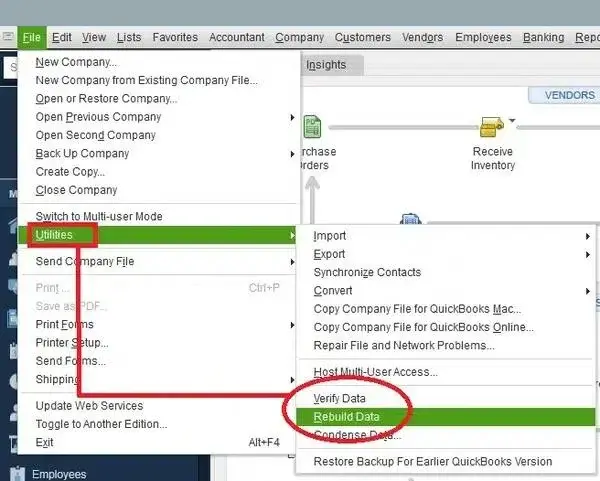
- Create a backup when prompted.
- Complete the rebuild process.
Estimated Time: 15–30 minutes
Risk Level: Medium
Verification: Verify Data should return no remaining errors.
Solution 5: Update QuickBooks Desktop to the Latest Release
Running an outdated version of QuickBooks may cause payroll files and tax table updates to become incompatible.
Follow These Steps to Update QuickBooks
- Open QuickBooks Desktop.
- Select Help > Update QuickBooks Desktop.
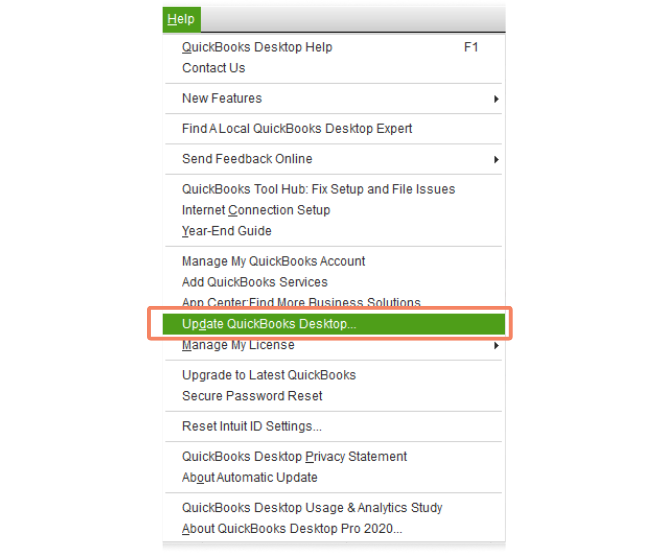
- Click Update Now.
- Select Get Updates.
- Restart QuickBooks after the update finishes.
Estimated Time: 10–20 minutes
Risk Level: Low
Verification: Confirm that the latest QuickBooks release is installed.
Solution 6: QuickBooks Tool Hub Fix Error PS033
QuickBooks Tool Hub can repair damaged QuickBooks program files and resolve payroll-related issues that contribute to Error PS033.
Follow These Steps to Use QuickBooks Tool Hub
- Download and install QuickBooks Tool Hub.
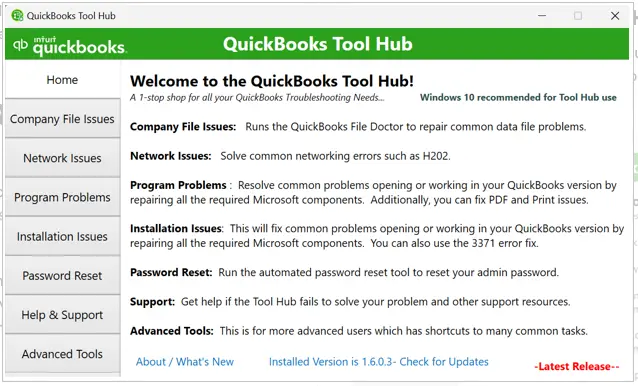
- Open the utility.
- Select Program Problems.
- Run Quick Fix my Program.
- Select Company File Issues.
- Run QuickBooks File Doctor.
- Restart QuickBooks.
Estimated Time: 20–30 minutes
Risk Level: Low
Verification: Retry payroll updates after the repair completes.
Can Damaged Company Files Trigger QuickBooks Payroll Error PS033?
Yes. Company file corruption can prevent QuickBooks from reading payroll information correctly and may interfere with payroll update validation.
Data-related issues commonly include:
- Corrupted payroll records
- Damaged employee information
- Payroll tax table validation errors
- Invalid payroll setup files
- Company file verification failures
Repairing company file damage often resolves recurring payroll update failures.
Preventive Measures for QuickBooks Payroll Error PS033
To avoid encountering Payroll Error PS033, technicians should proactively maintain payroll components, subscription validity, and system integrity through the following measures:
- Update QuickBooks Desktop: Always install the latest QuickBooks Desktop updates to ensure compatibility with payroll services and tax tables.
- Keep Payroll Tax Tables Current: Download and apply payroll tax table updates at least every 45 days to avoid mismatches that trigger PS033.
- Verify Payroll Subscription Status: Ensure your payroll subscription is active and billing/service keys are valid to prevent subscription validation errors.
- Protect and Maintain CPS Folder: The CPS folder contains payroll update files. Regularly back up and avoid corruption by running Verify/Rebuild Data utilities.
- Run File Integrity Checks: Use QuickBooks’ Verify Data and Rebuild Data tools monthly to catch corruption early in company or payroll setup files.
- Use QuickBooks Tool Hub: Run Quick Fix my Program and other utilities to repair installation issues before they escalate into payroll errors.
- Maintain Secure Internet Settings: Configure firewall/antivirus to allow QuickBooks access, add Intuit as a trusted site, and enable TLS 1.2 for secure updates.
- Run QuickBooks with Proper Permissions: Launch QuickBooks as Administrator and perform payroll updates in single-user mode for best results.
QuickBooks Payroll Error PS033 – Migration Challenges
During Desktop to Online migration, PS033 can further disrupt payroll continuity, making preventive checks and corrective strategies essential before data transfer.
Following are the key areas technicians must address:
- Causes: Error PS033 arises when QuickBooks cannot read payroll update files due to damaged CPS folders, inactive payroll subscriptions, incorrect service keys, or corruption in the company file.
- Impact: The error blocks payroll updates, leaving tax tables outdated and exposing businesses to compliance risks, payroll miscalculations, and delayed employee payments.
- Migration Challenges: During Desktop to Online migration, PS033 can interrupt payroll data transfer, carry outdated tax tables into the new system, and cause compliance gaps if not resolved beforehand.
- Preventive Strategies: Regularly update QuickBooks Desktop, keep payroll tax tables current, verify subscription status, protect CPS folders, run file integrity checks, use Tool Hub, secure internet settings, and operate with proper permissions to avoid recurrence.
Conclusion
QuickBooks Payroll Error PS033 is primarily triggered when payroll update files become unreadable due to damaged CPS folders, inactive subscriptions, or corrupted company data. Its impact is significant, as it blocks payroll updates, leaves tax tables outdated, and exposes businesses to compliance risks.
During Desktop to Online migration, PS033 can further complicate payroll continuity by carrying outdated or corrupted data into the new environment, making it essential to resolve the error before initiating data transfer.
By consistently applying preventive strategies updating QuickBooks Desktop, keeping payroll tax tables current, verifying subscription status, protecting CPS folders, running integrity checks, and maintaining secure system settings technicians can minimize recurrence, ensure payroll compliance, and safeguard smooth migration workflows.
FAQs
Can PS033 occur during Desktop to Online migration?
Yes. If payroll update files are corrupted or the CPS folder is damaged before migration, PS033 can block payroll data transfer and cause compliance gaps in the new system.
Does subscription validation affect payroll continuity in PS033?
Absolutely. An inactive or expired payroll subscription can trigger PS033, preventing payroll updates and halting compliance until the subscription is re‑validated.
Can antivirus or firewall settings contribute to PS033?
Yes. Over-restrictive firewall or antivirus rules may block QuickBooks from accessing payroll update servers, leading to corrupted CPS files and triggering PS033.
Is PS033 linked to other payroll errors?
Often. PS033 is closely related to PS032 (subscription validation issues) and PS038 (stuck paychecks). Technicians should check for these errors when troubleshooting.
How can technicians prevent recurrence of PS033 after migration?
By ensuring QuickBooks Desktop is updated, payroll tax tables are current, CPS folders are backed up, subscription keys are valid, and integrity checks are run monthly.
Does PS033 affect compliance timelines?
Yes. Since payroll updates include tax table changes, PS033 can delay compliance with statutory deadlines, exposing businesses to penalties if not resolved quickly.