
Quickbooks Error H202 is a common multi user hosting issue that occurs when Quickbooks is unable to connect to the company file stored on another computer or server. This error usually appears when users try to switch to multi user mode, but the workstation cannot establish proper communication with the hosting server.
This error belongs to the H- series errors in Quickbooks, which are specifically related to hosting and network communication problems. When this issue occurs, users are unable to switch to multi-user mode or access the company file over the network. As a result, Quickbooks displays on H202 error message,
“This company file is on another computer, and Quikbooks need some help connecting”
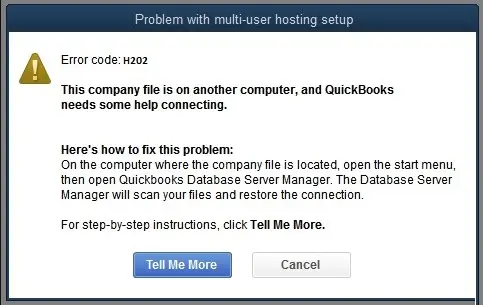
In many businesses, Quickbook error H202 becomes a serious workflow interruption as multiple employees lose access to accounting records, invoices, payroll data or any other financial records simultaneously.
While the company file itself remains safe, the connection between the workstation and the hosting server becomes blocked due to firewall restrictions, damaged network files, incorrect hosting settings, DNS failure, or Quickbooks database service issues.
To summarize, the error is commonly associated with:
- Damaged ND files
- Firewall Restrictions
- Quickbooks database services failure
- Hosting configuration conflicts
- DNS or network communications issues
- Incorrect server permissions
- Multi-user connectivity problems
Symptoms of QuickBooks Error H202
Following are the common symptoms of error:
- Error pop-up: “This company file is on another computer, and QuickBooks needs some help connecting.”
- Multi-user mode failure: Workstations cannot switch to or maintain multi-user access.
- Performance issues: Lag or freeze when trying to open the company file stored on the server.
- Connection drops: Users intermittently lose access to the company file.
- Tool Hub dependency: Running QuickBooks Database Server Manager scan temporarily resolves the issue, but recurrence is common.
Root Causes of QuickBooks Error H202
Following are the root cause analysis:
- Blocked communication: Firewall or security software prevents QuickBooks from accessing the server.
- Incorrect hosting setup: Workstations are set to host the company file instead of the server.
- Missing QuickBooks services: QuickBooksDBXX or QBCFMonitorService not running on the server.
- DNS or IP issues: Incorrect DNS resolution or IP address conflicts between server and workstations.
- Unsupported storage: Using NAS (Network Attached Storage) instead of a proper Windows server environment.
- Outdated QuickBooks release: Missing updates or patches cause instability in multi-user mode.
When QuickBooks Error H202 Signals the Need for Migration
When a growing business starts facing recurring issues like QuickBooks Error H202, slow multi-user access, large company files, or operational inefficiencies, it often indicates that QuickBooks is no longer sufficient for the company’s scale.
In this situation, the business typically migrates to Microsoft Dynamics 365 Business Central by cleaning and transferring financial data, redesigning workflows, configuring inventory and reporting systems, and training employees on the new ERP platform. This migration is especially common for businesses with 10–50+ users, multiple departments, inventory operations, or remote teams.
The outcome of the migration is a more scalable and stable business system with centralized operations, real-time reporting, stronger inventory control, and reduced dependence on local servers or shared company files.
Unlike QuickBooks Desktop, Business Central uses a cloud-based ERP architecture, which helps eliminate H202-type multi-user connectivity problems while improving automation, security, and collaboration across finance, sales, purchasing, and operations.
QuickBooks Error H202: Multi-User Connectivity in Desktop vs Online
QuickBooks Error H202 is a Desktop-specific issue that arises when a workstation fails to connect to the company file hosted on a server in multi-user mode. In QuickBooks Desktop, this error disrupts collaborative workflows because the workstation cannot establish communication with the server. The root causes typically involve firewall restrictions, incorrect hosting configurations, DNS or IP misalignments, or QuickBooks services not running properly.
In some cases, using unsupported storage like NAS devices or running outdated QuickBooks versions can also trigger H202. The symptoms include error pop-ups, inability to switch to multi-user mode, lag or freezing when accessing the company file, and intermittent connection drops. These disruptions often lead to downtime and can escalate into related errors such as H303 or H505 if not resolved.
By contrast, QuickBooks Online does not experience H202 at all. Since it is entirely cloud-hosted and accessed through a web browser, there is no dependency on local servers, DNS configurations, or firewall rules. Multi-user access is managed seamlessly by Intuit’s infrastructure, so the error simply does not apply. Users migrating from Desktop to Online sometimes expect similar connectivity issues, but in QuickBooks Online, problems are usually tied to browser performance, internet connectivity, or temporary Intuit server outages rather than workstation-to-server communication failures. In short, H202 is exclusive to QuickBooks Desktop, while QuickBooks Online is immune to it because of its cloud-based architecture.
Beginner-Level Solutions to Fix QuickBooks Error H202
Solution 1: Restart Server and Workstations
Temporary communication conflicts may disappear after restarting systems.
Steps:
- Close QuickBooks on all systems
- Restart:
- Hosting server
- Workstations
- Open QuickBooks on the server first
- Reconnect users gradually
Why This Helps
It clears inactive database sessions and temporary network failures.
Solution 2: Verify Hosting Settings
Only the server should host the company file.
On Workstations:
- Open QuickBooks
- Go to File → Utilities
- If “Stop Hosting Multi-User Access” appears, click it
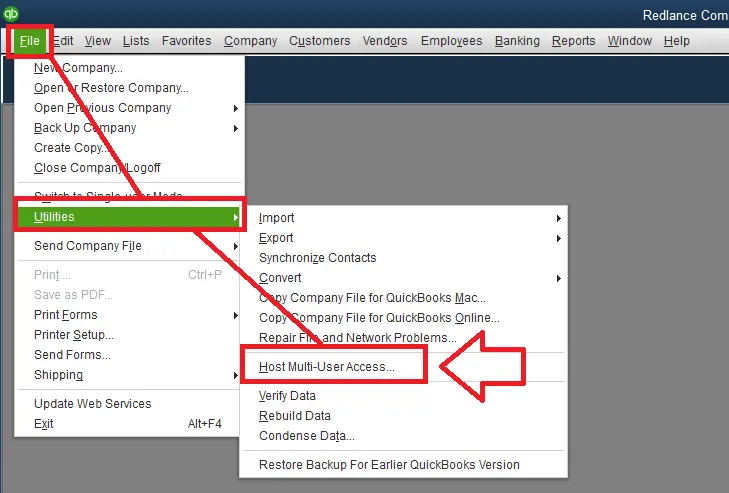
On Server:
Ensure “Host Multi-User Access” remains enabled.
Common Mistake
Many businesses accidentally enable hosting on multiple systems.
Solution 3: Update QuickBooks Desktop
Outdated QuickBooks versions may contain unresolved network bugs.
Steps:
- Open QuickBooks
- Go to Help → Update QuickBooks Desktop
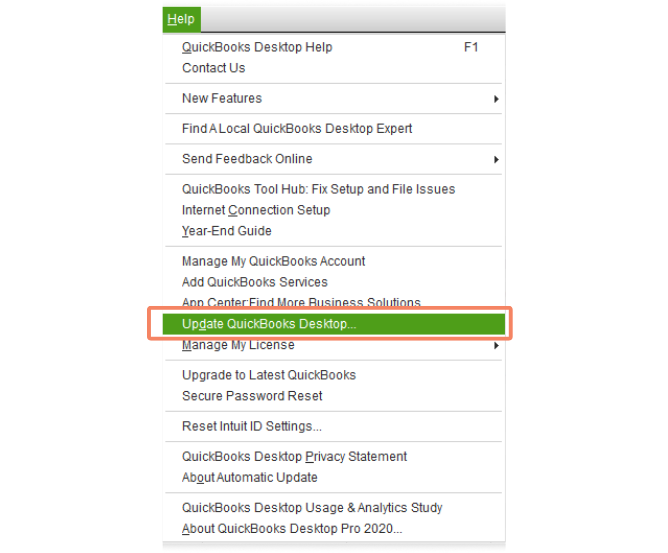
- Install updates
- Restart QuickBooks
Intermediate Solutions for Persistent H202 Errors
Solution 4: Rename the ND File
Damaged ND files are one of the leading causes of Error H202.
Steps:
- Open the company file folder
- Locate the .ND file
- Right-click → Rename
- Add “.OLD”
Example:
- companyfile.qbw.nd → companyfile.qbw.nd.old
Why This Works
QuickBooks automatically recreates a fresh ND file during the next scan.
Solution 5: Run QuickBooks Database Server Manager
Database Server Manager repairs multi-user connectivity.
Steps:
- Open QuickBooks Tool Hub
- Select Network Issues
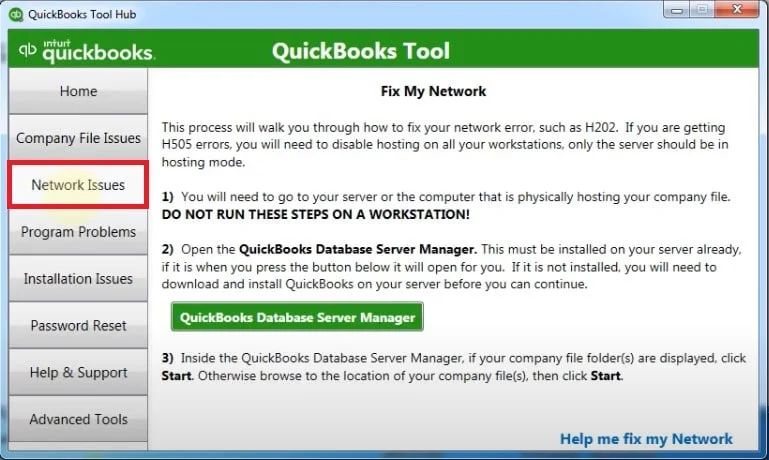
- Launch Database Server Manager
- Scan the company file folder
Benefits
- Rebuilds hosting paths
- Repairs network communication
- Refreshes server connectivity
Solution 6: Run QuickBooks File Doctor
QuickBooks File Doctor repairs network and company file issues.
Steps:
- Open QuickBooks Tool Hub
- Select Company File Issues
- Run File Doctor
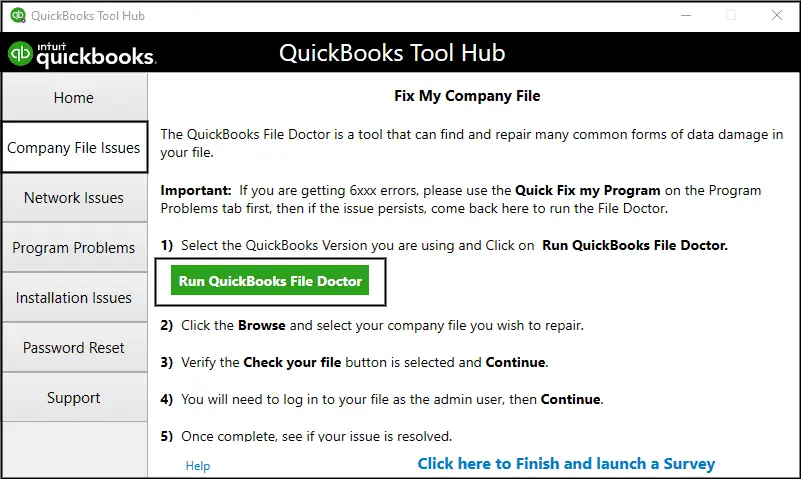
- Scan the affected company file
What It Repairs
- Hosting conflicts
- Network communication failures
- Minor file damage
- Database inconsistencies
Advanced Solutions for Recurring QuickBooks Error H202
Solution 7: Configure Firewall Exceptions
Allow These Files:
- QBDBMgrN.exe
- QBW32.exe
- FileManagement.exe
Also Open QuickBooks Ports
Ports vary depending on the QuickBooks year version.
Why This Matters
Blocked ports prevent workstations from communicating with the server.
Solution 8: Restart QuickBooks Database Services
Steps:
- Press Windows + R
- Type services.msc
- Locate:
- QuickBooksDBXX
- Right-click → Restart
Advanced Benefit
Refreshes inactive database communication sessions.
Solution 9: Test Server Connectivity
Steps:
- Open Command Prompt
- Ping the server hostname
- Verify whether the server responds
Why This Helps
It identifies DNS and network communication failures.
Solution 10: Check Folder Permissions
Steps:
- Right-click the company file folder
- Open Properties → Security
- Grant:
- Full Control
- Read/Write permissions
- Save changes
Importance
Improper permissions can silently block server communication.
Why does QuickBooks Error H202 Keep Returning?
Common Reasons that keep H202 Errors recurring:
Hosting Enabled on Multiple Computers: This creates repeated server conflicts.
Antivirus Updates: Security software updates may suddenly block QuickBooks communication.
Weak Wi-Fi Networks: Wireless instability interrupts QuickBooks synchronization.
Server Sleep Mode:If the server sleeps:
- Database services disconnect
- Workstations lose communication
Forced Shutdowns:Improper shutdowns leave broken hosting sessions behind.
Conclusion
QuickBooks Error H202 is a multi-user connectivity issue unique to QuickBooks Desktop, caused by workstation-to-server communication failures. It typically arises from firewall restrictions, DNS/IP misconfigurations, or incorrect hosting setups, and can severely disrupt collaborative workflows.
By contrast, QuickBooks Online is immune to H202, since it is cloud-hosted and does not rely on local servers or manual network configurations. For technicians, the key takeaway is to focus on Desktop-specific troubleshooting while clearly noting that H202 does not apply to Online users, preventing unnecessary confusion during support.
FAQs
Does QuickBooks Online face H202?
No, QuickBooks Online does not encounter H202 because it is entirely cloud-hosted and accessed through a browser. Unlike Desktop, there is no dependency on local servers, DNS configurations, or firewall rules. Online users may face browser-related issues or internet connectivity problems, but H202 simply does not apply.
Can H202 occur if I use NAS storage?
Yes, QuickBooks does not support hosting company files on NAS (Network Attached Storage) devices. Attempting to use NAS often leads to communication failures between workstations and the server, triggering H202. For reliable multi-user access, company files should be hosted on a proper Windows server environment rather than unsupported storage setups.
Why does H202 keep recurring after fixes?
H202 often recurs because temporary fixes, such as running QuickBooks Tool Hub or Database Server Manager scans, only resolve surface-level issues. If firewall rules, DNS settings, or QuickBooks services are not permanently configured, the error will return. Long-term stability requires correcting these root causes rather than relying on quick fixes.
Is H202 related to other H-series errors?
Yes, H202 is closely related to other H-series errors like H303 and H505. These errors also occur when multiple workstations or servers have incorrect hosting configurations. If H202 is not resolved properly, it can escalate into these related errors, making troubleshooting more complex and increasing downtime for users.
Can outdated QuickBooks versions cause H202?
Absolutely. Running outdated QuickBooks Desktop versions without the latest patches or updates can destabilize multi-user mode and trigger H202. Updates often include fixes for connectivity and hosting issues. Ensuring QuickBooks is updated to the latest release is a critical step in preventing recurrence and maintaining smooth multi-user functionality.
How do I verify if QuickBooks services are running?
To verify, open Windows Services and check for QuickBooksDBXX and QBCFMonitorService. If these services are stopped, restart them to restore connectivity. These background processes are essential for multi-user mode. Without them running properly, workstations cannot communicate with the server, leading to H202 and similar connectivity errors.