
Quickbooks Error 6177, 0 is a company file path access error. It occurs when Quickbooks Desktop can locate a reference to the company file but cannot use the stored path to actually open it. The file may be physically present and undamaged , but the error is specifically about the path Quickbooks is trying to use to reach it, not about the file’s internal data.
The error pop up message:
“QuickBooks is attempting to open this Company file but cannot. Please try again.”
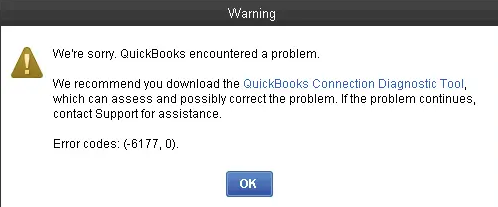
This pop‑up indicates that QuickBooks Desktop has located the company file but cannot establish a proper connection due to file path damage, hosting misconfiguration, or file corruption.
This is not a file damage error in the majority of cases. The financial data inside your .QBW company file is almost always safe. The major problem is with the path Quickbooks has stored, not the internal data.
Symptoms of QuickBook Error 6177
- Company file won’t open – QuickBooks fails to access the file path.
- An error message appears – “QuickBooks is attempting to open this Company file but cannot.”
- File path mismatch – The file opens locally but fails when accessed via network.
- Multi‑user mode failure – Error occurs when switching to or from multi‑user mode.
- Performance lag – QuickBooks slows down or freezes when attempting to load the damaged file.
- Portable file restore failure – Restoring a portable file doesn’t resolve the issue.
Root Cause Analysis QuickBook Error 6177
- File damage/corruption – The .QBW file contains corrupted metadata or damaged indexes.
- Incorrect file location – File stored on external/removable drives or non‑default directories.
- Hosting misconfiguration – Multiple systems attempting to host the same company file.
- Database Server Manager not running – In multi‑user setups, the service fails to establish connection.
- Firewall/antivirus interference – Security software blocks QuickBooks processes.
- Outdated QuickBooks version – Missing updates prevent proper handling of file paths.
QuickBooks Desktop vs Online: Impact on File Errors
QuickBooks Error 6177 is a Desktop‑specific issue caused by file path damage, hosting misconfigurations, or corruption in the company file. Since QuickBooks Desktop relies on local or network‑stored files, errors like 6177 can occur when the software cannot establish a proper connection to the file location.
By contrast, QuickBooks Online does not encounter Error 6177 because company files are cloud‑hosted. This eliminates local path dependency and reduces risks of file damage. While Online avoids these file‑access errors, businesses should note that certain advanced features available in Desktop or Enterprise may not fully migrate.
QuickBooks Error 6177 & Migration Decisions: Should You Fix or Switch?
QuickBooks Error 6177 is a Desktop‑specific issue caused by file path damage, hosting misconfigurations, or corruption in the company file. While technicians can resolve it through steps like moving the file locally, creating a portable copy, and running File Doctor, recurrence remains a risk if the company continues relying on Desktop’s file‑based architecture.
On the other hand, QuickBooks Online avoids path‑related errors entirely because files are cloud‑hosted. This makes migration a long‑term solution for businesses frustrated by repeated file damage. However, migration comes with limitations — certain features like advanced inventory, payroll, or custom reporting may not transfer seamlessly.
For larger organizations, QuickBooks Enterprise or even Business Central may be better alternatives, offering scalability and stronger hosting reliability.
The Single Most Important Diagnostic Step
Before attempting any fix, perform this one check:
Can you open the company file directly on the machine where the .QBW file is physically stored?
Go to the machine that physically contains the .QBW file -> open QuickBooks -> File -> Open or Restore Company -> Open a Company File -> browse directly to the .QBW file -> open it.
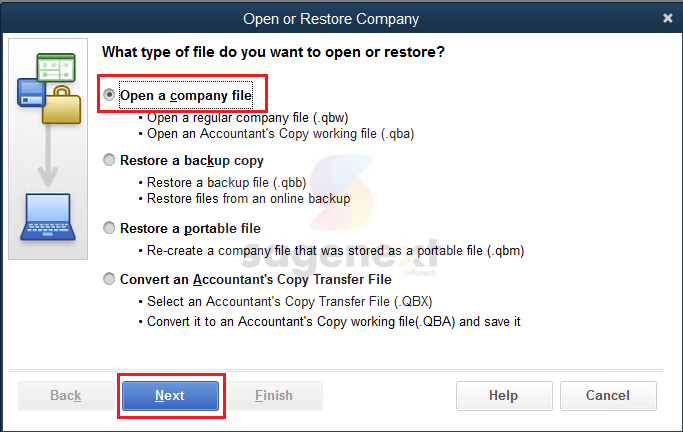
* File opens on the host machine -> data is intact. Error is path/network/hosting related. Start with Fix 1.
* File does NOT open on the host machine -> problem is inside the file (data damage) or a fundamental path error. Skip to Fix 8 (Verify/Rebuild) or Fix 11 (restore from backup).
Scenario-Based Troubleshooting: Beginner to Advanced
Scenario 1: Error Caused by File Location — Cloud, External Drive, or Wrong Folder
Applies to: Users whose company file is in a cloud-synced folder, on a USB/external drive, or at a path that no longer exists. Most likely cause: file in an unsupported location or inaccessible path.
Fix 1: Move the Company File to the Local C: Drive and Reopen
Beginner | Time: 10-20 minutes
The most effective first fix when the file is in a cloud-synced, external, or problematic location.
1. Close QuickBooks completely on all machines. End all QBW32.exe processes in Task Manager.
2. Open File Explorer on the machine that physically contains the company file.
3. Navigate to the file’s current location. COPY the .QBW file to a local folder: C:\QB_CompanyFiles\ (create this folder if it doesn’t exist).
4. Open QuickBooks on this machine -> File -> Open or Restore Company -> Open a Company File.
5. Browse to C:\QB_CompanyFiles\ and open the copied .QBW file.
6. If the file opens without error from the local path, the location was the cause.
Note: QuickBooks company files must not be stored in any cloud-synced folder (Dropbox, OneDrive, Google Drive, Box, iCloud Drive). Intuit officially states that cloud sync tools conflict with QuickBooks’ file locking requirements. Store the live company file on a dedicated local drive or on-premise server only. Cloud backup of the .QBB backup file is acceptable — but not the live .QBW file.
Fix 2: Create and Restore a Portable Company File (.QBM) to Reset the Path
Beginner | Time: 15-25 minutes
This fix is uniquely effective for -6177, 0 because the portable file restore process explicitly resets the stored file path data within QuickBooks. When a portable file is restored, QuickBooks registers the restore location as the new authoritative path — clearing any stale or invalid path references causing -6177, 0. Simply copying the .QBW file does not do this.
Part 1: Create the portable file:
1. Open QuickBooks on the machine where the company file is accessible.
2. Open the company file normally.
3. Go to File -> Create Copy. Select Portable company file -> Next.
4. In the Save As dialog, browse to a location on the local C: drive (e.g., C:\QB_Portable\). Name the file. Click Save -> OK -> OK. QuickBooks creates a .QBM file.
5. Go to File -> Close Company, then File -> Quit QuickBooks.
Part 2: Restore the portable file:
1. Open QuickBooks (do not open any company file).
2. Go to File -> Open or Restore Company -> Restore a Portable File -> Next.
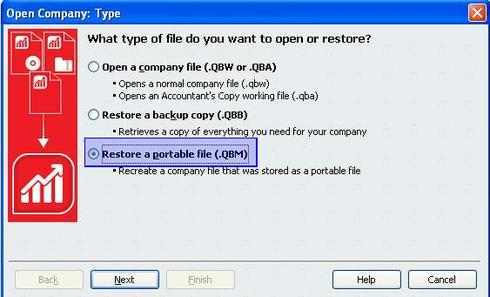
3. Browse to the .QBM file you created -> Open -> Next.
In the ‘Save As’ dialog, navigate to the destination where the company file should live permanently:
* For single-user: a local path such as C:\QB_CompanyFiles\
* For multi-user: the server’s local drive path (e.g., C:\QB_CompanyFiles\ on the server machine)
4. Name the file and click Save. Open the restored company file and verify it opens without -6177, 0.
Scenario 2: Error in Multi-User Mode — Path/Hosting Configuration Issue
Applies to: Users where the company file is on a server, the server machine can open it locally, but workstations receive -6177, 0. Most likely causes: stale .ND file; hosting not initialized on the server; hosting enabled on workstations.
Fix 3: Delete the .ND File and Rescan with QuickBooks Database Server Manager Beginner | Time: 10-15 minutes
The .ND file tells workstations where to find the company file host. Deleting it and letting the Database Server Manager regenerate it with current server information resolves -6177 in the majority of multi-user cases.
1. Close QuickBooks on all machines. End all QBW32.exe processes in the Task Manager on each machine.
2. On the server, navigate to the company file folder. Locate [CompanyFileName].QBW.ND -> right-click -> Delete -> confirm.
3. On the server: Start -> search ‘QuickBooks Database Server Manager’ -> open it.
4. Click Scan Folders. If the company file folder is not listed: Add Folder -> browse to it -> OK.
5. Click Start Scan and allow it to complete. A fresh .ND file is created automatically.
6. On the server: File -> Switch to Multi-User Mode. Test from a workstation.
Fix 4: Open the Company File on the Server First, Then Allow Workstations
Beginner | Time: 5-10 minutes
QuickBooks’ own error message for -6177 explicitly states the solution: ‘you must first open the company file on the computer where the company file is located.’ After a server restart or hosting reset, the file must be actively opened in multi-user mode on the server before workstations can connect.
1. On every workstation: close QuickBooks completely.
On the server machine (the computer physically hosting the .QBW file):
2. Open QuickBooks.
3. Go to File -> Open or Restore Company -> Open a Company File. Browse to and open the company file directly.
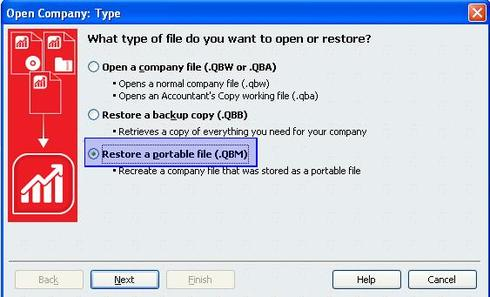
4. After it opens, go to File -> Switch to Multi-User Mode.
5. Wait 30 seconds. On each workstation, open QuickBooks and open the company file.
Fix 5: Reset Multi-User Hosting on the Server
Beginner | Time: 5-10 minutes
When hosting has been disrupted after a QuickBooks update, server restart, or configuration change, toggling hosting off and back on resets the multi-user session and clears path-related conflicts.
If Full QuickBooks Desktop is installed on the server:
1. Open QuickBooks on the server -> File -> Utilities.
2. If ‘Host Multi-User Access’ appears -> click it to enable. If ‘Stop Hosting Multi-User Access’ appears -> click it to disable, then click ‘Host Multi-User Access’ again to re-enable. This resets the multi-user session.
3. Go to File -> Switch to Multi-User Mode. Test from a workstation.
If only Database Server Manager is installed on the server:
1. Open QuickBooks Database Server Manager -> Scan Folders -> confirm company file folder is listed -> Start Scan. Test from a workstation.
Fix 6: Verify Hosting Settings Across All Workstations Beginner | Time: 10-15 minutes
If any workstation has hosting enabled, it competes with the server to claim the company file, creating path conflicts.
On each workstation (repeat for every workstation):
1. Open QuickBooks without any company file (hold Ctrl while clicking the QuickBooks icon).
2. File -> Utilities. If ‘Stop Hosting Multi-User Access’ appears -> click it (hosting incorrectly on). If ‘Host Multi-User Access’ appears -> already off. No action needed.
On the server machine:
1. Open QuickBooks -> File -> Utilities -> must show ‘Stop Hosting Multi-User Access’ (hosting ON — correct).
Fix 7: Set Correct Folder Permissions and Configure Network Sharing
Intermediate | Time: 15-20 minutes
If the company file folder on the server is not configured for network access, workstations cannot reach the file path, producing -6177, 0.
NTFS permissions:
1. On the server, right-click the company file folder -> Properties -> Security tab -> Edit.
Verify these accounts have Full Control:
* The Windows user account running QuickBooks
* NETWORK SERVICE | LOCAL SERVICE
* QBDataServiceUser28 (replace: 27=QB2021, 28=QB2022, 29=QB2023, 30=QB2024)
2. If any account is missing: Add -> type account name -> Check Names -> grant Full Control -> Apply -> OK.
Network sharing:
1. Right-click company file folder -> Properties -> Sharing tab -> Advanced Sharing.
2. Check ‘Share this folder’ -> Permissions -> ensure Full Control for relevant accounts -> Apply -> OK.
3. In QuickBooks Database Server Manager, run a fresh scan of the newly shared folder. Test from a workstation.
Scenario 3: Error After Moving the Company File or Changing Server Configuration
Applies to: Users who recently moved the company file to a new folder or new server. Most likely cause: QuickBooks still references the old path; .ND file contains the old server address.
Fix 8: Update the Company File Path — Move to a New Clean Folder
Intermediate | Time: 10-20 minutes
1. Close QuickBooks on all machines. End all QBW32.exe processes in Task Manager.
2. Create a new folder at a clean, short path: e.g., C:\QB_CompanyFiles\ on the server machine.
3. COPY the .QBW file to this new folder. Do NOT copy the .ND file — leave it. It will be regenerated.
4. Set correct folder permissions (Fix 7 above).
5. Open QuickBooks Database Server Manager -> Scan Folders -> Add Folder -> browse to the new path -> OK -> Start Scan.
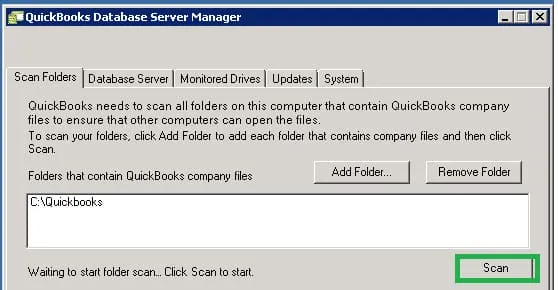
6. On the server: File -> Open or Restore Company -> Open a Company File -> browse to the new path -> open the file.
7. File -> Switch to Multi-User Mode. Test from a workstation.
Fix 9: Remove Special Characters and Shorten the File Path
Beginner | Time: 5-10 minutes
1. Navigate to the company file folder.
2. Right-click the .QBW file -> Rename -> remove all special characters (&, #, @, %) and spaces. Use only letters, numbers, and hyphens.
3. Rename the folder containing the file if it also contains special characters or spaces.
4. Delete or rename the .ND file in the same folder (will be regenerated by Database Server Manager).
5. Run a fresh scan in QuickBooks Database Server Manager. Open QuickBooks -> open the renamed file -> test.
Scenario 4: Error Persists After Path and Hosting Fixes — Program or File Issue
Applies to: Users who have corrected the file location, hosting, and path without resolving -6177, 0. Most likely causes: damaged QuickBooks program files, corrupted .QBW data, or outdated version.
Fix 10: Run QuickBooks File Doctor
Beginner-Intermediate | Time: 15-30 minutes
File Doctor performs automated diagnosis of both company file issues and network configuration problems.
1. Close QuickBooks.
2. Open QuickBooks Tool Hub -> Company File Issues -> Run QuickBooks File Doctor.
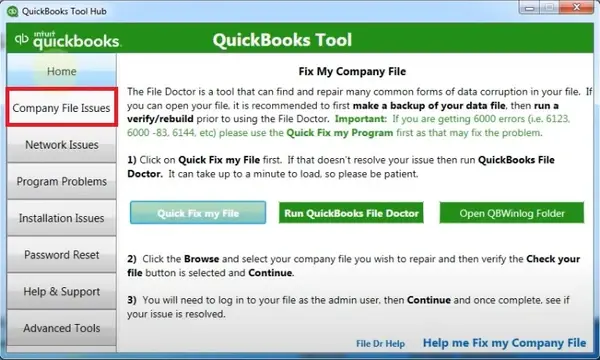
3. Select your company file (or Browse). Select Check your file and network (full scan).
4. Enter your QuickBooks admin password -> Next. Allow the scan (5-30 minutes). Test after completion.
Fix 11: Update QuickBooks Desktop
Beginner | Time: 10-20 minutes
1. Open QuickBooks (hold Ctrl to reach No Company Open screen).
2. Help -> Update QuickBooks Desktop -> Update Now -> check Reset Update -> Get Updates.
3. After download, restart QuickBooks and install. Restart your computer. Test.
Fix 12: Run Verify Data and Rebuild Data
Intermediate | Time: 20-60 minutes
Verify Data:
1. Open QuickBooks and open the company file (if it opens at all).
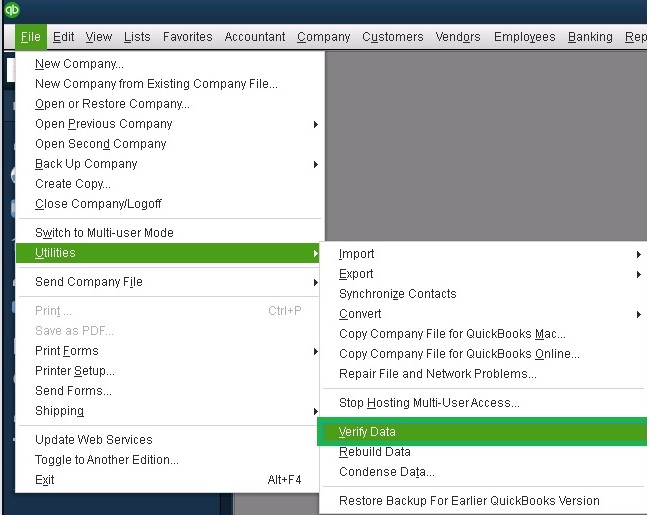
2. File -> Utilities -> Verify Data. If ‘no problems’ -> data intact, return to path/location fixes. If errors are reported -> proceed to Rebuild.
Rebuild Data:
1. File -> Utilities -> Rebuild Data. When prompted, create a backup before rebuilding.
2. Allow Rebuild to run. Do not close QuickBooks. Run Verify Data again after. If ‘no problems’ -> repair succeeded.
3. If errors persist after two Rebuild passes -> restore from backup (Fix 14) or use ADR (Fix 15).
Fix 13: Repair or Reinstall QuickBooks Desktop
Intermediate | Time: 20-45 minutes
Repair first:
1. Control Panel -> Programs and Features -> QuickBooks Desktop -> Uninstall/Change -> Repair. Follow instructions. Restart your computer. Test.
Full reinstall (if repair does not resolve):
1. Uninstall QuickBooks completely. Delete C:\Program Files\Intuit\QuickBooks [Year] and C:\ProgramData\Intuit\QuickBooks [Year]. Delete C:\ProgramData\Intuit\Entitlement Client\v8. Restart.
2. Download a fresh installer from downloads.quickbooks.com/app/qbdt/products. Install with your license details.
Scenario 5: File Cannot Be Opened at All — Data Recovery
Applies to: Users where the company file fails to open even on the host machine and all path/location fixes have been exhausted.
Fix 14: Restore from the Most Recent Clean Backup
Beginner | Time: 10-30 minutes
1. Identify the most recent .QBB backup from before the error appeared.
2. Copy the .QBB to a local folder: C:\QB_Restore\
3. In QuickBooks: File -> Open or Restore Company -> Restore a Backup Copy -> Local Backup -> Next.
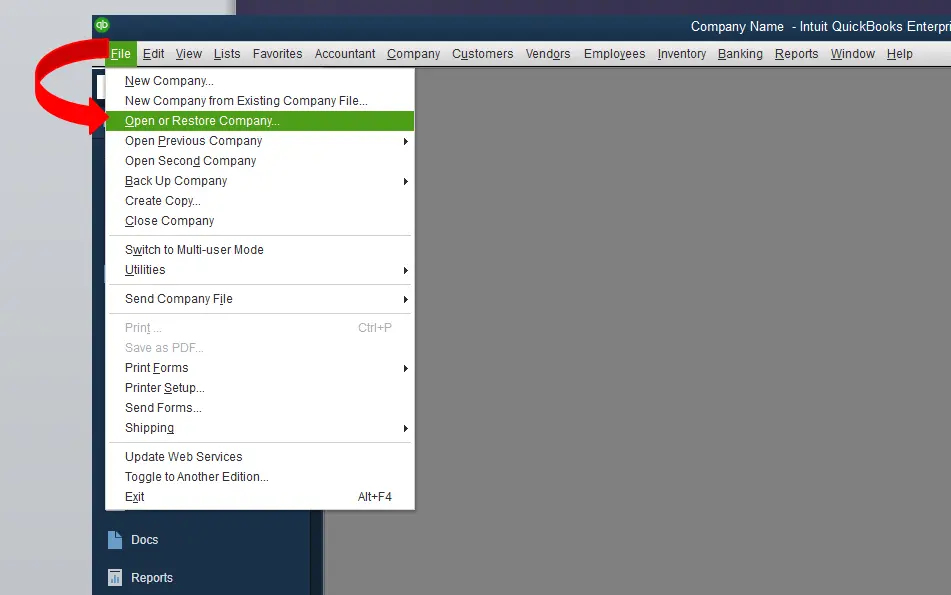
4. Browse to the .QBB -> Open -> choose a restore destination on the local C: drive. Complete the restore.
Fix 15: Use Auto Data Recovery (ADR)
Advanced | Time: 30-60 minutes
! ADR updates every 12 hours and on clean QuickBooks shutdown. Transactions entered after the most recent ADR update must be re-entered from paper records.
7. Create a folder named QBTest on your Desktop. Navigate to the company file folder. Copy the .TLG file into QBTest.
8. Locate the hidden subfolder QuickBooksAutoDataRecovery (File Explorer -> View -> Hidden items). Inside, find the .QBW.adr file -> copy it into QBTest.
9. In QBTest, rename the .QBW.adr file by removing the .adr extension. Result: a .QBW file.
10. Open QuickBooks -> File -> Open or Restore Company -> Open a Company File -> select the .QBW from QBTest.
11. File -> Utilities -> Verify Data. If there are no errors, this recovered file is usable. Copy it to the company file folder (renaming the damaged original first).
Preventive Steps for QuickBooks Error 6177
1. Store Files in Default Directory
Keep company files in QuickBooks’ recommended folder (usually C:\Users\Public\Documents\Intuit\QuickBooks\Company Files). This reduces path mismatch and prevents Error 6177.
2. Avoid External or Cloud Drives
Do not store live company files on removable drives or third‑party cloud folders. Desktop is prone to file damage when paths change or disconnect.
3. Update QuickBooks Desktop Regularly
Install the latest patches and updates to ensure compatibility with file handling and prevent recurring access errors.
4. Maintain Regular Backups
Weekly or daily backups protect against corruption. Backups also make migration to QuickBooks Online or Enterprise smoother.
5. Evaluate QuickBooks Online vs Desktop
Error 6177 is Desktop‑specific. Migrating to Online eliminates path‑related errors since files are cloud‑hosted.
6. Check Migration Limitations
Before switching, understand what doesn’t transfer (advanced inventory, payroll, custom reports). This prevents surprises post‑migration.
7. Consider Enterprise or Business Central
For larger businesses, Enterprise offers stronger hosting, while Business Central provides ERP‑level scalability both to reduce recurrence of file damage.
Real-Life Scenarios: QuickBooks Error 6177
Error 6177 occurs when QuickBooks Desktop cannot use the path to open your company file, usually involving local pathing issues on a server.
- The Mapped Drive Disconnect: A workstation attempts to open a company file over a mapped network drive ($Z:$), but Windows drops the drive connection or fails to resolve the server IP address.
- The Cloud Sync Conflict: An admin incorrectly places the active company file inside a live-syncing cloud folder like Dropbox or OneDrive, locking the database engine.
- The Server Update Reset: A routine Windows Server update resets network sharing permissions on the data folder, blocking client access.
- Error 6177 – File Path Access
- Root issue: QuickBooks cannot use the stored path to open the company file.
- Data inside the file is usually intact.
- Triggered by path damage, hosting misconfiguration, or external/cloud storage.
- Error 6150 – File Damage/Corruption
- Root issue: Actual corruption of the .QBW file or malware (e.g., CryptoWall).
- Data integrity is compromised.
- Requires backup restore, Auto Data Recovery, or File Doctor.
- Error -6000 Series – Permissions/Network
- Root issue: Incorrect folder permissions, damaged .ND/.TLG files, or unstable network.
- Common in multi‑user setups.
- Fixes involve resetting Database Server Manager, folder permissions, and hosting settings.
Conclusion:
QuickBooks Error 6177 is primarily a file path access issue, not a direct data corruption error. In most cases, the company file itself remains intact, but QuickBooks Desktop cannot establish a proper connection due to path damage, hosting misconfiguration, or external storage use.
Technicians should begin with path and hosting fixes (moving the file locally, portable file restore, Database Server Manager rescan) before escalating to File Doctor, Verify/Rebuild, or backup restore.
For businesses repeatedly facing file path errors, migration to QuickBooks Online or Enterprise offers long‑term stability, while Business Central provides ERP‑level scalability.
FAQs:
1. Does QuickBooks Online face Error 6177?
No. Error 6177 is Desktop‑specific because it relies on local or network file paths. QuickBooks Online hosts files in the cloud, eliminating path dependency.
2. What are the limitations when migrating from Desktop to Online?
Certain features like advanced inventory, payroll, and custom reporting may not transfer seamlessly. Always review migration limitations before switching.
3. How is Error 6177 different from Error 6150 or 6000 series?
- 6177 → Path issue (file intact, QuickBooks can’t reach it).
- 6150 → File corruption (data damaged or encrypted).
- 6000 series → Permissions/network conflicts (multi‑user setups).
4. Can Error 6177 cause data loss?
Rarely. The error usually affects access, not the data itself. However, improper fixes or ignoring backups can risk data integrity.
5. Can antivirus or firewall settings trigger Error 6177?
Yes. Security software may block QuickBooks processes or interfere with Database Server Manager, leading to path access errors. Configuring exceptions for QuickBooks is recommended.
6. Does Error 6177 mean my company file is corrupted?
Not usually. The error is about file path access, not internal data damage. The .QBW file is often intact, but QuickBooks cannot reach it due to path or hosting issues.