
Quickbooks error 6000, -832 is a common company file error that appears when Quickbooks Desktop fails to access or open the company file stored on a local system or network server. This error belongs to the 6000 series errors of Quickbooks and maximum errors are associated with damaged network configuration files, hosting conflicts, server communication failure, or permission related issues.
In most of the cases this error usually occurs when the user tries to open a company file in multi-user mode or after the file is moved to a new server location.
The error message generally appears as:
We’re sorry. QuickBooks encountered a problem. Error codes: (6000, -832).
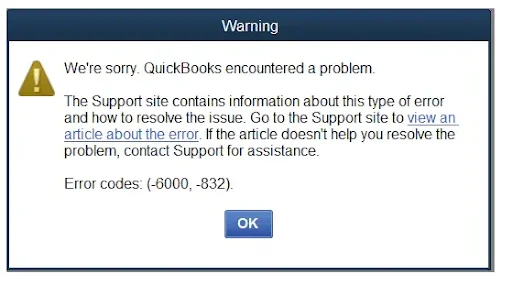
Businesses that are using Quickbook Desktop on a daily basis have a high chance of facing this issue which prevents the access to critical financial records, payroll data, invoices and accounting transactions. Although the error initially may appear like a damaged company file, the root cause is often related to corrupted ND files, improper hosting setup, firewall restrictions, Quickbook database communications failure, or incorrect server permissions.
Major Causes of QuickBooks Error 6000, -832
Damaged or corrupted company file
- File corruption in the .QBW or .QBB file prevents QuickBooks from opening or restoring data.
Incorrect hosting setup
- Multiple computers hosting the same file simultaneously cause conflicts. Only the server should host.
Network connectivity issues
- Weak or unstable connections between workstations and the server block file access.
Firewall or security restrictions
- Antivirus or firewall settings may block QuickBooks ports or executable files.
Invalid or incorrect file path
- Moving the company file without updating QuickBooks leads to path errors.
Damaged .ND or .TLG files
- These support files are essential for multi-user access; if corrupted, QuickBooks cannot connect.
QuickBooks Error 6000, -832: Desktop File Access vs Online Connectivity
QuickBooks Error 6000, -832 is a Desktop‑specific multi‑user company file error that reflects the challenges of local hosting, damaged support files, and firewall restrictions, whereas QuickBooks Online, being cloud‑based, does not generate such errors at all the equivalent “effects” in Online are seen as browser cache failures, permission misconfigurations, or unstable internet sessions.In Desktop, the error disrupts operations by blocking access to the company file, delaying workflows, and risking data integrity if backups are corrupted.
In Online, the impact is more about accessibility interruptions, login failures, or role‑based restrictions rather than file corruption. Essentially, the 6000, -832 error highlights the infrastructure burden of Desktop environments (network setup, server hosting, file integrity), while Online shifts the risk to connectivity and browser performance, meaning the same disruption loss of access manifests differently depending on whether the business relies on local servers or the cloud.
QuickBooks Error 6000, -832 During Migration: Desktop File Conflicts vs Online Transition Effects
QuickBooks Error 6000, -832 during migration typically arises when moving data from Desktop to Online or restoring backups across environments, and it reflects the tension between local file dependencies and cloud‑based hosting. In QuickBooks Desktop, the error surfaces because the company file (.QBW/.QBB) relies on support files (.ND/.TLG), correct hosting configurations, and stable network paths; if these are corrupted, duplicated, or misconfigured during migration, QuickBooks blocks access with the 6000, -832 code. The effect is that technicians cannot open or restore the file, leading to downtime and potential data integrity risks.
In QuickBooks Online, the migration process bypasses local hosting but introduces different friction points: browser cache failures, permission mismatches, or unstable internet sessions. While Online does not generate 6000 series errors, the “equivalent effect” is that migrated data may fail to upload, users may lose access due to role restrictions, or sessions may time out mid‑transfer.
Thus, 6000, -832 highlights how Desktop migrations are vulnerable to file corruption and hosting conflicts, whereas Online migrations are vulnerable to connectivity and browser environment issues both resulting in the same operational impact: interrupted access to company data during transition.
Symptoms of QuickBooks Error 6000, -832
Before the complete error appears, users often notice:
- QuickBooks freezing while opening files
- Slow multi-user performance
- Frequent workstation disconnections
- Delayed company file access
- Inability to switch to multi-user mode
- Random QuickBooks crashes
- Network communication interruptions
- Windows becoming slow or unresponsive
A common, overlooked cause of Error 6000, -832 occurs after a partial software update. If a workstation is updated to a newer minor release (e.g., Release R5) but the QuickBooks Database Server Manager on the host server remains on an older release (e.g., Release R3), the server cannot properly interpret the network path requests, immediately throwing the error.
Beginner-Level Solutions to Fix QuickBooks Error 6000, -832
Solution 1: Restart All Systems
Temporary communication failures can often be cleared through a restart.
Steps:
- Close QuickBooks on all systems
- Restart:
- Server computer
- Workstations
- Open QuickBooks only on the server first
- Reconnect workstations one at a time
Why This Helps
It removes inactive database sessions and temporary network conflicts.
Solution 2: Verify Hosting Settings
Only the server should host the company file.
On Workstations:
- Open QuickBooks
- Go to File → Utilities
- If “Stop Hosting Multi-User Access” appears, click it
On Server:
Ensure “Host Multi-User Access” is enabled.
Common Mistake
Many users unknowingly enable hosting on all systems.
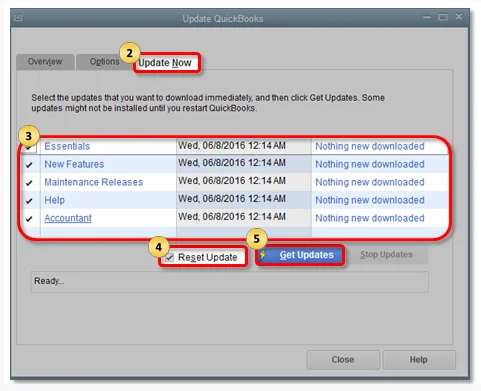
Solution 3: Update QuickBooks Desktop
Outdated QuickBooks versions may contain unresolved network bugs.
Steps:
- Open QuickBooks
- Go to Help → Update QuickBooks Desktop
- Install updates
- Restart QuickBooks
Intermediate Solutions for Persistent Company File Problems
Solution 4: Rename the ND and TLG Files
This is one of the most effective fixes for Error 6000, -832.
Steps:
- Open the company file folder
- Locate:
- .ND file
- .TLG file
- Right-click each file → Rename
- Add “.OLD” at the end
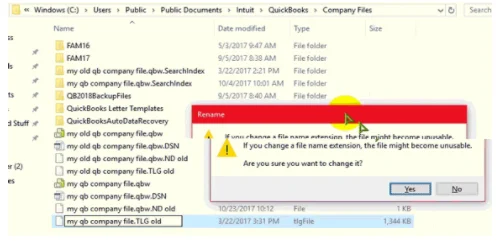
Example:
- companyfile.qbw.nd → companyfile.qbw.nd.old
- companyfile.qbw.tlg → companyfile.qbw.tlg.old
Why This Works
QuickBooks automatically creates fresh configuration files during the next scan.
Solution 5: Run QuickBooks File Doctor
QuickBooks Tool Hub includes File Doctor for repairing hosting and company file issues.
Steps:
- Download QuickBooks Tool Hub
- Open Company File Issues
- Run QuickBooks File Doctor
- Scan the affected company file
What It Repairs
- Network communication failures
- Minor company file damage
- Database inconsistencies
- Hosting conflicts
Solution 6: Check Folder Permissions
Steps:
- Right-click the company file folder
- Select Properties → Security
- Ensure users have:
- Full Control
- Read/Write permissions
- Apply changes
Importance
Improper permissions often create hidden access failures.
Advanced Solutions for Recurring Error 6000, -832
Solution 7: Restart QuickBooks Database Services
Steps:
- Press Windows + R
- Type services.msc
- Locate:
- QuickBooksDBXX
- Right-click → Restart
Advanced Benefit
This refreshes broken database communication sessions.
Solution 8: Configure Firewall Exceptions
Allow These Files:
- QBDBMgrN.exe
- QBW32.exe
- FileManagement.exe
Also Open QuickBooks Ports
Port numbers differ depending on QuickBooks version.
Why This Matters
Blocked ports interrupt workstation-to-server communication.
Solution 9: Re-scan Company File Folder Using Database Server Manager
Steps:
- Open QuickBooks Tool Hub
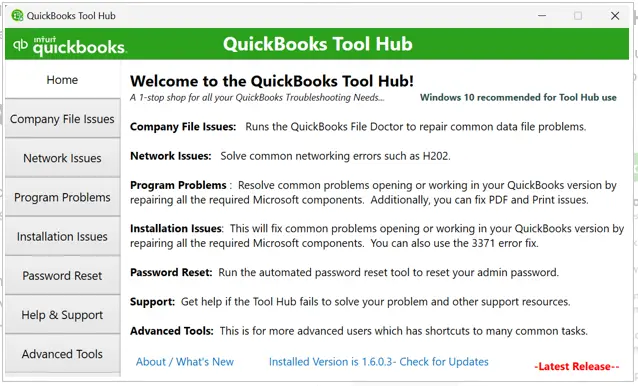
- Select Network Issues
- Launch Database Server Manager
- Scan company file folders again
Purpose
This rebuilds hosting communication paths.
Solution 10: Repair QuickBooks Installation
Steps:
- Open Control Panel
- Select Programs and Features
- Choose QuickBooks
- Click Repair
Why This Helps
Corrupted QuickBooks program files may interfere with database communication.
How to Prevent QuickBooks Error 6000, -832?
Below mentioned are the preventive measures that are recommended to minimize the error:
- Use a dedicated hosting server
- Enable hosting only on the server
- Keep QuickBooks updated
- Maintain firewall exceptions
- Use stable LAN connectivity
- Backup company files regularly
- Avoid forced shutdowns
- Monitor QuickBooks database services
- Run File Doctor periodically
Real Life Scenarios – QuickBooks Error 6000, -832
Scenario A: The Monday Morning Server Boot-Up (Multi-User Network)
- The Setup: A small accounting team leaves the office on Friday. Over the weekend, the main office server goes through an automated Windows update and reboots.
- The Trigger: On Monday morning, the office manager logs into their workstation and tries to open the company file. They are instantly hit with Error 6000, -832.
- The Real-Life Cause: While the server rebooted successfully, the Windows service QuickBooksDBXX failed to start automatically upon reboot, leaving the workstations stranded without a host.
Scenario B: The Overzealous Antivirus Update (Single or Multi-User)
- The Setup: A business operates smoothly for months. On a Tuesday afternoon, their third-party antivirus provider (like McAfee, Norton, or Bitdefender) pushes out a silent, mandatory security definitions update.
- The Trigger: An hour later, the user gets kicked out of QuickBooks and cannot log back in, seeing Error 6000, -832.
- The Real-Life Cause: The new security update flagged the QuickBooks network communication ports or the
QBDBMgrN.exefile as a “false positive” threat and blocked its inbound/outbound traffic.
Conclusion
QuickBooks Error 6000, -832 is a serious company file access issue usually caused by hosting conflicts, corrupted network configuration files, firewall restrictions, or unstable database communication. While beginner-level fixes such as restarting systems or renaming ND files may temporarily solve the issue, recurring errors often point toward deeper server configuration or network infrastructure problems.
The most effective way to resolve the issue permanently is to follow a structured troubleshooting hierarchy beginning with simple hosting verification and progressing toward advanced firewall, database, and network diagnostics. Businesses operating QuickBooks in multi-user environments should also focus heavily on preventive maintenance to minimize future hosting failures and maintain stable access to company files.
Frequently Asked Questions
Q: Can a Windows Update on our server trigger Error 6000, -832 out of nowhere?
Yes, frequently. Major Windows updates often reset security policies, re-enable the default Windows Firewall rules, or change the startup type of background services. If an update occurs, the QuickBooksDBXX service might be set back to “Manual” instead of “Automatic,” causing the error the next time workstations try to connect.
Q: We use a cloud-syncing drive (OneDrive/Dropbox) to share our company file across remote offices. Is that causing this error?
Absolutely. Running an active .QBW file inside a live cloud-sync folder like OneDrive, Google Drive, or Dropbox is a leading cause of Error 6000, -832. These platforms attempt to sync the file instantly while QuickBooks is trying to write data, creating massive file-locking conflicts and path failures.
Q: I am getting this error on a single computer with no network. Do I still need to worry about Database Server Manager?
Yes. Even in a single-user environment, QuickBooks uses an internal loopback network configuration to communicate with its own local database service. If your local QuickBooksDBXX service is blocked by a local antivirus or is corrupted, you will encounter the exact same error code.
Q: Why does switching from a mapped drive letter (like Z:) to a UNC path fix Error 6000, -832?
Windows frequently drops mapped network drive connections during idle periods to save bandwidth, causing QuickBooks to lose its connection handshake. A UNC path (e.g., \\ServerName\QBFolder\) establishes a direct network address routing protocol that does not rely on Windows maintaining a persistent drive letter mapping.
Q: Does upgrading our QuickBooks version require us to update the server tool as well?
Yes, without exception. If you upgrade your workstations to a new annual version or major release web patch, you must update the QuickBooks Database Server Manager on the host server to match. A version mismatch between the server tool and the workstation app will immediately trigger Error 6000, -832.