
Contents
- 1 Which version of QuickBooks Tool Hub is required to effectively resolve Error 1722 installation failures?
- 2 How does the Windows Installer engine registration status directly impact QuickBooks Error 1722?
- 3 Why do missing or outdated Visual C++ Redistributables cause installer script failures in QuickBooks?
- 4 Can QuickBooks Error 1722 occur during software uninstallation as well as installation?
- 5 How does Selective Startup help isolate third-party service conflicts that trigger Error 1722?
- 6 What Windows Event Viewer logs should be reviewed to identify the exact script or DLL failure behind Error 1722?
- 7 How do incorrect TEMP or PATH environment variables interfere with QuickBooks installer execution?
- 8 Why can disk-level file system errors contribute to recurring Windows Installer package errors in QuickBooks?
- 9 How does re-registering the Windows Installer service resolve QuickBooks Error 1722?
- 10 Why do leftover Intuit and QuickBooks installer cache folders trigger repeated Error 1722 failures?
- 11 How do damaged user account permissions prevent QuickBooks from registering installation components?
- 12 Why does Error 1722 persist even after running SFC and DISM system repair commands?
- 13 How can outdated Windows servicing stack updates affect QuickBooks installation processes?
- 14 What role does the Windows Installer rollback process play in triggering Error 1722?
- 15 How can malware-related system file changes lead to Windows Installer package errors in QuickBooks?
- 16 What advanced system cleanup steps reduce the likelihood of QuickBooks Error 1722 reoccurring after repair?
Which version of QuickBooks Tool Hub is required to effectively resolve Error 1722 installation failures?
You need QuickBooks Tool Hub version 3.0 or later to effectively troubleshoot Error 1722 installation failures. The latest version of Tool Hub contains updated diagnostic tools that specifically target Windows Installer problems and script execution errors that cause Error 1722.
Download the most current Tool Hub version directly from the official Intuit website to ensure you have all necessary repair utilities. Older Tool Hub versions may lack the updated Quick Fix my Program utility that addresses installer script failures. The Install Diagnostic Tool within Tool Hub automatically detects and repairs corrupted Windows Installer components that trigger Error 1722.

QuickBooks Tool Hub Logo
You should always verify you have the latest Tool Hub version before attempting Error 1722 repairs. Check for Tool Hub updates through the Help menu inside the application itself. Outdated Tool Hub versions cannot repair newer Windows Installer issues introduced by recent Windows updates.
How does the Windows Installer engine registration status directly impact QuickBooks Error 1722?
Windows Installer engine must be properly registered in the Windows Registry for QuickBooks installation packages to execute correctly. Error 1722 appears when the installer service cannot access required DLL files or when registration entries become corrupted or missing from the system registry.
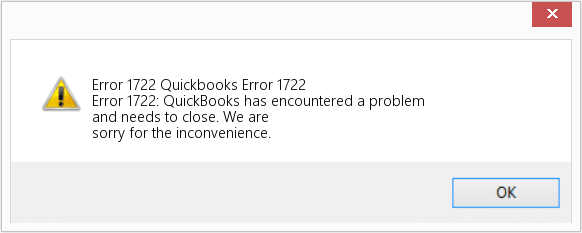
The Windows Installer engine coordinates all software installation activities on your computer and manages how setup packages interact with system files. QuickBooks relies on this engine to execute installation scripts, register program components, and configure database connections during setup. When the installer engine loses proper registration, it cannot launch the custom action scripts that QuickBooks setup packages depend on.
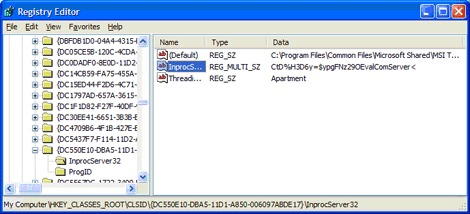
You can verify installer engine registration status by attempting to install any MSI package on your system. Consistent installation failures across different programs indicate Windows Installer engine problems rather than QuickBooks-specific issues. Re-registering the Windows Installer service through Command Prompt often resolves these underlying registration problems immediately.
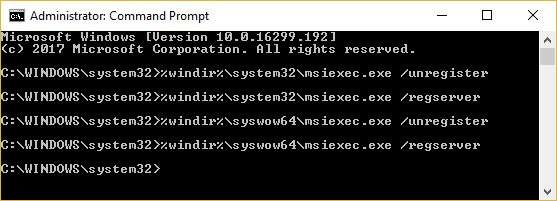
How to Fix: Re-registering the Installer Engine:
To fix this, you must “refresh” the engine’s registration in Windows. This doesn’t delete anything; it simply tells Windows to reconnect the installer service to its required files.
- Click the Start menu and type cmd.
- Right-click Command Prompt and select Run as Administrator.
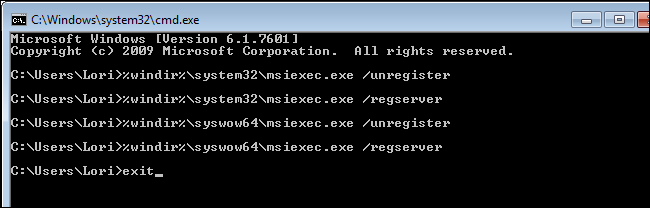
- Type msiexec /unreg and press Enter. (This unregisters the service).
- Type msiexec /regserver and press Enter. (This re-registers the service).
Why do missing or outdated Visual C++ Redistributables cause installer script failures in QuickBooks?
QuickBooks installation scripts depend on Microsoft Visual C++ Runtime libraries to execute properly during the setup process. The installer package contains custom actions written in C++ that require specific redistributable versions to run on your computer.
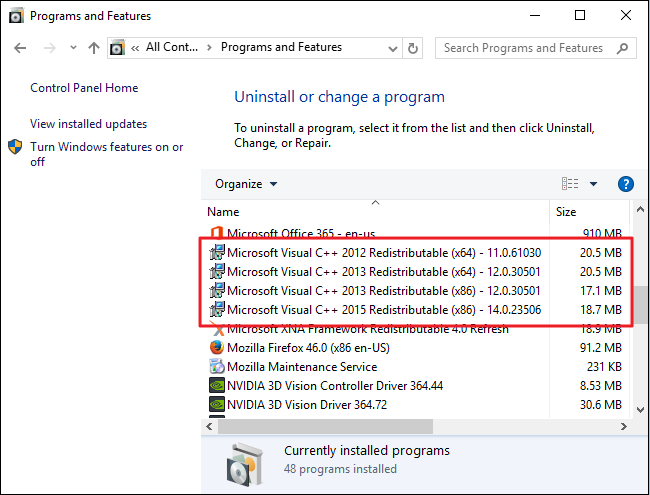
Error 1722 occurs when these required Visual C++ components are missing, corrupted, or incompatible with the QuickBooks installer version. The installation script attempts to call functions from the redistributable libraries but receives error codes when the required DLL files cannot be found or loaded. QuickBooks Desktop typically requires Visual C++ 2005, 2008, 2010, 2012, 2013, 2015-2022 redistributables for complete functionality across different installation components.
You should install all available Visual C++ Redistributable packages from the Microsoft Download Center before attempting QuickBooks installation. Download both x86 (32-bit) and x64 (64-bit) versions of each redistributable year to ensure complete coverage. Many users successfully resolve Error 1722 by simply updating their Visual C++ redistributables to the latest versions available from Microsoft.
Can QuickBooks Error 1722 occur during software uninstallation as well as installation?
Yes, Error 1722 appears during both QuickBooks installation and uninstallation processes because both operations use Windows Installer scripts. Uninstallation requires the same custom action scripts that installation uses, just executed in reverse order to remove program components safely.
The error occurs during uninstallation when Windows Installer cannot properly execute cleanup scripts that remove registry entries, delete program files, or unregister QuickBooks components. Corrupted installation records in the Windows Installer cache prevent proper uninstallation even when QuickBooks itself appears to be functioning normally. You may encounter Error 1722 when trying to remove an older QuickBooks version before installing a newer release.
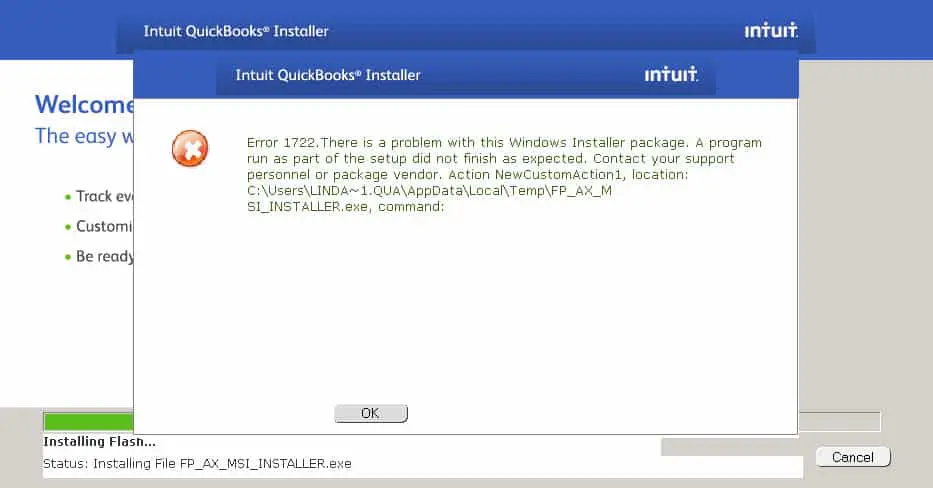
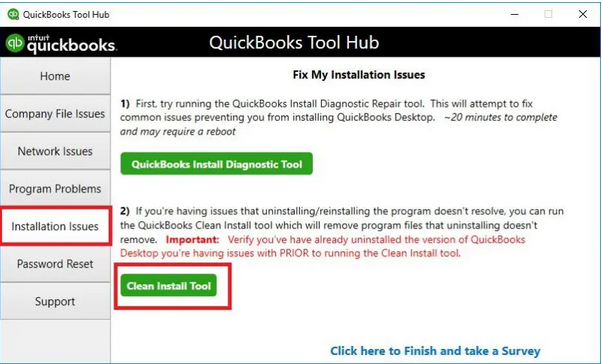
Fix uninstallation Error 1722 by running the QuickBooks Clean Uninstall Tool from Intuit’s website instead of using Windows Add/Remove Programs. The Clean Uninstall Tool bypasses corrupted installer scripts and manually removes QuickBooks files and registry entries. You should restart your computer after running the Clean Uninstall Tool before attempting to install a fresh QuickBooks version.
How does Selective Startup help isolate third-party service conflicts that trigger Error 1722?
Selective Startup disables all non-Microsoft services and startup programs to create a clean Windows environment for QuickBooks installation. Third-party security software, system utilities, and background services often interfere with Windows Installer operations by blocking script execution or modifying system files during installation.
Error 1722 frequently results from conflicts between QuickBooks installer scripts and services like antivirus real-time protection, system optimizers, or backup utilities running in the background. Selective Startup eliminates these conflicts by temporarily stopping all third-party services while keeping essential Windows services active. This isolation technique allows you to determine whether Error 1722 stems from Windows Installer problems or external software interference.
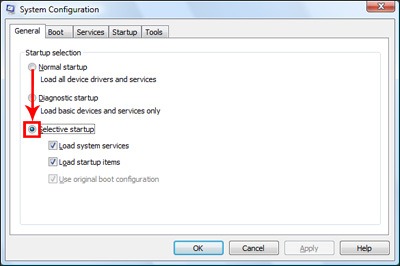
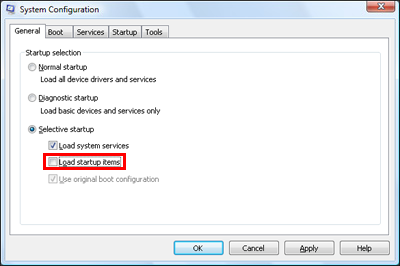
You access Selective Startup through System Configuration by pressing Windows + R, typing “msconfig”, and selecting Selective startup with “Load system services” checked. Uncheck “Load startup items” and go to the Services tab to hide all Microsoft services, then disable all remaining third-party services. Restart your computer in this clean state before attempting QuickBooks installation again to rule out service conflicts.
What Windows Event Viewer logs should be reviewed to identify the exact script or DLL failure behind Error 1722?
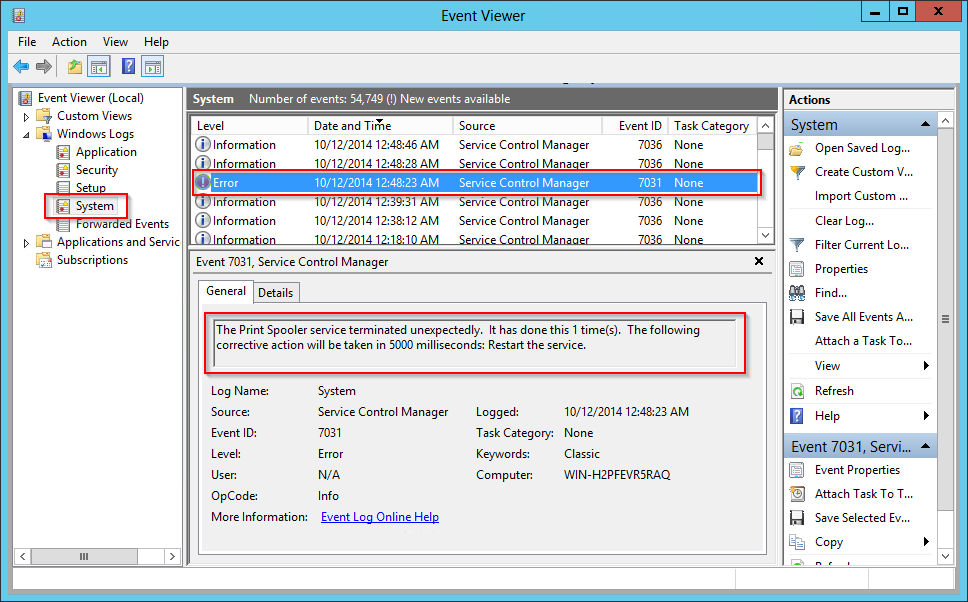
You should examine the Application log and Setup log sections within Windows Event Viewer to find detailed Error 1722 failure information. The Application log contains Windows Installer service entries that record which specific custom action or script failed during QuickBooks installation.
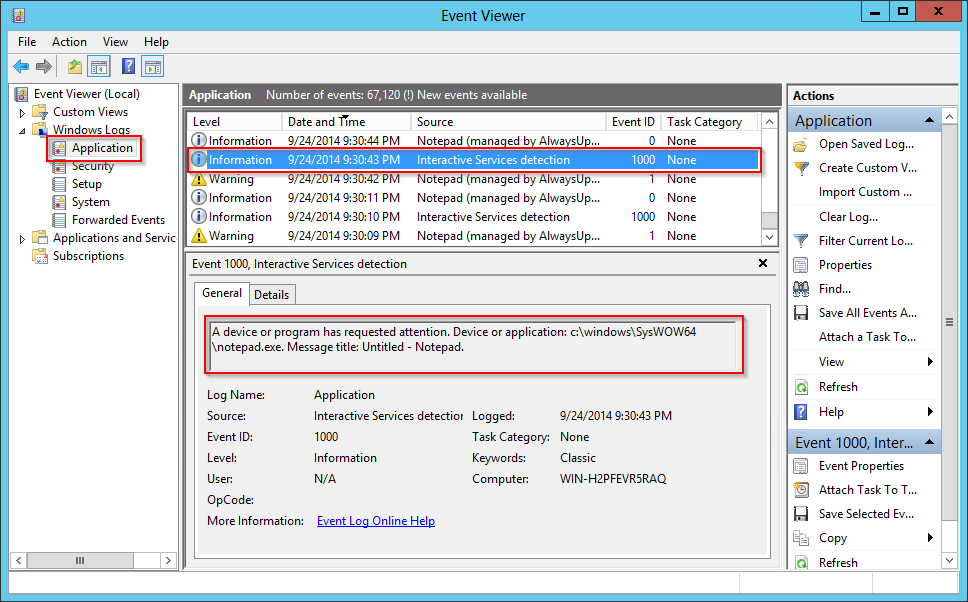
Look for Event ID 11722 entries from the MsiInstaller source in your Application log immediately after the installation failure occurs. These entries identify the exact DLL file, script name, or custom action that triggered the error. The log details often include the specific function call that failed and the Windows error code returned by the system. You can also check the System log for service-related failures that might prevent Windows Installer from accessing required components.
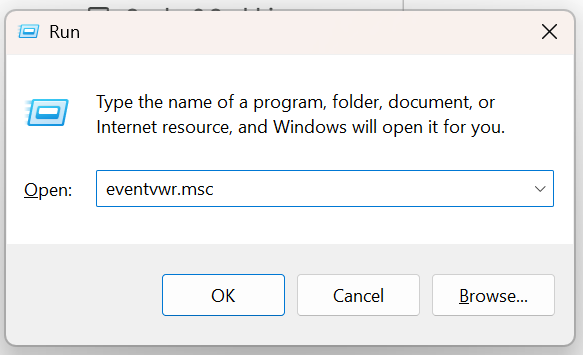
Open the Event Viewer by pressing Windows + R, typing “eventvwr.msc”, and pressing Enter to launch the utility. Navigate to Windows Logs, then Application, and filter current log by Event ID 11722 or Event ID 1722 to find all relevant installer failures. Copy the error details from Event Viewer and search Intuit support forums for the specific DLL or script name mentioned in the failure description.
How do incorrect TEMP or PATH environment variables interfere with QuickBooks installer execution?
QuickBooks installer extracts temporary files to the location specified in your TEMP and TMP environment variables during setup. Error 1722 occurs when these variables point to nonexistent folders, restricted directories, or paths containing special characters that Windows Installer cannot process.
The installer requires write access to the TEMP location to extract installation scripts, create temporary databases, and store rollback information during the setup process. Incorrect PATH environment variable entries can prevent the installer from locating required system DLL files or executable programs needed for script execution. QuickBooks setup fails when Windows cannot create temporary folders or when the TEMP path exceeds Windows maximum path length limitations.
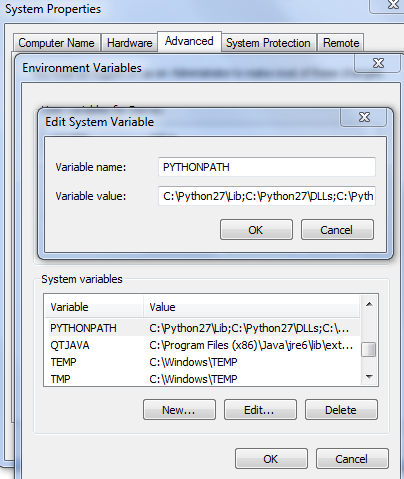
You can fix TEMP and PATH issues by opening System Properties, clicking Environment Variables, and verifying both User variables and System variables sections. Set TEMP and TMP variables to C:\Windows\Temp for system-wide consistency and ensure the PATH variable does not contain duplicate entries or invalid folder references. Delete the contents of both your user TEMP folder and Windows\Temp folder before attempting QuickBooks installation after correcting these variables.
Why can disk-level file system errors contribute to recurring Windows Installer package errors in QuickBooks?
Disk file system errors corrupt the Windows Installer cache folder where installation packages store critical setup files. Error 1722 recurs when the installer cannot read corrupted MSI packages, CAB files, or cached installation scripts from damaged disk sectors.
Hard drive problems cause random data corruption in the C:\Windows\Installer directory that Windows uses to store cached installation information for all programs. QuickBooks requires access to properly cached MSI files during updates, repairs, and modifications to existing installations. Bad disk sectors prevent Windows from extracting installer scripts correctly, leading to script execution failures that manifest as Error 1722.
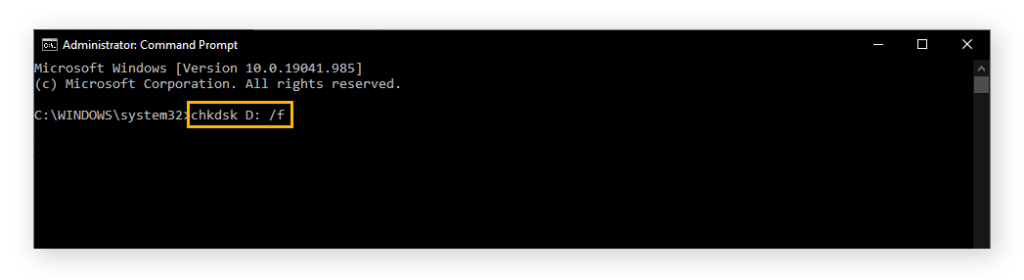
Run the Check Disk utility by opening Command Prompt as Administrator and typing “chkdsk C: /f /r” to scan and repair file system errors. The /f parameter fixes errors on the disk while /r locates bad sectors and recovers readable information from damaged areas. You must restart your computer to allow Check Disk to scan the system drive since Windows cannot check the active boot partition while it is running.
How does re-registering the Windows Installer service resolve QuickBooks Error 1722?
Re-registering Windows Installer service restores the correct registry entries and DLL registrations that the installer engine requires to function properly. The registration process rebuilds the service’s connection to essential system files and resets permissions that may have become corrupted.
Error 1722 often indicates that Windows Installer service lost its proper registration due to malware, failed Windows updates, or system file corruption. The re-registration commands force Windows to recreate all registry associations for the installer service and reload the msiexec.exe configuration. This process fixes problems where the installer service starts but cannot execute custom actions or access required COM components.
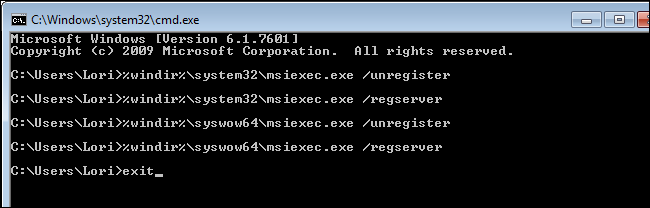
You re-register Windows Installer by opening Command Prompt as Administrator and typing “msiexec /unregserver” followed by Enter, then typing “msiexec /regserver” followed by Enter. Wait several seconds between commands to allow Windows to complete the unregistration before re-registering the service. Restart your computer after re-registration to ensure all changes take effect before attempting QuickBooks installation.
Why do leftover Intuit and QuickBooks installer cache folders trigger repeated Error 1722 failures?
Leftover installer cache folders contain corrupted or outdated installation files from previous QuickBooks installations that conflict with new setup attempts. Windows Installer references these cached files during installation but encounters errors when the cached data does not match the current installation package.
The C:\ProgramData\Intuit and C:\Windows\Installer folders store QuickBooks installation patches, update files, and cached MSI databases. Error 1722 recurs when the installer tries to apply updates based on corrupted cache information or when orphaned installer entries reference missing files. Multiple failed installation attempts accumulate conflicting cache entries that prevent successful QuickBooks installation until you manually clean the cache folders.
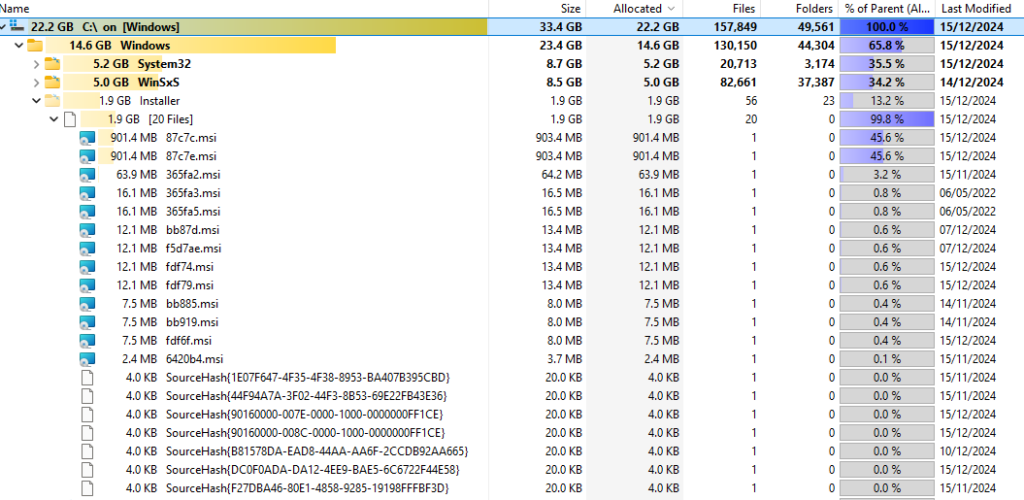
You should rename or delete the Intuit folder inside C:\ProgramData before attempting QuickBooks installation after Error 1722. Navigate to C:\ProgramData (you may need to enable hidden files in Windows Explorer), locate the Intuit folder, right-click it, and rename it to “Intuit.old” to preserve existing data while preventing cache conflicts. Empty the C:\Windows\Installer$PatchCache$ folder to remove outdated QuickBooks patch files that may cause installation script failures.
How do damaged user account permissions prevent QuickBooks from registering installation components?
QuickBooks installer requires specific Windows permissions to write registry entries, register COM components, and modify system files during installation. Error 1722 occurs when your user account lacks the necessary administrative rights or when permission corruption prevents the installer from accessing protected system locations.
User Account Control settings and group policy restrictions can block installer scripts from executing privileged operations even when you run the setup as Administrator. The Windows Installer service runs under the SYSTEM account but needs to interact with your user profile to configure program settings and create shortcuts. Damaged security descriptors on registry keys or file system folders prevent the installer from completing component registration steps that QuickBooks requires.
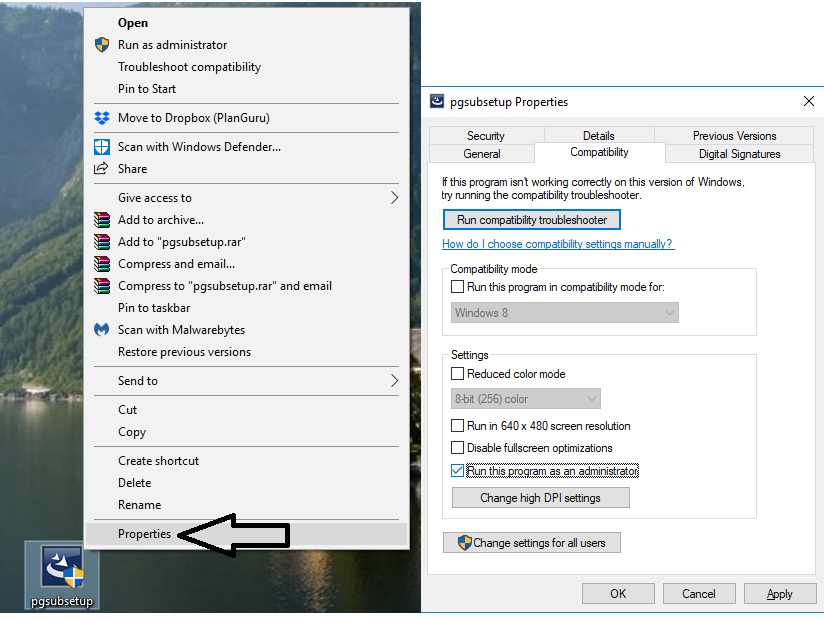
Fix permission problems by creating a new Windows administrator account specifically for QuickBooks installation and switching to that account before running setup. Right-click the QuickBooks installer file, select Properties, go to the Compatibility tab, and check “Run this program as an administrator” to force elevated permissions. You can also use the built-in Administrator account by opening Command Prompt as Administrator and typing “net user administrator /active:yes” to enable it temporarily.
Why does Error 1722 persist even after running SFC and DISM system repair commands?
SFC and DISM commands repair Windows system files and the component store but do not fix problems with third-party installer files or QuickBooks-specific dependencies. Error 1722 persists when the actual cause involves corrupted Visual C++ redistributables, damaged Windows Installer cache entries, or QuickBooks installer package corruption rather than core Windows system files.
The System File Checker restores only Windows operating system files that ship with your Windows installation. DISM repairs the Windows image and component store but cannot detect or fix problems with Microsoft .NET Framework installations or third-party runtime libraries. QuickBooks installation scripts may depend on files outside the scope of these repair utilities, meaning the underlying cause of Error 1722 remains unresolved even after successful SFC and DISM operations.
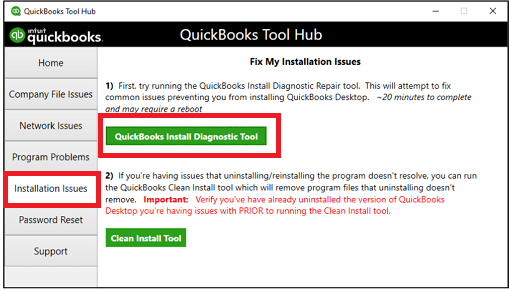
You need to combine SFC and DISM repairs with additional troubleshooting steps like reinstalling Visual C++ redistributables and repairing Microsoft .NET Framework to fully resolve Error 1722. Run Windows Update after system repairs to ensure you have the latest Windows Installer components and servicing stack updates. Use the QuickBooks Install Diagnostic Tool to address installer-specific problems that SFC and DISM cannot detect.
How can outdated Windows servicing stack updates affect QuickBooks installation processes?
Windows servicing stack updates provide the foundation for installing other Windows updates and maintaining system component integrity. Outdated servicing stack components prevent Windows Installer from properly accessing update files or executing installation scripts that require current system frameworks.
Error 1722 can result from incompatibilities between QuickBooks installer requirements and outdated Windows servicing mechanisms. The servicing stack manages how Windows processes MSI packages, applies patches, and handles installation rollback operations. QuickBooks installation may fail when the servicing stack cannot properly handle the installer’s custom actions or when security improvements in newer QuickBooks versions require updated servicing components.
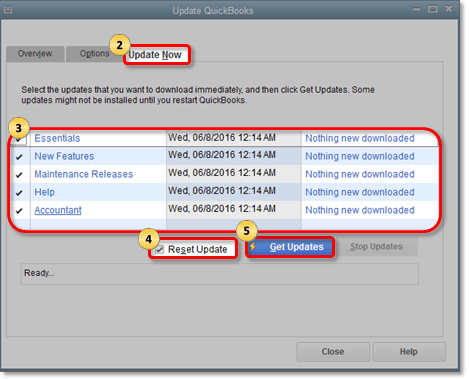
You should always install all available Windows updates before attempting QuickBooks installation or upgrade operations. Open Windows Update settings and click “Check for updates” to download and install servicing stack updates that appear before cumulative updates. Restart your computer after installing servicing stack updates, then check for updates again to install any additional patches that become available after the servicing stack refresh.
What role does the Windows Installer rollback process play in triggering Error 1722?
Windows Installer rollback process attempts to restore your system to its previous state when installation fails or encounters errors. Error 1722 can occur during rollback when the installer cannot properly undo changes made before the failure or when rollback scripts themselves encounter execution problems.
The installer creates restore points and backup files during installation to enable safe rollback if problems occur. QuickBooks installation failure may trigger Error 1722 during the rollback phase if the installer cannot delete temporary files, restore original registry values, or remove partially installed components. Insufficient disk space prevents the rollback process from creating necessary backup files, leading to script execution failures. Corrupted rollback information in the Windows Installer cache causes repeated Error 1722 failures across multiple installation attempts.
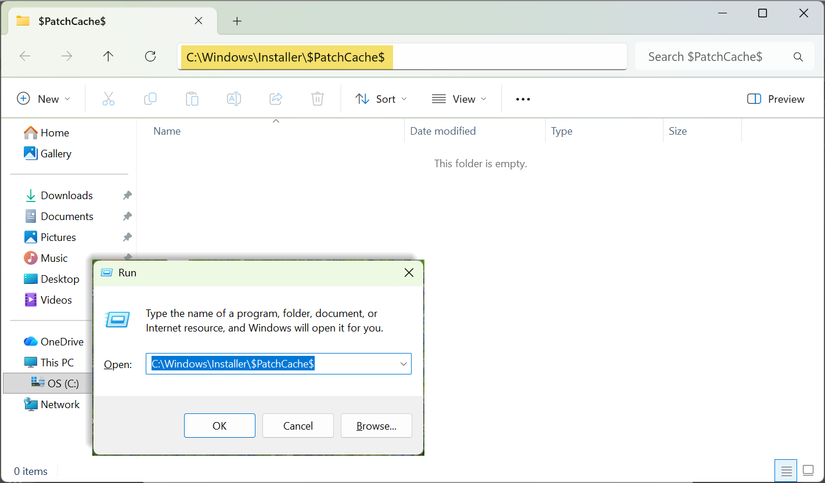
You can resolve rollback-related Error 1722 by ensuring you have at least 10 GB of free disk space on your system drive before installing QuickBooks. Clear the Windows Installer cache folder at C:\Windows\Installer$PatchCache$ to remove corrupted rollback information from previous failed installations. Disable System Restore temporarily during QuickBooks installation to prevent conflicts between Windows Installer rollback and System Restore operations.
Malware modifies Windows system files, registry entries, and security settings in ways that interfere with legitimate installer operations. Error 1722 occurs when malware damage prevents Windows Installer from accessing required system components or when security software mistakes QuickBooks installer scripts for malicious code.
Trojans and rootkits often target Windows Installer service to prevent security software updates and system repairs from completing successfully. Malware can corrupt the msiexec.exe executable, modify installer service registry keys, or inject malicious DLLs into the installer process. QuickBooks installation fails when these modifications prevent the installer from executing custom actions or when the installer service itself becomes unstable due to malware interference. Previous malware infections may leave system damage even after the malware removal if cleanup tools do not fully restore affected Windows components.
Run a complete system scan with updated antivirus software before attempting QuickBooks installation if you suspect malware involvement in Error 1722. Use Microsoft Safety Scanner or Windows Defender Offline for deep malware detection that checks for rootkits and installer service infections. Manually re-register Windows Installer service after malware removal to repair any damage to the installer engine registration.
What advanced system cleanup steps reduce the likelihood of QuickBooks Error 1722 reoccurring after repair?
Advanced system cleanup involves removing all QuickBooks installation remnants, clearing Windows Installer cache, and resetting installer-related Windows components. These steps create a clean installation environment that prevents old configuration conflicts from triggering Error 1722 in future QuickBooks installations.
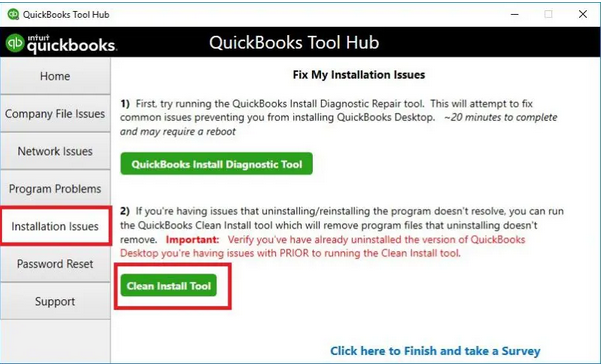
You should uninstall QuickBooks completely using the Clean Uninstall Tool, then manually delete remaining Intuit folders from Program Files, ProgramData, and AppData locations. Remove all Visual C++ redistributables through Programs and Features, then reinstall fresh copies from Microsoft Download Center to eliminate corrupted runtime libraries. Clear the Windows Installer cache folder and temporary files directories to remove cached installation data that might conflict with new QuickBooks installations.
Reset Windows Update components by running the Windows Update Troubleshooter from Settings to repair the update service and component store. Run CCleaner or similar system cleanup utilities to remove invalid registry entries, broken shortcuts, and orphaned installer references that accumulate from multiple installation attempts. Create a System Restore point after completing cleanup steps so you can easily revert changes if the QuickBooks installation encounters new problems. Restart your computer twice after cleanup operations to ensure all changes take effect before attempting QuickBooks installation.