
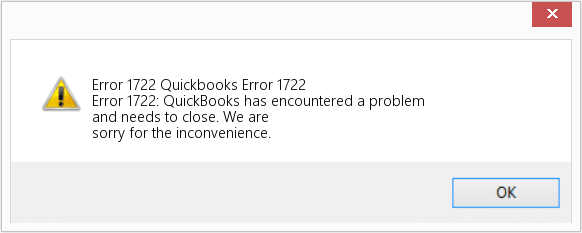
QuickBooks error 1722 appears during installation or update attempts of QuickBooks Desktop software on your computer. The error message states “Error 1722: There is a problem with this Windows Installer package. A program run as part of the setup did not finish as expected.”
You need working Windows components for QuickBooks to install correctly. Error 1722 stops your software installation but does not damage your company files or financial data. Broken Windows components prevent QuickBooks from completing the installation process. The installer stops and displays error 1722 because it cannot run the required setup programs.
Windows Installer Package manages all software installations on your computer. QuickBooks requires specific Microsoft components to install properly. The installer checks for these components during setup. Finding damaged or missing components triggers error 1722 and stops the installation.
Contents
Common Triggers During Installation and Updates
- Damaged Microsoft Components – QuickBooks Desktop requires Microsoft .NET Framework, MSXML, and C++ to function. The software sends commands to these components during installation. Damaged component files or missing updates stop QuickBooks from completing the setup. The installation fails mid-process and returns error 1722 to your screen.
- Corrupted Windows Registry Entries – Your Windows registry stores important installation settings. QuickBooks checks these registry entries during installation. Recent software changes can corrupt these entries. The QuickBooks installer cannot proceed when it finds corrupted registry entries.
- Antivirus Software Blocking Installation Files – Security programs sometimes identify QuickBooks installation files as suspicious. Your antivirus blocks file access to protect your system. The blocked installation process cannot complete the necessary Windows component updates. Error 1722 appears because the installer encountered a security barrier.
- Incomplete QuickBooks Installation Files – Your QuickBooks download may have been interrupted. Power outages or internet connection problems can corrupt download files. The installer cannot work with incomplete or damaged files. Error 1722 displays when the setup program detects file problems.
Common Signs of Error 1722
You see the error message “Error 1722: There is a problem with this Windows Installer package” on your screen during installation. QuickBooks crashes or closes without warning while attempting to install or update. Windows displays messages stating the setup did not finish as expected.
The installation progress bar stops moving and your screen freezes. Your computer takes longer than usual to respond to clicks and keyboard inputs. QuickBooks refuses to open after what appeared to be a successful installation, indicating components did not register correctly.
Top Solutions to Resolve Windows Installer Package Errors (Ranked by Priority)
To resolve Windows Installer Package errors efficiently, follow these recommended solutions in the order of priority listed below. Click to Solve Error 1722:
- Solution 1: Use the QuickBooks Tool Hub to Fix Installation Error 1722
- Solution 2: Fix QuickBooks Error 1722 With .NET Framework Manual & Automatic Repair
- Solution 3: Resolve QuickBooks Error 1722 through Windows Updates and System Components
- Solution 4: Performing Clean Installation & Disable Antivirus Software to Fix QuickBooks Error 1722
Expert Tips to Prevent Future Windows Installer Failures
To keep QuickBooks running smoothly, it is important to maintain your computer’s system files. Following these simple steps will help you avoid installation problems and keep your business data safe from future errors.
- Turn on Automatic Updates: Let Windows update itself automatically. This ensures your computer gets the latest component fixes and security patches that prevent problems before they start.
- Back Up Your Data Regularly: Always save a backup of your QuickBooks company file. It is very important to do this before you install any big updates or make changes to your computer.
- Check Your Software Version: Make sure your QuickBooks version works with your version of Windows. Older QuickBooks versions may need specific Windows components enabled manually.
- Read Official Requirements: Before you upgrade your Windows, check the official Intuit website to see if your version of QuickBooks will still work.
- Pause Your Antivirus During Setup: Sometimes antivirus software blocks QuickBooks from installing correctly. Turn it off while you install the software, then turn it back on as soon as you are finished.
- Download Only from Official Sources: Get QuickBooks installation files only from the Intuit website. Third-party download sites may provide corrupted or incomplete files.
- Run Installation as Administrator: Right-click the QuickBooks installer file and select “Run as administrator.” This gives the installer the permissions it needs to modify system files.
- Close Background Programs: Exit all running programs before installing QuickBooks. Other software can interfere with the installation process.
Why You Can Trust This Advice?
These tips are based on official troubleshooting steps from Microsoft and Intuit (the makers of QuickBooks). We share these specific steps because they are the most reliable ways to prevent installation problems. By following these industry-standard practices, you are using the same methods that professional IT experts use to keep business software running safely.
Have Questions & Doubts about QuickBooks Error 1722, Do checkout the Frequently Asked Section…
You are Here: MigrateMyBooks > QuickBooks Error Codes List > QuickBooks Error 1722