
QuickBooks Error 12009 is an update and payroll download error that occurs when QuickBooks Desktop cannot successfully complete a secure internet communication session with Intuit servers.
QuickBooks error belongs to the 12000-series update errors, which are directly associated with network connectivity, HTTPS communication, and secure response validation failures. In this condition, QuickBooks initiates contact with Intuit services, but the encrypted server response does not complete or validate within the required time window.
QuickBooks Error 12009 surfaces during QuickBooks Desktop updates, payroll downloads, subscription verification, or live service authentication.
QuickBooks error indicates that internet access exists, but the secure HTTPS response is interrupted, modified, delayed, or rejected due to network configuration, security inspection, certificate trust issues, or SSL/TLS misalignment. This failure causes QuickBooks to terminate the operation to protect system integrity and prevent incomplete or untrusted data exchanges.
Understanding QuickBooks Error 12009 requires examining how QuickBooks communicates with Intuit servers, how secure responses are validated, and how system-level security components influence update behavior. Proper identification of these factors allows accurate diagnosis, targeted correction, and long-term prevention of recurring update failures.
Contents
- 1 What Is QuickBooks Error 12009?
- 2 QuickBooks Error 12009: Quick Checklist
- 3 Root Causes of QuickBooks Error 12009
- 4 QuickBooks Error 12009: Deep Diagnosis
- 5 Validation Commands
- 6 Solutions with Cause: QuickBooks Update Error 12009
- 6.1 Solution 1: Verify Secure Internet Connectivity and Certificate Response
- 6.2 Solution 2: Align Internet Explorer Security Components with QuickBooks Requirements
- 6.3 Solution 3: Review Proxy and Network Inspection Configuration
- 6.4 Solution 4: Refresh QuickBooks Update Services and Cached Data
- 6.5 Solution 5: Validate Firewall and Endpoint Security Trust
- 6.6 Solution 6: Repair Windows Certificate Store and System Trust
- 6.7 Step 2 – Verify QuickBooks Digital Certificates
- 6.8 Solution 7: Update QuickBooks Desktop and Windows Security Framework
- 7 Resolution Summary for QuickBooks Error 12009
- 8 Enterprise Scenarios Impacting QuickBooks Error 12009
- 9 Prevention of QuickBooks Error 12009
- 10 Real Case Studies: QuickBooks Error 12009
- 11 When to Call Support for QuickBooks Error 12009?
- 12 Frequently Asked Questions
- 12.1 What is the error code 12000 in QuickBooks?
- 12.2 How do I fix a QuickBooks error?
- 12.3 How to fix error code 12002?
- 12.4 What is error 12029?
- 12.5 How do I clear the cache for QuickBooks?
- 12.6 How to fix QuickBooks error 12029?
- 12.7 Do I need to call QuickBooks support?
- 12.8 Will Intuit charge me to fix this?
- 12.9 How long does this usually take to resolve?
What Is QuickBooks Error 12009?
QuickBooks Error 12009 is an update and payroll download error that appears when QuickBooks Desktop cannot maintain a stable internet connection to Intuit services. The official error message commonly displays:
“Problem Error 12009: A network timeout that is preventing QuickBooks from accessing the server.”
This error code belongs to the 12000 update error series, which Intuit classifies as connectivity-based failures rather than data corruption or application damage. Error 12009 occurs when QuickBooks attempts to communicate with Intuit servers over HTTPS but the response does not complete within the expected timeframe.
QuickBooks Error 12009 can occur during:
- QuickBooks Desktop updates
- Payroll update downloads
- Subscription validation
- Live services that require secure server authentication
If the server response fails to complete before the timeout, QuickBooks stops the operation and displays Error 12009.
QuickBooks Error 12009: Quick Checklist
Before initiating advanced troubleshooting, validate the following five conditions. These checks confirm whether the environment meets the minimum requirements for QuickBooks update communication.
| 1. Confirm Internet Access | Access a secure HTTPS website outside of QuickBooks. Failure to load secure pages confirms a system-level network issue that must be resolved before QuickBooks can update. |
| 2. Verify Local Internet Settings | QuickBooks uses Windows internet settings configured through Internet Explorer components. TLS support and browser configuration must be functional even if Internet Explorer is not used for browsing. |
| 3. Check Firewall and Antivirus Restrictions | Security software may silently block outbound QuickBooks traffic or terminate SSL sessions, leading to update timeouts. |
| 4. Confirm QuickBooks Update Configuration | Corrupted or incomplete update cache files can trigger repeated timeouts until reset. |
| 5. Run QuickBooks with Administrative Privileges | Insufficient permissions can prevent QuickBooks from accessing required system and network components during updates. |
Root Causes of QuickBooks Error 12009
QuickBooks Error 12009 generally signifies a network timeout before completion of a secure HTTPS request. The most frequent causes include unstable internet connectivity, firewall or antivirus interference, incorrect Internet Explorer configuration, misconfigured SSL/TLS protocols, and blocked or misrouted network traffic.
1. Unstable Network Connectivity
QuickBooks requires stable, uninterrupted internet traffic to complete secure server handshakes. Slow or highly latent connections may cause delays that lead to timeout errors like 12009.
2. Incorrect Internet/Browser Configuration
QuickBooks relies on Internet Explorer’s system settings for its network configuration, regardless of the default browser you use. Incorrect LAN, proxy, or connection settings can interrupt secure communication.
3. Firewall and Antivirus Blocking
Security suites often block outbound connections that they do not recognize. If QuickBooks processes are prevented from initiating or completing a secure connection for updates, Error 12009 appears.
4. SSL/TLS Protocol Misconfiguration
QuickBooks update services require modern SSL/TLS configurations for secure communications. Disabled or outdated protocols can block secure handshakes.
5. Network Timeouts
Timeouts occur when the operating system ends a request that does not receive a server response within an expected window. This can be caused by external network hardware, ISP routing issues, or local network misrouting.
QuickBooks Error 12009: Deep Diagnosis
Understanding the full network path between QuickBooks Desktop and Intuit servers exposes routing blocks, packet inspection, or timeout conditions that basic checks miss. Intuit classifies QuickBooks Error 12009 as a connectivity and timeout failure tied directly to server communication.
1. Test Basic Connectivity
Connectivity testing determines whether the issue originates locally or within the broader network. Intuit recommends this step before any repair or reinstallation.
- Ping testing verifies DNS resolution and IP reachability
- Traceroute (tracert) reveals routing delays or packet loss
- Test-NetConnection confirms HTTPS port availability
Failed DNS resolution prevents QuickBooks from locating update servers. Stalled hops indicate ISP-level filtering or enterprise firewalls. Blocked TCP 443 traffic causes silent update failures without detailed application logs.
2. Proxy and VPN Review
QuickBooks Desktop relies on direct HTTPS communication using system internet settings. Proxy servers and VPN tunnels modify routing behavior and frequently disrupt QuickBooks update requests. Intuit does not officially support most authenticated proxy environments.
Disabling proxies or VPNs temporarily isolates routing interference. Successful updates after bypassing these controls confirm network redirection as the failure point rather than application corruption.
3. Firewall Port Accessibility
Firewall restrictions are one of the most common triggers of QuickBooks Error 12009. QuickBooks update services require uninterrupted outbound HTTPS communication over TCP port 443. Blocked or inspected traffic prevents secure server responses.
Firewall exceptions must include both QuickBooks executables and required ports. Intuit documents program-level and port-level exclusions as mandatory for stable update behavior.
Validation Commands
System-level validation commands provide direct evidence of whether QuickBooks can reach Intuit servers.
- tracert quickbooks.intuit.com identifies packet drops or routing blocks
Test-NetConnection -Port 443 confirms HTTPS reachability
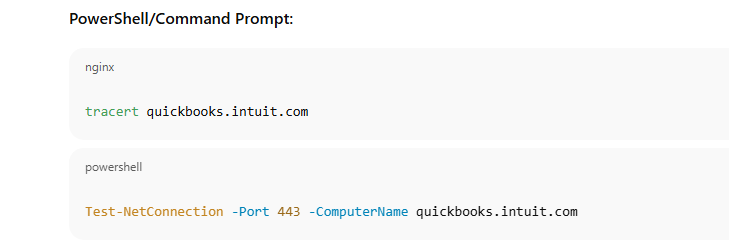
Successful results confirm network readiness. Failed results prove environment-level blocking and eliminate unnecessary reinstallations. Intuit troubleshooting workflows prioritize these tests before application repair.
Solutions with Cause: QuickBooks Update Error 12009
Below are structured solutions of QuickBooks Update Error 12009 grouped by common update related issues. For best results follow the seven solutions for resolving QuickBooks Update Error 12009 given below:
- Solution 1: Verify Secure Internet Connectivity and Certificate Response
- Solution 2: Align Internet Explorer Security Components with QuickBooks Requirements
- Solution 3: Review Proxy and Network Inspection Configuration
- Solution 4: Refresh QuickBooks Update Services and Cached Data
- Solution 5: Validate Firewall and Endpoint Security Trust
- Solution 6: Repair Windows Certificate Store and System Trust
- Solution 7: Update QuickBooks Desktop and Windows Security Framework
Solution 1: Verify Secure Internet Connectivity and Certificate Response
QuickBooks Error 12009 occurs when the application reaches Intuit servers but receives an invalid, incomplete, or rejected secure response. This behavior confirms that internet access exists but encrypted communication fails during the request cycle.
Step 1 – Validate Secure Website Access Outside QuickBooks
Open a web browser on the same system and visit a secure Intuit website such as https://quickbooks.intuit.com. Successful loading without certificate warnings confirms that HTTPS traffic and certificate validation work at the system level. Browser certificate errors or incomplete loading indicate a system or network trust issue that must be corrected before troubleshooting QuickBooks.
Step 2 – Remove VPN and Network Tunneling Interference
Disable VPN connections and advanced network tunneling software temporarily. VPN encryption layers frequently interfere with certificate validation and secure session continuity required by QuickBooks update services.
Solution 2: Align Internet Explorer Security Components with QuickBooks Requirements
QuickBooks Desktop relies on Internet Explorer security libraries to process encrypted traffic. Misconfigured IE security settings can cause QuickBooks to reject valid server responses, resulting in Error 12009.
Step 1 – Access Internet Explorer Security Settings
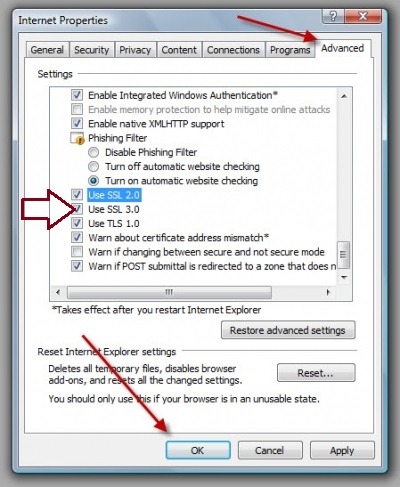
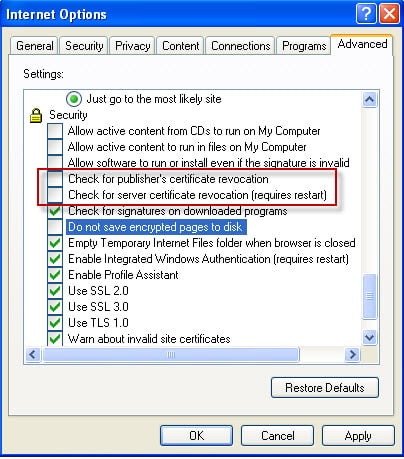
Open Internet Explorer, go to Internet Options, and navigate to the Advanced tab. Restore advanced settings to remove outdated or conflicting overrides created by legacy software.
Step 2 – Enable Modern TLS Protocols
Scroll to the Security section and ensure TLS 1.2 is enabled. Leave deprecated SSL protocols disabled to prevent handshake conflicts during server validation. These adjustments ensure QuickBooks can correctly interpret encrypted responses from Intuit servers.
Solution 3: Review Proxy and Network Inspection Configuration
QuickBooks Error 12009 commonly appears in environments where network devices modify encrypted traffic instead of fully blocking it. Proxies and inspection tools can alter certificates or responses, causing QuickBooks to reject the connection.
Step 1 – Review LAN Settings
Open Internet Options → Connections → LAN Settings. Ensure Automatically detect settings remain enabled and Use a proxy server is disabled unless explicitly required by corporate policy.
Step 2 – Test Outside the Managed Network
Connect the system to an unrestricted network such as a mobile hotspot and retry the QuickBooks update. Successful updates confirm that proxy or inspection devices modify secure traffic on the primary network.
Solution 4: Refresh QuickBooks Update Services and Cached Data
Corrupted or incomplete update cache files can cause QuickBooks to misinterpret server responses, leading to Error 12009 even on healthy networks.
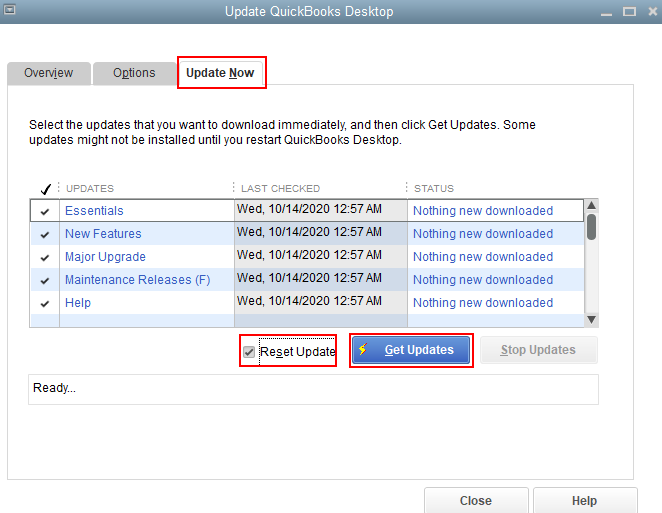
Step 1 – Reset QuickBooks Update Components
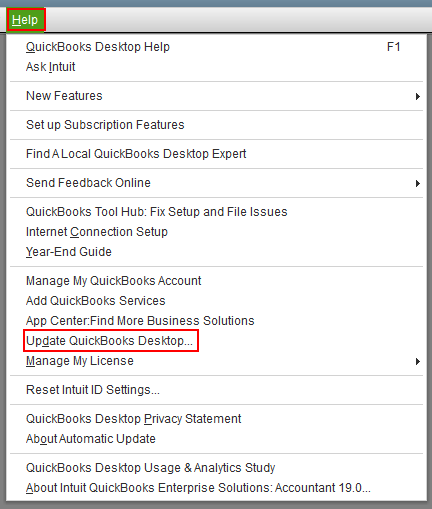
Open QuickBooks Desktop, go to Help → Update QuickBooks Desktop → Update Now, select Reset Update, and click Get Updates. This clears cached update files and forces QuickBooks to request a fresh response from Intuit servers.
Step 2 – Restart and Reattempt the Update
Close QuickBooks completely, restart the system, and retry the update or payroll download to confirm the secure response completes successfully.
Solution 5: Validate Firewall and Endpoint Security Trust
Security software can permit traffic while still blocking certificate verification or executable trust. This results in QuickBooks Error 12009 rather than a full connection failure.
Step 1 – Verify Firewall Permissions
Confirm that QuickBooks executables remain allowed in both inbound and outbound firewall rules. Ensure no recent security updates alter trust or inspection behavior.
Step 2 – Add Antivirus Trust Exceptions
Add QuickBooks program files to the antivirus trusted or exclusion list. This prevents background scanning from interrupting secure update responses.
Solution 6: Repair Windows Certificate Store and System Trust
Error 12009 directly correlates with certificate trust failures. Corrupted Windows trust components prevent QuickBooks from validating Intuit’s secure servers.
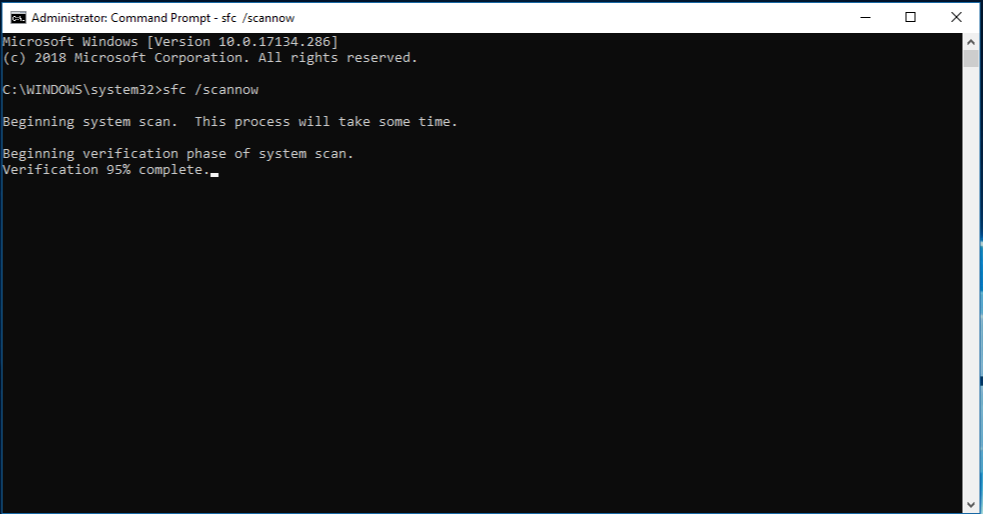
Step 1 – Run System File Checker
Open Command Prompt as administrator and run: sfc /scannow
This process repairs Windows security libraries and trust components used during certificate validation.
Step 2 – Verify QuickBooks Digital Certificates
Right-click QBW32.exe, open Properties, navigate to Digital Signatures, and confirm the certificate is valid and installed. Install or renew the certificate if required to restore application trust.
Solution 7: Update QuickBooks Desktop and Windows Security Framework
Outdated QuickBooks builds or operating system components fail modern encryption requirements enforced by Intuit servers.
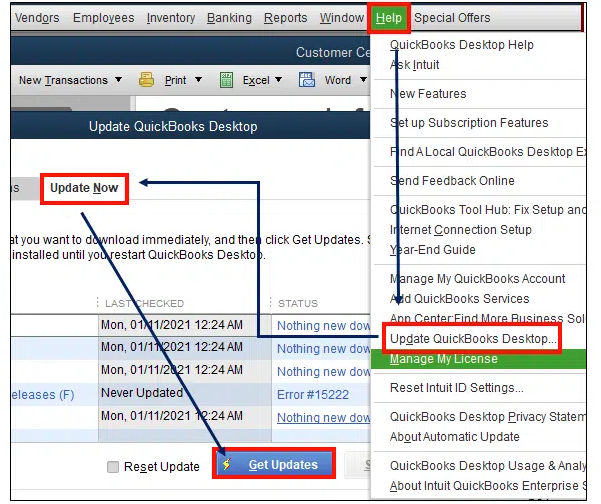
Step 1 – Update QuickBooks Desktop
Open QuickBooks in No Company Open mode. Go to Help → Update QuickBooks Desktop → Update Now, select Reset Update, and install the latest release.
Step 2 – Install Windows Updates
Navigate to Settings → Update & Security → Windows Update and install all pending updates. These updates include critical SSL, TLS, and cryptographic improvements required for secure communication.
Resolution Summary for QuickBooks Error 12009
QuickBooks Error 12009 indicates a secure response validation failure, not data corruption or payroll damage. The error occurs after QuickBooks contacts the server but cannot complete encrypted communication. Correcting browser security dependencies, network modification, certificate trust, and update components restores normal update and payroll functionality.
Enterprise Scenarios Impacting QuickBooks Error 12009
QuickBooks Error 12009 commonly appears in enterprise-managed environments where outbound HTTPS traffic is technically allowed but modified, inspected, or re-signed during transit.
Unlike pure timeout errors, QuickBooks Error 12009 surfaces when QuickBooks reaches the Intuit server but cannot validate or complete the secure response, causing the update or payroll request to fail mid-session.
1. Certificate Substitution by Enterprise Security Gateways
Enterprise security gateways frequently replace external SSL certificates with internally issued certificates for traffic inspection and monitoring. QuickBooks Desktop performs certificate validation during update and payroll requests and expects the response to originate directly from trusted Intuit certificate authorities.
Certificate substitution breaks this trust chain. QuickBooks receives a response, but the certificate does not match Intuit’s signing authority. The application rejects the response as invalid and surfaces QuickBooks Error 12009. Intuit documents Error 12009 as a failure caused by invalid or interrupted secure communication rather than complete internet loss.
Enterprise validation test: Execute QuickBooks updates from a network that does not perform certificate replacement, such as a mobile hotspot or unmanaged ISP connection. Successful updates confirm certificate substitution inside the enterprise network.
Security teams can resolve this by excluding Intuit domains from SSL inspection or ensuring the enterprise root certificate is trusted at the system level.
Justification: Intuit classifies Error 12009 as a secure response failure. Enterprise certificate replacement directly interferes with server validation and is a known cause of update errors where connectivity exists but trust fails.
2. Deep Packet Inspection and Response Manipulation
Advanced firewalls and inspection platforms often reassemble, scan, and repackage encrypted traffic. This process can alter packet timing, headers, or response structure during secure communication. QuickBooks Desktop expects a complete and uninterrupted HTTPS response from Intuit servers.
Response manipulation causes QuickBooks to receive partial or altered data, even though the connection itself remains open. The application interprets this as an invalid server response and triggers Error 12009 instead of a basic timeout error.
Enterprise validation test: Temporarily disable deep inspection for QuickBooks-related traffic or test updates from a non-inspected network. A successful update outside the inspected environment confirms that response handling, not connectivity, causes the failure. Permanent resolution involves bypassing inspection for Intuit update endpoints.
Justification: Intuit identifies Error 12009 as occurring after QuickBooks initiates communication but fails to process the server response. Deep packet inspection aligns directly with this failure pattern.
3. Endpoint Trust and Certificate Store Management in Domain Environments
Domain-managed systems frequently enforce centralized certificate policies. Outdated or misaligned certificate stores prevent QuickBooks from trusting legitimate server responses, even if network paths remain open.
QuickBooks depends on the Windows certificate store to validate secure responses. Missing, expired, or overridden trust entries cause the application to reject responses from Intuit servers and generate QuickBooks Error 12009.
Enterprise validation test: Test QuickBooks updates on a non-domain-joined system or a device with a clean certificate store. Successful updates confirm domain trust enforcement as the root cause. IT teams can correct this by updating root certificates and ensuring Intuit-related trust chains remain intact.
Justification: QuickBooks Error 12009 aligns with certificate trust failure rather than firewall blocking. Domain-level certificate enforcement directly impacts QuickBooks’ ability to validate secure responses.
Enterprise Takeaway
QuickBooks Error 12009 indicates secure response rejection, not lack of connectivity. Enterprise controls that modify certificates, inspect encrypted payloads, or enforce restrictive trust policies interfere with QuickBooks’ requirement for direct, validated HTTPS responses from Intuit servers.
Isolating the update process on a clean network confirms the cause, while SSL inspection exclusions, certificate trust alignment, and response integrity preservation provide long-term resolution in enterprise environments.
Prevention of QuickBooks Error 12009
The following steps are the prevention for Quickbooks to reduce update failures and timeout-based update errors.
- Maintain stable wired internet connections
- Keep Windows and Internet Explorer components updated
- Review firewall and antivirus rules after security updates
- Install QuickBooks updates promptly in single-user mode
Real Case Studies: QuickBooks Error 12009
Case 1 – Corrupted Windows Root Certificate Store
A professional services firm reported QuickBooks Error 12009 during payroll downloads immediately after a system migration to a new workstation image.
Internet access and firewall rules tested clean, but Windows root certificates had not updated correctly during deployment. QuickBooks connected to Intuit servers, received a response, and failed certificate trust validation, triggering Error 12009.
Running Windows Update to refresh root certificates restored trust validation, and payroll downloads completed successfully on the next attempt.
Case 2 – VPN Traffic Rewriting Secure Responses
A remote employee running QuickBooks over a corporate VPN consistently encountered Error 12009, while the same system updated normally off VPN. The VPN client altered packet handling for encrypted traffic, affecting response integrity without fully blocking the connection.
Disconnecting from the VPN allowed QuickBooks to validate the secure response successfully. IT resolved the issue by excluding Intuit domains from VPN traffic enforcement.
When to Call Support for QuickBooks Error 12009?
Persistent QuickBooks Error 12009 after completing all recommended internet, security, and update-related fixes usually signals an unstable or restricted network path between QuickBooks Desktop and Intuit update servers. This error commonly reflects repeated timeout conditions rather than a single configuration fault.
At this stage, escalation to an experienced QuickBooks professional or Intuit support helps prevent continued update failures and potential payroll interruptions. Having accurate system and network details available allows specialists to pinpoint the exact failure point and avoids unnecessary repetition of basic diagnostics.
Information to Keep Handy Before Contacting an Expert
- The full QuickBooks Error 12009 message and the time it occurs
- Windows operating system version and current update status
- QuickBooks Desktop version, edition, and build number
- Screenshots showing the update failure or timeout message
- The last successful payroll or software update date
- Internet and network configuration details, including firewall rules, proxy usage, or timeout controls
- Antivirus or endpoint protection software name and version
If update access remains unavailable and internal troubleshooting has been exhausted, working with a QuickBooks expert can help identify hidden network timeouts, security filtering, or system-level restrictions and restore reliable update communication.
Contact QuickBooks Support: +1-802-778-9005
Conclusion
QuickBooks Error 12009 is a network-related update error caused by failed secure connections between QuickBooks Desktop and Intuit servers. Systematic resolution – starting with connectivity checks, browser and security configuration, progressing to firewall and protocol validation – restores reliable update behavior. With proper setup and regular maintenance, QuickBooks can securely download updates and maintain operational continuity.
Frequently Asked Questions
What is the error code 12000 in QuickBooks?
QuickBooks error codes beginning with 12000 indicate internet connectivity or update issues, typically seen when the software cannot reach Intuit’s update servers. These errors occur during QuickBooks Desktop or payroll updates when the connection times out or fails due to firewall/security settings.
Error codes in this series include 12002, 12007, 12009, 12029, and 12031, all of which stem from failed server connections during downloads.Resolving these errors often requires network configuration adjustments, security exceptions for QuickBooks, and correct internet and TLS settings so the program can communicate with Intuit servers reliably.
How do I fix a QuickBooks error?
Fixing a QuickBooks error begins by identifying the error message or code displayed, which indicates the underlying problem. Intuit’s official troubleshooting resources recommend using the QuickBooks Tool Hub to diagnose and repair common installation, update, and file issues automatically.
Users should check internet connectivity, firewall/antivirus settings, and system date/time accuracy, as these frequently interfere with updates and server access. If automated tools and basic network fixes fail, repairing or reinstalling QuickBooks Desktop using the clean install method can resolve persistent errors by restoring core program components.
How to fix error code 12002?
QuickBooks error 12002 appears when the application’s connection request to Intuit’s update servers times out, preventing updates from downloading. Troubleshooting steps begin with verifying internet connection stability and ensuring that QuickBooks is permitted through firewalls or security software that might block update access.
Users can also set Internet Explorer as the default browser and enable proper SSL/TLS settings, as QuickBooks relies on these protocols to establish secure update connections. If connectivity settings are correct, using the QuickBooks Tool Hub to repair the installation or manually updating QuickBooks can eliminate the timeout error.
What is error 12029?
QuickBooks error 12029 indicates that QuickBooks cannot establish a secure connection with Intuit’s servers, often due to firewall restrictions, incorrect SSL/TLS settings, or blocked network communication. This error typically surfaces during payroll or product updates, stopping the download process and preventing secure data exchange until connectivity is restored.
Troubleshooting includes confirming that QuickBooks is allowed through security software, verifying internet connectivity, and ensuring proper network configuration so the software can reach Intuit update servers without interruption.
How do I clear the cache for QuickBooks?
QuickBooks itself does not have a built-in “cache clearing” button like a browser, but clearing temp files and browser cache can resolve performance or login issues for QuickBooks Online.
Accessing QuickBooks in a private/incognito browser window helps isolate corrupted cache as a cause, if the problem disappears in incognito mode, clearing the browser cache often fixes it.
For QuickBooks Desktop, clearing the Windows temp folder (%temp%) and running the QuickBooks Tool Hub to fix installation and update-related cached data can help eliminate persistent error conditions.
How to fix QuickBooks error 12029?
Fixing QuickBooks error 12029 begins by resolving underlying network connectivity issues that block access to Intuit servers, as the error appears when QuickBooks cannot complete a secure connection.
Users should confirm that firewalls and antivirus settings allow QuickBooks internet access, and that Internet Explorer/TLS/SSL settings are configured correctly for secure communication.
If connection settings are correct and the error persists, running network diagnostic tools within the QuickBooks Tool Hub, updating QuickBooks to the latest version, and rebooting the system often restore successful server connections.
Do I need to call QuickBooks support?
You need to call QuickBooks support when you cannot resolve an issue with built-in tools like QuickBooks Tool Hub or community help articles and the problem affects critical functions such as payroll, tax forms, or company file access.
Official guidance directs users to Help > Contact Us within QuickBooks to reach support via live chat or request a callback, which ensures you connect with the right specialist for your product version.
Phone or live support often resolves issues faster than self-help resources for complex technical problems since agents can access diagnostic tools and account-specific details. Support access also depends on your product type and subscription level, with QuickBooks Online Advanced offering broader support hours.
Will Intuit charge me to fix this?
QuickBooks offers free technical support for troubleshooting the core product, such as installation issues, errors, and connectivity problems, through official support channels including phone, live chat, and the online help center.
Intuit may charge for value-added services such as training, consulting, advanced integrations, or third-party add-ons, but basic help from certified support agents is included with your subscription or license.
Any specific fees, if applicable, should be disclosed before the service begins and can be confirmed by an agent once you connect via Contact Us inside the software or support portal.
How long does this usually take to resolve?
Resolution timelines vary by issue complexity and support channel, simple inquiries through live chat or callback are often addressed within minutes to hours, while deeper technical issues may require diagnostics and follow-up.
Official community guidance and support resources note that more involved problems – such as data corruption or payroll discrepancies – may take longer or require multiple interactions with support professionals to fully resolve.
Your preparation – including screenshots, detailed descriptions, and account information – helps reduce resolution time by allowing the agent to understand and investigate the problem quickly.