
QuickBooks Error 12007 is a connectivity-related update error that occurs when QuickBooks Desktop fails to establish a secure internet connection with Intuit update servers. This error belongs to the 12xxx error series, which is specifically associated with network timeouts, authentication failures, and interrupted server communication during update, payroll download, or subscription validation processes.
QuickBooks Error 12007 appears when the application initiates an outbound HTTPS request and the connection does not complete within the required time window. This timeout condition indicates that QuickBooks cannot successfully negotiate DNS resolution, routing, firewall traversal, or TLS-based security issues needed to communicate with Intuit services. As a result, update and live-service operations stop to protect data integrity.
This article explains QuickBooks Error 12007 by defining its technical meaning, identifying its root causes, and mapping each cause to structured, system-level solutions. The content progresses from basic connectivity verification to advanced network diagnostics, firewall and proxy validation, enterprise environment considerations, and long-term prevention strategies.
QuickBooks Error 12007 is an update error that arises when QuickBooks Desktop cannot connect to the internet during update or download operations. The official error message shows:
“Problem Error 12007: A network timeout that is preventing QuickBooks from accessing the server.”
This QuickBooks error code is part of the 12xxx series – connectivity and update-related errors where QuickBooks fails to establish secure, authenticated connections with Intuit servers.
QuickBooks Update Error 12007 can appear during:
- QuickBooks Desktop update attempts
- Payroll update downloads
- Validation of subscriptions
- Live services requiring server communication
If the connection does not complete before timing out, QuickBooks halts the update process and shows the 12007 notification.
Contents
- 1 QuickBooks Error 12007: Quick Checklist
- 2 Root Causes of QuickBooks Error 12007
- 3 QuickBooks Error 12007: Deep Diagnosis
- 4 Validation Commands
- 5 Solutions with Cause: QuickBooks Update Error 12007
- 5.1 Solution 1: Verify Internet Connectivity and Browser Configuration
- 5.2 Solution 2: Adjust Network and Proxy Settings
- 5.3 Solution 3: Reset QuickBooks Update Components
- 5.4 Solution 4: Validate Windows Firewall and Security Software Settings
- 5.5 Solution 5: Repair System Files and Install Certificates
- 5.6 Solution 6: Update QuickBooks Desktop and Windows OS
- 6 Why Do These Steps Work For Resolving QuickBooks Error 12007?
- 7 Enterprise Scenarios Impacting QuickBooks Error 12007
- 8 Prevention of QuickBooks Error 12007
- 9 Real Case Studies: QuickBooks Error 12007
- 10 When to Call Support?
- 11 Conclusion
- 12 Frequently Asked Questions
- 12.1 How do I fix Error 12007 in QuickBooks?
- 12.2 What does Error 12007 mean in QuickBooks?
- 12.3 Why is QuickBooks not updating even though my internet is working?
- 12.4 Will QuickBooks Error 12007 affect payroll or employee payments?
- 12.5 How do I fix QuickBooks Error 12007 quickly?
- 12.6 Is my firewall or antivirus blocking QuickBooks?
- 12.7 Is QuickBooks reliable if this keeps occurring?
QuickBooks Error 12007: Quick Checklist
Before deep troubleshooting of QuickBooks Error 12007, confirm the following five steps:
| 1. Confirm Internet Access | Open a secure website in your web browser (e.g.,https://quickbooks.intuit.com/). If it fails, QuickBooks cannot connect either. |
| 2. Verify Local Internet Settings | QuickBooks uses Windows’ internet configuration (via Internet Explorer settings) for online tasks. Ensure:Internet Explorer is installed and configuredTLS 1.2 is enabledThese basic settings must be correct for server access. |
| 3. Check for Firewall/Antivirus Blocks | Network security applications often block QuickBooks processes or ports essential for updating connections. |
| 4. Confirm QuickBooks Update Settings | Reset pending update filesTry update again after a restartAn incomplete or cached update can trigger 12007. |
| 5. Run QuickBooks as Administrator | Permissions may restrict update processes; running as admin ensures access to required system resources. |
Root Causes of QuickBooks Error 12007
Quickbooks Error 12007 usually reflects a connection timeout – the software attempts to connect to Intuit’s update server but the request never completes.
The most common root causes include internet connectivity issues, incorrect internet or browser configuration, firewall and antivirus restrictions, improper system or browser security protocols, corrupted or incomplete QuickBooks installation, and date/time misconfiguration.
1. Unstable or blocked internet connectivity prevents QuickBooks from reaching Intuit’s update servers.
QuickBooks displays error 12007 when it cannot successfully connect to the internet during updates due to a slow, intermittent, or failed network connection, causing the request to time out before communication with the server is completed.
2. Incorrect browser and network configuration breaks QuickBooks’ communication flow.
QuickBooks depends on the system’s Internet Explorer settings (even if another browser is used), so misconfigured LAN, proxy, default browser, or security settings can interrupt the connection to the update servers.
3. Firewall and antivirus software block QuickBooks processes from accessing the network.
Security applications such as Windows Firewall or third-party antivirus can classify QuickBooks executables as threats and prevent outbound connections, causing the update attempt to fail.
4. Incompatible or disabled security protocols (SSL/TLS) stop secure connections.
QuickBooks update services require modern secure protocols such as TLS 1.2; if these are disabled or misconfigured in Internet Options, QuickBooks cannot negotiate a secure connection to Intuit servers.
5. Incorrect system date and time settings interfere with certificate validation.
Mismatched system clock values can prevent QuickBooks from validating security certificates during TLS connections, causing connection attempts to fail before the update completes.
6. Corrupted or incomplete QuickBooks installation components disrupt the update process.
If QuickBooks program files or network components are missing or damaged (e.g., from an incomplete install), the update mechanism can fail with QuickBooks error 12007 because required modules cannot execute correctly.
QuickBooks Error 12007: Deep Diagnosis
Understanding the full network path between QuickBooks Desktop and Intuit update servers helps identify hidden routing blocks, security filters, or timeout conditions that basic troubleshooting often misses. Intuit classifies QuickBooks Error 12007 as a connectivity and timeout issue tied directly to update server communication.
1. Test Basic Connectivity
Basic network reachability verification confirms whether the system can communicate with Intuit’s update infrastructure. Intuit recommends validating internet connectivity as the first diagnostic step for all 12000-series errors.
These built-in Windows tools help determine if the problem is local or network-wide. Intuit troubleshooting workflows rely on this distinction to prevent unnecessary repairs or reinstallations. Use built-in Windows tools mentioned below:
- Ping to ensure DNS resolution and basic IP reachability.
- Traceroute (tracert) to identify network hops and bottlenecks.
- Netstat or Test-NetConnection to confirm availability of required ports.
1. Ping testing validates DNS resolution and confirms that the system can translate quickbooks.intuit.com into a reachable IP address. Failed DNS resolution prevents QuickBooks from locating update servers and immediately blocks update attempts.
2. Traceroute (tracert) exposes routing delays or packet loss between the local system and Intuit servers. Network hops that stall or timeout indicate ISP-level filtering, enterprise firewall inspection, or unstable gateway routing.
3. Port testing using Test-NetConnection or netstat confirms whether secure HTTPS traffic can reach Intuit servers. QuickBooks updates rely on outbound TCP port 443, and blocked ports cause silent update failures without detailed error messages.
2. Proxy and VPN Review
QuickBooks depends on the system’s Internet Explorer settings (even if another browser is used), so misconfigured LAN, proxy, default browser, or security settings can interrupt the connection to the update servers.
Proxy servers and VPN tunnels modify network routing and frequently disrupt QuickBooks’ expected connection behavior. QuickBooks Desktop does not officially support most proxy-based routing environments.
Temporarily disabling proxies and VPNs helps determine whether redirected traffic causes update request timeouts. Support providers consistently document VPN interference as a cause of QuickBooks update failures. Proxy authentication layers can delay or block HTTPS connections required for update verification.
TLS negotiation failures often appear as timeout errors rather than explicit security warnings. Successful updates after disabling VPN or proxy software confirm routing interference instead of application corruption. This confirmation prevents unnecessary QuickBooks repairs or clean installations.
3. Firewall Port Accessibility
Windows Firewall and many security suites block outbound traffic that is not explicitly allowed. QuickBooks update processes require open communication on core ports (specific numbers vary by QuickBooks version).
Firewall restrictions represent one of the most common causes of QuickBooks Error 12007.
Intuit lists firewall blocking as a primary trigger for 12000-series update errors.
Windows Firewall and third-party security suites frequently block outbound connections unless explicitly allowed. QuickBooks update services initiate outbound connections and fail if security software silently drops traffic.
QuickBooks update operations require uninterrupted HTTPS communication over TCP port 443. Blocked or inspected SSL traffic prevents secure communication with Intuit servers.
Running connectivity tests against port 443 verifies whether firewall rules allow secure outbound traffic. Failed tests confirm environment-level blocking rather than a QuickBooks software issue.
Firewall exceptions must include both QuickBooks executable files and required ports to ensure update reliability. Intuit documents program-level and port-level exclusions as mandatory for stable operation.
Validation Commands
Timeouts or failures in validation commands confirm that the system environment prevents QuickBooks from communicating with Intuit servers. This evidence supports network-level remediation instead of application-level changes.
Validation commands provide direct, system-level evidence of whether QuickBooks can reach Intuit update servers. QuickBooks Error 12007 represents a connectivity timeout condition that cannot be verified solely within application settings.
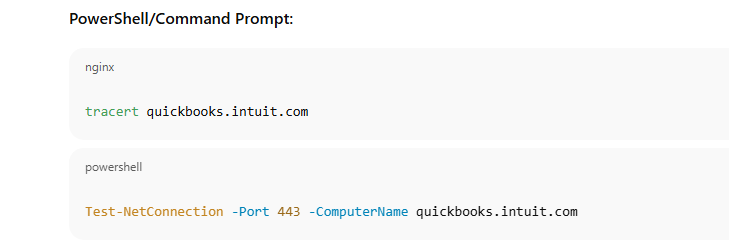
The tracert quickbooks.intuit.com command reveals the exact network path used by the system. This command identifies packet drops or stalled hops caused by ISP routing, gateway firewalls, or enterprise network filters.
The Test-NetConnection -Port 443 command confirms whether secure HTTPS traffic reaches Intuit servers. QuickBooks update services require outbound TCP 443, and blocked access causes update timeouts without meaningful application logs.
These commands operate outside the QuickBooks application layer. System-level testing eliminates incorrect assumptions related to corrupted files or misconfigured QuickBooks preferences.
Successful command results confirm that the operating system, network stack, and firewall allow outbound communication. This confirmation allows technicians to focus on application repair only when network causes are eliminated.
Failed command results prove that the issue originates from the system environment rather than QuickBooks itself. Intuit support workflows rely on this evidence to guide firewall, proxy, or ISP-level remediation.
Validation commands reduce unnecessary reinstalls and configuration changes. Intuit troubleshooting guidance prioritizes connectivity verification before repair or clean installation steps.
Solutions with Cause: QuickBooks Update Error 12007
Below are structured solutions of QuickBooks Update Error 12007 grouped by common update related issues. For best results follow the six solutions for resolving QuickBooks Update Error 12007 given below:
- Solution 1: Verify Internet Connectivity and Browser Configuration
- Solution 2: Adjust Network and Proxy Settings
- Solution 3: Reset QuickBooks Update Components
- Solution 4: Validate Windows Firewall and Security Software Settings
- Solution 5: Repair System Files and Install Certificates
- Solution 6: Update QuickBooks Desktop and Windows OS
Solution 1: Verify Internet Connectivity and Browser Configuration
QuickBooks depends on your system’s internet settings and browser configuration to connect to Intuit servers. Internet Explorer (IE) settings, even if you do not use IE as your daily browser, are used by QuickBooks for update communication.
Step 1 – Confirm the Internet Connection Works Outside QuickBooks
Open your web browser and visit a known secure website (for example, https://quickbooks.intuit.com/). If the page loads normally, your internet connection is active and capable of accessing secure traffic. If it fails, the network issue is outside QuickBooks and needs to be resolved before proceeding.
Step 2 – Download and Run the TLS 1.2 Utility
QuickBooks requires TLS 1.2 for secure connections. Intuit provides a TLS 1.2 readiness utility that configures your system to support this protocol. Download the tool from Intuit’s official support site and run it as administrator to enable TLS 1.2 system-wide.
Step 3 – Set Internet Explorer as the Default Browser
Internet Explorer must be the default browser on your system for QuickBooks update functions to operate correctly. Open Internet Explorer, navigate to Internet Options then go to Programs tab, and click Make Default. Confirm and save these settings before proceeding.
Step 4 – Configure Internet Explorer Advanced Settings
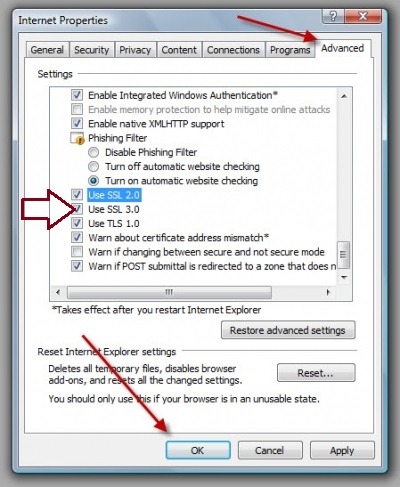
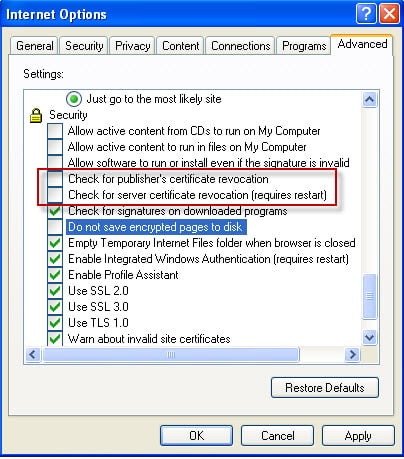
Within Internet Explorer’s Internet Options go to the Advanced tab, ensure the following are configured so QuickBooks can communicate securely:
- Restore Advanced Settings to defaults
- Enable TLS 1.2
- Optionally, uncheck “Check for publisher certificate revocation” to reduce connection blockages
These configurations align IE’s SSL/TLS communication with QuickBooks requirements.
Solution 2: Adjust Network and Proxy Settings
Incorrect proxy or LAN settings prevent QuickBooks from connecting to external servers. Follow the below steps, such as accessing LAN settings in IE, and setting correct LAN configurations.
Step 1 – Access LAN Settings in Internet Explorer
Go to the Internet Options and then to Connections followed by the LAN Settings.
Step 2 – Set Correct LAN Configurations
Ensure:
- Automatically detect settings is checked
- Use a proxy server for your LAN is unchecked unless your network administrator explicitly requires it
If you require a proxy server because of a corporate network, record the proxy address and port number and ensure it supports HTTPS traffic without interruptions.
Solution 3: Reset QuickBooks Update Components
Resetting update settings clears corrupted or partial update files that will block future downloads. Reset update files within QuickBooks, and attempt payroll update again by following the detailed steps given below:
Step 1 – Reset Update Files Within QuickBooks
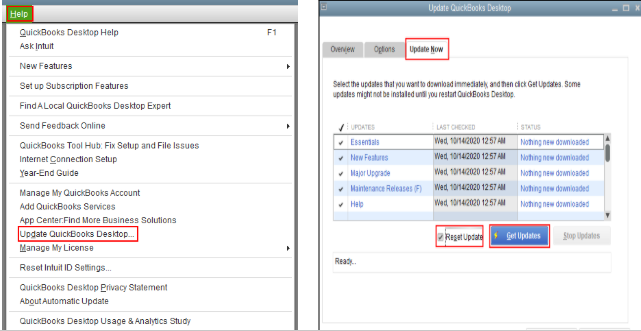
Access Help go to Update QuickBooks Desktop, then go to Update Now, after that check Reset Update, and click Get Updates. QuickBooks purges old temporary update files so that the next update attempt uses a fresh download attempt.
Step 2 – Attempt Payroll Update Again
Restart QuickBooks and navigate to Employees then go toGet Payroll Updates. This forces QuickBooks to attempt the payroll download fresh, using the updated network settings.
Solution 4: Validate Windows Firewall and Security Software Settings
Security software, especially Windows Firewall and antivirus, can block the necessary ports and protocols QuickBooks needs to download updates. Follow the complete steps given below:
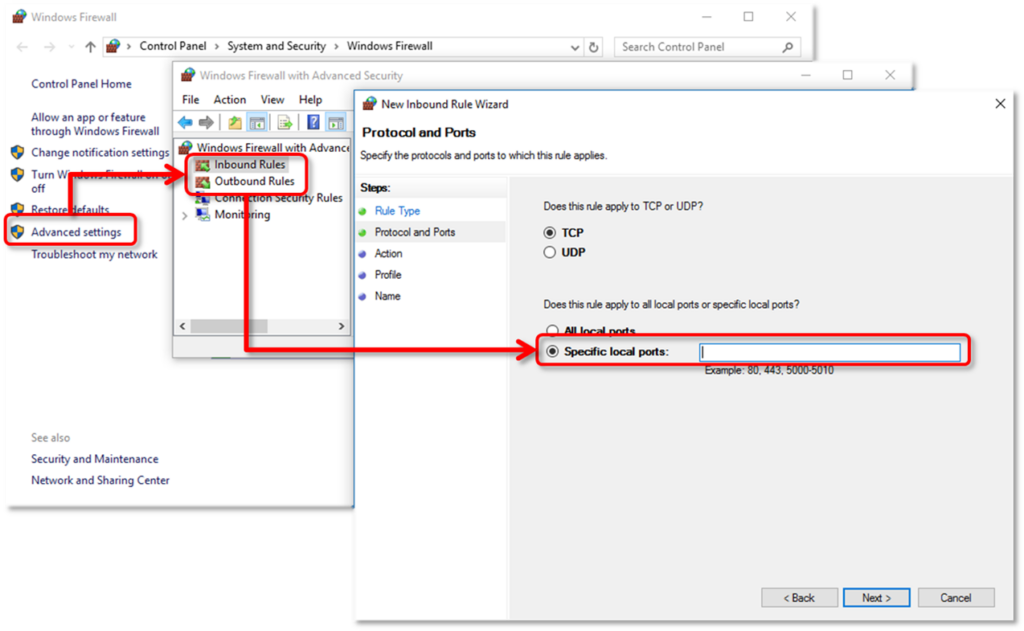
Step 1 – Confirm QuickBooks Is Authorized in Firewall
QuickBooks update and payroll communication use specific network ports. These ports must be allowed through both Inbound and Outbound rules in Windows Firewall:
- QuickBooks Desktop 2025: 8019, 56728, 55378–55382 (follow the same pattern for your version)
- Rules should be created for both Inbound and Outbound traffic
- Each rule must be set to Allow the connection for Domain, Private, and Public profiles
Correct port openings ensure QuickBooks can initiate and receive data from Intuit servers without interference.
Step 2 – Add Antivirus Exceptions
Add QuickBooks executable files and update executables to the exclusion list of your antivirus program. This prevents the security software from interrupting QuickBooks processes that download updates or communicate on the network. (This is documented as a common requirement to prevent update blockage.
Solution 5: Repair System Files and Install Certificates
Sometimes Windows network components or certificates are corrupted, causing connection timeouts follow the below mentioned steps for avoiding disruptions:
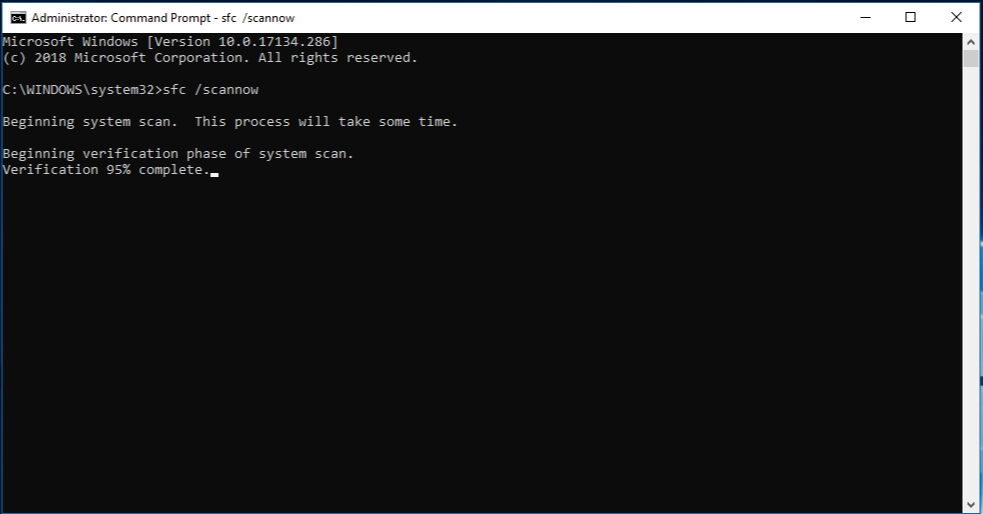
Step 1 – Run System File Checker
Open Command Prompt as administrator and run: sfc /scannow
This command scans system files and repairs corrupted system components that may affect network communication.
Step 2 – Install or Renew QuickBooks Digital Certificates
If the QuickBooks digital signature certificate is missing or invalid, the system may reject the secure connection. Right-click QBW32.exe (QuickBooks executable), open Properties then go to Digital Signatures, and install or renew the certificate. This ensures the operating system trusts QuickBooks during secure communications.
Solution 6: Update QuickBooks Desktop and Windows OS
Running outdated software can lead to compatibility and security failures. To avoid these issues, update QuickBooks Desktop to the latest release version and ensure Windows is fully updated. Review the detailed steps below for better understanding:
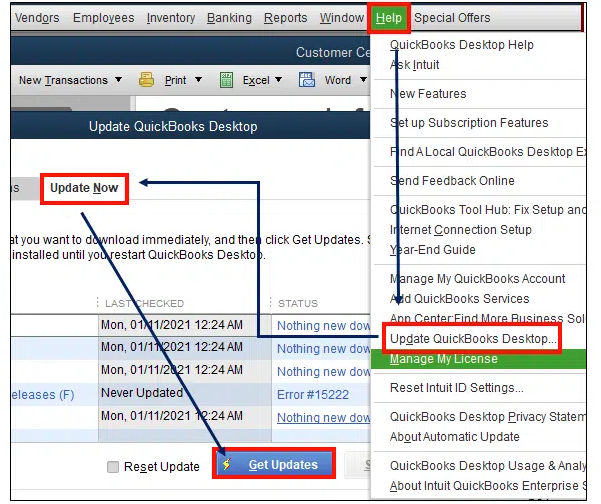
Step 1 – Update QuickBooks Desktop Release Version
Open QuickBooks in No Company Open mode, go to Help and then go to Update QuickBooks Desktop, click Update Now, check Reset Update, and click Get Updates. Updating to the latest release ensures the application supports current TLS protocols and server configurations.
Step 2 – Check for Windows Updates
Install pending Windows updates under Settings then go to Update & Security followed by Windows Update. System updates can include network stack improvements and security updates required for modern secure connections.
Why Do These Steps Work For Resolving QuickBooks Error 12007?
Each of the above solutions addresses a specific root cause of Error 12007 that is documented in Intuit support and trusted expert guides:
- Connectivity timeouts often occur because QuickBooks cannot negotiate a secure connection due to misconfigured Internet options, TLS settings, proxy settings, or firewall blocks.
- Resetting updates and refreshing system files removes corrupted intermediate files and system interference.
- Keeping QuickBooks and Windows up to date ensures compatibility with current security standards.
These steps collectively eliminate the network issue barriers that cause QuickBooks Update Error 12007. Follow them in the order above to systematically isolate and correct the issue.
Enterprise Scenarios Impacting QuickBooks Error 12007
QuickBooks Error 12007 frequently appears in managed enterprise networks where security controls alter or restrict outbound HTTPS traffic. Authenticated proxies and SSL/TLS inspection mechanisms interfere with QuickBooks Desktop’s requirement for direct, uninterrupted communication with Intuit update servers, resulting in connection timeouts and update failures.
1. Corporate Authenticated Proxies
Authenticated proxies commonly block QuickBooks update traffic because QuickBooks Desktop does not prompt for proxy credentials during update or payroll connections. QuickBooks relies on system-level internet access and attempts direct HTTPS communication with Intuit servers.
If the proxy requires authentication, the connection attempt stalls and eventually times out, which triggers QuickBooks Error 12007. Intuit classifies QuickBooks Error 12007 as a connectivity and timeout failure caused by blocked internet communication.
Enterprise validation test: Temporarily bypass the corporate proxy by connecting the QuickBooks system to a direct internet source such as a mobile hotspot. Successful payroll or update downloads confirm proxy interference. Provide these results to IT so they can configure proxy exceptions or allow unauthenticated outbound HTTPS traffic to Intuit update services.
Justification: Intuit documentation confirms Error 12007 occurs when QuickBooks cannot establish an internet connection, and third-party analysis identifies authenticated proxies as a frequent cause in managed networks.
2. SSL Inspection / TLS Interception
SSL inspection devices intercept and re-encrypt HTTPS traffic for security scanning. This process disrupts the direct TLS issue required by QuickBooks Desktop to validate Intuit server certificates.
If QuickBooks cannot trust the substituted certificate presented by the inspection appliance, the secure session fails and results in a timeout, which surfaces as Error 12007.
Enterprise validation test: Run QuickBooks updates on a non-inspected network such as a hotspot or external ISP. Successful updates outside the corporate network confirm SSL interception as the failure point. IT teams can resolve this by excluding Intuit domains from SSL inspection or ensuring the inspection certificate authority is trusted at the system level.
Justification: QuickBooks update processes depend on uninterrupted TLS negotiation. SSL interception is documented to break certificate validation and secure connections, directly leading to timeout-based update errors.
Enterprise Takeaway:
Authenticated proxies and SSL inspection introduce network controls that interfere with QuickBooks’ required direct HTTPS communication. Bypassing these controls for testing isolates the root cause, while proxy exceptions or SSL inspection exclusions provide permanent resolution for QuickBooks Error 12007 in enterprise environments.
Prevention of QuickBooks Error 12007
1. Maintain Internet Stability
Stable internet connectivity reduces timeout-based update failures. Wired Ethernet connections provide consistent latency and packet delivery compared to wireless networks, which are more susceptible to interference and signal drops. Repeated micro-disconnects interrupt secure HTTPS sessions and can cause QuickBooks update requests to fail mid-connection, resulting in Error 12007.
- Prefer wired connections for QuickBooks workstations and servers.
- Monitor the network for frequent disconnects or packet loss and resolve instability before it impacts update or payroll processes.
2. Keep Systems Updated
Current operating system components ensure compatibility with modern security protocols. Windows updates regularly include fixes and improvements to SSL/TLS libraries that QuickBooks relies on to establish secure connections. Outdated system components can prevent successful TLS negotiation with Intuit servers.
- Update Windows regularly to ensure critical system components especially SSL/TLS protocols and security libraries remain compatible with QuickBooks and Intuit update servers.
- Keep Internet Explorer’s network and security components up to date, even if Internet Explorer is not used for daily browsing, as QuickBooks Desktop relies on its underlying internet settings for secure connectivity.
3. Monitor Security Software Updates
Security software updates can silently modify firewall rules, proxy behavior, or SSL inspection settings. These changes can block QuickBooks executables or interfere with outbound HTTPS traffic without user awareness.
- Review firewall and antivirus rules after major security suite updates.
- Confirm that QuickBooks ports, executables, and Intuit domains remain allowed.
4. Regular QuickBooks Maintenance
Timely application updates maintain compatibility with Intuit servers and current security standards. Running maintenance tasks in single-user mode prevents file locks and service conflicts that can interfere with update processes.
- Install QuickBooks Desktop updates as soon as they are released.
- Switch to single-user mode before performing updates, payroll downloads, or system maintenance tasks.
Real Case Studies: QuickBooks Error 12007
Case 1 – Misconfigured IE Settings
A mid-sized firm repeatedly failed payroll updates with QuickBooks Error 12007. Diagnostic revealed Internet Explorer default browser was changed to another browser, and TLS 1.2 was disabled. After restoring IE as default and enabling TLS 1.2, updates resumed normally within minutes.
Case 2 – Enterprise Proxy Block
A corporate user could not update QuickBooks due to an authenticated proxy. Switching to a direct network path succeeded. Work with IT to allow QuickBooks domain traffic through the proxy with appropriate credentials. Confirmed by retrying from a direct connection with a successful update.
When to Call Support?
Persistent QuickBooks Error 12007 after completing all recommended network, security, and update fixes usually indicates an environment-specific restriction or deeper system-level conflict. At this stage, escalation to a qualified QuickBooks professional or Intuit support becomes necessary to avoid prolonged payroll or update disruption.
Keeping the correct technical details ready helps specialists diagnose the issue faster and prevents repeated troubleshooting cycles.
Information to Keep Handy Before Contacting an Expert
- The exact error message and the time it appears
- Windows operating system version and update status
- QuickBooks Desktop version, edition, and build number
- Screenshots showing the error and update failure
- The last date payroll or software updates worked successfully
- Network details, including firewall rules, proxy usage, or SSL inspection
- Antivirus or endpoint security product name and version
If immediate payroll or update access is required and internal troubleshooting has reached its limit, connecting with a QuickBooks expert like us can help isolate enterprise network constraints and restore secure connectivity efficiently.
Contact QuickBooks Support: +1-802-778-9005
Conclusion
QuickBooks Error 12007 is an update connectivity timeout that stems from internet configuration issues, security software interference, or browser settings. Systematic resolution through internet and browser adjustments, firewall/antivirus configuration, and QuickBooks update resets restores functionality and prevents recurrence. With correct environment settings, QuickBooks can reliably connect to Intuit servers for updates and payroll downloads.
Frequently Asked Questions
How do I fix Error 12007 in QuickBooks?
Fixing Error 12007 in QuickBooks requires restoring uninterrupted, secure communication between QuickBooks Desktop and Intuit update servers. Intuit classifies error code 12007 as a network timeout and connectivity failure, so resolution focuses on correcting system and network conditions rather than repairing company files.
Effective steps include verifying stable internet connectivity, enabling TLS 1.2, and confirming correct Internet Explorer network and security settings, which QuickBooks uses for update authentication. Removing or bypassing proxy servers, configuring Windows Firewall and antivirus software to allow QuickBooks outbound traffic, and resetting QuickBooks update downloads address the most common blocks.
A QuickBooks update error related to 12007 is resolved once secure HTTPS access to Intuit servers is restored. Updating Windows components, testing updates on an unrestricted network, and restarting QuickBooks services ensure the application can complete update requests without timeouts.
What does Error 12007 mean in QuickBooks?
Error 12007 means QuickBooks Desktop attempted to connect to the internet for an update or payroll download but did not receive a response within the allowed time. This error indicates a failed connection attempt rather than damaged program files or payroll data.
Intuit documents Error 12007 as part of the 12000-series errors caused by network timeouts, blocked ports, misconfigured internet settings, or security software interference.
Why is QuickBooks not updating even though my internet is working?
QuickBooks may fail to update even if your internet appears functional because the application requires secure connections to Intuit’s update servers with specific network settings, protocols, and browser configurations.
QuickBooks Desktop depends on Internet Explorer settings and secure channels like SSL/TLS to reach its update servers, and misconfigurations in these areas can block update downloads despite general internet access.
Security software such as firewalls or antivirus programs can block QuickBooks outbound connections, preventing updates from downloading even when other internet services work normally. Incorrect default browser settings or outdated system components can further interrupt QuickBooks update routines, so fixing those elements often restores update capability.
Will QuickBooks Error 12007 affect payroll or employee payments?
QuickBooks Error 12007 can interrupt payroll update processes, including downloading the latest payroll tax tables or software updates necessary for accurate payroll calculations.
Failure to update payroll tax tables may cause QuickBooks to calculate taxes incorrectly or prevent submission of updated payroll data until connectivity is restored. Error 12007 does not directly modify or corrupt existing payroll entries, but it can delay payroll updates and tax table downloads, which indirectly affects timely payroll processing and compliance.
How do I fix QuickBooks Error 12007 quickly?
Fixing QuickBooks Error 12007 quickly starts with confirming that QuickBooks can establish a secure connection to Intuit update servers by adjusting key system settings.
Set Internet Explorer as the default browser, enable appropriate SSL/TLS options, and verify Internet Explorer security levels so the application can communicate securely.
Temporarily disabling or adjusting firewall/antivirus settings to allow QuickBooks connections often resolves the error fast, followed by resetting update downloads in QuickBooks and retrying the update process.
Is my firewall or antivirus blocking QuickBooks?
Firewall or antivirus software can block QuickBooks from accessing update servers, triggering errors like 12007 even with an active internet connection.
Security applications often treat QuickBooks update traffic as unfamiliar and prevent outbound connections, so adding QuickBooks and its related services as exceptions in firewall and antivirus settings enables uninterrupted connections.
Verifying that these tools allow HTTPS traffic for QuickBooks Desktop, payroll services, and Intuit update agents ensures that security software does not inadvertently block update communication.
Is QuickBooks reliable if this keeps occurring?
QuickBooks remains a widely used accounting platform, but recurring update issues like Error 12007 reflect underlying system or configuration problems rather than fundamental unreliability of the software itself.
Persistent update failures often tie to local environment factors such as outdated system components, misconfigured security tools, or incorrect browser settings that can be resolved through systematic troubleshooting.
Ensuring that your QuickBooks installation stays current, system prerequisites are met, and security settings are properly configured supports stable software operation and reduces the likelihood of repeat errors.