
QuickBooks Payroll Liabilities Not Showing is a frequent issue where expected liabilities (taxes, benefits, garnishments, contributions) do not appear in the Pay Liabilities tab or Pay Taxes & Other Liabilities section, even though they exist in the company file. This prevents timely payments and accurate tracking. The liabilities are rarely lost — they are usually hidden due to configuration, scheduling, or display logic.
This guide explains the root causes in detail and provides proven, sequential methods to resolve the issue. Start with basic verification and progress through the solutions until the liabilities appear correctly.
The issue occurs when liabilities exist in reports but remain invisible in the scheduled Pay Liabilities view. Common triggers include missing schedules, inactive accounts, and the system’s automatic cleanup of old items.
TL;DR
QuickBooks Payroll Liabilities often fail to appear in the Pay Liabilities tab due to inactive accounts, missing payment schedules on new items, the 18-month auto-removal rule for old liabilities, incorrect mappings, date issues, or data damage.
Quick Fix Path:
- Run Payroll Liability Balances report to confirm balances exist.
- Activate inactive accounts in Chart of Accounts.
- Assign payment schedules for new deductions.
- Use Create Custom Liability Payments for old or missing items.
- Update software + run Verify/Rebuild Data if needed.
Most cases are resolved within the first three methods.
Root Causes of QuickBooks Payroll Liabilities Not Showing
Several factors can prevent payroll liabilities from displaying properly. The most frequent causes include:
- Automatic removal of old unpaid liabilities — The system automatically drops unpaid liabilities from the main Pay Liabilities view after approximately 18 months from their due date to keep the list manageable, especially when small discrepancies exist between withheld amounts and payment forms.
- Missing or unassigned payment schedules for new items — Newly added payroll items, deductions (such as child support or garnishments), or benefits often do not appear until a deposit frequency and method are explicitly assigned.
- Inactive liability accounts in the Chart of Accounts — Payroll liability accounts that have been marked inactive or were never properly activated will not show associated balances in the payment screens.
- Incorrect mapping between payroll items and liability accounts — When a payroll item is linked to the wrong account or to an account that is not designated as an Other Current Liability, the system fails to display the corresponding liability.
- Incorrect or narrow date ranges — Wrong Paid Through Dates, limited date filters in the Pay Liabilities tab, or mismatched periods between paychecks and liability checks can hide entries.
- Outdated software, payroll service, or tax tables — Running an older version of the application or using outdated tax tables prevents proper calculation and display of current liabilities.
- Data damage or corruption in the company file — File corruption from improper shutdowns, version mismatches during restores, or accumulated errors can break the link between paychecks and liability records.
- Payments recorded through incorrect methods — Using Write Checks, Enter Bills, or Bill Payments instead of the dedicated Pay Liabilities or Liability Check feature breaks the automated tracking relationship.
- Firewall, antivirus, or security software interference — These programs can block necessary processes, update downloads, or background services required for liability calculations and display.
- Unconfigured or changed payment frequencies — Taxes and contributions without properly set deposit schedules or methods remain invisible in the scheduled liabilities view.
- Already paid, overpaid, or zero-balance items — Liabilities that have been settled or overpaid may show zero or negative values and disappear from the active payment list.
- Issues with new employee setups or first payroll runs — New deductions added mid-year or during initial payroll configuration frequently lack the required schedule assignment.
- Voided paychecks or post-payment adjustments — Voiding transactions after liabilities have been created or paid often creates discrepancies that hide remaining balances.
- Class tracking misconfigurations — When class tracking is enabled but not consistently applied to all earnings items and liabilities, filtered reports and views show incomplete information.
- E-payment rejections or status refresh problems — Rejected electronic payments or failure to toggle between payment history views can leave liabilities in an inconsistent state.
Most causes fall into three categories: configuration gaps (schedules & mappings), system behavior (18-month rule & inactive accounts), and data integrity issues (damage or wrong posting methods).
Solutions to Fix QuickBooks Payroll Liabilities Not Showing
With these causes in mind, follow the methods below in order. Begin with verification steps and move to more advanced solutions as needed. Always create a backup of your company file before making significant changes.
Tip: Before starting, ensure you are running the latest version of the QuickBooks software and have downloaded the most recent payroll tax table updates. Confirm that your network connection is stable and that any security software allows the application to run without restrictions.
You might also see some most common errors when you update the payroll tax table in QuicBoooks Desktop. Here are some common ones and how to fix them:
- PS032 – Resolve payroll Update Error PS032
- PSXXX errors – Fix PSXXX errors
- 15XXX errors – Fix error 15XXX
- UEXP error – Fix error UEXP
Method 1: Verify Existing Balances Using Reports
The fastest way to confirm that liabilities actually exist is to run dedicated reports that display raw calculated balances independent of the scheduled view.
- Go to the Reports menu and select Employees & Payroll.
- Choose Payroll Liability Balances.
- Set the date range to match your liability schedule or a broad period (such as the current calendar year or last 6–12 months).
- Run the report and review the totals. Positive amounts indicate unpaid balances, negative amounts show overpayments, and zero indicates paid items.
- Double-click any amount to drill down into transaction history and identify overlapping payments or date mismatches.
- Compare the report totals with what you expect from recent paychecks. If balances appear here but not in the Pay Liabilities tab, proceed to the next methods.
This step confirms whether the issue is a display problem or an actual missing calculation.
Method 2: Activate Inactive Accounts and Correct Mappings
Inactive accounts or incorrect payroll item mappings are among the most common hidden causes.
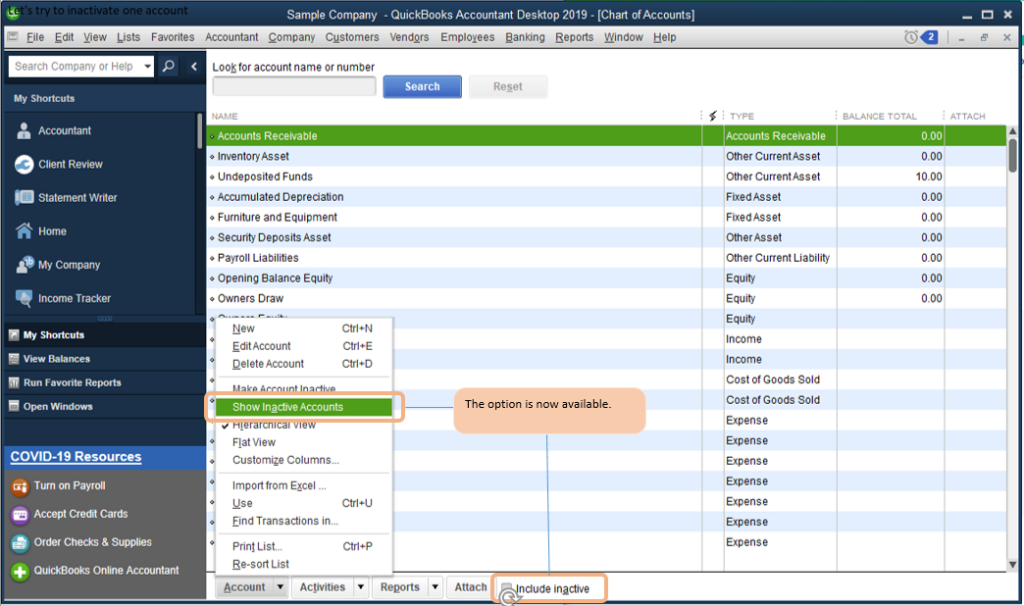
- Go to the Lists menu and select Chart of Accounts.
- At the bottom of the window, check the box for Include Inactive.
- Locate all payroll-related liability accounts (typically federal income tax, state tax, FICA, insurance, garnishments, etc.).
- If any show as inactive (marked with an X), double-click the account, check Make Account Active, and save.
- Confirm that each account type is set to Other Current Liability (not Long Term Liability).
- Next, go to Lists and select Payroll Item List.
- Right-click each relevant payroll item (taxes, deductions, benefits, contributions) and choose Edit Payroll Item.
- Review the Accounts section and ensure the liability account is correctly mapped.
- If needed, change the linked account and finish the wizard.
- Re-sort lists if items appear out of order: In the Payroll Item List, choose Include Inactive and select Re-sort Lists.
- Close and reopen the company file, then check the Pay Liabilities tab again.
Method 3: Assign Payment Schedules for New or Missing Items
New deductions and benefits will not appear until a schedule is created.
- Open the Payroll Center from the Employees menu.
- Go to the Pay Liabilities tab.
- Click Manage Payment Methods (or Change Payment Method) at the bottom.
- Select Schedule Payments or navigate to Benefits and Other Payments and click Continue.
- Highlight the missing item (for example, child support, supplemental insurance, or a new garnishment).
- Click Edit and assign the correct Payment (deposit) frequency (weekly, bi-weekly, monthly, or quarterly) and method.
- Click Finish to save.
- For bi-weekly payrolls, selecting a weekly frequency often works best for items that are due only on paydays.
- Return to the Pay Liabilities tab and refresh the view. The newly scheduled item should now appear.
Repeat this process for every unscheduled tax or deduction.
Method 4: Access and Pay Historical or Hidden Liabilities
When older liabilities have been removed from the main view or new setups are incomplete, use the custom payment path.
- Go to Employees > Payroll Taxes & Liabilities > Create Custom Liability Payments.
- Enter the date range of the original paychecks that created the liabilities and click OK.
- The window will display all liabilities for that period, including those missing from the regular tab.
- Review the list, select the items you need to pay, and create the liability check.
- For payments already made outside the system (such as through external portals), record them here using the appropriate date and amount.
- If you need to clean up without affecting the general ledger, use the Accounts Affected option and select “Do not affect accounts.”
- After creating the custom payment, check the Payroll Liability Balances report to confirm the balance has updated correctly.
This method works for liabilities older than the automatic removal period as well as for unscheduled items.
Method 5: Update Software, Tax Tables, and Repair Data
Outdated components or file damage frequently cause display failures.
- Close QuickBooks on all workstations.
- Run the application as administrator and go to Help > Update QuickBooks Desktop.
- Mark all updates, save, and get updates. Install any available releases.
- After updating, go to Employees > Get Payroll Updates.
- Check the box for Download Entire Update and download the latest tax table.
- Restart QuickBooks and open your company file.
- If liabilities still do not appear, run data repair utilities: Go to File > Utilities > Verify Data.
- If errors are found, immediately run File > Utilities > Rebuild Data (this may take several minutes).
- Close and reopen the file, then recheck the Pay Liabilities tab.
Method 6: Correct Date Ranges, Postings, and Payment History
Date mismatches and improper posting methods hide liabilities.
- In the Payroll Center, go to the Transactions tab.
- Filter Liability Checks by “This Calendar Year” or a wider range.
- Double-click any check and verify or correct the Paid Through Date.
- Return to the Pay Liabilities tab and widen the From/To date filters.
- Check Payment History: Toggle between All Payments and E-Payments tabs to refresh status.
- If any e-payments show as rejected, review the reason code, void the rejected payment if appropriate, and either resubmit or create a printed liability check.
- For items previously paid through bills or checks, recreate the payment using the Pay Liabilities feature on the same date and amount to restore proper tracking.
Method 7: Perform Advanced Adjustments and Final Verification
When standard steps do not fully resolve the issue, targeted adjustments can restore visibility.
- Go to Employees > Payroll Taxes & Liabilities > Adjust Payroll Liabilities.
- Enter the effective date and select whether the adjustment is for the company or a specific employee.
- Fill in the Taxes and Liabilities section with the required amounts.
- In Accounts Affected, choose the appropriate option (usually “Do not affect accounts” for cleanup entries).
- For historical prior payments, use the keyboard shortcut from the About QuickBooks screen (Ctrl + Alt + Y or Ctrl + Shift + Y) to open Setup YTD Amounts and enter prior payments without double-posting to the bank.
- After adjustments, run the Payroll Liability Balances report again and compare totals with the Pay Liabilities tab.
- Re-sort all lists and restart QuickBooks one final time.
- Test by running a small payroll or reviewing a recent period to confirm new liabilities now appear correctly.
If the problem persists after all methods, the company file may require professional data repair or a clean reinstall of the application. Start with reports and account activation (Methods 1–2). Move to schedule assignment and custom payments (Methods 3–4) for new or old items. Use data repair and adjustments only when earlier steps fail.
Best Practices to Prevent Payroll Liabilities Not Showing
- Always assign a payment schedule immediately when creating any new payroll item, deduction, or benefit.
- Use only the Pay Liabilities feature or Liability Checks when recording payments. Avoid Write Checks or Bill Payments for payroll obligations.
- Keep the software and tax tables updated on a regular schedule.
- Run the Payroll Liability Balances report monthly and compare it with the Pay Liabilities tab.
- Activate all relevant liability accounts in the Chart of Accounts and verify correct mappings in the Payroll Item List.
- Maintain consistent class tracking settings across earnings items and liabilities if class tracking is enabled.
- Create regular backups before performing adjustments or data repairs.
- Review Payment History and E-Payment status after every electronic submission.
- For complex setups involving multiple states, garnishments, or benefits, verify schedules for every item individually.
- Consult with an accounting professional before making large historical adjustments or YTD entries.
Prevention is straightforward: assign schedules at creation, use the correct payment method, and regularly verify with reports.
Key Takeaways
- Liabilities are almost never deleted — they are usually just hidden by filters or configuration.
- The Payroll Liability Balances report is your most reliable verification tool.
- New deductions require explicit schedule assignment before they appear.
- Old liabilities (>18 months) need the Create Custom Liability Payments path.
- Using Write Checks or Bills instead of Pay Liabilities breaks automated tracking.
- Data repair (Verify + Rebuild) resolves many persistent display issues.
- Consistent use of the correct payment workflow prevents most future problems.
Final Thoughts
QuickBooks Payroll Liabilities Not Showing usually results from configuration gaps, inactive accounts, missing schedules, date issues, or data integrity problems. By systematically verifying balances with reports, activating accounts, assigning schedules, using custom payment tools for historical items, updating components, and repairing data when necessary, you can restore full visibility and accurate tracking of all payroll obligations.
Following the best practices above will help prevent the issue from recurring and keep your payroll records reliable. If you continue to experience difficulties after applying these methods, consider engaging a qualified accounting professional familiar with QuickBooks payroll configurations for further assistance with your specific company file.
FAQ
1. Why don’t old unpaid payroll liabilities appear in the Pay Liabilities tab?
The system automatically removes unpaid liabilities after about 18 months. Use Create Custom Liability Payments with the original paycheck date range to access and pay them.
2. How do I make a new deduction like child support or garnishment appear?
New items do not show until you assign a payment schedule. Go to Payroll Center > Pay Liabilities > Manage Payment Methods > Benefits and Other Payments > Edit the item and set frequency.
3. Liabilities show on the Payroll Liability Balances report but not in the tab. Why?
This is normal when items lack a payment schedule, are inactive, or fall outside the tab’s date/retention filters. The report shows raw balances; the tab only shows scheduled items.
4. What is the best way to pay liabilities that are more than 18 months old?
Use Employees > Payroll Taxes & Liabilities > Create Custom Liability Payments. Enter the date range of the original paychecks to bring them into view.
5. I paid liabilities using Write Checks or Bills instead of Pay Liabilities. How do I fix it?
This breaks tracking. Recreate the payments using the Pay Liabilities feature on the same dates and amounts, or use liability adjustments to restore proper linking.
6. Why did my payroll liabilities disappear after a QuickBooks update?
Updates can reset schedules or require re-verification. Re-assign payment frequencies and run Verify + Rebuild Data.
7. How do I reactivate an inactive payroll liability account?
Go to Lists > Chart of Accounts > check Include Inactive > edit the account > check Make Account Active.
8. Can I restore liabilities that were automatically removed by the system?
You cannot restore them to the main tab, but you can still view and pay them using the Create Custom Liability Payments feature.
9. Why Aren’t IRA and Child Support Liabilities Showing Under “Pay Taxes and Other Liabilities” in QuickBooks Desktop?
If your IRA contributions or child support deductions are accumulating balances but do not appear in the Pay Taxes & Other Liabilities section, the issue is usually related to how the payroll item was configured or mapped during setup. QuickBooks Desktop only displays liabilities that are linked correctly to a liability account and have a valid payment schedule assigned.
For child support, verify that the payroll item is set up as a Deduction and points to the appropriate liability account in the Payroll Item List. If the item is mapped incorrectly or linked to a non-liability account, QuickBooks may track the balance but won’t include it in the scheduled liabilities list.
For IRA contributions, ensure that both employee and employer contribution payroll items are assigned to the correct liability accounts and that a payment schedule has been created. Unlike payroll taxes, some non-tax liabilities may require additional setup before they appear in the payment center.
To verify the setup:
- Open Lists > Payroll Item List.
- Edit the IRA or Child Support payroll item.
- Confirm that the item is linked to a valid liability account.
- Check that a payment schedule has been assigned.
- Run a payroll liability report to confirm that balances are posting correctly.
If the liability balance exists but still doesn’t appear under Pay Taxes & Other Liabilities, creating a custom liability payment may be a temporary workaround while reviewing the payroll item configuration.
10. Can I Pay IRA and Child Support Liabilities Using Custom Payments?
Yes. If QuickBooks Desktop does not display these liabilities in the standard payment window, you can use Create Custom Liability Payments to submit the amounts due. However, this should generally be considered a workaround rather than a permanent solution. It’s recommended to review the payroll item setup and liability account mapping so future liabilities appear automatically under Pay Taxes & Other Liabilities.
11. What Is the Most Common Cause of Missing Non-Tax Payroll Liabilities in QuickBooks Desktop?
The most common cause is an incorrect payroll item configuration, particularly when the deduction is linked to the wrong account type or lacks a payment schedule. QuickBooks may continue tracking the liability balance, but the item will not appear in the Pay Taxes & Other Liabilities section until the setup is corrected. Reviewing payroll item mapping, liability accounts, and scheduled payment settings usually resolves the issue.