
QuickBooks Error 1722 is a Windows Installer package error that often occurs when system components like Microsoft .NET Framework, MSXML, or C++ redistributables are corrupted or misconfigured. The QuickBooks Tool Hub is designed to automatically detect and repair these underlying issues, restoring the connection between QuickBooks and the essential Windows components.
Contents
Why QuickBooks Tool Hub Is the Most Effective Fix for Installer Failures
QuickBooks Error 1722 occurs when the Windows Installer fails due to corrupted .NET Framework, damaged files, or incomplete installs. The QuickBooks Tool Hub, Intuit’s first‑line solution, scans and repairs .NET, MSXML, and Visual C++ components, addressing the root causes and restoring reliable installation or update functionality.
What to Do Before You Begin
- Ensure QuickBooks Desktop is closed.
- Verify you have a stable internet connection.
- Log in to Windows with administrator rights.
- Save and back up your company files.
- Check that Windows is updated to the latest version.
Fix QuickBooks Error 1722 Using the Install Diagnostic Tool
QuickBooks Error 1722 occurs when the Windows Installer fails due to issues in core Microsoft components. This guide explains how to use the QuickBooks Tool Hub’s Install Diagnostic Tool to automatically repair .NET Framework, MSXML, and Visual C++ Redistributables, allowing the installer to complete setup or updates without interruption.
Step 1: Download and Install the Latest QuickBooks Tool Hub
- Close QuickBooks.
- Download and install the most recent QuickBooks Tool Hub version (1.6. 0.8).
- Save the file somewhere you can easily find it such as your Downloads folder or your Windows desktop.
Note: To find out which tool hub version you have, select the Home tab and the version will be on the bottom.
- Open the downloaded file QuickBooksToolHub.exe to start the installation.
- Follow the on-screen steps to install and agree to the terms and conditions.
- When the installation finishes, click twice on your Windows desktop icon to open the tool hub.

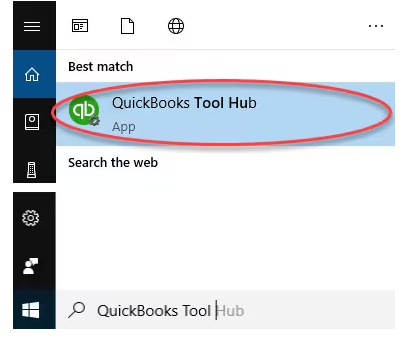
Note: If you are unable to find the icon, do a search in Windows for QuickBooks Tool Hub and select the program.
Step 2: Run QuickBooks Install Diagnostic tool
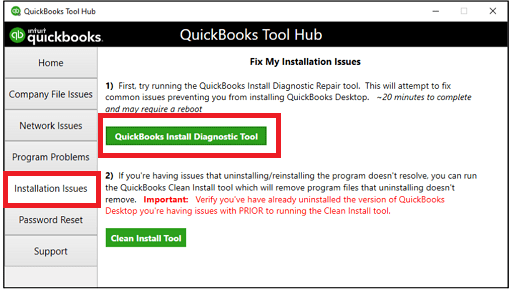
If something went wrong during the QuickBooks installation process, it may cause problems when you try to use it. Run the QuickBooks Install Diagnostic Tool to fix common installation issues.
- Open the QuickBooks Tool Hub and then choose Installation Issues.
- Select QuickBooks Install Diagnostic Tool. Let the tool run. It may take up to 20 minutes to detect the issue.
- When it’s done, restart your computer and start QuickBooks Desktop, then open your data file.
- Update your QuickBooks to the latest release. This will make sure you have the most recent fixes and security updates.
Verifying the Fix for QuickBooks Error 1722
After running the Install Diagnostic Tool, verify the repair by checking that QuickBooks installs correctly and functions as expected.
If Installing QuickBooks
- Re‑launch the QuickBooks Setup file and run the installation again.
- Ensure the installation completes without interruption or rollback errors.
- Open QuickBooks Desktop to confirm it launches properly.
- Log in to your company file and check that it opens without issues.
- Perform a basic task (e.g., create an invoice or run a report) to verify stability.
If Updating QuickBooks
- Open QuickBooks Desktop and attempt the update again.
- Confirm the update completes without triggering Error 1722.
- Verify the updated version number under Help > About QuickBooks Desktop.
- Run a simple report to ensure the update did not affect functionality.
System Health Checks
- Ensure Windows Installer service is running properly (check via Services.msc).
- Verify that Microsoft .NET Framework, MSXML, and Visual C++ Redistributables are listed and active in Programs and Features.
- Run Windows System File Checker (sfc /scannow) to confirm no underlying system file corruption remains.
- Check available disk space; low storage can cause installation failures.
Troubleshooting the Tool Hub Itself (for Error 1722)
Even though the QuickBooks Tool Hub is designed to automatically repair the components that trigger Error 1722, you may occasionally face issues with the tool itself. Use the following checks to ensure the repair process runs smoothly:
What if the Diagnostic Tool Stops Responding?
- Open Windows Task Manager to confirm the tool is still running.
- Ensure no other installers or background updates are active.
- Restart your computer and try running the Tool Hub again.
- Run the Tool Hub as an Administrator to avoid permission conflicts.
- Check available disk space; low storage can cause the tool to hang.
“Tool Hub Cannot Repair Microsoft Components Automatically”
- Make sure Windows is updated with the latest patches before retrying the repair.
- Temporarily disable antivirus or firewall software if they interfere with the repair process.
- Restart your computer and run the Tool Hub again.
- Run Windows System File Checker (sfc /scannow) to repair damaged system files.
Other Common Issues
- Reinstall the Tool Hub using the latest installation file from Intuit.
- Always download the newest version to ensure compatibility with current .NET updates.
- The diagnostic scan may take up to 20–25 minutes depending on system speed.
- Confirm the Windows Installer service is running (check via Services.msc).
Next Step: .NET Framework Manual & Automatic Repair
Proceed to Next Solution (.NET Framework Manual & Automatic Repair) if the QuickBooks Install Diagnostic Tool from the Tool Hub cannot resolve Error 1722 automatically. This spoke provides advanced troubleshooting methods to repair the Microsoft components that QuickBooks depends on during installation.
Have Questions & Doubts about QuickBooks Error 1722, Do checkout the Frequently Asked Section…
You are Here: MigrateMyBooks > QuickBooks Error Codes List > QuickBooks Error 1722 > Fix QuickBooks Installation Error 1722 by Using QuickBooks Tool Hub