
QuickBooks Error 1722 is a Windows Installer package error that occurs when essential Microsoft components such as the .NET Framework, MSXML, or Visual C++ Redistributables are corrupted, misconfigured, or disabled. Since QuickBooks relies on these components to communicate with Windows, the installer fails and the program cannot be set up properly. This error most often appears during QuickBooks Desktop installation, though it can occasionally occur during updates if the same dependencies are damaged.
Contents
Why Manual and Automatic .NET Configuration is Necessary
QuickBooks Error 1722 occurs when the Windows Installer cannot run properly due to damaged or misconfigured Microsoft components. QuickBooks relies on .NET Framework (3.5 and 4.8), MSXML, and Visual C++ Redistributables during installation. If these are disabled, corrupted, or incomplete, the installer fails and Error 1722 appears.
- Automatic Repair: The QuickBooks Tool Hub’s Install Diagnostic Tool or Microsoft’s .NET Repair Tool can automatically detect and repair framework issues.
- Manual Repair: When automatic repair does not resolve the error, manually toggle the .NET Framework in Windows Features, repair MSXML, or reinstall Visual C++ Redistributables to restore installer functionality.
Automatic Repair: Use the Microsoft .NET Framework Repair Tool
Error 1722 often occurs when QuickBooks cannot install because the .NET Framework is damaged or misconfigured. Microsoft provides an official repair utility that automatically scans and fixes framework issues, restoring the environment QuickBooks needs to complete installation.
- Search for and download the official Microsoft .NET Framework Repair Tool.
- Follow the on-screen prompts to install and run the tool.
- Accept the license terms and choose Apply Changes to re-register the .NET service.
- Restart your computer once the tool completes its process.
- Reopen QuickBooks and retry the update.
Manual Solutions
Solution 1: Toggle .NET Framework via Windows Features
Error 1722 can persist if the .NET Framework is disabled or corrupted. Manually toggling the framework forces Windows to re‑index and re‑verify its files, clearing conflicts and restoring proper installer functionality for QuickBooks.
For Windows 10 and Windows 11
Before you start: Determine which versions of the .NET Framework are having issues. In most cases, you’ll need to reinstall the affected version along with all later versions.
- Close all open programs.
- Open the Windows Start menu.
- Enter “Control Panel” into the search and open Control Panel.
- Navigate to Programs and Features.
- Choose Uninstall a Program.
Note: Don’t worry, you aren’t uninstalling anything.
- Select Turn Windows features on or off.
- Locate .NET Framework on the list.
- Check the settings for both .NET Framework 4.5 (or later) and .NET Framework 3.5 SP1.
Note: The steps to fix .NET. Framework 4.5, 4.6, 4.7, and 4.8 are the same.
Check NET Framework 4.5 (or later)
If the .NET Framework 4.5 (or later) checkbox isn’t checked:
- Tickmark the checkbox to turn on .NET Framework 4.5 (or later).
- Click OK to save your changes.
- Restart your computer.
If the .NET Framework 4.5 (or later) checkbox is already checked:
- Select the checkbox to turn off .NET Framework 4.5 (or later). Don’t turn it back on.
- Choose OK to save your changes.
- Restart your computer.
- Once you sign back into Windows, follow the steps to turn on the .NET Framework 4.5 again.
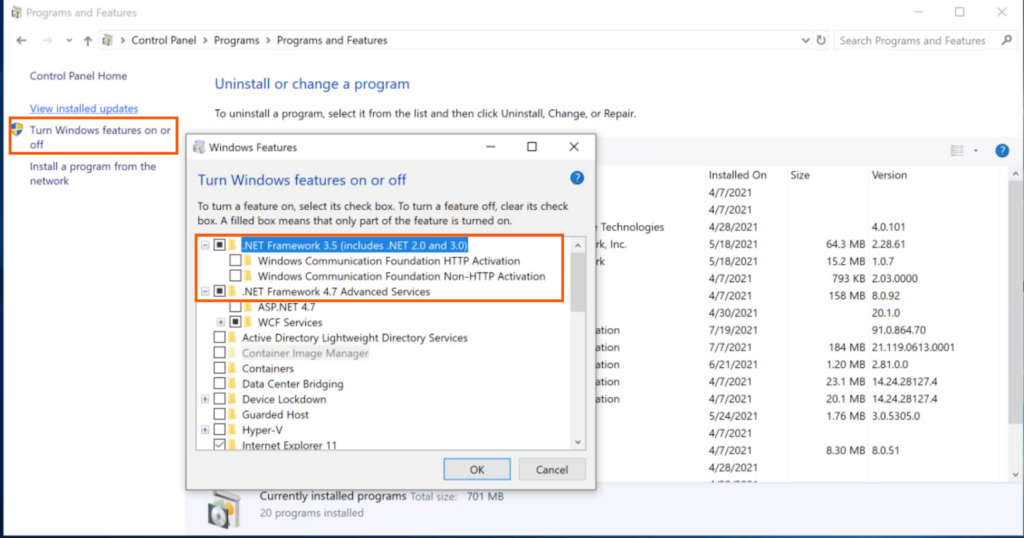
Check NET Framework 3.5 SP1
If the .NET Framework 3.5 SP1 checkbox isn’t checked:
- Tickmark the checkbox to turn on .NET Framework 3.5 SP1.
- Click OK to save your changes.
- Restart your computer.
If the .NET Framework 3.5 SP1 checkbox is already checked:
- Select the checkbox to turn off .NET Framework 3.5 SP1. Don’t turn it back on.
- Choose OK to save your changes.
- Restart your computer.
- After logging back into Windows, proceed with enabling the .NET Framework 3.5 SP1 again.
Important: Contact a Microsoft support representative or an IT professional if an error appears while turning the .NET Framework on or off, as the issue is likely related to the operating system rather than QuickBooks.
Solution 2: Repair Microsoft MSXML Components
QuickBooks Desktop uses Microsoft XML (MSXML) to run installer scripts during setup. If these components are damaged, the installation may fail with Error 1722. Repairing or re‑registering MSXML ensures QuickBooks can execute its installer commands correctly.
Register the MSXML DLL files
64-Bit operating system, register MSXML with the following steps:
- Choose the Windows Start menu and type cmd.
- Right-click cmd and select Run as Administrator.
- At the C: prompt, enter cd\windows\syswow64.
- Type regsvr32 MSXML6.dll and click Enter.
- Install QuickBooks Desktop application at the end.
32-Bit operating system, register MSXML with the following commands:
- Hold and press Windows+R on your keyboard to open the Run command.
- Type cmd, and click Enter.
- Enter regsvr32 MSXML6.dll, and select Enter.
- Install QuickBooks Desktop in the end.
Solution 3: Re-register Windows Installer
Error 1722 can also occur if the Windows Installer itself is corrupted or misconfigured. Re‑registering the installer resets its configuration, ensuring Windows recognizes MSI files correctly and allows QuickBooks to complete installation.
- Click Start, select Run, type cmd, and choose Command Prompt.
- At the command prompt, type the following, and click OK after each line:
- MSIEXEC /UNREGISTER
- MSIEXEC /REGSERVER
- Even if nothing appears to happen, the commands complete successfully.
- Try to run your Windows Installer-based application again.
Verify QuickBooks Desktop Installation After Repair
- Restart the QuickBooks installer and complete the installation process.
- Ensure the installer runs without rollback errors or interruptions.
- Open QuickBooks Desktop successfully.
- Log in to your company file and confirm it loads without errors.
- Run a basic task like creating an invoice or report to verify stability.
Common Post‑Repair Errors (Error 1722)
“Installation did not complete” message:
- Restart your computer and retry installation.
- Ensure the antivirus/firewall is temporarily disabled during setup.
- Check that Windows Installer service is running via Services.msc.
“File not found” error during installation:
- Re‑download the QuickBooks installer from Intuit to get the latest complete file.
- Save it locally (e.g., on your Desktop) instead of a network or external drive.
- Ensure you have Administrator rights to run the installer.
QuickBooks crashes immediately after install:
- Run the QuickBooks Install Diagnostic Tool again.
- Confirm that .NET Framework 3.5 and 4.8 are enabled in Windows Features.
- Update Visual C++ Redistributables to ensure required runtime libraries are intact.
Troubleshooting Manual Fixes
Error: “Windows couldn’t complete the requested changes” (while toggling .NET)
- Run Windows Update first to clear pending system restarts.
- Retry the .NET repair steps after updates are applied.
- If the error continues, run System File Checker (sfc /scannow) to repair Windows system files.
Error: “MSXML registration failed”
- Re‑register MSXML DLL files using Command Prompt (Admin mode).
- Ensure you’re using the correct commands for 32‑bit vs. 64‑bit systems.
- Run Windows Update to install the latest MSXML and related system components.
Other Helpful Checks
- Ensure at least 2 GB of free disk space on your system drive (C:) for installation.
- Always run QuickBooks installer and repair tools as Administrator.
- Complete all pending Windows restarts before retrying installation.
- Verify that Visual C++ Redistributables are installed and updated.
- Check Event Viewer logs for any installer‑related errors to identify hidden conflicts.
Next Step: Verify Windows Installer Service and Core Components
Proceed to Next Solution if repairing the .NET Framework (This Solution) does not fully resolve Error 1722. This Solution focuses on ensuring your Windows operating system is up-to-date and that essential system components are properly configured. QuickBooks relies on these Microsoft dependencies during installation, and missing or outdated components can trigger installation failures.
Have Questions & Doubts about QuickBooks Error 1722, Do checkout the Frequently Asked Section…
You are Here: MigrateMyBooks > QuickBooks Error Codes List > QuickBooks Error 1722 > Fix QuickBooks Error 1722 With .NET Framework Manual & Automatic Repair