
QuickBooks Error 1722 occurs when the installation process fails due to corrupted files, residual registry entries, or interference from third‑party antivirus software. This error often leads to incomplete installation or rollback failures. Performing a clean installation while temporarily disabling antivirus software ensures QuickBooks installs on a fresh environment without conflicts.
Contents
Why Perform a Clean Installation & Disable Antivirus?
QuickBooks Error 1722 is often triggered by corrupted installation files, residual registry entries, or interference from third‑party antivirus software. A clean installation combined with temporarily disabling antivirus protection provides a fresh, conflict‑free environment for QuickBooks to install and run properly.
Clean Installation
- Removes corrupted QuickBooks files and registry entries blocking installation.
- Ensures outdated or damaged program files are not reused during reinstallation.
- Provides a fresh environment for QuickBooks to reduce rollback errors and incomplete setups.
- Resolves issues caused from failed or partial previous installations.
- Confirms compatibility with updated Windows components and Microsoft dependencies (.NET Framework, MSXML, and Visual C++).
Turn Off Antivirus Software
- Prevents security programs from blocking QuickBooks installer actions or payroll updates.
- Avoids false positives that flag QuickBooks processes as threats.
- Ensures uninterrupted access to required system files and registry entries during installation.
- Reduces conflicts with firewall or real‑time protection settings that block QuickBooks connectivity.
Disable Antivirus Temporarily to Resolve QuickBooks Error 1722
Disabling antivirus prevents real‑time protection from blocking QuickBooks installer actions or payroll updates. Many antivirus programs mistakenly flag QuickBooks processes as threats, causing installation rollback errors. Turning it off ensures the installer runs without interference.
- Navigate to Windows Security from the Start menu.
- Choose Virus & threat protection from the Manage settings tab.
- Switch Real-Time Protection to Off.
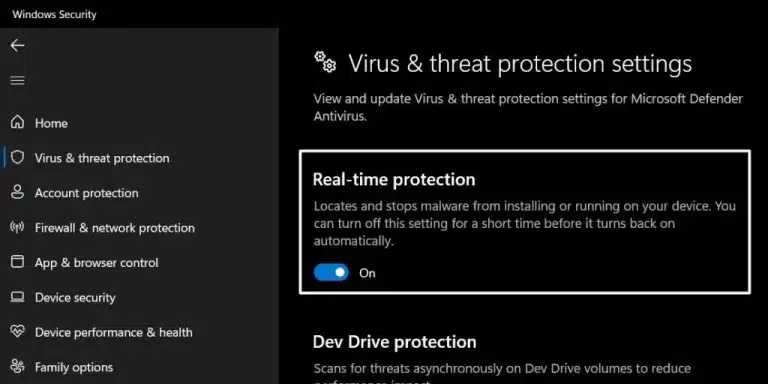
- Once done, restart your computer.
- Open QuickBooks desktop and run the payroll updates.
Use QuickBooks Clean Installation Tool
The QuickBooks Clean Installation Tool, provided by Intuit, helps completely remove and reinstall QuickBooks Desktop to fix persistent errors such as Error 1722. It clears residual files, registry entries, and folders from previous installations, ensuring QuickBooks installs on a clean environment. By eliminating leftover data and conflicts, the tool restores compatibility with essential Windows components and provides a stable, error‑free setup.
Step 1: Uninstall QuickBooks Desktop
Removing the existing QuickBooks installation clears corrupted files and registry entries that trigger Error 1722. This eliminates conflicts from failed or partial installations, allowing a fresh setup to proceed smoothly.
- Hold and press the Windows + R keys to open the Run command.
- Now, enter the Control Panel into the search bar and then hit the Enter key.
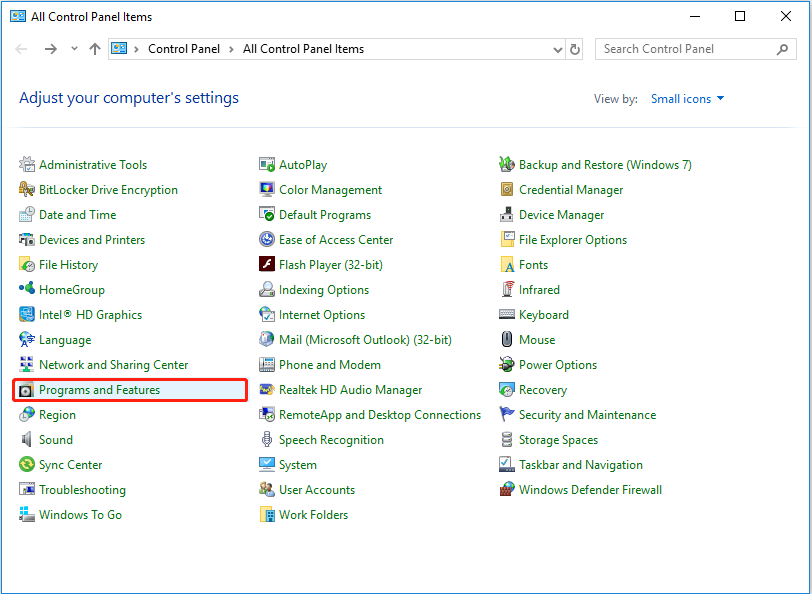
- Select Programs and Features and click on Uninstall or change a Program option.
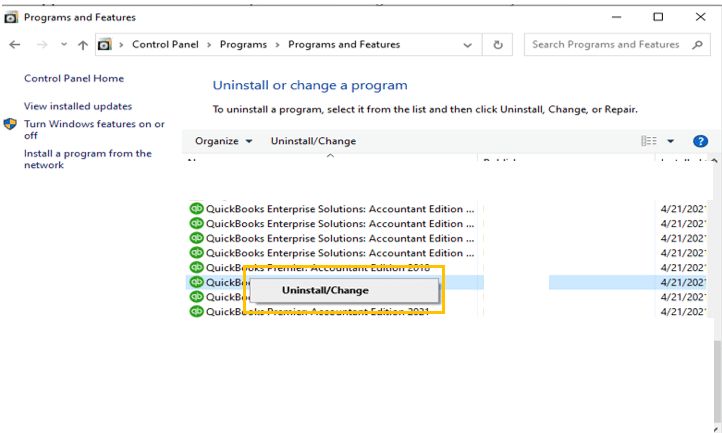
- After this, choose the QuickBooks Desktop version you want to remove from the list of programs.
- Click on Uninstall/Change, Remove, then press the Next button.
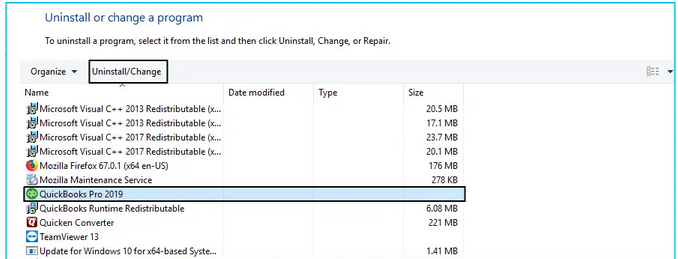
Note: If you don’t get this option on your display, sign out and sign back into Windows as an administrator.
- Follow the on-screen prompts to complete the uninstallation process.
Step 2: Download and Install the QuickBooks Clean Install Tool
The Clean Install Tool automatically removes residual QuickBooks files and registry entries that manual uninstall may miss. By resetting the installation environment, it ensures QuickBooks installs cleanly without leftover corruption causing Error 1722.
- Download the QuickBooks Clean Install Tool from the official website of Intuit.
- Navigate to the file location where the Download is stored and click twice on the QuickBooks-clean-install-tool.exe to start the installation process.
- Follow the on-screen instructions and select “I Accept the License Agreement” to agree with all the terms and conditions.
- Click the Next icon and open the QuickBooks Tool Hub from the Desktop.
- Select the Clean Install Tool from the Installation Issues tab.
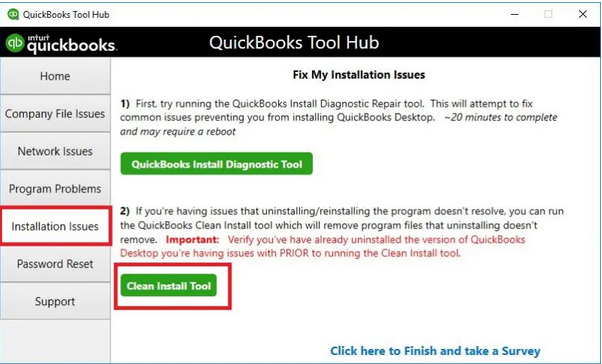
- Go for the correct QuickBooks Desktop Version and the Product that was previously installed on your system.
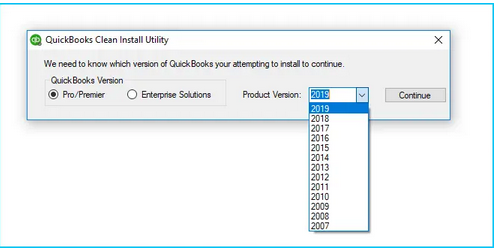
- Click the Continue tab.
- After this, press the OK button when you see the following message on your screen: “QuickBooks is ready to try a clean install, and you’ll install this to the default directory” or “Please Install your copy of QuickBooks to the default location.”
- Once the tool finishes, reinstall your QuickBooks Desktop software.
Step 3: Manually Rename the QuickBooks Desktop Installation Folders
Renaming folders prevents QuickBooks from reusing damaged files during reinstallation. This step ensures the installer creates new directories and avoids conflicts with corrupted data that often lead to Error 1722.
- Navigate to the Windows Start menu and look for “File Explorer”, then open the same.
- Locate and open the folder with your company files. This is usually your QuickBooks folder that can be accessed from one of these locations:
- C:\ProgramData\Intuit\QuickBooks (year)
- C:\Users\(current user)\AppData\Local\Intuit\QuickBooks (year)
- C:\Program Files\Intuit\QuickBooks (year)
- 64-bit version C:\Program Files (x86)\Intuit\QuickBooks (year)
- Hit right-click on the folder and then choose the Rename option.
- Add the word .old at the end of the folder name. This prevents QuickBooks from opening the folder when you reinstall it.
- Reinstall the QuickBooks Desktop software.
While trying to rename the folder, if you get an access error message “The access denied while renaming the folder“, then do the following:
- Press the Ctrl + Shift + Esc keys to open the Windows Task Manager. You can also look for the Task Manager in the Start menu bar.
- Click on the Processes tab.
- Select the Name column header to sort the list.
- Locate and select the following processes from the Processes tab, which include QBDBMgrN.exe, QBDBMgr.exe, QBCFMonitorService.exe, Qbw32.exe. Then, click on the End Process icon after selecting each of these processes.
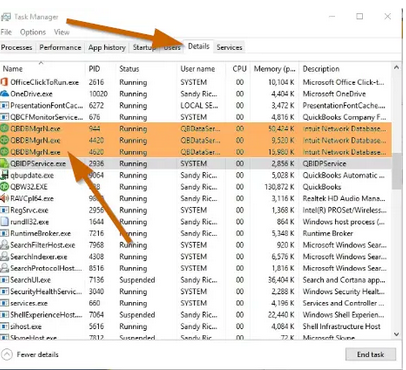
- Choose Yes if you notice the warning message, “WARNING: Terminating a process can cause undesired results…”
Step 4: Reinstall QuickBooks Desktop
Reinstalling QuickBooks on a clean system ensures all program files, registry entries, and dependencies are correctly installed. This resolves installation rollback issues and verifies QuickBooks functions properly with updated Windows components.
- Insert the Installation CD to the computer if you have any, and then follow the on-screen instructions to complete the installation process.
- Or, download your QuickBooks version from the QuickBooks Product Download Page in case you have purchased QuickBooks from the official Intuit website.
- Once the product is successfully installed into your system, it will ask you to enter the Product and QuickBooks License number.
Note: Type the credentials just as they were mentioned in the system earlier.
- After entering the above information, follow the on-screen prompts to get the step completed.
- Click on the Next icon and then select the type of installation you want for your accounting process.
- Click Next and hit the Install tab.
- When QuickBooks installation finishes, you are all set to run it in your system.
After installation, immediately go to Help > Update QuickBooks Desktop. This ensures the .NET Framework now accepts the update and verifies that QuickBooks is functioning correctly.
Troubleshooting Antivirus Conflicts During Installation
Antivirus programs can interfere with QuickBooks setup by re‑enabling protection or blocking installer actions. These steps help prevent security software from disrupting installation, ensuring QuickBooks installs smoothly and updates without rollback errors.
- Real‑Time Protection Re‑Enables: If protection turns back on during installation, disable it again until QuickBooks setup is finished.
- Third‑Party Antivirus Missing: Open your antivirus program’s settings panel and manually disable shields or real‑time scanning before continuing installation.
- Payroll Updates Fail: Confirm QuickBooks has internet access and that firewall exceptions are configured to allow payroll services.
- Installer Freezes: Temporarily disable both antivirus and firewall, then restart the installation.
- Antivirus Quarantines Files: Restore quarantined files from your antivirus dashboard and re‑run the installer.
- Security Software Auto‑Starts: Disable startup protection before restarting your system to prevent conflicts during installation.
Troubleshooting Clean Installation Failures
Clean installation can fail if system permissions, background processes, or security settings interfere with QuickBooks setup. These checks help identify and resolve common errors such as missing admin rights, blocked processes, or firewall interference, ensuring the installation completes successfully without triggering Error 1722.
- Uninstall Option Missing: If QuickBooks cannot be uninstalled, sign in to Windows as an Administrator and retry.
- Folder Rename Access Denied: End QuickBooks processes in Task Manager before renaming installation folders to allow the installer to proceed.
- Installer Blocked: If the installer is stopped mid‑process, confirm antivirus and firewall are disabled during installation.
- Post‑Reinstall Update Issues: Once installation is complete, immediately run QuickBooks Update to sync with .NET Framework and Windows components.
- Installer Crashes Unexpectedly: Clear temporary files using Windows Disk Cleanup before restarting installation.
- Windows Components Outdated: Update .NET Framework, MSXML, and Visual C++ Redistributables before reinstalling QuickBooks.
- Insufficient Disk Space: Ensure enough free space on the system drive to allow QuickBooks installation.
- UAC Prompts Block Setup: Temporarily lower User Account Control (UAC) settings during installation, then restore them afterward.
Have Questions & Doubts about QuickBooks Error 1722, Do checkout the Frequently Asked Section…
You are Here: MigrateMyBooks > QuickBooks Error Codes List > QuickBooks Error 1722 > Fix QuickBooks Error 1722 by Performing Clean Installation & Disable Antivirus Software