
Error 1642 is directly related to QuickBooks installation failures. It occurs when the installer cannot properly update or repair program files due to corruption, leftover folders, or registry conflicts. Even if the .NET Framework and Windows updates are functioning correctly, QuickBooks can still trigger Error 1642 if damaged installation files remain on the system.
A Clean Install completely removes QuickBooks program files, renames residual folders to prevent reuse of corrupted data, and reinstalls the application in a fresh environment. This process ensures that QuickBooks installs correctly in the default directory and that essential Microsoft components such as the .NET Framework, MSXML, and Visual C++ Redistributables can properly integrate with QuickBooks without interruption.
When to Use the Clean Install Method?
Use this method if:
- The QuickBooks Install Diagnostic Tool reports “Fixed” but the error persists.
- You receive Error 1642 immediately upon launching the installer.
- Multiple versions of QuickBooks are clashing over the same .NET components.
- QuickBooks fails to update even after repairing the .NET Framework and applying all Windows Updates.
- You notice repeated installation errors or crashes that point to corrupted QuickBooks program files.
- QuickBooks installs successfully but certain features (reports, transactions, or add‑ons) fail to load, indicating registry conflicts.
- QuickBooks installer prompts you to reinstall in the default directory because existing folders are blocking setup.
Preparation (Don’t Skip These Steps)
Backup Your Company Files: Create a .qbb backup of your company data. While a clean install only affects program files, safeguarding your financial records is essential.
Gather Your Credentials: Locate your License and Product numbers (press F2 in QuickBooks). You’ll need these during reinstallation.
Download the Installation File: Get the latest QuickBooks Desktop installation file from the official QuickBooks Downloads & Updates page on Intuit’s website to avoid corrupted or outdated versions.
Step 1: Uninstall QuickBooks Desktop
- Hold and press the Windows + R keys to open the Run command.
- Now, enter the Control Panel into the search bar and then hit the Enter key.
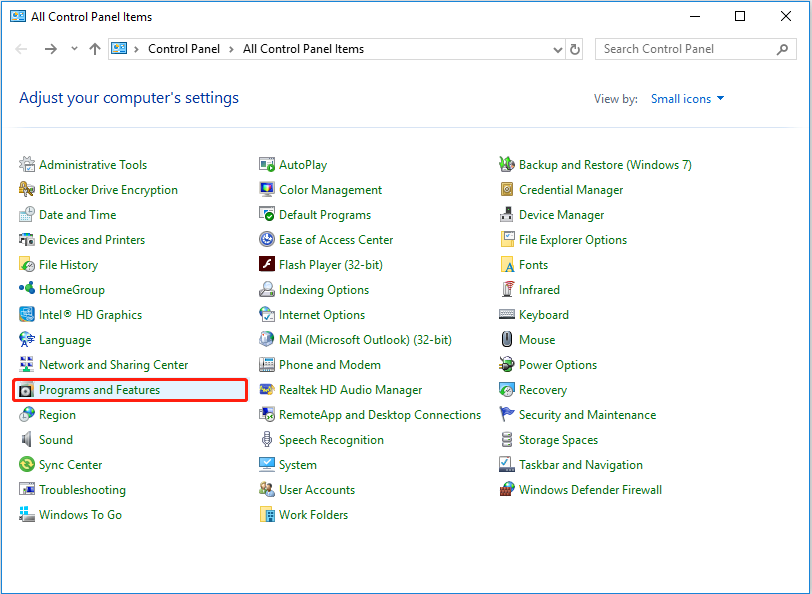
- Select Programs and Features and click on Uninstall or change a Program option.
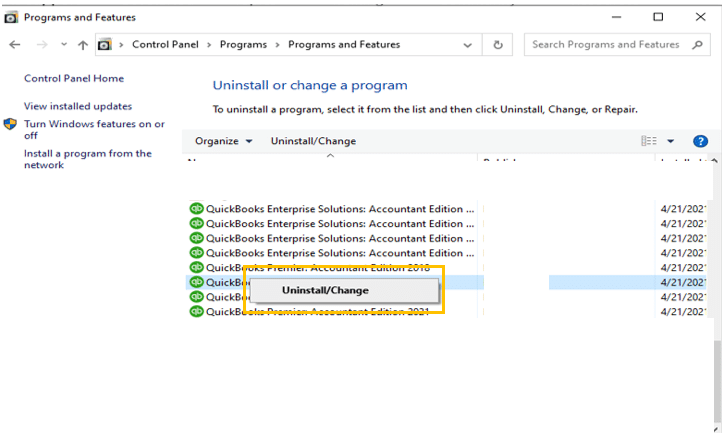
- After this, choose the QuickBooks Desktop version you want to remove from the list of programs.
- Click on Uninstall/Change, Remove, then press the Next button.
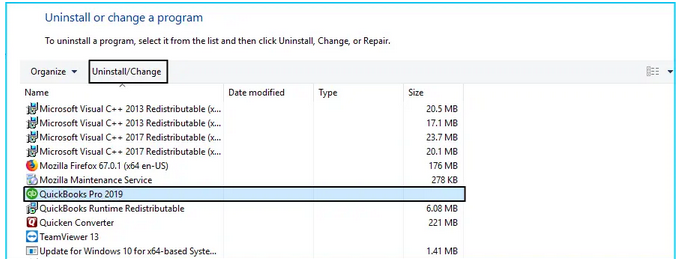
Note: If you don’t get this option on your display, sign out and sign back into Windows as an administrator.
- Follow the on-screen prompts to complete the uninstallation process.
Step 2: Download and Install the QuickBooks Clean Install Tool
- Download the QuickBooks Clean Install Tool from the official website of Intuit.
- Navigate to the file location where the Download is stored and click twice on the QuickBooks-clean-install-tool.exe to start the installation process.
- Follow the on-screen instructions and select “I Accept the License Agreement” to agree with all the terms and conditions.
- Click the Next icon and open the QuickBooks Tool Hub from the Desktop.
- Select the Clean Install Tool from the Installation Issues tab.
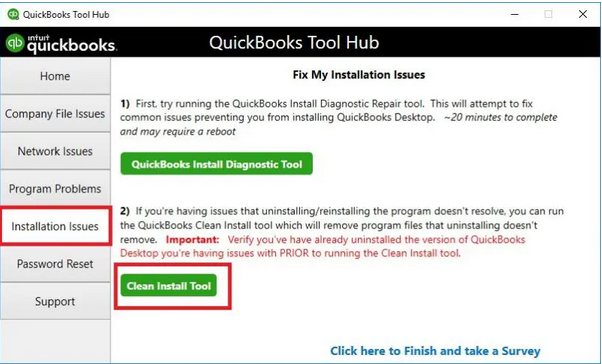
- Go for the correct QuickBooks Desktop Version and the Product that was previously installed on your system.
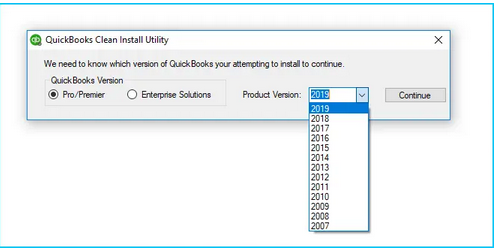
- Click the Continue tab.
- After this, press the OK button when you see the following message on your screen: “QuickBooks is ready to try a clean install, and you’ll install this to the default directory” or “Please Install your copy of QuickBooks to the default location.”
- Once the tool finishes, reinstall your QuickBooks Desktop software.
Step 3: Manually Rename the QuickBooks Desktop Installation Folders
- Navigate to the Windows Start menu and look for “File Explorer”, then open the same.
- Locate and open the folder with your company files. This is usually your QuickBooks folder that can be accessed from one of these locations:
- C:\ProgramData\Intuit\QuickBooks (year)
- C:\Users\(current user)\AppData\Local\Intuit\QuickBooks (year)
- C:\Program Files\Intuit\QuickBooks (year)
- 64-bit version C:\Program Files (x86)\Intuit\QuickBooks (year)
- Hit right-click on the folder and then choose the Rename option.
- Add the word .old at the end of the folder name. This prevents QuickBooks from opening the folder when you reinstall it.
- Reinstall the QuickBooks Desktop software.
While trying to rename the folder, if you get an access error message “The access denied while renaming the folder“, then do the following:
- Press the Ctrl + Shift + Esc keys to open the Windows Task Manager. You can also look for the Task Manager in the Start menu bar.
- Click on the Processes tab.
- Select the Name column header to sort the list.
- Locate and select the following processes from the Processes tab, which include QBDBMgrN.exe, QBDBMgr.exe, QBCFMonitorService.exe, Qbw32.exe. Then, click on the End Process icon after selecting each of these processes.
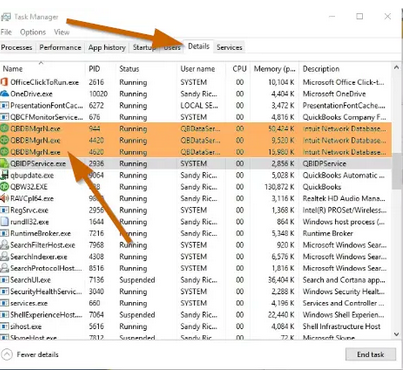
- Choose Yes if you notice the warning message, “WARNING: Terminating a process can cause undesired results…”
Step 4: Reinstall QuickBooks Desktop
- Insert the Installation CD to the computer if you have any, and then follow the on-screen instructions to complete the installation process.
- Or, download your QuickBooks version from the QuickBooks Product Download Page in case you have purchased QuickBooks from the official Intuit website.
- Once the product is successfully installed into your system, it will ask you to enter the Product and QuickBooks License number.
Note: Type the credentials just as they were mentioned in the system earlier.
- After entering the above information, follow the on-screen prompts to get the step completed.
- Click on the Next icon and then select the type of installation you want for your accounting process.
- Click Next and hit the Install tab.
- When QuickBooks installation finishes, you are all set to run it in your system.
After installation, immediately go to Help > Update QuickBooks Desktop. This ensures the .NET Framework now accepts the update and verifies that QuickBooks is functioning correctly.
Troubleshooting Clean Install Failures
Even after a Clean Install, some users may continue to face issues. These problems often occur due to deeper Windows or system environment conflicts. Below are the most common scenarios and their solutions:
Error 1642 Persists After Clean Install
If the error continues, this may indicate Windows Profile corruption.
- Create a new Windows Admin User account and attempt installation again.
- Ensure the new profile has full administrative rights.
- Migrate your company files to the new profile once QuickBooks installs successfully.
Permission Errors During Reinstallation
If you encounter permission errors, temporarily disable User Account Control (UAC):
- Open Control Panel > User Accounts > Change User Account Control settings.
- Move the slider to Never notify.
- Reinstall QuickBooks, and re‑enable UAC afterward for security.
- Run the installer as Administrator (right‑click > Run as administrator).
- Ensure your Windows account has full control over QuickBooks folders.
- Verify folder permissions in:
- C:\ProgramData\Intuit
- C:\Program Files\Intuit
Installer Crashes or Freezes
If the installer hangs during setup:
- Temporarily disable antivirus/firewall software.
- Disconnect from VPNs or proxy servers that may block installation.
- Run Windows in Selective Startup mode to prevent third‑party interference.
Missing or Damaged Microsoft Components
QuickBooks relies on Microsoft dependencies. If these are missing or corrupted, reinstall may fail.
- Reinstall Microsoft .NET Framework 4.8.
- Repair or reinstall MSXML and Visual C++ Redistributables.
- Run sfc /scannow in Command Prompt to repair corrupted system files.
Disk Space or Hardware Conflicts
- Ensure at least 2 GB of free disk space on the installation drive.
- Check for failing hard drives using Windows CHKDSK utility.
- QuickBooks installation may fail if connectivity is unstable or permissions are lacking.
Check out All the related Frequently Asked Questions around QuickBooks Error 1642