
Quickbooks Error 6010,-100 is a common multi-user hosting issue that prevents users from accessing the company file stored on a network server. The error usually appears when Quickbooks loses communication with the hosting computer or when third party security software blocks Quickbooks database connectivity. Unlike simple company file errors, Error 6010 is deeply connected with hosting configuration, wi-ndow networking , firewall permission, and Quickbooks Database server manager settings.
The error pop up message:
“An error occurred when Quickbooks tried to access the company file. Please try again. If the problem persists, contact Intuit technical support: Error code (6010, -100)”
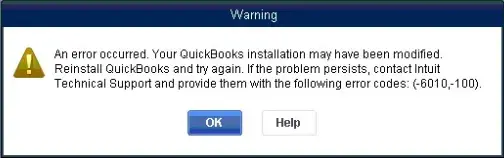
For businesses running Quickbooks in a multi-users environment, this error can completely interrupt workflow because workstations fail to communicate with the company file server. In many situations, users assume the company file is damaged, but the actual problem is often linked to block hosting services, disable database connectivity, corrupted network files, or security applications interfering with all the Quickbooks operations.
Contents
- 1 What is QuickBooks Error 6010, -100?
- 2 Major Causes of QuickBooks Error 6010, -100
- 3 Symptoms of QuickBooks Error 6010, -100
- 4 Migration from QuickBooks Desktop to Online – Error 6010, -100
- 5 Beginner-Level Solutions to Fix QuickBooks Error 6010, -100
- 6 Intermediate Solutions for Persistent Hosting Problems
- 7 Advanced Solutions for Recurring Error 6010, -100
- 8 Why QuickBooks Error 6010, -100 Keeps Returning: The Deep Technical Causes
- 9 Preventive Measures: How to Break the Error 6010, -100 Cycle
- 10 When Error 6010, -100 Indicates a Bigger Problem
- 11 The Migration Trigger: How Moving PCs Inherits Error 6010,-100
- 12 Data Safety & Integrity Under QuickBooks Error 6010, -100
- 13 Conclusion:
- 14 FAQs:
- 15 Frequently Asked Questions (FAQs)
- 15.1 1. What does the specific code sequence (6010, -100) actually mean?
- 15.2 2. Why does Error 6010 say “the company file is hosted by a computer that’s not the server”?
- 15.3 3. How do I fix Error 6010 if my antivirus software has quarantined QuickBooks files?
- 15.4 4. Can I still access my file in Single-User Mode if Error 6010 is blocking Multi-User Mode?
- 15.5 5. Why does running the QuickBooks Database Server Manager fix Error 6010?
- 15.6 6. Will resolving Error 6010 delete or corrupt any of my previous accounting data?
What is QuickBooks Error 6010, -100?
QuickBooks Error 6010, -100 occurs when the software cannot establish a connection with the company file hosted over the network. The error primarily appears in multi-user mode when QuickBooks workstations fail to access the server hosting the QBW file.
The issue is generally associated with:
- Incorrect hosting setup
- Firewall or antivirus restrictions
- Damaged ND files
- Missing QuickBooks database services
- Network communication failures
- Third-party security software interference
Major Causes of QuickBooks Error 6010, -100
1. Incorrect Hosting Configuration: One of the most common causes is enabling hosting mode on multiple systems instead of only the dedicated server. It creates a problem when multiple computers attempt to host the same company file, QuickBooks creates server communication conflicts.
2. Antivirus or Security Software Blocking QuickBooks: Third-party antivirus programs frequently block:
- QBDBMgrN.exe
- QuickBooks Database Server Manager
- Multi-user communication ports
This prevents QuickBooks from locating the hosted company file.
3. Damaged ND File: The Network Descriptor (.ND) file helps QuickBooks locate company files across the network. If corrupted, hosting communication fails.
4. QuickBooks Database Service Not Running: If QuickBooksDBXX services stop unexpectedly, workstations lose access to the server-hosted file.
5. Firewall Restrictions: Windows Firewall or network firewalls may block QuickBooks ports required for multi-user communication.
6. Improper Folder Permissions: Limited access permissions on the server folder may prevent QuickBooks from reading or writing data.
7. Hosting Computer Name Mismatch: If the workstation cannot properly resolve the hosting server name, QuickBooks cannot connect to the company file.
Symptoms of QuickBooks Error 6010, -100
Before the full error appears, users often notice:
- QuickBooks freezes while opening the company file
- Multi-user mode stops working
- Workstations disconnect randomly
- Company file opens only on the server
- Slow network performance inside QuickBooks
- Database server manager failures
- Frequent hosting-related popups
- Inability to switch to multi-user mode
Migration from QuickBooks Desktop to Online – Error 6010, -100
Error 6010, -100 often surfaces during the migration (Desktop to Online) workflow because the company file is not being hosted correctly or the Database Server Manager has lost its connection. Migration tools depend on a stable Desktop environment, if the file cannot open locally, it cannot be exported to QuickBooks Online.
Why Error 6010 Disrupts Migration?
- Hosting misconfiguration: A workstation hosting the file instead of the server prevents the migration tool from accessing it.
- Corrupted support files: Damaged .ND or .TLG files block the Desktop application from validating the company file.
- Firewall/port issues: Blocked QuickBooks ports stop the migration utility from communicating with the Database Server Manager.
- Windows updates: Security changes can reset registry paths or disable QBDBMgrN, breaking the Desktop‑to‑Online link.
Beginner-Level Solutions to Fix QuickBooks Error 6010, -100
Solution 1: Restart All Systems
Temporary hosting conflicts can often be resolved through a full restart.
Steps:
- Close QuickBooks on all systems
- Restart:
- Server computer
- All workstations
- Open QuickBooks only on the server first
- Reconnect workstations gradually
Why This Helps
It clears temporary database locks and network communication failures.
Solution 2: Verify Hosting Settings
Only the server should host the company file.
On Workstations:
- Open QuickBooks
- Go to File → Utilities
- If “Stop Hosting Multi-User Access” appears, click it
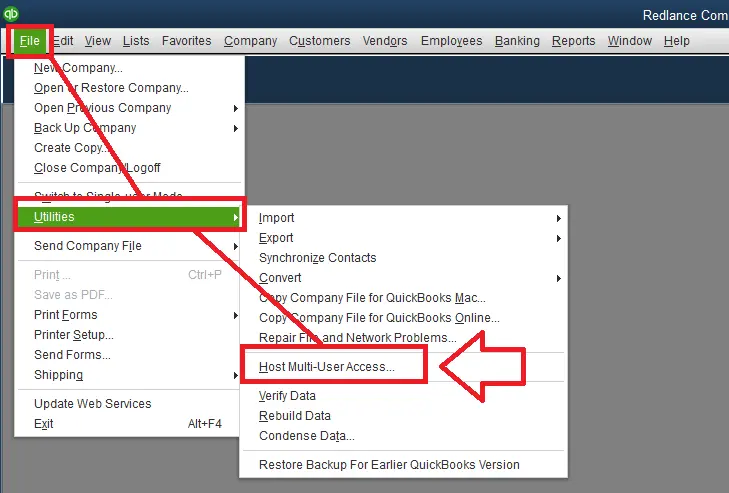
On Server:
Ensure “Host Multi-User Access” is enabled.
Common Mistake
Businesses often enable hosting on every workstation, creating communication conflicts.
Solution 3: Rename the ND File
Corrupted network descriptor files are a leading cause of Error 6010.
Steps:
- Open the company file folder
- Locate the .ND file
- Right-click → Rename
- Add “.OLD” at the end
Example:
- companyfile.qbw.nd → companyfile.qbw.nd.old
Why This Works
QuickBooks automatically creates a fresh ND file during the next scan.
Intermediate Solutions for Persistent Hosting Problems
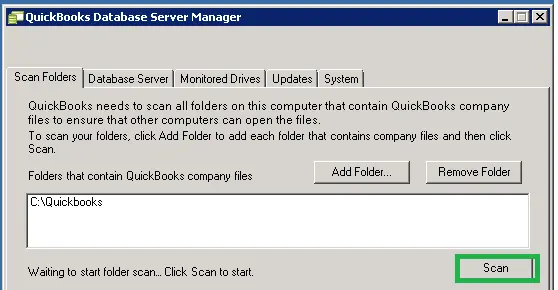
Solution 4: Run QuickBooks Database Server Manager
Database Server Manager repairs network hosting communication.
Steps:
- Open QuickBooks Tool Hub
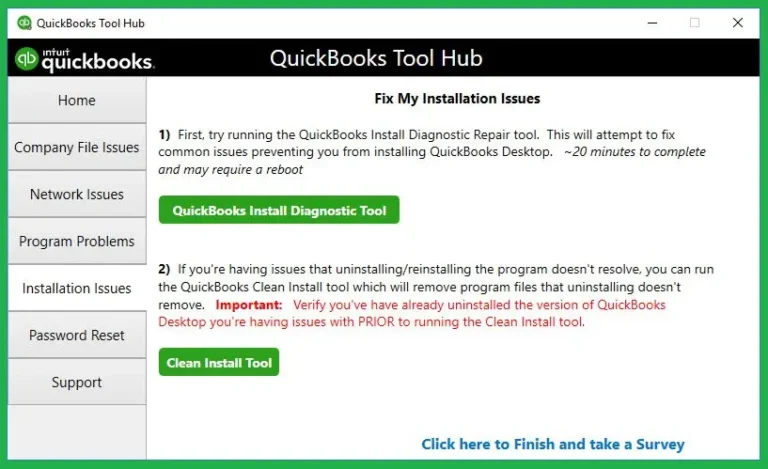
- Select Network Issues
- Open Database Server Manager
- Scan the company file folder
- Restart QuickBooks services afterward
Benefits
- Rebuilds hosting paths
- Repairs database connectivity
- Refreshes network configuration
Solution 5: Configure Firewall Exceptions
QuickBooks requires specific ports for multi-user connectivity.
Allow These Files:
- QBDBMgrN.exe
- QBW32.exe
- FileManagement.exe
Also Open QuickBooks Ports
Port numbers vary depending on QuickBooks year version.
Why This Matters
Blocked ports prevent workstations from locating the server.
Solution 6: Check Folder Permissions
Steps:
- Right-click the company file folder
- Open Properties → Security
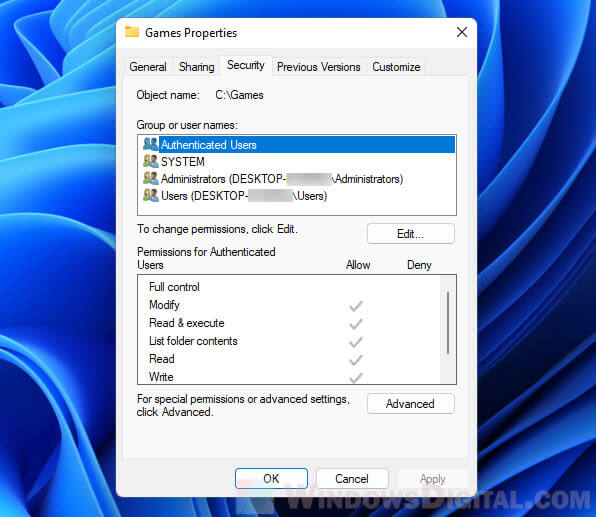
- Ensure all QuickBooks users have:
- Full Control
- Read/Write access
- Apply changes
Important
Insufficient permissions can mimic hosting failures.
Advanced Solutions for Recurring Error 6010, -100
Solution 7: Restart QuickBooks Database Services
Steps:
- Press Windows + R
- Type services.msc
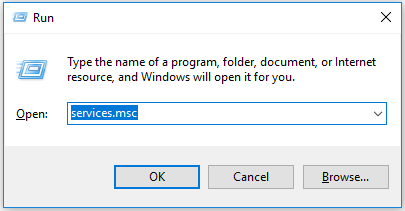
- Locate:
- QuickBooksDBXX
- Right-click → Restart
Advanced Benefit
This refreshes inactive database sessions causing server communication issues.
Solution 8: Disable Third-Party Security Software Temporarily
Some antivirus tools aggressively block QuickBooks hosting services.
Test Procedure:
- Disable antivirus temporarily
- Open QuickBooks in multi-user mode
- If the error disappears:
- Add QuickBooks exceptions permanently
Common Culprits
- Endpoint protection software
- Network security suites
- Ransomware shields
Solution 9: Verify DNS and Network Connectivity
Large office environments may experience DNS routing failures.
Advanced Checks:
- Ping the hosting server
- Verify server hostname resolution
- Restart DNS services if needed
Why This Matters
QuickBooks depends heavily on stable network name resolution.
Sometimes the shared network folder itself becomes corrupted.
Steps:
- Stop sharing the folder
- Re-enable folder sharing
- Reassign permissions
- Rescan using Database Server Manager
Why QuickBooks Error 6010, -100 Keeps Returning: The Deep Technical Causes
Most troubleshooting guides offer temporary patches—like rebooting the computer or renaming .ND and .TLG configuration files—that get you back into your company file for a few hours. However, they fail to address the core system environments that cause the error to reappear.
At its structural core, Error 6010, -100 occurs because QuickBooks loses exclusive access to its network database or is blocked from launching its multi-user hosting services (QBDBMgrN).
If this error keeps returning, your local network or operating system is actively reverting your fixes. Here are the true systemic triggers behind the cycle of recurrence:
1. Dynamic Antivirus Signatures & Silent Engine Updates
- The Temporary Fix: Adding a one-time firewall rule or disabling your security software for 10 minutes.
- Why the Error Returns: Modern endpoint security suites (like Bitdefender, Norton, or Windows Defender) download threat definitions silently throughout the day. A background update can instantly re-classify QuickBooks database execution paths or shared port allocations as suspicious “ransomware-like behavior.”
- The Structural Fix: Instead of relying on broad, temporary permissions, you must configure explicit folder and executable exclusions for the entire Intuit directory tree and specific ports within the advanced firewall rules.
2. Accidental Multi-Workstation “Hosting Loop”
- The Temporary Fix: Turning off hosting on a single computer using the QuickBooks utility menu.
- Why the Error Returns: In a proper multi-user setup, only the server or host machine should have hosting turned on. However, if a standard workstation user updates their local QuickBooks software, alters user preferences, or logs in as a local administrator, QuickBooks may automatically toggle “Host Multi-User Access” back on. When two or more machines on the same network try to act as the primary host, the database engine drops the connection, triggering Error 6010.
3. Server Power-State Interruptions (Sleep & Hibernation Modes)
- The Temporary Fix: Restarting the server or restarting the QuickBooks Database Server Manager service.
- Why the Error Returns: If the central server or host machine is configured to enter a low-power state, “Sleep,” or “Hibernate” after a period of inactivity, the operating system cuts power to the network interface card ($NIC$) and freezes active application threads.
- The moment the server goes to sleep, the active database session collapses.
- When the machine wakes up, the QuickBooksDBXX background service fails to automatically reinitialize its network mapping, locking users out instantly.
4. Wireless Network Fluctuation & Packet Loss
- The Temporary Fix: Closing and reopening QuickBooks on the workstation.
- Why the Error Returns: QuickBooks Desktop is a database-heavy program that requires a completely uninterrupted, continuous stream of data packets between the workstation and the host file. Standard Wi-Fi networks inherently suffer from micro-disconnections, signal interference, and packet drops. Even a split-second drop in a wireless connection tears the database communication line apart, throwing Error 6010 because the server thinks the file is still locked by a ghost user.
- The Hard Rule: QuickBooks Desktop multi-user environments should strictly rely on hardwired Cat5e/Cat6 ethernet connections.
5. Corrupted Windows User Profiles & Registry Decay
- The Temporary Fix: Running a “Run as Administrator” command or using a quick registry cleaner.
- Why the Error Returns: QuickBooks relies on local Windows User Profiles to store temporary session data, security certificates, and directory permissions. If a Windows profile becomes corrupted, it loses its ability to retain permission tokens across system reboots. Every time that specific user logs out or restarts their PC, Windows wipes out the folder permissions required by the QuickBooks Database Manager, forcing the setup script back into a blocked state.
Preventive Measures: How to Break the Error 6010, -100 Cycle
To stop treating the symptoms and finally cure the root cause of Error 6010, implement these permanent system configurations:
| Triggers | Real-World Impact | Permanent Solution |
| Antivirus Updates | Blocks file pathways randomly. | Add absolute path exclusions for C:\Program Files\Intuit. |
| Workstation Hosting | Network resource collision. | Run an internal audit to ensure Utilities > Stop Hosting is applied to all non-server PCs. |
| Server Hibernation | Drops active database sessions. | Set Server Power Plan to “High Performance” and turn Sleep to “Never”. |
| Wi-Fi Connectivity | Corrupts data streams mid-transit. | Transition all accounting workstations to a dedicated ethernet network. |
When Error 6010, -100 Indicates a Bigger Problem
If the issue continues despite troubleshooting:
- Windows networking components may be damaged
- The QuickBooks installation could be corrupted
- The server profile may have permission inconsistencies
- Company file corruption may begin developing
At this stage:
- Create a full backup immediately
- Avoid repeated forced access attempts
- Consider advanced QuickBooks repair utilities
The Migration Trigger: How Moving PCs Inherits Error 6010,-100
Migrating your QuickBooks data to a new server or moving a user to a fresh Windows workstation is a prime catalyst for recurring Error 6010, -100. While your financial records transfer smoothly, the underlying network protocols, shared user permissions, and directory paths frequently break during the transition.
This failure loop typically triggers on migrated systems due to three specific architectural oversights:
1. Migrating the Network Descriptor (.ND) and Transaction Log (.TLG) Files
When moving your database file (.QBW) to a new workstation or server, amateur data-transfer utilities often copy the hidden .ND and .TLG configuration files along with it.
- The Collision: These legacy files act as a map, hardcoding the old server’s IP address, computer name, and network ports.
- The Result: When the migrated workstation opens QuickBooks, it reads the old mapping parameters, attempts to contact a host machine that no longer exists (or has a different network configuration), and crashes into Error 6010, -100.
2. Orphaned Database Services (QBDBMgrN) on the New Host
When setting up a new server environment, users often simply drag and drop the company folder onto a shared drive without running the native installer architecture.
- The Collision: Without running the dedicated installer, the target operating system never registers the vital background service thread (QuickBooksDBXX).
- The Result: The workstation tries to open the file across the network, but because the new machine lacks the engine to actively parse and host database queries, it throws a -100 communication block.
Folder security and user permissions do not transfer cleanly between different computer architectures or network domains.
- The Collision: The shared network folder on your new machine often inherits absolute security configurations and ownership tags tied to the old computer’s user profiles.
- The Result: Even if your new account has Windows Administrator rights, the local User Account Control ($UAC$) prevents the QuickBooks background manager from gaining exclusive file-locking access because it cannot validate the orphaned, legacy $SID$.
Data Safety & Integrity Under QuickBooks Error 6010, -100
When QuickBooks Error 6010, -100 strikes and locks you out of your system, the natural assumption is that your financial records are permanently damaged.
The good news is that Error 6010, -100 is fundamentally an infrastructure and communication block, not a data loss event. Because the error triggers when the multi-user hosting service (QBDBMgrN.exe) fails to complete a handshake, your real data remains perfectly unharmed behind a network wall.
However, while the error itself will not corrupt your files, reckless troubleshooting can. Follow these strict baseline rules to ensure absolute data safety:
- Halt “Forced Reconnection” Loops: If a workstation drops mid-session, do not repeatedly spam the open button. If a user was mid-invoice or running payroll, forcing reconnections over a broken loop can inject fragmented data packets into the database cache, creating actual corruption.
- Execute the Local Isolation Test: To verify file health instantly, copy your .QBW file from the server share and paste it directly onto a workstation’s local C:\ drive. Hold down the Ctrl key while opening QuickBooks to bypass the network, and open the desktop copy. If it opens, your data is 100% healthy, confirming a pure network/hosting issue.
- Isolate the Network Descriptor File: When cleaning up network directories, only rename or delete the .ND file (e.g., changing it to .ND.OLD). Never delete the Transaction Log (.TLG) file. The .ND file is just a text pointer that QuickBooks recreates instantly, but the .TLG file holds raw journal entries made since your last backup. If your main file ever suffers physical damage, an engineer will need that .TLG file to rebuild your data.
- Run a Post-Resolution Health Check: The moment you resolve the hosting block and get back into multi-user mode, immediately verify the file’s health. Navigate to File > Utilities > Verify Data to ensure the sudden network drops didn’t leave any logical or structural alignment issues behind.
Conclusion:
QuickBooks Error 6010, -100 is more than a simple company file glitch — it is a multi-user hosting failure that directly impacts productivity, migration workflows, and server reliability. Unlike minor file errors, 6010 is deeply connected to hosting configuration, firewall permissions, and the Database Server Manager.
For businesses running QuickBooks Desktop in multi-user environments, this error can halt operations entirely, leading to downtime and confusion. The good news is that most cases can be resolved by restarting services, repairing ND/TLG files, correcting hosting settings, and configuring firewall rules.
Businesses using Quickbooks in multiuser environments should also focus heavily on preventive measures because recurring hosting failure can eventually impact the overall business productivity, company file stability and database integrity.
FAQs:
Frequently Asked Questions (FAQs)
1. What does the specific code sequence (6010, -100) actually mean?
The first part of the code (6010) indicates a structural database initialization failure, meaning QuickBooks cannot gain exclusive transactional locking access to the company file. The sub-code (-100) explicitly means network timeout or communication block, signaling that a firewall configuration, endpoint security tool, or misconfigured hosting workstation cut the data connection before the file could establish a network handshake.
2. Why does Error 6010 say “the company file is hosted by a computer that’s not the server”?
This occurs because of a network resource collision known as a Hosting Loop. In a standard QuickBooks multi-user ecosystem, only the central host server should have multi-user hosting enabled. If an office user accidentally triggers “Host Multi-User Access” on a standard desktop workstation, that computer will start broadcasting itself as the file host. When the network experiences a collision between two conflicting host signals, the database engine drops the stream to protect data integrity, throwing Error 6010.
3. How do I fix Error 6010 if my antivirus software has quarantined QuickBooks files?
Highly aggressive antivirus utilities (like Bitdefender, AVG, or Windows Defender) frequently mistake QuickBooks database monitoring services (qbdbmgrn.exe or qbw32.exe) for unauthorized ransomware processes.
- To fix this, you must open your specific antivirus control panel, navigate to its Virus Vault / Quarantine tab, and select Restore and Add Exception for any flagged Intuit files.
- Afterward, verify that the files are back in their home directory (C:\Program Files\Intuit\QuickBooks) and have not been permanently renamed.
4. Can I still access my file in Single-User Mode if Error 6010 is blocking Multi-User Mode?
Yes, in many cases you can. Error 6010 is predominantly a network database connectivity failure managed by the standalone Database Server Manager engine. If you switch QuickBooks to Single-User Mode or copy the .QBW file directly to your local desktop hard drive, the application will bypass network database communication layers and parse the data locally. If the file opens flawlessly on your desktop, it proves your financial database is entirely intact, and the issue is strictly a Windows networking or configuration flaw.
5. Why does running the QuickBooks Database Server Manager fix Error 6010?
When you initiate a folder scan through the QuickBooks Database Server Manager utility, the engine forcefully terminates frozen or orphaned network loops and completely cleans the directory. Most importantly, it deletes and rebuilds a brand-new Network Descriptor (.ND) file from scratch. This file is vital because it maps the exact IP address, server name, and network port communication paths that workstations must follow to securely access the data.
6. Will resolving Error 6010 delete or corrupt any of my previous accounting data?
No. QuickBooks Error 6010, -100 is strictly an environmental infrastructure block, meaning the data file itself remains untouched and unharmed behind the network barrier. However, if users attempt to repeatedly force connections over a shaky Wi-Fi network while the system is struggling with communication drops, the risk of structural logical database damage increases. It is always recommended to create a fresh, local manual backup (.QBB) as soon as file access is restored.