
When working on Quickbooks Desktop, users may sometimes encounter Quickbooks error 6150, which usually appears when trying to open, create, or access a company file. The error generally indicates that Quickbook is unable to open the company file due to file corruption, damaged installation files, incorrect file extensions or malware- related issues.
This issue is commonly triggered after an incomplete Quickbooks installation, accidental deletion of company files, or attempts to open portable files without proper restoration. Since the company file contains critical data, ignoring this error can lead to data accessibility issues and workflow disruptions.
What the -1006 Sub-Code Specifically Means?
Error 6150 alone → A general failure when QuickBooks Desktop tries to open, create, or restore a company file.
Error 6150, -1006 → A more specific diagnostic flag that points directly to company file corruption or ransomware encryption.
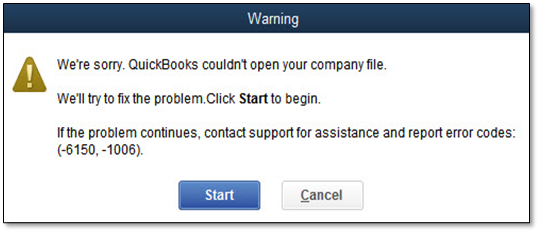
The -1006 sub-code is one of the most specific in the entire 6000 series:
“-1006 means: the file data cannot be read”
This is a file-content-level failure. QuickBooks located the file, reached it, and attempted to read its internal data structure — and failed. There are four specific conditions that produce a -1006 read failure:
1. Internal Data Corruption
The .QBW file’s internal structure is damaged by an improper shutdown, power failure, disk error, or an interrupted write operation. The file exists on disk but its internal data tables are inconsistent or unreadable.
2. Ransomware Encryption (CryptoWall, CryptoLocker)
Ransomware specifically targets QuickBooks files. It encrypts the .QBW content and leaves decrypt instruction files in the same folder. QuickBooks cannot read encrypted content and returns -6150, -1006. Attempting repair tools on an encrypted file is wasted effort — the encryption must be removed first.
3. Wrong File Type or Extension
QuickBooks for Windows expects .QBW files with a specific internal format. -6150, -1006 is returned when opening:
* A QuickBooks for Mac .QBW file in QuickBooks Desktop for Windows | * A backup file (.QBB) renamed to .QBW | * A portable file (.QBM) opened by double-clicking rather than via the Restore process | * Any non-QuickBooks file given a .QBW extension
4. Corrupted .TLG Transaction Log File
The .TLG file is read during every file-open sequence to validate uncommitted transactions. If the .TLG is corrupted or mismatched against the current .QBW state, QuickBooks returns -6150, -1006 even when the .QBW file itself may be intact.
Symptoms of Error 6150
- Error message: “We’re sorry. QuickBooks couldn’t open your company file” or “Error -6150, -1006.”
- QuickBooks crashes or closes when opening/creating a company file.
- Inability to restore a backup file.
- The company file opens partially or shows missing data.
- System slowdown when accessing QuickBooks Desktop.
Root Cause Analysis
- Damaged company file → Corruption from improper shutdowns, disk errors, or failed updates.
- CryptoWall virus → Ransomware encrypts files, making them unreadable.
- Wrong file extension → Attempting to open .QBM or .QBB instead of .QBW.
- Insufficient permissions → Restricted folder access blocks QuickBooks from opening files.
- Incomplete installation → Missing or corrupted QuickBooks program files.
Explanation: Each root cause directly prevents QuickBooks from accessing or validating the company file. Subcode -1006 specifically points to file corruption or ransomware.
Detailed troubleshooting guide for QuickBooks Error 6150 – Beginner to Advance level
Beginner Level (Quick Checks)
- Step 1: Check file extension → Confirm the company file ends with .QBW. Rename if incorrect.
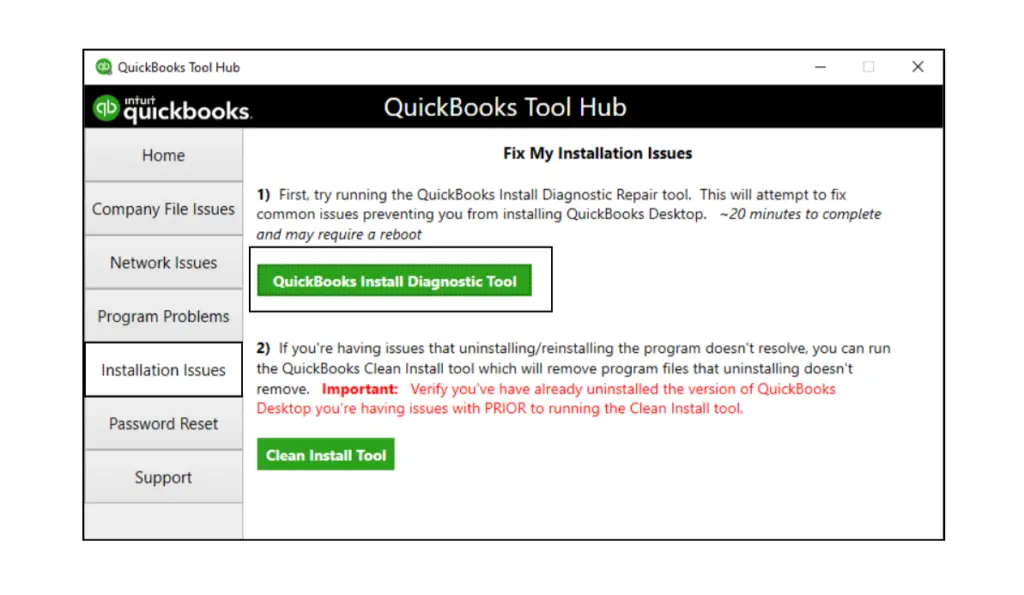
- Step 2: Verify installation → Run QuickBooks Install Diagnostic Tool or repair installation.
- Step 3: Open sample file → Test with a sample company file to isolate whether the issue is file‑specific.
- Step 4: Restart system → Reboot the computer to clear temporary glitches.
Estimated time: 5–10 minutes
Verification: File opens successfully or error persists consistently.
Intermediate Level (File Integrity Focus)
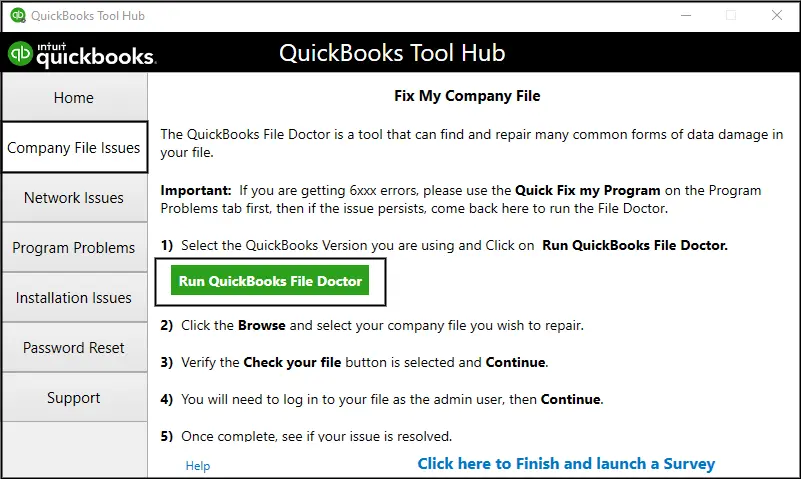
- Step 5: Run QuickBooks File Doctor → Scan and repair the company file.
- Step 6: Restore backup → Replace the corrupted file with the latest verified backup.
- Step 7: Check permissions → Ensure full read/write access for the file location.
- Step 8: Scan for malware → Run antivirus to detect CryptoWall or ransomware infections.
Estimated time: 20–40 minutes
Verification: File opens without error after repair or restore.
Advanced Level (Escalation Required)
- Step 9: Reinstall QuickBooks → Perform a clean install to replace corrupted program files.
- Step 10: Use Auto Data Recovery → Recover lost data using ADR tools.
- Step 11: Engage data recovery specialists → Contact professionals if backups fail and corruption is severe.
- Step 12: Follow escalation matrix → Tier 1 (basic checks) → Tier 2 (file repair) → Tier 3 (data recovery).
Estimated time: 1–3 hours depending on severity
Verification: Company file restored and QuickBooks functions normally.
Preventive Measures for Error 6150
Maintain verified backups
- Always keep weekly backups of company files. Test backups by restoring them periodically to confirm they are usable. This ensures recovery if corruption occurs.
Run antivirus and ransomware scans
- CryptoWall and similar malware can encrypt QuickBooks files, triggering Error 6150. Regular scans with updated antivirus software prevent infections.
Use short and clean file paths
- Avoid saving company files in deeply nested folders or with special characters in the path. Short, simple paths reduce the risk of file access errors.
Audit file permissions
- Ensure users have full read/write access to the folder containing QuickBooks files. Restricted permissions can block QuickBooks from opening or saving files.
Update QuickBooks Desktop
- Keep QuickBooks patched with the latest updates. Updates fix bugs and prevent installer conflicts that may lead to file errors.
Train users on safe shutdown practices
- Abrupt system shutdowns or forced exits can corrupt company files. Training users to close QuickBooks properly reduces corruption risk.
Enable Auto Data Recovery
- ADR creates secondary copies of company files and transaction logs. If corruption occurs, ADR can rebuild data without relying solely on backups.
Real-Life Scenarios: QuickBooks Error 6150
QuickBooks Error 6150 triggers when the software cannot open or create a company file, heavily pointing to severe file corruption, accidental file extension changes, or Crypto-ransomware encryption.
Scenario 1: The Ransomware Attack (Data Encryption)
An employee accidentally opens a phishing email attachment on a workstation. Ransomware spreads across the local network and encrypts the company file. When the accountant attempts to open CompanyFile.qbw, QuickBooks fails to read the encrypted data structure and throws Error 6150.
Scenario 2: The Forced Shutdown Mid-Save
During a massive batch invoice save, the office experiences a sudden power outage. Because the system was forced to shut down while actively writing to the database, the core company file structure is severely corrupted, leaving QuickBooks unable to recognize the file upon reboot.
Conclusion:
QuickBooks Error 6150 (with or without subcode -1006) is a Desktop‑specific error that primarily indicates issues with company files — ranging from corruption and wrong extensions to ransomware infections.
- Error 6150 alone → broader, can involve installation or file path issues.
- Error 6150, -1006 → narrower, points directly to file corruption or malware.
By following a scenario‑based troubleshooting path (beginner → intermediate → advanced), technicians can isolate the cause, repair or restore files, and escalate efficiently. Preventive measures such as verified backups, antivirus protection, permission audits, and proper shutdown practices are essential to minimize recurrence.
Frequently Asked Questions (FAQs)
Is Error 6150 always caused by corruption?
No. While -1006 points to corruption, Error 6150 alone can also result from installation issues, wrong file extensions, or permission problems.
Can Error 6150 be fixed without restoring a backup?
Yes. Tools like QuickBooks File Doctor or Auto Data Recovery can repair files without relying solely on backups.
Does Error 6150 affect QuickBooks Online?
No. Online data is stored on Intuit’s servers, so local corruption or ransomware does not apply.
Can antivirus software itself trigger Error 6150?
Yes, if antivirus quarantines QuickBooks files or blocks access, it can indirectly cause the error.
What’s the fastest way to confirm if the file is corrupted?
Try opening a sample company file. If it opens normally, the issue lies with the original file.