
QuickBooks error 6123, displayed as error 6123,0 is a connection stability error. It does not mean your company file is corrupted or that your data is lost. It means Quickbooks attempted to establish or maintain a connection to the company file during an operation, i.e. opening, restoring from backup, or upgrading to a newer version and that connection either failed or to form or was interrupted before the operation completed.
Common Error Message for QuickBooks Error 6123
- “Error : -6123,0. We’re sorry, but QuickBooks can’t open your company file ”
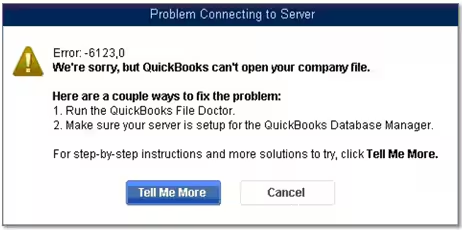
The 6123 code indicates a connection layer failure during a company file operation. Unlike -6000, -83 which fires when Quickbooks reaches a file but finds internal data damage. Error 6123 fires when the connection to the file is lost or cannot be sustained long enough for the operation to complete. The file itself is almost always intact.
The secondary code 0 is a qualifier that indicates the connection was a total failure, the process terminated without completing any partial write or read cycle that could have caused data damage.
Symptoms of QuickBooks Error 6123
Following are the major symptoms of error 6123:
- Error message display :“Error -6123, 0: We’re sorry, but QuickBooks can’t open your company file” appears when opening, restoring, or upgrading a company file.
- Failure to open company file: QuickBooks Desktop cannot access .QBW, .QBB, or .QBM files directly.
- Restore interruptions: Error occurs while restoring a backup or portable company file.
- Multi-user mode disconnection: Workstations lose connection to the host/server, preventing shared access.
- Unexpected QuickBooks crashes: QuickBooks freezes or closes when attempting to load the company file.
- Slow or unresponsive system: System performance degrades during file access attempts.
- Firewall/antivirus prompts: Security software may block QuickBooks services, triggering pop-ups or warnings.
Root Cause Analysis of QuickBooks Error 6123
1. Corrupted Company File
- Damaged or partially corrupted .QBW, .QBB, or .QBM files prevent QuickBooks from opening or restoring them.
- Often caused by interrupted backups, forced shutdowns, or disk errors.
2. Network Connection Issues
- In multi-user setups, unstable or misconfigured server-client communication leads to disconnection.
- QuickBooks Database Server Manager may fail to maintain the link.
3. Firewall or Security Software Interference
- Antivirus tools (e.g., McAfee) or misconfigured firewalls block QuickBooks ports/services.
- This restricts access to the company file over the network.
4. Incorrect Hosting Configuration
- Improper server/workstation hosting settings interrupt communication between systems.
- Common in environments where multiple users attempt simultaneous access.
5. Hardware Incompatibility
- QuickBooks Desktop is designed for Intel/AMD processors.
- ARM-based systems (Snapdragon/Qualcomm) cannot run QuickBooks Desktop properly.
- Migration to Intel/AMD hardware or QuickBooks Online is required.
6. Corrupted Windows User Profile
- Damaged Windows profiles interfere with QuickBooks functionality.
- Creating a new Windows user account often resolves this.
7. Incomplete/Faulty Installation
- Errors during QuickBooks installation or updates can cause file access failures.
- Reinstalling QuickBooks Desktop with a clean install may be necessary
Prerequisites for QuickBooks Error 6123
- Administrator access: Ensure you are logged in with full admin rights on Windows. Limited accounts often block QuickBooks services.
- Stable internet connection: Required for multi-user setups and QuickBooks Database Server Manager communication.
- Updated QuickBooks Desktop: Install the latest QuickBooks release and patches to avoid compatibility errors.
- QuickBooks Tools Hub installed: Essential for running QuickBooks File Doctor and network repair utilities.
- Company file backup: Always create a backup before attempting repair or restore to prevent data loss.
- Firewall and antivirus configuration: Temporarily disable or whitelist QuickBooks services to avoid interference.
- Correct hosting settings: Verify that only the server computer hosts the company file; workstations should not.
- Compatible hardware: QuickBooks Desktop requires Intel/AMD processors. ARM-based systems are not supported.
Critical Cause Unique to Quickbook Error 6123: ARM Processor Incompatibility
Intuit’s own official support page confirms a hardware-level cause for Error 6123 that no other guide mentions: QuickBooks Desktop is designed exclusively for Intel and AMD processors and does not work correctly on ARM-based processors (Snapdragon, Qualcomm). On ARM hardware, Error -6123, 0 appears persistently and cannot be resolved by any software fix.
How to check your processor:
- Start -> type ‘About your PC’ -> press Enter -> read the Processor field.
- If it shows Intel Core or AMD — the processor is compatible. The error is caused by a software or network issue.
- If it shows Snapdragon, Qualcomm, or ARM — QuickBooks Desktop is not compatible with this hardware.
Quick Overview of Tabular Presentations
| QuickBooks Error 6123 Troubleshooting Matrix | |||
| Scenario | What’s Most Likely Causing It | Fix Number & Name | Action Item (In Brief) |
| Scenario 1: Restoring a Backup File (.QBB) | The file is on a USB/Cloud drive, has special characters, or is corrupted. | Fix 1: Move Backup Locally | Copy the .QBB file to a new folder on your local C: drive before restoring. |
| Fix 2: Clean File Name | Remove spaces and special characters from the .QBB filename. | ||
| Fix 3: Use a Portable File (.QBM) | Create a portable file on the old PC and restore it on the new one. | ||
| Scenario 2: Opening a File (Single-User/Local) | The file is on external storage, double-clicked in Windows, or has corrupted log files. | Fix 4: Open From Within QB | Open QuickBooks first, then use the File menu to browse and open your file. |
| Fix 5: Move File to Local Drive | Move the .QBW file to the local Public QuickBooks folder on your C: drive. | ||
| Fix 6: Rename .ND and .TLG | Add .OLD to the end of these extension files to force QB to regenerate fresh ones. | ||
| Fix 7: Quick Fix My Program | Open QuickBooks Tool Hub $\rightarrow$ Program Problems $\rightarrow$ click Quick Fix my Program. | ||
| Fix 8: QuickBooks File Doctor | Open Tool Hub $\rightarrow$ Company File Issues $\rightarrow$ run File Doctor to repair network/data. | ||
| Scenario 3: During a Version Upgrade | The file is being upgraded over a network or is open on another machine. | Fix 9: Upgrade Locally | Move the .QBW file to C: drive, perform the upgrade, then move it back to the server. |
| Fix 10: Close Other Versions | Use Task Manager to close all QBW32.exe processes on all network computers. | ||
| Scenario 4: In Multi-User Mode (Network) | Stopped host service, bad firewall settings, or conflicting database managers. | Fix 11: Restart Database Manager | Run a folder scan in QB Database Server Manager on the server; restart the Windows service. |
| Fix 12: Force .ND Regeneration | Rename the server’s .ND file to .OLD and rescan using the Database Server Manager. | ||
| Fix 13: Check Hosting Settings | Turn off hosting on all workstations (Utilities $\rightarrow$ Stop Hosting); turn it on only on the server. | ||
| Fix 14: Stop Conflicting Services | If multiple QB versions exist, disable older QuickBooksDB instances in Windows Services. | ||
| Fix 15: Configure Firewall | Add Inbound/Outbound rules for QuickBooks TCP ports and executable files. | ||
| Fix 16: Disable McAfee Web Bugs | Turn off the “Block Web Bugs” filter inside McAfee security settings. | ||
| Scenario 5: Error Persists After All Standard Fixes | Incompatible hardware processor, corrupted Windows profile, or severe file damage. | Fix 17: Check Processor Type | Check “About your PC”. If it uses an ARM/Snapdragon chip, QB Desktop is incompatible. |
| Fix 18: New Windows User Account | Create a new local Windows Administrator profile to rule out account corruption. | ||
| Fix 19: Repair or Reinstall QB | Run a Repair via Control Panel, or completely uninstall and do a clean reinstall. | ||
| Fix 20: Auto Data Recovery (ADR) | Use the hidden .adr folder files to restore a clean copy from the last 12 hours. | ||
Scenario-Based Troubleshooting: Beginner to Advanced
Scenario 1: Error 6123 When Restoring a Backup File (.QBB)
Applies to: Users who receive Error 6123 specifically when attempting to restore a company file from a backup (.QBB) file. Most likely causes: backup stored on USB or cloud folder, backup filename with special characters, backup file corrupted.
Fix 1: Copy the Backup File to the Local C: Drive Before Restoring
Beginner | Time: 5-10 minutes
This is the single most effective fix for backup-related Error 6123 and resolves the majority of cases in this scenario. QuickBooks cannot sustain the connection required for restoration from external or cloud storage.
1. Open File Explorer and navigate to your .QBB backup file (USB drive, external hard drive, or cloud folder).
2. Copy the .QBB file. Navigate to your local C: drive -> create a new folder named QB_Restore. Paste the .QBB file into QB_Restore.
3. In QuickBooks: File -> Open or Restore Company -> Restore a Backup Copy -> Next.
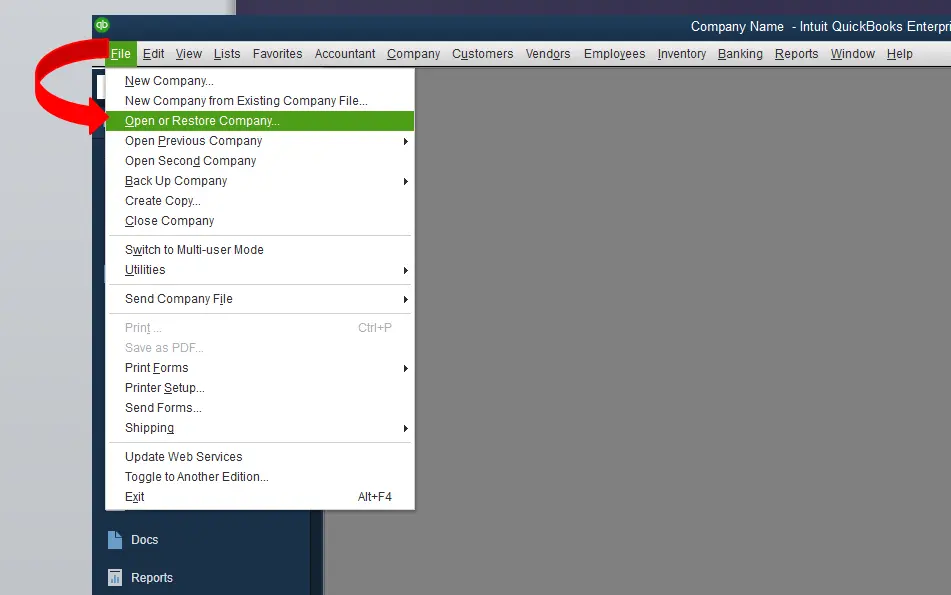
4. Select Local Backup -> Next.
5. Browse to C:\QB_Restore\ and select the .QBB file -> Open.
6. Choose a restore destination on the local C: drive. Complete the restore and confirm the company file opens.
Fix 2: Clean the Backup File Name
Beginner | Time: 3-5 minutes
Special characters and spaces in the backup file name cause QuickBooks’ path parser to fail the connection before the restore begins.
1. Open File Explorer and navigate to the .QBB backup file.
2. Right-click the file -> Rename.
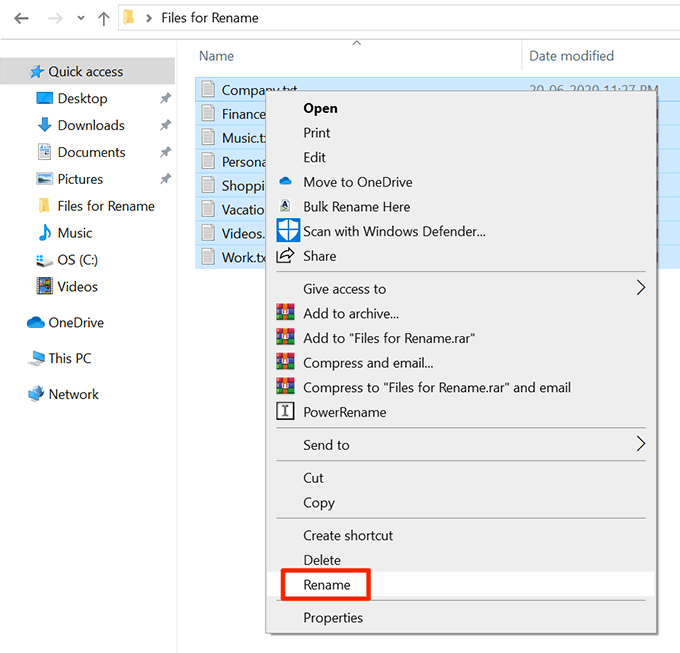
3. Remove all characters that are not standard letters, numbers, or underscores. Remove all spaces. Ensure the extension remains .QBB.
4. Press Enter to save. Attempt the restore again using Fix 1 (local C: drive).
Fix 3: Use a Portable Company File (.QBM) to Transfer to a New Computer
Beginner | Time: 10-20 minutes
When restoring a backup to a new computer produces Error 6123, using a portable company file (.QBM) instead of a standard backup (.QBB) often succeeds. The portable file format is less susceptible to connection interruptions during the transfer process.
1. Open the original computer that has the working company file.
2. Open QuickBooks and open the company file normally.
3. Go to File -> Create Copy.
4. Select Portable company file -> Next. Save the .QBM file to the local C: drive.
5. Copy the .QBM file to the new computer (via USB, network share, or cloud — the transfer is fine; only the restore itself needs to run from a stable local path).
6. On the new computer, open QuickBooks -> File -> Open or Restore Company -> Restore a Portable File -> Next.
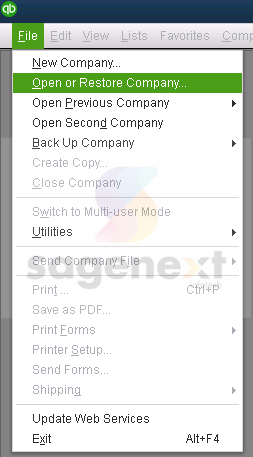
7. Browse to and select the .QBM file -> Open. Choose a destination on the local C: drive. Complete the restore.
Scenario 2: Error 6123 When Opening the Company File (Single-User or Local)
Applies to: Users receiving Error 6123 when attempting to open the company file on a single machine. Most likely causes: company file on external storage, file opened from Windows Explorer, corrupted .ND/.TLG files, damaged QuickBooks installation.
Fix 4: Open the Company File from Within QuickBooks (Not Windows Explorer)
Beginner | Time: 2 minutes
Opening a .QBW file by double-clicking it in Windows Explorer bypasses QuickBooks’ internal connection handshake and reliably produces Error 6123.
1. Do not double-click the .QBW file in File Explorer.
2. Open QuickBooks Desktop from the Start menu or desktop icon.
3. In QuickBooks: File -> Open or Restore Company -> Open a Company File -> Next.
4. Browse to the location of the .QBW file and select it -> Open.
Fix 5: Copy the Company File to the Local C: Drive
Beginner | Time: 5-15 minutes
If the company file is stored on a USB drive, external hard drive, or a network location that behaves like removable storage, copy it to the local machine before opening.
1. Open File Explorer and navigate to the .QBW company file.
2. Copy the file (Ctrl+C). Navigate to: C:\Users\Public\Public Documents\Intuit\QuickBooks\Company Files\. Paste the file (Ctrl+V).
3. Open QuickBooks -> File -> Open or Restore Company -> Open a Company File.
4. Browse to the local path and open the pasted file.
5. If the file opens without Error 6123, the original storage location was causing the connection instability. Move the company file permanently to the local path or a stable network server.
Fix 6: Rename the .ND and .TLG Files
Beginner | Time: 5-10 minutes
Corrupted .ND and .TLG support files can prevent QuickBooks from establishing the initial connection. Renaming them forces fresh regeneration.
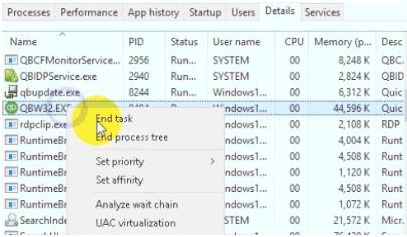
1. Close QuickBooks on all machines. Open Task Manager (Ctrl + Shift + Esc) and end all QBW32.exe processes.
2. Navigate to the company file folder.
3. Locate [CompanyFileName].QBW.ND and [CompanyFileName].QBW.TLG.
4. Right-click each -> Rename -> add .OLD to the end: [CompanyFileName].QBW.ND.OLD and [CompanyFileName].QBW.TLG.OLD
5. Open QuickBooks and attempt to open the company file. New .ND and .TLG files will be created automatically.
Fix 7: Run Quick Fix My Program in QuickBooks Tool Hub
Beginner | Time: 10-15 minutes
Quick Fix My Program refreshes the QuickBooks installation, re-registers installation files, and closes all background QuickBooks processes. It resolves Error 6123 cases caused by damaged program state or conflicting QuickBooks processes.
1. Close QuickBooks completely. Open Task Manager and end all QuickBooks-related processes (QBW32.exe, QBDBMgrN.exe, QBCFMonitorService.exe).
2. If QuickBooks Tool Hub is not installed, download it from Intuit’s official website.
3. Open QuickBooks Tool Hub -> Program Problems.
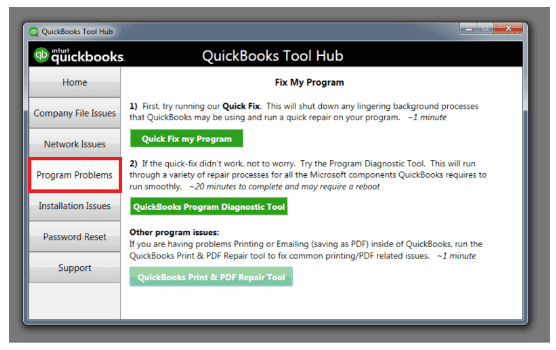
4. Click Quick Fix my Program. Allow the tool to run to completion (2-5 minutes).
5. Open QuickBooks Desktop and attempt to open the company file.
Fix 8: Run QuickBooks File Doctor
Beginner-Intermediate | Time: 15-30 minutes
File Doctor diagnoses both connection-layer issues and minor data damage. For Error 6123 it can repair stale .ND files, validate hosting configuration, and address connection infrastructure problems.
1. Close QuickBooks.
2. Open QuickBooks Tool Hub -> Company File Issues.
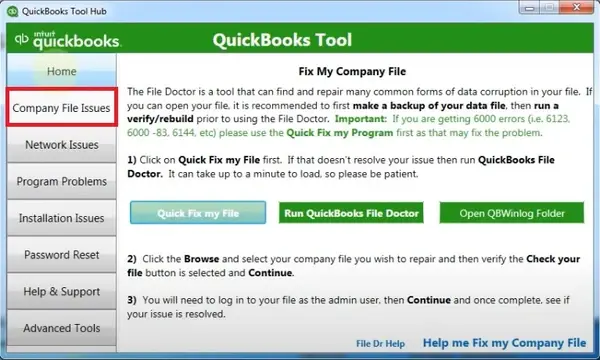
3. Click Run QuickBooks File Doctor. From the dropdown, select your company file. If not listed, click Browse and navigate to the .QBW file.
4. Select Check your file and network (the full scan — not just ‘Check your file’).
5. Enter your QuickBooks admin password -> click Next.
6. Allow the scan to run to completion (5-30 minutes). Open QuickBooks and attempt to open the company file after.
Scenario 3: Error 6123 During a QuickBooks Version Upgrade
Applies to: Users who receive Error 6123 specifically during or immediately after upgrading a company file to a new version of QuickBooks Desktop. Most likely causes: company file on a network location during upgrade, or company file open in another version simultaneously.
Fix 9: Move the Company File to the Local Machine Before Upgrading
Beginner | Time: 10-20 minutes
The QuickBooks version upgrade process requires intensive sequential read/write on the entire company file. This cannot tolerate network interruptions. Moving the file to the local machine before upgrading is Intuit’s recommendation for upgrade-related Error 6123.
1. Close QuickBooks on all machines connected to the company file.
2. On the machine that will perform the upgrade, copy the .QBW file from its network location to a local folder (e.g., C:\QB_Upgrade\).
3. Open the new version of QuickBooks Desktop on this machine.
4. Go to File -> Open or Restore Company -> Open a Company File. Browse to C:\QB_Upgrade\ and open the .QBW file.
5. QuickBooks will prompt you to upgrade the file format. Create a backup when prompted (save it to C:\QB_Upgrade\ as well).
6. Allow the upgrade to complete.
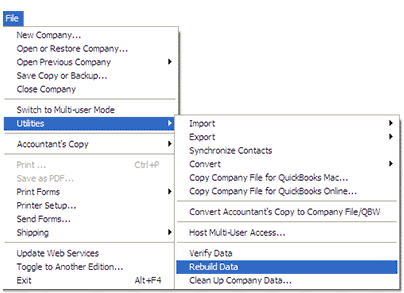
7. Run File -> Utilities -> Verify Data on the upgraded file to confirm integrity.
8. Copy the upgraded .QBW file back to the server.
9. In QuickBooks Database Server Manager on the server, scan the company file folder to regenerate the .ND file.
Fix 10: Ensure Only One QuickBooks Version Accesses the File
Beginner | Time: 5 minutes
Having the company file open in an older QuickBooks version while an upgrade runs in a newer version creates a version conflict producing Error 6123.
1. On every machine in the network, close QuickBooks completely.
2. Open Task Manager -> end all QBW32.exe processes on every machine.
3. Confirm that only the machine performing the upgrade will have QuickBooks open during the upgrade process.
4. Proceed with the upgrade on the designated machine using Fix 9 (run it locally).
Scenario 4: Error 6123 in Multi-User Mode (Network Environment)
Applies to: IT administrators and office managers where workstations receive Error 6123 in multi-user mode while the server machine can usually open the file directly. Most likely causes: QBDSM stopped, stale .ND file, hosting misconfiguration, conflicting database services, firewall blocking ports.
Fix 11: Start or Restart the QuickBooks Database Server Manager
Intermediate | Time: 5-10 minutes
This is the most common cause of multi-user Error 6123 and resolves the majority of cases in network environments.
Via QuickBooks Database Server Manager:
1. On the server machine: click Start -> search ‘QuickBooks Database Server Manager’ -> open it.
2. Click Scan Folders. Confirm the company file folder is listed. If not: click Add Folder -> browse to the folder -> OK.
3. Click Start Scan and allow it to complete. Verify the .ND file has been regenerated in the company file folder.
Also restart the Windows service:
1. Press Windows + R -> type services.msc -> Enter.
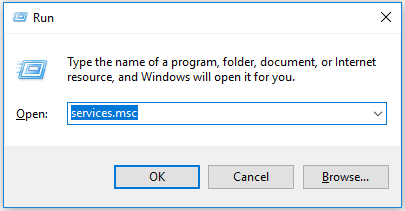
2. Find QuickBooksDB followed by a two-digit number (e.g., QuickBooksDB32 for QB 2022). Right-click -> Restart (or Start if stopped).
3. Also restart QBCFMonitorService if listed.
4. On a workstation, attempt to open the company file.
Fix 12: Rename the .ND File to Force Regeneration
Beginner | Time: 5-10 minutes
After a server rename, IP address change, or company file folder move, the .ND file retains old connection information. Renaming it forces the Database Server Manager to create a fresh .ND file with the correct current server details.
1. Close QuickBooks on all machines. End all QBW32.exe processes on every machine via Task Manager.
2. Navigate to the company file folder on the server.
3. Right-click [CompanyFileName].QBW.ND -> Rename -> add .OLD: [CompanyFileName].QBW.ND.OLD
4. Open QuickBooks Database Server Manager on the server -> Scan Folders -> select the company file folder -> Start Scan.
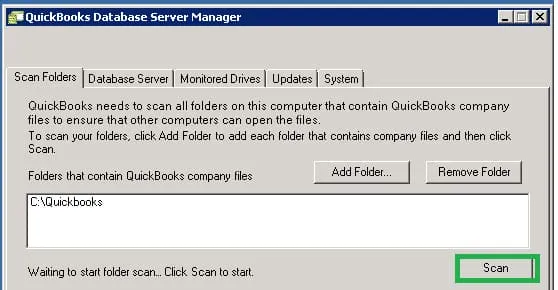
5. After the scan, a new valid .ND file is created. Open QuickBooks on a workstation and test.
Fix 13: Verify Hosting Settings Across All Machines
Beginner | Time: 10-15 minutes
Only the server should have hosting enabled. If any workstation has hosting active, it competes with the server and creates connection instability that produces Error 6123.
On each workstation (repeat for every workstation):
1. Open QuickBooks without opening any company file (hold Ctrl while clicking the QuickBooks icon).
2. Go to File -> Utilities.
3. If the menu shows ‘Stop Hosting Multi-User Access’ -> click it. Confirm with Yes twice.
4. If the menu shows ‘Host Multi-User Access’ -> hosting is already off. No action needed.
On the server machine:
1. Open QuickBooks -> File -> Utilities.
2. Must show ‘Stop Hosting Multi-User Access’ (hosting is active — correct).
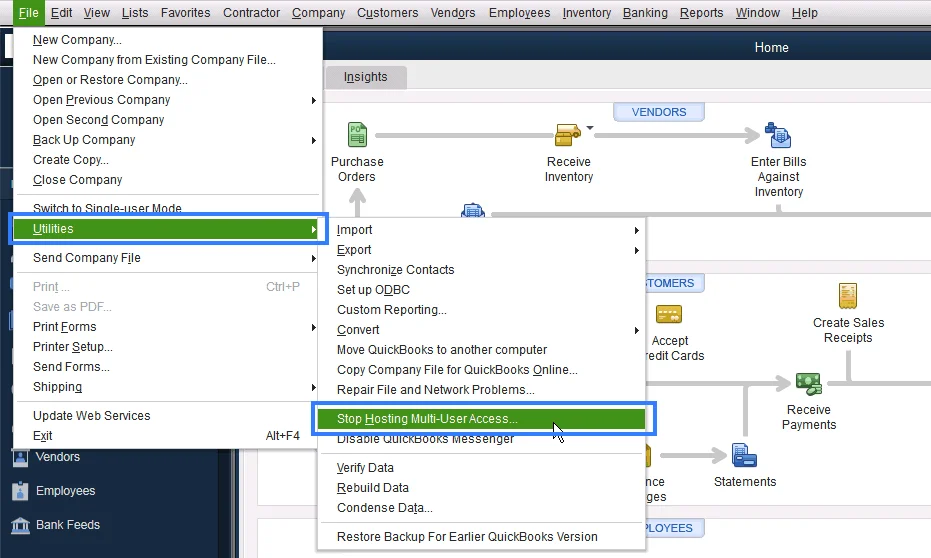
3. Then: File -> Switch to Multi-User Mode.
Fix 14: Stop Multiple Conflicting QuickBooks Database Services
Intermediate | Time: 10-15 minutes
After upgrading QuickBooks or having multiple versions installed, multiple QBDBMgrN.exe service instances may run simultaneously, creating connection conflicts producing Error 6123.
1. On the server machine: press Windows + R -> type services.msc -> Enter.
2. Identify all services named QuickBooksDB (they will have different two-digit year suffixes: e.g., QuickBooksDB28, QuickBooksDB29, QuickBooksDB30).
3. Stop all but the one matching your current QuickBooks version. Set unwanted services to Disabled (right-click -> Properties -> Startup type: Disabled).
4. Restart the correct QuickBooks service.
5. Open QuickBooks Database Server Manager -> Scan Folders -> rescan. Test from a workstation.
Fix 15: Configure Windows Firewall to Allow QuickBooks Ports
Intermediate-Advanced | Time: 20-35 minutes
A firewall blocking QuickBooks’ required TCP ports produces Error 6123 on workstations in the same way a stopped Database Server Manager does. Apply on the server and every workstation.
1. On the server: Start -> Windows Defender Firewall -> Advanced Settings -> Inbound Rules -> New Rule -> Port -> Next.
2. Select TCP -> enter ports for your version -> Next -> Allow the Connection -> Next.
3. Check Domain, Private, and Public -> Next. Name the rule ‘QuickBooks Inbound’ -> Finish.
4. Repeat for Outbound Rules with the same ports.
5. Also add QB executables as exceptions: Start -> Windows Defender Firewall -> Allow an app. Add QBW32.exe, QBDBMgrN.exe, QBCFMonitorService.exe from C:\Program Files\Intuit\QuickBooks [Year]\. Check Private and Public for each.
6. Repeat both steps on each workstation.
Fix 16: Disable McAfee Block Web Bugs Filter
Beginner | Time: 3-5 minutes
The McAfee Privacy Service ‘Block Web Bugs’ filter is a documented, confirmed cause of Error 6123 that conflicts specifically with QuickBooks’ inter-process communication.
1. Open the McAfee Security Center or McAfee LiveSafe application.
2. Navigate to Privacy -> Browsing Protection or Privacy Service -> Block Web Bugs.
3. Disable the ‘Block Web Bugs’ filter.
4. Restart QuickBooks and attempt to open the company file.
Scenario 5: Error 6123 Persists After All Standard Fixes
Applies to: Users who have worked through Scenarios 1-4 without resolution. This scenario covers ARM processor incompatibility, damaged Windows user profile, damaged QuickBooks installation, and Auto Data Recovery.
Fix 17: Check Processor Compatibility (ARM vs Intel/AMD)
Beginner | Time: 2 minutes
1. Click Start -> type ‘About your PC’ -> press Enter.
2. Read the Processor field.
* Intel Core or AMD -> processor is compatible. Continue troubleshooting with Fix 18.
* Snapdragon, Qualcomm, or ARM -> QuickBooks Desktop is not compatible with this hardware.
For ARM computers — options:
* Switch to QuickBooks Online (fully compatible with all processor types, runs in a browser)
* Use QuickBooks Desktop on an Intel/AMD machine and access data from the ARM device via Remote Desktop
* Temporary workaround (must be repeated each time): close QB, open Task Manager -> end QBW32.exe, QBDBMgrN.exe, QBCFMonitorService.exe -> reopen QuickBooks and the company file
Fix 18: Create a New Windows User Account
Intermediate | Time: 15-20 minutes
A corrupted Windows user profile can prevent QuickBooks from accessing the files it needs to maintain the company file connection. Creating a new user account bypasses profile-level damage.
1. Click Start -> Settings -> Accounts -> Family & other users.
2. Click Add someone else to this PC -> I don’t have this person’s sign-in information -> Add a user without a Microsoft account.
3. Enter a username (e.g., QBTestUser) and password -> Next.
4. Click the new account -> Change account type -> set to Administrator -> OK.
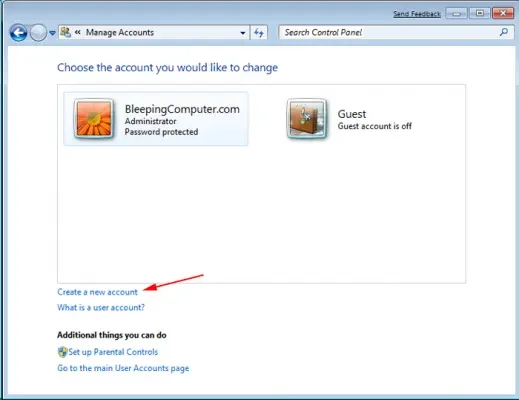
5. Sign out of the current Windows account. Sign in as QBTestUser.
6. Open QuickBooks and attempt to open the company file.
7. If QuickBooks opens successfully, the original Windows user profile is corrupted. Continue using the new account or work with IT support to repair the original profile.
Fix 19: Repair or Reinstall the QuickBooks Installation
Intermediate | Time: 20-45 minutes
A damaged QuickBooks installation can prevent the connection infrastructure QuickBooks needs to open company files.
Repair first (less invasive):
1. Close QuickBooks -> Control Panel -> Programs and Features -> select QuickBooks Desktop -> Uninstall/Change -> Repair.
2. Follow on-screen instructions. Restart your computer after. Attempt to open the company file.
Full reinstall (if repair does not resolve):
1. Control Panel -> Programs and Features -> QuickBooks Desktop -> Uninstall/Change -> Remove. Follow all prompts.
2. Delete remaining folders: C:\Program Files\Intuit\QuickBooks [Year] and C:\ProgramData\Intuit\QuickBooks [Year]
3. Delete the Entitlement Client folder: C:\ProgramData\Intuit\Entitlement Client\v8
4. Restart your computer.
5. Download a fresh installer from downloads.quickbooks.com/app/qbdt/products. Run the installer with your license number and product code.
6. Attempt to open the company file.
Fix 20: Use Auto Data Recovery (ADR) If the File Cannot Be Opened
Advanced | Time: 30-60 minutes
If the company file has become genuinely inaccessible, Auto Data Recovery provides a path to a recent clean copy. ADR is QuickBooks’ built-in recovery system that automatically saves copies of the company file and transaction log.
ADR updates every 12 hours and on every clean QuickBooks shutdown. Transactions entered between the last ADR update and the damage event must be re-entered from paper records.
1. Create a folder named QBTest on your desktop.
2. Navigate to the company file folder. Copy the .TLG file into QBTest.
3. In the company file folder, locate the hidden subfolder QuickBooksAutoDataRecovery. (File Explorer -> View -> check Hidden items if not visible.)
4. Inside the folder, find the file with the .QBW.adr extension. Copy it into QBTest.
5. In QBTest, rename the .QBW.adr file by removing the .adr extension. Result: a .QBW file.
6. Open QuickBooks -> File -> Open or Restore Company -> Open a Company File -> select the .QBW from QBTest.
7. Go to File -> Utilities -> Verify Data. If there are no errors, the recovered file is usable.
8. If valid, copy this file to the main company file folder (renaming the original first).
Preventive Measures for QuickBooks Error 6123
- Keep QuickBooks updated: Regularly install the latest QuickBooks Desktop patches to avoid compatibility issues.
- Maintain stable storage paths: Always store company files on a local drive or a stable server. Avoid USB drives, external hard disks, or cloud sync folders during operations.
- Use proper file naming: Remove special characters and spaces from .QBW and .QBB file names to prevent path parser failures.
- Configure firewall and antivirus: Whitelist QuickBooks executables (QBW32.exe, QBDBMgrN.exe, QBCFMonitorService.exe) and open required TCP ports. Disable McAfee “Block Web Bugs” filter if active.
- Verify hosting settings: Ensure only the server hosts the company file. Workstations must have hosting disabled to prevent conflicts.
- Run QuickBooks Database Server Manager scans: Periodically rescan company file folders to regenerate .ND files with correct server details.
- Check hardware compatibility: Confirm the system uses Intel/AMD processors. ARM‑based systems (Snapdragon/Qualcomm) are not supported and will persistently trigger Error 6123.
- Create regular backups: Maintain verified .QBB and .QBM backups on local drives. Test restores periodically to ensure integrity.
- Monitor Windows user profiles: Repair or recreate corrupted Windows accounts to avoid profile‑level connection failures.
QuickBooks Error 6123: Migration Blocker and Resolution Pathways
QuickBooks Error 6123 is one of the most common blockers during migration from QuickBooks Desktop to QuickBooks Online. Its impact is significant because it directly prevents the company file from opening or connecting, which is a prerequisite for conversion.
Effect of Error 6123 on Migration
- File access failure: The error stops QuickBooks Desktop from opening the company file, making migration impossible until resolved.
- Connection disruption: Occurs when QuickBooks cannot connect to the company file due to network or hosting issues. Migration tools require stable connectivity.
- Blocked conversion: Since the migration utility pulls data directly from the Desktop file, the error halts the process.
- Timeline delays: Technicians must repair the error before retrying migration, extending downtime.
Why Fixing Error 6123 Before Migration Is Essential
- Ensures file accessibility: Migration tools cannot bypass a locked or inaccessible file.
- Protects data integrity: Repairing the error ensures all lists, transactions, and balances migrate correctly.
- Reduces recurrence risk: Fixing hosting and network issues prevents repeated migration failures.
- Supports compliance: Accurate migration is critical for audits and reporting.
Technician-Friendly Checklist
- Update QuickBooks Desktop to the latest release.
- Run QuickBooks File Doctor to repair company file and network issues.
- Check hosting settings: Ensure only the server hosts the company file.
- Rename company file: Remove special characters or spaces in the file name.
- Create a portable company file and use it for migration if direct access fails.
- Escalate to Intuit support if corruption persists beyond repair tools.
Conclusion:
QuickBooks Error 6123 is a connection stability failure, not a direct data corruption issue. This error arises when QuickBooks cannot sustain the link to a company file during operations such as opening, restoring, or upgrading.
The root causes range from corrupted support files, firewall interference, and hosting misconfiguration to hardware incompatibility (ARM processors). While most cases can be resolved through file relocation, Tools Hub utilities, and Database Server Manager scans, persistent errors on ARM‑based systems require migration to Intel/AMD hardware or QuickBooks Online.
Preventive measures such as proper file naming, regular backups, and hosting verification significantly reduce recurrence.
FAQs
Is my company file corrupted if I see Error 6123?
- No. Error 6123 is a connection stability error, not a data corruption error. The file is usually intact; the issue lies in QuickBooks’ ability to maintain a connection.
Can antivirus software cause Error 6123?
- Yes. Firewalls and antivirus tools (especially McAfee’s “Block Web Bugs” filter) can block QuickBooks services, triggering Error 6123.
Why does Error 6123 appear during backup restore?
- Restoring from USB drives, cloud folders, or files with special characters in their names often interrupts QuickBooks’ connection. Copy the backup to the local C: drive and rename it before restoring.
Does QuickBooks Online avoid Error 6123?
- Yes. QuickBooks Online runs in a browser and does not rely on local file connections, so Error 6123 does not occur.
Can ARM‑based laptops run QuickBooks Desktop without Error 6123?
- No. QuickBooks Desktop is designed for Intel/AMD processors. ARM systems (Snapdragon/Qualcomm) are incompatible and will persistently trigger Error 6123.
What’s the fastest fix for Error 6123 when opening a file?
- Open the file from within QuickBooks (File → Open or Restore Company) instead of double‑clicking it in Windows Explorer.
Can Error 6123 be prevented?
- Yes. Preventive measures include keeping QuickBooks updated, storing files locally, verifying hosting settings, and configuring firewall/antivirus correctly.
What if Error 6123 persists after all fixes?
- Check for ARM processor incompatibility, corrupted Windows user profiles, or damaged QuickBooks installation. In severe cases, use Auto Data Recovery (ADR) to restore a clean copy of the file.