
QuickBook Error 3371 status code -11118 is the most searched , frequently occurred and most specifically misunderstood variant of the error 3371. While the error 3371 covers multiple license- related failure modes, status code -11118 has one precise technical meaning i.e., the file Quickbooks uses to locally verify its own license – a hidden encrypted file EntitlementDataStore.ecml is damaged, corrupted, or has been made unreadable by another system process.
This error usually surfaces right after installing QuickBooks Desktop, during system migration, or when attempting to open QuickBooks after a Windows update. It prevents the software from launching, halting access to company files.
The root cause lies in damaged or missing entitlement files (EntitlementDataStore.ecml) or corrupted Microsoft MSXML components. Antivirus interference, improper file handling, or incomplete installation can also trigger the issue.
Because the error blocks QuickBooks from loading, it directly impacts business continuity. Users cannot access financial data, process transactions, or run reports until the license validation succeeds. This makes timely troubleshooting critical to minimize downtime.
What Does Sub-Code -11118 Specifically Identifies?
Every time Quickbooks Desktop launches, it executes a five-step license verification sequence before the main interface ever loads:
Step 1: The quickbooks executables (QBW32.exe) starts and begins initialization.
Step 2:It calls on Window to locate EntitlementDataStore.ecml at C:\ProgramData\Common Files\Intuit\QuickBooks
Step 3:It reads the encrypted ECML file to retrieve the stored license key and hardware fingerprints.
Step 4:It compares the hardware fingerprints against the current machine’s hardware profile.
Step 5:If the match is valid, Quickbooks proceeds to load, if not, it throws error 3371.
Status code -11118 takes place at step 3, the reading phase. The EMCL file was found at the expected path but could not be successfully read. The file exists, but it is unreadable. This distinguishes -11118 from the base 3371 error (file missing entirely) and from status code -1 (MSXML component failure).
Common Error Message
This pop‑up means QuickBooks cannot read its license data file during startup. The message “QuickBooks could not load the license data. This may be caused by missing or damaged files” points directly to a corrupted EntitlementDataStore.ecml file. When this file is broken, QuickBooks fails to validate product registration, blocking access to the application until the file is repaired or recreated.
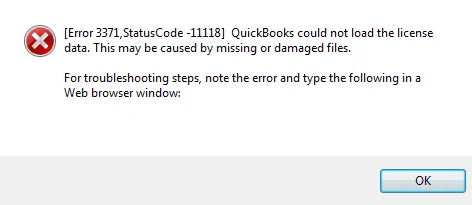
The -11118 code signals one of three sub-states of ECML unreadability:
Structural corruption — the file’s internal XML structure is malformed due to an interrupted write operation.
Encryption mismatch — the file’s encrypted content no longer matches the expected decryption key, often caused by a hardware change such as a new motherboard or SSD.
Access denial — the file exists and is structurally intact, but a system process (antivirus, Windows Defender, a running QBW32.exe instance) holds an access lock or has quarantined it.
Key Triggers for Status Code -11118
- Damaged entitlement file – The file EntitlementDataStore.ecml (located in the Entitlement Client folder) becomes corrupted or unreadable, preventing QuickBooks from validating the license.
- Missing or corrupted QBregistration.dat – This file stores product registration details. If it’s missing or damaged, QuickBooks cannot verify the license.
- Broken MSXML component – QuickBooks relies on Microsoft MSXML to read license information. If MSXML is damaged or not installed properly, the error is triggered.
- Improper WebConnect usage – Opening .QBO files directly from the browser without saving them first can corrupt entitlement data.
- Incomplete or corrupted installation – A failed installation or damaged registry entries can block QuickBooks from accessing license properties.
- Antivirus or firewall interference – Security software may block QuickBooks from accessing or updating its license files.
Symptoms of QuickBooks Error 3371 (Status Code ‑11118)
- Startup failure – QuickBooks Desktop fails to launch immediately after installation, migration, or a Windows update.
- License data error message – Pop‑up states: “QuickBooks could not load the license data. This may be caused by missing or damaged files.”
- Repeated prompts for registration – Users are asked to re‑enter license or product details every time QuickBooks is opened.
- Company file access blocked – Even though the company file exists, QuickBooks cannot open it because license validation fails.
- System lag or freeze – QuickBooks may hang or freeze during startup, especially when entitlement files are corrupted.
- MSXML dependency errors – Windows Event Viewer may log MSXML component failures tied to QuickBooks license initialization.
Scenario-Based Troubleshooting: From Fastest Fix to Full Rebuild
Use the scenario descriptions to identify your situation, then go directly to the relevant fix. Every fix includes a skill level and estimated time.
Scenario A: Sudden -11118 With No Obvious Trigger
Applies to: Users who had QuickBooks working correctly and encountered this error with no deliberate system changes. Most likely cause: antivirus quarantine, Windows Update file permission change, or disk write error during previous shutdown.
Fix 1: Run the Dedicated 3371 Error Fix in QuickBooks Tool Hub
Beginner | 10–20 minutes
Intuit built a specific automated fix for Error 3371 Status Code -11118 directly into QuickBooks Tool Hub. This should always be your first attempt.
1. Close QuickBooks. Open Task Manager (Ctrl + Shift + Esc). Right-click every QBW32.exe process → End Process Tree.
2. Download and install the latest QuickBooks Tool Hub from Intuit’s official website.
3. Open QuickBooks Tool Hub → click Installation Issues.
4. Click 3371 Error Fix → click OK. Allow the tool to run to completion.
5. Restart your computer. Open QuickBooks and test.
Note: If the error returns within a few hours or after the next restart, the ECML file is being re-corrupted by an ongoing process — most likely antivirus. Proceed to Fix 2, then Fix 5.
Fix 2: Manually Delete the EntitlementDataStore.ecml File and Re-Register
Beginner | 5–10 minutes
The single fastest and most reliably effective manual fix for Status Code -11118. Deleting the ECML file forces QuickBooks to create a fresh replacement. Your company file data is completely unaffected.
1. Close QuickBooks. Press Ctrl + Shift + Esc → Task Manager → right-click every QBW32.exe → End Process Tree.
2. Press Windows + R. Type: C:\ProgramData\Intuit\Entitlement Client\v8 → press Enter. (If ProgramData is hidden: File Explorer → View → check Hidden items.)
3. Right-click EntitlementDataStore.ecml → Delete → confirm Yes.
4. Open QuickBooks Desktop. When prompted to register, enter your license number and product code.
5. Complete registration. Open your company file and confirm QuickBooks is working.
Note: If you see -11118 immediately after clicking Register, your antivirus is blocking the ECML file write-back. Choose ‘Register Later’ and resolve the antivirus issue (Fix 5) before re-registering.
Scenario B: -11118 After New Hard Drive, SSD, or PC Migration
Applies to: Users who recently replaced their hard drive, migrated from HDD to SSD, cloned their drive, or moved QuickBooks to a new computer. Most likely cause: ECML file hardware fingerprint mismatch.
Fix 3: Delete ECML File, Add Antivirus Exclusions, and Re-Activate Fresh
Beginner–Intermediate | 15–25 minutes
After hardware migration, the ECML file must always be regenerated from scratch. Complete Fix 2 first, then ensure your security software will not block the newly created file.
1. Complete all steps in Fix 2 to delete the ECML file and re-register.
2. Open your antivirus dashboard → navigate to Quarantine or Threat History → restore any quarantined QuickBooks files.
3. Add to your antivirus Exclusions list: C:\ProgramData\Intuit, C:\Program Files\Intuit, C:\Program Files (x86)\Intuit
4. Restart your computer and open QuickBooks to confirm the error is cleared.
Critical: The ECML file is cryptographically bound to the hardware profile of the machine it was generated on. You cannot copy a working ECML file from another machine — each machine must generate its own through the registration process.
Fix 4: Clean Install of QuickBooks on the New Hardware
Intermediate | 45–75 minutes
If Fix 3 does not fully resolve the issue — especially if QuickBooks crashes or throws other errors alongside -11118 — the cloned installation has deeper corruption. A clean install is the most reliable resolution.
Before beginning, gather: your license number and product code (from myaccount.intuit.com), a backup of your .QBW company file on external storage, and a fresh installer from downloads.quickbooks.com/app/qbdt/products.
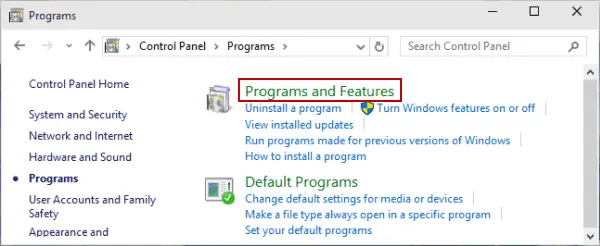
1. Go to Control Panel → Programs and Features → select QuickBooks Desktop → Uninstall/Change → Remove.
2. Delete remaining QuickBooks folders: C:\Program Files\Intuit\QuickBooks [Year] and C:\ProgramData\Intuit\QuickBooks [Year]
3. Navigate to C:\ProgramData\Intuit\Entitlement Client and delete the entire v8 (or v6) folder.
4. Restart your computer. Run the fresh installer with your license details.
5. Open QuickBooks → open your backed-up company file → confirm normal operation.
Scenario C: -11118 After a Windows Update or Scheduled System Scan
Applies to: Users whose error appeared after Windows updated overnight or after a scheduled antivirus/Defender scan completed. Most likely cause: antivirus quarantine during scan, or Windows Update modifying ECML file permissions.
Fix 5: Check and Restore Antivirus Quarantine — Then Add Permanent Exclusions
Beginner | 10–20 minutes
When a scheduled antivirus scan runs overnight and flags the ECML file, it is quarantined while its path is preserved — giving the exact appearance of a corrupted file rather than a missing one.
1. Open your antivirus software → navigate to Quarantine, Threat History, or Protection History.
2. Look for entries dated around when the error first appeared, containing ‘Intuit’, ‘EntitlementDataStore’, or ‘ecml’.
3. Select those entries and click Restore.
4. Add to exclusions: C:\ProgramData\Intuit, C:\Program Files\Intuit, C:\Program Files (x86)\Intuit
5. Open QuickBooks and test.
Note: Windows Defender specifically: In Windows Security → Virus & Threat Protection → Protection History, look for ‘Quarantined items.’ The ECML file may appear as ‘Behavior: Win32/Suspicious.’
Fix 6: Reset Windows Update-Modified File Permissions on the Entitlement Folder
Intermediate | 10–15 minutes
Some Windows cumulative updates alter folder permissions in C:\ProgramData\Intuit, particularly on accounts running QuickBooks as a non-administrator. This produces -11118 because QuickBooks cannot read or write the ECML file even though the file itself is intact.
1. Press Windows + R → type cmd → Run as Administrator.
Type the following command and press Enter:
icacls “C:\ProgramData\Intuit” /grant Users:(OI)(CI)F /T
2. Allow the command to complete. Open QuickBooks and test. If -11118 persists, follow Fix 2 to delete and regenerate the ECML file.
Fix 7: Complete All Pending Windows Updates
Beginner | 15–45 minutes
When a Windows Update partially installs, it can leave system components in a degraded state affecting QuickBooks’ ability to access the ECML file. Completing all pending updates resolves the partial installation.
1. Go to Settings → Update & Security → Windows Update.
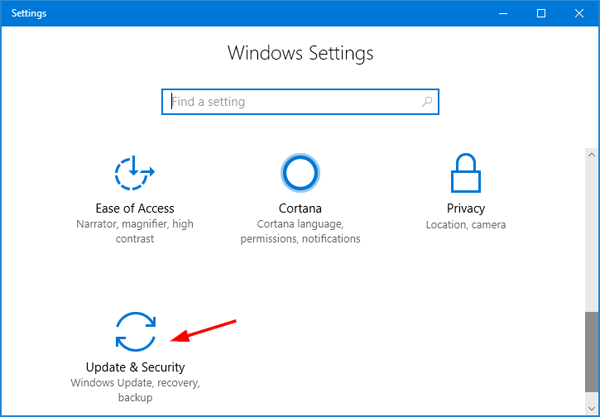
2. Click Check for Updates and install every available update.
3. Restart your computer. Check for updates again after restarting to confirm nothing is pending.
4. Delete the ECML file (Fix 2) and re-register QuickBooks.
Note: Windows 11 Security Conflicts
Windows 11 updates often trigger Error 3371 due to strict built-in features like Smart App Control and Core Isolation (Memory Integrity). These components can block QuickBooks from accessing or updating the EntitlementDataStore.ecml file. To resolve this, add QuickBooks to your Windows Security exclusions list.
Scenario D: -11118 in a Multi-User Office — Every Workstation Affected
Applies to: IT administrators or office managers where -11118 hit multiple computers simultaneously — usually after a Windows Update deployment or centralized security scan.
Fix 8: Restore Quarantine and Apply Antivirus Exclusion Policy Across All Workstations
Intermediate | 20–40 minutes
1. Log into your centralized antivirus management console (e.g., Symantec Endpoint Manager, Sophos Central, Windows Defender ATP).
2. Navigate to Quarantine Management → filter events by the date the error first appeared.
3. Search for quarantined items containing ‘Intuit’, ‘EntitlementDataStore’, or ‘.ecml’ → Restore all such items across all affected endpoints.
4. Create a global exclusion policy covering: C:\ProgramData\Intuit\**, C:\Program Files\Intuit\**, C:\Program Files (x86)\Intuit\**
5. Push the exclusion policy to all workstations.
6. On each affected workstation, follow Fix 2 to delete and regenerate the ECML file individually.
7. Have each user re-register their QuickBooks installation.
Note: Even if only one workstation is currently showing -11118, if your antivirus ran a network-wide scan, all workstations’ ECML files may have been quarantined. Apply the exclusion policy to all machines proactively.
Fix 9: Kill Background QBW32.exe Processes Holding File Locks
Intermediate | 5–10 minutes
In server-hosted QuickBooks environments, a QBW32.exe background process can hold an exclusive lock on the ECML file — preventing deletion, recreation, or repair tools from accessing it.
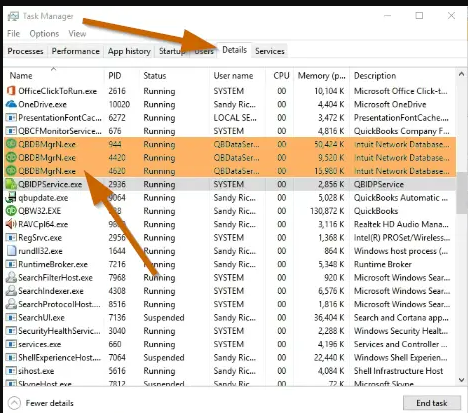
1. Press Ctrl + Shift + Esc → open Task Manager → click the Details tab.
2. Find every instance of QBW32.exe → right-click → End Process Tree.
3. Also check the Services tab for QuickBooks services (QBCFMonitorService, QBDBMgrN) and stop them temporarily.
4. Proceed with Fix 2 (delete ECML file) or Fix 1 (Tool Hub 3371 Fix).
Scenario E: -11118 Returns After Every Restart Despite Repeated Fixes
Applies to: Users who have fixed the error successfully, but it reappears every time Windows restarts. Most likely causes: antivirus re-quarantining the ECML file, corrupted QBRegistration.dat, or disk write errors.
Fix 10: Diagnose the Re-Corruption Source
Intermediate–Advanced | 20–30 minutes
Before escalating, identify which of the three re-corruption sources is active on your machine.
Test 1 — Antivirus re-quarantine: After Fix 2, disable real-time protection temporarily. Restart Windows and open QuickBooks. If -11118 does not appear with antivirus disabled, antivirus is re-quarantining the ECML file on every restart. Solution: add permanent exclusions (Fix 5) and re-enable antivirus.
Test 2 — QBRegistration.dat corruption: If the error returns even with antivirus disabled, the QBRegistration.dat file is corrupted — every new ECML file references it and is immediately invalidated. Proceed to Fix 11.
Test 3 — Disk write error: Run chkdsk C: /f /r from an administrator Command Prompt (schedule for next restart). After the disk check runs, attempt Fix 2 again. If the ECML file now persists across restarts, the disk had write errors that are now repaired.
Fix 11: Delete QBRegistration.dat to Force Complete License Re-Initialization
Advanced | 15–20 minutes
When -11118 returns after every restart despite a successful ECML delete-and-re-register, the QBRegistration.dat file is almost always the root cause. Every newly generated ECML file is created against a corrupted reference and becomes invalid immediately.
Before beginning: note your QuickBooks license number and product code — you will be prompted to re-enter both.
1. Close QuickBooks. Open Task Manager and end all QBW32.exe processes.
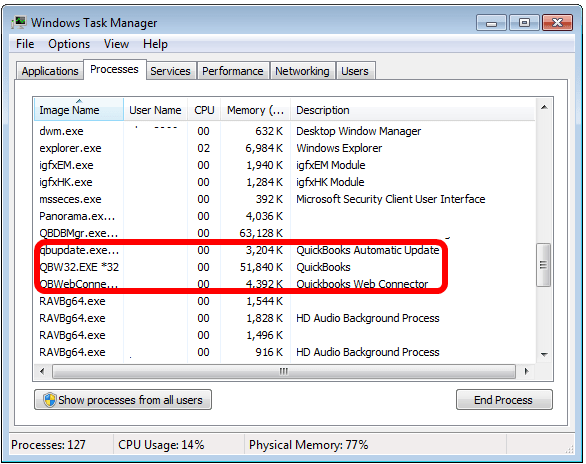
2. Press Windows + R → type: C:\ProgramData\Common Files\Intuit\QuickBooks → Enter.
3. Right-click QBRegistration.dat → Delete → confirm Yes.
4. Also navigate to C:\ProgramData\Intuit\Entitlement Client\v8 and delete EntitlementDataStore.ecml (Fix 2).
5. Restart your computer. Open QuickBooks. Enter your license number and product code. Complete registration.
6. Monitor over the next three to five restarts to confirm the error does not return.
Fix 12: Run QuickBooks Install Diagnostic Tool for Deep Component Repair
Advanced | 20–30 minutes
If -11118 persists after deleting both files, the problem has escalated to a Windows component failure in MSXML, .NET Framework, or Visual C++ Redistributables.
1. Open QuickBooks Tool Hub → Installation Issues.
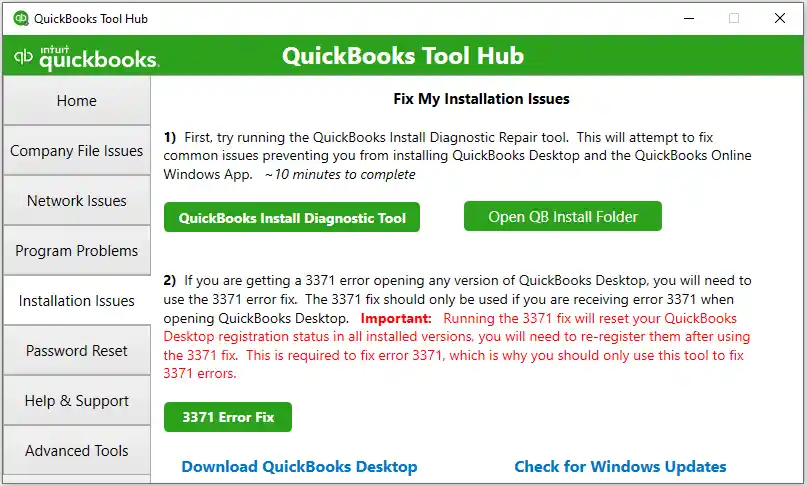
2. Select QuickBooks Install Diagnostic Tool (distinct from the 3371 Error Fix — this is the full component repair tool).
3. Allow it to run for up to 20 minutes. Do not close the window.
4. Restart your computer. Delete the ECML file (Fix 2) and re-register QuickBooks.
Fix 13: Re-Register MSXML DLL Files via Command Prompt
Advanced | 10 minutes
When the Install Diagnostic Tool does not fully repair MSXML, manually re-registering the DLL forces Windows to reinitialize the component from scratch.
For 64-bit Windows:
1. Click Start → type cmd → right-click Command Prompt → Run as Administrator.
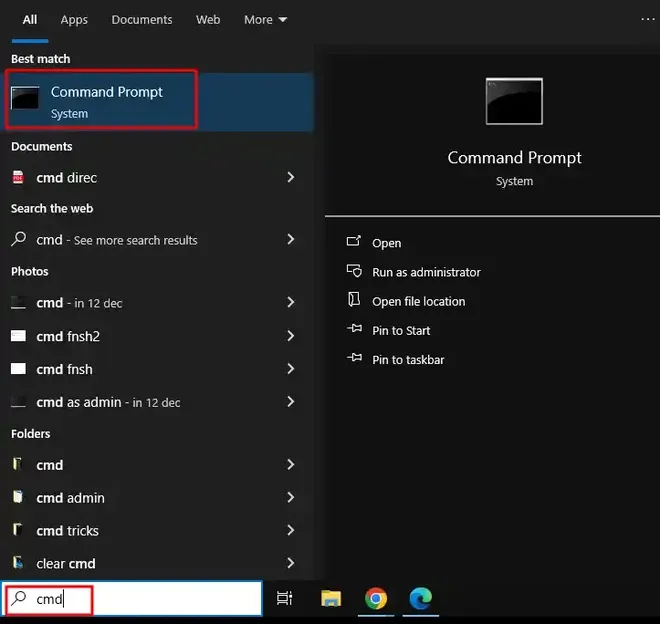
2. Type: cd\windows\syswow64 → Enter.
3. Type: regsvr32 MSXML6.dll → Enter. Confirm the success dialog.
4. Restart and test QuickBooks.
For 32-bit Windows:
1. Press Windows + R → type cmd → Run as Administrator → type regsvr32 MSXML6.dll → Enter.
Fix 14: Run System File Checker and DISM for Windows File Repair
Advanced | 30–45 minutes
Persistent -11118 after all previous fixes indicates underlying Windows file corruption. SFC and DISM repair the Windows system file layer itself.
1. Click Start → type cmd → right-click Command Prompt → Run as Administrator.
2. Type: sfc /scannow → Enter. Allow the scan to run to full completion.
After SFC completes, type:
DISM /Online /Cleanup-Image /RestoreHealth
3. Allow DISM to complete (15–20 minutes, requires internet). Restart your computer.
4. Delete the ECML file (Fix 2) and re-register QuickBooks. Monitor over several restarts.
Preventive Measures for Error 3371
System & Environment
- Keep Windows updated: Regularly install OS patches to maintain compatibility with QuickBooks licensing components.
- Maintain stable internet: Prevents corruption when downloading updates or validating licenses.
- Run QuickBooks as Administrator : Ensures entitlement files and registry entries are written correctly.
QuickBooks Application
- Use QuickBooks Tool Hub: Run diagnostic tools periodically to repair minor entitlement issues before they escalate.
- Save .QBO files before importing: Avoid opening WebConnect files directly from the browser, which can corrupt license data.
- Back up entitlement files: Keep a copy of EntitlementDataStore.ecml and company files to restore quickly if corruption occurs.
Security & Reliability
- Whitelist QuickBooks in antivirus/firewall: Prevents security software from blocking license validation.
- Perform clean shutdowns: Avoid abrupt system restarts or forced closures that can damage entitlement files.
- Train staff on installation best practices: Ensure QuickBooks is installed in single‑user mode, with admin rights, and without conflicting older versions.
Impact of System Migration on Error 3371
During a migration, QuickBooks Error 3371 (-11118) occurs because the local activation file (EntitlementDataStore.ecml) is cryptographically tied to the original machine’s hardware profile; copying or cloning it to a new PC or server causes an instant encryption mismatch that blocks the software from launching. This completely halts migrations—including transfers to QuickBooks Online—as you cannot access the company file to initiate the export. To fix this, you must delete the migrated .ecml file from C:\ProgramData\Intuit\Entitlement Client\v8 so QuickBooks can generate a fresh, hardware-compliant activation file upon relaunch.
Conclusion:
QuickBooks Error 3371 with Status Code ‑11118 is a license initialization failure that blocks access to company files until entitlement data is repaired. The error is most often triggered by a corrupted EntitlementDataStore.ecml file, broken MSXML components, or incomplete installation.
By following a structured escalation path starting with the Tool Hub 3371 Error Fix, deleting entitlement files, repairing MSXML, and reinstalling QuickBooks if necessary technicians can restore functionality with minimal downtime.
Preventive measures such as keeping Windows updated, saving .QBO files before import, and whitelisting QuickBooks in antivirus reduce recurrence and ensure smoother upgrades.
Frequently Asked Questions (FAQs)
Q1. What specifically does Status Code -11118 mean in QuickBooks Error 3371?
Status Code -11118 means QuickBooks found the EntitlementDataStore.ecml file at its expected location but could not successfully read it. The file is present but unreadable due to structural corruption, an encryption mismatch caused by hardware changes, or an access lock placed by antivirus software. This distinguishes -11118 from the base 3371 error (file missing entirely) and from Status Code -1 (MSXML component failure).
Q2. How long does it take to fix Error 3371 Status Code -11118?
In most cases the sudden, no-obvious-cause scenario Fix 2 (delete ECML file and re-register) takes under 10 minutes. Running the Tool Hub 3371 Error Fix takes 10–20 minutes. For post-migration or recurring cases, budget 20–45 minutes. A clean install takes 45–75 minutes.
Q3. Will deleting the EntitlementDataStore.ecml file delete my company data?
No — absolutely not. The EntitlementDataStore.ecml file contains only license verification data. Your financial data lives in your .QBW company file, stored separately at C:\Users\Public\Documents\Intuit\QuickBooks\Company Files, and is completely unaffected by anything done to the ECML file.
Q4. Why does -11118 keep coming back after I fix it?
Three causes: (1) Your antivirus is re-quarantining the newly created ECML file on every scan or restart — add the Intuit folders to your exclusions list permanently (Fix 5). (2) The QBRegistration.dat file is corrupted, invalidating every new ECML file on creation — delete both files (Fix 11). (3) There is a disk write error on the sector where the ECML file is stored — run chkdsk before attempting Fix 2 again (Fix 10, Test 3).
Q5. Does Error 3371 Status Code -11118 mean my QuickBooks license is expired or invalid?
No. Your Intuit account, subscription, and license key are entirely separate from the ECML file. Status Code -11118 is a local file integrity error — it says nothing about the validity of your license.
Q6. My antivirus keeps re-quarantining the ECML file even after I restore it. What do I do?
Add C:\ProgramData\Intuit to your antivirus exclusions list — not just restore the file. If your antivirus does not allow folder-level exclusions, add a file-specific exclusion for EntitlementDataStore.ecml. If the software still quarantines it, temporarily disable real-time protection, open QuickBooks to generate a new ECML file, then re-enable protection with the exclusion in place.
Q7. Does Status Code -11118 affect QuickBooks Online?
No. QuickBooks Error 3371 Status Code -11118 is exclusively a QuickBooks Desktop error. QuickBooks Online runs in a browser and has no local license verification files. Only users of QuickBooks Desktop Pro, Premier, or Enterprise on Windows are affected.