
QuickBooks Error 1723 is a critical Windows Installer package failure that interrupts the installation, update, uninstallation, or system migration of QuickBooks Desktop. The error message explicitly states that a required DLL file could not be run, indicating that the installer is blocked from executing or accessing vital system components. This issue is not an inherent defect within QuickBooks itself, but rather a system-level environment problem where the underlying Windows operating framework prevents the setup scripts from deploying.
This error typically surfaces across three primary operational lifecycles: when installing QuickBooks on a machine for the first time, when executing routine maintenance updates, or when running a clean reinstall after a system restore or database repair. Additionally, technicians frequently encounter this error during hardware migrations—such as moving QuickBooks to a new workstation or server—where inherited user profiles, mismatched folder permissions, or registry paths do not cleanly transfer over.
Architecturally, the root causes of Error 1723 are strictly tied to restrictive system permissions and damaged operating system components. It is triggered when a Windows user account lacks local administrator rights or faces blocked permissions inside the local %temp% directory.
Furthermore, the installation will abruptly halt if the core Windows Installer service is corrupted, if real-time antivirus software blocks script execution, or if critical, built-in Windows dependencies—such as Microsoft .NET Framework 4.8, MSXML libraries, or current Java runtimes—are damaged, missing, or misconfigured on modern 64-bit Windows 10 and Windows 11 environments.
Common Error Pop‑Up Messages for QuickBooks Error 1723
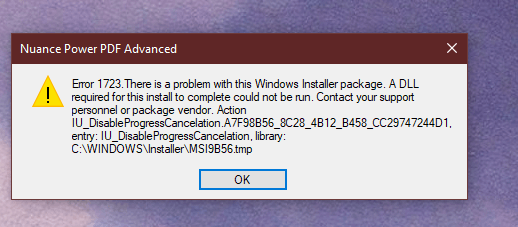
“Error 1723: There is a problem with this Windows Installer package. A DLL required for this install could not be run.”
Scenario: The installer tries to execute a DLL file but fails because the file is missing, corrupted, or inaccessible.
Meaning: Windows Installer cannot run the script needed for QuickBooks setup. This usually points to damaged system components or permission issues.
Quick Overview of Root Cause That Trigger – QuickBooks Error 1723
QuickBooks Error 1723 is primarily driven by three core issues: restrictive user permissions that block access to critical folders, corrupted system components like the Windows Installer or Microsoft dependencies, and external conflicts from antivirus software or outdated Java environments. Together, these factors prevent the setup wizard from executing the necessary DLL files, abruptly halting the installation process.
| Category | Specific Root Cause | Description / Impact |
| 1. Permission-Related Causes | Non-admin user account | QuickBooks installation scripts require elevated privileges. Running setup under a standard account prevents the installer from executing DLLs or writing to system folders. |
| Restricted %temp% folder access | The Windows Installer writes temporary files to the %temp% directory. If permissions to this folder are blocked, the setup fails. | |
| 2. System Component Failures | Damaged Windows Installer engine | The core Windows service that manages installations may be corrupted, directly preventing DLL execution. |
| Corrupted or missing DLL files | QuickBooks relies on specific DLLs during installation. If these files are missing or damaged, the installer halts. | |
| Broken Microsoft dependencies | Components like .NET Framework and MSXML are essential for QuickBooks. Corruption or outdated versions will trigger the error. | |
| 3. Environment & External Conflicts | Outdated or corrupted Java installation | QuickBooks installation scripts depend on Java. If Java is missing or broken, DLL execution fails. |
| Antivirus/firewall interference | Security software may mistakenly flag installer scripts as threats, blocking them or preventing proper file registration. | |
| Background application conflicts | Other active programs (especially registry cleaners or system optimizers) can interfere with the QuickBooks setup process. |
Prerequisites Before Troubleshooting
To ensure a smooth, error-free installation and prevent QuickBooks Error 1723 from recurring, it is crucial to prepare your environment. Taking these foundational steps mitigates the risk of permission blocks, file corruption, and software conflicts before you begin.
- Gain Administrator Control: Log into Windows as an admin and right-click the installer to “Run as administrator.” This prevents Windows from blocking vital file creations.
- Verify OS Architecture (64-bit Only): QuickBooks Desktop no longer supports 32-bit operating systems. Ensure you are running a natively installed, 64-bit version of Windows 10 or Windows 11. Note that Windows 10/11 “S Mode” and ARM-based processors (like those in some tablets) are completely unsupported and will cause deployment scripts to fail.
- Source a Fresh Installer: Download a clean setup file directly from Intuit’s official website to rule out any existing file corruption or incomplete downloads.
- Audit System Dependencies: Verify that Microsoft .NET Framework and Java are fully updated and functional, as QuickBooks relies on both to execute its deployment scripts.
- Secure a Stable Connection: Maintain an uninterrupted internet link so the installer can seamlessly download missing components and validate licenses in real-time.
- Protect Existing Data: Create a manual backup of your active company files (.qbb) and store it externally before running any installation or repair tools to ensure zero data loss.
Scenario‑Based Troubleshooting for QuickBooks Error 1723
Beginner Level – Common User Situations
Scenario 1: User lacks admin rights
A user tries to update QuickBooks Desktop but receives Error 1723 because their account doesn’t have sufficient privileges.
- Action:
- On Windows 10: Go to Start → Control Panel → User Accounts → Change Account Type → Set to Administrator.
- On Windows 11: Go to Settings → Accounts → Family & other users → Select the account → Change account type → Set to Administrator.
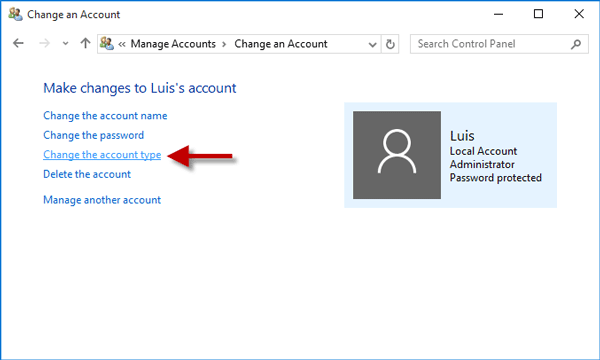
Note: Distinct navigation paths, as Windows 10 and Windows 11 handle User Account Control (UAC) and Admin settings slightly differently.
Scenario 2: QuickBooks installation fails repeatedly
QuickBooks Desktop won’t install even after multiple attempts.
- Action:
- Download and install QuickBooks Tool Hub
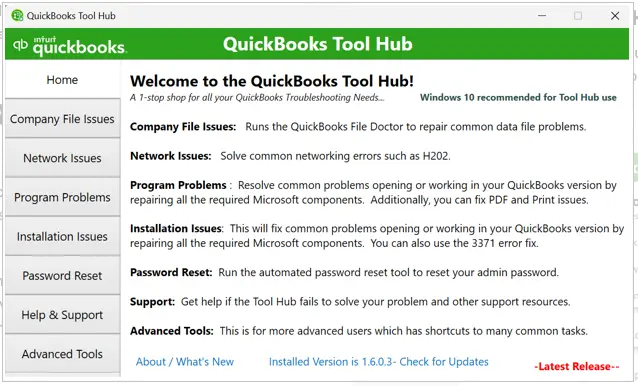
- Open Tool Hub → Installation Issues → Run QuickBooks Install Diagnostic Tool
- Restart and test QuickBooks
Intermediate Level – System Permissions & Clean Install
Scenario 3: Temp folder permissions block installation
Installer scripts fail due to restricted access in the Windows %temp% folder.
- Action:
- Search %temp% → Right‑click → Properties → Security → Edit
- Select your username → enable Full Control
- Apply changes and reinstall QuickBooks
Windows 11 Note: If Windows Defender “Controlled Folder Access” is turned on, it will block this change. Temporarily disable it via Windows Security → Virus & threat protection → Manage ransomware protection before applying Full Control permissions.
Scenario 4: Corrupted QuickBooks files remain after uninstall
Even after uninstalling, QuickBooks continues to throw Error 1723.
- Action:
- Uninstall QuickBooks via Control Panel → Programs and Features
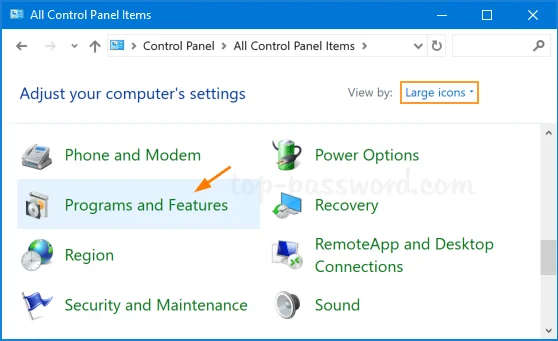
- Open Tool Hub → Program Installation Problems → Run Clean Install Tool
- Reinstall QuickBooks Desktop
Advanced Level – System Integrity & Components
Scenario 5: Windows system files are damaged
Error persists due to corrupted Windows installer files.
- Action:
- Open Command Prompt (Admin)
- Run sfc /scannow
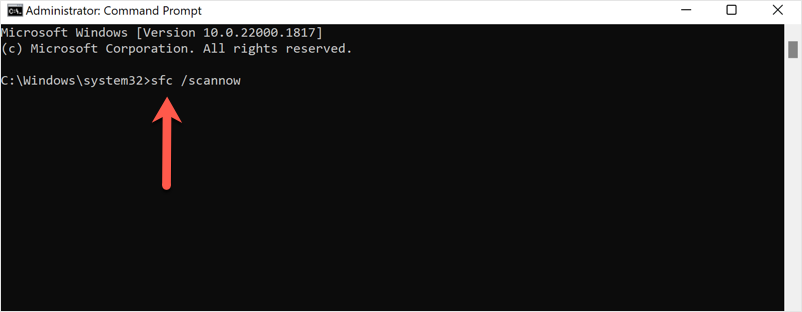
- Allow scan to repair files → Restart system
Scenario 6: QuickBooks dependencies are broken
Critical Microsoft components (.NET Framework 4.8 or MSXML) integrated into the OS are damaged or turned off.
Action:
- Repair .NET Framework 4.8: Open Control Panel → Programs and Features → Click Turn Windows features on or off. Uncheck the box for .NET Framework 4.8 Advanced Services, click OK, and restart your PC. Reopen the menu, re-check the box to turn it back on, and restart again to force Windows to rebuild the framework.
- Fix MSXML 6.0 (64-bit Windows): Since MSXML 6.0 is built natively into 64-bit Windows 10 and 11, it cannot be downloaded. Instead, open Command Prompt as Administrator and run regsvr32 msxml6.dll to re-register the component.
- Perform under IT supervision.
Expert Level – Java Dependency
Scenario 7: Installer scripts fail due to Java issues
QuickBooks installation scripts rely on Java, which is outdated or corrupted.
- Action:
- Uninstall Java via Control Panel → Programs and Features
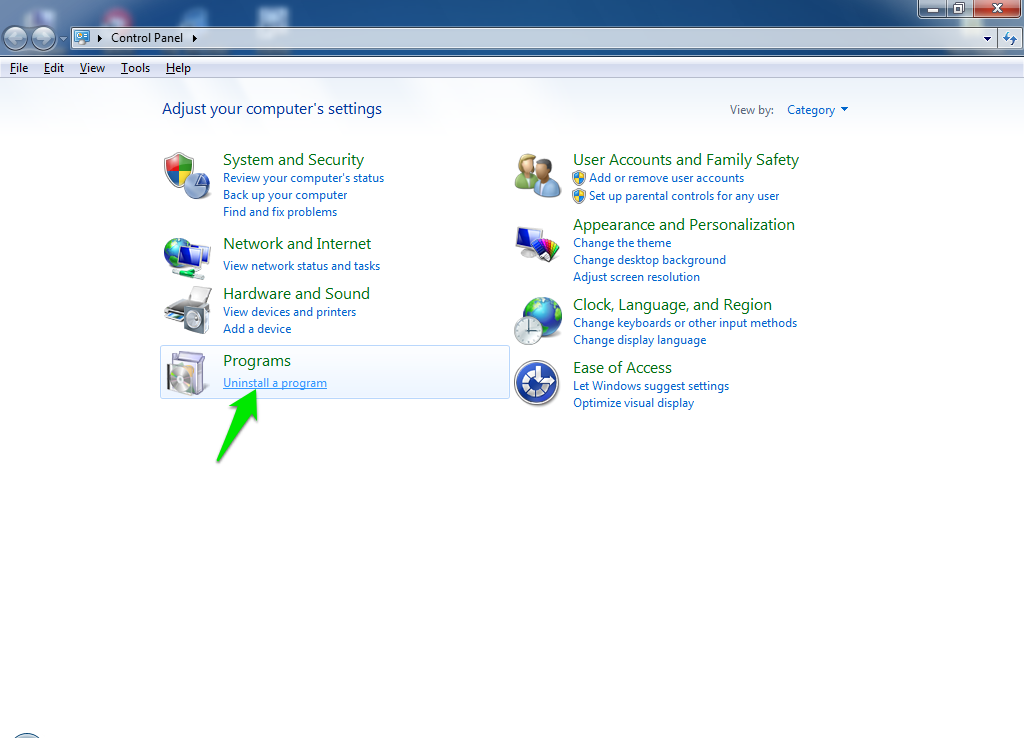
- Download latest Java from official site
- Install and restart system
- Retry QuickBooks installation
Scenario 8: Windows Installer Engine Registration is Corrupted
Automated tools fail because the background Windows Installer configuration is broken inside the registry.
- Action: Press Windows Key + R, type cmd, and hit Ctrl + Shift + Enter to open an elevated Command Prompt. Type msiexec /unregister and press Enter to unbind the installer service. Next, type msiexec /regserver and press Enter to cleanly re-register the engine back into the Windows subsystem. Restart the PC.
Scenario 9: Third-Party Security Software Blockade
Aggressive antivirus software, firewalls, or background registry optimizers keep silently killing the installer’s DLL execution scripts.
- Action: Type msconfig in the Windows Run dialog (Win + R) and hit OK. Under the General tab, select Selective startup and uncheck Load startup items. Next, move to the Services tab, check Hide all Microsoft services, and click Disable all (ensuring the Windows Installer service box remains checked). Apply, restart Windows into a clean environment, and run the QuickBooks setup safely.
(Note: Switch back to Normal startup in msconfig once the installation completes).
Preventive Measures for Error 1723
Following are the preventive measures that should be kept in mind when installing Quickbook desktop:
- Ensure administrator privileges: Always run QuickBooks installation or update using an account with full admin rights. This prevents permission‑related failures when installer scripts attempt to access system files.
- Maintain healthy Windows components: Regularly update and repair critical dependencies such as Windows Installer, .NET Framework, and MSXML. Keeping these components intact reduces the risk of DLL execution errors.
- Keep Java updated: Since QuickBooks relies on Java for certain installation scripts, uninstall outdated versions and install the latest release from the official Java site before attempting upgrades.
- Verify %temp% folder permissions: Confirm that the Windows %temp% directory allows full control for the logged‑in user. This ensures the installer can write temporary files without interruption.
- Run system integrity checks: Use tools like SFC /scannow periodically to detect and repair corrupted system files. This proactive step prevents installer failures tied to damaged Windows components.
- Disable conflicting applications: Temporarily turn off antivirus, firewalls, or registry cleaners during QuickBooks installation. These tools often block installer scripts or DLL registration.
- Use official QuickBooks installer: Always download QuickBooks Desktop setup files from Intuit’s official site. Avoid third‑party sources that may provide incomplete or corrupted packages.
- Backup company files: Before uninstalling or reinstalling QuickBooks, back up all company data. This ensures no business information is lost during troubleshooting.
QuickBooks Error 1723 – Online Vs Desktop
QuickBooks Error 1723 is a Windows Installer package error that affects only QuickBooks Desktop, typically appearing during installation, update, or uninstallation when the installer cannot access required DLL files or system components due to permission issues, damaged Windows Installer, or broken dependencies like .NET Framework, MSXML, or Java.
In contrast, QuickBooks Online runs entirely in a browser and does not rely on Windows Installer, meaning this error cannot occur there; instead, Online users may face browser‑related issues such as cache conflicts or connectivity problems, but not installation errors like 1723.
The Impact of System Migration on Error 1723
Workstation migration—moving your QuickBooks installation and company files from an old computer to a new server or a fresh Windows 10/11 system—is a frequent trigger for Error 1723. This happens because while data files transfer easily, underlying system architectures and custom permissions do not always move over cleanly.
Why Migration Triggers the Error
- Orphaned Registry Paths: Using basic file-transfer utilities or cloning tools often copies outdated registry entries that point to non-existent installation directories or user folders on the old machine.
- Security Profile Mismatches: When setting up a new Windows environment, the migrated user profile might look like an administrator account but may lack explicit ownership over inherited directories like the %temp% folder.
- Missing Framework baselines: A brand-new Windows 11 PC might lack legacy Java installations or specific .NET Framework configurations that your older machine had natively active for years.
Best Practices to Avoid Error 1723 During Migration
To ensure a seamless transition to a new workstation without corrupting your Windows Installer engine:
- Do Not Copy the Installation Folder: Never simply copy the C:\Program Files\Intuit\QuickBooks folder from the old computer to the new one. This bypasses the registry registration process entirely and guarantees a DLL execution crash.
- Use the Migrator Tool Correctly: When utilizing the official QuickBooks Migrator Tool, ensure you have a formatted USB drive and that you are logged into both machines under identical local administrator profiles.
- Pre-stage the Environment: Before initiating the software migration on the new machine, manually toggle the .NET Framework 4.8 engine via the Windows Features control panel to ensure the architecture is awake and ready.
Conclusion
Error 1723 is not a QuickBooks bug but a Windows Installer package failure that interrupts installation, updates, or uninstallation of QuickBooks Desktop. It arises when system permissions, DLL files, or dependencies such as .NET Framework, MSXML, or Java are damaged or misconfigured.
By following a scenario‑based escalation path starting with admin rights and diagnostic tools, moving through temp folder permissions and clean installs, and escalating to system file checks, Java reinstall technicians can systematically resolve the error while minimizing downtime.
Preventive measures such as maintaining administrator privileges, keeping Windows components healthy, updating Java, and running integrity checks ensure recurrence is avoided.
Importantly, this error is exclusive to QuickBooks Desktop; QuickBooks Online users will not encounter it, as the platform runs entirely in a browser environment.
Frequently Asked Questions (FAQs)
Does Error 1723 affect QuickBooks Online?
No. Error 1723 is exclusively a Windows Installer architecture issue and only affects QuickBooks Desktop. QuickBooks Online runs in a web browser and does not interface with the local Windows Installer engine.
Can antivirus software cause Error 1723?
Yes. Advanced security tools and features like Windows 11’s “Controlled Folder Access” may flag installer scripts or block background DLL registration. Turning them off temporarily during setup bypasses the issue.
Is Error 1723 a QuickBooks bug?
No. It is a Windows operating environment problem, not an intrinsic QuickBooks software glitch. The setup wizard fails because local system components or directory access configurations are corrupted or restricted.
What is the fastest fix for Error 1723?
Ensuring you are logged in as a local System Administrator and right-clicking the installer application to choose “Run as administrator” resolves a significant majority of everyday occurrences.
What if Error 1723 persists after basic fixes?
Escalate your approach to advanced options: run system file checks via sfc /scannow, rebuild the native .NET Framework 4.8 via the Windows Features control board, or cleanly unregister and re-register the installer using the msiexec commands.
How can I prevent Error 1723 from recurring?
Ensure your system is running a clean, natively installed 64-bit version of Windows 10 or 11, verify full control permissions on your local user %temp% folders, keep Java current, and avoid using third-party deployment packages.