
QuickBooks Error 1642 is an installation error that can appear when QuickBooks Desktop cannot successfully install Microsoft .NET Framework during setup. Intuit lists Error 1642 with other QuickBooks installation and update errors, including Errors 1601 and 1603. This FAQ answers common questions about the error, its relationship with .NET Framework, and what to try when the installation continues to fail.
Follow our complete guide to fix QuickBooks Error 1642 during installation or update.
Can I run QuickBooks without .NET Framework?
You cannot run QuickBooks Desktop without Microsoft .NET Framework installed on your computer. QuickBooks Desktop uses .NET Framework to run web-based applications and communicate with other programs on your system.
The .NET Framework provides essential libraries for networking, security, and database access that QuickBooks depends on for daily operations. QuickBooks will not install or function properly without working .NET Framework components enabled.
You can turn on .NET Framework 3.5 using the Windows Control Panel. Make sure your computer is connected to the internet before you start.
- Click the Start button on the taskbar.
- In the search box, type Windows Features, then open Turn Windows features on or off.
- The Windows Features window will open.
- Find .NET Framework 3.5 (includes .NET 2.0 and 3.0) and check the box next to it.
- Click OK and wait while Windows installs the required files.
- Restart your computer if Windows asks you to do so.

You may see options under .NET Framework 3.5 called Windows Communication Foundation (WCF) HTTP Activation and WCF Non-HTTP Activation.
You do not need to select these options unless you are a developer or a server administrator who specifically needs them.
How do I fix a connection error in QuickBooks?
Connection errors differ from installation error 1642 in cause and solution. Installation errors prevent QuickBooks from installing or updating on your system. Connection errors occur when QuickBooks cannot reach your company file or network resources after installation.

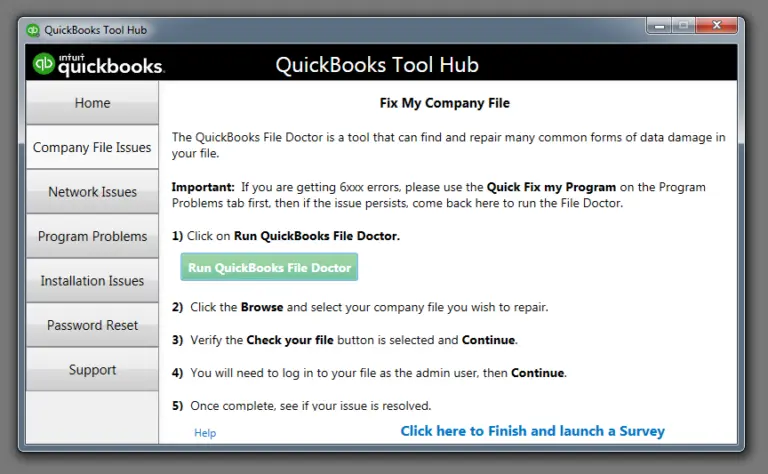
Logo of the QuickBooks Tool Hub, a central utility for troubleshooting company file issues, network problems, and other QuickBooks errors.
Fix connection errors by checking your network settings, verifying file paths, and ensuring QuickBooks has proper Windows permissions. Run QuickBooks File Doctor Tool from Tool Hub to diagnose and repair company file connection issues.
How to fix .NET Framework error in Windows 10?
Open the Control Panel and navigate to Programs and Features from the options list. Select “Turn Windows features on or off” from the left menu. Find .NET Framework in the list and verify both .NET Framework 4.5 (or later) and .NET Framework 3.5 SP1 are checked and enabled. Uncheck both boxes to turn off .NET Framework completely, then click OK and restart your computer.
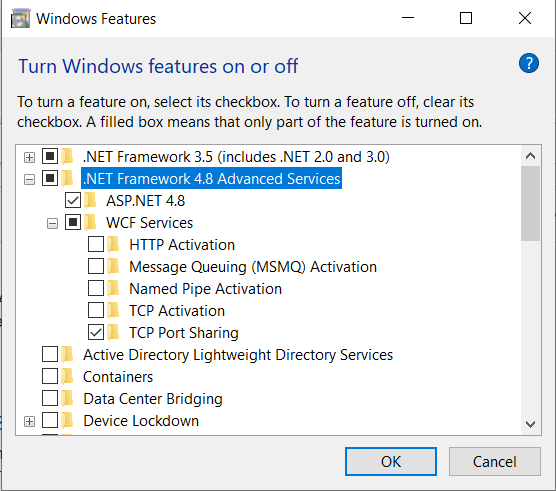
Return to Windows features after restart and check both .NET Framework boxes to turn them back on. Click OK to save changes and restart again to complete the reset process. Run Windows Update afterward to install the latest .NET Framework security patches.
What version of QuickBooks is no longer supported?
QuickBooks 2014 and older versions no longer receive support from Intuit and do not function properly on Windows 10. Intuit ends support for QuickBooks versions three years after their release date. Unsupported versions cannot download payroll updates, tax tables, or security patches from Intuit servers.
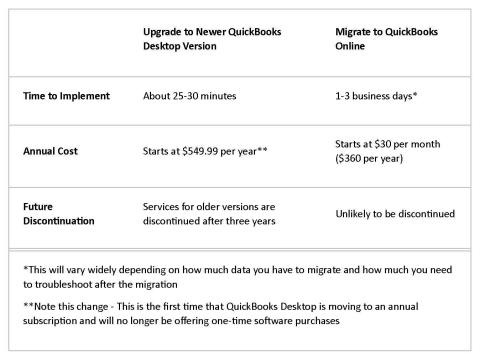
QuickBooks 2009 is not compatible with Windows 10 at all and will not install. You must upgrade to QuickBooks 2022 or later to access current features and maintain compliance with tax regulations.
Also read about: QuickBooks Desktop 2023 service discontinuation policy by Intuit
Do I need Microsoft .NET Framework?
Yes, you need Microsoft .NET Framework installed on your computer when running Windows applications built with it. QuickBooks Desktop is built with .NET Framework and will not work without it installed and enabled. Windows often includes .NET Framework automatically, especially in newer Windows versions like Windows 10 and Windows 11.
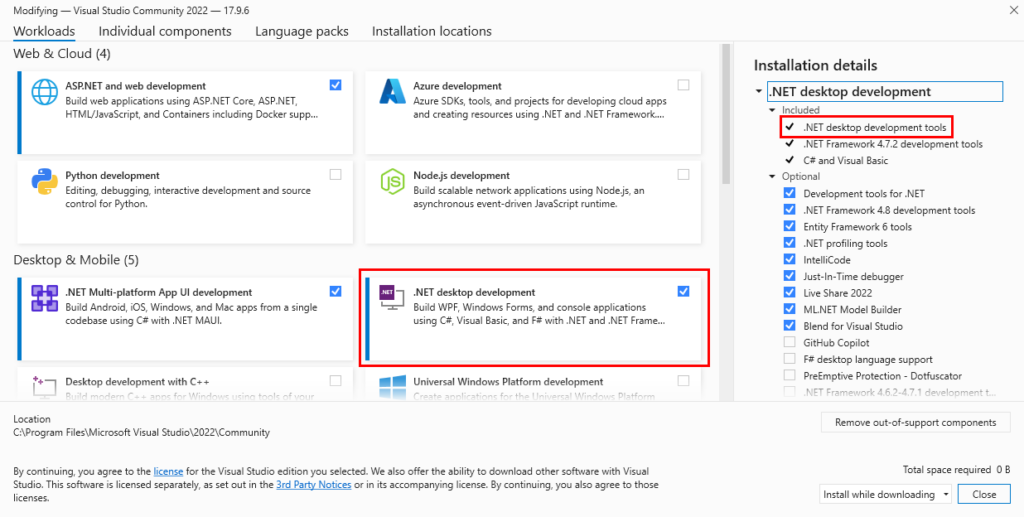
Older applications might require older .NET Framework versions like 3.5 that you must enable manually through Windows features. Modern software development uses current .NET versions, but legacy Windows applications still depend on .NET Framework. QuickBooks installation prompts you to install or enable required .NET Framework versions when they are missing from your system.
Why does the error 1642 mention “.NET Framework”?
QuickBooks Desktop is built on .NET Framework infrastructure and depends on it for core functionality. The installation process checks for specific .NET versions before proceeding with setup.
The process stops and displays Error 1642 when it cannot find or access working .NET Framework components. The error message directly references .NET Framework to point you toward the specific component causing the installation failure.
Can I fix Error 1642 without reinstalling QuickBooks?
Most users can resolve Error 1642 without reinstalling QuickBooks completely. Running the QuickBooks Install Diagnostic Tool from Tool Hub fixes common .NET Framework and Windows Installer problems automatically.
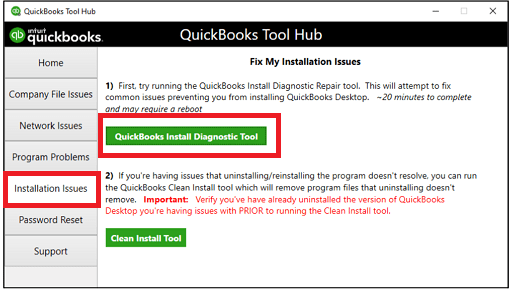
You can also manually repair .NET Framework through Windows Control Panel by turning the feature off and back on. These repair methods address the root cause without requiring a full QuickBooks reinstallation.
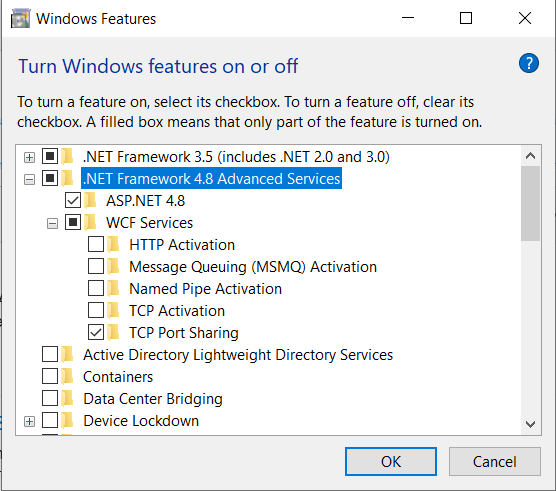
Which version of .NET Framework does QuickBooks need?
The required .NET Framework components can vary depending on the QuickBooks Desktop version and Windows environment. If QuickBooks displays Error 1642, the installation process has encountered a problem installing Microsoft .NET Framework. Check the requirements for your specific QuickBooks Desktop version before installing or changing a .NET Framework component.
I already ran the Tool Hub, why is Error 1642 still appearing?
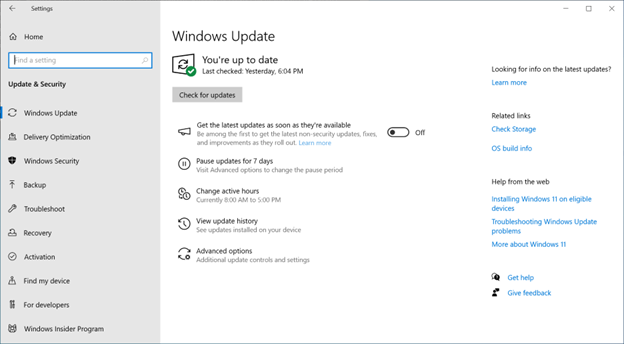
Tool Hub failure usually indicates your Windows operating system is missing critical security updates. If your OS is missing critical security patches or cumulative updates, the .NET Framework repair might fail silently. Ensure your Windows Update screen shows “You’re up to date.”
Error 1642 can be a “Windows Installer” error. You need to manually re-register the service. You do this by opening the Command Prompt (Admin) and typing msiexec /unreg followed by msiexec /regserver.
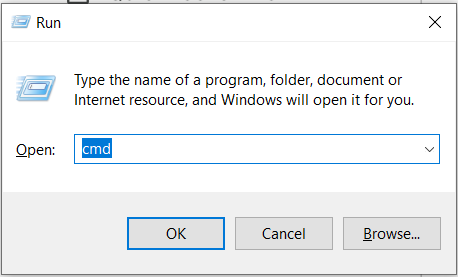
How to Open Command Prompt:The shortest method is to press the key-combination “Windows + R” and then the ‘Run’ Window will open. There you should type ‘cmd’ and press enter to open the command prompt.
Sometimes, aggressive antivirus software blocks the Tool Hub from making changes to the Windows Registry or system folders. You may see a notification like this indicating a blocked action. Try disabling your antivirus temporarily before running the Tool Hub again.
Does QuickBooks Error 1642 damage my company file?
QuickBooks Error 1642 is documented by Intuit as an installation-related error involving Microsoft .NET Framework. It occurs during the installation or update process rather than being described by Intuit as a company-file error. If you are seeing a separate company-file error after QuickBooks opens, troubleshoot that error separately.
Should I turn off my Antivirus while fixing error 1642?
Temporarily disabling antivirus software helps eliminate security blocks during .NET Framework repairs. Some security programs identify .NET Framework modifications as potential threats and block the installation process.
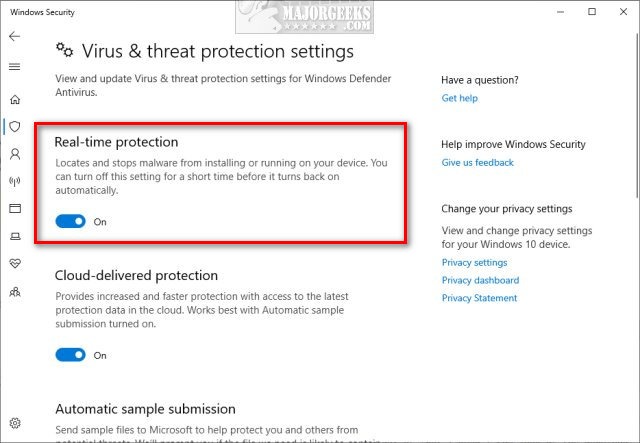
Turn off your firewall and antivirus during the update process, then immediately re-enable protection after completing the fix. Real-time scanning features specifically interfere with installer operations and component registration.
How do I repair .NET Framework for Error 1642?
Microsoft provides the .NET Framework Repair Tool to detect and repair common problems with a .NET Framework installation. Download the tool from Microsoft, run it, follow the recommended repair steps, and restart Windows if prompted.
How do I manually toggle .NET Framework on or off?
Open the Control Panel from the Windows Start menu and select Programs and Features.
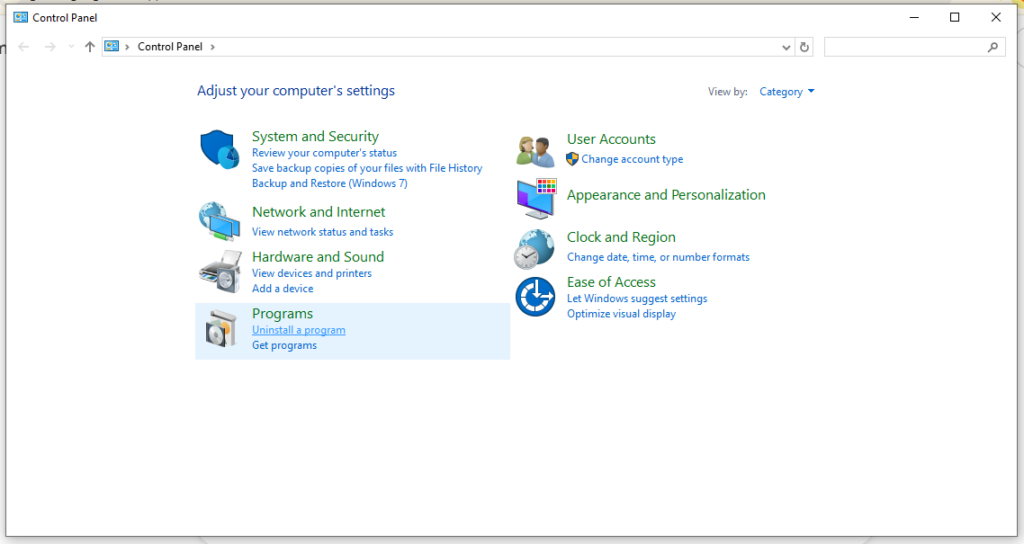
Click “Turn Windows features on or off” in the left sidebar.
Toggle the Boxes:
- Find .NET Framework 3.5 and .NET Framework 4.8 (or the version listed).
- To Turn Off: Uncheck the boxes and click OK.
- To Turn On: Check the boxes and click OK.
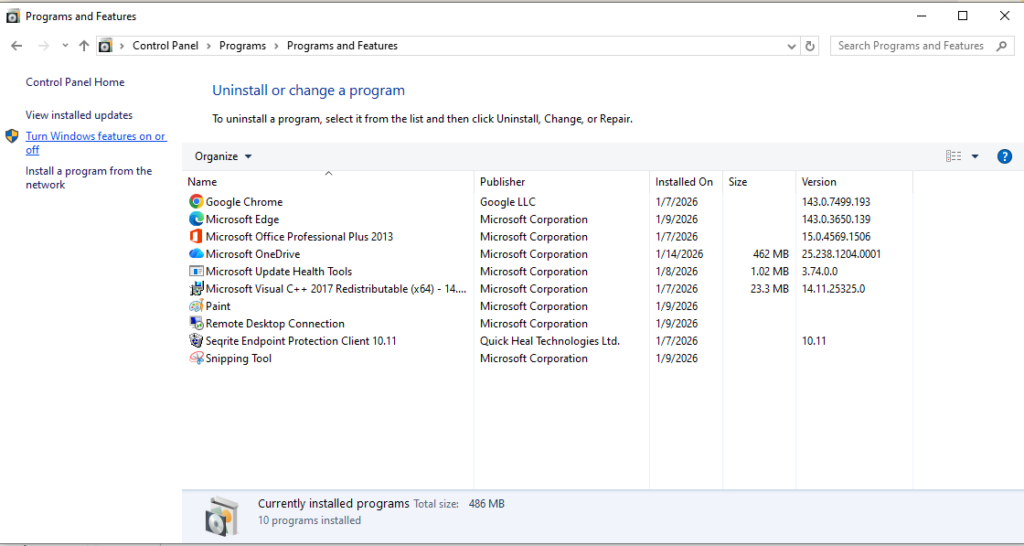
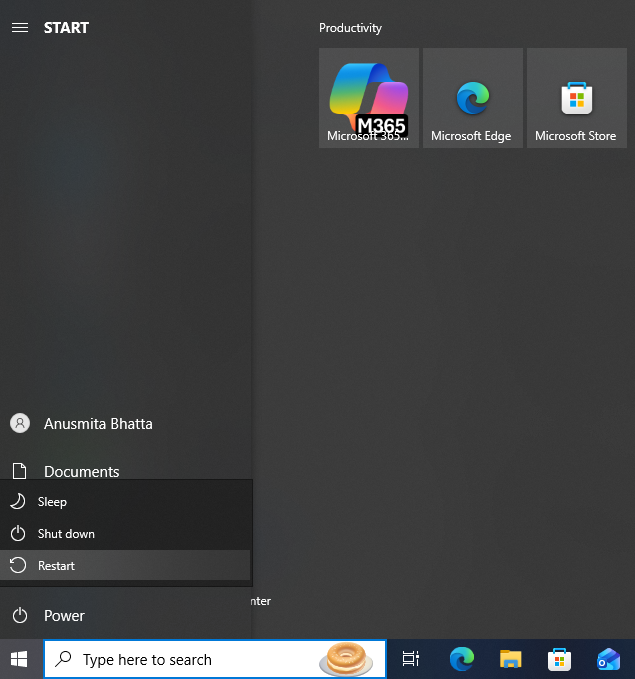
Click OK to save changes and restart your computer. After restart, return to the same Windows features screen, check both .NET Framework boxes again, click OK, and restart once more to complete the refresh.
What is the “Clean Install” and when should I use it for Error 1642?
Clean Install involves completely uninstalling QuickBooks and renaming installation folders before reinstalling the software from scratch. The process removes all QuickBooks program files, folders, and registry entries to ensure no corrupted data interferes with fresh installation.
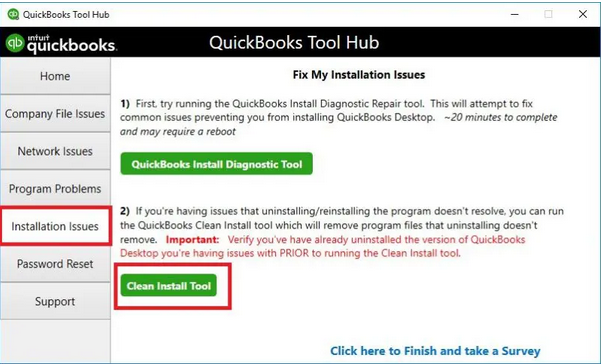
Use Clean Install only after QuickBooks Tool Hub and manual .NET Framework repairs fail to resolve Error 1642. Clean Install is the last resort for severe corruption that simpler repair methods cannot fix.
Is Error 1642 specific to Windows 11?
Error 1642 occurs on both Windows 10 and Windows 11 operating systems. The error appears more commonly on systems that recently upgraded their operating system without updating .NET Framework components.
Windows upgrades sometimes leave .NET Framework in an inconsistent state that triggers installation errors. The error frequency does not depend on the specific Windows version but rather on the .NET Framework maintenance state after system changes.
How do I check if .NET Framework is installed on my computer?
Open the Start menu, type “Control Panel,” and open it. Navigate to Programs and then Programs and Features. Click “Turn Windows features on or off” in the left sidebar. Look for entries starting with .NET Framework in the features window.
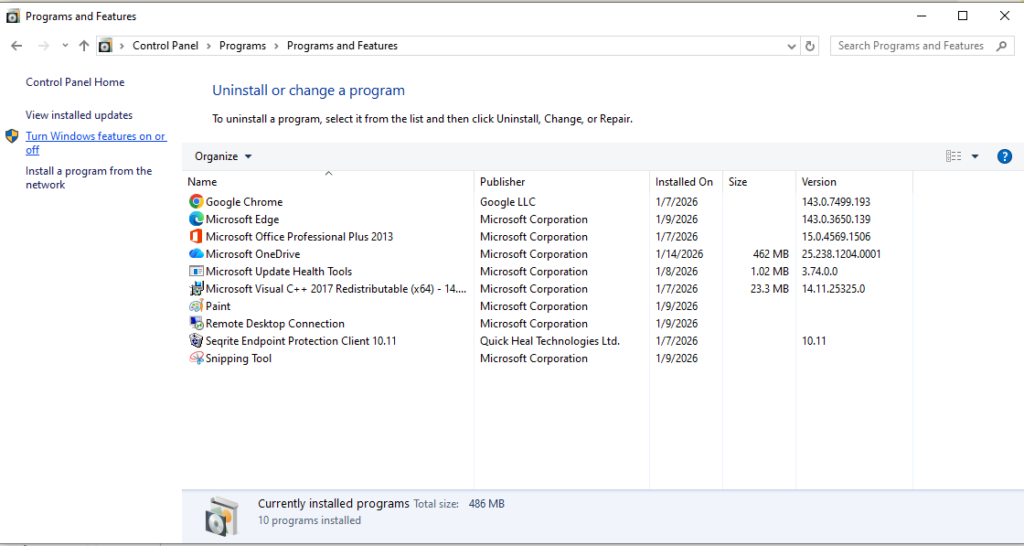
Filled or checked boxes indicate .NET Framework is installed and enabled. Empty boxes mean the component is present on your system but not currently enabled.
How do I know which version of .NET Framework I am running?
Open Windows Settings and navigate to Apps, then Apps & Features. Search for “.NET” in the application list to see all installed .NET Framework versions. You can also check through Command Prompt by opening it as Administrator.
How to Open Command Prompt: The shortest method is to press the key-combination “Windows + R” and then the ‘Run’ Window will open. There you should type ‘cmd’ and press enter to open the command prompt.
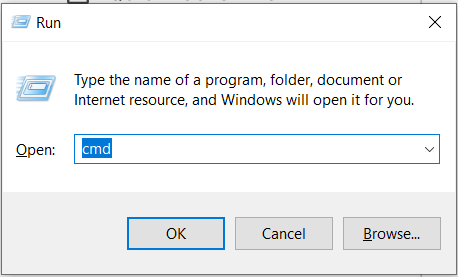
Type the command: reg query “HKLM\SOFTWARE\Microsoft\NET Framework Setup\NDP” /s and press Enter to list every .NET Framework version folder in your Windows Registry.
Why do we need Microsoft .NET for QuickBooks Desktop?
QuickBooks Desktop uses Microsoft .NET Framework to run web-based applications and core features within the software. .NET Framework acts as a bridge between QuickBooks and Windows, allowing the accounting software to communicate with other programs and access system resources.
The framework provides essential libraries for networking, security, and database access that QuickBooks operations depend on. QuickBooks requires both .NET Framework 4.5 (or later versions including 4.6, 4.7, and 4.8) and .NET Framework 3.5 SP1 to function properly.