
QuickBooks Error 12029 occurs when QuickBooks Desktop cannot connect to Intuit’s update servers due to a network timeout. This error is part of the 12xxx series, which covers internet-related issues such as network interruptions, interrupted SSL/TLS issues and authentication failures.
Users encounter this specific code when the application initiates a request but receives no response from the destination server within the predefined time limit, halting all payroll updates and software patches.
QuickBooks Desktop uses your computer’s internet settings to connect to the web and download updates. QuickBooks Update Error 12029 happens when something blocks this connection, like a firewall, incorrect security settings, or a proxy server. This prevents QuickBooks from reaching Intuit’s servers, stopping updates from downloading.
QuickBooks Error 12029 forces the software to abort the operation to maintain local data consistency, leaving the user without vital tax table updates or security improvements.
This guide explains QuickBooks Error 12029 in simple terms, shows common reasons it happens, and gives easy steps to fix it. It starts with basic internet and connection checks and then moves to more advanced troubleshooting if needed, helping you get QuickBooks back online.
What Is QuickBooks Error 12029?
QuickBooks Error 12029 is a connectivity error that occurs when the software cannot access the internet to download updates or validate subscription data. The official error message states:
“Problem Error 12029: QuickBooks failed to connect to the internet because of a network timeout.”
This error happens when QuickBooks cannot connect to Intuit’s servers. QuickBooks uses your computer’s internet settings (through Internet Explorer) to access online features, so if there are restrictions or incorrect settings in Windows’ internet options, it can block QuickBooks from working properly online.
QuickBooks Update Error 12029 manifests during specific operations:
- Downloading the latest QuickBooks Desktop release.
- Updating payroll tax tables for employee checks.
- Authenticating an Intuit account or subscription status.
- Sending payroll data to the Intuit service center.
QuickBooks Error 12029: Quick Checklist
Before initiating deep system modifications, perform these five verification steps to solve simple environment issues:
| 1. Verify External Connectivity | Visit a secure site like (e.g.,https://quickbooks.intuit.com/) in your browser. A failure to load external sites confirms a general ISP or hardware issue rather than a QuickBooks-specific error. |
| 2. Validate TLS 1.2 Settings | Intuit requires TLS 1.2 for all data transmissions. Ensure this protocol is enabled in your Windows Internet Options to prevent the server from rejecting your connection request. |
| 3. Audit Security Software | Third-party antivirus programs often flag QuickBooks’ update executables as suspicious. Check your quarantine folder or real-time protection logs for blocked QuickBooks processes. |
| 4. Confirm System Date and Time | Security certificates expire if the system clock deviates significantly from the server time. Sync your Windows clock with an internet time server to ensure certificate validity. |
| 5. Restart the Network Hardware | Power-cycling your router and modem clears cached DNS entries and refreshes your IP assignment, often resolving temporary routing bottlenecks. |
Root Causes of QuickBooks Error 12029
QuickBooks Error 12029 usually happens when the software cannot connect to Intuit’s servers. Several common issues in your computer or network can cause this error:
1. Outdated Security Protocols
QuickBooks needs modern encryption (TLS 1.2) to safely communicate with Intuit servers. If your computer is still using old protocols like SSL 2.0 or 3.0, the connection is blocked, causing the error.
2. Firewall Blocking
Your Windows Firewall or antivirus firewall may prevent QuickBooks from using the required internet port (443). If this port is blocked, QuickBooks cannot download updates or access online services.
3. Incorrect Internet Settings
QuickBooks uses Internet Explorer’s settings to access the internet. If your LAN or proxy settings are wrong or outdated, QuickBooks cannot reach the server.
4. Antivirus Interference
Some antivirus programs may mistakenly block QuickBooks’ update processes. When this happens, the connection fails silently, resulting in the 12029 error.
5. Unstable Internet Connection
If your internet is slow, unstable, or experiencing packet loss, QuickBooks may not get a response from the server in time. This timeout triggers the error.
6. Corrupted Windows Network Files
If Windows system files that manage internet connections are damaged, QuickBooks may not be able to start a connection at all, leading to the error.
QuickBooks Error 12029: Deep Diagnosis
Finding the exact cause of QuickBooks Error 12029 requires checking the network outside of QuickBooks. These tests help determine whether the problem is with your computer, your home or office network, or your internet service provider (ISP).
1. Run a Ping Test
The Ping command checks whether your computer can reach the Intuit server. Open the Command Prompt and type ping updates.intuit.com.
- Successful Reply: Shows that your computer can find the server and send small test signals through your network. This confirms that your internet connection and DNS settings are working.
- Request Timed Out: Indicates that your computer cannot reach the server. This usually happens if a firewall, router, or ISP is blocking the connection.
2. Use Traceroute (Tracert)
Traceroute shows the path your data takes from your computer to the Intuit server. Open the Command Prompt and type tracert updates.intuit.com.
- Hops 1-3: Represent your home or office router and your ISP’s main gateway. This helps identify issues in your local network.
- Timeouts at later steps: Suggest that the problem occurs further out on the internet, possibly with Intuit’s server network or large internet providers.
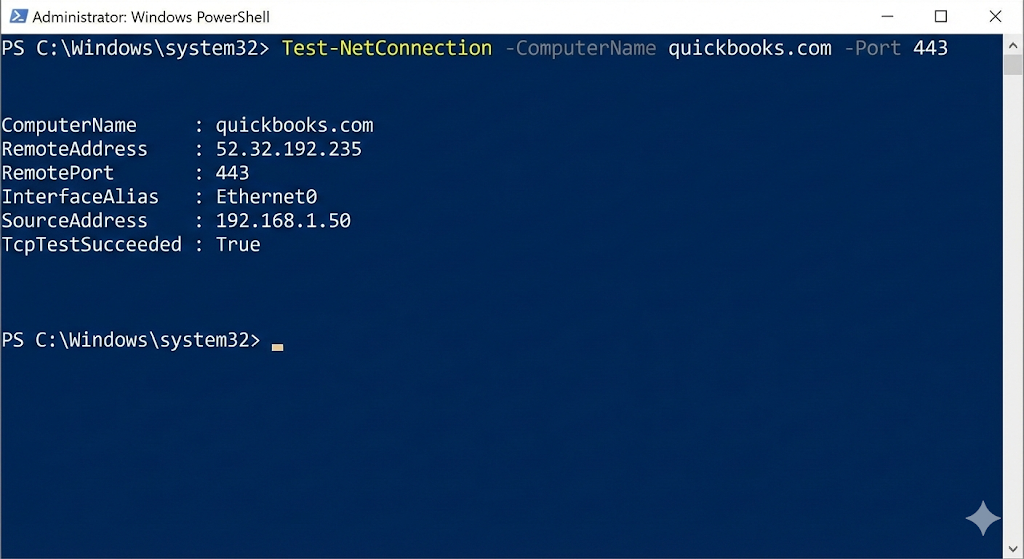
3. Check Port 443 with PowerShell
QuickBooks needs a secure connection to download updates. Open PowerShell and type Test-NetConnection updates.intuit.com -Port 443.
- TcpTestSucceeded: True: Confirms that your computer can connect through the required secure port.
- TcpTestSucceeded: False: Shows that a firewall, router, or security program is blocking the connection, which directly causes Error 12029.
Solutions with Cause: QuickBooks Update Error 12029
Follow these structured five solutions given below to understand and solve the main problems identified in the diagnostic phase for QuickBooks Update Error 12029.
| Solution 1: Configure Internet Explorer for QuickBooks Solution 2: Reset QuickBooks Update Infrastructure Solution 3: Create Firewall Exceptions Solution 4: Perform a Clean Boot for Testing Solution 5: Install Digital Signature Certificates |
Solution 1: Configure Internet Explorer for QuickBooks
QuickBooks Desktop uses the Internet Explorer (IE) engine to manage its online features, including updates and access to Intuit’s servers. If the settings in IE are not correctly configured, it may block QuickBooks from connecting to the internet, leading to errors like 12029.
Internet Explorer is included with Windows and can be found under the Start Menu > Windows Accessories > Internet Explorer. By adjusting the right settings in IE, you can restore the connection, allowing QuickBooks to work properly with online services and updates.
Step 1: Close QuickBooks and open Internet Explorer.
Step 2: Select Tools and then Internet Options.
Step 3: Navigate to the Security Tab and select the Globe icon (Internet). Set the security level to Medium-High.
Step 4: Go to the Connections Tab and click LAN Settings. Ensure Automatically Detects Settings is checked and Use a Proxy Server is unchecked (unless required by your IT department).
Step 5: Navigate to the Advanced Tab. Scroll down to the Security section. Ensure TLS 1.2 is checked and SSL 2.0/3.0 are unchecked.
Step 6: Click Apply and OK.
Solution 2: Reset QuickBooks Update Infrastructure
Cached or corrupted update files can block new updates from being downloaded, leading to QuickBooks errors like 12029. Resetting QuickBooks’ update folder removes any old or damaged files and forces QuickBooks to start fresh with a new connection to Intuit’s servers. This ensures that QuickBooks can download the most up-to-date files and perform updates without issues.
Step 1: Open QuickBooks and go to the Help menu.
Step 2: Select Update QuickBooks Desktop.
Step 3: Click the Update Now tab.
Step 4: Check the Reset Update box to wipe the local update cache.
Step 5: Click Get Updates. This action triggers a new issue with the Intuit server using the updated IE settings.
Solution 3: Create Firewall Exceptions
A firewall can sometimes block QuickBooks from accessing the internet, leading to errors such as 12029. Manually creating exceptions for QuickBooks in the firewall settings allows the program to communicate with the necessary servers without interruption. This process ensures QuickBooks can send and receive updates without being blocked by security software or system restrictions.
Step 1: Open the Windows Start Menu and type “Firewall.” Select Windows Defensive Firewall.
Step 2: Click Advanced Settings.
Step 3: Right-click Inbound Rules and select New Rule.
Step 4: Choose Port and click Next. Ensure TCP is selected and enter the specific ports for your version (e.g., 80, 443, and version-specific ports like 8019).
Step 5: Set the action to Allow the Connection.
Step 6: Repeat these steps for Outbound Rules.
Solution 4: Perform a Clean Boot for Testing
Background applications and services often interfere with QuickBooks, causing issues with updates and connectivity. A clean boot starts the computer with only essential programs and services, preventing third-party applications from interfering with QuickBooks. This method helps isolate the root cause of the issue. If QuickBooks works fine in clean boot mode, you can identify which program is causing the issue by re-enabling them one by one.
Step 1: Press Windows + R, type msconfig, and hit Enter.
Step 2: On the General Tab, select Selective Startup and uncheck Load Startup Items.
Step 3: On the Services Tab, check Hide all Microsoft services and click Disable all.
Step 4: Restart the computer and attempt the QuickBooks update. Success in this mode identifies a third-party application as the cause of Error 12029.
Solution 5: Install Digital Signature Certificates
Windows uses digital signature certificates to verify the authenticity of software updates. If QuickBooks is missing the necessary certificate, updates may fail to download or be recognized as legitimate, resulting in errors like 12029. Installing the correct digital signature certificates helps Windows trust QuickBooks updates, ensuring they are secure and preventing update timeouts.
Step 1: Navigate to C:\Program Files\Intuit\QuickBooks.
Step 2: Right-click QBW32.exe and select Properties.
Step 3: Click the Digital Signatures tab. Select Intuit, Inc. from the list and click Details.
Step 4: Click View Certificate and then Install Certificate.
Step 5: Follow the wizard to complete the installation and restart QuickBooks.
Enterprise Scenarios Impacting QuickBooks Error 12029
In corporate environments, network topography is more complex, introducing additional layers where a QuickBooks 12029 update error can occur. Given below are some of the examples of enterprise scenarios that can impact QuickBooks Error 12029:
1. SSL Inspection and Deep Packet Inspection (DPI)
Enterprise-grade firewalls often decrypt HTTPS traffic to scan for threats. This process replaces the Intuit server certificate with a local firewall certificate. Because QuickBooks does not recognize the firewall’s certificate, it terminates the connection, resulting in a timeout error.
Resolution: IT administrators must whitelist the *.intuit.com and *.quickbooks.com domains to bypass SSL inspection.
2. Authenticated Proxy Servers
QuickBooks Desktop does not support proxy servers that require a username and password at the application level. If the corporate proxy challenges the update request for credentials, the request stalls and times out.
Resolution: Configure the proxy to allow “unauthenticated” traffic for all Intuit-related IP addresses.
Prevention of QuickBooks Error 12029
Maintaining a stable environment prevents connectivity errors from recurring.
- Use a Wired Connection: Ethernet provides more stable packet delivery than Wi-Fi, reducing the risk of timeouts during large update downloads.
- Automate Windows Updates: Keeping the OS updated ensures your TLS libraries and security certificates remain current.
- Schedule Updates During Low Traffic: Running updates when network usage is low reduces the chance of ISP-level congestion causing a 12029 error.
- Monitor Antivirus Logs: Periodically check your antivirus “Allowed List” to ensure QuickBooks executables haven’t been removed after a software update.
Real Case Studies: QuickBooks Error 12029
Case 1: The Outdated Protocol
A small business could not update payroll for three days. Diagnosis showed the office manager had disabled TLS 1.2 in Internet Explorer to access an old government website. Once TLS 1.2 was re-enabled, Error 12029 disappeared, and payroll processed instantly.
Case 2: The Over-Zealous Firewall
A manufacturing firm encountered 12029 after installing a new hardware firewall. The firewall was blocking all outbound traffic except for web browsers. Creating an “Inbound/Outbound” rule for QuickBooks port 443 restored connectivity for the entire accounting team.
Information to Keep Handy Before Contacting Support
If the QuickBooks update Error 12029 continues after following this guide, prepare the following details for an expert:
- The exact version and build of QuickBooks (found by pressing F2).
- The results of the Test-NetConnection PowerShell test.
- A list of current antivirus and firewall software.
- Confirmation of whether other computers on the same network face the same error.
If immediate payroll or update access is required and internal troubleshooting has reached its limit, connecting with a QuickBooks expert like us can help isolate enterprise network constraints and restore secure connectivity efficiently. Contact QuickBooks Support: +1-802-778-9005
Conclusion
QuickBooks Error 12029 is a manageable network timeout issue rooted in the system’s internet configuration or security barriers. By systematically verifying TLS protocols, clearing IE settings, and authorizing QuickBooks through the firewall, users can restore the secure link to Intuit’s servers.
Regular system maintenance and adherence to modern security standards ensure that QuickBooks remains a reliable tool for financial management without the interruption of connectivity errors.
Frequently Asked Questions
How does Error 12029 differ from Error 12007?
Error 12007 indicates that QuickBooks fails to reach Intuit servers at all, commonly due to DNS resolution issues or blocked internet access. Error 12029 confirms that QuickBooks initiated a connection but the request timed out, meaning the server or a network layer did not respond in time.
Intuit classifies Error 12007 as a connectivity failure and Error 12029 as a WinHTTP timeout error, which points to firewall, proxy, or TLS-related interruptions rather than a complete lack of internet. Both errors belong to the 12000-series update failures, but Error 12029 reflects a more advanced connection attempt that fails during data exchange.
Can I fix Error 12029 without Internet Explorer?
QuickBooks Desktop relies on Windows Internet components (WinHTTP and MSHTML) that originate from Internet Explorer, even though Microsoft retired the IE browser itself. Internet Options inside Windows Control Panel still control TLS, SSL, and proxy settings that QuickBooks uses for update authentication.
Microsoft documentation confirms that many Windows applications continue to depend on these underlying components for secure web requests. Configuring Internet Options remains mandatory for resolving Error 12029. Ignoring these settings prevents QuickBooks from establishing secure HTTPS connections to Intuit servers.
Why did my update work yesterday but fail today with Error 12029?
QuickBooks update success depends on dynamic network conditions, not just local internet availability. Antivirus or firewall definition updates can introduce new outbound traffic restrictions that block WinHTTP connections.
Internet service providers may also change routing paths, which can disrupt access to specific Intuit server clusters without affecting general browsing. Intuit confirms that update errors can appear suddenly due to environmental or security changes, even if no QuickBooks settings were modified.
Will resetting my updates delete my company data?
Resetting QuickBooks updates only removes temporary updates and download cache files, not company data. The process does not modify or access the .QBW company file, transaction history, payroll records, or financial reports.
Intuit explicitly states that update resets affect program update components only, making this step safe for production environments. This action simply forces QuickBooks to download fresh update files from Intuit servers.
How to fix QuickBooks Error 12029?
Fixing QuickBooks Error 12029 requires restoring secure outbound HTTPS communication between QuickBooks and Intuit servers. Intuit recommends verifying firewall and antivirus exceptions, enabling correct TLS settings, and confirming Internet Options configuration.
Resetting QuickBooks updates, updating Windows components, and running network diagnostics through QuickBooks Tool Hub directly addresses the WinHTTP timeout condition.
Successful resolution occurs once QuickBooks can complete a secure server connection without interruption.
How do I fix a QuickBooks update error?
QuickBooks update errors are resolved by identifying network, security, or system configuration blocks that prevent communication with Intuit servers. Intuit recommends starting with Tool Hub diagnostics, followed by firewall checks, Windows updates, and browser security validation.
Most update failures do not involve data corruption and instead stem from environmental restrictions. Following Intuit’s stepwise troubleshooting sequence restores update functionality in the majority of cases.
“Could not perform WinHTTP operation” Error 12029 – Could not connect to server! What does this mean?
This message confirms that QuickBooks attempted a WinHTTP web request and failed to receive a response within the allowed timeout window. Microsoft documents WinHTTP timeouts as indicators of blocked, delayed, or filtered network traffic.
QuickBooks uses WinHTTP for update delivery, so firewall rules, proxy settings, or disabled TLS protocols commonly trigger this failure. Restoring unrestricted HTTPS traffic resolves the WinHTTP error without requiring software reinstallation.