
QuickBooks Payroll Update Error PS032 is a common subscription issue often triggered by internal system corruption, typically involving the Component Payroll Service (CPS) folder, or by simple administrative blocks such as outdated billing information or overly restrictive Windows settings like User Account Control (UAC). The error essentially prevents QuickBooks from properly connecting to and downloading the necessary payroll data, halting essential functions.
To resolve this issue efficiently, it is best to first tackle the most straightforward administrative checks. Begin by confirming that your payroll subscription is active and that all associated billing and credit card details are accurate and current. If the problem persists, the next proven step is to address internal file corruption by renaming the CPS folder. This action forces the system to download a clean, uncorrupted version upon the next update attempt.
Further technical remedies include resolving permission conflicts by running QuickBooks as an administrator to bypass UAC blocks, and using the software’s built-in Verify and Rebuild Data utilities to scan for and repair any deeper corruption within the company file itself. Ensuring these steps are completed, along with verifying the software is fully updated and registered, will successfully restore critical payroll functions.
Quick Info
- Error Trigger: The error is triggered when QuickBooks fails to download or install the latest payroll tax table update.
- Primary Causes:
- Corrupted files in the CPS (Component Payroll Service) folder.
- Outdated or inaccurate billing information for the Payroll subscription.
- High User Account Control (UAC) settings blocking the writing of new tax table files.
- Corrupted QuickBooks company files (requiring Verify and Rebuild).
- Unregistered or outdated QuickBooks Desktop software.
- Core Solutions:
- Verify the Payroll Subscription Status (must be Active) and update billing information.
- Rename the CPS folder (e.g., to
CPSOLD) to clear corrupted components, forcing QuickBooks to create a clean folder. - Run QuickBooks as “administrator” to bypass UAC permission issues temporarily.
- Use the Verify Data and Rebuild Data utilities to fix internal company file inconsistencies.
- Safety Precaution: If using Assisted Payroll, users should contact QuickBooks Support before running the Rebuild Data utility to prevent tax filing errors.
What is QuickBooks Payroll Update Error PS032?
QuickBooks Error PS032 is a payroll error that usually appears when a payroll tax table update fails. This can happen due to corrupted program files, outdated billing information, inactive payroll subscription, damaged CPS folder or incomplete QuickBooks Desktop installation.
When this payroll update error occurs, you’ll see a warning prompt on your screen that says:
“(PS032) QuickBooks is having trouble installing your payroll update.”
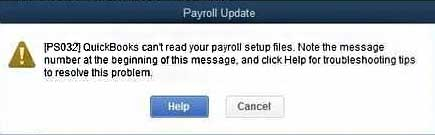
If you click the Help option on this prompt, QuickBooks may display another message:
“We couldn’t find that answer for you. Use the Back button to try again.”
Possible Reasons For QuickBooks Payroll Error PS032
Understanding the root cause of Error PS032 is the first step toward a permanent fix, as this issue stems from specific problems within your payroll setup or system configuration.
- Corrupted Internal Files:
- Damaged Tax Tables: The files that tell QuickBooks the current tax rates have become corrupted or damaged.
- Faulty Payroll Folder: There are damaged or invalid files specifically inside your core Components/Payroll folder, preventing updates from loading correctly.
- A Broken CPS Folder: The Component Payroll Service (CPS) folder, which manages the connection to the payroll server, is damaged or corrupted.
- Administrative & Billing Issues:
- Outdated Billing Information: Your payment details for the payroll subscription are incorrect, expired, or have changed, causing the system to lock you out.
- Unregistered Software: Your version of QuickBooks Desktop has not been properly registered with Intuit.
- Windows Security Conflicts:
- Incorrect UAC Settings: Your computer’s User Account Control (UAC) settings are set too high or incorrectly configured, aggressively blocking QuickBooks from performing necessary updates.
- Company File Damage:
- Corrupted Company File: The core file where all your business data lives has sustained damage, which interferes with the payroll function.
Troubleshooting Methods to Fix QuickBooks Payroll Update Error PS032!
To resolve error PS032 in QuickBooks DesktopPayroll, check your payroll service subscription, edit your billing information, rename the CPS folder, disable the UAC settings, register and update QuickBooks, or run verify and rebuild data utility.
Fix#1: Verify Payroll Subscription Status and Service Key
Before diving into complex technical fixes, the fastest step is making sure QuickBooks actually recognizes and accepts your paid payroll subscription. Think of this as checking if your key fits the lock!
Goal: Verify your payroll license is active and correctly entered.
Here’s how to do a quick status check:
- Start Fresh: Close all QuickBooks windows and documents, then restart your computer. This clears out any temporary file snags.
- Go to Payroll Settings: Open QuickBooks, go to the Employees menu, and select My Payroll Service.
- Find Your Key: Choose Manage Service Key from the options.
- Confirm Status: Look at the screen. Your payroll Service Name must be correct, and the Status should clearly display Active.
- Edit if Needed: If the status is not active, or if you suspect an error, click Edit and carefully re-enter your correct service key number.
- Finalize: Click Next, make sure the “Open Payroll Setup” box is unchecked, and then click Finish.
This process confirms that the core subscription is valid, often solving the update error instantly!
Fix #2: Give Your Payroll Files a Fresh Start (Rename the CPS Folder)
Sometimes, the files QuickBooks uses to download payroll updates get “sticky” or corrupted. When this happens, they block new updates from coming through. By renaming the central Component Payroll Service (CPS) folder, we force QuickBooks to build a new, clean version automatically.
- Goal: Reset corrupted payroll download files without losing any important data.
Here’s how to rename the CPS folder:
- Shut Down: Completely close QuickBooks Desktop. Make sure no company files are open.
- Open Your Computer’s Files: Press the Windows Key + E to open File Explorer.
- Find the Payroll Folder: Navigate to the typical QuickBooks installation path:
C:\Program Files (x86)\Intuit\QuickBooks [Year]\Components\Payroll(Be sure to replace[Year]with your QuickBooks version, like2024.) - Locate the Target: Find the folder named CPS.
- Rename It: Right-click the CPS folder and choose Rename. Change the name to CPSOLD (or
CPS.old). - Test the Fix: Now, open QuickBooks and try to download the payroll update again. QuickBooks will automatically create a new, healthy CPS folder in place of the old one.
Fix #3: Double-Check Your Credit Card and Billing Details
The payroll service is subscription-based, and if your payment information is outdated, Intuit’s system might automatically block the necessary tax and payroll updates. This is a very common, easy fix!
Goal: Ensure your payment method is current and your subscription is considered valid.
Here’s how to update your billing information:
Step 1: Log In as the Boss: Open QuickBooks and log in using the authorized user account—the one that controls the billing and subscription details.
Step 2: Access Account Info: Go to the Employees menu, select My Payroll Service, and then click Account/Billing Information.
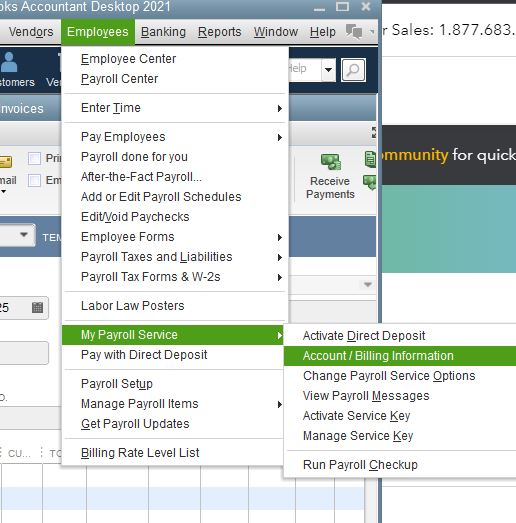
Step 3: Sign In Securely: Use your standard Intuit Account login credentials to securely sign in. You will likely be asked to verify your identity.
Step 4: Find Billing Detail: Once logged in, choose the Billing Detail section.
Important Note: If this section appears empty, it means your current login isn’t recognized as the official billing contact for the account. You may need to log in under a different administrator profile.
Step 5: Make the Changes: Select Edit billing info, carefully enter your new or corrected payment information, and click I Agree to save the changes.
After updating your details, try running the payroll update again!
Fix #4: Tell Windows to Stand Down (Run as Administrator)
Sometimes, the simplest fix is to tell your operating system to cooperate! Your Windows security settings, specifically User Account Control (UAC), can be too restrictive. UAC might view QuickBooks downloading new tax files as a threat and block the process, causing Error PS032. Running QuickBooks as an administrator bypasses this restriction temporarily.
- Goal: Give QuickBooks the highest authority to complete the update without Windows interfering.
Here’s how to run QuickBooks in “Boss Mode”:
- Close Everything: Make sure QuickBooks is completely shut down.
- Right-Click the Icon: Find the QuickBooks icon on your desktop or in your Start Menu (under All Programs). Right-click on the icon.
- Choose “Boss Mode”: Select the option Run as administrator.
- Confirm the Action: A pop-up window will appear asking if you want to allow the program to make changes to your device. Click Yes.
- Test the Update: QuickBooks will now open with elevated permissions. Try to download the payroll update again.
Important Note: These elevated permissions only last for this current session. If you close QuickBooks and open it normally later, UAC will be active again.
Fix #5: Give Your Company File a Deep Clean (Verify and Rebuild)
If the update error persists, the root problem might be deeper: corruption within your main QuickBooks company file. This damage can interfere with any core function, including payroll updates. The Verify and Rebuild Data Utility is your internal maintenance crew, designed to diagnose and repair these structural issues.
Goal: Scan your company file for damage and fix it automatically.
Part A: Verify Your Company Data (The Diagnosis)
Prep Work: Inside QuickBooks, navigate to the Window menu and select Close All.
Start the Scan: Go to the File menu, select Utilities, and choose Verify Data.
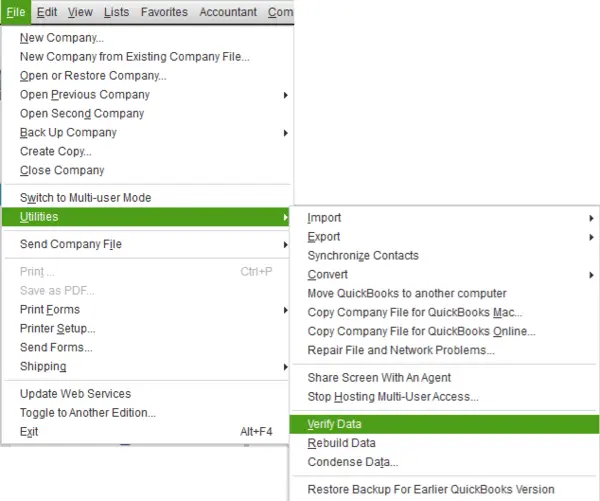
Read the Results: QuickBooks will tell you one of three things:
- “No problems with your data”: Great! The problem is likely elsewhere.
- An Error Message: Look up the specific message on the QuickBooks support site for manual fixes.
- “Your data has lost integrity”: Damage was found. You need to proceed to the Rebuild process below.
Part B: Rebuild Your Company File Data (The Repair)
Start the Repair: Go to the File menu, select Utilities, and choose Rebuild Data.
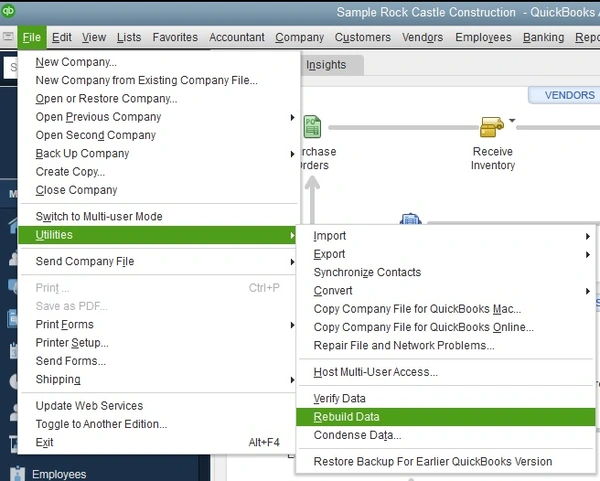
Backup is Required: QuickBooks will prompt you to create a backup first. Click OK. This is a safety net in case anything goes wrong.
Save Safely: Choose a location to save your backup file and give it a new, unique name (do not overwrite an existing backup!). Click Save.
Confirm Completion: When you see the message “Rebuild has completed”, click OK.
Final Check: Go back to File > Utilities > Verify Data one last time.
- If Damage Remains: If the Verify tool finds more damage, you may need to manually fix it. Search for the error logs in the
qbwin.logfile on the QuickBooks support site. - Final Option: If the issue still cannot be resolved, you must restore a recent backup (from before the damage occurred). Go to File and choose Open or Restore Company.
Tip: When restoring, avoid replacing your current company file right away. Restore it as a new file, and only re-enter data into your main file if absolutely necessary.
Fix #6: Make Sure QuickBooks is Registered and Up-to-Date
Sometimes, the simplest reason for an error is that your QuickBooks program itself is either using an old version or hasn’t officially validated its license with Intuit. Registration and updating are vital steps to prevent incompatibility errors like PS032.
- Goal: Ensure your software is licensed and has the latest fixes and patches.
Part A: Check Your Registration Status
Open Info Window: Press the F2 key on your keyboard while QuickBooks is open. This brings up the Product Information screen.
Verify Activation: Look next to your license number. It should clearly say Activated.
If Not Activated: If the software is not registered, you must register it immediately:
- Go to the Help menu.
- Select Activate QuickBooks Desktop.
- Follow the on-screen prompts to verify your information and complete the registration.
Part B: Get the Latest Program Updates
Start the Update: Once registered, go to the Help menu again.
Select Update: Choose Update QuickBooks Desktop.
Clear Old Files (Optional but Recommended): Click the Update Now tab. To ensure you start fresh, check the box next to Reset Update. This clears out any previous, possibly faulty, update downloads.
Download: Click Get Updates to start downloading the latest fixes.
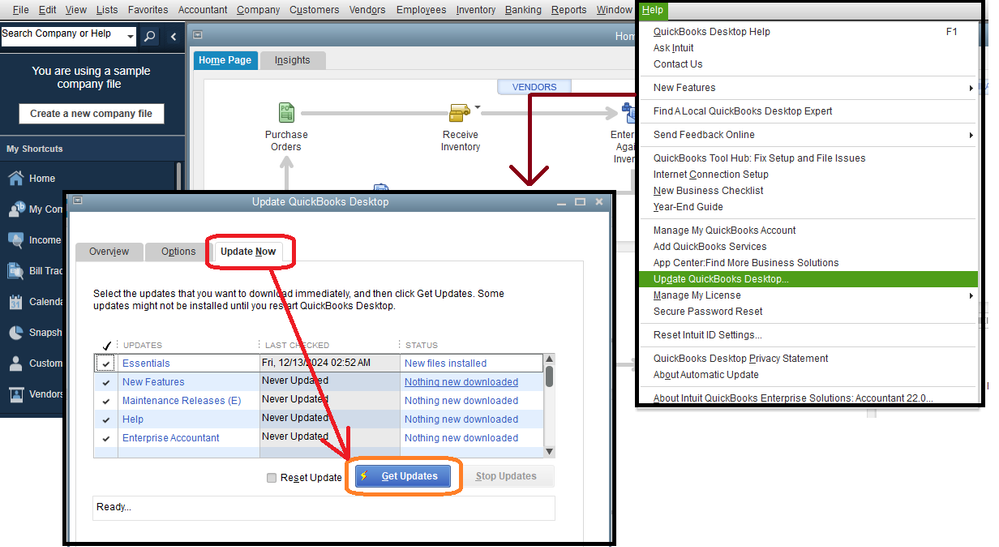
Install: Once the download finishes, close and reopen QuickBooks. You will be prompted to install the new updates.
Fix #7: Perform a Clean Reinstallation of QuickBooks Desktop
If you’ve tried everything else and the error is still there, it’s a strong sign that the core files of QuickBooks itself are fundamentally broken or damaged. The solution is a clean reinstallation, which completely wipes the program and installs a fresh, perfectly initialized copy.
Goal: Eliminate corrupted installation files by starting from scratch.
Part A: Uninstall QuickBooks (The Wipe)
Open the Control Panel: Press Windows Key + R to open the Run box, type Control Panel, and hit Enter.
Find the Programs: Go to Programs and Features (or Uninstall a Program).
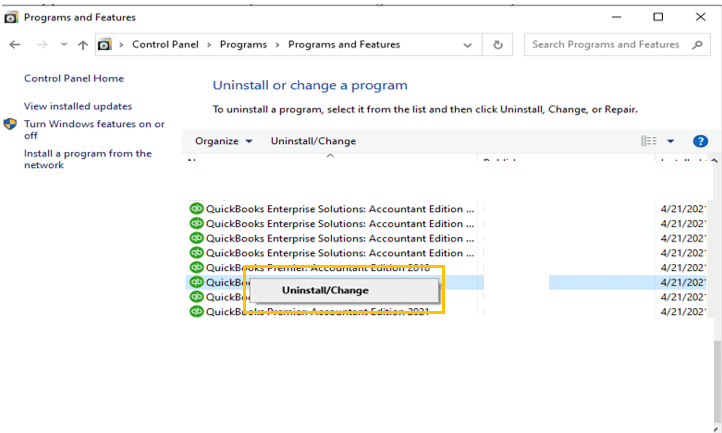
Remove QuickBooks: Find your specific QuickBooks Desktop version in the list, click on it, and select Uninstall/Change.
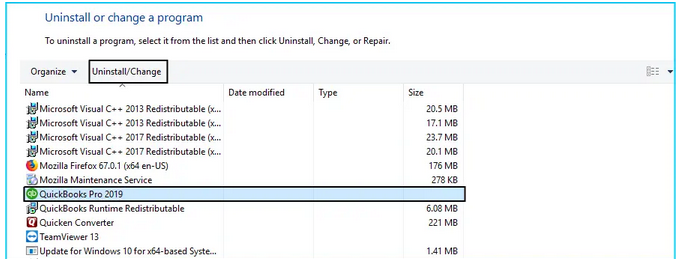
Tip: If you can’t uninstall, make sure you are logged into Windows as an Administrator.
Follow Prompts: Follow the on-screen steps to finalize the removal of the program.
Part 2: Reinstall QuickBooks
- Insert the Installation CD to the computer if you have any, and then follow the on-screen instructions to complete the installation process.
- Or, download your QuickBooks version from the QuickBooks Product Download Page in case you have purchased QuickBooks from the official Intuit website.
- Once the product is successfully installed into your system, it will ask you to enter the Product and QuickBooks License number.
Note: Type the credentials just as they were mentioned in the system earlier. - After entering the above information, follow the on-screen prompts to get the step completed.
- Click on the Next icon and then select the type of installation you want for your accounting process.
- Now, press Next and hit the Install tab.
- At the end of the process, you are all set to run QuickBooks.
Part 3: Activate QuickBooks
- Open the QuickBooks application.
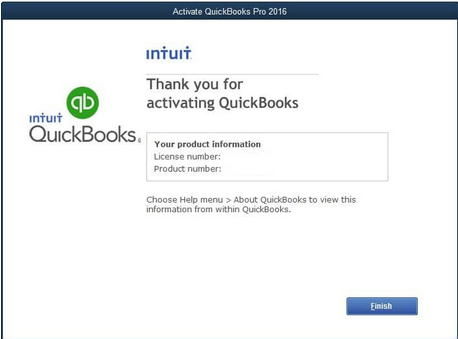
- Now, choose Activate QuickBooks Desktop from the Help menu.
- Follow the on-screen steps to verify your info.
Conclusion
QuickBooks Error PS032 is resolvable by systematically checking your subscription, updating billing details, and running diagnostic tools like Verify and Rebuild. By following these expert, step-by-step methods, you can successfully install your payroll updates and restore your system’s integrity, ensuring accurate payroll processing.
FAQ
What does Error PS032 specifically mean regarding my payroll tax table?
Error PS032 signifies that your QuickBooks Desktop application failed to download or install the latest payroll tax table update. The tax table file may be damaged or corrupted during the update process, or there could be an issue with the payroll subscription’s active status. Consequently, your ability to process payroll accurately is blocked due to potentially outdated tax calculations.
Is it safe to rename the CPS folder as suggested in the troubleshooting guide? What does the CPS folder contain?
Yes, renaming the CPS (Component Payroll Service) folder is a safe and recommended troubleshooting step. It forces QuickBooks to create a new, clean folder when the payroll update is attempted again, effectively removing any corrupted files within the old folder that were blocking the update.
The CPS folder contains essential payroll installation files, downloaded tax table files, and components vital for the software’s payroll function.
How does User Account Control (UAC) interfere with a QuickBooks payroll update, and is it risky to disable it?
User Account Control (UAC) can interfere because its default security settings may be too high, preventing QuickBooks from having the necessary administrative permissions to write new tax table files to its program directory.
Temporarily running QuickBooks “as administrator” (or temporarily moving the UAC slider to “Never Notify” for the update session) resolves this permission conflict and is generally considered safe. It is not recommended to permanently disable UAC for system-wide security.
Why is checking my billing information necessary for a payroll update error?
Checking billing information is necessary because the payroll tax table updates are a paid, subscription-based service. If the billing details (such as the credit card number, expiration date, or billing address) are outdated, inaccurate, or if a payment is missed, Intuit’s servers will invalidate the subscription’s active status, thereby blocking access to the latest tax data download, which results in Error PS032.
If the Verify Data utility finds “lost integrity,” does that mean my payroll data is permanently damaged?
No. The message “Your data has lost integrity” indicates the Verify Data utility found structural damage, inconsistencies, or file corruption within the company file. This is often fixable.
The proper course of action is to immediately run the Rebuild Data utility (Method 5), which is designed to repair these inconsistencies. You must create a backup before rebuilding, as it is required to safeguard your data against any further, unforeseen issues.
After successfully fixing Error PS032, what is the best way to verify the payroll update installed correctly?
The most accurate way to verify the successful installation of the payroll update is by checking the installed tax table version number within the QuickBooks program.
- Steps to check:
- Open QuickBooks Desktop.
- Go to the Employees menu.
- Select Get Payroll Updates.
- The current installed version number will be displayed.
Should I contact QuickBooks Support before running the Rebuild Utility if I use Assisted Payroll?
Yes, if you use Assisted Payroll, you should contact QuickBooks Support before running the Rebuild Data utility.
- Rationale: Assisted Payroll relies on specific, consistent data fields for Intuit to calculate, file, and pay your taxes correctly. Running a data rebuild without support guidance could potentially alter or misalign internal fields, creating compliance risks or issues with Intuit’s ability to process your tax filings accurately.